| Tested on | Kali GNU/Linux Rolling 2026.2 (kali-rolling) |
|---|---|
| Package | Android Studio (IDE + Device Manager) AVD: Pixel 5, Android 12 / API 31 ( Google APIs, x86_64)adb 1.0.41 / 34.0.5-debian (/usr/lib/android-sdk/platform-tools/adb)Damn Vulnerable Bank App ( dvba.apk) |
| Applies to | Kali or other Linux hosts with nested virtualization (KVM) for the official emulator; Windows and macOS hosts can follow the same AVD choices |
| Lab environment | Pentest lab |
| Privilege | Normal user for adb and the emulator; install Android Studio with your usual desktop privileges |
| Cert prep | CompTIA PenTest+ PT0-003 — mobile specialized systems (free emulator option) |
| Scope | Free Android Studio AVD lab: architecture, Google APIs vs Play images, create and boot one AVD, verify adb, install one vulnerable APK, root limits, and when Genymotion is easier. Does not cover Genymotion install/root, full MobSF, or a Frida course. |
| Related guides | Pentest lab requirements |
In this article we will set up a free Android pentesting lab with the Android Studio emulator (AVD) on Kali, then confirm the device over adb and install one intentionally vulnerable APK.
This path uses Google's official emulator and costs only disk space and RAM. It works well for early mobile app security practice on a single Kali host. When you need a rooted guest that is easier for MobSF dynamic analysis from a separate Kali VM, use the Genymotion host lab instead of forcing nested AVDs.
Test only apps and devices you own or are authorized to assess in your rules of engagement. Keep the work on an isolated lab network and disposable vulnerable APKs. Do not point these steps at production phones or third-party store apps without written scope.
This page is the Android Studio AVD path. For Genymotion Desktop on the physical host, root, VirtualBox host-only networking, and Kali adb connect, use the Genymotion Android pentest lab instead of duplicating that install here.
Android pentesting lab architecture
The free layout keeps Android Studio and the AVD on the same Kali host that runs adb. That matches how most beginners first attach an emulator: the device shows up as emulator-5554 with no extra TCP bridge. Build this beside your existing pentest lab so Kali tools and the emulator share one analysis machine.
Kali Linux (analysis host)
├── Android Studio + Android SDK
│   └── AVD — Pixel 5, Google APIs (no Play Store)
│       └── adb serial: emulator-5554
├── adb (platform-tools)
└── optional later: Frida client, MobSF, Burp| Piece | Role |
|---|---|
| Android Studio | Device Manager UI and system-image downloads |
| AVD | Emulated phone where you install test APKs |
adb |
Push APKs, open a shell, restart adbd as root when the image allows it |
| Vulnerable APK | Safe target for authorized practice |
Static scanners can run without an emulator. Dynamic work needs a reachable Android runtime. Nested virtualization (KVM on Linux, Hypervisor.framework on macOS, Hyper-V or Intel HAXM paths on Windows) must be available so the AVD is usable.
If Kali itself sits inside VirtualBox or VMware, an AVD inside that guest is often slow or blocked. In that case run Android Studio on the bare-metal host, or use Genymotion on the host and point Kali at that VM.
Install Android Studio and SDK Platform Tools
Download Android Studio from the official Android Studio page. On Linux, extract the archive, mark the launcher executable, and start it:
chmod +x studio.shchmod prints nothing when the mode change succeeds. Launch the IDE from the same bin directory:
./studio.shThe first launch downloads SDK components. Keep a stable network until that finishes.
On Kali you can also install the platform-tools package so adb is on your PATH without opening the IDE every time. Confirm the client:
adb versionSample output:
Android Debug Bridge version 1.0.41
Version 34.0.5-debian
Installed as /usr/lib/android-sdk/platform-tools/adb
Running on Linux 6.19.14+kali-amd64 (x86_64)
That version string confirms platform-tools are on the PATH. Match major adb versions between the machine that runs Studio and the shell where you type commands, or you will chase ghost devices.
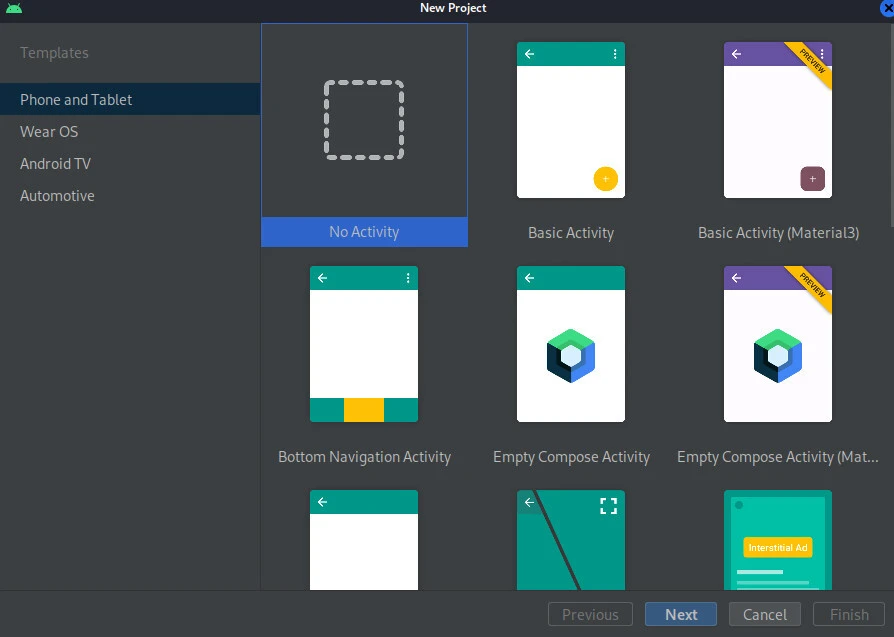
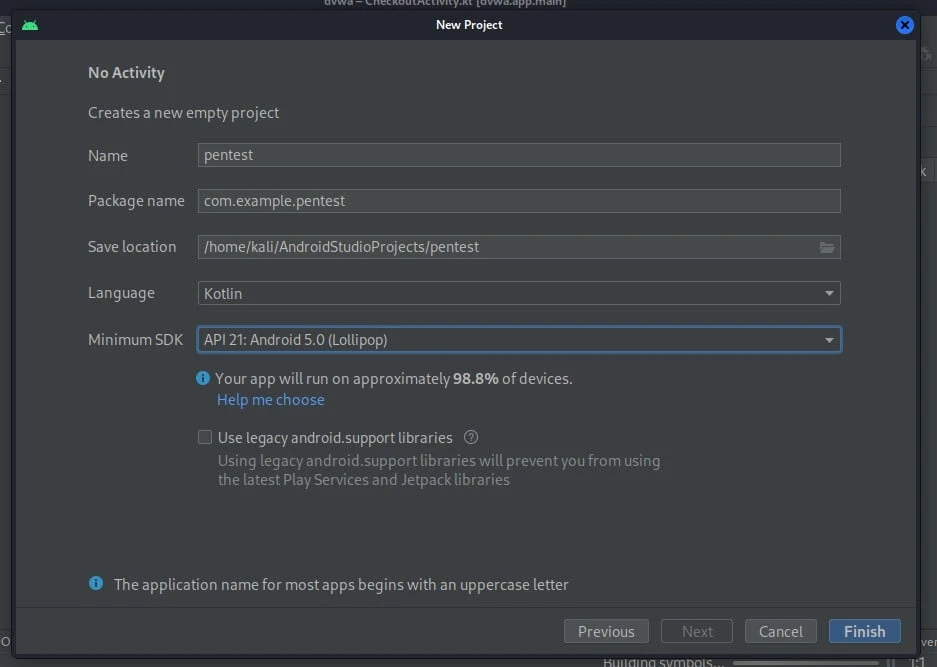
You do not need a real app to create an AVD. Device Manager can open from the Welcome screen or from an empty project. In this lab I used a stub No Activity project named pentest only so Device Manager stayed one click away:
Finish the wizard with a local save path (here /home/kali/AndroidStudioProjects/pentest). Language and minimum SDK barely matter for emulator-only work:
Create a pentest-friendly AVD
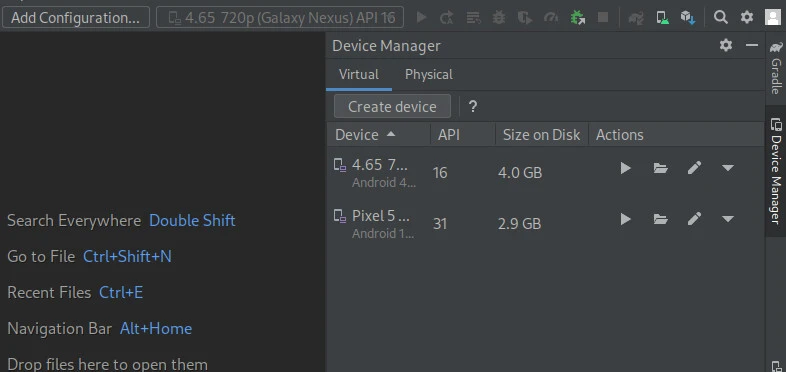
Open Device Manager (Virtual tab). Existing AVDs appear in the list. Use Create device when the list is empty or you want a clean profile:
Choose hardware
Pick a Phone definition such as Pixel 5. Hardware is mostly about screen size and density. The system image choice in the next step matters more for root and MobSF.
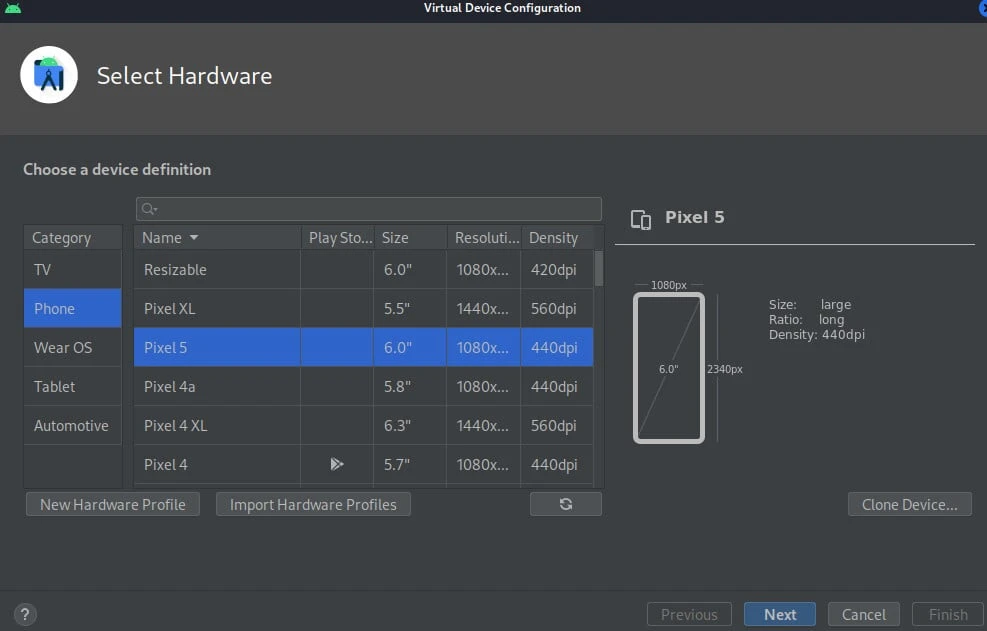
Watch the Play Store column on hardware rows. A Play icon often pairs with a Google Play system image later. Prefer definitions you can pair with Google APIs (or AOSP) images, not production Play images.
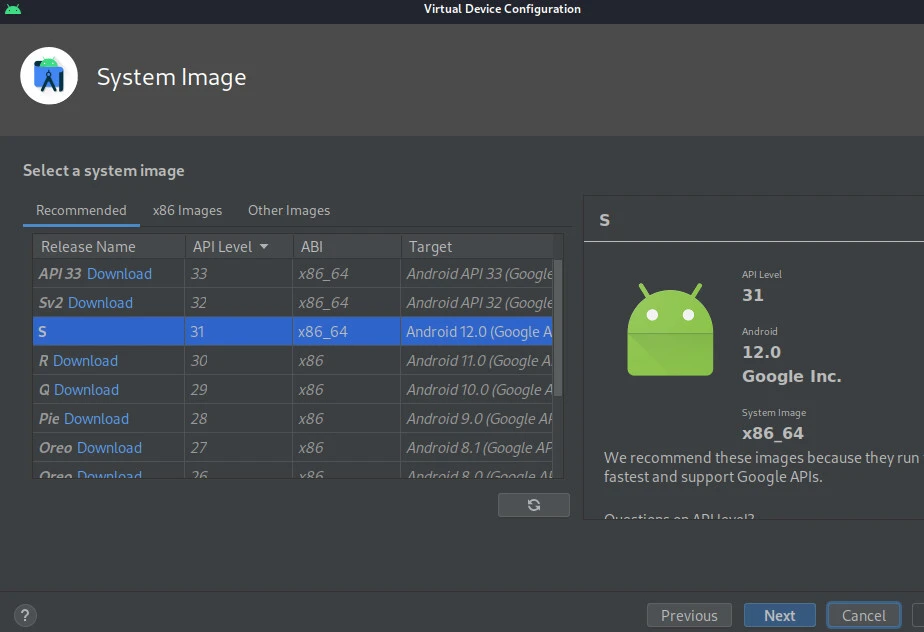
Choose a system image (Google APIs, not Play)
On System Image, pick a Google APIs (or plain AOSP) row for your ABI. Avoid Google Play / playstore images for a pentest AVD.
In this lab the Recommended tab showed Android 12.0 (S, API 31) as Android 12.0 (Google APIs) on x86_64:
| Image type | Typical use | Root / writable system |
|---|---|---|
| Google APIs / AOSP | Lab dynamic analysis, Frida, many MobSF setups | Often allows adb root and remount on supported API levels |
| Google Play (production) | Apps that hard-require Play Services | Locked; adbd cannot run as root in production builds |
MobSF’s documented Android Studio dynamic path supports rooted AVDs without Play Store through Android 11 / API 30. API 31 in the screenshots is fine for general AVD practice and Frida smoke tests. For MobSF Dynamic Analyzer, create a second AVD at API 30 or lower with Google APIs, or use the Genymotion lab that is already wired for that workflow.
Finish the AVD wizard, name the device clearly (for example Pixel_5_API_31_GoogleAPIs), and wait for the system image download.
Start the emulator and verify ADB
From Device Manager, press the play control for your AVD. Wait until the home screen is up. Cold boot when you change root or system-partition settings so Quick Boot snapshots do not undo them.
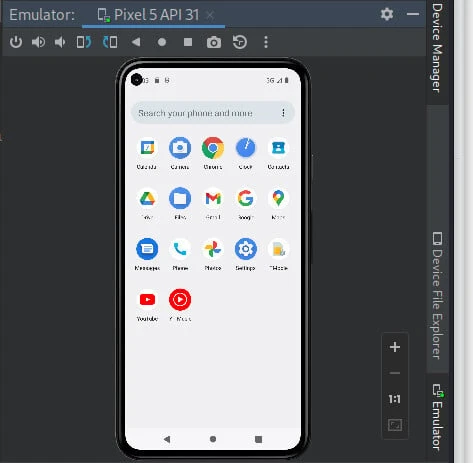
On the same Kali host, list ADB clients:
adb devicesWhen the AVD is online you should see emulator-5554 in device state:
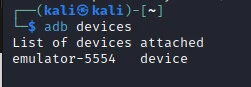
List of devices attached
emulator-5554	device
offline or an empty list usually means the emulator is still booting, adb is talking to a different SDK copy, or another tool already holds the daemon. Try adb kill-server then adb start-server once, then list devices again.
Confirm a shell before you install APKs:
adb shell getprop ro.build.version.sdkYou want the API level you selected in Device Manager (31 for the Pixel 5 Google APIs image above). Also record ABI for later Frida server selection:
adb shell getprop ro.product.cpu.abiOn this x86_64 Google APIs image the ABI is typically x86_64.
Connect Kali to the Android emulator
Same-host Kali + AVD needs no adb connect. The emulator publishes local ADB on the usual emulator-5554 serial.
Use TCP only when the emulator runs on another machine:
| Topology | How Kali reaches the AVD |
|---|---|
| Android Studio on the same Kali host | adb devices → emulator-5554 |
| AVD on a Windows/macOS host, Kali in a VM | adb connect host-ip:5555 after enabling network ADB / port forward |
| Genymotion on the physical host | Prefer the dedicated Genymotion lab (host-only IP such as 192.168.56.103:5555) |
For a remote emulator, start from the host that runs the AVD, confirm adb devices there, then from Kali:
adb connect 192.168.56.1:5555Replace the address with your host’s reachable IP and the port you forwarded. Success prints connected to …. Then adb devices should show that host:port as device.
Nested AVD inside a Kali VirtualBox guest is the layout that fails most often. Move Studio to bare metal or use Genymotion on the host when nested virt is unreliable.
Install a vulnerable Android app
Download an intentionally vulnerable APK you are allowed to test. This lab used Damn Vulnerable Bank App (dvba.apk). Keep the file on the Kali host, then install over ADB:
adb install Desktop/dvba.apkA clean install prints streamed progress and Success:
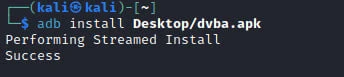
Performing Streamed Install
Success
Open the emulator app drawer and confirm the package appears. Reinstall with adb install -r when you iterate on a rebuilt APK. Use adb uninstall <package> to remove it when the lesson ends.
You now have a free Android emulator pentesting baseline: reachable device, one lab APK, and a shell. Deeper instrumentation belongs in dedicated guides rather than this setup page.
Optional smoke test after you install Frida on the host and a matching frida-server on the AVD (see the Frida Android tutorial):
frida -U DamnVulnerableBankA working bridge prints the Frida banner and a line such as Connected to Android Emulator 5554 (id=emulator-5554):
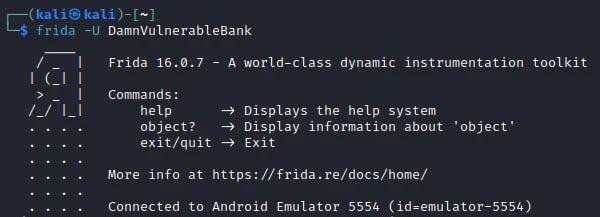
Skip Frida until the AVD and adb install steps are solid. Do not treat this page as a Frida or Objection course.
Root and image limitations
Root is what lets you push frida-server into /data/local/tmp, remount /system for some CA installs, and satisfy tools that expect a writable system image.
On Google APIs emulator images, try elevating the ADB daemon:
adb rootThen reopen a shell and check identity:
adb shell idYou want uid=0(root) when the image supports it. If you see adbd cannot run as root in production builds, you are on a Play/production image. Delete that AVD and recreate with Google APIs or AOSP.
Practical limits for this free path:
- API level for MobSF dynamic analysis — documented Android Studio support stops at API 30 with a non-Play image. Higher APIs may still help Frida labs but fail MobSF’s writable
/systemchecks. - Google Play images — convenient for Play-dependent apps, poor for root. Prefer Google APIs for security tooling.
- Writable system boot — some workflows boot with
emulator -avd NAME -writable-system -no-snapshot-loadbeforeadb remount. Use that when a tool requires a writable system partition; cold boot after changes. - Magisk / rootAVD — needed when you insist on a Play-like image. Out of scope here; stay on Google APIs when you can.
- Physical phones — optional later. Unlocking and rooting a personal device is a different risk profile than a disposable AVD.
AVD vs Genymotion for pentesting
Both can host Android application security work. Pick based on cost, root friction, and how your Kali VM is attached to the host.
| Need | Prefer Android Studio AVD | Prefer Genymotion Desktop |
|---|---|---|
| Zero license cost | Yes | Personal/free tier is limited; Pro trial/paid for full images and features |
| Official Google images | Yes | Vendor Android images |
| Same-machine beginner lab | Strong fit | Often overkill |
| Rooted guest for MobSF with Kali in VirtualBox | Possible with API ≤ 30 Google APIs | Strong fit on the physical host |
| Nested VM pain | High if Studio runs inside Kali guest | Install Genymotion on the host, keep Kali as guest |
| Latest Android for Frida experiments | Easy to download new system images | Depends on your Genymotion plan |
For MobSF dynamic analysis from this site’s PenTest+ track, the tested path is Genymotion on the host plus Kali adb. Keep this AVD article as the free alternative and learning sandbox. Hand off to MobSF app pentesting only after adb devices shows a rooted, supported runtime.
Common ADB and networking problems
| Symptom | Likely cause | Fix |
|---|---|---|
Empty adb devices |
Emulator still booting or wrong adb binary |
Wait for home screen; run which adb and prefer SDK platform-tools; adb kill-server && adb start-server |
unauthorized |
ADB debugging prompt not accepted | Wipe AVD data or revoke USB debugging authorizations, reboot, accept the RSA prompt |
offline |
Stale daemon or snapshot glitch | Cold boot the AVD; restart adbd with adb kill-server |
adbd cannot run as root in production builds |
Google Play / production image | Recreate AVD with Google APIs or AOSP |
| MobSF “/system not writeable” | API too new or Play image | Use API ≤ 30 without Play, or Genymotion per MobSF docs |
| AVD unusably slow in Kali VM | Nested virtualization | Move Studio to bare metal or use Genymotion on the host |
adb connect refused |
Port not forwarded / wrong host IP | Confirm listener on the Studio host; fix VirtualBox/VMware port forward or host-only routes |
adb install fails with signature errors |
Conflicting package already installed | adb uninstall <package> then install again |
Summary
You built a free Android pentesting lab around Android Studio’s AVD: a Google APIs image without Play Store, Pixel-class hardware, adb devices in device state, and one vulnerable APK installed for authorized practice. That is enough to start mobile dynamic work without buying an emulator license.
The traps that show up most often are production Play images that block adb root, API levels above what MobSF documents for Android Studio, and nesting the emulator inside a Kali VM. Fix those by recreating the AVD with Google APIs at a supported API, or by moving the emulator to the physical host.
When the free AVD path feels slow or root stays fragile, use the Genymotion Desktop lab for a host-side rooted device and keep Kali as the analysis VM. From either runtime, continue into Frida or MobSF guides rather than loading every Android tool onto this setup page.
References
- Create and manage virtual devices (Android Developers)
- Android Studio download
- SDK Platform Tools release notes
- MobSF dynamic analyzer (Docker) — Android Studio Emulator
- Damn Vulnerable Bank App
- Frida — Android
Frequently Asked Questions
Which Android Studio emulator image should I use for pentesting?
Use a Google APIs or AOSP system image without the Play Store for most lab work. Match the ABI to your host (x86_64 on typical Intel/AMD Kali boxes). For MobSF dynamic analysis, stay at API 30 or lower on that non-Play image.
Are Google Play AVD images rooted?
No. Play images behave like production builds. adb root usually fails with a message that adbd cannot run as root. Recreate the AVD with Google APIs when you need root for tooling.
Can Kali connect to an AVD on another VM or host?
Yes, when network ADB or a port forward exposes the emulator’s ADB port. From Kali run adb connect host:port, then confirm device state with adb devices. Same-host Kali plus AVD does not need adb connect.
AVD vs Genymotion for MobSF?
MobSF documents both Android Studio AVDs (non-Play, through API 30) and Genymotion Desktop. Genymotion on the physical host is often simpler when Kali already runs in VirtualBox. AVD is the free same-host option when nested virt works and you stay within MobSF’s API limits.
Do I need a physical Android phone?
Not for this lab. An AVD is enough to learn adb, sideload APKs, and practice instrumentation on disposable images. Use a physical device later when you must match a specific OEM build or hardware feature the emulator lacks.