| Tested on | Kali GNU/Linux Rolling 2026.2 (kali-rolling) |
|---|---|
| Package | drozer==3.1.0 (pipx)Drozer Agent 3.1.0 (com.withsecure.dz)adb 1.0.41 / 34.0.5-debianInsecureShop 1.0 (com.insecureshop) |
| Applies to | Kali Linux with adb; Android emulator or owned test device that can run the Drozer Agent |
| Lab environment | Pentest lab Genymotion Desktop lab |
| Privilege | Normal user on Kali for Drozer and adb; Agent runs as a normal Android app (root not required for this IPC lab) |
| Cert prep | CompTIA PenTest+ (mobile specialized systems / dynamic analysis) |
| Scope | Install Drozer 3.1.0 and the matching Agent, connect over adb port forward, enumerate InsecureShop exported components, start one exported activity, and inspect one content provider. Does not cover Provider SQL injection or file-traversal deep dives, Frida runtime hooks, or generic exported-component theory beyond what this lab needs. |
| Related guides | Android exported components security testing Frida Android SSL pinning bypass Burp Suite Android HTTPS interception |
In this tutorial, we will install Drozer on Kali Linux, connect it to the Drozer Agent running in Genymotion, and use it to test the intentionally vulnerable InsecureShop app. Drozer helps us test Android inter-process communication (IPC), the ways Android apps interact with components such as activities, services, broadcast receivers, and content providers.
We will first identify InsecureShop's exported components and then test what another installed app can actually access.
What Drozer is used for
Android apps talk to each other through four main component types:
| Component | Beginner explanation |
|---|---|
| Activity | A component that usually represents a screen or user interaction |
| Service | A component that performs work without displaying its own screen |
| Broadcast receiver | Responds to broadcast Intents sent by Android or other apps |
| Content provider | Exposes structured app data through content:// URIs |
An Intent is an Android message used to ask a component to do something. Examples include opening an Activity, starting a Service, or delivering a broadcast.
If one of these components is exported, another app may be able to interact with it. Whether that is actually a vulnerability depends on permissions, authentication and what the component does.
An exported component is available for interaction from outside its own app, subject to any permissions or other access checks. Exported does not automatically mean vulnerable.
Drozer has two parts. The Drozer console runs on Kali and lets you enter testing commands. The Drozer Agent runs as an Android app on the device. Commands from Kali are sent to the Agent, which interacts with other Android apps using the same IPC mechanisms available to an installed application.
  Kali Linux                         Android device / emulator
  ┌─────────────────────┐            ┌──────────────────────────┐
  │ drozer console      │   TCP      │ Drozer Agent             │
  │ (pipx / Python)     │◄──────────►│ Embedded Server :31415   │
  └─────────┬───────────┘  adb fwd   └────────────┬─────────────┘
            │                                     │
            │ modules (Intent, Provider, …)       │ Binder / IPC
            └─────────────────────────────────────► other packages
                                                    (e.g. InsecureShop)
In this lab, adb forward carries Drozer's console connection between Kali and the Agent. The Agent then makes the actual Android IPC calls to InsecureShop.
Root access is not required for the IPC tests in this tutorial. The Drozer Agent interacts with the target from the perspective of another installed Android app. This is useful because it lets us test what a normal app can access, rather than relying only on the more privileged ADB shell.
Use Drozer when you need answers such as:
- Which Android components does an app expose to other apps?
- Which of those components can another app actually access?
- Can another app start this activity or query this provider right now?
Finding an exported and reachable component identifies attack surface, but it does not by itself establish a serious vulnerability. You still need to determine what the component exposes, what access checks it performs, and what security impact an external app can cause.
Static tools such as MobSF can show that a component is declared as exported. Drozer complements that static result by testing how the component behaves at runtime.
Install Drozer and Drozer Agent
Install the console on Kali first, then the matching Agent APK on the Android guest. This lab uses version 3.1.0 for both the Drozer console and Agent. Keeping their versions matched avoids compatibility warnings and differences in behavior.
Confirm adb can see the emulator. On this Genymotion host-only lab the device was 192.168.56.103:5555:
adb devices -lList of devices attached
192.168.56.103:5555 device product:vbox86p model:Phone device:vbox86p transport_id:1The device status means ADB is ready. If the line shows offline or is empty, fix the emulator connection before installing packages. You do not need the guest IP in most Drozer commands when you use adb forward, but you do need a healthy ADB session.
This tutorial uses pipx to keep Drozer isolated from Kali's system Python. If pipx is not already installed, refresh the package index and install it:
sudo apt updateInstall the pipx package from Kali's repositories:
sudo apt install -y pipxMake sure commands installed by pipx are available from your shell:
pipx ensurepathInstall Drozer with pipx:
pipx install drozer installed package drozer 3.1.0, installed using Python 3.13.12
These apps are now available
- drozer
- drozer-complete
- drozer-repositoryIf drozer is not found after installation, open a new terminal and try again.
Check that Drozer was installed successfully:
drozerusage: drozer [COMMAND]
Commands:
agent
console
module
...Seeing the Drozer usage information confirms the command is available.
Create a working directory for the Agent and training APKs:
mkdir -p ~/drozer-labThe console runs on Kali, but Drozer also needs its Agent app on Android. Download the matching Agent APK:
curl -fL -o ~/drozer-lab/drozer-agent-3.1.0.apk \
  https://github.com/ReversecLabs/drozer-agent/releases/download/3.1.0/drozer-agent.apk
Install that Agent file on the attached emulator:
adb install -r ~/drozer-lab/drozer-agent-3.1.0.apkPerforming Streamed Install
SuccessConfirm the installed package version is 3.1.0:
adb shell dumpsys package com.withsecure.dz | grep -E 'versionName|versionCode' versionCode=33 minSdk=17 targetSdk=33
versionName=3.1.0Download the InsecureShop training APK used in the rest of this lab (same Optiv v1.0 build as the MobSF and Frida articles):
curl -fL -o ~/drozer-lab/insecureshop.apk \
  https://github.com/optiv/InsecureShop/releases/download/v1.0/insecureshop.apk
Install it on the emulator:
adb install -r ~/drozer-lab/insecureshop.apkPerforming Streamed Install
SuccessConnect Kali to the Android Agent
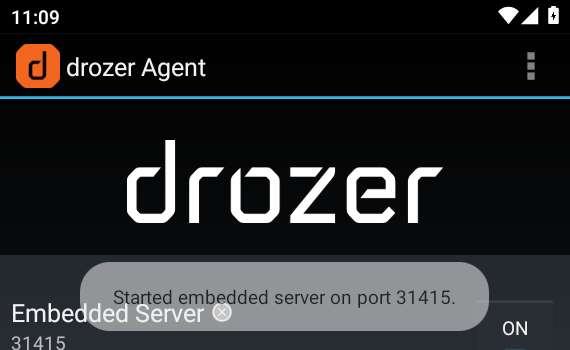
Open drozer Agent on the Android device and turn the Embedded Server ON. The server listens on port 31415 and must be running before the Drozer console on Kali can connect.
adb shell am start -n com.withsecure.dz/com.WithSecure.dz.activities.MainActivityStarting: Intent { cmp=com.withsecure.dz/com.WithSecure.dz.activities.MainActivity }When the server starts, Android should show a short toast such as Started embedded server on port 31415, with Embedded Server, port 31415, and ON at the bottom of the Agent screen:
Tap the Embedded Server row to open the Server details screen. After adb forward and a successful drozer console connect, Enabled, Connected, and Active Sessions turn green:
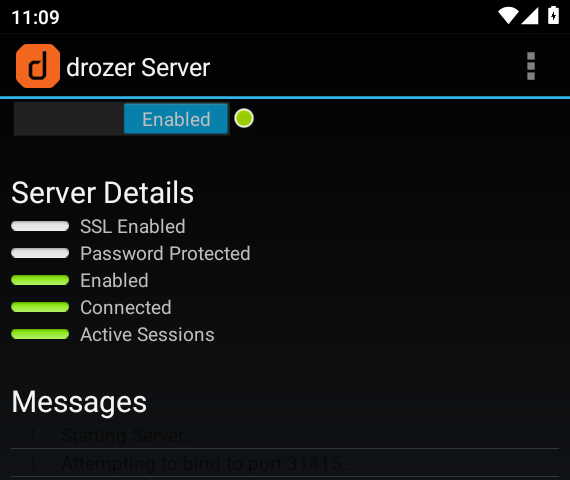
If Connected does not turn green, troubleshoot the Agent connection before running Drozer modules.
Next, forward Kali's local port 31415 to the same port on the Android device. This lets the Drozer console reach the Agent through the existing ADB connection:
adb forward tcp:31415 tcp:3141531415Open a Drozer console through that forward. This lab uses USB/adb forwarding:
drozer console connectSelecting 1ee7c082dbb32318 (Genymobile Phone 10)
drozer Console (v3.1.0)
dz>A successful connection ends at the dz> prompt. You can keep working interactively at that prompt. In the examples below, I use -c to connect, run one Drozer command, print the result, and exit. If you need a direct TCP connection instead of adb forward, see the note at the end of the troubleshooting section.
Enumerate packages and attack surface
Before testing anything dynamically, let's first see what the app exposes in its manifest. We can then compare that static information with what Drozer sees on the running device. List the package with adb:
adb shell pm list packages | grep -i insecurepackage:com.insecureshopIn the decoded manifest (or a MobSF / APKHunt report), exported activities and providers look like this for InsecureShop:
<activity android:exported="true" android:name="com.insecureshop.AboutUsActivity"/>
<provider
    android:authorities="com.insecureshop.provider"
    android:exported="true"
    android:name="com.insecureshop.contentProvider.InsecureShopProvider"
    android:readPermission="com.insecureshop.permission.READ"/>
These two entries illustrate an important difference. AboutUsActivity is exported and does not declare a permission, so another app should be able to start it. The content provider is also exported, but reading from it requires com.insecureshop.permission.READ. Drozer lets us test whether Android actually enforces those declarations at runtime.
First, confirm that Drozer can see InsecureShop. The -f option filters the installed package list for the supplied text:
drozer console connect -c 'run app.package.list -f insecureshop'Attempting to run shell module
com.insecureshop (InsecureShop)Next, inspect Drozer's package information. This shows basic package metadata together with the permissions the app uses and defines:
drozer console connect -c 'run app.package.info -a com.insecureshop'Attempting to run shell module
Package: com.insecureshop
Application Label: InsecureShop
Version: 1.0
Uses Permissions:
- android.permission.INTERNET
- android.permission.READ_EXTERNAL_STORAGE
- android.permission.WRITE_EXTERNAL_STORAGE
- android.permission.READ_CONTACTS
- android.permission.WAKE_LOCK
Defines Permissions:
- com.insecureshop.permission.READUses Permissions lists permissions InsecureShop requests from Android. Defines Permissions lists custom permissions created by InsecureShop itself. Here the app defines com.insecureshop.permission.READ, which it uses to protect its content provider.
Drozer calls the externally accessible components an attack surface. The app.package.attacksurface module gives us a quick count of exported activities, services, receivers, and providers:
drozer console connect -c 'run app.package.attacksurface com.insecureshop'Attempting to run shell module
Attack Surface:
6 activities exported
0 broadcast receivers exported
1 content providers exported
1 services exported
is debuggableThese numbers tell us where to investigate next, not which vulnerabilities have already been confirmed. Next, we'll inspect those component types individually.
Test exported activities
List exported activities and any permission they require:
drozer console connect -c 'run app.activity.info -a com.insecureshop'Attempting to run shell module
Package: com.insecureshop
com.insecureshop.ChooserActivity
Permission: null
com.insecureshop.AboutUsActivity
Permission: null
com.insecureshop.ProductListActivity
Permission: null
com.insecureshop.WebViewActivity
Permission: null
com.insecureshop.WebView2Activity
Permission: null
com.insecureshop.ResultActivity
Permission: nullPermission: null means Android does not require the caller to hold a component-level permission before starting these exported activities. That does not necessarily mean the Activity is vulnerable; it still matters what happens after it opens. Start AboutUsActivity the way another app would:
drozer console connect -c 'run app.activity.start --component com.insecureshop com.insecureshop.AboutUsActivity'Attempting to run shell moduleDrozer does not print a detailed success message here, so check the emulator. AboutUsActivity should open directly instead of through the application's normal UI flow. On the emulator, the activity's own UI is sparse: a yellow status bar and a single About InsecureShop button on a white screen:
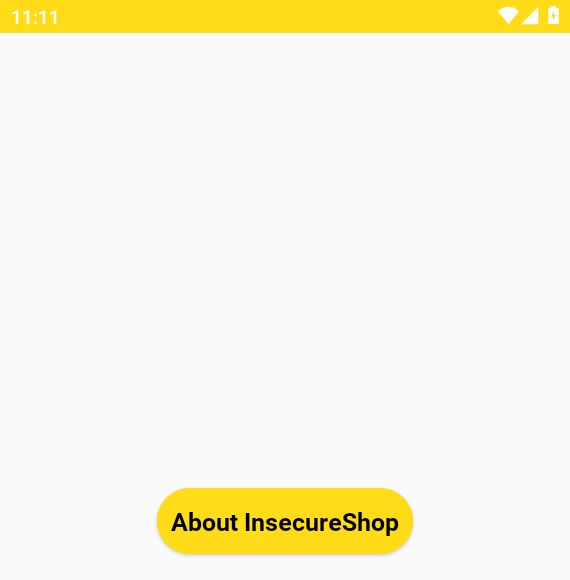
This confirms that another installed app can directly launch AboutUsActivity without a protecting permission. It proves component reachability. It does not by itself prove an authentication bypass or sensitive-data exposure; that depends on what the activity exposes or performs.
You can start the same known Activity directly with ADB:
adb shell am start -n com.insecureshop/.AboutUsActivityStarting: Intent { cmp=com.insecureshop/.AboutUsActivity }ADB is convenient when you already know the component name. Drozer is more useful when you first need to discover exported components or build Intents with additional data.
To see the available Intent options for your installed Drozer version, run help intents and help app.activity.start from the dz> prompt.
Inspect services and broadcast receivers
We should also check the other component types reported by app.package.attacksurface. InsecureShop exposes one service and no broadcast receivers.
drozer console connect -c 'run app.service.info -a com.insecureshop'Attempting to run shell module
Package: com.insecureshop
net.gotev.uploadservice.UploadService
Permission: nullDrozer found UploadService exported without a declared permission, but that alone does not tell us how the service expects to be called or what input it accepts. In Android, that input is commonly supplied through an Intent action or extras. Starting it blindly would not establish meaningful impact. We would first inspect its manifest declaration and implementation, then construct an Intent that matches the service's expected interface.
Confirm the receiver count with the broadcast module:
drozer console connect -c 'run app.broadcast.info -a com.insecureshop'Attempting to run shell module
Package: com.insecureshop
No matching receivers.No receivers are listed, which matches the earlier attack-surface summary. There is therefore nothing further to test for broadcast receivers in this APK.
Query content providers
A content provider exposes app data through content:// URIs. First, ask Drozer which providers InsecureShop exports and which permissions protect them:
drozer console connect -c 'run app.provider.info -a com.insecureshop'Attempting to run shell module
Package: com.insecureshop
Authority: com.insecureshop.provider
Read Permission: com.insecureshop.permission.READ
Write Permission: null
Content Provider: com.insecureshop.contentProvider.InsecureShopProvider
Multiprocess Allowed: False
Grant Uri Permissions: FalseThe authority is com.insecureshop.provider, and reads require com.insecureshop.permission.READ. Write Permission: null means Drozer did not find a provider-level write permission. It does not by itself prove that writable operations exist or that arbitrary data can be modified; that requires separate testing.
A content URI breaks into three parts:
scheme:     content://
authority:  com.insecureshop.provider
path:       /insecure
The authority identifies the provider; the path selects data exposed by that provider.
Static analysis of this training APK shows that the provider handles the path /insecure. We can therefore ask the Drozer Agent to query that URI:
drozer console connect -c 'run app.provider.query content://com.insecureshop.provider/insecure'Attempting to run shell module
Exception occured: Permission Denial: reading com.insecureshop.contentProvider.InsecureShopProvider uri content://com.insecureshop.provider/insecure from pid=6845, uid=10103 requires com.insecureshop.permission.READ, or grantUriPermission()Android rejects the query because the Drozer Agent does not hold the required READ permission. This illustrates an important distinction: an exported provider can be available for cross-app IPC while still protecting its data with a permission. A Permission Denial therefore shows that an access check blocked this caller; it is not evidence of a successful data leak.
Deeper provider SQL injection and path-traversal testing are outside the scope of this tutorial.
Where Drozer fits in Android pentesting
| Task | Tool |
|---|---|
| Set up device, install APKs, port-forward | ADB |
| Review declared components and permissions | Manifest / MobSF / APKHunt |
| Enumerate exported components | Drozer |
| Test component interaction | Drozer |
| Inspect or change methods while the app runs | Frida |
A simple workflow is:
- Review the manifest or a static-analysis report to identify candidate exported components.
- Use Drozer to confirm the app's runtime attack surface.
- Test the components that matter. For example, start an exported activity or query a provider.
- Record what actually succeeded or failed and why.
Understand what the Drozer result actually proves
Drozer tells you which components are exposed and whether you can interact with them. It does not automatically tell you how severe the security impact is.
| Observation | Fair wording | Avoid |
|---|---|---|
Activity exported, Permission: null, opens via Drozer/adb |
Exported activity reachable without a protecting permission | “Remote RCE via Drozer” |
| Provider exported, query denied for missing READ | Exported provider protected by custom permission; Agent cannot read | “Provider SQLi confirmed” |
| Attack surface lists a service | Exported service present; needs further Intent testing | “Service fully compromised” |
android:debuggable enabled |
App permits additional debugging/analysis capabilities | “Critical vulnerability” without demonstrating relevant impact |
If you are documenting the test, record the package and component name, required permission, exact command you ran, and a screenshot or log showing the result. Link static evidence (manifest line) to dynamic evidence (start/query outcome). If the manifest/static scan and the actual runtime test disagree, record both and investigate why. The actual runtime success or denial shows what happened in your tested environment, while the manifest helps explain why.
Before calling an exported component a vulnerability, ask:
- Is it exported?
- What permission protects it?
- Can another app actually interact with it?
- What sensitive action or data becomes reachable?
Troubleshoot Drozer connection and module errors
| Symptom | Likely cause | Fix |
|---|---|---|
drozer: command not found after pipx install |
pipx binary directory not in PATH |
Run pipx ensurepath, open a new shell, then retry |
Could not connect / connection refused |
Agent Embedded Server OFF or wrong port | Open Agent, set Embedded Server ON on 31415 |
| Console hangs after connect | Stale or missing adb forward |
Re-run adb forward tcp:31415 tcp:31415; confirm adb devices shows device |
| Agent version differs from console / outdated Agent warning | Agent and console versions do not match | Install the Agent release that matches the console version used by the tutorial |
Permission Denial on provider query |
Component requires a permission the Agent lacks | Record the permission; do not treat denial as a successful read |
| Activity start does nothing visible | Wrong component name or activity finishes immediately | Confirm with app.activity.info; compare adb shell am start -n … |
| Modules missing after upgrade | Incomplete Drozer install | Reinstall with pipx install --force drozer and retest drozer |
drozer console connect --server 192.168.56.103 instead of adb forward. This tutorial uses adb forward because it avoids depending on direct network connectivity between Kali and the emulator.
Summary
Drozer lets you see which Android components an app exposes to other apps and test whether those components can actually be accessed. In this lab, we used it to identify InsecureShop's exported components, directly launch an exported activity, and test an exported content provider.
The two tests also demonstrate an important distinction: an exported activity without a protecting permission was reachable, while an exported provider protected by a custom read permission rejected the Agent's query. An exported component is available for external IPC, but it may still be protected by permissions or application-level checks.
Use Drozer alongside manifest/static analysis. Identify the exposed component, check its permissions, test what another app can actually do, and only then determine whether there is a security impact.
References
- drozer — Reversec Labs
- drozer guide — Reversec Labs
- drozer 3.1.0 release — Reversec Labs
- drozer-agent 3.1.0 — Reversec Labs
- drozer on PyPI — Python Package Index
- Android intents — Android Developers
- Content providers — Android Developers
- OWASP MASTG — Testing Network Communication / Platform — OWASP Mobile Application Security
- InsecureShop — Optiv (intentionally vulnerable training APK)
Frequently Asked Questions
Does Drozer still work in 2026?
Yes. This tutorial tested Drozer console 3.1.0 with Agent 3.1.0 on Kali 2026.2 and Genymotion Android 10. If Drozer does not connect, first verify the Agent version, Embedded Server and ADB port forward.
Does Drozer require root?
No. Root access is not required for the IPC tests demonstrated in this tutorial. The Drozer Agent runs as a normal Android application, which is useful because it lets you test what another installed app can access.
Drozer vs Frida?
Drozer focuses on Android components and IPC: activities, services, receivers, and content providers. Frida works inside a running app process and lets you observe or change method behavior. Use Drozer to discover and interact with Android components; use Frida when you need to inspect or modify what the app's code does at runtime.
Can Drozer find exported components?
Yes. Start with app.package.attacksurface for a summary, then use modules such as app.activity.info, app.service.info, app.broadcast.info, and app.provider.info to inspect individual component types and their permissions. Still compare those results with the manifest or a static scan.
Why is Drozer Agent not connecting?
Most often the Embedded Server toggle is off, port 31415 is not forwarded, adb does not show device, or the Agent APK version does not match the console. Turn the server ON, re-run adb forward tcp:31415 tcp:31415, then drozer console connect again.