| Tested on | Kali GNU/Linux Rolling 2026.2 (kali-rolling) |
|---|---|
| Package | ThePhish emalderson/thephish:latest (image dated 2021-11-13)TheHive 4.1.9-1Cortex 3.1.1-1MISP image coolacid/misp-docker:core-v2.4.148a (optional in this lab)Docker Compose v2.29.7 |
| Applies to | Linux hosts that can run ThePhish's Docker Compose stack (TheHive 4 era) |
| Lab environment | Pentest lab with Docker; isolated analysis network recommended |
| Privilege | [sudo](/sudo-command-in-linux/) for Docker and volume ownership fixes |
| Scope | What ThePhish automates, TheHive 4 / Cortex compatibility, safe lab build, sample .eml submission, observables, Cortex analyzers, case verdict, and optional MISP export. Does not install a production TheHive 5 stack or teach generic phishing awareness. |
| Related guides | Browser-in-the-browser phishing FiercePhish |
In this article we will use ThePhish to automate phishing-email analysis by connecting a mailbox to TheHive and Cortex, with optional MISP integration. It can turn a forwarded .eml file into a TheHive case, extract observables, run Cortex analyzers, and assign a verdict.
There is an important limitation before you build the lab: ThePhish is based on the older TheHive 4 stack and does not officially support TheHive 5. This tutorial therefore uses the legacy TheHive 4.1.9 / Cortex 3.1.1 stack that ThePhish was designed for. Use it as an isolated learning lab, not as a recommendation for a new production SOC deployment. Write that scope into your rules of engagement before you point anything at real mailboxes.
What ThePhish Automates
ThePhish is a small Flask UI that sits in front of TheHive and Cortex. An analyst does not paste headers by hand. Instead, someone forwards a suspicious message as an .eml attachment to a dedicated mailbox. ThePhish lists those unread messages, creates a TheHive case, extracts observables, starts Cortex analyzers, and returns a verdict such as Safe, Suspicious, or Malicious.
In TheHive terminology, an observable is an item extracted from the email that can be investigated, for example an email address, domain, URL, file, or file hash.
A Cortex analyzer is a module that checks an observable and returns information about it. For example, one analyzer may look up abuse-contact details for a domain while another extracts metadata from a file.
In practice, one submission usually produces:
- A TheHive case titled with a
[ThePhish]prefix - Observables such as mail addresses, domains, URLs, file attachments, and file hashes
- Three case tasks used for notification, analysis, and result tracking
- Cortex analyzer jobs on matching observable types
- An optional MISP export when TheHive's MISP connector is healthy and the verdict warrants sharing
It does not replace reading the message yourself. Whitelists, analyzer coverage, and missing API keys can all push a clearly hostile lure into Safe or leave gaps that only a human notices.
ThePhish Architecture: TheHive, Cortex and MISP
If these tools are new to you, think of them as separate parts of the same workflow:
- ThePhish receives the submitted email and coordinates the analysis.
- TheHive is where the investigation is recorded as a case.
- Cortex runs automated checks against extracted items such as domains, email addresses, hashes, and files.
- MISP can be used to share threat indicators with other systems.
The upstream Docker Compose stack wires those services together. ThePhish talks to TheHive over its REST API and also talks to Cortex directly when it starts analyzers. TheHive can call Cortex as well. MISP is optional for threat-intel import and export.
  User forwards .eml
         │
         ▼
  ┌─────────────┐     IMAP      ┌──────────────┐
  │ Mailbox     │◄─────────────►│   ThePhish   │
  └─────────────┘               │  (UI :8080)  │
                                └──────┬───────┘
                                       │ API
                         ┌─────────────▼─────────────┐
                         │        TheHive 4          │
                         │     cases / observables   │
                         └──────┬───────────┬────────┘
                                │           │
                         Cortex │           │ MISP (optional)
                                ▼           ▼
analyzers IoC events| Component | Role in this workflow |
|---|---|
| ThePhish | Lists forwarded mail, creates and updates the analysis in TheHive, starts Cortex jobs, shows the verdict |
| TheHive 4 | Stores the case, tasks, observables, and resolution |
| Cortex | Runs analyzers (and optional responders such as Mailer) |
| MISP | Shares or enriches indicators when the connector and auth key are configured |
Current Version and Compatibility Status
ThePhish's upstream Docker Compose file pins TheHive 4.1.9-1 and Cortex 3.1.1-1. Its integration code uses the older TheHive 4 API/client generation, which is why the current ThePhish code cannot simply be pointed at TheHive 5.
In GitHub issue #35, the maintainer stated that ThePhish does not officially support TheHive 5. Development activity is limited, so expect to maintain or adapt the integration yourself if dependencies change. The emalderson/thephish:latest image we pulled still shows a 2021 create date, with only modest documentation and analyzer-mapping updates on the GitHub tree through August 2024.
| Stack | Works with ThePhish? | Notes from this lab |
|---|---|---|
| TheHive 4.1.9 + Cortex 3.1.1 (upstream Compose) | Yes | End-to-end sample reached a TheHive case and Cortex jobs |
| TheHive 5 + modern thehive4py | No (unsupported) | Do not expect the stock ThePhish app to drive TH5 |
| MISP in the Compose file | Optional | Connector stays ERROR until you finish MISP auth and paste the key into TheHive |
Before configuring ThePhish, verify that TheHive and Cortex themselves are running. Their status endpoints return both the service version and connector health.
curl -s http://127.0.0.1:9000/api/status{"versions":{"Scalligraph":"0.1.0-SNAPSHOT","TheHive":"4.1.9-1","Play":"2.8.7"},"connectors":{"cortex":{"enabled":true,"status":"OK",...},"misp":{"enabled":true,"status":"ERROR",...}},...}The response confirms TheHive is running. Its Cortex connector is OK, and its MISP connector is still ERROR. That MISP error is expected in this lab because we have not configured the MISP authentication key yet.
Cortex should answer on port 9001 with 3.1.1-1:
curl -s http://127.0.0.1:9001/api/status{"versions":{"Cortex":"3.1.1-1","Elastic4Play":"1.13.1","Play":"2.8.3",...},...}If you need TheHive 5 day to day, treat ThePhish as a legacy automation layer on a separate TheHive 4 lab, or replace the UI with your own scripts against the TH5 API. Do not mix TH5 and ThePhish and expect upstream support.
Build a Safe Analysis Lab
This Compose stack is much heavier than ThePhish alone because it also starts TheHive, Cortex, Cassandra, Elasticsearch, MySQL, Redis, and MISP. Give the lab VM enough memory and disk space for several containers rather than treating it as a lightweight Flask application. Keep the stack on an isolated pentest lab host so accidental analyzer callbacks stay off your corporate network.
Clone the project and move into the Compose directory:
git clone https://github.com/emalderson/ThePhish.gitgit clone prints progress as it downloads. Move into the Compose directory next:
cd ThePhish/dockerStart the stack with Docker Compose. The upstream documentation uses the older docker-compose command. Current Compose v2 uses docker compose; both refer to the same Compose workflow.
docker compose up -dNetwork docker_default Creating
Container cassandra Started
Container elasticsearch Started
Container thehive  Started
Container cortex  Started
Container misp  Started
Container thephish StartedContainers should show as Started. If the logs specifically show permission errors under vol/, stop the stack and correct the ownership before restarting it:
docker compose stopdocker compose stop returns when the containers are down. Fix the volume owners so UID 1000 can write:
sudo chown -R 1000:1000 vol/index vol/data vol/elastic*chown prints nothing when it succeeds. Bring the stack back up:
docker compose up -dContainer thehive Started
Container cortex Started
Container misp Started
Container thephish StartedDefault published ports from the Compose file, with this lab's ThePhish host mapping:
| Service | Port |
|---|---|
| ThePhish UI | Host 8088 → container 8080 (this lab; upstream default is often 8080:8080) |
| TheHive | 9000 |
| Cortex | 9001 |
| MISP | 80 / 443 |
8088 is the host port in this lab; 8080 remains ThePhish's port inside the container. Use http://<Kali-IP>:8088 in the browser and http://127.0.0.1:8088 from Kali. If your Compose file still publishes 8080:8080, use 8080 instead.
Configure ThePhish
Configuration follows this order so each credential exists before you paste it somewhere else:
Cortex
  └── organization
  └── integration account
  └── API key
  └── analyzers enabled
          ↓
TheHive
  └── organization
  └── ThePhish user
  └── API key
  └── connect to Cortex
          ↓
Mailbox (GreenMail in this lab)
          ↓
ThePhish configuration.json
  ├── mailbox credentials
  ├── TheHive key
  └── Cortex key
An API key is a credential that lets one service call another service's API without using an interactive browser login. The same Cortex integration account can be used by both ThePhish and TheHive. ThePhish stores that key in configuration.json, while TheHive uses it in its Cortex connector configuration. The TheHive API key is separate and allows ThePhish to create and update cases:
ThePhish ──TheHive API key──► TheHive
ThePhish ──Cortex API key───► Cortex
TheHive  ──Cortex API key───► Cortex
ThePhish connects with IMAP4_SSL and expects messages that contain an attached message/rfc822 (or octet-stream) .eml, not only a pasted body.
Configure Cortex
Open http://<Kali-IP>:9001.
- Initialize or update the database when Cortex prompts you on first login.
- Create an organization for the lab.
- Create an org-admin user for day-to-day work in the UI.
- Create a separate integration user with
readandanalyzepermissions, then generate its API key.readallows the integration account to query Cortex resources, whileanalyzeallows it to start analyzer jobs. This is a service account for automation rather than the account you use interactively in the browser. - Enable at least
FileInfo_8_0andAbuse_Finder_3_0for the first test because they need no commercial API keys.
Paste that Cortex integration API key into TheHive's Cortex connector block in thehive/application.conf, then restart TheHive so the connector reloads.
Configure TheHive for ThePhish
Open http://<Kali-IP>:9000.
- Create an organization that matches the lab workflow.
- Create an org-admin user ThePhish will call over the API.
- Generate that user's API key and keep it for
configuration.json. - Confirm TheHive's Cortex connector uses the Cortex integration key from the previous subsection.
Configure ThePhish mailbox and API keys
ThePhish needs an IMAP mailbox from which it can retrieve forwarded messages. The upstream guide mainly demonstrates Gmail, but using a real mailbox would send our training email outside the lab. Here we use GreenMail instead. GreenMail provides a small local SMTP/IMAP server, so we can send the sample to it and let ThePhish retrieve the message without leaving the Docker lab:
Python sends email
       │ SMTP :3025
       ▼
   GreenMail
       │ IMAPS :3993
       ▼
   ThePhish
       │
       ▼
   TheHive
       │
       ▼
    Cortex
Find the Compose network name first. Compose creates a default network for the project. In this lab it is docker_default. If your network has a different name, use the value shown on your system:
docker network lsNETWORK ID NAME DRIVER SCOPE
... bridge bridge local
... docker_default bridge local
...GreenMail's local-part:password@domain user syntax creates a disposable lab mailbox. analyst:password@lab.local creates analyst@lab.local with password password. By default GreenMail accepts login with the local part (analyst), not the full address, unless you set greenmail.users.login=email. This lab keeps the default and uses analyst in ThePhish.
Start GreenMail on that Compose network. The GREENMAIL_OPTS value below replaces the image defaults entirely, so authentication stays enabled and the mailbox user is explicit:
docker run -d --name greenmail --network docker_default \
  -p 3025:3025 -p 3993:3993 \
  -e GREENMAIL_OPTS='-Dgreenmail.setup.test.all -Dgreenmail.hostname=0.0.0.0 -Dgreenmail.users=analyst:password@lab.local' \
  greenmail/standalone:2.0.1
Confirm the mailbox container is up:
docker ps --filter name=greenmail --format '{{.Names}} {{.Status}} {{.Ports}}'greenmail Up 2 seconds 0.0.0.0:3025->3025/tcp, ..., 0.0.0.0:3993->3993/tcp, ...Check that SMTP and IMAPS answer on the host before you involve ThePhish:
python3 - <<'PY'
import socket
for port in (3025, 3993):
    with socket.create_connection(("127.0.0.1", port), timeout=3):
        print(f"127.0.0.1:{port} open")
PY127.0.0.1:3025 open
127.0.0.1:3993 openThen verify IMAPS login with the local-part username ThePhish will use:
python3 - <<'PY'
import imaplib
conn = imaplib.IMAP4_SSL("127.0.0.1", 3993)
print(conn.login("analyst", "password"))
conn.logout()
PY('OK', [b'LOGIN completed.'])GreenMail presents a self-signed test TLS certificate on IMAPS. ThePhish connects with stock imaplib.IMAP4_SSL(host, port) and does not enable certificate verification, so that test certificate is accepted without patching ThePhish in this lab. A client that enforces certificate trust would fail until you add a trust exception or a differently issued certificate.
If you already have a working IMAP mailbox (Gmail or otherwise), skip GreenMail and use that host in configuration.json instead.
Edit thephish_conf_files/configuration.json with the mailbox settings and the API keys you just created. This is the GreenMail shape used in the lab:
{
  "imap": {
    "host": "greenmail",
    "port": "3993",
    "user": "analyst",
    "password": "password",
    "folder": "INBOX"
  },
  "thehive": {
    "url": "http://thehive:9000",
    "apikey": "THEHIVE_ORGADMIN_KEY"
  },
  "cortex": {
    "url": "http://cortex:9001",
    "apikey": "CORTEX_INTEGRATION_KEY",
    "id": "local"
  },
  "misp": {
    "id": "MISP THP"
  },
  "case": {
    "tlp": "2",
    "pap": "2",
    "tags": ["email", "ThePhish"]
  }
}
If you prefer Gmail, replace these mailbox values with imap.gmail.com, port 993, the dedicated mailbox address, and its app password. Restart ThePhish after you save configuration.json so it reloads the keys.
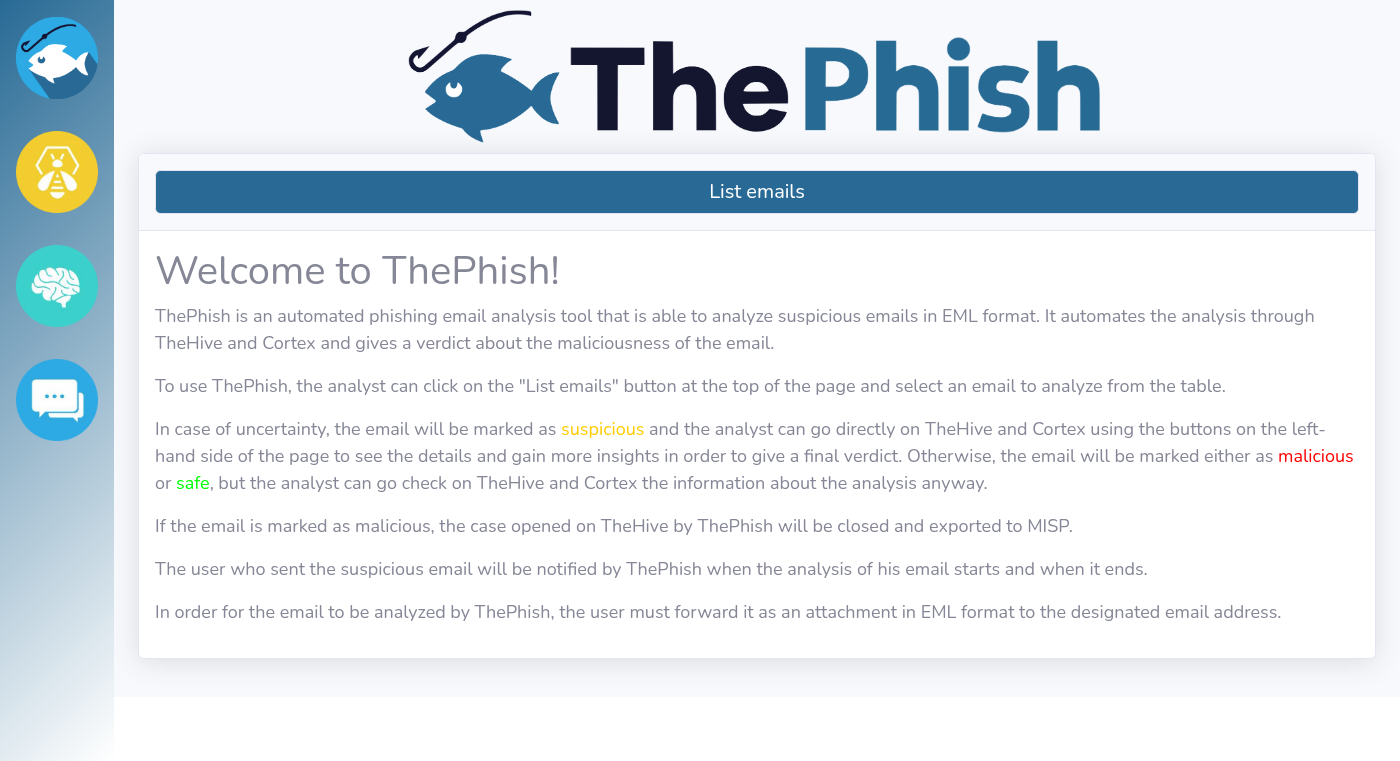
ThePhish home page should load once the container is healthy at http://<Kali-IP>:8088:
Submit a Sample Phishing Email
Do not simply forward the suspicious message inline. ThePhish expects a forwarding email that contains the suspicious message itself as an attached .eml file.
The inner message is the email we're pretending a user received. The outer message represents that user forwarding the suspicious email to the mailbox monitored by ThePhish:
Forwarding email → contains suspicious-email.eml → ThePhish analyzes the attached .emlCreate a sanitized inner sample first. Domains under .example are reserved for documentation and testing, so this sample cannot accidentally send a student to a real phishing site:
python3 <<'PY'
from email.message import EmailMessage
from pathlib import Path

inner = EmailMessage()
inner["From"] = "security@paypa1-secure.example"
inner["To"] = "victim@example.com"
inner["Subject"] = "Urgent Verify your account within 24 hours"
inner["Reply-To"] = "phish@evil.example"
inner.set_content(
    "Dear customer,\n\n"
    "We detected unusual activity on your account. Please verify:\n\n"
    "https://paypa1-secure.example/login?session=abc123\n\n"
    "IT Security Team\n"
)
inner.add_attachment(
    b"lab invoice text\n",
    maintype="application",
    subtype="octet-stream",
    filename="invoice.txt",
)
Path("/tmp/sample-phish.eml").write_bytes(inner.as_bytes())
print("Wrote /tmp/sample-phish.eml")
PYWrote /tmp/sample-phish.emlThe sample sends the harmless text file as application/octet-stream because that attachment form was successfully parsed by the tested ThePhish stack.
Build the outer forwarding message with the inner file attached as message/rfc822:
python3 <<'PY'
from email.message import EmailMessage
from pathlib import Path

inner_bytes = Path("/tmp/sample-phish.eml").read_bytes()
outer = EmailMessage()
outer["From"] = "analyst@lab.local"
outer["To"] = "analyst@lab.local"
outer["Subject"] = "FW: Urgent Verify your account within 24 hours"
outer.set_content("Please analyze the attached email.\n")
outer.add_attachment(inner_bytes, maintype="message", subtype="rfc822")
Path("/tmp/sample-phish-forward.eml").write_bytes(outer.as_bytes())
print("Wrote /tmp/sample-phish-forward.eml")
PYWrote /tmp/sample-phish-forward.emlDeliver that forward into the mailbox ThePhish watches. Upstream's Gmail path is to attach the .eml in a normal client and send it to the lab address. This lab delivered the same forward over SMTP into GreenMail so the sample never left the host:
python3 <<'PY'
import smtplib
from pathlib import Path

raw = Path("/tmp/sample-phish-forward.eml").read_bytes()
with smtplib.SMTP("127.0.0.1", 3025) as smtp:
    smtp.sendmail("analyst@lab.local", ["analyst@lab.local"], raw)
print("Delivered forward to lab mailbox")
PYDelivered forward to lab mailboxIf you use Gmail instead, skip the SMTP step and send /tmp/sample-phish-forward.eml (or an equivalent client forward with a nested .eml) to the address in configuration.json. Without that attachment shape, ThePhish skips the message.
After the forward lands unread in the configured folder, open ThePhish and click List emails. You should see the outer subject, the attached-mail subject, and an Analyze action:
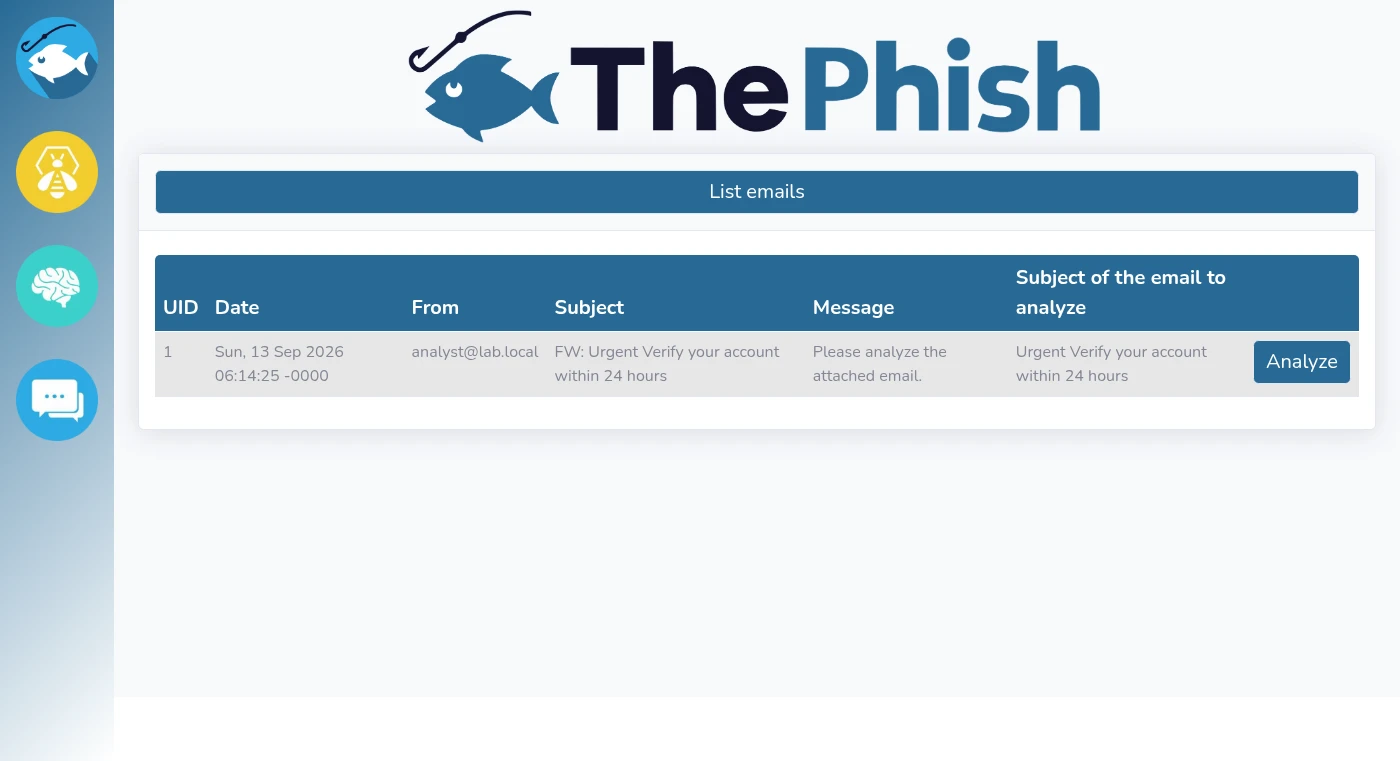
You can also verify the same list from the command line. The curl command below hits ThePhish's list endpoint on the lab host port:
curl -s http://127.0.0.1:8088/list[
{
"attachedMail": "Urgent Verify your account within 24 hours",
"body": "Please analyze the attached email.\r\n",
"date": "Sun, 13 Sep 2026 06:14:25 -0000",
"from": "analyst@lab.local",
"mailUID": "1",
"subject": "FW: Urgent Verify your account within 24 hours"
}
]If /list returns null, read ThePhish logs. If the earlier GreenMail IMAPS login already succeeded, focus on ThePhish credentials, folder name, or a message that has no nested .eml attachment.
Click Analyze. ThePhish displays progress while it creates the TheHive case and waits for Cortex analyzers to finish.
Review Extracted Observables
During case creation, ThePhish parses the attached email and writes observables into TheHive. A file hash is a fingerprint calculated from the attachment. Security tools use hashes to identify or look up known files without relying only on their filenames.
On the sanitized sample, the lab logs showed:
mail:victim@example.comdomain:example.comfile:invoice.txthash: SHA-256 of that attachmentfile: the attached.emlitself
Notice that the phishing URL we placed in the email body (https://paypa1-secure.example/login?session=abc123) does not appear in the five extracted observables. ThePhish therefore did not extract every useful indicator from this sample. This is why an analyst should compare automated observables with the original message instead of trusting extraction blindly.
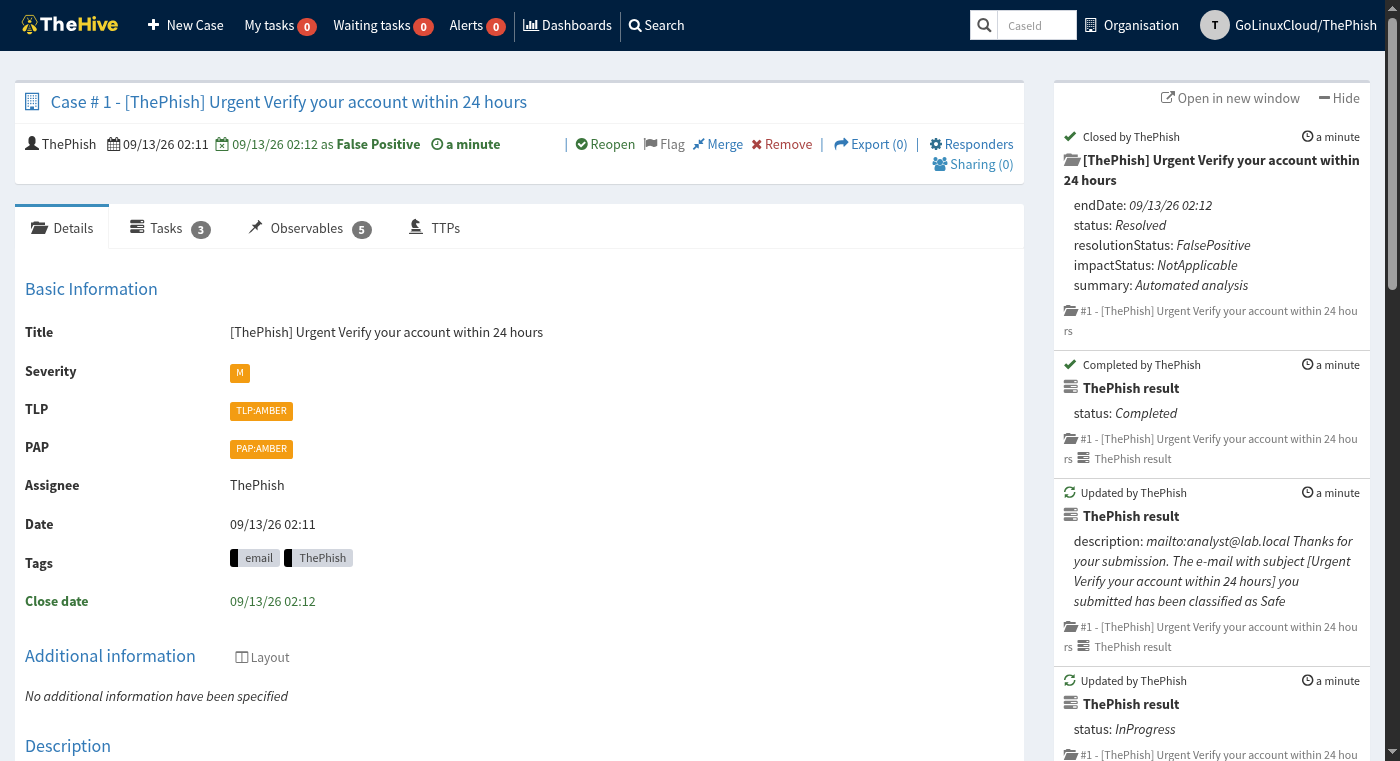
First, confirm ThePhish created a case with the expected title and metadata. This lab's case #1 resolved later as False Positive after the Safe verdict:
Then open Observables. The lab produced five items:
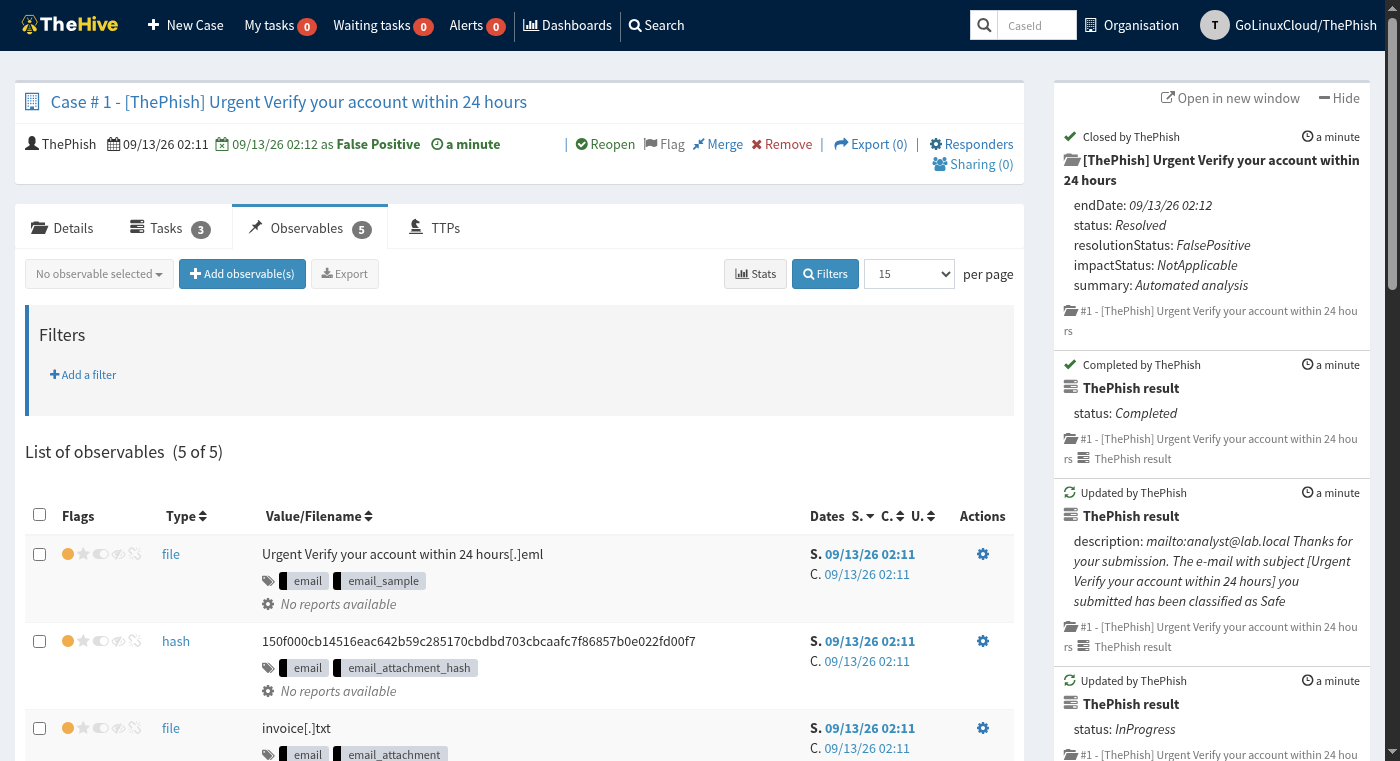
Compare that list with a manual pass on the same .eml. Automated extraction can miss URLs that sit only in HTML, encoded links, or rewritten safe-links wrappers. If important URLs or indicators are missing from the extracted observables, add or investigate them manually before relying on the automated verdict.
Run and Interpret Cortex Analyzers
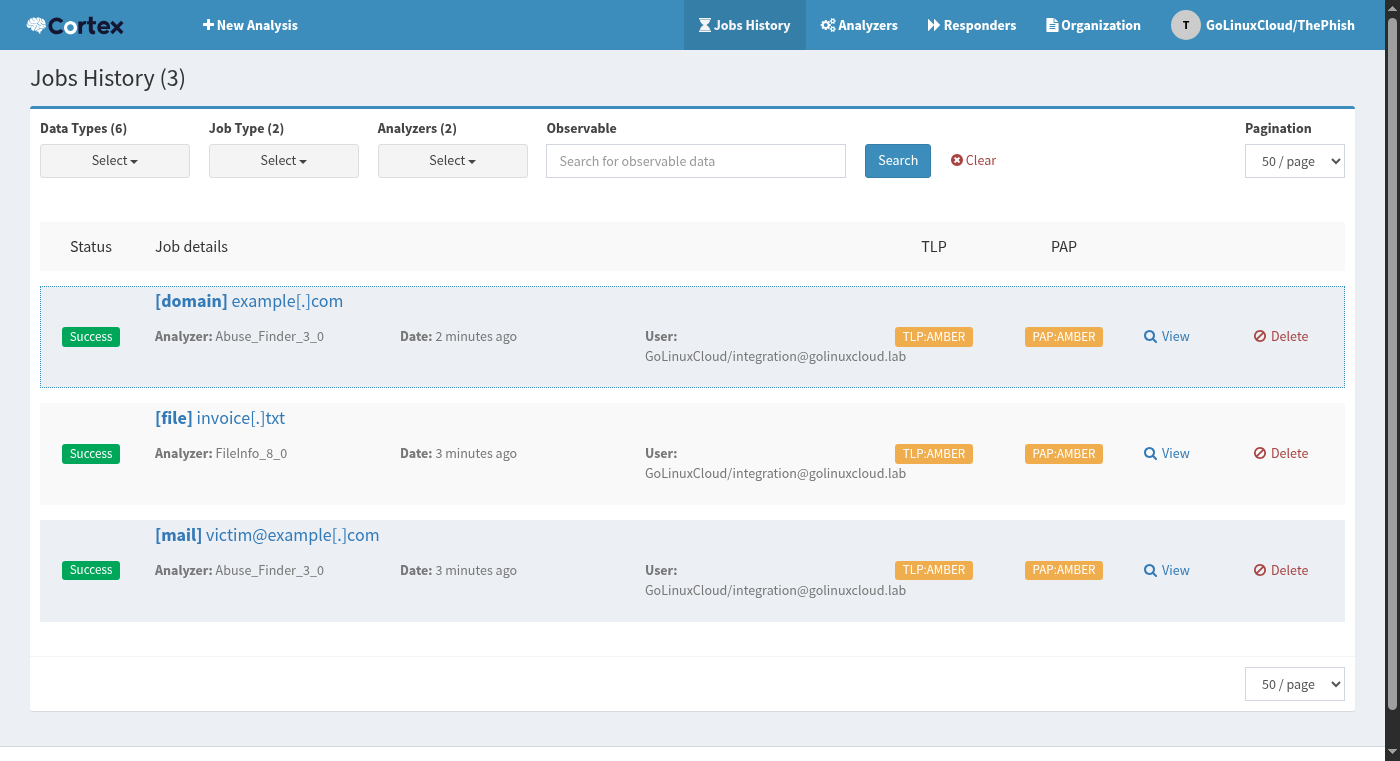
ThePhish asks Cortex which analyzers apply to each observable type, then starts them and waits. With Abuse_Finder_3_0 and FileInfo_8_0 enabled, the lab started three jobs. ThePhish application logs showed:
[INFO]_[run_analysis]: Started analyzer Abuse_Finder_3_0 for mail victim@example.com
[INFO]_[run_analysis]: Started analyzer FileInfo_8_0 for file invoice.txt
[INFO]_[run_analysis]: Started analyzer Abuse_Finder_3_0 for domain example.com
[INFO]_[run_analysis]: All the analysis jobs have been started, waiting for their completion...
[INFO]_[run_analysis]: Analyzer Abuse_Finder_3_0 terminated successfully for mail victim@example.com with verdict info
[INFO]_[run_analysis]: Analyzer FileInfo_8_0 terminated successfully for file invoice.txt with verdict info
[INFO]_[run_analysis]: Analyzer Abuse_Finder_3_0 terminated successfully for domain example.com with verdict info
Cortex's job history shows the same three successes:
How to read those results:
- We use Abuse_Finder because it runs without a commercial API key and gives Cortex a real job to execute. Its main purpose is finding abuse-contact information, not deciding whether a domain is malicious. Therefore its
inforesult is useful for testing the workflow, but weak evidence for a phishing verdict. - FileInfo can extract considerably more information from formats such as Office documents, PDFs, and executables. Our tiny text attachment intentionally gives it very little interesting data, which keeps the sample safe while still proving that Cortex received and analyzed the file.
- Each Cortex analyzer returns a result level. ThePhish combines those results according to its configuration in
analyzers_level_conf.jsonand chooses an overall verdict: Safe, Suspicious, or Malicious.
Enable richer analyzers (VirusTotal, URL scanners, MISP lookups) only after you accept the data-sharing trade-off and add their API keys in Cortex.
Review TheHive Case and Verdict
When jobs finish, ThePhish combines the analyzer results into a case verdict. This sanitized sample returned Safe, and ThePhish resolved the case as False Positive. Safe is ThePhish's overall email verdict. When ThePhish closes that email's TheHive case, the case is recorded as False Positive.
The closing application log lines looked like this:
[INFO]_[run_analysis]: The email has been classified as Safe
[WARNING]_[run_analysis]: The Mailer responder is not active
[INFO]_[run_analysis]: Case resolved as FalsePositive
That outcome is useful for confirming the complete workflow ran successfully. It is not a reason to stop reading the lure. The placeholder domain and harmless attachment never looked like malware to Abuse_Finder or FileInfo. A real phishing email may contain suspicious URLs, malicious attachments, sender spoofing, or other indicators that require different analyzers and manual review.
Also note the Mailer responder warning. Without Mailer configured on Cortex, ThePhish cannot email the submitter a result. Use the ThePhish UI verdict and the TheHive case status as the records of what happened.
Export Findings to MISP
MISP is a threat-intelligence platform used to store and share indicators between teams and systems. An indicator of compromise (IoC) is an observable that has been assessed as relevant evidence of malicious activity, for example a confirmed malicious domain or file hash. Not every observable should automatically become an IoC.
MISP is part of the Compose file, but it is optional for learning the email-analysis workflow. TheHive's status endpoint kept misp in ERROR until a MISP authentication key is created and pasted into thehive/application.conf, then TheHive is restarted.
In MISP, create a dedicated Sync User account for the integration and generate its authentication key. TheHive uses that key when calling the MISP API.
When the connector is healthy and a case is marked malicious (or your process exports manually), observables tagged as IoCs can become a MISP event. For this lab we left MISP unconfigured on purpose so the article does not pretend an unfinished connector exported events.
If you do finish MISP:
- Complete the first-login password change and create a Sync User auth key
- Replace the MISP
key = "XXXXXXXXXXXXXXx"placeholder in TheHive's config - Re-test
/api/statusuntil the MISP connector reports OK
Full MISP administration is outside the scope of this ThePhish lab. Use the MISP Project docs once the connector reports OK.
Limitations and Troubleshooting
| Symptom | Likely cause | Fix |
|---|---|---|
| Compose containers fail to start | Image pull, disk, or volume permission errors | Check docker compose ps and service logs; apply the chown fix below when volumes complain |
network ... not found when starting GreenMail |
Wrong Compose network name | Run docker network ls and pass the project network to --network |
SMTP 3025 or IMAPS 3993 closed |
GreenMail not running or ports not published | docker ps --filter name=greenmail; republish -p 3025:3025 -p 3993:3993 |
IMAPS login fails for analyst@lab.local |
GreenMail default login is local-part | Use "user": "analyst" unless you set greenmail.users.login=email |
| IMAPS login fails with certificate verify errors in a custom client | GreenMail self-signed test certificate | Stock ThePhish accepts it; strict TLS clients need a trust exception |
/list returns null |
IMAP failure in ThePhish, wrong folder, or missing nested .eml |
Confirm the GreenMail IMAPS checkpoint first; then check ThePhish logs and attachment shape |
| TheHive API/auth errors from ThePhish | Wrong org-admin API key or TheHive URL | Paste the TheHive user key into configuration.json; restart ThePhish |
Cortex connector AUTH_ERROR on TheHive |
Wrong or empty Cortex API key | Create integration user key; update application.conf; restart TheHive |
| Analyzer list empty in org | Catalog never enabled | Org → Analyzers → Enable workers; allow time for each analyzer Docker image to download |
| Verdict Safe on an obvious phish | Weak analyzers, whitelist, lab placeholders, or missed URL extraction | Add URL/file analyzers; review whitelist.json; inspect the original .eml manually |
| MISP status ERROR | Unfinished MISP bootstrap or bad key | Finish MISP setup; paste Sync User key; restart TheHive |
| ThePhish against TheHive 5 returns auth or schema errors | Unsupported API generation | Stay on TheHive 4 for ThePhish, or replace ThePhish |
chown / Elasticsearch permission errors under vol/ |
Container UID cannot write volumes | sudo chown -R 1000:1000 vol/index vol/data vol/elastic* |
Other limits to keep in mind:
- TheHive 4 is end-of-life; run it only as an isolated lab dependency for ThePhish
- Dockerized analyzers need Docker socket access from the Cortex container
- Maintenance activity on ThePhish itself is sparse; future dependency changes may require manual fixes
Summary
ThePhish automates several repetitive parts of phishing-email triage: retrieving a forwarded .eml, creating a TheHive case, extracting observables, sending those observables to Cortex analyzers, and turning the results into a verdict. In this lab, one sanitized message produced five observables and three successful analyzer jobs, while the lure URL in the body never became an observable.
The most important limitation is compatibility. The current ThePhish code and Docker stack are built around TheHive 4, not TheHive 5. Use this setup as an isolated learning environment for understanding the workflow rather than as the starting point for a new production deployment.
Finally, treat the automated verdict as one source of evidence. A Safe result only reflects the analyzers and configuration available to ThePhish; the analyst still needs to review suspicious content that automation may have missed.
Next, either finish MISP export on the same Compose lab, or move on to offensive phishing tooling such as GoPhish when your scope is awareness campaigns instead of SOC triage.
References
- ThePhish GitHub repository
- ThePhish Docker Compose guide
- TheHive Project documentation
- Cortex documentation
- MISP Project
- ThePhish issue #35: TheHive 5 support
- GreenMail Docker documentation
Frequently Asked Questions
Is ThePhish still maintained?
It is open source and the repository still receives occasional commits, but activity is light and the Docker image tag we pulled traces back to 2021. Plan on self-support, pinned TheHive 4 images, and breakage when dependencies age.
Does ThePhish work with TheHive 5?
Not officially. The maintainer stated that TheHive 5 support is not available with the current TheHive 4-oriented code. This lab used TheHive 4.1.9-1 successfully.
Does ThePhish require MISP?
No. MISP is optional for sharing and enrichment. You can create cases, run Cortex analyzers, and read verdicts without a working MISP connector.
Can ThePhish analyze attachments?
Yes. Nested .eml content and attachments such as files and their hashes become TheHive observables, and Cortex analyzers that support those data types can run against them.
ThePhish vs manual phishing analysis?
ThePhish speeds case creation, observable extraction, and analyzer fan-out. Manual review still catches lure language, lookalike brands, URL rewriting, and gaps when analyzers return only info or Safe on weak evidence.