
| Tested on | Kali GNU/Linux Rolling 2026.2 (kali-rolling) |
|---|---|
| Package | theharvester 4.11.1-0kali1 |
| Lab environment | Pentest lab |
| Cert prep | CompTIA PenTest+ PT0-003 — Domain 2 (Reconnaissance and Enumeration) |
| Privilege | Normal user for OSINT commands; sudo to edit api-keys.yaml |
| Scope | theHarvester tutorial on Kali Linux: how to use theHarvester for OSINT in a passive collection workflow — verify the package, choose sources, configure the Hunter API key, run email enumeration on golinuxhub.com (Hunter blocks example.com), enrich rows with the Hunter.io REST API, run subdomain enumeration with certificate transparency on example.com, export report output, and validate findings. Uses third-party OSINT sources only; does not enable DNS resolution (-r), DNS lookup (-n), or DNS brute force (-c). Does not cover SMTP verification, password spraying, or phishing delivery. |
theHarvester is an OSINT reconnaissance CLI available on Kali Linux. It can collect email addresses, subdomains, hostnames, and infrastructure clues from public sources before you move into DNS enumeration or Nmap scanning.
This theHarvester tutorial shows how to use theHarvester on a current Kali Rolling build: install and verify the package, pick sources, configure the Hunter API key, run email and subdomain enumeration, export output, and scope-check what you collect. Hunter email demos use golinuxhub.com because Hunter blocks example.com as disposable; certificate transparency demos keep example.com. This tutorial keeps theHarvester in a passive collection workflow by using third-party OSINT sources only.
What theHarvester does for OSINT
theHarvester automates OSINT queries against public backends you select with -b. Typical output categories:
| Output | Typical sources / use |
|---|---|
| Email addresses | Hunter and search or data-index backends |
| Subdomains / hostnames | Certificate transparency, DNS, and search sources |
| IP addresses | Infrastructure and DNS-backed sources |
| People / contact metadata | Provider-dependent APIs (titles, patterns, confidence) |
The tool does not replace a full OSINT platform. It is a fast CLI sweep you script at the start of PTES intelligence gathering, then hand off to spreadsheets, OSINT tools for pentesters, or your report template.
How to use theHarvester on Kali Linux
Confirm the package after sudo apt update and sudo apt full-upgrade on your Kali host:
dpkg-query -W -f='${Package} ${Version}\n' theharvestertheharvester 4.11.1-0kali1If the query returns nothing, install the package:
sudo apt update && sudo apt install -y theharvesterList supported sources for your build — names change between releases:
theHarvester -h 2>&1 | grep -A2 'SOURCE' -b, --source SOURCE baidu, bevigil, bitbucket, brave, bufferoverun,
builtwith, censys, certspotter, chaos, commoncrawl,
criminalip, crtsh, dehashed, dnsdumpster, duckduckgo,Always trust theHarvester -h on your lab host. Older theHarvester tutorials are often outdated — current builds use the theHarvester command, source availability changes between releases, and report formats differ from older guides. Legacy pages still mention theHarvester.py, -b all, search engines such as bing, or -f output that creates HTML.
Upstream also supports source, Pipx, and Docker installations; this guide uses Kali's packaged build so commands and outputs stay reproducible on Rolling 2026.2.
Set a domain variable once per shell session for the examples below:
export DOMAIN=example.comexample.com is IANA's reserved documentation domain — use it for certificate transparency and export demos in this guide. Hunter treats it as disposable and returns zero mailboxes, so the email sections below switch to golinuxhub.com. On real engagements, set DOMAIN to the authorized apex zone from the statement of work.
| Demo task | Domain in this guide | Why |
|---|---|---|
Certificate transparency (crtsh, certspotter) |
example.com |
Stable wildcard hostname for syntax demos |
Hunter email enumeration (hunter, Hunter API) |
golinuxhub.com |
Hunter blocks example.com; this domain has indexed public mailboxes |
| Client engagement | Authorized apex from the SoW | Only domain you may query under the RoE |
theHarvester commands and syntax
Most theHarvester commands follow one pattern:
theHarvester -d DOMAIN -b SOURCE -l LIMIT| Option | Meaning |
|---|---|
-d |
Domain to investigate |
-b |
OSINT source or comma-separated backend list |
-l |
Requested result limit from the source |
-f |
Report output basename (writes JSON and XML on Kali 4.11.1) |
-q |
Quiet mode — suppress missing API key warnings and reading the api-keys file |
Add -f basename when you need exportable artifacts. Combine sources with commas, for example -b hunter,crtsh,certspotter. Add -q when you want to skip missing-key warnings and skip reading api-keys.yaml for that run.
Choose theHarvester sources
theHarvester sources fall into two practical groups on Kali:
| Group | Examples in 4.11.1 | API key |
|---|---|---|
| Keyless (for this guide) | crtsh, certspotter |
Not required for the workflow shown here |
| API-key modules | hunter, shodan, securityTrails, censys |
Entry in api-keys.yaml |
Pick a small set per run instead of -b all. Unconfigured modules print missing-key warnings and waste time. For email-focused OSINT, hunter plus crtsh,certspotter is a common pairing; for subdomain-heavy passes, start with certificate transparency before you add paid APIs.
Which theHarvester source should I use?
- Need emails →
hunter(requires a Hunter API key inapi-keys.yaml) - Need certificate-derived hostnames →
crtsh,certspotter - Need both →
-b hunter,crtsh,certspotter - Need another commercial source → confirm the name with
theHarvester -h, then add its key toapi-keys.yaml
Configure the theHarvester Hunter API key
Hunter.io offers a free tier with usage limits that change over time — check your Hunter account for current credit rules before large runs.
How to get a Hunter API key
- Create or sign in to a Hunter.io account.
- Open Account → API in the Hunter dashboard (the API section, not the general profile page).
- Create a new API key and optionally name it
theHarvesterso you can rotate it later without affecting other tools. - Copy the generated key and store it securely.
Test Hunter API connectivity and syntax
Before you paste the key into api-keys.yaml, confirm your shell can reach Hunter and parse API responses. This first call uses Hunter's public test-api-key placeholder — not your account credentials:
curl -s "https://api.hunter.io/v2/domain-search?domain=example.com&api_key=test-api-key"{
"data": {
"domain": "piedpiper.com",
"organization": "Pied Piper",
"emails": [
{
"value": "richard@piedpiper.com",
"type": "personal",
"confidence": 99
}
]
}
}Hunter returns this dummy piedpiper.com sample when you pass test-api-key. That only verifies API syntax and connectivity.
After you generate a real key, confirm the account endpoint accepts it:
export HUNTER_API_KEY='YOUR_HUNTER_API_KEY'
curl -s "https://api.hunter.io/v2/account?api_key=${HUNTER_API_KEY}"{
"data": {
"plan_name": "Free",
"requests": {
"credits": {
"used": 8.5,
"available": 50.0,
"remaining": 41.5
}
}
}
}A 401 with authentication_failed means the key is wrong or revoked. A 200 response with plan_name and credit counts confirms your key is active before you run theHarvester.
Paste the key into api-keys.yaml
The theHarvester Hunter API key lives in api-keys.yaml. On current builds, configuration is searched in this order; the first existing file wins:
~/.theHarvester//etc/theHarvester//usr/local/etc/theHarvester/
Check which api-keys.yaml file exists before you paste a key:
ls -l ~/.theHarvester/api-keys.yaml /etc/theHarvester/api-keys.yaml /usr/local/etc/theHarvester/api-keys.yaml 2>/dev/null-rw-r--r-- 1 root root 837 Aug 29 05:49 /etc/theHarvester/api-keys.yamlIf both ~/.theHarvester/api-keys.yaml and /etc/theHarvester/api-keys.yaml exist, editing only the system file has no effect — update the path theHarvester actually reads.
On my tested Kali host the active file was /etc/theHarvester/api-keys.yaml, so I edited:
sudo nano /etc/theHarvester/api-keys.yamlReplace that path with whichever file your ls command shows.
hunter:
    key: "YOUR_HUNTER_API_KEY"
Leave a space after key: and wrap the value in quotes. A missing space can make theHarvester read an empty key even when the line looks correct in the editor.
Save the file. A missing key prints Missing API key for Hunter before the search starts. Store keys only on hosts you control and never commit api-keys.yaml to git.
theHarvester email enumeration
theHarvester email enumeration through Hunter is useful when you need professional addresses and naming patterns tied to a company domain. Hunter builds Domain Search results from publicly available web sources associated with the domain — theHarvester wraps that API when you pass -b hunter.
Hunter does not search example.com. It classifies that IANA documentation domain as disposable, so Domain Search shows a Disposable domain message and both the Hunter API and -b hunter return zero rows. For email demos in this guide, use golinuxhub.com — a public domain with indexed mailboxes. On real engagements, query only apex zones named in your rules of engagement.
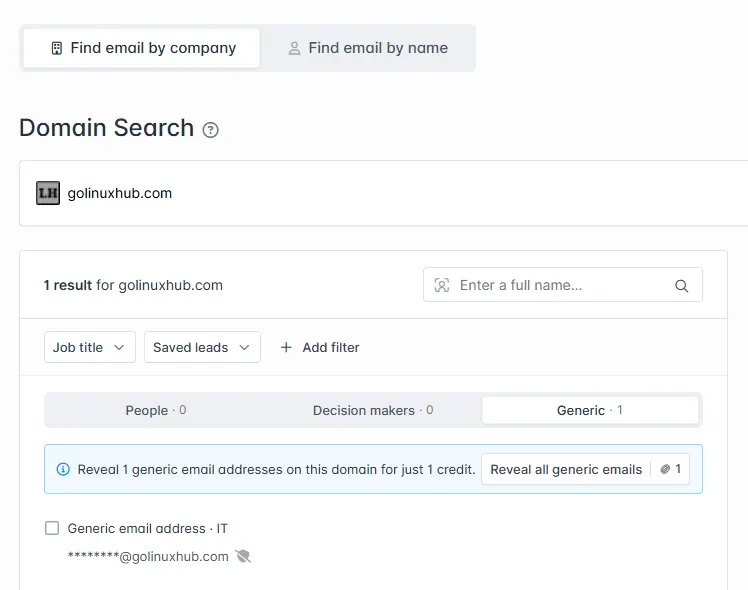
Open Domain Search at hunter.io/domain-search (not the onboarding dashboard), enter the apex domain, and review the People and Generic tabs before you script the CLI pass:
- People — addresses Hunter associates with named individuals.
- Generic — role-based mailboxes such as
info@,admin@, orsupport@.
Switch to the Hunter demo domain in your shell:
export DOMAIN=golinuxhub.comRun a small limit while you confirm credentials and scope:
theHarvester -d "$DOMAIN" -b hunter -l 5[*] Target: golinuxhub.com
[*] Searching Hunter.
[*] No IPs found.
[*] Emails found: 1
----------------------
admin1@golinuxhub.com
[*] No people found.
[*] No hosts found.-l limits the number of results requested from the source. A small value is useful while testing credentials and conserving provider quota. Final row counts still depend on what the provider returns.
Before the certificate transparency section below, switch back to the documentation domain:
export DOMAIN=example.comThat split mirrors real engagements: Hunter for people and mailboxes, crt.sh for infrastructure hostnames.
Enrich emails with the Hunter.io API
theHarvester prints addresses. The Hunter domain-search API adds contact metadata — department, confidence scores, source URLs, and email-pattern information — when you need more than a flat list. Hunter builds those records from publicly available web sources, not from SMTP probing.
Set the Hunter demo domain if you switched back to example.com for certificate transparency:
export DOMAIN=golinuxhub.comExport your key in the shell (replace with the value from api-keys.yaml):
export HUNTER_API_KEY='YOUR_HUNTER_API_KEY'Query the API for the same authorized domain:
curl -s "https://api.hunter.io/v2/domain-search?domain=${DOMAIN}&api_key=${HUNTER_API_KEY}&limit=3"On golinuxhub.com, Hunter returned one generic IT mailbox indexed from public site pages:
{
    "data": {
        "domain": "golinuxhub.com",
        "disposable": false,
        "organization": "GoLinuxHub",
        "pattern": null,
        "emails": [
            {
                "value": "admin1@golinuxhub.com",
                "type": "generic",
                "confidence": 76,
                "department": "it",
                "sources": [
                    {
                        "domain": "golinuxhub.com",
                        "uri": "https://golinuxhub.com/privacy-policy",
                        "last_seen_on": "2026-08-10",
                        "still_on_page": true
                    }
                ]
            }
        ]
    }
}
Hunter's confidence score is a provider-generated estimate based on the evidence it has for the address. It is not a probability that the mailbox currently exists and should not be treated as proof of deliverability.
Each result also carries a sources array showing where Hunter saw the address. When Hunter reports a pattern such as {first}.{last}, you can hypothesize addresses for names found on a team page or press release. Those guesses are leads, not validated accounts — confirm through approved channels before you add them to a password-spray or phishing track. This article does not cover SMTP verification commands; that is active testing with separate RoE implications.
Treat accept_all domains carefully — the server may accept any local part, so verification status is weaker than a confirmed mailbox.
When to use theHarvester versus Hunter.io alone
| Approach | Best when | Trade-off |
|---|---|---|
theHarvester -b hunter |
One CLI command and a terminal list | Flat output; less contact metadata |
| Hunter.io Domain Search (web UI) | Quick visual scan of People and Generic tabs | Manual; separate from scripted pipelines |
Hunter.io API (curl) |
Department, confidence scores, or source URLs | Separate quota and JSON parsing |
theHarvester -b crtsh,certspotter |
Hostnames more than mailboxes | Often returns zero emails |
Combined (hunter + CT sources) |
Full passive recon worksheet | More API calls; dedupe required |
Start with theHarvester when you are scripting. Drop to the Hunter API when a finding needs a job title or verification status in the report narrative.
theHarvester subdomain enumeration with certificate transparency
Email-only runs miss infrastructure leads. theHarvester subdomain enumeration through crtsh and certspotter does not require API keys for the workflow in this guide. Confirm DOMAIN is set to example.com (or your authorized apex) before this pass:
export DOMAIN=example.comRun certificate transparency sources with a modest limit:
theHarvester -d "$DOMAIN" -b crtsh,certspotter -l 15[*] Target: example.com
[*] Searching Certspotter.
[*] Searching CRTsh.
[*] No IPs found.
[*] No emails found.
[*] No people found.
[*] Hosts found: 1
---------------------
*.example.comWildcard certificate names are enumeration leads, not live hosts. Combining naming patterns, contact metadata, and discovered hostnames gives you a more complete picture of the organization's public attack surface than any single result alone.
For subdomain-heavy enumeration, continue with subdomain enumeration tools after this passive pass.
theHarvester output and export
Engagements need reproducible artifacts. On the Kali 4.11.1-0kali1 package tested for this article, theHarvester output from -f basename writes JSON and XML report files. Current upstream development also documents JSONL output for automation and source provenance, so check the files your installed build actually creates after upgrades.
Create the output directory first:
mkdir -p ~/osint-lab/harvestRun certificate transparency and save a basename under that path:
theHarvester -d "$DOMAIN" -b crtsh,certspotter -l 10 -f ~/osint-lab/harvest/example-ct[*] Hosts found: 1
---------------------
*.example.com
[*] Reporting started.
[*] XML File saved.
[*] JSON File saved.List the files your build produced:
ls -la ~/osint-lab/harvest/total 16
drwxr-xr-x 2 kali kali 4096 Aug 30 08:51 .
drwxr-xr-x 3 kali kali 4096 Aug 30 08:50 ..
-rw-r--r-- 1 kali kali 131 Aug 30 08:51 example-ct.json
-rw-r--r-- 1 kali kali 239 Aug 30 08:51 example-ct.xml| Format | Use on engagements |
|---|---|
| JSON | Structured parsing, jq transforms, import into spreadsheets |
| XML | Legacy tooling or clients that expect XML reports |
| JSONL (when supported by your build) | Automation and source provenance |
In your worksheet, record source (hunter, crtsh), timestamp, and whether each row is in scope. Dedupe on lowercase email and lowercase FQDN before you hand results to exploitation teams.
Validate and scope-check findings
Enumeration output is leads, not facts. Before you add an address to a password-spray list or phishing track:
- Confirm the domain matches an in-scope zone or subsidiary named in the SoW.
- Remove personal webmail addresses (
gmail.com,yahoo.com) unless the RoE covers them. - Note
accept_alldomains where mailbox existence cannot be confirmed passively. - Treat hypothesized addresses from naming patterns as unverified until the client or an approved process confirms them.
- Stop and escalate if you recognize out-of-scope acquisitions or partner domains in Hunter linked-domains metadata.
When validation passes, link each row to a target application from DNS or CT work. That mapping turns a flat OSINT dump into an attack-surface narrative for your penetration test report.
Troubleshooting
| Symptom | Likely cause | Fix |
|---|---|---|
Missing API key for Hunter |
Empty hunter entry or wrong api-keys.yaml file |
Run ls on all three config paths; edit the file theHarvester actually reads |
Key added under /etc but still missing |
~/.theHarvester/api-keys.yaml exists and takes precedence |
Update the home-directory file or remove the stale one |
| Key present but Hunter still fails | No space after key: in YAML |
Use key: "YOUR_KEY" with a space after the colon |
curl with real key fails but test-api-key works |
Hunter account, quota, or key problem | Check the Hunter dashboard; create a fresh key under Account → API |
curl works but theHarvester -b hunter fails |
Wrong api-keys.yaml path or YAML formatting |
Run ls on all three config paths; confirm the hunter entry matches the file theHarvester reads |
Hunter shows Disposable domain for example.com |
Hunter blocks IANA documentation domains | Use an authorized client apex or golinuxhub.com for syntax demos |
Zero emails on example.com with -b hunter |
Same disposable-domain block as the Hunter UI | Switch to an in-scope apex or golinuxhub.com for demos |
Invalid source for bing or google |
Source removed in your build | Run theHarvester -h and pick a listed engine |
| CRTsh returns no hosts | crt.sh rate limit or transient network issue | Wait and retry; use certspotter alone |
| JSON/XML save error | Output directory missing | mkdir -p the path before -f |
| Hunter quota errors | Provider usage limit reached | Reduce -l, wait for reset, or check Hunter account credits |
| Flood of missing-key warnings | Many unconfigured sources in a wide -b list |
Pick a short source list or add -q |
Summary
This theHarvester tutorial walked passive OSINT on Kali — Hunter emails on an authorized apex, certificate transparency hostnames, Hunter API enrichment, and JSON/XML export. Verify your package with dpkg-query and theHarvester -h after every apt full-upgrade because sources and output formats change between releases.
Use golinuxhub.com or a client apex from the SoW for Hunter demos, not example.com. Validate and dedupe every row before handoff, and enable -r, -n, or -c only when scope allows direct DNS activity. See OSINT tools for pentesters for Shodan and correlation platforms after the first CLI sweep.
References
- theHarvester (GitHub)
- Hunter.io API v2 documentation
- PTES — Intelligence gathering
- Kali Linux tool documentation — theHarvester
Frequently Asked Questions
How do you use theHarvester on Kali Linux?
Install the theharvester package with apt, set DOMAIN, then run theHarvester -d DOMAIN -b SOURCE -l LIMIT against public OSINT backends. Add -f basename to save JSON and XML output. Configure api-keys.yaml before using hunter or other API-key sources. This guide walks through email enumeration, subdomain collection from certificate transparency, and Hunter.io enrichment on Kali Rolling 4.11.1.
What is theHarvester used for in penetration testing?
theHarvester gathers open source intelligence from public indexes — email addresses, subdomains, hostnames, and sometimes IP addresses tied to a domain. Pentesters use it during passive information gathering before DNS brute force, port scanning, or exploitation. Email enumeration is one common workflow; certificate transparency and search-engine sources also surface infrastructure leads.
How do I add a theHarvester Hunter API key on Kali?
Create or sign in to a Hunter.io account, open Account → API in the dashboard, create a new API key (optionally name it theHarvester), and copy the generated key and store it securely. Paste it under the hunter entry in the first existing api-keys.yaml file theHarvester finds — ~/.theHarvester/, /etc/theHarvester/, or /usr/local/etc/theHarvester/ in that order. Run ls on those paths before editing so you do not update a file the tool never reads.
Which theHarvester source is best for finding employee emails?
The hunter source is the most direct module when you need professional email addresses from Hunter.io inside a single CLI run. Pair it with crtsh or certspotter when you also need hostnames from certificate transparency. Source availability changes between Kali releases, so confirm the list with theHarvester -h before you script a pipeline.
Is theHarvester passive reconnaissance?
theHarvester can be used for passive reconnaissance when you query third-party sources such as Hunter.io, crt.sh, or certspotter without enabling active options. Features such as DNS resolution, DNS brute forcing, or other direct validation add network activity and should only be enabled when the engagement scope permits them. Verifying whether an address accepts mail, password spraying, or phishing moves beyond passive collection and must be explicitly authorized in the rules of engagement.
Can I use theHarvester without API keys?
Yes for some sources. The crtsh and certspotter sources used in this guide do not require API keys for basic hostname collection. Email-focused modules including hunter and several commercial APIs require keys in api-keys.yaml. Expect missing API key warnings until you configure the providers you need.
What does theHarvester output when you use -f?
On the Kali 4.11.1-0kali1 package tested for this article, theHarvester -f basename writes JSON and XML report files. Current upstream development also documents JSONL output for automation and source provenance, so check the files your installed build actually creates after upgrades. Older tutorials that claim -f produces HTML are outdated.
Why does Hunter return zero emails for example.com?
Hunter classifies example.com as a disposable documentation domain, so Domain Search shows a Disposable domain message and both the Hunter API and theHarvester -b hunter return no mailbox rows. Use an authorized client apex on engagements, or golinuxhub.com for syntax demos in this guide. Certificate transparency sources such as crtsh still accept example.com.
