
| Tested on | Kali GNU/Linux Rolling 2026.2 (kali-rolling) |
|---|---|
| Package | juice-shop 19.1.1-0kali4+b1docker.io 28.5.2+dfsg4-3bkimminich/juice-shop:v20.1.1nodejs 24.18.0 |
| Applies to | Kali Linux |
| Privilege | sudo or root |
| Scope | Install OWASP Juice Shop from the Kali package, Docker, or Node.js source; daily start and stop commands; Burp Suite proxy access; troubleshooting; and removal. Does not cover challenge solutions or public deployment. |
| Related guides | Install Node.js on Ubuntu |
OWASP Juice Shop is a deliberately vulnerable web application for practicing web security testing in a local lab. On Kali Linux you can install it from the native juice-shop package, run a versioned Docker image, or build from a GitHub release when you need source access. Each path uses a different default port, so the comparison table below is worth a quick read before you pick one.
Choose an installation method
| Method | Best for | Default URL | Important difference | Jump to |
|---|---|---|---|---|
| Kali package | Simplest Kali-native installation | http://127.0.0.1:42000 |
Managed through juice-shop-start and juice-shop-stop |
Kali package |
| Docker | Current upstream release and isolation | http://127.0.0.1:3000 |
Does not require matching the host Node.js version | Docker |
| Node.js source | Developers modifying source code | http://127.0.0.1:3000 |
Requires a supported Node.js version and npm install |
Node.js source |
Use the Kali package when you want the fastest supported Kali installation. Use Docker when you need the current upstream release or an easily replaceable container. Install from source only when you need to inspect or modify the Juice Shop code.
juice-shop package can lag behind the latest upstream release because it follows Kali's packaging cycle. During testing, Kali shipped 19.1.1 while upstream tagged v20.1.1.
Install Juice Shop from the Kali repository
This is the primary walkthrough for Kali users. The package installs application files, Node.js dependencies, a systemd unit, and the juice-shop-start / juice-shop-stop helpers. You do not need to install a separate Node.js release before using this method.
Check the available package
Refresh the package index so apt sees the current Kali rolling repository:
sudo apt updateQuery which juice-shop version Kali offers and whether one is already installed:
apt policy juice-shopjuice-shop:
Installed: (none)
Candidate: 19.1.1-0kali4+b1
Version table:
19.1.1-0kali4+b1 500
500 http://http.kali.org/kali kali-rolling/main amd64 PackagesThe Candidate line is the version apt install would pull. The Installed line shows what is on disk. The repository URL under Version table confirms the package comes from Kali rolling main.
Confirm your CPU architecture before troubleshooting a missing package on ARM systems:
dpkg --print-architectureamd64The current Kali juice-shop package is available for amd64. On an ARM-based Kali system, use the multi-architecture Docker image or install from source. Kali currently lists the native package as amd64, while the official Docker image supports AMD64 and ARM variants.
Install Juice Shop
Install the package and its dependencies:
sudo apt install -y juice-shopThe install pulls in Node.js libraries, npm dependencies, and the systemd service file under /usr/lib/systemd/system/juice-shop.service. Application files land in /var/lib/juice-shop.
Confirm the installed version:
dpkg-query -W juice-shopjuice-shop 19.1.1-0kali4+b1Start Juice Shop
Start the lab with the Kali helper command:
juice-shop-start┏━(Message from Kali developers)
┃
┃ Please wait for the juice-shop service to start
┃ ..................................
┃ [*] Web UI: http://127.0.0.1:42000
┃ [i] You might need to refresh your browser once it opens
┃
┗━juice-shop-start starts the service, waits for port 42000, and calls xdg-open in the active desktop session. Normally, this opens Kali's default browser. A browser on the host may open only when the environment uses a host-integrated URL handler or custom remote-desktop integration.
Open the shop in a browser on Kali:
http://127.0.0.1:42000The Kali package uses port 42000, not upstream's default port 3000.
Verify the service
Check that systemd reports the service as running:
systemctl status juice-shop --no-pager● juice-shop.service - juice-shop web application
Loaded: loaded (/usr/lib/systemd/system/juice-shop.service; disabled; preset: disabled)
Active: active (running) since Fri 2026-07-31 08:02:25 EDT; 22s ago
Main PID: 4551 (npm start)Confirm the process is listening on port 42000:
sudo ss -lntp | grep 42000LISTEN 0 511 *:42000 *:* users:(("MainThread",pid=4565,fd=24))The socket shows *:42000, meaning the Kali package listens on all interfaces, not only loopback. That matters when your VM shares a network with the host.
Send an HTTP request to confirm the web UI responds:
curl -I http://127.0.0.1:42000HTTP/1.1 200 OK
Access-Control-Allow-Origin: *
X-Content-Type-Options: nosniff
X-Frame-Options: SAMEORIGIN
Content-Type: text/html; charset=UTF-8A 200 OK response means the application is ready for browser or proxy testing.
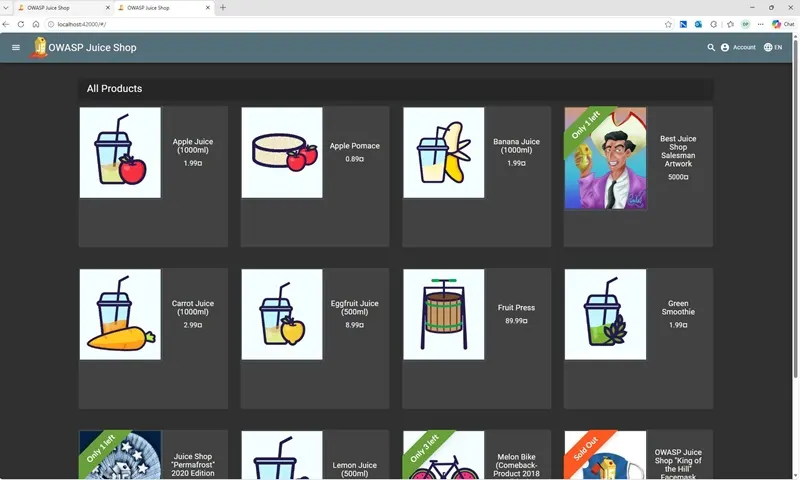
In a browser on Kali, open http://127.0.0.1:42000 and you should see the Juice Shop storefront:
Start, stop, restart, and update Juice Shop
These commands cover day-to-day lab use with the Kali package.
Stop the lab
juice-shop-stopThe helper stops juice-shop.service and prints the last few journal lines so you can confirm a clean shutdown.
Start it again
juice-shop-startUse this after a reboot or when you stopped the lab manually.
Restart through systemd
When you changed configuration under /var/lib/juice-shop or want a hard restart without the browser helper:
sudo systemctl restart juice-shopView logs
Read recent service output:
journalctl -u juice-shop --no-pagerFollow logs in real time while troubleshooting startup:
journalctl -u juice-shop -fA healthy start ends with a line similar to:
info: Server listening on port 42000Update the Kali package
sudo apt updatesudo apt install --only-upgrade juice-shopThe juice-shop command name still exists on some older notes, but current Kali users should rely on:
juice-shop-start
juice-shop-stop
Install Juice Shop with Docker
Docker is the preferred alternative when you want a current upstream release without managing Node.js on the host. This section assumes Docker Engine is available; for a full Docker install on Debian-family systems, see Install Docker on Debian.
Install and start Docker on Kali
Install Docker from Kali's repository:
sudo apt updatesudo apt install -y docker.ioEnable and start the Docker daemon:
sudo systemctl enable --now dockerVerify the client and daemon versions:
sudo docker versionClient:
Version: 28.5.2+dfsg4
Server:
Engine:
Version: 28.5.2+dfsg4Pull a versioned Juice Shop image
Pin a release tag so your lab stays reproducible:
sudo docker pull bkimminich/juice-shop:v20.1.1v20.1.1: Pulling from bkimminich/juice-shop
...
Status: Downloaded newer image for bkimminich/juice-shop:v20.1.1
docker.io/bkimminich/juice-shop:v20.1.1Pulling bkimminich/juice-shop without a tag follows the latest pointer, which can change over time. Prefer an explicit version tag or record the image digest from docker inspect.
Run Juice Shop locally
Bind the container port only on loopback so the lab stays on Kali:
sudo docker run --detach --name juice-shop --publish 127.0.0.1:3000:3000 bkimminich/juice-shop:v20.1.1The mapping 127.0.0.1:3000:3000 means Kali port 3000 forwards to container port 3000.
Open:
http://127.0.0.1:3000Confirm the container is running:
sudo docker ps --filter name=juice-shopCONTAINER ID IMAGE COMMAND STATUS PORTS
a255aad5a706 bkimminich/juice-shop:v20.1.1 "/nodejs/bin/node /j…" Up 10 seconds 127.0.0.1:3000->3000/tcpFollow startup logs until the application is ready:
sudo docker logs --follow juice-shopWait for:
info: Port 3000 is available (SUCCESS)
info: Server listening on port 3000
Press Ctrl+C to stop following the log stream, then verify HTTP access:
curl -I http://127.0.0.1:3000HTTP/1.1 200 OK
Content-Type: text/html; charset=UTF-8Manage the container
List running containers:
sudo docker psStop the lab:
sudo docker stop juice-shopStart the same container again:
sudo docker start juice-shopRemove the container for a clean instance:
sudo docker rm -f juice-shopRecreating the container resets server-side data. Clear the hacking-progress cookie as described below when you also need a blank scoreboard.
Install Juice Shop from source with Node.js
Use this shorter path when you need to modify source code, follow a specific release branch, or cannot use the Kali package or Docker.
Install build tools and Node.js
A minimal Kali image may not include git, node, or npm. Install them before cloning the repository:
sudo apt updatesudo apt install -y git nodejs npmThe upstream source workflow requires Node.js on the host before you clone and run npm install.
Verify a supported Node.js version
node --versionv24.18.0npm --version11.16.0Check the Node.js version compatibility table for v20.1.1 before copying an older Node.js version from another tutorial.
Clone a release
Clone the release tag you want to build. This shallow clone is the reproducible default:
git clone --depth 1 --branch v20.1.1 https://github.com/juice-shop/juice-shop.gitcd juice-shopAlternatively, clone the full repository and check out the tag:
git clone https://github.com/juice-shop/juice-shop.gitcd juice-shopgit checkout v20.1.1Install dependencies and start
Run as your normal user, not root:
npm installnpm install runs Juice Shop's postinstall build automatically. If npm start reports that build/app is missing, scroll back to the failed postinstall command, confirm that Node.js 22–26 is installed, and rerun npm install. After dependencies install successfully, you can run npm run build manually to repeat the build.
Start the application:
npm startinfo: Detected Node.js version v24.18.0 (SUCCESS)
info: Server listening on port 3000Open:
http://127.0.0.1:3000npm start runs in the foreground and stops when you close the terminal session. Do not run sudo npm install. Native module failures often mean an unsupported Node.js version.
Access Juice Shop from Kali, a host PC, or Burp Suite
Access from the same Kali system
| Install method | URL |
|---|---|
| Kali package | http://127.0.0.1:42000 |
| Docker or Node.js source | http://127.0.0.1:3000 |
Access from the host when Kali runs in a VM
A loopback-bound Docker container (-p 127.0.0.1:3000:3000) is reachable only inside Kali. The Kali package listens on all interfaces (*:42000), so a host on the same virtual network might reach it through the VM IP if port forwarding or bridged networking allows it.
Two controlled options:
- Run the browser and Burp Suite inside the Kali VM.
- Bind or forward the service only onto a host-only virtual network when you deliberately need host access.
The container created earlier is bound to Kali loopback. To make it reachable through the VM address, remove it and recreate it with an interface-wide mapping:
sudo docker rm -f juice-shopsudo docker run --detach --name juice-shop \
--publish 3000:3000 \
bkimminich/juice-shop:v20.1.1Restarting the existing container would not change its published address.
0.0.0.0 or all interfaces exposes a vulnerable application to every client that can route to the VM. Use that form only on an isolated lab network you control.
Check addresses and listening ports inside Kali before testing from another machine:
ip -4 -br addreth0 UP 10.0.2.15/24Note the VM IPv4 address on your lab network. You will use it from the host PC.
Confirm Juice Shop is listening on the expected port:
sudo ss -lntp | grep -E ':(3000|42000)\b'LISTEN 0 511 *:42000 *:* users:(("MainThread",pid=4565,fd=24))For the Kali package, expect port 42000. For Docker or source installs, expect port 3000 unless you mapped a different host port.
From the host PC, test reachability through the VM address. Replace <KALI_VM_IP> with the address from ip -4 -br addr:
curl -I http://<KALI_VM_IP>:42000For an interface-wide Docker mapping, use port 3000 instead.
HTTP/1.1 200 OK
Content-Type: text/html; charset=UTF-8HTTP/1.1 200 OK confirms the host can reach the service through the VM address. A connection refused or timeout usually means loopback-only binding, a firewall rule, or missing port forwarding.
Send Juice Shop traffic through Burp Suite
- Start Burp Suite and confirm a proxy listener on
127.0.0.1:8080. - Use Burp's built-in browser, or configure Firefox with FoxyProxy.
- Open the correct Juice Shop URL for your install method (port 42000 for the Kali package, 3000 for Docker or source).
- Confirm requests appear under Proxy → HTTP history.
Browsers often bypass the proxy for localhost. Use Burp's browser, remove localhost from proxy-exclusion settings, or access the application through Kali's non-loopback IP when you have deliberately bound the service there.
Troubleshooting
| Symptom | Likely cause | Fix |
|---|---|---|
Unable to locate package juice-shop |
Stale indexes, wrong architecture, or non-Kali repositories | Run sudo apt update, then apt policy juice-shop and dpkg --print-architecture |
juice-shop says the command is deprecated |
Old launcher name | Use juice-shop-start and juice-shop-stop |
| Service starts but browser cannot connect | Wrong port or service still starting | Check systemctl status juice-shop, ss -lntp | grep 42000, and curl -v http://127.0.0.1:42000 — Kali package uses 42000, not 3000 |
| Port 42000 or 3000 already in use | Another lab instance or container | Run sudo lsof -i :42000 or sudo lsof -i :3000; for Docker map another host port such as 127.0.0.1:3001:3000 |
| Kali package fails after an upgrade | Package or native library mismatch | Run sudo apt update, sudo apt full-upgrade, then sudo apt install --reinstall juice-shop and read journalctl -u juice-shop |
npm install or npm start fails |
Unsupported Node.js, failed postinstall build, or disk space | Match upstream Node engines (22–26), scroll back for postinstall errors, rerun npm install or npm run build, or use the Kali package or Docker |
docker pull rate limit or TLS error |
Unauthenticated Docker Hub pulls or proxy TLS inspection | Retry later, authenticate to Docker Hub, or configure Docker daemon proxy settings |
| Docker container exits immediately | Image pull incomplete or port conflict | Run sudo docker ps -a, sudo docker logs juice-shop, and sudo docker inspect juice-shop |
| Juice Shop works directly but not through Burp | Proxy bypass, wrong port, or intercept enabled | Confirm listener on 8080, remove localhost bypass, open the correct port, and check HTTP history with intercept off |
Browser opens on host laptop after juice-shop-start |
Host-integrated URL handler or custom remote-desktop integration | juice-shop-start calls xdg-open in the active desktop session; normally this opens Kali's default browser. A host browser appears only when the environment redirects URL handling to the host |
Reset or remove OWASP Juice Shop
Juice Shop performs self-healing during startup, but you may still want a completely fresh instance.
Restarting the application resets server-side data, but your browser may restore previous challenge progress for up to 30 days through cookies. For a completely fresh session, open the Score Board, select Delete cookie to clear hacking progress, and then restart or recreate the Juice Shop instance.
Kali package
Restart for a soft reset:
juice-shop-stopjuice-shop-startRemove the package and application files:
sudo apt purge -y juice-shopsudo apt autoremove -yApplication data lives under /var/lib/juice-shop. Purging removes the package-managed application files. If /var/lib/juice-shop remains because it contains generated logs or other runtime files, inspect it and remove it manually when you no longer need the data:
sudo rm -rf /var/lib/juice-shopDocker
sudo docker rm -f juice-shopRecreate the container from your chosen image tag when you need a clean server-side state. Clear the hacking-progress cookie on the Score Board when you also need a blank scoreboard.
Source installation
Stop npm start, delete the cloned directory, and clone or check out a fresh release again.
One Juice Shop instance is intended for a single learner or a pair-hacking session because challenge progress is shared within the instance.
References
- Kali Linux tool page — juice-shop
- OWASP Juice Shop project page
- OWASP Juice Shop companion guide
- Running OWASP Juice Shop
- Challenge tracking
- Juice Shop GitHub releases
- Juice Shop Docker image on Docker Hub
Summary
On Kali Linux the fastest supported path is the native juice-shop package: install with sudo apt install juice-shop, start with juice-shop-start, and open http://127.0.0.1:42000. That helper waits for port 42000 and calls xdg-open in the active desktop session, which normally opens Kali's default browser. The service listens on all interfaces rather than loopback only.
Docker gives you a pinned upstream release on port 3000 with sudo docker run --publish 127.0.0.1:3000:3000 bkimminich/juice-shop:<version>. Source install suits developers who need a tagged checkout and a supported Node.js release such as 22 through 26. Restarting or recreating an instance resets server-side data, but clear the Score Board hacking-progress cookie when you need a fully blank challenge list. Keep the application on localhost or an isolated lab network, route traffic through Burp Suite when you practice proxy workflows, and use only systems you are authorized to test.
For a broader practice environment, pair this lab with the virtual penetration testing lab guide or Install DVWA on Kali Linux when you want a second vulnerable target.
Frequently Asked Questions
What port does OWASP Juice Shop use on Kali Linux?
The Kali juice-shop package listens on port 42000. Docker and Node.js source installs use the upstream default port 3000 unless you change the publish mapping or PORT environment variable.
Why does juice-shop-start open a browser on my host PC?
juice-shop-start starts the service, waits for port 42000, and calls xdg-open in the active desktop session. Normally, this opens Kali's default browser. A browser on the host may open only when the environment uses a host-integrated URL handler or custom remote-desktop integration.
What is the difference between juice-shop and juice-shop-start?
juice-shop is a deprecated launcher name. Current Kali packages ship juice-shop-start and juice-shop-stop as the supported helpers for starting and stopping the systemd service.
How do I install the latest OWASP Juice Shop on Kali?
Use Docker with a versioned bkimminich/juice-shop image tag when you need the current upstream release. The Kali apt package follows Kali rolling packaging and may trail GitHub releases by one or more minor versions.
Can I run Juice Shop and Burp Suite together on Kali?
Yes. Start Burp Suite with a proxy listener on 127.0.0.1:8080, route browser traffic through Burp or use Burp browser, then open the correct Juice Shop URL for your install method. Remove localhost from proxy bypass lists if requests do not appear in HTTP history.
