| Tested on | Kali GNU/Linux Rolling 2026.2 (kali-rolling) |
|---|---|
| Package | adb 1.0.41 / 34.0.5-debiansqlite3 3.46.1InsecureShop 1.0 (com.insecureshop)Genymotion Android 10 ( Phone / vbox86p) |
| Applies to | Kali Linux with adb; rooted emulator or owned test device where you can read app private storage |
| Lab environment | Pentest lab Genymotion Desktop lab |
| Privilege | Normal user on Kali for adb; root shell on the Android guest for /data/data/<package> (or run-as when the target is debuggable) |
| Cert prep | CompTIA PenTest+ (mobile specialized systems / data storage) |
| Scope | Inspect local storage for SharedPreferences, SQLite, internal files, and shared storage; explain who can read each location; check logout clearing. Does not cover Logcat leakage, hardcoded secrets in source, or a general Android filesystem tutorial. |
| Related guides | Android exported components security testing MobSF Android app pentesting |
In this article we will check how an Android app stores data on the device. Android apps often need to remember information between launches. Examples include whether a user is logged in, application settings, cached server data, or profile information. Android provides several places to store this data, including SharedPreferences, databases, and ordinary files.
During a security assessment, you should check what the app stores, whether any of that data is sensitive, and who could read it. We start with a real InsecureShop finding: the app stores its training username and password in plaintext SharedPreferences. Later sections use practice files so you can learn the same inspection steps for SQLite databases and ordinary files. Those practice files are training data you create yourself, not vulnerabilities found in InsecureShop.
What counts as insecure Android storage?
Android normally gives each app its own Linux user ID (UID) and private storage area. That isolation is commonly called the application sandbox. Another ordinary app cannot simply open files inside that private directory.
Storage becomes a security problem when an app saves sensitive data where someone who should not have access to it can retrieve it, or when the app stores sensitive data unnecessarily in the first place. Examples include:
- Storing passwords when a short-lived session would be enough
- Placing secrets in broadly accessible shared storage
- Including sensitive files in backups when they should be excluded
- Leaving session material behind after logout
Plaintext in private internal storage deserves review, especially for passwords or long-lived credentials, but how serious it is depends on what access someone needs to read it. Android's application sandbox and device-level storage encryption provide important protection for private internal files. However, that is different from the app encrypting an individual password or token before writing it to disk.
SharedPreferences are normally created with private app access (MODE_PRIVATE), meaning Android's sandbox prevents ordinary apps with another UID from opening the file directly.
In security testing, the assumption about who can read the data is called the threat model. Ask first: who needs what access to read this file?
| Access path | Typical reach | What plaintext prefs/DB/files mean |
|---|---|---|
| Unrooted device, normal apps | Other apps blocked from /data/data/<pkg> |
Sandbox still protects against ordinary cross-app reads |
Debuggable app + run-as |
Tester or malware with debug access | Often readable without full root |
| Backup/restore path | Depends on Android version, target SDK, and backup rules | Sensitive files may be exposed if included in an authorized backup/restore flow |
| Rooted device / emulator | Full package data tree | Private files are readable once you have root |
Do not call every plaintext preference "critical remote compromise." Describe the data, the path, and the access someone would need.
Android app storage locations
Internal app storage is private to the application sandbox and is the normal place for app-only files, preferences, and databases.
External storage does not necessarily mean a removable SD card. On Android it also includes emulated storage such as /storage/emulated/0/. Access rules there depend on whether the location is app-specific or shared, and on Android's scoped-storage rules (Android 10 introduced scoped storage; Android 11 tightened it further).
On modern devices the private data directory is /data/data/<package>/ (often the same path as /data/user/0/<package>/). Important children:
/data/data/com.insecureshop/
├── shared_prefs/     ← SharedPreferences XML
├── databases/        ← SQLite / Room (when the app uses them)
├── files/            ← files created privately by the app
├── cache/            ← temporary app data
└── ...

App-specific external (example):
/storage/emulated/0/Android/data/com.insecureshop/

Shared external (example):
/storage/emulated/0/Download/
Android normally restricts these private directories to the app's own UID. A tester needs another access path, such as root or run-as on a debuggable build, to read them. Shared locations such as Download/ are a different question: access depends on Android version, target SDK, permissions, and scoped storage, not on a simple "any app can read everything" rule.
Inspect app data on a test device
Confirm adb can see the Genymotion guest. Use the same host-only layout from the Genymotion Desktop lab if you need the emulator build steps. On this lab the device was 192.168.56.103:5555:
adb devices -lList of devices attached
192.168.56.103:5555 device product:vbox86p model:Phone device:vbox86p transport_id:1device means the guest is online. Install InsecureShop if it is missing, then open the login screen:
adb install -r ~/mobsf-lab/insecureshop.apkSuccessSuccess means the package is on the device. You can open the login activity from ADB instead of finding it manually in the emulator. am start asks Android's Activity Manager to start the specified activity:
adb shell am start -n com.insecureshop/.LoginActivityStarting: Intent { cmp=com.insecureshop/.LoginActivity }Log in with the training credentials shopuser / !ns3csh0p so the app writes preferences. After a successful login you should see the product catalog.
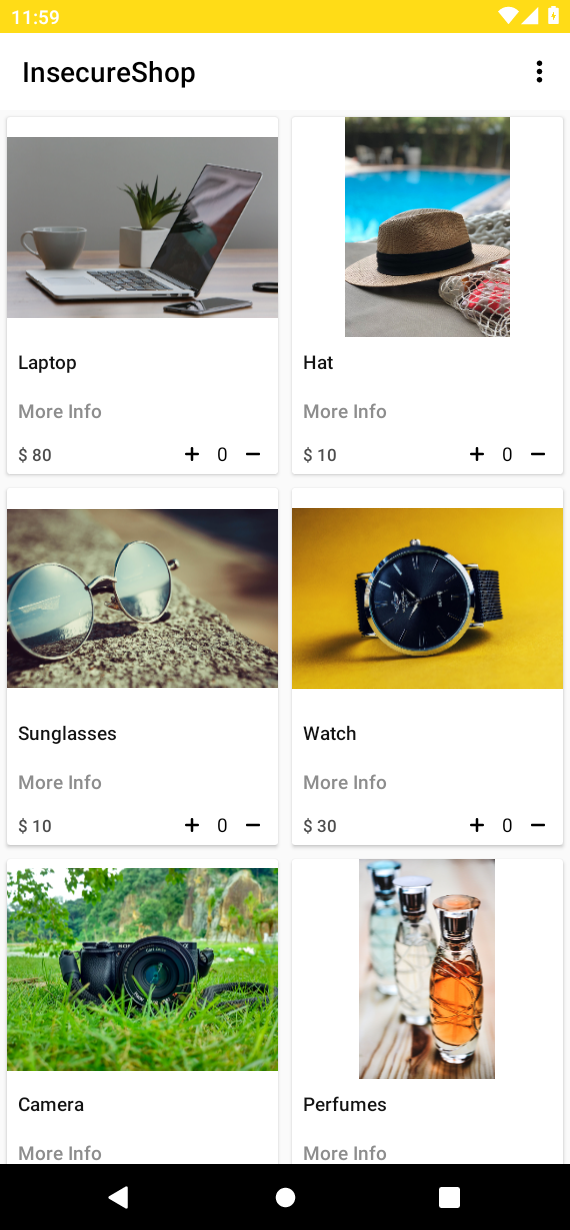
List the package data tree as root. Private directories use the app's UID permissions, so an ordinary adb shell ls without root often fails:
adb shell "su -c 'ls -la /data/data/com.insecureshop/'"total 56
drwx------ 6 u0_a109 u0_a109 4096 2026-09-12 12:06 .
drwxrwx--x 137 system system 12288 2026-09-12 11:54 ..
drwxrwx--x 2 u0_a109 u0_a109 4096 2026-09-12 12:04 app_textures
drwx------ 4 u0_a109 u0_a109 4096 2026-09-12 12:04 app_webview
drwxrws--x 5 u0_a109 u0_a109_cache 4096 2026-09-12 12:06 cache
drwxrwx--x 2 u0_a109 u0_a109 4096 2026-09-12 12:06 shared_prefsAfter a fresh login, InsecureShop has created shared_prefs and cache (plus a few support directories). There is no databases/ folder yet. That matches the real finding in the next section: credentials land in preferences, not in SQLite.
u0_a109 is the Linux UID Android assigned to InsecureShop on this emulator. Your value may be different, which is why you should read it from your own output rather than copy u0_a109 blindly.
File permissions are only one part of Android's security model. App UID isolation and SELinux policy also help control which processes can access private app data.
run-as tells Android to execute a command using the target app's UID. Android normally allows this only for apps built as debuggable. Because InsecureShop is debuggable, you can enter its package data directory without a full root shell:
adb shell "run-as com.insecureshop ls -la"total 56
drwx------ 6 u0_a109 u0_a109 4096 2026-09-12 12:06 .
drwxrwx--x 137 system system 12288 2026-09-12 11:54 ..
drwxrwx--x 2 u0_a109 u0_a109 4096 2026-09-12 12:04 app_textures
drwx------ 4 u0_a109 u0_a109 4096 2026-09-12 12:04 app_webview
drwxrws--x 5 u0_a109 u0_a109_cache 4096 2026-09-12 12:06 cache
drwxrwx--x 2 u0_a109 u0_a109 4096 2026-09-12 12:06 shared_prefsrun-as succeeding is itself a signal: release builds should not be debuggable, and run-as is blocked for non-debuggable packages.
Find cleartext credentials in SharedPreferences
SharedPreferences are a simple Android storage mechanism for small pieces of data such as settings, flags, or login state. The values are stored as key/value pairs, commonly in XML files under the app's shared_prefs/ directory. List that directory next:
adb shell "su -c 'ls -la /data/data/com.insecureshop/shared_prefs/'"total 32
drwxrwx--x 2 u0_a109 u0_a109 4096 2026-09-12 12:06 .
drwx------ 6 u0_a109 u0_a109 4096 2026-09-12 12:06 ..
-rw-rw---- 1 u0_a109 u0_a109 2554 2026-09-12 12:06 Prefs.xml
-rw-rw---- 1 u0_a109 u0_a109 127 2026-09-12 12:04 WebViewChromiumPrefs.xmlPrefs.xml is the file InsecureShop uses for credentials and the product catalog. Instead of first copying the sensitive file to /sdcard, adb exec-out lets us send the command output directly from Android to a file on Kali. The final > is handled by the Kali shell and saves that output locally:
mkdir -p ~/android-storage-lab/pulledCreate the destination directory if it does not exist yet. Stream Prefs.xml from the device into that folder:
adb exec-out su -c 'cat /data/data/com.insecureshop/shared_prefs/Prefs.xml' > ~/android-storage-lab/pulled/Prefs.xmladb exec-out writes the file on Kali with no progress line when it succeeds. Inspect the pulled copy (product list truncated here for readability):
cat ~/android-storage-lab/pulled/Prefs.xml<?xml version='1.0' encoding='utf-8' standalone='yes' ?>
<map>
<string name="password">!ns3csh0p</string>
<string name="productList">[{"id":1,"imageUrl":"https://images.pexels.com/…","name":"Laptop",…}]…[catalog truncated]</string>
<string name="username">shopuser</string>
</map>This is a real InsecureShop storage issue, not seeded practice data. The application wrote the values after login.
Because the password is stored directly as text, anyone who gains authorized testing access to this file can read the password immediately; the application has not encrypted the value before storing it. As noted earlier, SharedPreferences usually use MODE_PRIVATE, so other unprivileged apps still cannot open this file on a normal unrooted device. Record the file path, the sensitive keys, and how you gained access (root, run-as, or another allowed path).
If you ever stage a copy under /sdcard/Download/ instead of using adb exec-out, remember that you temporarily moved cleartext credentials into shared storage. Remove that staged copy when you finish, and avoid the technique on production devices unless your evidence-handling rules allow it.
Runtime tools such as Objection can print the same Prefs.xml path during an interactive session. The adb exec-out approach stays useful when you want a file for notes without attaching Frida.
Practice SQLite database inspection
InsecureShop does not create a SQLite database during the login flow used in this lab, so there is no genuine InsecureShop database finding to demonstrate here. To learn the inspection workflow, create a small practice database and place it inside the app's private databases/ directory. Treat the contents below only as training data, not as a vulnerability found in InsecureShop.
Many real apps do store sessions and profile caches in SQLite (or Room, which still lands as .db files under databases/). The steps below are the same ones you would use when those files exist.
Create the practice database on Kali with an obvious training name. Use a heredoc so the SQL is readable:
mkdir -p ~/android-storage-labCreate the lab directory on Kali if needed. Then build the practice database with readable SQL:
sqlite3 ~/android-storage-lab/training_session.db <<'SQL'
CREATE TABLE sessions (
    id INTEGER PRIMARY KEY,
    user_id TEXT,
    email TEXT,
    access_token TEXT,
    refresh_token TEXT,
    created_at TEXT
);

INSERT INTO sessions VALUES (
    1,
    'u-1042',
    'shopuser@lab.local',
    'eyJhbGciOiJIUzI1NiIsInR5cCI6IkpXVCJ9.lab_access_token_demo',
    'rt_lab_refresh_9f3a2c',
    '2026-09-13T10:00:00Z'
);

CREATE TABLE profile_cache (
    key TEXT PRIMARY KEY,
    value TEXT
);

INSERT INTO profile_cache VALUES
    ('phone', '+1-555-0142'),
    ('loyalty_id', 'GLC-77821');
SQL
sqlite3 prints nothing on success for that batch. Push the file to the guest, then copy it into private storage (use the UID from your earlier ls if it is not u0_a109):
adb push ~/android-storage-lab/training_session.db /sdcard/Download/training_session.db~/android-storage-lab/training_session.db: 1 file pushed, 0 skipped. 95.2 MB/s (16384 bytes in 0.000s)The push lands in shared storage only so you can copy it as root. Install it under the package databases/ directory. Because we copied this file into InsecureShop's private directory manually, we also set its owner to InsecureShop's UID and give the directory and file permissions that allow the app to access them. In a real application, Android and the app normally create these files with the appropriate ownership automatically:
adb shell "su -c 'mkdir -p /data/data/com.insecureshop/databases && cp /sdcard/Download/training_session.db /data/data/com.insecureshop/databases/training_session.db && chown u0_a109:u0_a109 /data/data/com.insecureshop/databases /data/data/com.insecureshop/databases/training_session.db && chmod 770 /data/data/com.insecureshop/databases && chmod 660 /data/data/com.insecureshop/databases/training_session.db'"The install into private storage exits silently on success. List what appears under databases/:
adb shell "su -c 'ls -la /data/data/com.insecureshop/databases/'"total 36
drwxrwx--- 2 u0_a109 u0_a109 4096 2026-09-12 12:06 .
drwx------ 8 u0_a109 u0_a109 4096 2026-09-12 12:06 ..
-rw-rw---- 1 u0_a109 u0_a109 16384 2026-09-12 12:06 training_session.dbWork from the Kali copy you already created (or pull the training file again). Ask sqlite3 which tables exist:
sqlite3 ~/android-storage-lab/training_session.db '.tables'profile_cache sessions.tables tells you what tables exist. .schema sessions shows the columns and types so you do not have to guess field names before writing a query:
sqlite3 ~/android-storage-lab/training_session.db '.schema sessions'CREATE TABLE sessions (
id INTEGER PRIMARY KEY,
user_id TEXT,
email TEXT,
access_token TEXT,
refresh_token TEXT,
created_at TEXT
);Select the sensitive columns with truncated token display:
sqlite3 ~/android-storage-lab/training_session.db "SELECT id,user_id,email,substr(access_token,1,40)||'…',substr(refresh_token,1,20)||'…',created_at FROM sessions;"1|u-1042|shopuser@lab.local|eyJhbGciOiJIUzI1NiIsInR5cCI6IkpXVCJ9.lab…|rt_lab_refresh_9f3a2…|2026-09-13T10:00:00ZThe practice row contains an example access token and refresh token, along with the user's email address. Check the profile cache table next:
sqlite3 ~/android-storage-lab/training_session.db 'SELECT * FROM profile_cache;'phone|+1-555-0142
loyalty_id|GLC-77821On a real assessment, cite the file path, table, and columns, and state how you gained access. SQLite may also create companion files such as database.db-wal, database.db-shm, or database.db-journal. Those files are part of SQLite's transaction mechanisms and may contain data that is not visible in the main .db file alone. When collecting a database for analysis, copy these companion files too if they exist.
Remove /sdcard/Download/training_session.db when you finish so leftover training data does not sit in shared storage.
Practice file and shared-storage inspection
The same inspection approach applies to ordinary files under files/. We'll use one small training file to show the difference between private and shared storage.
Create an obviously named training secret on Kali and place it under files/ the same way:
printf '%s\n' 'access_token=eyJhbGciOiJIUzI1NiIsInR5cCI6IkpXVCJ9.lab_access_token_demo' 'user_email=shopuser@lab.local' > ~/android-storage-lab/training_secret.txtprintf writes the training file on Kali with no stdout. Push it to the guest Download folder:
adb push ~/android-storage-lab/training_secret.txt /sdcard/Download/training_secret.txt~/android-storage-lab/training_secret.txt: 1 file pushed, 0 skipped. 0.8 MB/s (102 bytes in 0.000s)Copy it into the app's private files/ directory and fix ownership:
adb shell "su -c 'mkdir -p /data/data/com.insecureshop/files && cp /sdcard/Download/training_secret.txt /data/data/com.insecureshop/files/training_secret.txt && chown u0_a109:u0_a109 /data/data/com.insecureshop/files /data/data/com.insecureshop/files/training_secret.txt && chmod 770 /data/data/com.insecureshop/files && chmod 660 /data/data/com.insecureshop/files/training_secret.txt'"Read the training file from private storage:
adb shell "su -c 'cat /data/data/com.insecureshop/files/training_secret.txt'"access_token=eyJhbGciOiJIUzI1NiIsInR5cCI6IkpXVCJ9.lab_access_token_demo
user_email=shopuser@lab.localAgain, this is practice data you planted. On a real app, look for tokens, exports, and caches the application created itself.
Now compare that private file with a file stored under Android's shared Download directory:
printf '%s\n' 'note=training shared-storage example' 'order_id=ORD-44821' 'card_last4=4242' > ~/android-storage-lab/training_shared_export.txtPush the labeled training export onto shared storage:
adb push ~/android-storage-lab/training_shared_export.txt /sdcard/Download/training_shared_export.txt~/android-storage-lab/training_shared_export.txt: 1 file pushed, 0 skipped. 0.2 MB/s (72 bytes in 0.000s)Check the permission bits and owning group on the shared file:
adb shell 'ls -la /sdcard/Download/training_shared_export.txt'-rw-rw---- 1 root sdcard_rw 72 2026-09-13 01:27 /sdcard/Download/training_shared_export.txtsdcard_rw marks shared media storage on this image. Read the contents without root:
adb shell 'cat /sdcard/Download/training_shared_export.txt'note=training shared-storage example
order_id=ORD-44821
card_last4=4242Notice that this command does not use su. On this lab image, the ADB shell can read the file from shared storage. This demonstrates that the file is not protected in the same way as InsecureShop's private /data/data/... files. It does not prove that every third-party app can read the file, because normal app access is also controlled by scoped-storage and permission rules.
The important difference is that /sdcard/Download/ is shared storage rather than InsecureShop's private internal storage. However, this does not mean every Android app can automatically read every file in Download. Access depends on the Android version, target SDK, permissions, and scoped-storage rules. On older or broadly permissioned configurations, sensitive exports in shared storage can create significantly more exposure than files kept in the app's internal private directory.
Android's current guidance recommends internal storage for sensitive app-specific data and shared storage for content intentionally meant to be shared. Prefer not to put card data or long-lived tokens in shared folders at all.
Keys, tokens and Android Keystore
Separate ordinary app data from cryptographic key material:
| Storage option | Appropriate for | Avoid using it for |
|---|---|---|
| SharedPreferences / DataStore (plaintext) | Non-sensitive flags and UI state | Passwords, refresh tokens, API keys |
| SQLite / files (plaintext) | Cached catalog content | Long-lived credentials |
| Android Keystore | Cryptographic keys used for crypto operations | Large blobs; Keystore holds keys, not whole databases |
| Values encrypted with Keystore-backed keys | Tokens at rest when you must cache them | Writing your own encryption scheme |
Android Keystore lets an app create and use cryptographic keys while making the key material harder to extract. On supported devices, keys can also be hardware-backed. Use Keystore for keys that protect local data or sign requests. Prefer short-lived server tokens, and avoid storing passwords on disk when a proper session design can avoid it.
EncryptedSharedPreferences is now deprecated, so avoid presenting it as the default fix in new Android applications. Existing applications may still use it. For new designs, use Android Keystore for cryptographic key material and choose a currently maintained encryption approach appropriate for the data.
When you recommend a fix, ask for Keystore-backed protection of secrets where local secrets are required, removal of password persistence, and server-side session invalidation. Do not treat "switch to a deprecated helper" as the remediation.
Backups, debug builds and rooted devices
Confirm package flags that widen access to the same plaintext files:
adb shell dumpsys package com.insecureshop | grep -E 'flags=|pkgFlags=' flags=[ DEBUGGABLE HAS_CODE ALLOW_CLEAR_USER_DATA ALLOW_BACKUP ]
pkgFlags=[ DEBUGGABLE HAS_CODE ALLOW_CLEAR_USER_DATA ALLOW_BACKUP ]DEBUGGABLE enables run-as and easier instrumentation. ALLOW_BACKUP means android:allowBackup is true in the manifest. That is the same setting APKHunt and other static scanners flag.
Android backup behavior depends on the Android release, the app's target SDK, and its configured backup rules. The old adb backup workflow is deprecated and is unreliable for testing modern applications. Instead of assuming allowBackup="true" automatically exposes every file, review the app's backup configuration and test it on the Android versions that are actually in scope. On this Genymotion image, adb backup may produce an empty archive without an on-device confirm.
Rooted emulators are the usual lab path for /data/data reads. On a non-rooted client device you rely on run-as (debuggable only), authorized backup/restore paths, or physical/forensic access defined in the rules of engagement. Say which path you used so readers do not assume every phone is rooted.
Verify data removal on logout
A secure logout is not just a UI action. Local authentication and session material should be removed, and any server-side session or refresh token should also be invalidated where applicable.
Open the product list overflow menu (three dots) and choose Logout. InsecureShop clears preferences through its Prefs helper. After logout, re-read Prefs.xml:
adb shell "su -c 'cat /data/data/com.insecureshop/shared_prefs/Prefs.xml'"<?xml version='1.0' encoding='utf-8' standalone='yes' ?>
<map />An empty <map /> means the credential keys are gone from preferences. That is the expected logout behavior for this training app.
Also check databases and files after logout on real assessments. Apps often clear prefs but leave SQLite sessions or files/ token caches behind. InsecureShop's logout code clears its preferences, but it does not know about the two practice files we manually added earlier.
Ordinary app-specific storage is removed when the user uninstalls the app. Logout testing is about what remains while the app is still installed.
Record the finding
Once you confirm sensitive data is stored insecurely, record enough information for someone else to reproduce the result and understand the real exposure.
| Include | Example for this lab |
|---|---|
| Asset | com.insecureshop / InsecureShop 1.0 |
| Location | /data/data/com.insecureshop/shared_prefs/Prefs.xml |
| Data | Cleartext username / password keys |
| Access path | Rooted Genymotion shell; also run-as because debuggable |
| Impact | Demo account password recoverable once private storage is readable |
| Who can read it | Not a normal third-party app without root, debug access, or an applicable backup path |
| Fix direction | Do not persist passwords; use short-lived tokens; Keystore-backed encryption if local secrets are required; exclude sensitive data from backup with the appropriate backup/data-extraction rules (disable backup entirely only when requirements call for it); ship release builds without debuggable |
Do not rate the issue from the word "plaintext" alone. Base the severity on what data is exposed and what access an attacker needs to retrieve it. For this lab, a clear write-up looks like: "Sensitive credentials stored in cleartext preferences; readable with root, debug package access, or an applicable backup path depending on build flags and Android version."
Keep practice artifacts out of the finding. Only report what the application itself wrote.
Troubleshooting
| Symptom | Likely cause | Fix |
|---|---|---|
Permission denied on /data/data/... |
No root and app not debuggable | Use a rooted emulator, or run-as only on debuggable builds |
run-as: package not debuggable |
Release build | Rely on root lab device or authorized backup/forensic path |
Empty shared_prefs |
Not logged in yet | Complete login so the app writes preferences |
adb backup writes 0-byte .ab |
Deprecated flow / missing on-device confirm / modern restrictions | Confirm the on-device prompt if present, or validate backup rules from the manifest and policy instead |
No databases/ folder |
App does not use SQLite locally | That can be normal; still check files/, cache/, and shared storage |
Summary
Start with what the application actually writes to disk. In InsecureShop, logging in creates Prefs.xml containing the training username and password in plaintext. We then used separate practice files to learn how to inspect SQLite databases, ordinary internal files, and shared storage without presenting those files as InsecureShop vulnerabilities.
The important question is not simply "Is this plaintext?" but "What data is stored here, and who can read it?" Android's sandbox protects private application storage from ordinary apps, while root access, debuggable builds, backups, shared storage, and application flaws can change that exposure.
Finally, check what remains after logout. Sensitive session data should not stay on disk longer than necessary.
References
- Android Keystore system — official key storage guidance
- Security tips (Android developers) — platform storage and IPC warnings
- Data and file storage overview — internal vs app-specific external storage
- OWASP MASTG — Data Storage on Android — mobile testing techniques
- InsecureShop — intentionally vulnerable training APK used in this lab
Frequently Asked Questions
Is plaintext SharedPreferences always vulnerable?
Plaintext preferences are a poor place for passwords and long-lived secrets, but they are not automatically readable by every other app on an unrooted device when the mode is private. Describe the data and who needs what access to read the file: root, debuggable run-as, an applicable backup path, or physical access.
Where does Android store app data?
Most private app files live under /data/data/<package>/ (or /data/user/0/<package>/), including shared_prefs, databases, files, and cache. App-specific external files usually sit under /storage/emulated/0/Android/data/<package>/. Shared locations such as Download follow scoped-storage rules.
Can another app read internal storage?
Not normally. The sandbox blocks other unprivileged apps from another package's private directory. Root, exploitation of the target app, debug access, backup extraction, or mistakes with shared storage change that answer.
Should secrets be stored in Android Keystore?
Cryptographic keys belong in Android Keystore. Tokens and other secrets should be encrypted with Keystore-backed keys or avoided on disk when short-lived server sessions are enough. Prefer current Keystore-based designs over deprecated EncryptedSharedPreferences for new work.
What should be removed on logout?
Clear credentials, session tokens, and cached profile material from preferences, databases, and files the app controls, and invalidate the server session where applicable. Leaving a refresh token in SQLite after a preference wipe is a common partial logout bug.