| Tested on | Kali GNU/Linux Rolling 2026.2 (kali-rolling) |
|---|---|
| Package | Apktool 3.0.3 (upstream JAR)apksigner 35.0.2-1zipalign 10.0.0+r36-1.1adb 1.0.41 / 34.0.5-debianOpenJDK 25.0.3InsecureShop 1.0 (com.insecureshop) |
| Applies to | Kali Linux with Java; Android emulator or owned test device reachable by adb |
| Lab environment | Pentest lab Genymotion Desktop lab |
| Privilege | Normal user for Apktool and signing; sudo only to install apksigner / zipalign packages |
| Scope | Decode an APK with Apktool, inspect resources/manifest/Smali, make a harmless UI string change, rebuild, zip-align, sign with apksigner, verify, and install on Genymotion. Does not cover Java-source navigation in JADX, payload embedding, or a full Android signing deep dive. |
| Related guides | APKHunt Android app pentesting Objection Android pentesting Burp Suite Android HTTPS interception Android SSL pinning bypass |
If you need to inspect or modify the resources, manifest, or compiled code inside an Android APK, simply extracting the APK as a ZIP file is not enough. Apktool decodes those files into a form you can work with and can rebuild them into an APK after your changes.
In this tutorial we will use InsecureShop to follow the complete workflow: decode the APK, change two visible resources, rebuild it, sign it, and install the modified version on Genymotion.
An APK is the installable package Android uses to distribute an application. It contains compiled app code, resources, the manifest, assets, and signing information packaged together in a ZIP-based format.
Apktool is useful when you need to inspect or modify an APK's resources, manifest, or compiled Dalvik code. It decodes Dalvik bytecode into Smali and can rebuild the modified files into a new APK.
It does not recover the original Java or Kotlin source code. If your goal is mainly to read application logic, JADX is usually easier to work with.
JADX vs Apktool: Choose the Right Tool
Both tools open APKs, but they answer different questions.
| Need | Prefer |
|---|---|
| Read Java-like source while browsing classes | JADX |
Decode resources (res/), AndroidManifest.xml, and Smali |
Apktool |
| Change a string, layout, or flag and rebuild an installable APK | Apktool |
| Understand Java-like application logic without rebuilding | JADX |
| Observe application behavior at runtime | Frida |
Static scanners such as MobSF often report interesting strings or exported components. Apktool is how you open the package, confirm those findings in resources or Smali, and produce a rebuilt lab APK when a static report alone is not enough.
Install Apktool
Kali includes Apktool in its repositories, so apt install apktool is the simplest option if you only need the packaged version. This lab uses upstream Apktool 3.0.3 so the commands and output match the version tested here. Apktool is distributed as a Java JAR file. We will also create a tiny shell script called apktool that runs the JAR for us, so later commands can simply use apktool d and apktool b. Install Android build-tools packages for aligning and signing as well.
Install the signing helpers from Kali first. Refresh the package index:
sudo apt updateInstall apksigner, zipalign, and a JRE for the Apktool JAR:
sudo apt install -y apksigner zipalign openjdk-25-jre-headlessVerify that apksigner is available. On this Kali package, the command reports its internal tool version as 0.9:
apksigner --version0.9Confirm zipalign prints its banner:
zipalign 2>&1 | head -2Zip alignment utility
Copyright (C) 2009 The Android Open Source ProjectCreate a lab directory for the JAR, wrapper, and APKs:
mkdir -p ~/apktool-lab/binDownload Apktool 3.0.3 into that directory:
curl -fL -o ~/apktool-lab/bin/apktool_3.0.3.jar \
  https://github.com/iBotPeaches/Apktool/releases/download/v3.0.3/apktool_3.0.3.jar
Add a wrapper so you can run apktool without typing java -jar each time:
cat > ~/apktool-lab/bin/apktool <<'EOF'
#!/bin/sh
exec java -jar "$HOME/apktool-lab/bin/apktool_3.0.3.jar" "$@"
EOF
The wrapper simply passes everything you type after apktool to the Apktool JAR. For example, apktool --version becomes java -jar apktool_3.0.3.jar --version.
Make the wrapper executable:
chmod +x ~/apktool-lab/bin/apktoolPut the wrapper on your PATH for this shell:
export PATH="$HOME/apktool-lab/bin:$PATH"This export applies only to the current terminal. If you open a new terminal, run it again or add the directory to your shell startup file such as ~/.bashrc.
Check the version string:
apktool --version3.0.3Download the same InsecureShop training APK used in the MobSF and Drozer labs:
curl -fL -o ~/apktool-lab/insecureshop.apk \
  https://github.com/optiv/InsecureShop/releases/download/v1.0/insecureshop.apk
Confirm adb can see the emulator before you install anything later:
adb devices -lList of devices attached
192.168.56.103:5555 device product:vbox86p model:Phone device:vbox86p transport_id:1Decode an APK
Decoding does not recover the original Android Studio project or original source code. Apktool reconstructs readable resource XML, decodes AndroidManifest.xml, and disassembles DEX bytecode into Smali so you can inspect and modify the package.
Decode InsecureShop into ~/apktool-lab/insecureshop-decoded:
apktool d ~/apktool-lab/insecureshop.apk -o ~/apktool-lab/insecureshop-decoded -fI: Using Apktool 3.0.3 on insecureshop.apk with 2 threads
I: Loading resource table...
I: Baksmaling classes.dex...
I: Decoding value resources...
I: Loading resource table from file: /root/.local/share/apktool/framework/1.apk
I: Decoding file resources...
I: Generating values XMLs...
I: Decoding AndroidManifest.xml with resources...
I: Copying original files...
I: Copying unknown files...-f overwrites an existing output directory. On first decode you can omit it.
Not every resource referenced by an APK is stored inside that APK. Apps also use resources provided by Android itself. Apktool keeps framework files so it can resolve those references while decoding and rebuilding.
For normal Android apps, Apktool's default framework is usually enough. APKs from manufacturers such as Samsung or Xiaomi may need additional framework files from that device. In this decode, Apktool loaded its framework package from ~/.local/share/apktool/framework/.
List the top of the decoded tree:
find ~/apktool-lab/insecureshop-decoded -maxdepth 2 \( -type d -o -name 'AndroidManifest.xml' -o -name 'apktool.yml' \) | sort | head -25/root/apktool-lab/insecureshop-decoded
/root/apktool-lab/insecureshop-decoded/AndroidManifest.xml
/root/apktool-lab/insecureshop-decoded/apktool.yml
/root/apktool-lab/insecureshop-decoded/build
/root/apktool-lab/insecureshop-decoded/original
/root/apktool-lab/insecureshop-decoded/res
/root/apktool-lab/insecureshop-decoded/smali
/root/apktool-lab/insecureshop-decoded/unknownapktool.yml records the Apktool version and SDK metadata for the rebuild. You normally do not need to edit apktool.yml for a simple resource change. It is useful here because it shows metadata Apktool recorded and will use again during the rebuild. Open the head of that file:
head -20 ~/apktool-lab/insecureshop-decoded/apktool.ymlversion: 3.0.3
apkFileName: insecureshop.apk
usesFramework:
ids:
- 1
sdkInfo:
minSdkVersion: 16
targetSdkVersion: 29
versionInfo:
versionCode: 1
versionName: 1.0
resourcesInfo:
packageId: 127
doNotCompress:
- arsc
- pngHere, minSdkVersion: 16 is the oldest Android API the APK declares support for, while targetSdkVersion: 29 tells Android which platform behavior the app was built to target. versionCode and versionName identify the app release. Apktool uses this metadata again during rebuilding.
Understand Resources, Manifest and Smali
Three areas matter for most lab edits.
| Path | What it holds |
|---|---|
AndroidManifest.xml |
Package name, permissions, exported components, application flags |
res/ |
Layouts, strings, drawables, and other resources |
smali/ |
Disassembled Dalvik bytecode (not Java source) |
Android apps compile Java/Kotlin code into DEX bytecode. Apktool converts that bytecode into Smali, a human-readable assembly-like representation. Editing Smali lets you alter compiled application logic without recovering the original Java/Kotlin source, but it is much lower-level than working in JADX.
The application label comes from @string/app_name. Confirm the string:
grep 'name="app_name"' ~/apktool-lab/insecureshop-decoded/res/values/strings.xml <string name="app_name">InsecureShop</string>The About screen button text is hardcoded in the layout, not only in strings.xml:
grep 'android:text=' ~/apktool-lab/insecureshop-decoded/res/layout/activity_about_us.xml <Button android:id="@id/send_data_to_broadcast" android:layout_width="wrap_content" android:layout_height="wrap_content" android:layout_marginBottom="20.0dp" android:text="About InsecureShop" android:onClick="onSendData" app:layout_constraintBottom_toTopOf="@id/textView" app:layout_constraintEnd_toEndOf="parent" app:layout_constraintStart_toStartOf="parent" app:layout_constraintTop_toTopOf="parent" app:layout_constraintVertical_bias="1.0" style="@style/AppButton" />Smali for the app’s own classes lives under smali/com/insecureshop/. Class names generally map to .smali files and directories, which helps connect JADX or static findings to the decoded tree. List the top-level classes:
find ~/apktool-lab/insecureshop-decoded/smali/com/insecureshop -maxdepth 1 -name '*.smali' | sort | head/root/apktool-lab/insecureshop-decoded/smali/com/insecureshop/AboutUsActivity.smali
/root/apktool-lab/insecureshop-decoded/smali/com/insecureshop/BR.smali
/root/apktool-lab/insecureshop-decoded/smali/com/insecureshop/BuildConfig.smali
/root/apktool-lab/insecureshop-decoded/smali/com/insecureshop/CartAdapter$CartViewHolder.smali
/root/apktool-lab/insecureshop-decoded/smali/com/insecureshop/CartAdapter.smali
/root/apktool-lab/insecureshop-decoded/smali/com/insecureshop/CartListActivity.smali
/root/apktool-lab/insecureshop-decoded/smali/com/insecureshop/Cart.smali
/root/apktool-lab/insecureshop-decoded/smali/com/insecureshop/ChooserActivity.smali
/root/apktool-lab/insecureshop-decoded/smali/com/insecureshop/CustomReceiver.smali
/root/apktool-lab/insecureshop-decoded/smali/com/insecureshop/DataBinderMapperImpl$InnerBrLookup.smaliNames such as LoginActivity.smali and AboutUsActivity.smali are the same components you would open in JADX. This lab does not edit Smali. The start of an activity file shows the class header:
head -5 ~/apktool-lab/insecureshop-decoded/smali/com/insecureshop/AboutUsActivity.smali.class public final Lcom/insecureshop/AboutUsActivity;
.super Landroidx/appcompat/app/AppCompatActivity;
.source "AboutUsActivity.kt"A real Smali file contains fields, method definitions, registers, and bytecode instructions. We are not editing those in this tutorial; the important point is that this is compiled application logic represented as Smali rather than recovered Kotlin source. For Java-like reading of the same class, open the APK in JADX separately.
Make a Controlled Modification
For this lab, we will make two visible text changes. They are easy to verify after installation and do not change the application's behavior.
These examples show two common Android resource patterns. The launcher name references a reusable string resource, while the About button contains its text directly in the layout XML. That is why we edit two different files.
@string/app_name is a reference to the app_name entry in res/values/strings.xml. Android uses resource references like this so the same text can be reused from multiple places and translated without changing every layout individually.
You can edit these files with any text editor. The commands below use sed -i to replace the value directly from the terminal; -i means edit the file in place.
Change app_name in strings.xml:
sed -i 's/<string name="app_name">InsecureShop<\/string>/<string name="app_name">InsecureShop-LabMod<\/string>/' \
  ~/apktool-lab/insecureshop-decoded/res/values/strings.xml
Confirm the new label:
grep 'name="app_name"' ~/apktool-lab/insecureshop-decoded/res/values/strings.xml <string name="app_name">InsecureShop-LabMod</string>Update the About button text in the layout:
sed -i 's/android:text="About InsecureShop"/android:text="About InsecureShop-LabMod"/' \
  ~/apktool-lab/insecureshop-decoded/res/layout/activity_about_us.xml
Confirm the layout line:
grep 'android:text=' ~/apktool-lab/insecureshop-decoded/res/layout/activity_about_us.xml <Button android:id="@id/send_data_to_broadcast" android:layout_width="wrap_content" android:layout_height="wrap_content" android:layout_marginBottom="20.0dp" android:text="About InsecureShop-LabMod" android:onClick="onSendData" app:layout_constraintBottom_toTopOf="@id/textView" app:layout_constraintEnd_toEndOf="parent" app:layout_constraintStart_toStartOf="parent" app:layout_constraintTop_toTopOf="parent" app:layout_constraintVertical_bias="1.0" style="@style/AppButton" />We now have two changes that will be easy to recognize after installing the rebuilt APK: the app name and the About button text. Do not insert payloads or disable security checks in unauthorized apps.
Rebuild the APK
apktool b builds a new APK from the decoded directory. It compiles the resources with aapt2 and reassembles Smali into DEX bytecode.
The rebuilt APK contains our modified resources, but it does not retain the original app's signing certificate. We therefore need to sign it before Android will install it.
Rebuild into a named output file:
apktool b ~/apktool-lab/insecureshop-decoded -o ~/apktool-lab/insecureshop-rebuilt.apkI: Using Apktool 3.0.3 on insecureshop.apk with 2 threads
I: Smaling smali folder into classes.dex...
I: Building resources with aapt2...
I: Building apk file...
I: Importing unknown files...
I: Built apk into: insecureshop-rebuilt.apkCheck the rebuilt file size:
ls -lh ~/apktool-lab/insecureshop-rebuilt.apk-rw-r--r-- 1 root root 4.1M Sep 13 00:53 /root/apktool-lab/insecureshop-rebuilt.apkIf resource XML cannot be compiled, the rebuild fails. For example, removing the closing </string> tag produced warnings and then an AndrolibException:
W: insecureshop-decoded/res/values/strings.xml:0: error: xml parser error: mismatched tag.
W: insecureshop-decoded/res/values/strings.xml: error: file failed to compile.
Exception in thread "main" brut.androlib.exceptions.AndrolibException: brut.common.BrutException: Execution failed (exit code = 1):
Fix the XML and rebuild. If the error points to a resource XML file, fix that error first. There is no reason to troubleshoot Smali until the resource compilation succeeds.
Sign and Verify the APK
Android will not install an unsigned APK from a normal adb install. Android APKs must be digitally signed. A keystore is a file that holds the private key and certificate used for that signature. Because we do not have InsecureShop's original signing key, we will create our own disposable key for this lab, then align the APK, sign with apksigner, and verify.
Generate a 2048-bit RSA key for the lab (store these passwords only in a disposable lab; never reuse them for production apps):
keytool -genkeypair -v \
  -keystore ~/apktool-lab/lab-release.jks \
  -alias labkey \
  -keyalg RSA -keysize 2048 -validity 10000 \
  -storepass 'LabPass123!' -keypass 'LabPass123!' \
-dname 'CN=GoLinuxCloud Lab,OU=Training,O=GoLinuxCloud,L=Lab,ST=Lab,C=IN'Generating 2048-bit RSA key pair and self-signed certificate (SHA384withRSA) with a validity of 10,000 days
for: CN=GoLinuxCloud Lab, OU=Training, O=GoLinuxCloud, L=Lab, ST=Lab, C=IN
[Storing lab-release.jks]zipalign adjusts how files are laid out inside the APK so Android can access certain uncompressed data efficiently. The important rule for this workflow is that alignment happens before signing; changing the APK afterward would invalidate its signature.
Align the rebuilt APK on 4-byte boundaries:
zipalign -f -p 4 ~/apktool-lab/insecureshop-rebuilt.apk ~/apktool-lab/insecureshop-aligned.apkzipalign prints nothing when the write succeeds. Confirm alignment with a check pass. The tool lists many entries with (OK); the important ending is:
zipalign -c -v 4 ~/apktool-lab/insecureshop-aligned.apkVerification successfulPassing passwords directly on the command line is done here only to make the disposable lab reproducible. For a real signing key, avoid exposing passwords in shell history or process arguments.
Sign the aligned APK:
apksigner sign \
  --ks ~/apktool-lab/lab-release.jks \
  --ks-key-alias labkey \
  --ks-pass 'pass:LabPass123!' \
  --key-pass 'pass:LabPass123!' \
  --out ~/apktool-lab/insecureshop-labmod.apk \
  ~/apktool-lab/insecureshop-aligned.apk
apksigner sign also exits quietly on success. Verify the signature and print the certificate:
apksigner verify --print-certs ~/apktool-lab/insecureshop-labmod.apkSigner #1 certificate DN: CN=GoLinuxCloud Lab, OU=Training, O=GoLinuxCloud, L=Lab, ST=Lab, C=IN
Signer #1 certificate SHA-256 digest: 1c8775b4b4fe7f081c40bb6e369ca111221555fd5626890cc1a8b0b161e94689
Signer #1 certificate SHA-1 digest: df2c1fabf5e1009bd52cf91215698f629fd8227d
Signer #1 certificate MD5 digest: afd85aa099aad28248460da6cd4a202f--print-certs prints signer information after verification. Warnings about some unsigned META-INF/*.version metadata entries are not the same as verification failure; check that apksigner verify exits successfully (exit status 0 in this lab).
This tells us the rebuilt APK is now signed with our GoLinuxCloud Lab certificate. It does not have InsecureShop's original certificate, which is why Android will not accept it as an update over the original app in the next section.
Confirm the rebuilt label with aapt:
/usr/lib/android-sdk/build-tools/debian/aapt dump badging ~/apktool-lab/insecureshop-labmod.apk | grep -E "package:|application-label:"package: name='com.insecureshop' versionCode='1' versionName='1.0' platformBuildVersionName='10' platformBuildVersionCode='29' compileSdkVersion='29' compileSdkVersionCodename='10'
application-label:'InsecureShop-LabMod'Install the Modified APK
Install order matters when the original app is already on the device. Android refuses an update when the signing certificate differs, even if the package name matches. The -r flag asks Android to replace an existing installation while keeping its application data. Android allows that only when the update satisfies its package and signing requirements.
Install the original training APK first:
adb install -r ~/apktool-lab/insecureshop.apkPerforming Streamed Install
SuccessTry to replace it with the lab-signed rebuild:
adb install -r ~/apktool-lab/insecureshop-labmod.apkadb: failed to install insecureshop-labmod.apk: Failure [INSTALL_FAILED_UPDATE_INCOMPATIBLE: Package com.insecureshop signatures do not match previously installed version; ignoring!]That failure is expected. Android treats the modified APK as the same application because it retains com.insecureshop, but it cannot replace the installed copy because our lab signing certificate differs. Android updates also enforce version-code rules, but the signature mismatch is the failure demonstrated here.
adb uninstall removes the installed app and its application data. That is fine for this disposable training app, but do not use this workaround when you need to preserve test state.
Uninstall the original package:
adb uninstall com.insecureshopSuccessWith the original copy removed, install the modified APK as a fresh installation:
adb install ~/apktool-lab/insecureshop-labmod.apkPerforming Streamed Install
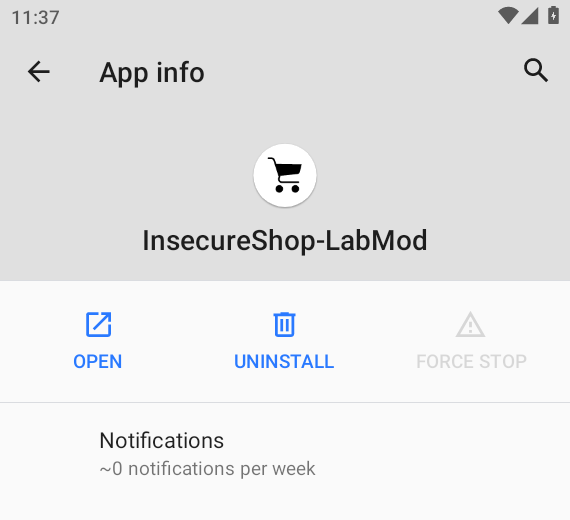
SuccessOpen App info for the package. The label should read InsecureShop-LabMod:
Start the About activity and confirm the button text:
adb shell am start -n com.insecureshop/.AboutUsActivityStarting: Intent { cmp=com.insecureshop/.AboutUsActivity }The yellow button should show About InsecureShop-LabMod:
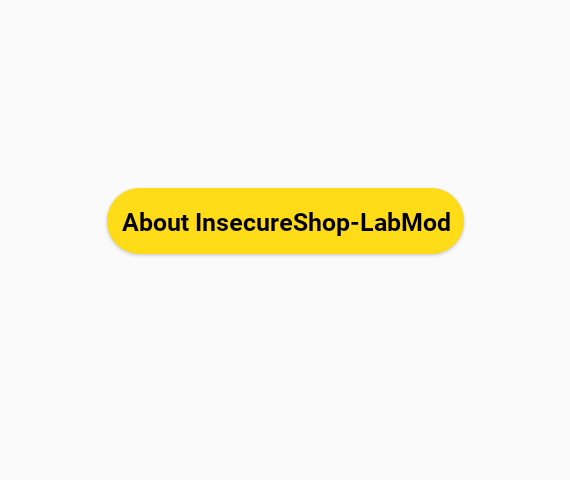
The app now displays both changes we made: InsecureShop-LabMod as the application label and About InsecureShop-LabMod on the About screen. This confirms that the edited resources were included in the rebuilt, signed APK installed on the emulator. The screenshots do not prove a security vulnerability by themselves.
Troubleshoot Build and Signature Errors
| Symptom | Likely cause | Fix |
|---|---|---|
apktool: command not found |
Wrapper not on PATH |
export PATH="$HOME/apktool-lab/bin:$PATH" and retest apktool --version |
xml parser error: mismatched tag during apktool b |
Broken resource XML | Fix the reported file under res/ and rebuild |
brut.androlib.exceptions.AndrolibException / aapt2 exit 1 |
Resource compile failure or missing framework | Read the W: lines above the exception; install matching frameworks with apktool if when decoding OEM packages |
INSTALL_PARSE_FAILED_NO_CERTIFICATES |
Unsigned or badly signed APK | Run zipalign, then apksigner sign, then apksigner verify |
INSTALL_FAILED_UPDATE_INCOMPATIBLE … signatures do not match |
Different signing key than the installed app | adb uninstall the package, then install the lab APK |
INSTALL_FAILED_VERSION_DOWNGRADE |
Installed app has a higher versionCode |
Uninstall the disposable lab copy or rebuild with an appropriate version code |
INSTALL_FAILED_INVALID_APK / signing-related install error |
APK was aligned or signed incorrectly | Re-run rebuild → zipalign → apksigner sign → apksigner verify |
| Install succeeds but UI text unchanged | Edited the wrong resource or installed an old APK | Confirm aapt dump badging and reinstall the file you just signed |
| Decode works, rebuild fails only on Smali | Invalid Smali edit | Undo the Smali edit and confirm the APK builds again. Then reapply the Smali change in smaller steps |
When to Use Apktool vs JADX or Frida
Use Apktool when you need to decode or modify APK resources, the manifest, or Smali and rebuild the APK. Use JADX when your main goal is reading Java-like application logic. Use Frida when you want to observe or modify runtime behavior without rebuilding the package.
In a mobile assessment, these tools often complement each other rather than replace one another. After you decode a manifest, you may still confirm exported components dynamically with Drozer.
Summary
Apktool lets you decode an APK into editable resources, manifest XML, and Smali, then rebuild those files into a new APK. In this lab, we changed two InsecureShop resources, rebuilt the app, aligned and signed it with our own lab key, and installed the modified version on Android.
Because the rebuilt APK was signed with our own key instead of InsecureShop's original key, Android correctly refused to install it as an update. After removing the original lab copy, the modified APK installed normally and displayed both of our changes.
The same workflow applies when you need to make authorized changes to resources or Smali: decode → inspect → modify → rebuild → align → sign → verify → test.
References
- Apktool — official documentation
- Apktool 3.0.3 release — iBotPeaches / GitHub
- Apktool GitHub repository — source and issues
- apksigner — Android Developers
- zipalign — Android Developers
- InsecureShop — Optiv (intentionally vulnerable training APK)
Frequently Asked Questions
Does Apktool decompile Java?
No. Apktool decodes resources and the manifest, and it disassembles Dalvik bytecode into Smali. For Java-like source browsing, use JADX. You can use both on the same APK: JADX to understand logic, Apktool to edit and rebuild.
Why must a rebuilt APK be signed?
Android Package Manager rejects unsigned APKs during a normal install. After apktool b, run zipalign and apksigner sign (or an equivalent signing flow) before adb install.
Why won't the modified APK update the original?
Updates require the same package name and a matching signing certificate. A lab keystore produces a different signature, so Android returns INSTALL_FAILED_UPDATE_INCOMPATIBLE. Uninstall the original package, then install the lab build.
Apktool vs JADX?
JADX focuses on readable Java-like navigation. Apktool focuses on resource/manifest/Smali decode and rebuild. Choose JADX to read code; choose Apktool to modify and repackage.
Why does apktool b fail?
Most lab failures come from invalid resource XML, missing framework files for OEM packages, or broken Smali after a manual edit. Read the W: aapt2 lines first. Fix resources before changing Smali again.