
Kali Linux is a Debian-based Linux distribution with a focus on penetration testing and security auditing. With over 600 penetration testing tools, this distribution brags of being the best security-testing platform we have in the market today. There are several ways you can have Kali running on your PC. You can decide to install it as the main operating system, run it in a dual/multi-boot or install it as a virtual machine. In this post, we will discuss the latter - How to install Kali Linux on Virtualbox.
Virtualbox is a free and open-source hosted hypervisor developed by Oracle and used for Virtualization. Running Kali as a Virtual Machine (VM) is considered safer since it’s completely separated from the host OS and allows you to interact with other VMs, Networks, and the Host itself. In case of any issues with the kali system, you can decide to delete it and create a new Kali VM or revert to a particular snapshot.
Different ways to install Kali Linux on VirtualBox
This guide covers two install paths. Use the table below to pick the one that matches how much setup you want to do before your first login.
| Method | When to use it | Guide |
|---|---|---|
| Method 1: Bare Metal ISO | You want full control over disk layout, user accounts, desktop environment, and tool selection. Best when you are learning the installer or need a custom Kali build from scratch. | Install from ISO |
| Method 2: Pre-made OVA | You want Kali running quickly with minimal clicks. The disk is already partitioned, packages are installed, and the VM is tuned for VirtualBox. | Import OVA image |
Method 1 takes longer because you walk through the full graphical installer. Method 2 imports a ready-made appliance and boots straight to the desktop.
Pre-requisites
Since you will be running Kali Linux as VirtualBox on a Physical Host, so your Host needs some specific amount of resources to be able to run Kali Linux seamlessly:
- Host must support virtualization. You can enable this in your BIOS/UEFI based on your Host's Operating System
- Minimum of 30GB free disk space in your host's hard disk as we will allot 20GB to Kali Linux. Since we will allot the storage dynamically, which means entire 20GB will not be allocated and this size will be filled based upon usage.
- Minimum of 8 GB RAM is recommended as we will allot 2GB to Kali Linux. This can also be increased depending upon the number of processes you plan to execute in Kali Linux.
- Download Kali Linux ISO File and keep it ready on your host machine
- Download and Install Virtual Box on the System.
Method 1: Install Kali Linux on Virtualbox - (Bare Metal image)
Currently, Kali Linux is available for various platforms.
- Bare Metal: Meant for Single or multi-boot. Perfect for inbuilt WIFI and GPU.
- Virtual Machines: Customized to run as Virtual Machine
- ARM: Deigned for Small Board Computers like the Raspberry Pi.
- Mobile: Designed for Android devices.
If your host OS is a Debian-based distribution like Ubuntu, you can quickly install Virtualbox from the Terminal using the command below.
$ sudo apt install virtualbox
Step 1: Create a Kali Linux Virtualbox Container Wizard
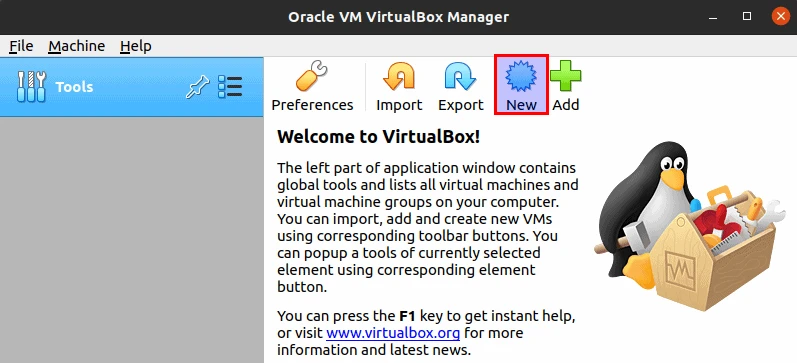
After successfully installing Virtualbox, launch it from the applications menu. You will see a window similar to the one below. Click New to start creating a virtual machine.
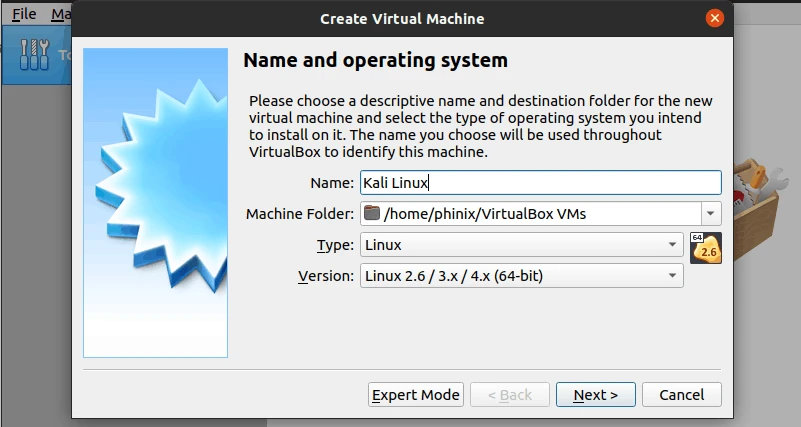
A window will open, and you will be required to enter the Name of your new Virtual Machine, the location you want the virtual machine to be stored (Machine Folder), OS Type, and Version. Luckily, after entering the Name of your Virtual machine (say Kali Linux), Virtualbox will automatically fill the other Fields - Type and Version. Click Next when done.
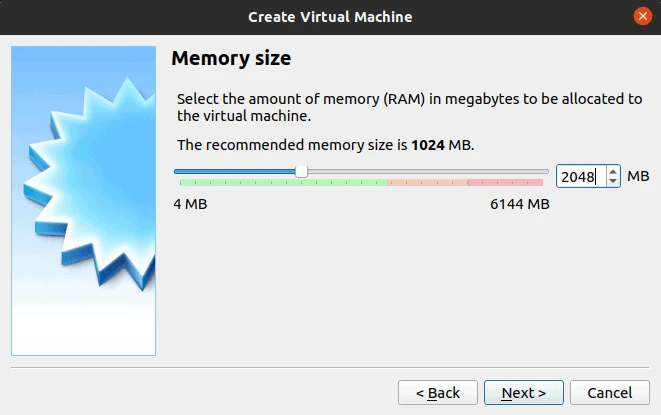
In the next window, you will need to set the memory size (RAM) you want to allocate the virtual machine in the next window. Some tools available in Kali can be pretty resource-intensive, and the more RAM, the better. However, be careful! If you assign too much RAm and leave very little for your Host machine, the overall system might lag or hang. In this post, we will allocate Kali 2GB of memory. Click Next when done.
On the next screen, select the option “Create a virtual hard disk now” and click Create. The wizard then asks three short questions about that disk before it hands you back to the manager:
- Hard disk file type — pick VDI (VirtualBox Disk Image). VHD by Microsoft and VMDK by VMware only help if you plan to open the same disk in another hypervisor later.
- Storage on physical hard disk — pick Dynamically allocated so the disk file grows as Kali fills it up instead of claiming the full size right away.
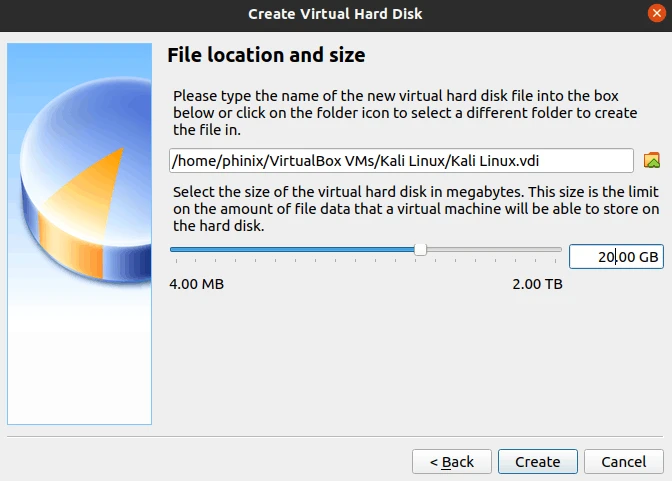
- File location and size — set 20GB. That leaves room for the extra tools and files you download once the system is running. Click Create when done.
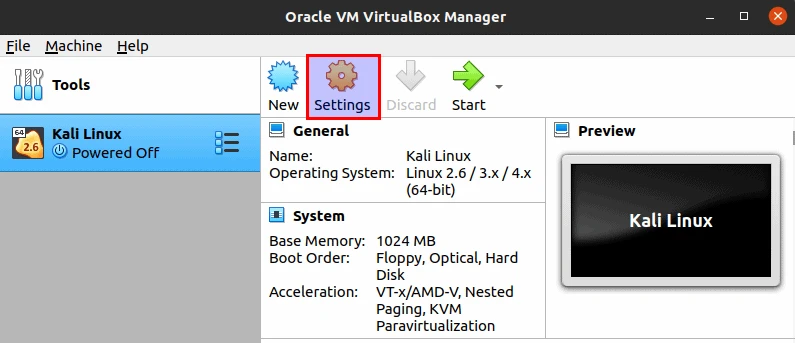
After clicking “Create,” you come to the end of the wizard. Now we need to customize our newly created Virtual Machine even further. Click on the Settings button.
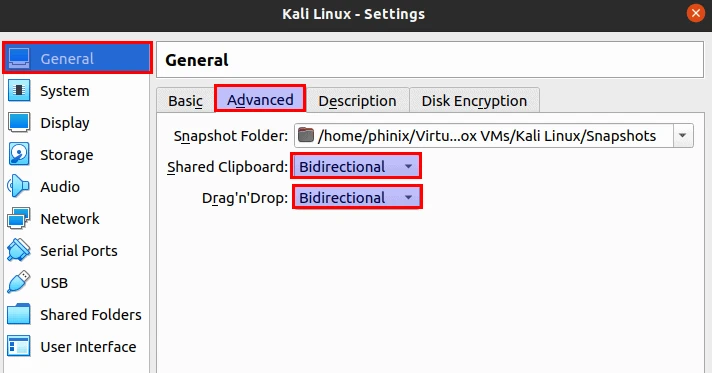
In the General menu, select the Advanced tab and set both the Shared Clipboard and Drag ‘n’ Drop to Bidirectional.
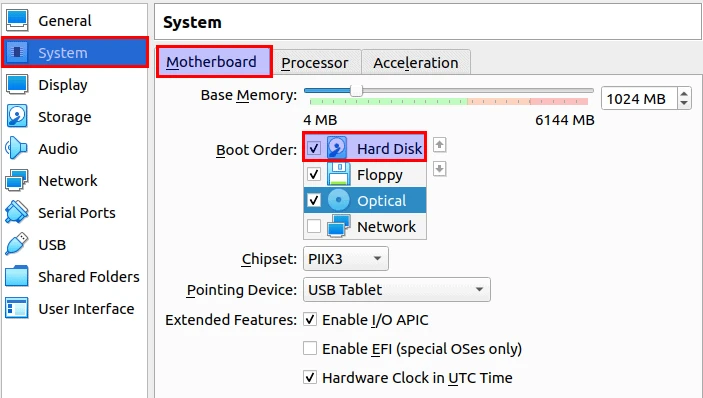
In the System menu, click on the Motherboard tab, and in the boot order menu, drag Hard Disk to be the first option, followed by Floppy.
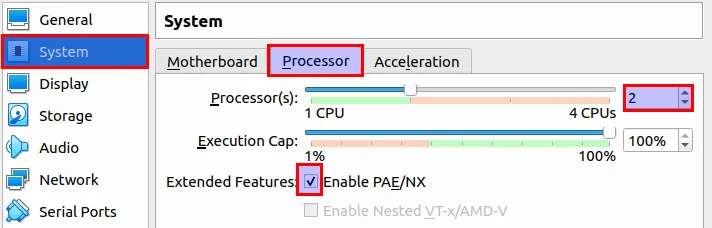
Still, on the System menu, select the Processor tab. Set the number of processors to two and also enable the PAE/NX to enable Extended features.
Finally, click on the Display menu and select the Screen tab. Set the Video memory to 128 MB. Also, ensure 3D acceleration is disabled as most users have reported issues with that feature.
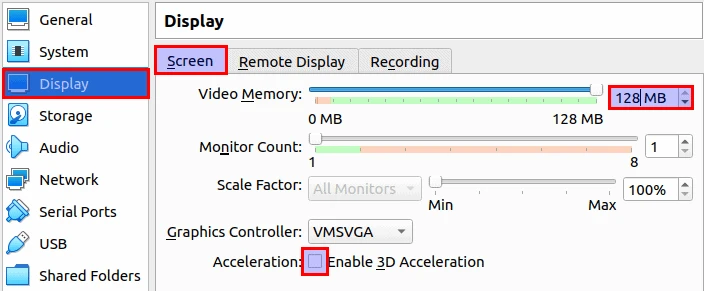
When done, click Ok to save and apply the new configurations.
Step 2: Starting the Kali Linux Virtual Machine
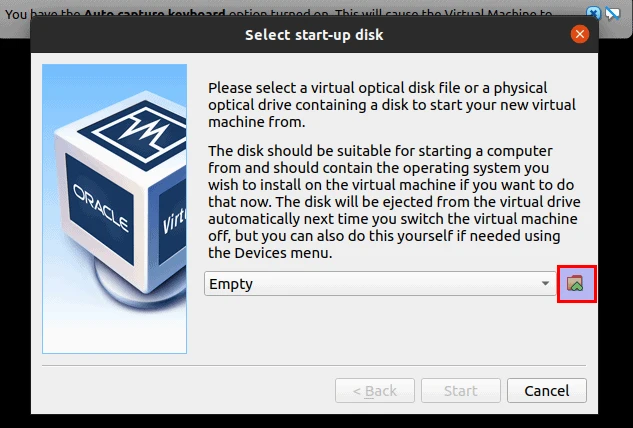
Up to this point, we have all our configurations ready. Select the Kali Linux machine in the manager and click Start. Since the virtual disk is still empty, VirtualBox asks you for a start-up disk. Click the small folder icon on the right of the drop-down to attach the Kali Linux ISO file.
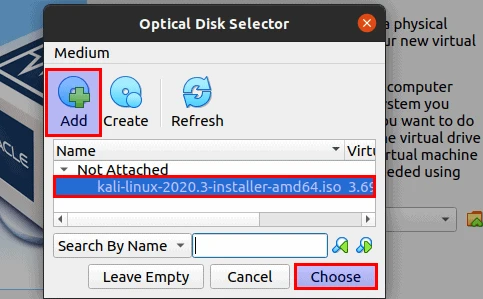
That opens the Optical Disk Selector window. Click Add, browse to the Kali Linux ISO you downloaded, then select the ISO in the list and click Choose.
You land back on the Select start-up disk screen, this time with the ISO listed in the drop-down. Click Start to boot the Kali Linux installer.
Step 3: Install Kali Linux
After booting up Kali Linux, you will be greeted by the Kali Linux installer menu. Here you will need to choose the installation method that you want to use. For this post, we will use the Graphical installation method. Use the arrow keys to scroll and hit Enter.
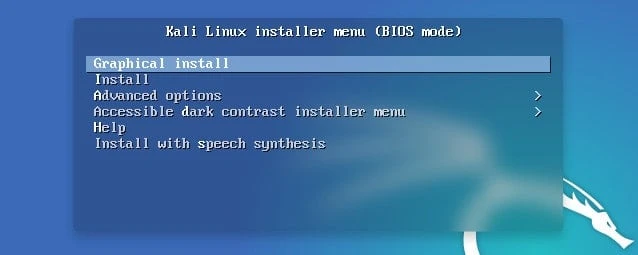
The graphical installer starts the Linux kernel and then walks you through the familiar Debian prompts. Every one of them is a plain form, so instead of a screenshot each, here are the answers that matter for a lab VM:
- Language, location and keyboard layout — choose what matches your own setup. The language you select here also becomes the default language of the installed system.
- Hostname — a single word that identifies the machine on your
network. Plain
kaliis fine for a lab. - Domain name — leave the field empty unless your lab already has a domain to join.
- Full name, username and password — the installer creates a normal user account instead of dropping you straight into root. The username must start with a lowercase letter, and the password you type here is the one you use at the login screen.
- Timezone — pick your own zone so log timestamps line up with the rest of your machines.
The next prompt is disk partitioning, and the installer offers four standard schemes:
- Guided - Use entire disk
- Guided - Use entire disk and set up LVM
- Guided - Use entire disk and set up encrypted LVM
- Manual
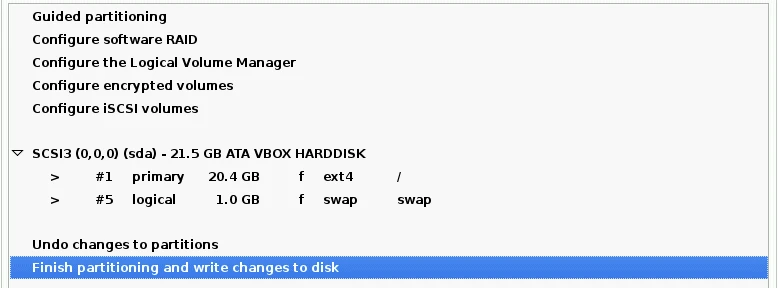
In this post, we will stick to the “Guided - Use entire disk” option since we will only install a single operating system in the VM container. If you were performing a dual-boot or multi-boot on Bare metal, we would use the Manual option. Click Continue, then choose “All files in one partition” as the partitioning scheme.
The installer now shows the layout it is about to write to the virtual disk. Select “Finish partitioning and write changes to disk”, click Continue, then answer “Yes” to the confirmation prompt.
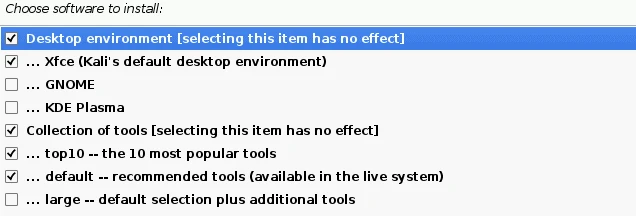
The base system installation starts, and that might take a while. Please be patient. After some time, you will get to the Software Selection window, where you choose the desktop environment and the collection of tools to install. Xfce with the default tool set matches a standard Kali install. Make your selection and click Continue.
This process will also take some time as some features will need to be downloaded from the internet. After a while, you will see an option to install the Grub boot loader. Click Yes and select your Harddisk (/dev/sda). Click Continue. When the installation completes successfully, you will see an option to reboot the system.
After rebooting, you will get to the log-in screen. Log in with the password you set during the installation process. That’s it! You have successfully installed Kali Linux as a virtual machine.
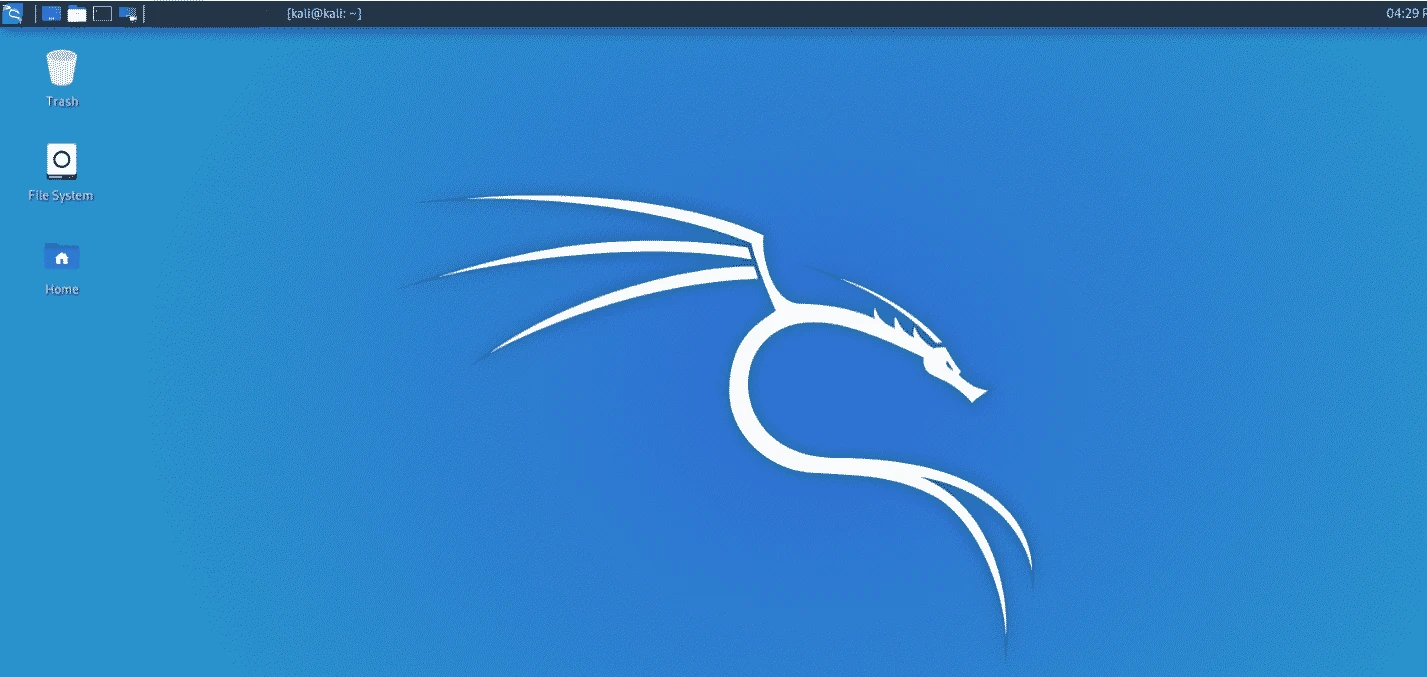
As a rule of thumb, launch the system and update the system with the commands below.
$ sudo apt update
$ sudo apt upgrade
Method 2. Use pre-made Kali Linux Virtualbox Images
If you don’t want to use the Kali Linux Bare Metal ISO, you can opt for the pre-made Kali Linux Virtualbox Images. These images are customized to run on your Virtualization software, and they are available for free on the official Kali Linux website. This method is much faster as all the configuration and installation are already done for you. Think of it as a Plug ‘n’ Play scenario.
After downloading the Kali Linux Virtualbox Image, Launch Virtualbox, click on the File menu and select the Import Appliance button.
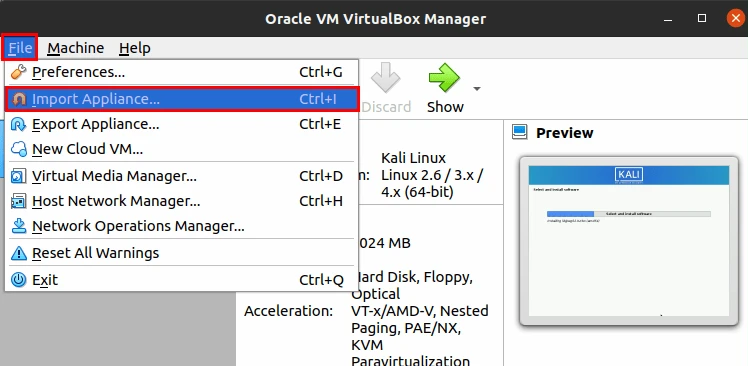
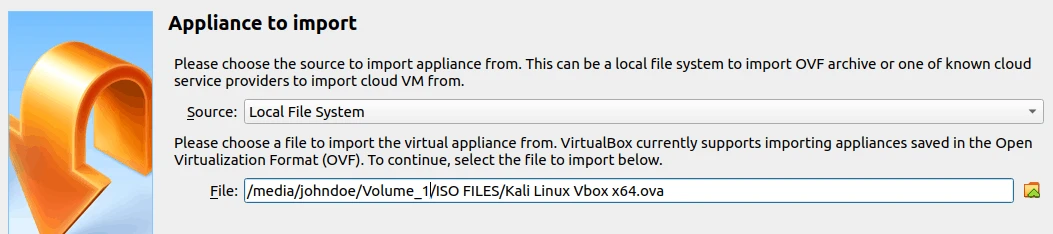
A window will open, and you will provide the file path where you have the Kali Linux Vbox file. It comes with an OVA extension. Once done, click Next to import the appliance. You will see a window listing all the pre-configured settings. You can decide to change this depending on your system resources.
Once done, just hit Start, and the Virtual Machine will boot the Kali Linux OS. Earlier versions of Kali use the default username as root and password as toor. However, since January 2020, the default username and password is kali. After logging in, you land on the same Kali Xfce desktop shown earlier in this guide, without having answered a single installer prompt.
That’s all! You now have a working Kali Linux virtual machine on Virtual Box, and you can proceed to perform your penetration testing tasks. This method is way faster compared to the Bare Metal installation.
Conclusion
I believe this post has given you a clear guide on installing Kali Linux as a virtual machine. If you encounter any issues during installation, please leave a comment below, and we will get in touch as soon as we can.
