| Tested on | Windows examiner workflow documented against Exterro FTK Imager 8.3 (installer 8.3.0.27); wizard screenshots from AccessData FTK Imager 3.1.1.8Kali GNU/Linux Rolling 2026.2 (kali-rolling) for optional ewfverify |
|---|---|
| Package | Exterro FTK Imager 8.3.0.27 (Windows x64 from Exterro)ewf-tools (Kali package, optional verify path) |
| Applies to | Windows hosts running free Exterro FTK Imager; optional Kali ewfverify for independent checks |
| Lab environment | Pentest lab Authorized spare USB or disposable lab disk; hardware write blocker recommended for original evidence |
| Privilege | Administrator on Windows for physical-drive imaging; sudo on Kali only when installing packages or accessing raw devices |
| Cert prep | CompTIA PenTest+ PT0-003 - evidence collection and integrity |
| Scope | Create a forensic disk image with FTK Imager, choose format and segmentation, enter evidence metadata, verify MD5/SHA1, mount read-only, and preserve logs. Separates disk acquisition from RAM capture. Does not cover full FTK case analysis or malware reverse engineering. |
| Related guides | Andriller Android forensics |
In this article we will create and verify a forensic disk image with Exterro FTK Imager on Windows, then optionally verify the E01 independently on Kali with ewfverify.
You will walk the Create Disk Image wizard from source selection through E01 output, evidence fields, compression, hash verification, read-only mounting, and log retention. Disk acquisition and RAM capture stay separate tasks. Use only systems and media you own or are authorized to image.
What Is a Forensic Image?
A full physical forensic image is a sector-by-sector representation of source storage media created so analysis can be performed on a copy rather than the original. That image preserves allocated files, file slack, and unallocated regions so residual data may remain available for review.
Unallocated space is disk space not currently assigned to active files and may contain remnants of deleted data. File slack is the unused portion of the final allocated cluster after the logical end of a file. Physical imaging keeps those regions available for later analysis; it does not guarantee deleted content remains recoverable.
Investigators work from the image, not from the seized disk, once acquisition and hash verification succeed. That separation protects the original evidence and lets multiple analysts use the same verified copy.
FTK Imager (Forensic Toolkit Imager) is Exterro's free Windows tool for creating those images, previewing evidence, hashing results, and mounting images for review. The free Imager product is distinct from paid FTK and FTK Imager Pro editions.
FTK Imager Tested Version and Environment
This refresh targets Exterro FTK Imager 8.3.0.27 (Windows x64 package Exterro_FTK_Imager_(x64).exe from Exterro). Supported OS families for that build include Windows 10, Windows 11, Windows Server 2022, and Windows Server 2025.
The examiner workstation is the computer you use to acquire and analyze the evidence. Install FTK Imager there rather than on the system being investigated whenever the evidence disk can be removed and connected separately.
A hardware write blocker sits between the evidence drive and the examiner workstation. It allows the workstation to read the drive while blocking write commands that could change the original evidence. In a practice lab with your own disposable USB drive, you can learn the FTK workflow without one. Do not treat that lab setup as evidence-handling procedure.
Exterro also documents running FTK Imager from removable media for portable or field use. Follow Exterro's current Imager Lite guidance if you need that workflow.
Wizard screenshots below are real captures from AccessData FTK Imager 3.1.1.8. The Create Disk Image dialogs (Select Source, Select Drive, image type, evidence fields, destination, and progress) still match the Exterro 8.3 workflow closely enough for teaching; branding and a few labels differ. Download and run 8.3 for new acquisitions.
Install FTK Imager
Download FTK Imager 8.3 from Exterro's official downloads page, not from third-party software mirrors.
Run the Windows x64 installer, accept the license, and complete the setup wizard. When you need access to physical drives, launch FTK Imager as Administrator (right-click the shortcut and choose Run as administrator).
Confirm Help → About (or the window title) shows an 8.3.x build before starting the acquisition.
After launch, the main window looks like this (AccessData 3.1.1.8 branding in the screenshot; Exterro 8.3 shows updated product branding):
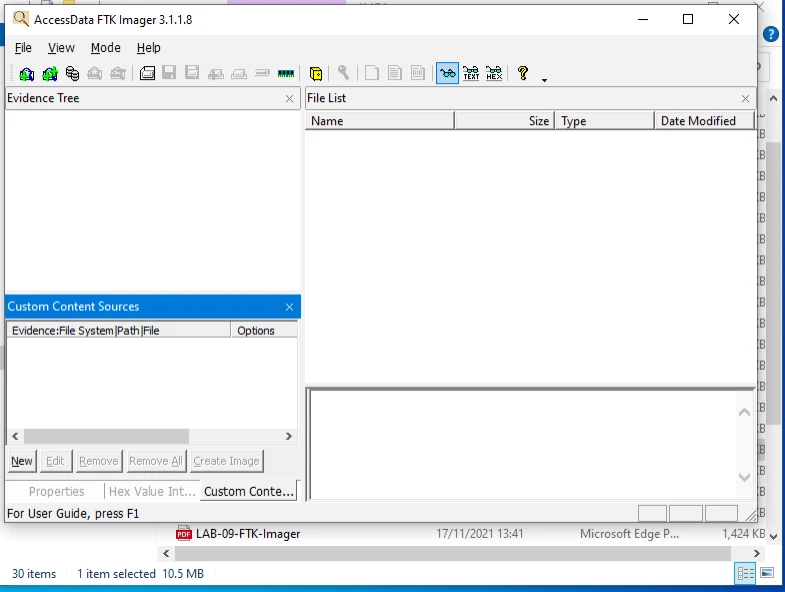
Use File → Create Disk Image from this window to start the acquisition wizard.
Disk Image vs RAM Capture
Disk imaging and memory capture preserve different types of evidence. A disk image preserves storage contents that remain after shutdown, while a RAM capture preserves volatile data from the currently running system.
| Task | What you collect | Typical FTK path | Next step |
|---|---|---|---|
| Disk acquisition | Full drive or partition contents | File → Create Disk Image | Hash verify, mount, analyze filesystems |
| RAM capture | Volatile memory of a live host | File → Capture Memory | Analyze with Volatility or similar |
Create Disk Image is the main path in this guide. Capture Memory is noted briefly later so it is not mixed into the disk workflow.
Volatile evidence exists only while the system is running and is normally lost when power is removed. On a live system, RAM may therefore need to be captured before shutdown. The exact order depends on the incident-response plan, evidence priorities, and the risk of changing the running system. On powered-off media, skip RAM and go straight to disk acquisition with a write blocker.
Prepare the Evidence and Chain of Custody
Before imaging the disk, record exactly which device you are acquiring and how it is connected to the examiner workstation.
Record at least:
- Evidence tag or evidence number
- Make, model, serial, capacity, and interface
- Who seized or received the media, when, and from where
- Whether a hardware write blocker is in use
- Destination path on examiner storage that is large enough for the image
Photograph labels and connections if your procedure requires it. Create a dedicated destination folder using the case and evidence identifiers—for example, GLC-LAB-001\USB-01—instead of saving forensic images into a generic Desktop folder.
For original evidence, connect the source through a hardware write blocker whenever your procedure requires preservation against host writes. Simply using FTK Imager does not prevent Windows from writing to a directly attached disk. A hardware write blocker provides that additional protection for original evidence.
Choose the Source Drive
On the examiner workstation, start FTK Imager and open File → Create Disk Image.
Select the source evidence type. For a full forensic disk copy, choose Physical Drive.
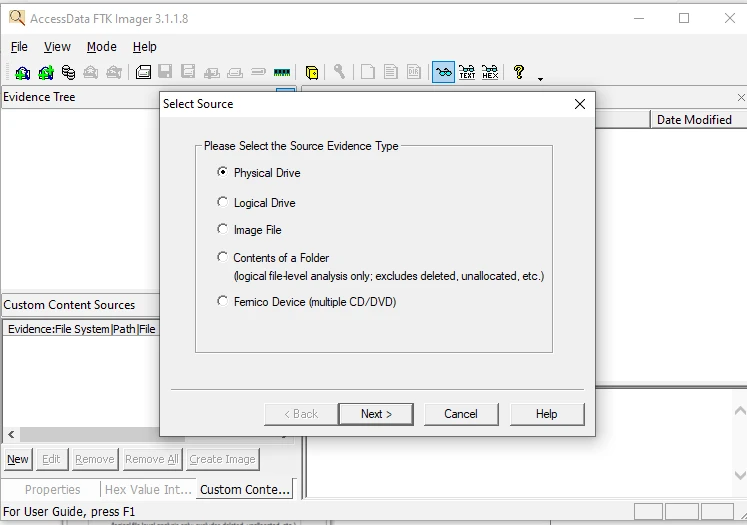
Physical Drive copies the entire disk that the operating system can read, including its partition structures and unallocated space. Those regions may contain recoverable remnants of deleted data. Logical Drive images one volume as Windows sees it. Contents of a Folder is logical file collection only and is not a full disk image.
For example, if a USB disk contains one NTFS partition, Physical Drive images the entire USB device, including its partition table and unallocated sectors. Logical Drive targets the mounted volume itself. Because this article is creating a forensic image of the complete USB device, choose Physical Drive.
Next, pick the correct physical device from the list. Confirm size and label carefully. Do not choose a drive by PHYSICALDRIVE number alone. Windows can assign different numbers on another computer or after devices are reconnected. Match the device by model and capacity.
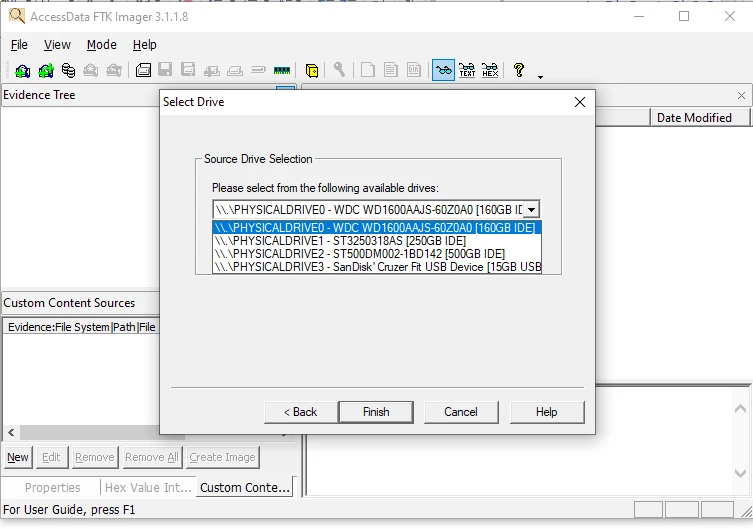
Confirm you selected the lab USB or evidence disk, not the host system drive. Imaging the wrong disk wastes time and can compromise the acquisition record, so verify the device model and capacity before continuing.
Click Finish to add that source to the Create Image list.
Choose the Forensic Image Format
In Create Image, add an image destination and choose the image type.
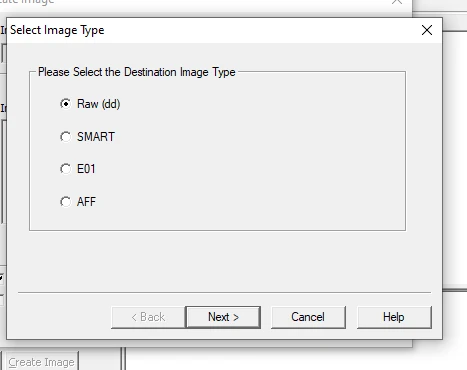
E01 (Expert Witness Format) is a forensic image container. It stores the acquired disk data together with forensic metadata and supports features such as compression, segmentation, and integrity information. Raw/dd is simpler: it stores the acquired sectors as a plain sequence of bytes without E01's additional container metadata.
The screenshot shows the format list with Raw selected from an earlier lab run. For this tutorial, select E01 instead.
| Format | What it is | Use when |
|---|---|---|
| E01 | Forensic container with metadata, compression, and segmentation | Common forensic workflow with broad tool support |
| Raw/dd | Plain sector-by-sector sequence of bytes | Maximum simplicity and cross-tool interoperability |
FTK Imager may also offer SMART/AFF-related formats depending on the build, but they are not used in this tutorial. Format choice depends on the receiving tool, organizational standard operating procedure (SOP), and interoperability needs.
This lab uses E01. Enable Verify images after they are created before you start. That checkbox is how FTK Imager re-reads the finished image and compares hashes without a separate manual step.
Enter Evidence Metadata
When you add the destination, FTK Imager prompts for Evidence Item Information. Fill fields that match your chain-of-custody form.
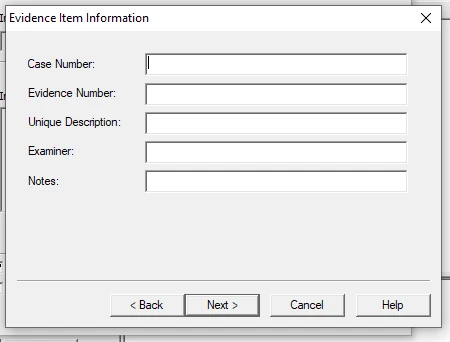
Enter the identifiers from your case or lab record:
- Case Number:
GLC-LAB-001 - Evidence Number:
USB-01 - Unique Description: short plain description of the media
- Examiner: your name as recorded on the custody log
- Notes: authorization reference or seizure summary
Those strings are stored with E01 metadata and appear in the companion text log. For real evidence, these values should match the identifiers already assigned in your case-management or custody records.
Configure Compression and Image Segmentation
On the destination screen, set the folder, base filename, fragment size, and compression.
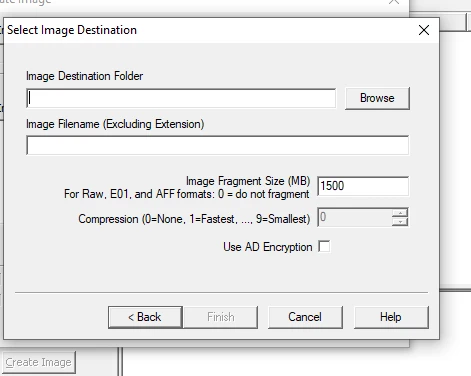
The historical screenshot shows a 1500 MB fragment size and compression 0; those are values from that earlier acquisition, not mandatory defaults.
Compression reduces the amount of destination storage used by the E01. Segmentation divides one forensic image into several files while keeping them part of the same logical image.
For a small practice USB, you can use:
- Image Destination: a dedicated evidence folder on examiner storage
- Image Filename:
lab-usb(FTK adds.E01) - Image Fragment Size: set
0if you want a single E01 file and your destination filesystem or tooling supports it. Use segmentation when your evidence-storage policy, transfer mechanism, destination filesystem, or downstream tooling requires smaller files - Compression: for a small practice image, the fast setting is reasonable. For real evidence, use the setting required by your forensic procedure
Segmentation can produce lab-usb.E01, lab-usb.E02, and so on. All segments belong to the same forensic image, so preserve them together. If one segment is missing or damaged, tools may be unable to read the complete image.
Create the Forensic Image
Back on Create Image, confirm the source, destination, verify checkbox, and evidence fields, then click Start.
FTK Imager reads the source disk and writes the data into the E01 image. Because verification is enabled, FTK Imager also checks the completed image before the acquisition workflow finishes. Progress shows sector counts and remaining time.
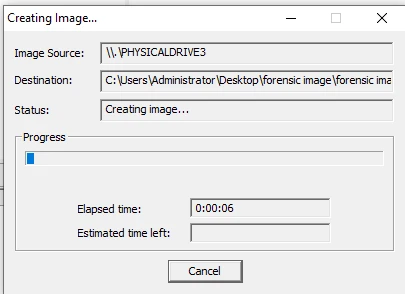
Do not put the examiner workstation to sleep or disconnect the USB/SATA adapter, write blocker, source disk, or destination storage while imaging is in progress.
When acquisition finishes, the destination folder should contain the image and its companion text log. For an unsegmented E01 acquisition, expect an .E01 image file plus the acquisition text log. If you configured segmentation, additional image segments will also be present. Keep every segment and the text log together.
Verify MD5/SHA Hashes
A cryptographic hash is a fixed-length value calculated from data. Even a small change to the data will normally produce a different hash value. Forensic tools therefore use hashes to check whether the acquired data remains consistent.
During acquisition, FTK Imager calculates hashes for the data it reads from the source. With Verify images after they are created enabled, FTK reads the completed image and calculates the hashes again. If the acquisition and verification values match, the stored image passed the integrity check. FTK Imager shows Image Verification Results after the write; record those values in your case notes.
You do not need to pre-hash the entire source disk separately before clicking Start. The normal FTK workflow computes the acquisition hash during imaging and then verifies the finished image against it.
MD5, SHA-1, and SHA-256 are different hashing algorithms. You do not need to calculate them manually for the normal FTK acquisition workflow; record the values produced by FTK Imager.
The acquisition-verification workflow used here records MD5/SHA-1. Follow your organization's forensic procedure if additional hashes such as SHA-256 are required.
A common beginner mistake is hashing the .E01 file itself with a generic file hasher and expecting the same value FTK reported for the media content. There are two different things you can hash:
- Acquired disk data: the disk data represented by the E01 image
- The
.E01file itself: the container bytes, which also include E01 metadata and compression structures
Because those are not the same data, running md5sum evidence.E01 does not normally produce the same MD5 value shown by FTK for the acquired media. Always use FTK Imager's verify function, or a tool that understands the E01/EWF format such as ewfverify, for content integrity.
To see the difference, calculate an ordinary MD5 hash of the .E01 container file:
md5sum /path/to/evidence.E01This hashes the E01 file itself. It should not be substituted for the media-content hash reported by an E01 verification tool.
FTK Imager's own verification is sufficient for the normal acquisition workflow. If you want an independent check with a second tool, copy the completed E01 set to your Kali analysis system and use ewfverify.
Install the tools:
sudo apt install ewf-toolsewfverify reads the E01 format correctly and verifies the disk data stored in the image. Unlike md5sum, it does not treat the .E01 merely as an ordinary file:
ewfverify -d sha1 /path/to/evidence.E01When verification succeeds, ewfverify reports that the hashes stored in the E01 match the hashes it calculated while reading the image.
Mount and Review the Image Safely
After verification, mount the image copy, not the original evidence disk, for a quick review of the acquired filesystem.
Use File → Image Mounting (wording may vary slightly by build) and select the .E01. Prefer File System / Read Only for browsing. A read-only mount lets you browse the acquired files without writing changes back through the mounted view. Continue treating the E01 as evidence: keep the original acquisition files and hashes preserved separately.
Confirm that expected folders and files are visible. Do not mount writeable unless your procedure explicitly needs it and you understand the risk.
Close the mount when finished. For deeper analysis, you can open the same verified image in tools such as Autopsy or FTK.
Preserve Acquisition Logs
The image contains the evidence data; the acquisition log records how that image was created.
FTK Imager writes a companion .txt log beside the image. Archive that log with the E01 segments.
The log typically records:
- Case, evidence, examiner, and notes fields
- Source-drive identification and size
- Acquisition start and finish times
- Segment list
- MD5 and SHA1 values and verification status
The FTK log documents the technical acquisition. It complements, but does not replace, the organization's chain-of-custody record showing who possessed the evidence and when it changed hands.
Store the log with the case documentation. If you later re-verify and hashes still match, the original log preserves the hashes and acquisition details recorded when the image was created.
Do not edit the log by hand to “fix” typos in case numbers. If you notice an error in the metadata, do not edit the original log. Document the correction separately according to your forensic procedure.
Capture Memory Separately (Optional)
FTK Imager can also capture volatile memory through File → Capture Memory, but this is a separate acquisition. A RAM dump is not part of the E01 disk image and should be analyzed with a memory-forensics tool such as Volatility.
The Volatility memory dump analysis guide covers how to analyze the resulting memory dump on Kali. Keep RAM dumps and disk images in clearly named folders so the two evidence types are not confused during later analysis.
Common Problems
| Symptom | Likely cause | Fix |
|---|---|---|
| Physical drives list is empty or access denied | Not running as administrator, or driver/blocker issue | Run FTK Imager elevated; reseat write blocker; confirm the OS sees the disk |
| Verify fails after imaging | Bad cable, interrupted write, failing media, or destination error | Do not treat a failed verification as a clean acquisition. Preserve the image and logs as required by procedure, investigate the cause (cabling, blocker, source-media health, destination storage), and repeat the acquisition when possible |
Generic MD5 of .E01 does not match FTK hash |
Container hash vs content hash confusion | Use FTK verify or ewfverify when comparing the forensic media-content hash; do not compare it directly with a generic hash of the .E01 container file |
| Destination runs out of space | Underestimated capacity | Ensure destination storage has enough capacity for the expected image plus logs and working margin. For raw/dd, plan for approximately the full source size; do not assume E01 compression will always produce a dramatically smaller image |
| Mount shows no files | Wrong mount type or incomplete segment set | Use File System / Read Only; ensure all .E0x parts are present |
| Live system changes during acquisition | Imaging a mounted system disk without blocker | When possible, acquire removable or offline media through a write blocker. If live acquisition is required, document that the running system may continue changing while the image is created |
Summary
A full physical forensic image is a sector-by-sector representation of the source media that lets you analyze a copy instead of working directly on the original disk. In FTK Imager, select the physical source and choose the required image format, such as E01. Record the evidence metadata, configure compression and segmentation, create the image, and complete the image verification before beginning analysis.
Hash verification is about content integrity, not the hash of the .E01 container file. Keep the acquisition log with the image, mount the image copy read-only for a quick filesystem review, and treat Capture Memory as a separate volatile-evidence task. Document any missing write protection, custody gaps, acquisition errors, or verification failures because they affect how confidently the evidence can be relied upon.
References
- Exterro FTK Imager - product overview and free download entry
- FTK Imager 8.3 downloads - current installer and OS support
- How to run FTK Imager from a flash drive (Imager Lite) - portable/field guidance
- libewf / ewf-tools - E01 acquire and verify utilities on Linux
Frequently Asked Questions
E01 vs RAW/DD?
E01 stores acquired disk data together with forensic metadata and supports compression and segmentation. Raw/dd stores the acquired sectors directly as a simpler image without E01's additional metadata. Use the format required by your tools or forensic procedure.
Does FTK Imager modify the source?
FTK Imager is designed for forensic acquisition, but FTK Imager alone is not a hardware write blocker. If original evidence is connected directly to a writable Windows host, the operating system or other software could still write to it. Use a hardware write blocker on original disks whenever your procedure requires it.
Do I need a write blocker?
For original evidence, use a hardware write blocker when required by your forensic procedure. It prevents the examiner workstation from sending writes to the source media. You can practice the workflow on disposable lab media without one.
Why verify hashes?
Verification gives you integrity evidence that the stored image still represents the acquired data. Record the hashes produced by the acquisition tool and any additional hashes required by your forensic procedure.
Can FTK Imager capture RAM?
Yes. File → Capture Memory captures RAM—the temporary data that exists while the system is running—as a separate acquisition from the disk image. Analyze the dump with a memory forensics framework afterward.
Can FTK Imager mount an image read-only?
Yes. Image Mounting can present an E01 as a read-only file system for browsing. Prefer read-only mounts and keep the original evidence offline after acquisition.