
| Tested on | Kali GNU/Linux Rolling 2026.2 (kali-rolling) |
|---|---|
| Package | burpsuite 2026.8-0kali1 (Burp Suite Community Edition) |
| Lab environment | Pentest lab |
| Cert prep | CompTIA PenTest+ PT0-003 — manual web application testing and request manipulation |
| Privilege | Normal user to launch Burp; sudo only for package installs if missing |
| Scope | One complete manual testing workflow: Community Edition startup, built-in browser, intercept, HTTP history, Repeater, Intruder basics, target scope, external browser and HTTPS certificate, troubleshooting. Does not cover Burp Scanner (Pro only), full brute-force attacks, or exploitation walkthroughs. |
| Related guides | SQL injection with sqlmap Web app fuzzing tools Install DVWA on Kali |
This Burp Suite tutorial for beginners walks through manual web testing on Kali with Burp Suite Community Edition and DVWA on http://127.0.0.1:42001. You will capture traffic in HTTP history, replay requests in Repeater, and run a small Intruder attack before you move to vulnerability-specific guides.
What Burp Suite does
When you click a link or submit a form, the browser sends HTTP requests. Burp sits between the browser and the server and captures those requests on the way out and responses on the way back.
Browser (or Burp browser) → Burp Proxy (127.0.0.1:8080) → DVWA (127.0.0.1:42001)That position lets you:
- See hidden parameters, cookies, and headers
- Change one field and watch how the server reacts
- Replay the same request many times without retyping forms
- Automate repetition when manual clicking gets slow
Every web vulnerability lesson on this site assumes you can send one request to Repeater and compare responses. Burp is that workbench.
Community Edition vs Professional
This guide uses Burp Suite Community Edition (free, preinstalled on Kali). You do not need a paid license for Proxy, HTTP history, Repeater, or basic Intruder practice.
| Feature | Community Edition | Professional |
|---|---|---|
| Proxy intercept and HTTP history | Yes | Yes |
| Repeater | Yes | Yes |
| Intruder | Yes (throttled) | Yes (faster, more options) |
| Built-in browser | Yes | Yes |
| Target scope | Yes | Yes |
| Burp Scanner (automated scan) | No | Yes |
| Temporary project | Yes | Yes |
| Save / reopen project files on disk | No | Yes |
Check which build Kali installed:
burpsuite --version2026.8-53343 Burp SuiteThe version line confirms Burp is installed. The 2026.8 prefix is the release year and month from Kali’s burpsuite package.
Start Burp Suite on Kali
Launch Burp from the Kali menu (search burpsuite) or run burpsuite & on the desktop.
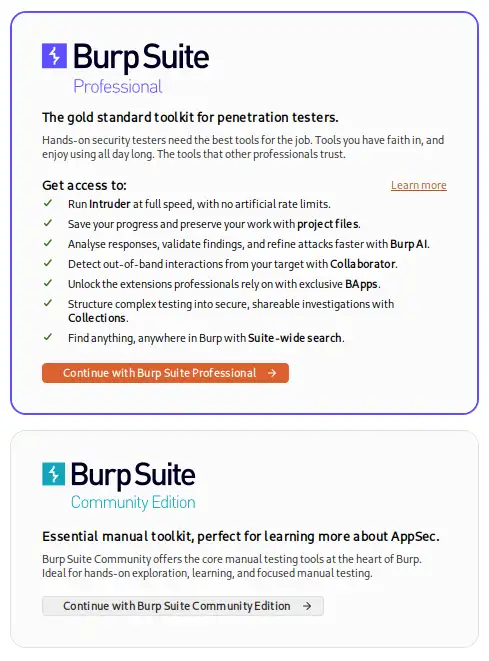
Choose Community Edition
On the first screen, click Continue with Burp Suite Community Edition. Professional requires a paid license; Community Edition includes everything in this tutorial.
Use a temporary project
On the next two startup screens, accept the defaults:
- Temporary project → Next
- Use Burp defaults → Start Burp
A temporary project with Burp defaults is the right starting point for DVWA lab work. Community Edition does not save project files to disk between sessions.
Confirm the proxy listener
Open Proxy → Proxy settings (gear icon on the Intercept tab, or Settings → Tools → Proxy).
Under Proxy listeners, confirm one row is Running on 127.0.0.1:8080:
127.0.0.1:8080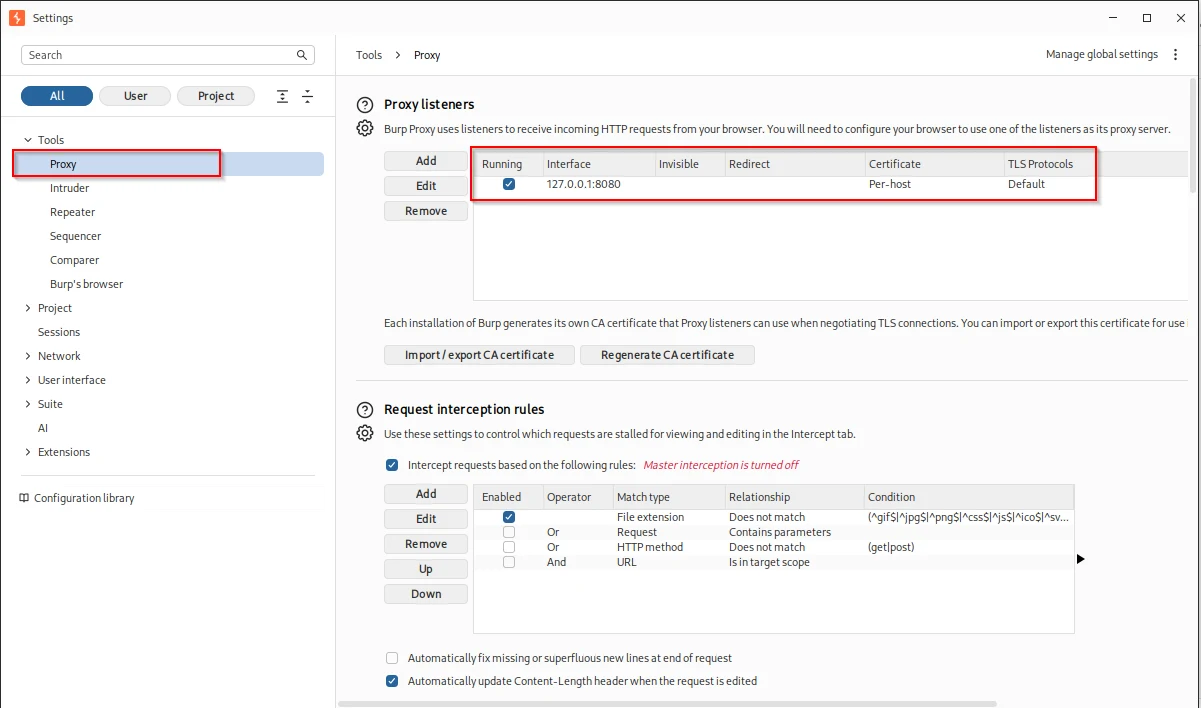
127.0.0.1:8080 is Burp’s local address. Your browser (or Burp’s built-in browser) sends traffic here. If the listener is stopped, select the row and click Edit → enable Running.
If the listener is not running, browser traffic will not appear in Burp’s HTTP history.
Update Burp if needed
If Burp shows an out of date banner on startup, close Burp and run:
sudo apt update && sudo apt install burpsuiteThen launch Burp again. On Kali rolling, burpsuite 2026.8-0kali1 is current — use apt, not a manual PortSwigger installer, unless you removed the Kali package first.
Capture a DVWA request in HTTP history
Generate a normal application request and confirm that Burp records it.
Go to Proxy → Intercept and keep Intercept is off. Turning interception off does not bypass Burp; requests still pass through the proxy and appear in HTTP history.
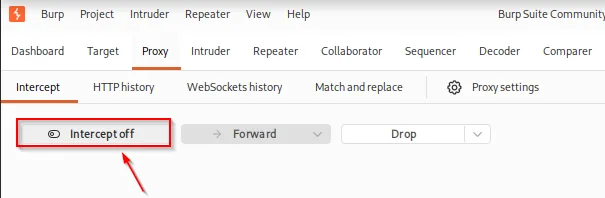
Click Open browser and browse to:
http://127.0.0.1:42001Log in to DVWA, open DVWA Security, and set the level to Low. Open SQL Injection, enter 1 in the User ID field, and click Submit.
Return to Burp and open Proxy → HTTP history. Find the request containing:
GET /vulnerabilities/sqli/?id=1&Submit=Submit HTTP/1.1
Host: 127.0.0.1:42001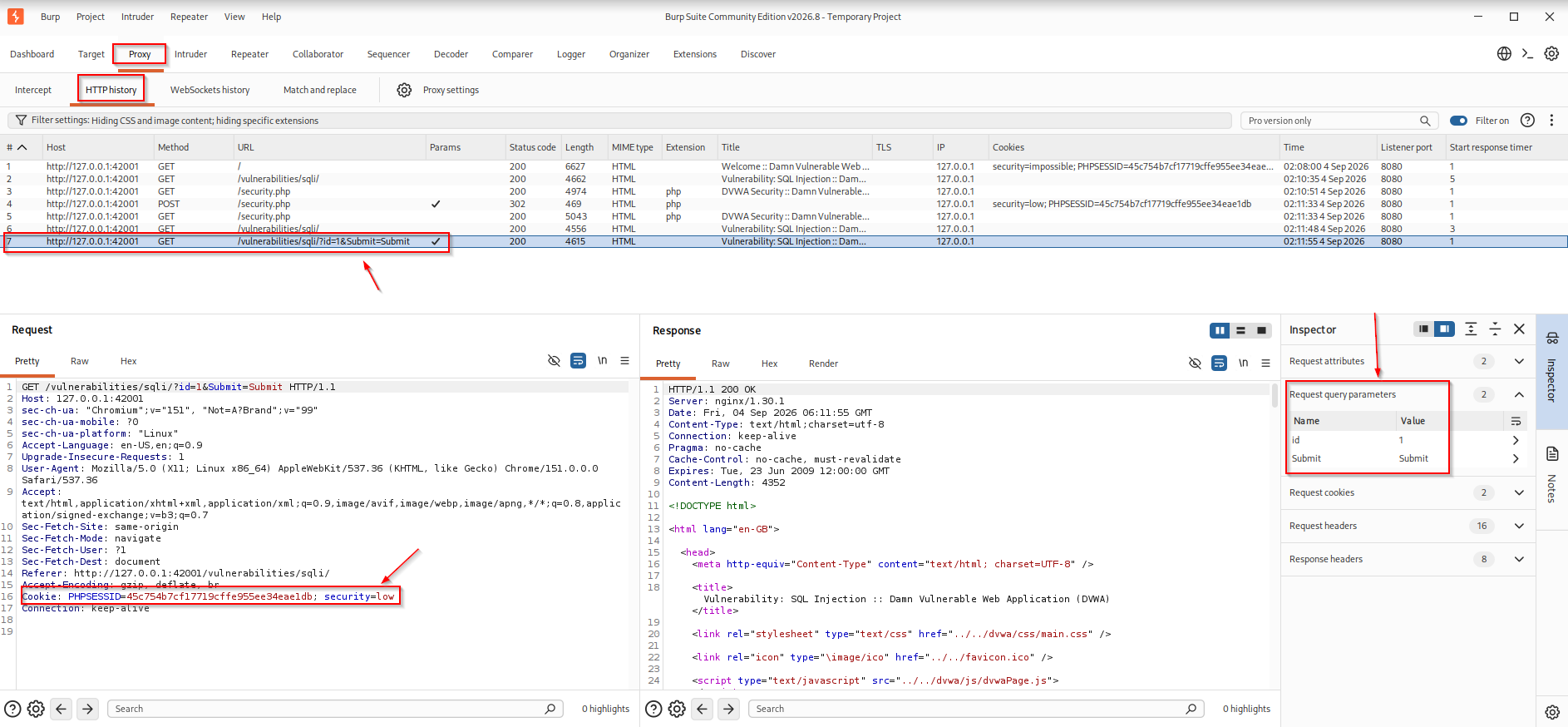
This proves the browser request passed through Burp even though interception was disabled.
The important parts are:
- Method:
GET - Path:
/vulnerabilities/sqli/ - Parameter:
id=1 - Status: normally
200 - Cookie: includes the authenticated DVWA session and
security=low
HTTP history keeps a record of proxied traffic whether intercept is on or off. Intercept only pauses matching requests so you can edit them before forward. For everyday browsing, history is usually faster because you do not stop every request.
Add DVWA to Burp target scope
A browser can generate requests to many hosts, assets, and extensions. Burp scope helps you focus the project on the application you are testing.
Open Target → Site map and locate:
http://127.0.0.1:42001Right-click the host and choose Add to scope. Burp may ask whether Proxy should stop sending out-of-scope items to HTTP history and other Burp tools.
For this DVWA lab, click Yes. That prevents unrelated browser traffic from accumulating in the project while you work only with DVWA.
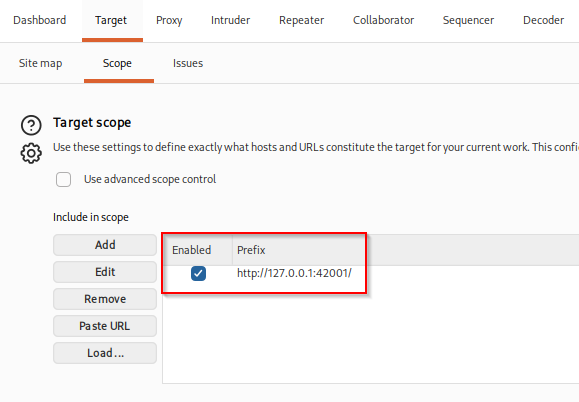
Return to Proxy → HTTP history and use the filter to show only in-scope items if you want to hide unrelated traffic.
Adding DVWA to scope does not make requests more or less vulnerable. It tells Burp which application belongs to the current test.
Intercept and modify an HTTP request
HTTP history keeps a record of proxied requests and responses. Intercept pauses matching requests so you can inspect or modify them before forwarding.
Go to Proxy → Intercept and click the button so it reads Intercept is on.
In Burp's browser, return to the DVWA SQL Injection page, enter 1, and click Submit. Burp pauses the request:
GET /vulnerabilities/sqli/?id=1&Submit=Submit HTTP/1.1
Host: 127.0.0.1:42001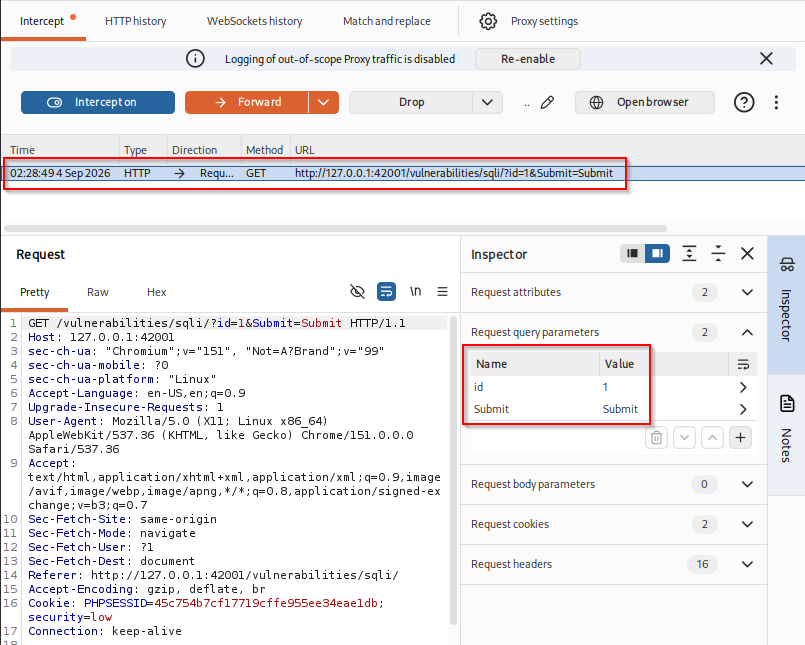
The browser waits because Burp has not forwarded the request yet. You can inspect headers and cookies, change parameters, drop the request, or forward it unchanged.
While the request is still paused, change id=1 to id=2 in the request line (or in the Inspector Request query parameters panel). The line becomes:
GET /vulnerabilities/sqli/?id=2&Submit=Submit HTTP/1.1Click Forward until the DVWA page loads.
DVWA processes the modified request instead of the value the browser submitted. That shows an important web-testing principle: form values are not trusted just because the browser sent them — a proxy can change the HTTP request after submit.
Turn Intercept is off again so normal browsing does not keep stopping.
Replay and modify requests with Burp Repeater
Intercept is useful when you need to stop a request in transit, but repeatedly editing and forwarding browser requests becomes slow. Burp Repeater lets you resend the same HTTP request as many times as needed.
Open Proxy → HTTP history, select the DVWA request containing id=1, right-click it, and choose Send to Repeater. Open the Repeater tab.
The captured request appears in the request editor. Click Send once without changing anything to establish a baseline response.
Then change id=1 to id=2 and click Send again.
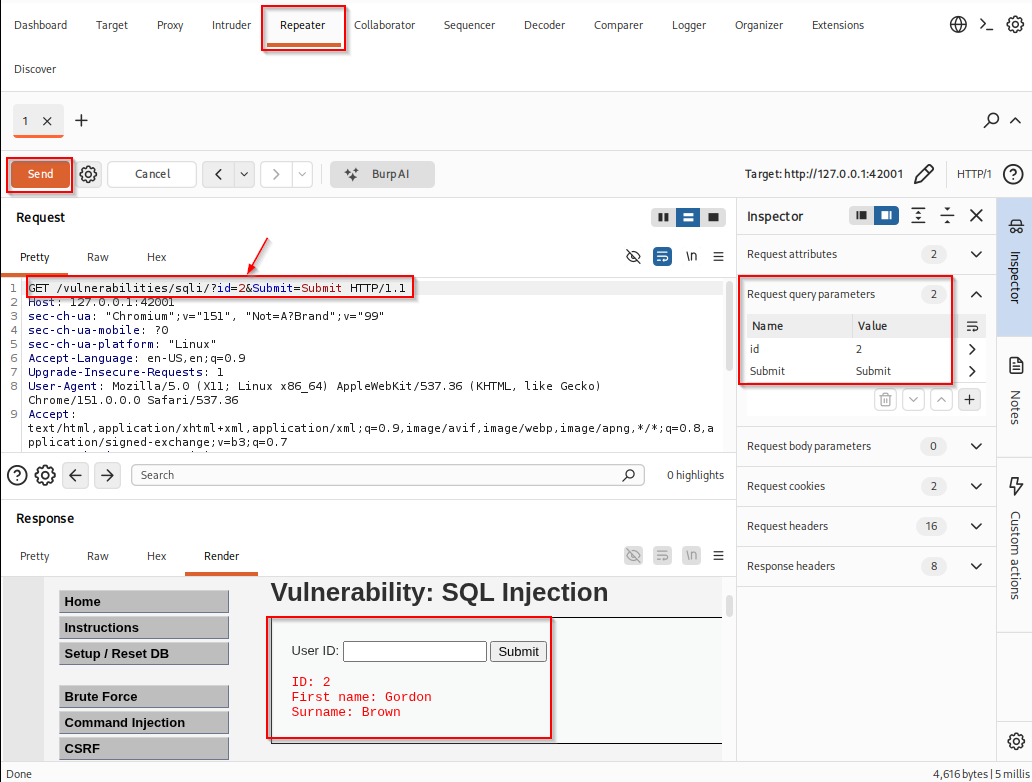
In this lab, changing id=1 to id=2 returned the record for user ID 2 — First name: Gordon, Surname: Brown — in the rendered response. That confirms the modified parameter reached DVWA and changed the application output. This is not a SQL injection lesson; it only shows that Repeater replayed your edit successfully.
When comparing responses, look at:
| Field | What it tells you |
|---|---|
| Status code | Whether the server returned success, redirect, or an error |
| Response length | A quick indication that the returned page changed |
| Response body | The actual application output |
| Headers | Redirects, cookies, caching, and other server behavior |
Change one input at a time so you know which modification caused the response difference.
Automate repeated requests with Burp Intruder
Repeater is ideal when you want to test a few values manually. Intruder becomes useful when the same request needs to be repeated with many different values.
For this tutorial, vary only the DVWA id parameter and send the numbers 1 through 5.
Select the payload position
From Proxy → HTTP history or Repeater, right-click the DVWA request and choose Send to Intruder. Open the Intruder tab.
Burp may automatically mark one or more parts of the request as payload positions. For this test, only the value of the id parameter should change.
Click Clear § to remove any existing payload markers. In the request editor, highlight only the value after id=:
1Then click Add §. Burp surrounds the selected value with § markers:
id=§1§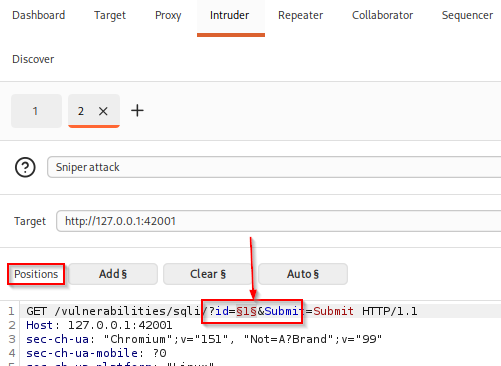
The text between the § markers is the payload position. Intruder replaces only this value while leaving the rest of the HTTP request unchanged.
Keep Sniper attack selected because this request has only one payload position.
Configure numeric payloads
Open the Payloads panel on the right side of Intruder.
Under Payload type, select Numbers and configure the range:
From: 1
To:   5
Step: 1
That generates payloads 1 through 5 automatically.
Burp Suite Community Edition may display a message explaining that Intruder functionality is limited and attacks are rate-limited. Click OK and continue. For a five-request lab test, the Community Edition limit is not a problem.
Click Start attack. If the attack does not start immediately after dismissing the Community Edition message, click Start attack again.
Read Intruder results
Burp opens the Intruder results window and sends the same request repeatedly while replacing only the id value.
Burp may also display a baseline or control row (for example an empty payload or request 0) depending on attack settings. Focus on the rows containing the generated payload values 1 through 5.
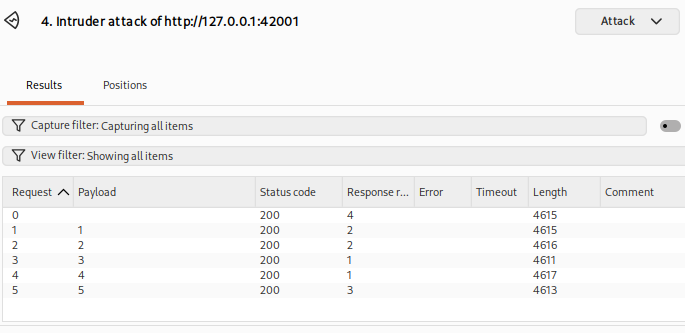
In the results table, review:
| Column | What to check |
|---|---|
| Payload | The value inserted into id (1 through 5) |
| Status code | Usually 200 when DVWA responds normally |
| Length | Response size — rows that differ may mean different page content |
| Error / Timeout | Whether a request failed |
In this lab, the requests returned 200, but the response lengths varied slightly. A different response length can indicate that the application returned different content for that input.
Send an interesting result back to Repeater when you want to inspect or modify it manually.
Use an external browser with Burp
Burp's built-in browser is the easiest option for learning because it is already configured to use Burp Proxy.
If you prefer Firefox or another external browser, configure its HTTP proxy as:
Host: 127.0.0.1
Port: 8080
For HTTPS applications, the external browser must also trust Burp's CA certificate so Burp can inspect TLS traffic.
Open Proxy → Proxy settings → Import / export CA certificate, export the certificate in DER format, and import it into the browser's trusted certificate store.
HTTP-only DVWA on http://127.0.0.1:42001 does not require this certificate.
Do not mix Burp's built-in browser setup with an external-browser proxy extension unless you specifically need the latter.
Burp Suite troubleshooting
| Symptom | Likely cause | What to check |
|---|---|---|
| No DVWA traffic in HTTP history | Browser is not using Burp | Use Open browser from Burp or configure 127.0.0.1:8080 manually |
| Browser appears frozen | Intercept is on | Click Forward or turn interception off |
| Proxy listener unavailable | Listener stopped or port conflict | Check Proxy → Proxy settings |
| DVWA does not load | DVWA service is stopped | Run sudo dvwa-start and verify port 42001 |
| Only unrelated requests appear | Target not scoped/filter too broad | Add DVWA to scope and enable in-scope filtering |
| HTTPS certificate warning | External browser does not trust Burp CA | Export and import the Burp CA certificate |
| Intruder runs slowly | Community Edition throttling | Use small payload sets or Repeater for manual testing |
| Burp shows “out of date” on startup | Old Kali burpsuite package |
sudo apt update && sudo apt install burpsuite, then restart Burp |
Burp manual testing workflow
The individual Burp tools fit together as one workflow:
Browse application
        ↓
HTTP history
        ↓
Identify interesting request
        ↓
Add target to scope
        ↓
Intercept if an in-transit edit is needed
        ↓
Send request to Repeater
        ↓
Modify one parameter and compare responses
        ↓
Use Intruder when many values need the same test
For most manual web testing, keep Intercept off while exploring the application. Find interesting requests in HTTP history, move them into Repeater, and use Intruder only when repetition becomes useful.
DVWA is only the practice application in this tutorial. Vulnerability-specific testing such as SQL injection belongs in the dedicated DVWA and SQL injection guides.
Summary
Burp Suite Community Edition on Kali is enough for manual web testing. Pick Community Edition at startup, open a temporary project, use Burp defaults, confirm the proxy listener on 127.0.0.1:8080, and keep intercept off while browsing.
Use Burp’s built-in browser for DVWA at http://127.0.0.1:42001. Review traffic in HTTP history, refine requests in Repeater, and use Intruder for small numeric payload runs. Add target scope so only DVWA traffic clutters your view.
If Burp warns that it is out of date, run sudo apt update && sudo apt install burpsuite and restart the application.
References
- PortSwigger Burp Suite documentation: https://portswigger.net/burp/documentation
- PortSwigger Web Security Academy (free labs): https://portswigger.net/web-security
- Burp Suite download: https://portswigger.net/burp/communitydownload
Frequently Asked Questions
Is Burp Suite free?
Burp Suite Community Edition is free. It includes Proxy, HTTP history, Repeater, Intruder (throttled), and the built-in browser. Automated Burp Scanner requires Professional.
Which edition should I pick at startup?
Choose Burp Suite Community Edition unless you have a paid Professional license. Community Edition covers this entire tutorial.
Do I need intercept turned on all the time?
No. Leave intercept off while browsing. Use HTTP history to find requests, then send them to Repeater. Turn intercept on only when you want to pause the next request.
Burp browser or Firefox with proxy?
Start with Burp's built-in browser on Kali. It is already proxied — no certificate or FoxyProxy setup needed for HTTP DVWA.
Why does my browser hang when intercept is on?
Burp is holding the request until you click Forward. Forward it or turn intercept off.
How do I update Burp on Kali?
Run sudo apt update && sudo apt install burpsuite, then close and reopen Burp. Do not install PortSwigger's .sh on top of the Kali package unless you removed burpsuite first.
Does Burp work on HTTPS sites?
Yes, after you install Burp's CA certificate in the browser. HTTP DVWA on port 42001 does not need the certificate until you move to HTTPS targets.
