
| Tested on | Kali GNU/Linux Rolling 2026.2 (hostname kali) — adb to Genymotion at 192.168.56.103:5555 |
|---|---|
| Package | Genymotion Desktop Pro 3.10.0 on the Windows host (About / UI)Android 10 / API 29 ( x86); ro.genymotion.version=3.1.0adb 1.0.41 / 34.0.5-debian on Kali |
| Applies to | Supported bare-metal Windows, macOS, or Linux hosts for Genymotion; Kali as the analysis workstation |
| Lab environment | Pentest lab |
| Privilege | Host administrator rights to install Genymotion; normal user for adb on Kali |
| Cert prep | CompTIA PenTest+ PT0-003 — mobile specialized systems (emulator for dynamic analysis) |
| Scope | Install Genymotion Desktop Pro on the physical host, create a rooted Android 10 (API 29) device, make it reachable from Kali, and verify ADB connectivity for MobSF. Short Pro trial note. Not Magisk hardening, Frida courses, iOS, Genymotion Cloud/PaaS, or installing Genymotion inside a VM. |
| Related guides | Android Studio AVD lab Frida Android tutorial Penetration testing rules of engagement |
MobSF documents Genymotion Desktop as one option for a rooted Android runtime for dynamic analysis through Android 11 / API 30. This guide installs Genymotion Desktop Pro on the physical host, creates an Android 10 device, enables root access, and verifies ADB connectivity from Kali.
If you prefer a free official emulator on a host with nested virtualization, use the Android Studio AVD lab instead and keep this page for the Genymotion host-plus-Kali layout.
Genymotion Android pentest lab overview
Tested topology:
Windows host (bare metal)
├── Genymotion Desktop Pro 3.10.0
│   └── Android VM (Genymotion Phone) — e.g. 192.168.56.103:5555
└── Oracle VirtualBox
    └── Kali Linux
        ├── adb
└── MobSF| Component | Where it runs |
|---|---|
| Genymotion Desktop Pro | Physical host only |
| Android virtual device | Inside Genymotion (VirtualBox-backed on this Windows lab) |
| Kali | VirtualBox guest |
| MobSF | Usually Docker or native on Kali |
Static tools such as APKHunt do not need an emulator. Dynamic analysis does. Choose Genymotion here when Kali already runs in VirtualBox on the same host; choose the free AVD lab when you can run Android Studio with nested virtualization on the analysis machine.
Genymotion Desktop requirements
Official minimums include:
| Component | Requirement |
|---|---|
| CPU | 64-bit (Intel 6th gen+ / AMD Ryzen on PC; Intel or Apple silicon on Mac) |
| Virtualization | VT-x or AMD-V enabled in BIOS/UEFI on PC |
| Graphics | OpenGL 3.3+ |
| RAM | 16 GB or more |
| Display | 1920×1080 or higher |
| Disk | About 300 MB for Genymotion plus ≥ 2 GB per virtual device |
Supported host OS families (confirm current versions in Genymotion docs):
- Windows 11 (x86_64)
- Recent macOS (Intel or Apple silicon; Rosetta on Apple silicon)
- Linux x86_64 — Ubuntu LTS, Debian Stable, Fedora Workstation
Hard limits:
- No Virtual Machines, VPS, or Docker as the Genymotion host
- No servers as the Genymotion host
This article was tested with Genymotion Desktop Pro 3.10.0 on Windows. Current stable at publication time is also 3.10.0; UI labels on other builds may differ slightly. The Android guest property ro.genymotion.version is not the Desktop installer version (see verification below).
Plan host RAM so Kali and Genymotion are not all maxed at once. Shut down unused targets when the laptop is tight. Broader sizing lives in pentest lab requirements.
Pro trial vs Personal Use
| Path | What you get |
|---|---|
| Desktop Pro trial | Time-limited evaluation of full Pro features (Genymotion currently markets a 30-day trial) |
| Personal Use (free) | Limited features and no technical support; intended for personal / non-professional use. Genymotion’s study FAQ also indicates students may use the free edition for their own studies, while schools and teachers have a separate Educational plan |
For professional or commercial use, check Genymotion's current license terms and choose the appropriate trial or paid plan.
If you want the Pro trial, activate it before you download:
- Create a Genymotion account.
- Click the activation link in the email.
- On the confirmation page, choose TRY FOR 30 DAYS.
- Select your host OS.
- Click Download Trial Version.
If you already selected Personal Use and want the Pro trial, Genymotion’s current support instructions are to uninstall Desktop, delete and recreate the account, then activate the trial before reinstalling.
After TRY FOR 30 DAYS, the download page lists Linux, Windows, and macOS. Agree to the terms for your OS, then pick the trial build:
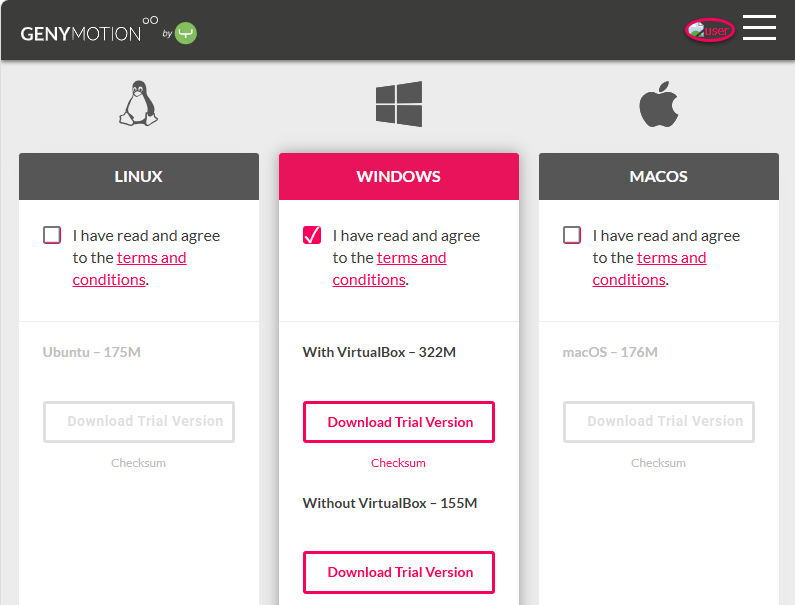
On a host that already runs VirtualBox for Kali (this lab), choose Without VirtualBox. That avoids a second installer path and the “install the version provided instead?” prompt later. Use With VirtualBox only on a fresh host that does not already have VirtualBox.
Install Genymotion Desktop
Use the trial build you downloaded. Filenames look like genymotion-X.Y.Z.exe (Windows without VirtualBox) or genymotion-X.Y.Z-vbox.exe (Windows with VirtualBox), and genymotion-X.Y.Z-linux_x64.run on Linux.
Windows
- Run the installer that matches your download choice.
- Walk the setup wizard (language, destination default
C:\Program Files\Genymobile\Genymotion, Start Menu, desktop icon). - Finish and reboot if the installer asks.
If you downloaded With VirtualBox and VirtualBox is already present, Setup may ask:
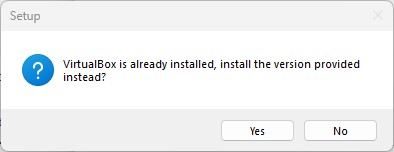
Prefer downloading Without VirtualBox when VirtualBox is already installed so you skip this choice. If you see the prompt anyway, No keeps your existing VirtualBox; Yes replaces it with Genymotion’s bundled build.
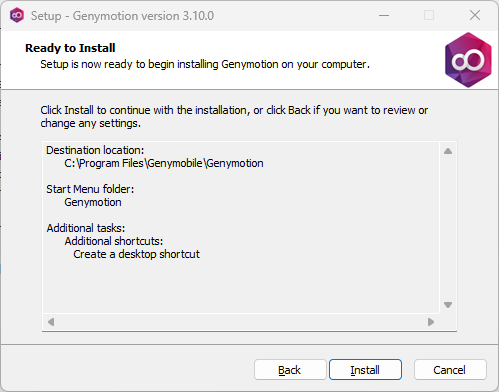
The wizard ends on Ready to Install. Confirm the destination and click Install:
Hypervisor notes:
- This Windows setup uses VirtualBox because Kali and the Genymotion Android VM already run through VirtualBox.
- Hyper-V conflicts with VirtualBox (slow boots, DHCP errors). Disable Hyper-V when you use VirtualBox, or follow Genymotion’s Hyper-V FAQ.
- QEMU on Windows is marked experimental.
Linux
On a supported bare-metal Linux host (not the Kali VirtualBox guest):
chmod +x genymotion-X.Y.Z-linux_x64.runchmod prints nothing on success. Install into a directory you own:
./genymotion-X.Y.Z-linux_x64.run -d "$HOME"That puts the app under $HOME/genymotion/ when you use -d as documented. Genymotion discourages a global sudo install into /opt/genymotion.
QEMU (KVM) is the default and recommended hypervisor on Linux. VirtualBox on Linux is legacy and is not bundled.
macOS
Open the .dmg and drag Genymotion into Applications. QEMU is the default hypervisor; enable Rosetta on Apple silicon.
First launch
Start Genymotion from the host application menu, or on Linux:
~/genymotion/genymotionSign in with the account from the trial path. Prefer the licensed / trial Pro choice. Do not select Personal use if you activated the Pro trial.
Create a rooted Android device
MobSF’s current documented Genymotion dynamic-analysis support covers Android 4.1–11.0 (API ≤ 30) and recommends Android 7.0+. Android 12+ is outside that documented Genymotion dynamic range.
Open the Android images library. Select Android 10.0 (API 29), then CREATE A DEVICE:
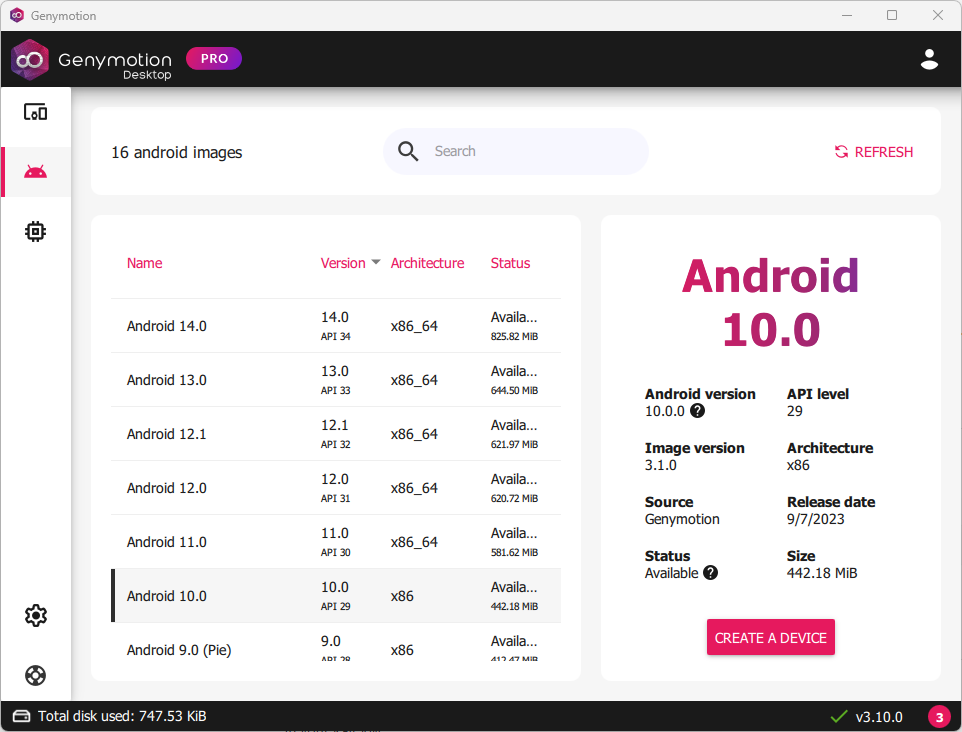
Android 14/13/12 may appear in the list. Skip those for MobSF dynamic analysis.
This lab used:
| Setting | Value used |
|---|---|
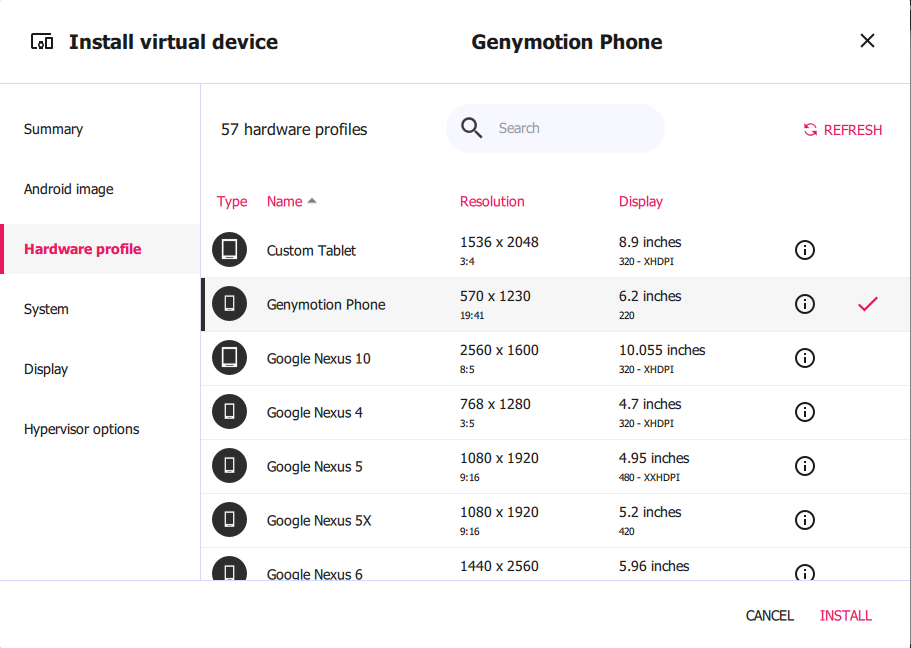
| Hardware profile | Genymotion Phone |
| Processors | 2 |
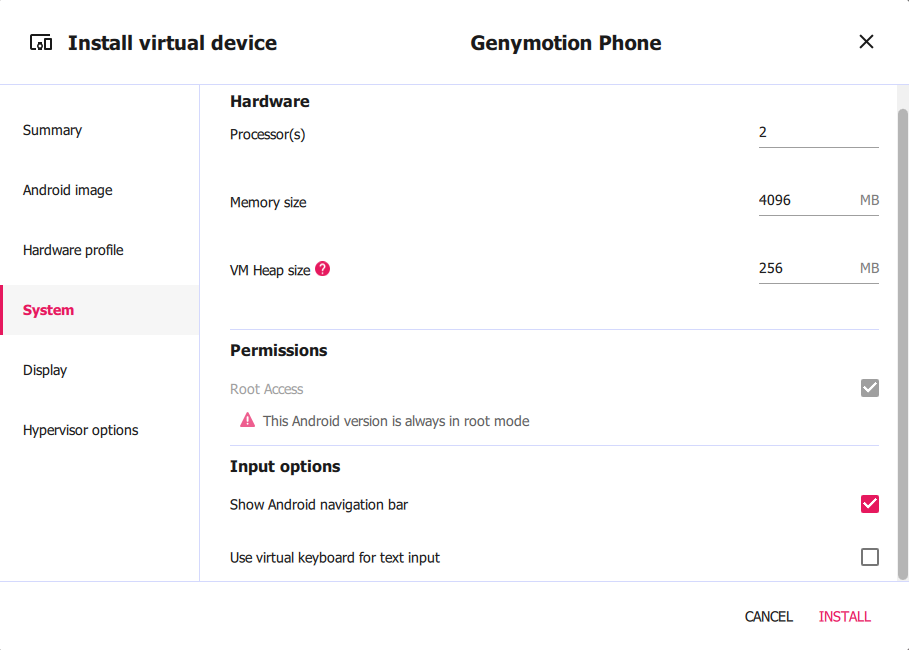
| Memory | 4096 MB |
| Android image | 10.0 / API 29 (x86) |
| Root access | Wizard reported “Always in root mode” for this Android 10 image |
Pick Genymotion Phone on the hardware profile step:
Confirm System settings. On Android 10 the wizard reported root mode as always on:
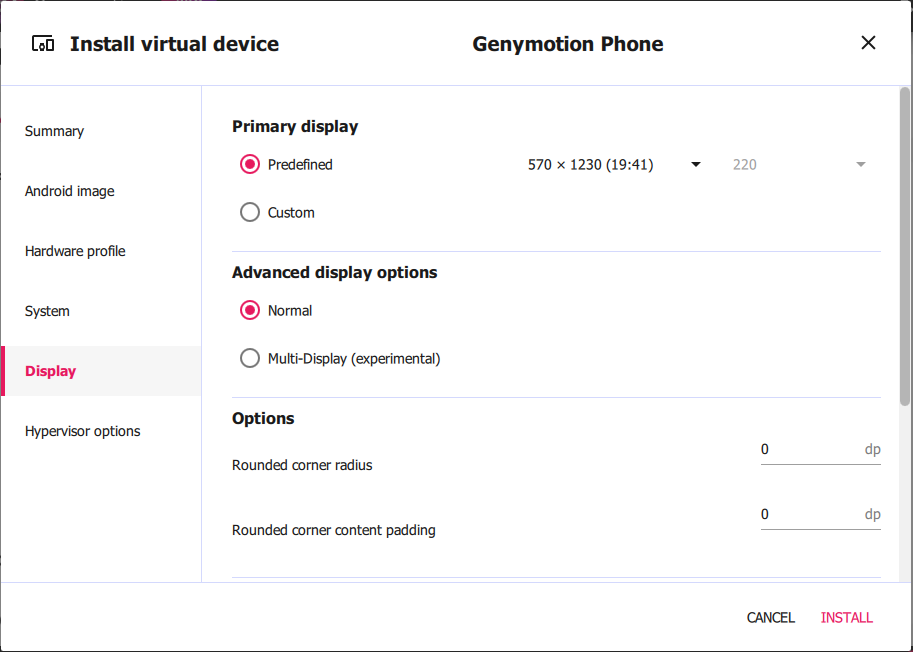
Leave Display on the predefined phone resolution unless you need a custom size:
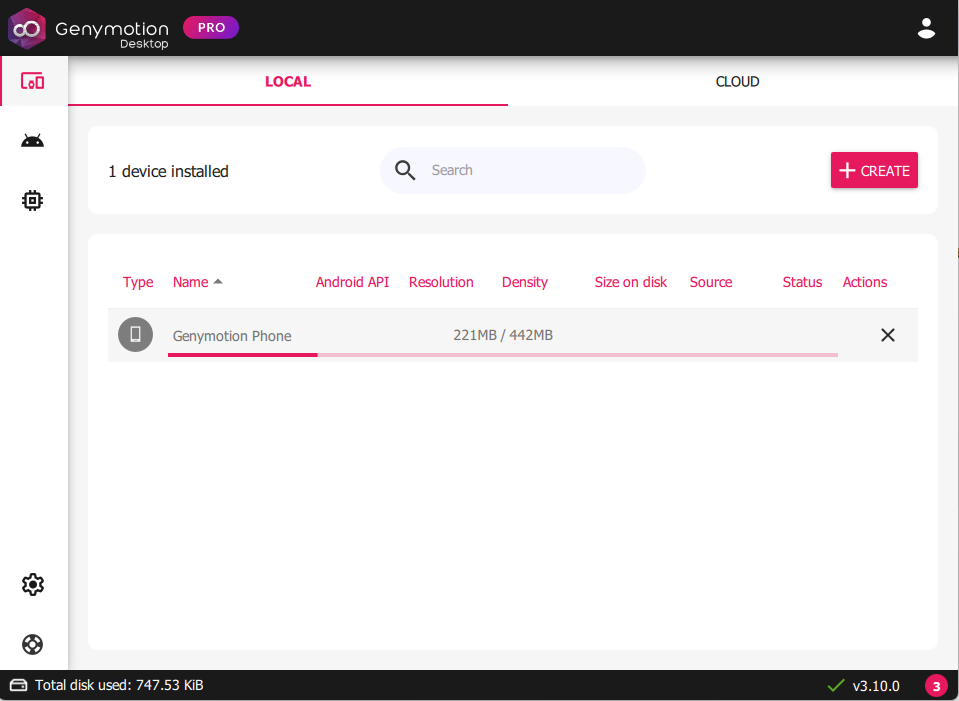
Click INSTALL. The LOCAL dashboard shows download progress:
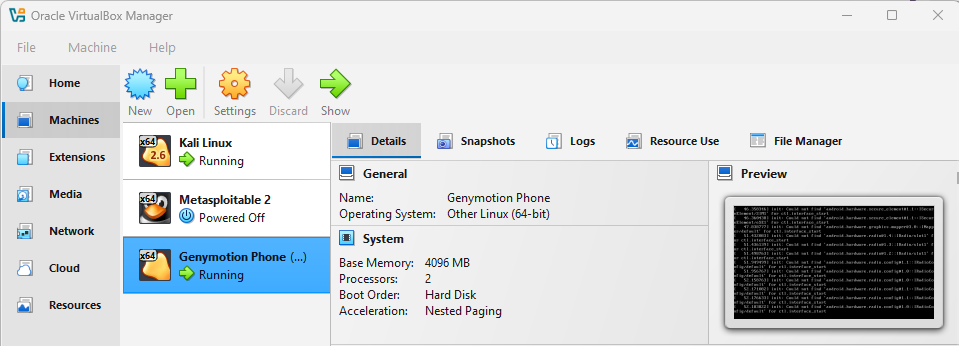
With VirtualBox as the hypervisor, Oracle VM VirtualBox Manager lists Genymotion Phone beside Kali:
Make the Genymotion device reachable from Kali
Kali is a separate VirtualBox guest. Genymotion’s Android VM must land on an IP that Kali can route to. Genymotion documents remote ADB from another machine with a bridged virtual-device network in many cases, then adb connect <IP>:5555. NAT is the simplest mode for outbound Internet from the Android guest, but it does not guarantee reachability from Kali.
In this Windows lab the Android guest used the VirtualBox host-only style addressing already used by the pentest lab (192.168.56.0/24). After the network was corrected, Genymotion showed 192.168.56.103 and Kali could reach that address.
Lab-specific host-only network issue
On this lab, the Android UI came up, but the device IP was not reachable from Kali. VirtualBox File → Tools → Network Manager (or the Host Network Manager / Networks section, depending on VirtualBox version) showed an extra Host-Only Ethernet Adapter beside the lab’s existing host-only network.
Fix that worked here:
- Power off the Genymotion Android device.
- Compare the host-only network Kali already uses with the extra network that appeared.
- Remove the unused host-only network only after confirming Kali is attached to the existing lab segment.
- Start the Android device again.
- Confirm the new DHCP address on that shared host-only segment (this lab:
192.168.56.103).
Kali must be able to route to the Android VM and reach its ADB port on TCP 5555. A successful ping can help confirm connectivity, but ICMP is not required for ADB.
Connect to Genymotion with ADB
Confirm adb on Kali:
adb versionAndroid Debug Bridge version 1.0.41
Version 34.0.5-debian
Installed as /usr/lib/android-sdk/platform-tools/adb
Running on Linux 6.19.14+kali-amd64 (x86_64)Connect to the device IP and ADB port Genymotion shows (replace the address if yours differs):
adb connect 192.168.56.103:5555connected to 192.168.56.103:5555List attached devices:
adb devices -lList of devices attached
192.168.56.103:5555 device product:vbox86p model:Phone device:vbox86p transport_id:4device (not offline or unauthorized) means Kali can talk to the emulator. Genymotion’s remote ADB docs and MobSF’s dynamic setup both expect this connect-then-list flow when the runtime is not a local USB serial.
Verify Android version and root
Read the Android release:
adb -s 192.168.56.103:5555 shell getprop ro.build.version.release10Confirm the SDK / API level. MobSF’s current documented Genymotion dynamic-analysis support goes up to Android 11 / API 30:
adb -s 192.168.56.103:5555 shell getprop ro.build.version.sdk29Read the Genymotion-specific guest property:
adb -s 192.168.56.103:5555 shell getprop ro.genymotion.version3.1.0Switch the ADB daemon to root, then check identity. Genymotion documents adb root for command-line root on versions that support it:
adb -s 192.168.56.103:5555 rootadbd is already running as rootrestarting adbd as root is also a good result. Then:
adb -s 192.168.56.103:5555 shell iduid=0(root) gid=0(root) groups=0(root),1004(input),1007(log),1011(adb),1015(sdcard_rw),1028(sdcard_r),3001(net_bt_admin),3002(net_bt),3003(inet),3006(net_bw_stats),3009(readproc),3011(uhid) context=u:r:su:s0uid=0(root) is the success signal for MobSF-style instrumentation.
Optional: confirm the guest ABI (this PC image reported x86):
adb -s 192.168.56.103:5555 shell getprop ro.product.cpu.abix86Use the device with MobSF
After adb devices shows the Genymotion phone, continue with Dynamic Analyzer wiring in the MobSF tutorial. Set MOBSF_ANALYZER_IDENTIFIER to the ADB serial Genymotion reports (often IP:5555 for networked devices).
Keep the Android image at API ≤ 30 for Genymotion dynamic analysis as MobSF currently documents it. Static MobSF / APKHunt triage of newer-target APKs is a separate question from that dynamic runtime limit.
APK architecture compatibility
This property belongs to the Android virtual device; it is not the Genymotion Desktop Pro version installed on Windows.
This Android 10 Genymotion image reports x86. An APK containing only ARM native libraries may therefore fail with INSTALL_FAILED_NO_MATCHING_ABIS.
On PC x86_64 hosts, Genymotion Desktop Pro images are generally x86 or x86_64. Genymotion warns that ARM-only APKs may not install or run without translation workarounds.
| Symptom | Likely cause | What to check |
|---|---|---|
INSTALL_FAILED_NO_MATCHING_ABIS |
APK ships only ARM native libraries | APK ABI list vs ro.product.cpu.abi on the device |
Do not assume the emulator is broken until you confirm ABI mismatch.
Troubleshooting
| Symptom | Likely cause | Fix |
|---|---|---|
| No TRY FOR 30 DAYS offer | Downloaded generic build first, or already on Personal Use | Uninstall, recreate account, activate trial, then download the trial build |
| Genymotion fails inside Kali VM | Nested virtualization unsupported | Install on the bare-metal host OS |
| Android boots but Kali cannot reach the IP | Android VM and Kali are on different VirtualBox host-only segments | Compare both networks first. Remove or reconfigure only the unused network after confirming Kali’s existing lab network |
adb devices empty |
Never ran adb connect, or IP wrong |
adb connect IP:5555 after Kali can reach TCP port 5555 on the device |
| Slow boot / VirtualBox DHCP errors on Windows | Hyper-V enabled with VirtualBox | Disable Hyper-V per Genymotion FAQ |
| Device deploy fails | Disk full | Free host space (≥ 2 GB per device plus image download) |
| MobSF “Android Runtime not found” | Emulator down or wrong identifier | Keep Genymotion up; set MOBSF_ANALYZER_IDENTIFIER to the adb serial |
| Android 12+ image for dynamic analysis | Outside MobSF’s documented Genymotion dynamic range | Recreate the device at Android 11 / API 30 or older |
INSTALL_FAILED_NO_MATCHING_ABIS |
ARM-only APK on x86/x86_64 image | Confirm ABIs; use a matching APK or Genymotion’s documented translation options |
Summary
Genymotion Desktop Pro belongs on the physical host. Kali stays in VirtualBox and reaches the Android guest over a shared, correct host-only or bridged path. Activate a Pro trial only if that matches your license needs; install Without VirtualBox when VirtualBox is already present for the lab.
Create an Android 10 / API 29 Genymotion Phone (2 CPUs, 4096 MB worked here), ensure Kali and the Android VM share a reachable network path, then run adb connect IP:5555 from Kali. Confirm release, SDK, ro.genymotion.version as a guest property, and adb root / id. That runtime is ready for MobSF dynamic analysis next.
References
- Get started with Genymotion Desktop (install and quickstart)
- Genymotion Desktop virtual device settings (NAT vs Bridge)
- Is there a trial for Genymotion Desktop Pro edition?
- Personal Use selected but need Pro trial
- Genymotion Desktop plans
- Genymotion root access feature
- Genymotion ADB connection guide
- MobSF dynamic analyzer documentation
Frequently Asked Questions
Why must I register before downloading Genymotion for the Pro trial?
The Pro trial download is offered on the account activation confirmation page after you click the email link. Downloading a generic installer first usually leads to Personal Use instead of the trial button.
Can I install Genymotion inside my Kali VirtualBox VM?
No. Genymotion’s install guide states that virtual machines, VPS, and Docker are not supported hosts. Install on the physical Windows, macOS, or Linux desktop, then reach the device with adb from Kali.
Which Android version should I pick for MobSF dynamic analysis?
Stay at Android 11 / API 30 or older for Genymotion dynamic analysis as MobSF currently documents it. This lab used Android 10 (API 29).
Is Personal Use the same as the Pro trial?
No. Personal Use is a limited free edition without technical support. The Pro trial is a time-limited full-feature evaluation. Check Genymotion’s current study and commercial terms for which path fits your use.
Why does Kali fail to reach the Genymotion IP even though Android boots?
Genymotion may create an extra VirtualBox host-only adapter. Remove that extra adapter, keep the lab host-only network Kali already uses, restart the Android device, and connect to the new DHCP address with adb connect.
Do I need Genymotion for APKHunt?
No. APKHunt is static analysis. Use Genymotion when you need a running device for MobSF dynamic analysis or other runtime tests.
