| Tested on | Kali GNU/Linux Rolling — burpsuite 2026.8-0kali1 (Community Edition)Genymotion Android 10 / API 29 at 192.168.56.103:5555 (host-only)adb 1.0.41 / 34.0.5-debian on Kali (192.168.56.120) |
|---|---|
| Package | Burp Suite Community (burpsuite)openssladb (Android SDK Platform-Tools) |
| Applies to | Kali or other Linux analysis hosts; Android emulators and rooted test devices that can reach the Burp listener |
| Lab environment | Pentest lab — Genymotion device reachable from Kali over host-only networking |
| Privilege | Normal user for Burp and adb; root required for the system-CA method demonstrated on the Android 10 device |
| Scope | Burp listener, Android proxy, Burp CA trust by Android version, browser HTTPS proof before app testing, and troubleshooting for missing traffic versus TLS failures. Does not cover Frida/Objection pinning bypass, Magisk install walkthroughs, or a full Burp web-app tutorial. |
When an Android app sends HTTPS traffic, Burp cannot inspect it unless the device sends the connection through Burp and trusts Burp's CA certificate. In this tutorial, we'll configure both, first verify the setup in an Android browser, and then use the same setup for app traffic.
I used Genymotion Android 10 from Kali over a host-only network; the same proxy and CA steps apply to other emulators and physical phones on a lab network.
Before you start
Gather these pieces before you change proxy or certificate settings:
- Burp Suite on Kali — Community or Professional edition with a Proxy listener you can reach from the Android device or emulator
- Android emulator or device — Genymotion, an AVD, or a lab phone on the same network as Kali
- ADB —
adbon Kali can see the device (adb devices -l) - Network path — the Android device must reach Kali's Burp IP and port (not Kali loopback when the device is a separate VM)
- Root for system CA — Android apps targeting API 24+ do not trust user-installed CAs by default unless their Network Security Configuration allows them. For general app interception on modern Android, use a rooted test device or emulator with an appropriate system trust path, or a test build configured to trust your proxy CA
Test the setup in the Android browser before troubleshooting an app. If HTTPS works in the browser, you know the device can reach Burp and the browser accepts Burp's CA certificate. Many apps still need a system-trusted Burp CA or a separate pinning bypass workflow after that.
How Android HTTPS interception with Burp works
Burp sits between the Android client and the internet. The device sends HTTP(S) to Burp. For HTTPS, Burp terminates TLS using a certificate it signed with its own CA, then opens a second TLS session to the real server. You read cleartext request and response bodies in Proxy history only when the device trusts that Burp CA.
For example, when the Android device requests https://example.com, it connects to Burp instead of directly to example.com. Burp presents its own certificate for example.com, reads the HTTPS request, and then creates a separate HTTPS connection to the real server. The device must therefore trust Burp's CA, otherwise it rejects the certificate Burp presents.
  Android device / emulator          Kali (analysis host)           Target API / site
  ┌─────────────────────┐            ┌──────────────────┐           ┌──────────────┐
  │ App or browser      │  HTTP(S)   │ Burp Proxy       │  HTTPS    │ example.com  │
  │ proxy → 192.168.56.120:8080 │ ─────────► │ listener :8080   │ ────────► │ httpbin.org  │
  │ trusts Burp CA      │            │ (MITM + history) │           │              │
  └─────────────────────┘            └──────────────────┘           └──────────────┘
Three pieces must all work:
- Network path from the device to Burp (correct IP and port, listener not bound only to loopback when the device is remote)
- Proxy configuration on Android (Wi-Fi manual proxy or global
http_proxy) - Trust for the Burp CA (user store vs system store depends on Android version and whether you test browsers or apps)
Even when all three are correct, a particular app may still fail because it uses certificate pinning, its own trust rules, or does not use Android's configured proxy. That is why you should get HTTPS working in the browser before troubleshooting the app itself.
Tested Android and Kali environment
Confirm adb sees the Genymotion device before you set a proxy:
adb devices -lList of devices attached
192.168.56.103:5555 device product:vbox86p model:Phone device:vbox86p transport_id:4Confirm Kali's address on the network the emulator uses (host-only eth1 in this lab):
ip -4 addr show eth13: eth1: <BROADCAST,MULTICAST,UP,LOWER_UP> mtu 1500 qdisc fq_codel state UP group default qlen 1000
inet 192.168.56.120/24 brd 192.168.56.255 scope global noprefixroute eth1
valid_lft forever preferred_lft foreverDo not use 127.0.0.1 as the proxy address. On Android, 127.0.0.1 refers to the Android device itself, not the Kali VM running Burp. In this lab, Android must therefore use Kali's reachable host-only address, 192.168.56.120.
Configure the Burp Proxy listener
Start Burp Suite Community from the Kali menu or the terminal. Choose a temporary project in memory, keep Burp defaults, and click Start Burp.
Open Settings → Tools → Proxy (or Proxy → Proxy settings). Under Proxy listeners, either edit the default listener or add one:
| Setting | Lab value |
|---|---|
| Bind to port | 8080 (or any free port you will reuse on Android) |
| Bind to address | All interfaces for this lab layout |
| Running | Checked |
Binding to all interfaces is recommended when Genymotion or a physical phone talks to Kali over a host-only or LAN IP. A listener on 127.0.0.1 alone accepts traffic from Kali itself but not from a remote emulator. Alternatively, bind the listener to the specific Kali interface Android can reach (for example 192.168.56.120).
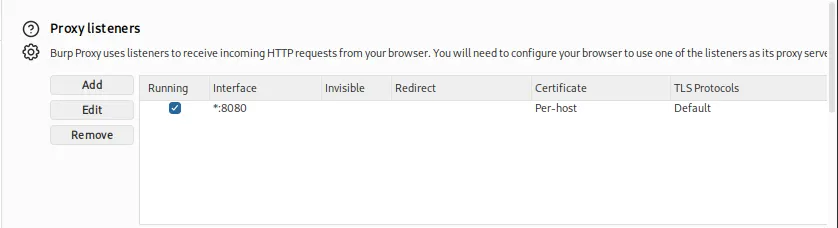
Keep Running checked so the Interface column shows *:8080 (all interfaces) or your Kali host-only IP with port 8080. Turn Intercept off while you test connectivity. With Intercept on, every request waits for Forward and the Android browser looks hung.
Before configuring Android, confirm from Kali that Burp is listening on port 8080:
ss -tlnp | grep 8080LISTEN 0 50 *:8080 *:* users:(("java",pid=246606,fd=62))A bind of *:8080 (or 192.168.56.120:8080) is what the emulator needs. If you only see 127.0.0.1:8080, edit the listener again.
If you are new to Proxy history and Repeater on desktop browsers, work through the Burp Suite proxy tutorial first, then return here for the Android CA steps.
Set the Android proxy
Point the device at 192.168.56.120:8080. Two common ways work in labs.
Global proxy with adb (fast for Genymotion)
The quickest option in this Genymotion lab is to set Android's global HTTP proxy with ADB. The following command tells Android to send proxy-aware HTTP and HTTPS traffic to Burp at 192.168.56.120:8080:
adb -s 192.168.56.103:5555 shell settings put global http_proxy 192.168.56.120:8080Read it back:
adb -s 192.168.56.103:5555 shell settings get global http_proxy192.168.56.120:8080Seeing 192.168.56.120:8080 confirms that Android saved the proxy setting.
Clear the proxy when you finish:
adb -s 192.168.56.103:5555 shell settings put global http_proxy :0Wi-Fi manual proxy (UI path)
On a phone or emulator that exposes Wi-Fi proxy fields: Settings → Network & internet → Wi-Fi → gear on the connected network → Advanced → Proxy → Manual. Set hostname to 192.168.56.120, port to 8080, save, and stay on that network.
This Genymotion Android 10 image does not expose those Proxy fields under Advanced, so the lab uses the adb global proxy above. Use the Wi-Fi Manual proxy UI on physical devices or AVD builds that show it.
Install and trust the Burp CA certificate
Before installing the Burp CA, check the Android version and API level. This matters because newer Android apps do not necessarily trust certificates installed in the user certificate store:
adb -s 192.168.56.103:5555 shell getprop ro.build.version.release10Confirm the API level as well:
adb -s 192.168.56.103:5555 shell getprop ro.build.version.sdk29Android 10 / API 29 is the device used for every command and screenshot below.
Export Burp's CA, then install it in a store the client actually uses.
Export the CA from Burp
In Burp: Settings → Tools → Proxy → Import / export CA certificate → Export → Certificate in DER format. Save a file that ends in .der (for example cacert.der).
DER and PEM are simply different encodings of the certificate. Burp exports DER conveniently, while the Android system-CA procedure below needs the certificate in PEM form with Android's expected hashed filename.
You can also download the same DER while a browser or curl already uses the proxy. The curl command in Linux covers -x and -o if you need a refresher:
curl -s -x http://192.168.56.120:8080 http://burpsuite/cert -o cacert.derConfirm it is a certificate:
file cacert.dercacert.der: Certificate, Version=3Print the subject so you know you exported PortSwigger's CA, not a random leaf:
openssl x509 -inform DER -in cacert.der -noout -subjectsubject=C=PortSwigger, ST=PortSwigger, L=PortSwigger, O=PortSwigger, OU=PortSwigger CA, CN=PortSwigger CAUser CA (browser test)
Rename or copy to .cer if the installer UI prefers that extension, then push it to the device:
adb -s 192.168.56.103:5555 push cacert.der /sdcard/Download/cacert.derOn this Genymotion Android 10 image, open Settings → Security → Encryption & credentials → Install from SD card, then select the Burp CA. Other Android builds may label this Install a certificate → CA certificate or Install from storage.
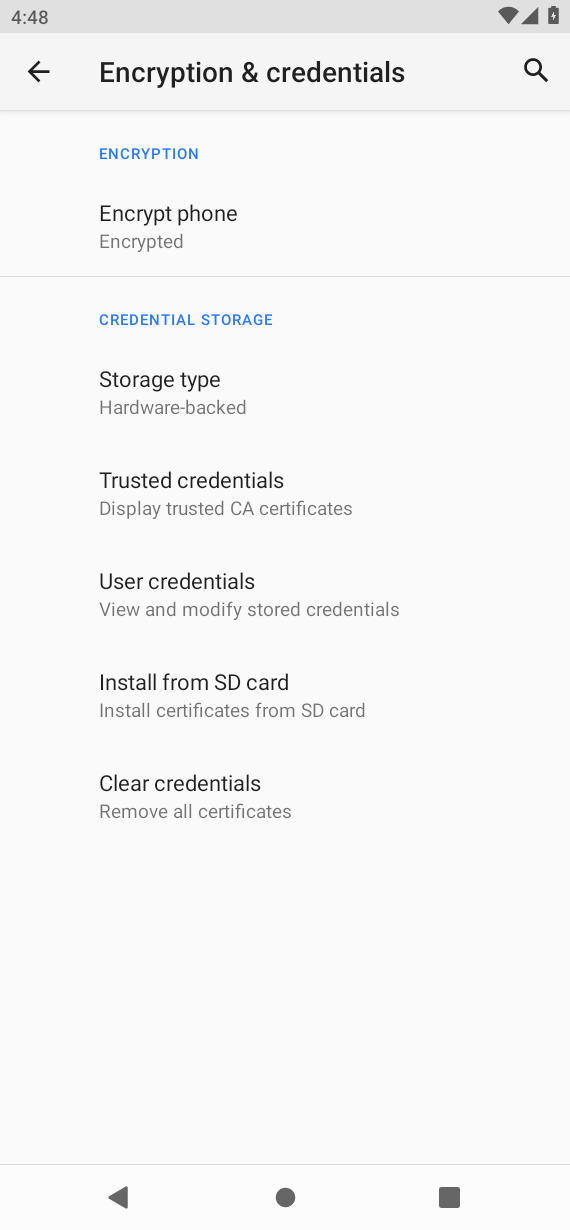
On Android 9 and below you may need a screen lock before the installer accepts a CA. After install, Trusted credentials → User should list PortSwigger CA.
Why did the Burp CA work in the browser but not in my app?
A browser loading HTTPS successfully does not mean every app will trust the same CA. Starting with Android 7.0, apps targeting API 24+ do not trust user-installed CAs by default.
If you control the app, you can allow user-installed CAs in a test or debug build through Android's Network Security Configuration:
<network-security-config>
    <base-config>
        <trust-anchors>
            <certificates src="system" />
            <certificates src="user" />
        </trust-anchors>
    </base-config>
</network-security-config>
The app references this XML from the <application> element in AndroidManifest.xml using android:networkSecurityConfig="@xml/network_security_config". Do not confuse this with certificate-pinning bypass; it only changes which CAs the app trusts. Apps you do not control usually need a system-trusted CA (or a separate pinning bypass workflow) instead.
System CA on rooted Android 10 (this lab)
Convert DER to PEM, name the file with OpenSSL's old subject hash plus .0, and copy it into /system/etc/security/cacerts/ as root. The OpenSSL cheatsheet covers x509 conversion flags if you want more context:
openssl x509 -inform DER -in cacert.der -out cacert.pemAndroid does not identify system CA files by an arbitrary filename such as cacert.pem. It expects the filename to be derived from the certificate's subject hash, followed by .0. Compute that hash from the PEM:
HASH=$(openssl x509 -inform PEM -subject_hash_old -in cacert.pem | head -1)
echo "$HASH"9a5ba575Copy the PEM to that hashed filename before you push it:
cp cacert.pem "${HASH}.0"Push the hashed file to the device sdcard staging path:
adb -s 192.168.56.103:5555 push "${HASH}.0" /sdcard/Remount and install (rooted Genymotion shell is already root in this lab):
adb -s 192.168.56.103:5555 shell "mount -o rw,remount /system 2>/dev/null || mount -o rw,remount /; cp /sdcard/${HASH}.0 /system/etc/security/cacerts/${HASH}.0; chmod 644 /system/etc/security/cacerts/${HASH}.0; ls -l /system/etc/security/cacerts/${HASH}.0"-rw-r--r-- 1 root root 1391 2026-09-09 16:13 /system/etc/security/cacerts/9a5ba575.0Confirm the hashed file is present among the system CAs:
adb -s 192.168.56.103:5555 shell "ls -l /system/etc/security/cacerts/ | grep 9a5ba575"-rw-r--r-- 1 root root 1391 2026-09-09 16:13 9a5ba575.0Open Settings → Security → Encryption & credentials → Trusted credentials → System and scroll for PortSwigger CA after a reboot on some images. The SYSTEM tab is the list you want for a system install:
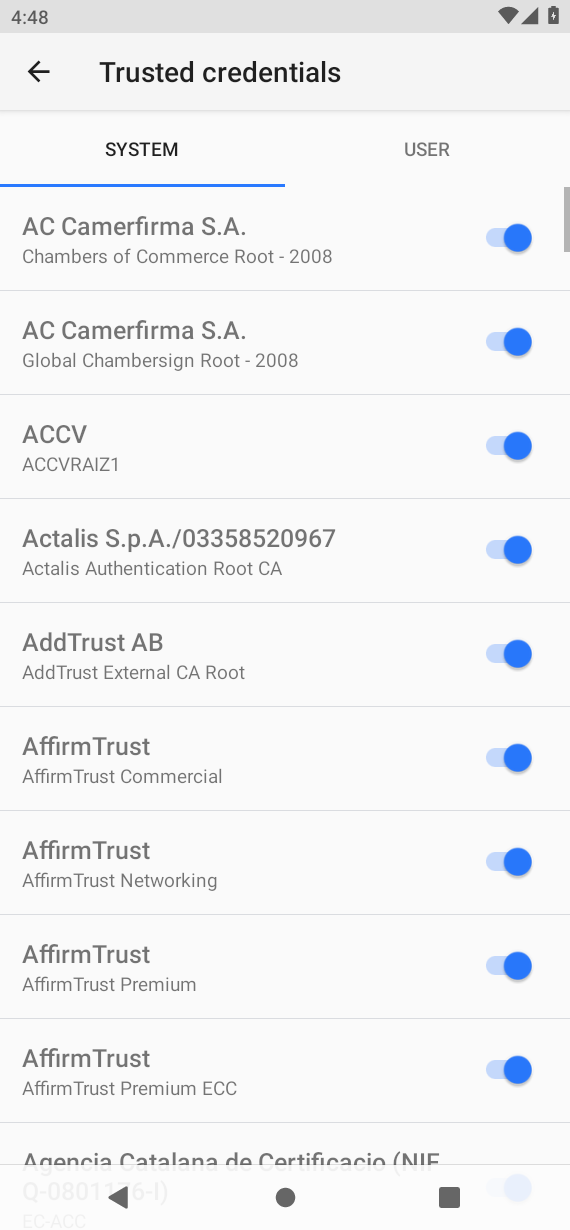
On this Android 10 Genymotion image, WebView accepted the newly installed system CA without a reboot. If that does not happen on your image, reboot Android and test again.
/system weakens the device security model. Use throwaway emulators or dedicated lab phones, not your daily driver.
Android version and CA trust differences
Use this matrix when your device is newer or older than the Android 10 lab above. The proxy and Burp listener steps stay the same; only trust-store mechanics change.
Android 14 changed where system CA certificates are managed. As a result, the Android 10 technique of copying a certificate only to /system/etc/security/cacerts/ should not be assumed to work on Android 14 and newer.
| Android | Typical pentest-lab approach | Notes |
|---|---|---|
| 6 and earlier | User CAs commonly enough | Many browsers and apps still honor user-installed CAs |
| 7–13 | System-trusted CA or a root/module-based trust solution; exact method varies by image and version | Apps targeting API 24+ do not trust user CAs by default unless Network Security Configuration allows them |
| 14+ | Conscrypt APEX trust store | Copying only into /system/etc/security/cacerts/ may be insufficient. On rooted lab devices, a common pentesting approach is a Magisk/KernelSU module that makes the Burp CA visible through the Conscrypt APEX trust store; the exact method depends on the emulator, root mechanism, and Android build |
Test HTTPS in the browser first on your image. The /system/etc/security/cacerts/ procedure in this article is scoped to this Genymotion Android 10 device. Validate Android 12+ and 14+ CA steps on a matching rooted device before an engagement.
Verify HTTPS interception
With proxy and CA in place, work through three checkpoints in order.
Checkpoint 1 — HTTP reaches Burp history
Open http://example.com in the Android browser or WebView. In Burp, open Proxy → HTTP history. You should see example.com with a 200 response. Leave Intercept off so the browser is not paused on every object.
From Kali you can send the same HTTP request through the proxy to confirm history fills even without touching the phone:
curl -s -o /dev/null -w '%{http_code}\n' -x http://192.168.56.120:8080 http://example.com200When you open the page from Android, its entry in HTTP history proves that Android traffic is reaching Burp. The curl test is only a separate check that the Burp listener itself is working.
Checkpoint 2 — HTTPS loads without a certificate warning
Browse to https://example.com and https://httpbin.org/get on the device.
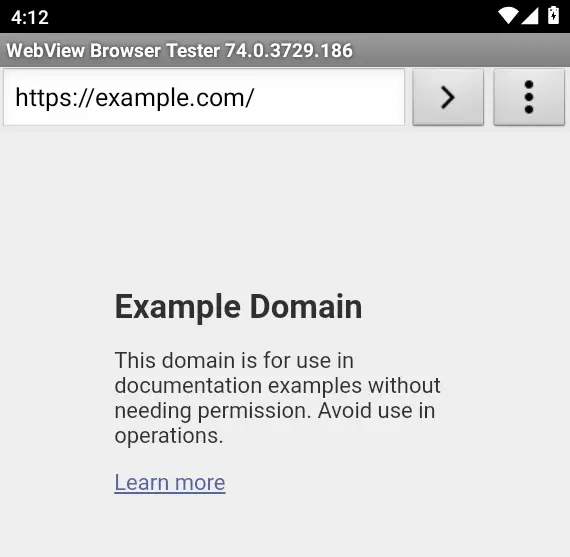
The page loads without a certificate warning when the browser accepts Burp's CA and can reach the listener.
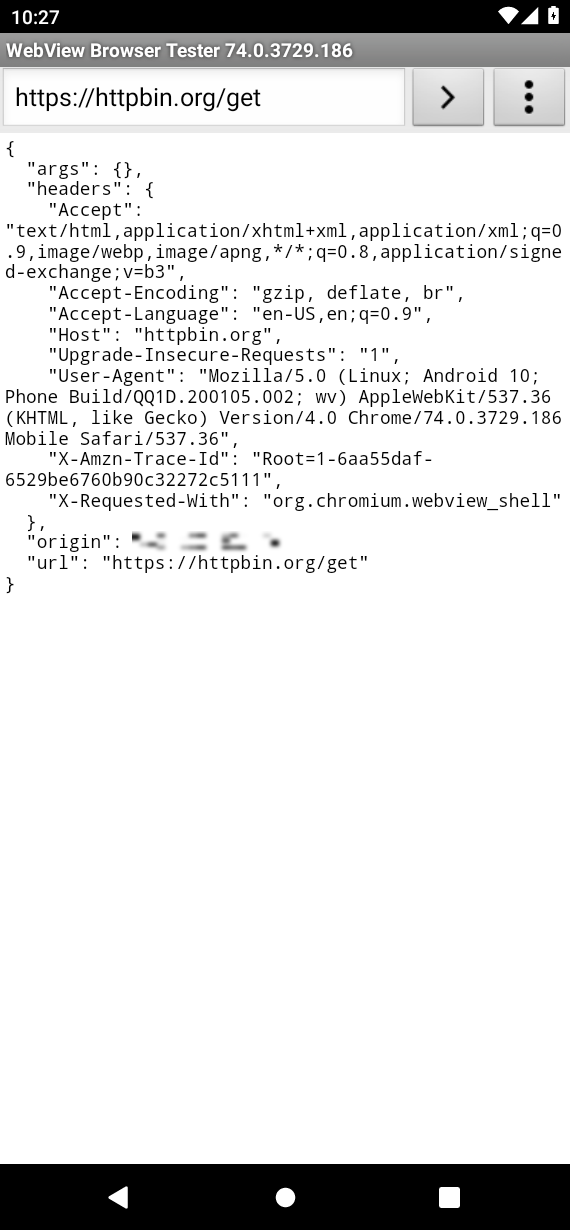
Unlike example.com, httpbin.org/get returns information about the HTTP request it received. This lets you compare headers such as User-Agent with the same request captured in Burp.
Checkpoint 3 — Burp shows decrypted HTTPS
Return to Proxy → HTTP history and select an Android HTTPS request. Confirm that Burp shows the decrypted request and response, not only a CONNECT entry.
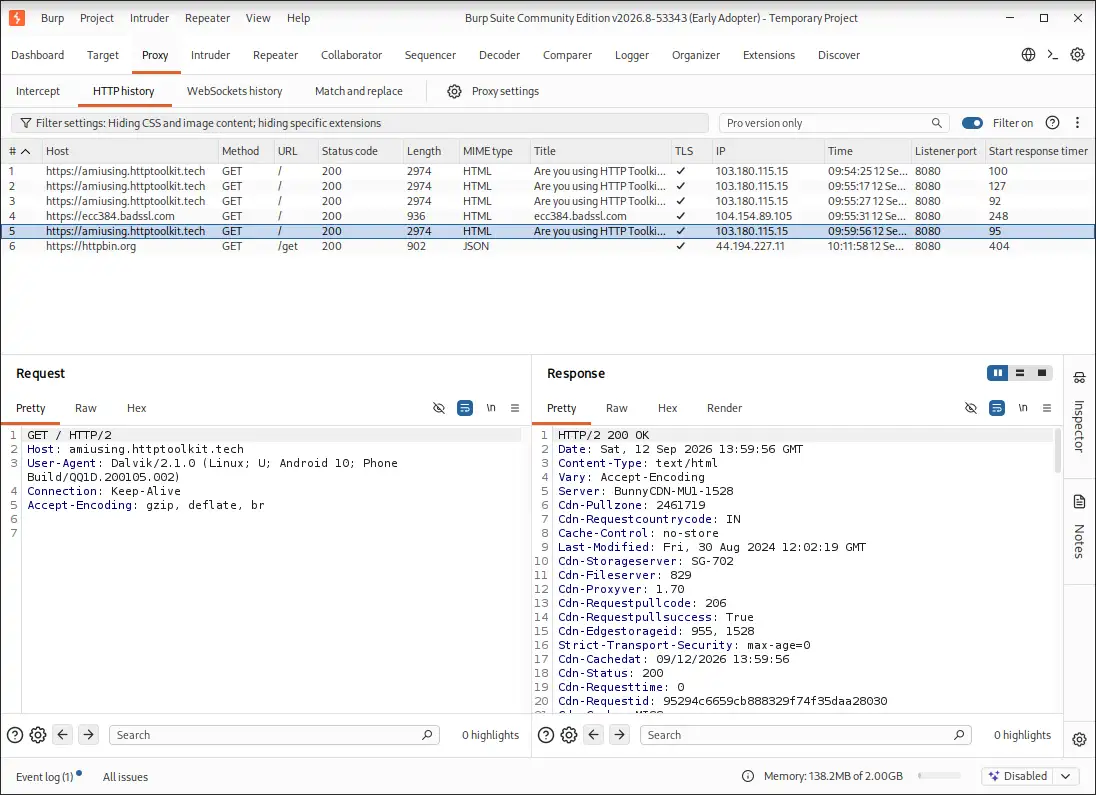
In this lab, the selected amiusing.httptoolkit.tech request shows the Dalvik User-Agent and cleartext HTTP headers in the Request pane.
If Android still fails, you can test Burp independently from Kali. This separates a Burp or listener problem from an Android trust problem. -k skips TLS verification on the curl client only — it does not prove the phone trusts the Burp CA:
curl -s -o /dev/null -w '%{http_code}\n' -x http://192.168.56.120:8080 https://example.com -k200HTTP status 200 here means Burp completed the HTTPS tunnel and the origin answered. Browser success on the device proves that the tested browser or WebView accepts Burp's CA; it does not prove that every Android app will trust the same CA. curl with -k only proves the proxy path works from Kali.
For more detail on the leaf certificate Burp presents, add -v and look for a PortSwigger issuer:
curl -vk -x http://192.168.56.120:8080 https://example.com -o /dev/null* CONNECT tunnel established, response 200
* SSL connection using TLSv1.3 / TLS_AES_256_GCM_SHA384 / x25519 / RSASSA-PSS
* subject: C=PortSwigger; O=PortSwigger; OU=PortSwigger CA; CN=example.com
* issuer: C=PortSwigger; ST=PortSwigger; L=PortSwigger; O=PortSwigger; OU=PortSwigger CA; CN=PortSwigger CAOnly after all three checkpoints pass should you move on to testing a target app.
Troubleshoot Android traffic not showing in Burp
If interception does not work, troubleshoot from the network upward instead of immediately assuming certificate pinning. First make sure Android can reach Burp, then check the proxy setting, and only then investigate certificate trust.
No requests in Burp?
    ├─ Can Android reach Burp on port 8080? (http://burp through the proxy, or another TCP check to 192.168.56.120:8080)
    │     no → fix host-only / Wi-Fi / firewall
    ├─ Is ss listening on *:8080 or 192.168.56.120:8080 (not only 127.0.0.1)?
    │     no → bind All interfaces or the reachable Kali IP
    ├─ settings get global http_proxy (or Wi-Fi proxy) correct?
    │     no → set proxy again
    └─ still empty → Intercept stuck ON? try curl -x from Kali

HTTPS errors / blank page / NET::ERR_* ?
    ├─ Browser warning about certificate → CA not trusted
    ├─ ERR_EMPTY_RESPONSE / connection reset → check IP, port, listener, and network path first
    └─ Browser OK, app only fails → proxy bypass, trust config, or pinning
Android traffic not showing in Burp Suite
Confirm the device proxy points at 192.168.56.120:8080 and Burp's listener is running on an address Android can open. Turn Intercept off. From Kali, a quick HTTP check through the same proxy proves the listener accepts traffic:
curl -s -o /dev/null -w '%{http_code}\n' -x http://192.168.56.120:8080 http://example.com200If this works from Kali but no Android requests appear in Burp, recheck the proxy setting on the Android device.
Burp Suite certificate installed but HTTPS still not working
Re-export the DER from Burp and confirm Trusted credentials lists PortSwigger CA in the store the client uses (User for many browsers; System for most apps on API 24+). Reboot the device after a system CA copy if the UI does not update immediately.
HTTP works but HTTPS fails
HTTP in history with HTTPS errors on the device usually means the CA is missing, in the wrong store, or the app ignores user CAs. Fix trust for your Android version before you change proxy settings again.
Browser shows a certificate error
The browser does not trust Burp's CA yet. Install or reinstall the user CA, or add the hashed system CA file for rooted devices. Confirm you did not export a leaf certificate by mistake.
Browser works but the Android app fails
A working browser proof means proxy and listener are sound. App-only failures are not always pinning. Also check:
- Custom trust managers or network security config that blocks user CAs
- Apps that do not use the system HTTP proxy (direct sockets, hard-coded hosts, QUIC)
- VPN or split-tunnel apps that bypass your proxy
If the browser works but the app still fails, first check whether the app actually uses Android's proxy and whether it trusts your CA. If both are correct and TLS still fails, certificate pinning becomes a likely cause. Continue with the Frida Android tutorial for that case on authorized targets. Full pinning bypass is out of scope here.
ERR_EMPTY_RESPONSE
In this lab, I reproduced Webpage not available with net::ERR_EMPTY_RESPONSE by making the Burp proxy unreachable (wrong IP or port). If you see this error, check the proxy IP, port, listener, and network path before troubleshooting certificates or pinning.
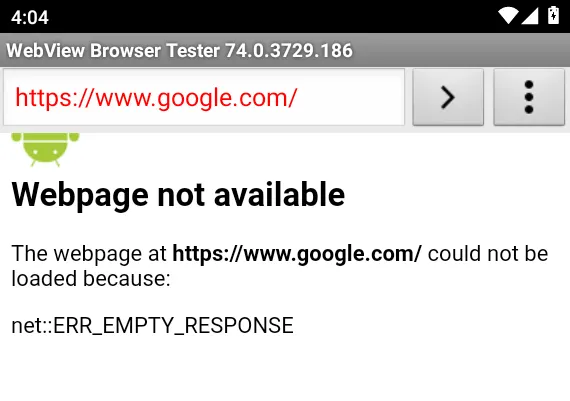
ERR_EMPTY_RESPONSE means the browser did not get an expected response. Several network or proxy problems can cause it, so treat the screenshot as a lab symptom, not a universal Chrome mapping.
| Symptom | Likely cause | Fix |
|---|---|---|
| Nothing in HTTP history | Wrong proxy, loopback-only listener, or Intercept left on | Fix bind/IP; turn Intercept off; retry browser |
ERR_EMPTY_RESPONSE |
Proxy, listener, or network problem is one possibility | Verify Burp listener, IP/port, and network path; then inspect Burp history and logs |
| Certificate warning in browser | User/system CA missing or wrong store | Re-export DER; install user CA or hashed system CA |
| Browser OK, target app fails | Trust config, proxy bypass, or pinning | Match CA store to API level; then Frida workflow if scoped |
| Only some hosts fail | Pinning, VPN, or app-specific TLS | Test with example.com first; exclude VPN apps |
Genymotion-specific network notes
Genymotion Desktop runs the Android VM on the physical host (often VirtualBox). Kali may be a second VM. In this setup, Kali and Genymotion are separate machines from the network's point of view. Android therefore needs Kali's host-only IP address; special addresses used by the official Android Emulator, such as 10.0.2.2, do not apply to this topology.
| Layout | Proxy hostname to use |
|---|---|
| Kali VM + Genymotion on host (this lab) | Kali's host-only IP (192.168.56.120) |
| Physical phone on Wi-Fi | Kali's LAN IP reachable from that Wi-Fi |
In this Kali VM + Genymotion topology, use Kali's host-only IP. The official Android Emulator has different host-networking options; see the Android Studio AVD lab and Genymotion Android pentest lab for full topology setup.
Summary
Android HTTPS interception with Burp requires three things:
- Android can reach the Burp proxy.
- Android actually sends its traffic through that proxy.
- The browser or app trusts the CA certificate Burp presents.
Test HTTP first, HTTPS second, and an app last. If browser HTTPS works but one app fails, investigate app-specific proxy behavior, trust configuration, or certificate pinning. Clear http_proxy when you finish.
References
- Configuring an Android device to work with Burp Suite — PortSwigger
- Installing Burp's CA certificate — PortSwigger
- Proxy settings — PortSwigger
- MASTG-TECH-0011: Setting up an interception proxy — OWASP MAS
- How to connect Burp Suite to Genymotion — Genymotion
- Network security configuration — Android Developers
Frequently Asked Questions
Why is Android traffic not showing in Burp?
Usually the proxy host or port is wrong, or Burp is listening only on 127.0.0.1 while the emulator sits on another interface. Confirm ss shows the shared IP, settings get global http_proxy matches that IP and port, and Intercept is off so requests are not stuck waiting for Forward.
Why does the browser work but the app fail?
The browser may trust your Burp CA while the app uses certificate pinning, a custom TrustManager, or ignores the system HTTP proxy. Once HTTPS sites load cleanly through Burp in a browser, treat app-only failures as trust, proxy bypass, or pinning and use a Frida-based bypass workflow instead of reinstalling the CA.
Where do I install the Burp CA on Android 14+?
User CA installation alone may not be enough for an app that does not trust user-added CAs. Android 14 also changes system CA handling through the Conscrypt APEX trust store. On rooted lab devices, a common pentesting approach is a Magisk or KernelSU module that makes the Burp CA visible to apps; the exact steps depend on your emulator, root stack, and build. Confirm the module docs for your setup before copying files by hand.
Do I need root?
Not always. A browser or an app explicitly configured to trust user CAs can work without root. For arbitrary apps that do not trust the user CA, a rooted test device or emulator with a system trust solution is a common pentesting approach. This lab uses rooted Genymotion Android 10 because it lets us place the Burp CA in the system store.
Can I use a physical Android device instead of Genymotion?
Yes. Put the phone on a lab Wi-Fi that can reach Kali, set the Wi-Fi proxy to the Kali IP and Burp port, and install the CA with the same version rules. Prefer a dedicated rooted test device. Do not root or install lab CAs on a phone that holds personal accounts.