
| Tested on | Kali GNU/Linux Rolling 2026.2 (kali-rolling) |
|---|---|
| Package | Docker EngineDocker Compose pluginCervantes (mesq/cervantes:latest) |
| Lab environment | Pentest lab |
| Privilege | sudo or root for Docker; normal user if your account is in the docker group |
| Scope | Clone the official Cervantes Docker stack, retrieve the generated admin password, create clients and projects, add targets, record vulnerability findings, write the executive summary, export reports, back up data, and stop the lab stack. Does not cover custom Cervantes development or enterprise SSO beyond noting LDAP and OpenID Connect settings in appsettings.json. |
| Related guides | Install Kali Linux on Proxmox |
Cervantes is an open source platform for pentesters and red teams who want clients, projects, targets, findings, and reports in one place. You still write the technical content yourself, but Cervantes gives you structured fields for severity, categories, evidence, and exportable report templates instead of rebuilding the same Word outline on every engagement.
This guide installs the official Docker stack, walks through a minimal project workflow, and points to the penetration test report guide when you move from tracked findings to client-ready prose.
What Cervantes is and why use it
Cervantes is a project hub, not a scanner. You bring findings from Nmap, Burp, Metasploit, or manual testing; the platform helps you organize and report them.
| Area | What you use it for |
|---|---|
| Clients | Legal entities and contacts before you open a project |
| Projects | Engagement metadata: assessment type, dates, status, assigned testers |
| Targets | In-scope hosts, URLs, or assets tied to the project |
| Vulnerabilities | Finding records with risk level, category, evidence, and owner |
| Documents | Store supporting engagement documents |
| Report templates | Reusable layouts for exported pentest reports |
| Dashboard and calendar | Overview of project activity, tasks, vulnerabilities, and scheduled engagement work |
For example, you might use Documents for approved scope material or other engagement documentation. The platform gives you the storage area; your team decides what belongs there.
The practical sequence is client → project → targets → vulnerabilities → executive summary → report.
Why use Cervantes for pentest projects?
If you are comparing Cervantes to spreadsheets and Word documents, these are the capabilities that usually justify the switch:
- Centralizes clients, projects, targets, and vulnerabilities in one workspace
- Reuses vulnerability and project templates across engagements
- Supports team and project membership for shared work
- Generates reports from reusable components and templates
- Exports reports as HTML or DOCX
- Includes Jira integration and collaboration features for larger teams
This guide does not compare Cervantes to Dradis, Faraday, or other platforms. The goal is a working Docker install and a realistic project workflow.
Prerequisites
You need Docker Engine and the Docker Compose plugin on the host where Cervantes will run. On Kali, refresh the package index first:
sudo apt updateInstall Docker, the Compose plugin, and Git:
sudo apt install -y docker.io docker-compose-plugin gitEnable and start the Docker service:
sudo systemctl enable --now dockerAdd your lab user to the docker group if you do not want to prefix every command with sudo:
sudo usermod -aG docker "$USER"Log out and back in so the group membership applies. Confirm both CLI tools respond:
docker --version
docker compose version
Port 443 on the host must be free. The upstream docker-compose.yml maps container HTTPS to host port 443.
Install Cervantes with Docker Compose
Clone the official repository
Cervantes publishes a maintained Compose stack in the CervantesSec/docker repository. Clone it into a working directory on your lab host:
git clone https://github.com/CervantesSec/docker.git ~/lab/cervantes-dockerMove into the clone so Compose reads the bundled docker-compose.yml:
cd ~/lab/cervantes-dockerConfirm that docker-compose.yml, appsettings.json, and the https/ directory are present. These are the files used by the production Compose configuration.
Start the containers
Pull images and start the database and application containers in detached mode:
docker compose -p cervantes -f docker-compose.yml up -dup -d returns once containers are created. List their status:
docker compose -p cervantes psSample output:
NAME            IMAGE                            STATUS         PORTS
cervantes-app   mesq/cervantes:latest            Up 2 minutes   0.0.0.0:443->8081/tcp
cervantes-db    mesq/cervantes-postgres:latest   Up 2 minutes
You should see cervantes-app running with port 443 published on the host and cervantes-db in the Up state.
Retrieve the generated admin password
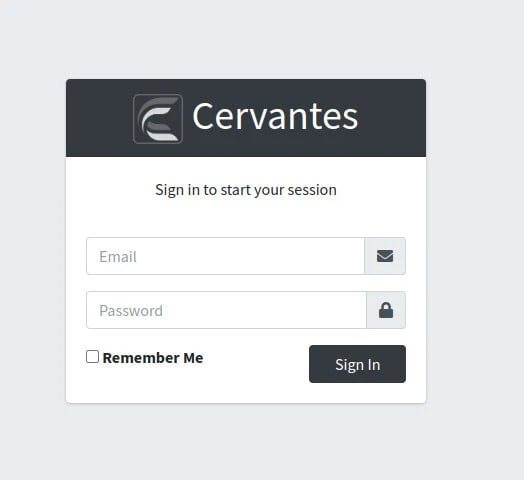
The default username is admin@cervantes.local. The password is not a fixed string like Admin123.; Cervantes generates it on first startup.
Read the application container logs and look for the password line Cervantes prints during initialization:
docker logs cervantes-app 2>&1 | grep -i passwordSample output (the password value is unique per install):
Default admin user created. Password: <generated-value>Copy the value from your log output. Yours will differ from any screenshot or older tutorial. Change the password after first login under user settings.
Log in
Open the web UI over HTTPS:
https://localhostYour browser will warn about the self-signed certificate from the bundled cervantes.pfx. Accept the warning for lab use only. In production, terminate TLS with a proper certificate or place Cervantes behind a reverse proxy.
Sign in with admin@cervantes.local and the password from the container logs.
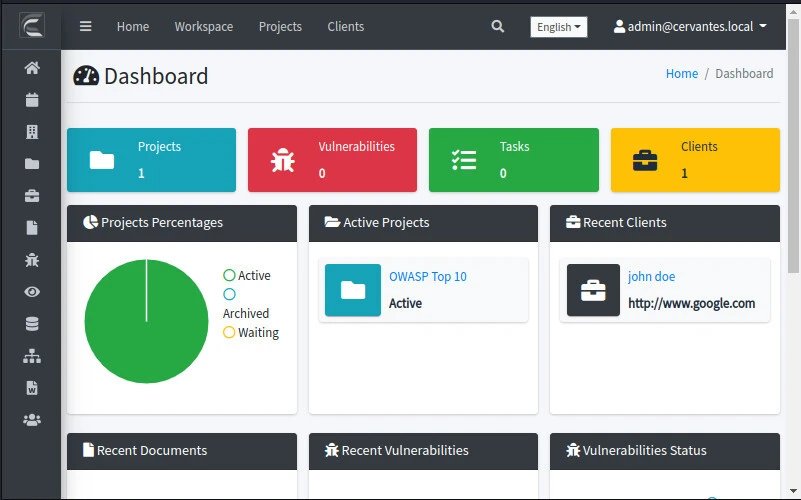
After authentication, the dashboard shows open projects, vulnerability counts, and calendar entries once you add data.
Create a client and pentest project
Work in this order so every target and finding links to the correct engagement.
Register the client
Open Clients in the sidebar and create a record for the organization you are testing.
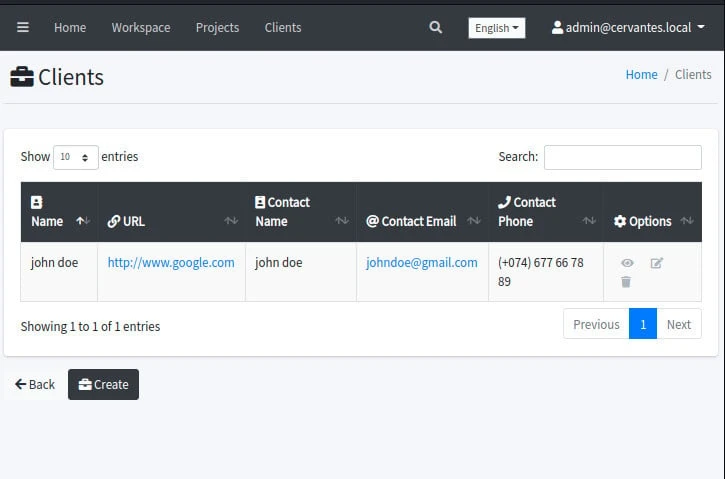
Include contact name and email if your report template uses them. For lab practice, use a fictional name such as Example Corp.
Create the project
Open Projects and add a new engagement:
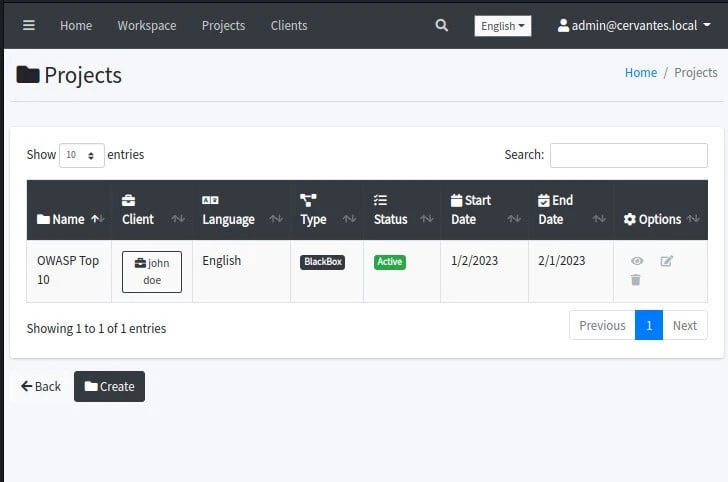
- Name the project clearly (
Example Corp external pentest Q3) - Set assessment type (black-box, gray-box, or white-box) to match pre-engagement scoping
- Set start and target end dates
After creating the project, open Members and add any testers who need access to the project workspace. Users who are not listed there cannot interact with the project.
Project templates save recurring fields when you run similar assessments often.
Add targets to the project
Open the project and go to Targets. Targets represent the in-scope assets you will test and later associate with findings.
You can add targets in three ways:
- Manually — enter hostnames, IP addresses, or URLs one at a time
- CSV import — bulk-load a target list when you already have scope in a spreadsheet
- Nmap XML import — import an Nmap XML scan to populate project targets and discovered services
Imported Nmap XML can also help populate service information associated with targets. After targets exist, link each vulnerability to the relevant target when you record findings. That keeps the exported report aligned with which asset was affected.
Record vulnerability findings
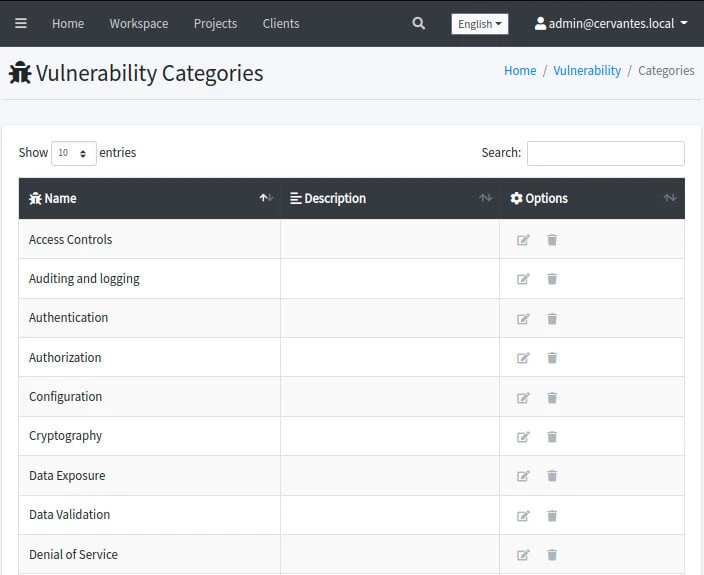
Open Vulnerabilities and add a finding tied to the project and target you just created.
| Information you should capture | Notes |
|---|---|
| Title | Short and specific (Unauthenticated SQL injection in portal login) |
| Project and target | The engagement and asset this finding belongs to |
| Risk / severity | Align with your CVSS or client scale |
| Category | OWASP, CWE, or a custom category your firm uses |
| Description | What is wrong and how you confirmed it |
| Evidence / supporting material | Use vulnerability Notes and Attachments for screenshots, command output, request/response evidence, or supporting files |
| Remediation | Fix guidance the client can ticket |
Cervantes also supports vulnerability templates so repeated finding types (missing patches, weak TLS, default credentials) start from a consistent baseline. The platform does not replace manual validation: confirm scanner hits before you record them as confirmed vulnerabilities, same as you would in a standalone report.
Write the executive summary and generate a report
Report generation in Cervantes starts inside the project, not only at export time.
- Open the project's Executive Summary tab and write or refine the non-technical summary in business language.
- Confirm targets and vulnerabilities belong to the project and are associated correctly.
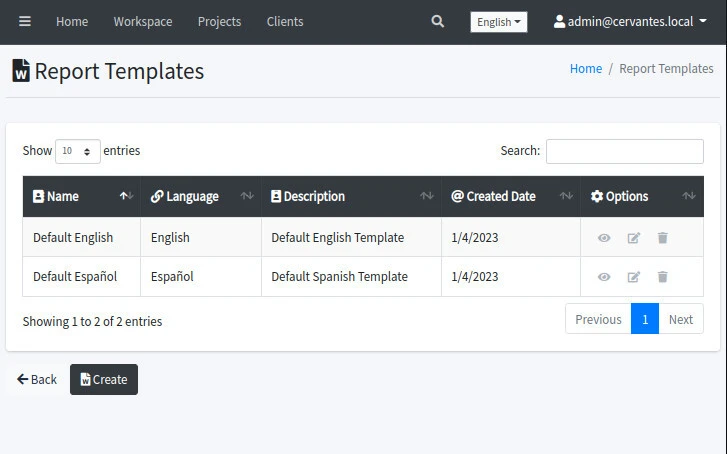
- Open Reports, create a report, and choose a Report template. Cervantes ships defaults; you can clone and edit templates under Report Templates to match your firm's branding and section order.
If the Create report action is unavailable, check your role: Cervantes documentation states that report creation and deletion require an Admin or SuperUser account. 4. Download the generated report as HTML or DOCX. 5. Perform final editorial and QC review outside Cervantes as needed.
Exported reports pull structured finding data from the project. You still need to verify CVSS vectors, reproduction steps, and attack narrative wording when findings chain together. Record retest status after the client remediates.
Those writing tasks are covered in how to write a penetration test report. Treat Cervantes output as a draft organized by finding ID, not the final PDF you send without review.
Collaboration and project-management features
Once the core workflow works, these areas support larger teams:
| Section | Purpose |
|---|---|
| My Workspaces | Projects assigned to the logged-in tester |
| Calendar | Engagement dates and task states with color coding |
| Users | Additional accounts; enable two-factor authentication per user |
| Organization | Company name, logo, and contact details on exports |
| Application Logs | Who changed clients, projects, or findings |
| Backup | Database and attachment exports for restore or migration |
Optional integrations such as Jira, email, LDAP, and OpenID Connect can be configured for larger deployments. Leave them disabled in a lab until you understand the base workflow.
Back up Cervantes data
Use Cervantes' Backup feature before rebuilding or removing the stack. Export from the Backup page in the UI so you can restore clients, projects, targets, findings, and attachments on a fresh install.
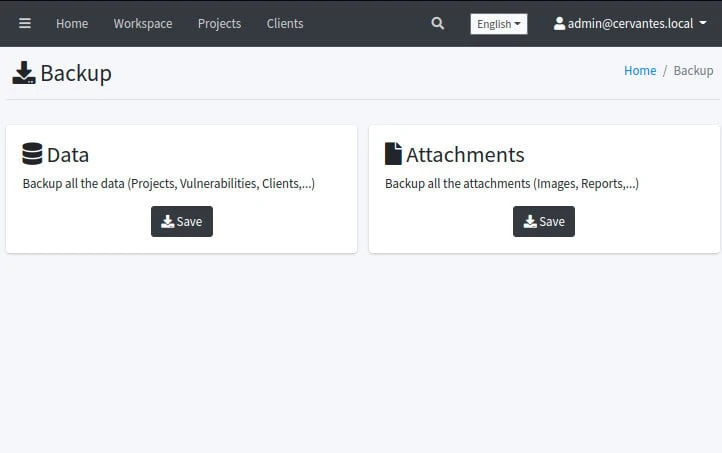
The upstream Compose file does not persist PostgreSQL data outside the cervantes-db container. Do not treat that container as durable storage. Export a Cervantes backup before you remove or recreate it.
Stop the lab stack
When you finish practicing, stop the containers from the clone directory:
cd ~/lab/cervantes-docker && docker compose -p cervantes downThe upstream Compose file does not persist PostgreSQL data outside the cervantes-db container. Because docker compose down removes that container, export a Cervantes backup before running it if you need to keep engagement data.
Troubleshooting
| Symptom | Likely cause | Fix |
|---|---|---|
bind: address already in use on port 443 |
Another service uses host 443 | Change the host port in docker-compose.yml (for example 8443:8081) and open https://localhost:8443 |
Browser cannot reach https://localhost |
Containers not running or firewall blocking | Run docker compose -p cervantes ps; confirm cervantes-app is up |
Login fails with admin@cervantes.local |
Wrong or stale password | Re-read docker logs cervantes-app; recreate the stack only after backup if you lost the log |
| Certificate warning will not proceed | Expected with bundled self-signed cert | Proceed for lab only; use a real certificate in production |
permission denied on docker |
User not in docker group |
Run with sudo or add the user to docker and re-login |
| Empty report export | No vulnerabilities linked to the project | Add findings under Vulnerabilities, confirm target associations, and check the Executive Summary tab |
| Create report action missing | Account role lacks permission | Cervantes allows report creation and deletion only for Admin or SuperUser accounts |
References
- Cervantes — official documentation
- CervantesSec/docker — Docker Compose repository
- CervantesSec/cervantes — application source
- Default user and password — Cervantes docs
- OWASP Cervantes project page
Summary
Cervantes gives you a single workspace for clients, engagements, targets, vulnerability records, and report templates. Install it with the official Docker Compose stack, read the generated admin@cervantes.local password from docker logs cervantes-app, and open https://localhost to reach the UI.
The practical sequence is client, project, targets, findings, executive summary, then report export. Cervantes structures the data; you still own validation, CVSS accuracy, and executive summary wording before anything goes to a client. Export a Cervantes backup before docker compose down, because that command removes the database container and the upstream Compose file does not persist PostgreSQL data outside it. Pair the platform with solid report-writing and signed rules of engagement so tracking and delivery stay aligned with authorized scope.
Frequently Asked Questions
What is Cervantes used for in penetration testing?
Cervantes is an open source platform for managing offensive security projects. It stores clients, engagements, targets, vulnerability entries, evidence, and report templates so a team can track findings and export reports from one workspace instead of scattered spreadsheets and document folders.
What is the default Cervantes admin username?
The first admin account is admin@cervantes.local. The password is generated randomly when the application container starts for the first time. Read it from the cervantes-app container logs before you log in, then change it under user settings.
Does Cervantes replace writing a penetration test report?
No. Cervantes helps you organize findings, severity, and templates, then export a report document. You still need clear reproduction steps, CVSS scoring, and executive summary wording. Use your report methodology alongside the platform output.
Which URL do I use after docker compose up?
The official Docker Compose file publishes HTTPS on host port 443. Open https://localhost in your browser and accept the self-signed certificate warning on first visit. If port 443 is already in use on the host, edit the ports mapping in docker-compose.yml before starting the stack.
How do I back up Cervantes data?
Use the Backup section in the Cervantes web UI to export the database and attachments before you rebuild or remove the stack. The upstream Compose file does not persist PostgreSQL data outside the cervantes-db container. Because docker compose down removes that container, export a Cervantes backup before running it if you need to keep engagement data.
Can I run Cervantes on Kali Linux?
Yes. Install Docker Engine and the Docker Compose plugin on Kali, clone the CervantesSec/docker repository, and start the stack from that directory. This guide uses the same workflow on Kali in a pentest lab or on Kali deployed to Proxmox.
