
| Tested on | Kali GNU/Linux Rolling 2026.2 (kali-rolling) |
|---|---|
| Package | tcpdump 4.99.6wireshark 4.6.6tshark 4.6.6curl 8.21.0 |
| Lab environment | Pentest lab |
| Cert prep | CompTIA PenTest+ PT0-003 — Domain 2 (Reconnaissance and Enumeration) |
| Privilege | sudo for live interface capture; normal user for offline pcap analysis with tshark |
| Scope | Beginner Wireshark GUI walkthrough on Kali (interface selection, live capture, http display filter, Follow TCP Stream) plus tcpdump and tshark CLI workflows against Metasploitable 2 HTTP traffic. Advanced topics such as TLS decryption and expert info live in the Wireshark tutorial hub. Does not cover ARP spoofing, MITM, wireless monitor mode, TLS decryption, or decoding proprietary application payloads with a custom Wireshark dissector. |
Port scans tell you a service might be listening. Sniffing shows what actually crossed the wire—a cleartext HTTP GET, DNS query, or SMB dialect negotiation that active probes only hinted at.
This walkthrough starts in the Wireshark GUI on Kali — pick the lab NIC, capture a short HTTP conversation against Metasploitable 2, filter with http, and follow the TCP stream — then covers the same workflow with tcpdump and tshark on the command line.
Wireshark GUI quick start
Export these variables once per shell session. These exports last for the current shell only — re-run the block in a new terminal.
export TARGET=192.168.56.127
export LAB=/tmp/wireshark-sniff-lab
mkdir -p "$LAB"
export PCAP="${LAB}/ms2-http.pcap"
# Proxmox Group 2 lab: export TARGET=10.10.10.30
Before you run the commands below:
- Lab target —
TARGETdefaults to192.168.56.127(Metasploitable 2 on the VirtualBox host-only lab). Confirm the address in your pentest lab guide if your layout differs. - Capture interface — Match VirtualBox Adapter 1 MAC to an interface name with
ip link show, then runip route get "$TARGET"and export thedevfield asIFACE(ofteneth0oreth1depending on your image). - Pcap workspace —
LABandPCAPhold saved captures for the CLI sections below. - Root vs non-root — Live capture needs
sudo; reading saved pcaps withtsharkdoes not. - Missing tools — Install with
sudo apt install wireshark tcpdumpif either command is not found.
Set IFACE from the route to $TARGET:
ip route get "$TARGET"192.168.56.127 dev eth1 src 192.168.56.120 uid 1000
cacheSet $IFACE to the interface name from the dev field in that route output (host-only labs often use eth1):
export IFACE=eth1Replace eth1 with the dev value from your output if it differs.
Launch Wireshark from the Kali menu or with wireshark in a terminal (sudo wireshark if your user is not in the wireshark group). On the welcome screen, pick the interface that routes to $TARGET — host-only labs often use the same name as $IFACE on 192.168.56.0/24.
Choose the correct capture interface
The welcome screen lists every NIC Wireshark can see. Look for a moving sparkline on the interface toward your target before you start capture.
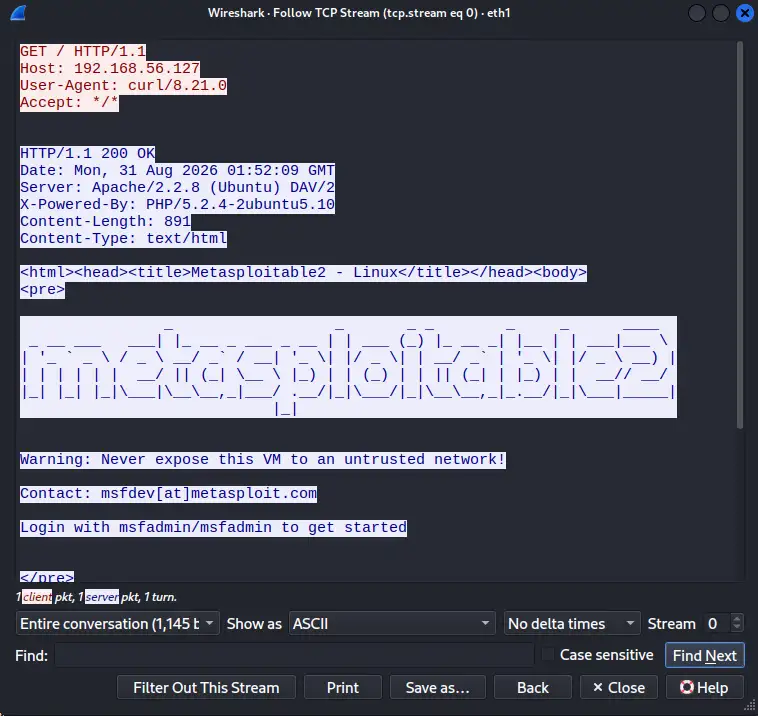
eth1 should show activity when Metasploitable is reachable; double-click that row when you are ready to capture.
Capture HTTP traffic on the lab link
- Double-click
eth1(or select it and click Start capturing packets). - In another terminal, generate web traffic:
curl -s -m 5 "http://${TARGET}/" -o /dev/null -w 'http_code=%{http_code}\n'- Click the red Stop square in Wireshark.
You want http_code=200 in the terminal and a handful of TCP/HTTP packets in the packet list.
Wireshark interface: three panes
After you stop capture, Wireshark splits the window into three regions:
| Pane | Location | What it shows |
|---|---|---|
| Packet list | Top | One row per frame—No., Time, Source, Destination, Protocol, Info |
| Packet details | Middle | Expandable protocol tree for the selected row |
| Packet bytes | Bottom | Hex and ASCII dump of the selected frame |
Click any TCP row toward $TARGET:80 and expand Frame → Ethernet II → Internet Protocol Version 4 → Transmission Control Protocol in the middle pane to inspect headers before you filter.
Filter packets with a display filter
Type http in the Display Filter bar above the packet list and press Enter. A green bar means the filter syntax is valid.
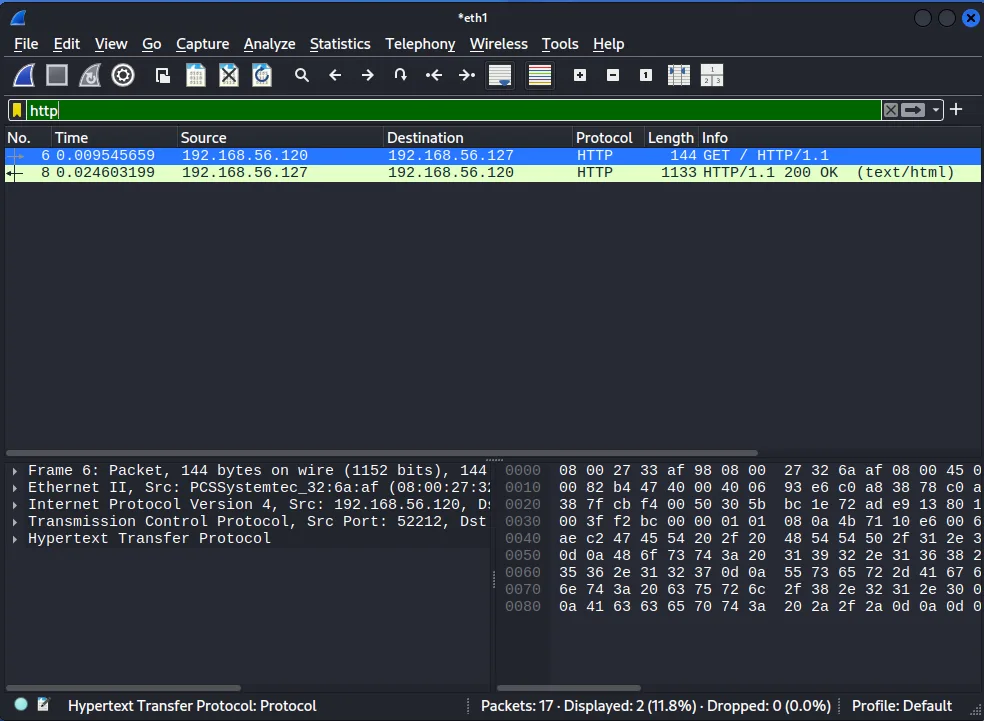
You should see at least one HTTP GET from your Kali host toward $TARGET:80 and an HTTP/1.1 200 OK response row—passive proof that Apache answered during capture.
Follow a TCP stream
Right-click the HTTP GET row → Follow → TCP Stream. Wireshark reassembles the cleartext conversation in one window.
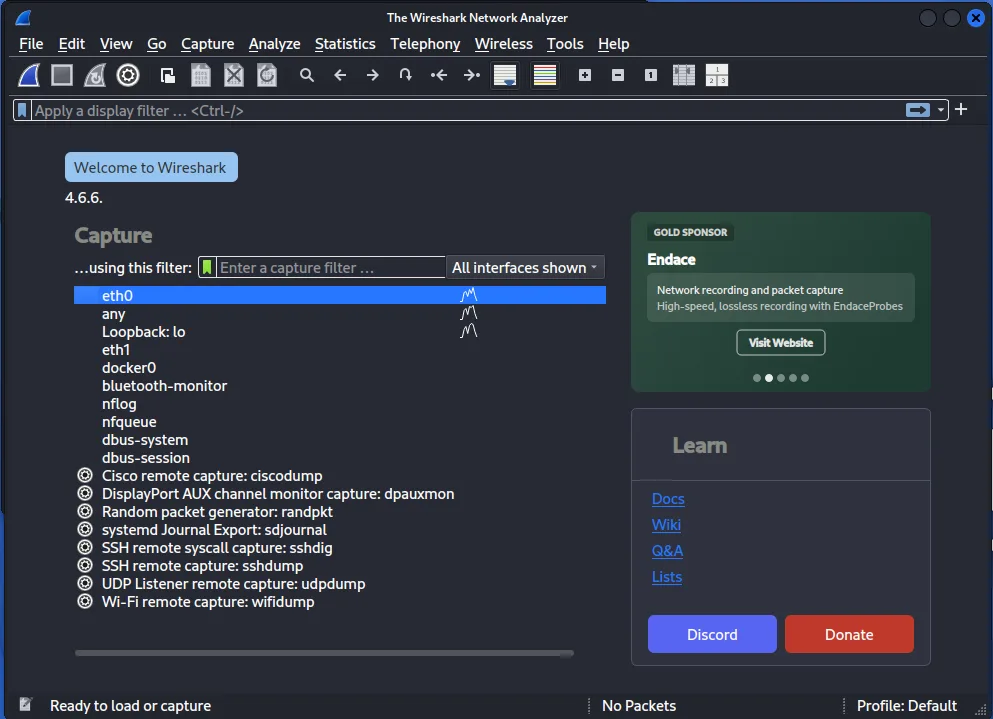
Red text is client-to-server (GET / HTTP/1.1, Host: 192.168.56.127); blue text is the server reply with Server: Apache/2.2.8 and the Metasploitable2 HTML title—useful recon notes without sending another active probe.
Save the capture as File → Save As → $LAB/ms2-http.pcapng if you want the same file for the tshark and tcpdump sections below.
Network sniffing quick start (CLI)
List capture interfaces, then record a short HTTP conversation while you generate lab traffic:
tshark -D1. eth0
2. eth1
3. any
4. lo (Loopback)
5. docker0Pick the interface that routes to $TARGET (this lab used eth1). Start a bounded capture in one terminal:
sudo timeout 8 tcpdump -i "$IFACE" host "$TARGET" and tcp port 80 -c 4 -nIn another shell, trigger web traffic to the target:
curl -s -m 5 "http://${TARGET}/" -o /dev/nulltcpdump: verbose output suppressed, use -v[v]... for full protocol decode
listening on eth1, link-type EN10MB (Ethernet), snapshot length 262144 bytes
22:46:17.966747 IP 192.168.56.120.33418 > 192.168.56.127.80: Flags [S], seq 74613568, win 64240, options [mss 1460,sackOK,TS val 132307944 ecr 0,nop,wscale 10], length 0
22:46:17.969490 IP 192.168.56.127.80 > 192.168.56.120.33418: Flags [S.], seq 107279995, ack 74613569, win 5792, options [mss 1460,sackOK,TS val 6788243 ecr 132307944,nop,wscale 7], length 0
22:46:17.969535 IP 192.168.56.120.33418 > 192.168.56.127.80: Flags [.], ack 1, win 63, options [nop,nop,TS val 132307947 ecr 6788243], length 0
22:46:17.971154 IP 192.168.56.120.33418 > 192.168.56.127.80: Flags [P.], seq 1:79, ack 1, win 63, options [nop,nop,TS val 132307948 ecr 6788243], length 78: HTTP: GET / HTTP/1.1
4 packets capturedThe SYN/SYN-ACK handshake and the push packet with HTTP: GET / HTTP/1.1 confirm port 80 answered your curl request. Save longer captures to a pcap when you need offline analysis.
What is network sniffing for pentesters?
Network sniffing copies frames or packets from an interface into a capture file or terminal view. In passive recon you listen to traffic you are already allowed to see—lab host-only links, span ports the client enabled, or your own workstation NIC toward the target.
Sniffing complements active enumeration:
| Technique | What you learn |
|---|---|
| Nmap | Open ports, service versions, scripts |
| Banner grabbing | Service strings from TCP probes |
| Packet capture | Full protocol dialogs—HTTP methods, DNS names, SMB dialects, timing |
Cleartext protocols leak hostnames, file paths, and sometimes credentials. Even on TLS-heavy networks, metadata such as SNI, certificate details, and DNS still appear in pcaps you lawfully capture.
For TLS decryption, expert info, ring buffers, and protocol-specific troubleshooting, continue in the Wireshark tutorial hub after this CLI foundation.
Capture filters versus display filters
Beginners often mix these two filter languages. They are not interchangeable.
| Filter type | When it runs | Syntax | Example |
|---|---|---|---|
| Capture filter (BPF) | During live capture (tcpdump, tshark -f) |
Berkeley Packet Filter | host 192.168.56.127 and tcp port 80 |
| Display filter | After capture (tshark -Y, Wireshark GUI) |
Wireshark display syntax | http.request |
Capture filters shrink what hits disk on busy networks. Display filters only change what you see when reading a pcap — they do not remove packets from the file.
Confirm tcpdump and tshark versions
Confirm the tools Kali ships for this lesson:
tcpdump --versiontcpdump version 4.99.6Check the Wireshark CLI build that shares filters with the GUI:
tshark --versionTShark (Wireshark) 4.6.6Version 4.99.6 / 4.6.6 matches the transcripts below.
Write a pcap with tcpdump
Long captures belong in a file. Start tcpdump in the background, generate HTTP traffic with curl, then stop the writer:
sudo tcpdump -i "$IFACE" host "$TARGET" and tcp port 80 -w "$PCAP" -U >/dev/null 2>&1 &Store the background process ID so you can stop the writer cleanly:
TCPDUMP_PID=$!Give tcpdump a second to open the interface before you send traffic:
sleep 1Request the Metasploitable home page while the capture runs:
curl -s -m 5 "http://${TARGET}/" -o /dev/null -w 'http_code=%{http_code}\n'http_code=200Pause briefly so the last ACK packets land in the file:
sleep 2Stop the background tcpdump process:
sudo kill "$TCPDUMP_PID"http_code=200 means Metasploitable answered the GET while tcpdump was listening. The pcap should now contain the full TCP and HTTP exchange.
Read the capture with tcpdump
Replay the file without the GUI:
tcpdump -r "$PCAP" -nreading from file /tmp/wireshark-sniff-lab/ms2-http.pcap, link-type EN10MB (Ethernet), snapshot length 262144 bytes
22:46:19.370306 IP 192.168.56.120.36302 > 192.168.56.127.80: Flags [S], seq 4133751628, win 64240, options [mss 1460,sackOK,TS val 1116936526 ecr 0,nop,wscale 10], length 0
22:46:19.371223 IP 192.168.56.127.80 > 192.168.56.120.36302: Flags [S.], seq 125813730, ack 4133751629, win 5792, options [mss 1460,sackOK,TS val 6788384 ecr 1116936526,nop,wscale 7], length 0
22:46:19.379783 IP 192.168.56.120.36302 > 192.168.56.127.80: Flags [P.], seq 1:79, ack 1, win 63, options [nop,nop,TS val 1116936536 ecr 6788384], length 78: HTTP: GET / HTTP/1.1
22:46:19.392145 IP 192.168.56.127.80 > 192.168.56.120.36302: Flags [P.], seq 1:1068, ack 79, win 46, options [nop,nop,TS val 6788386 ecr 1116936536], length 1067: HTTP: HTTP/1.1 200 OKThe HTTP: GET / HTTP/1.1 and HTTP/1.1 200 OK lines are passive confirmation that Apache served the default page during your test.
Narrow the replay to TCP SYN packets when you only want handshake evidence:
tcpdump -r "$PCAP" -n 'tcp[tcpflags] & tcp-syn != 0'reading from file /tmp/wireshark-sniff-lab/ms2-http.pcap, link-type EN10MB (Ethernet), snapshot length 262144 bytes
22:46:19.370306 IP 192.168.56.120.36302 > 192.168.56.127.80: Flags [S], seq 4133751628, win 64240, options [mss 1460,sackOK,TS val 1116936526 ecr 0,nop,wscale 10], length 0
22:46:19.371223 IP 192.168.56.127.80 > 192.168.56.120.36302: Flags [S.], seq 125813730, ack 4133751629, win 5792, options [mss 1460,sackOK,TS val 6788384 ecr 1116936526,nop,wscale 7], length 0Two SYN lines—client then server—prove the three-way handshake completed before the HTTP payload arrived.
Analyze the pcap with tshark
tshark is Wireshark's CLI analyzer. Pull HTTP request metadata into columns you can paste into notes:
tshark -r "$PCAP" -Y 'http.request' -T fields -e ip.src -e ip.dst -e http.host -e http.request.method192.168.56.120 192.168.56.127 192.168.56.127 GETThe row shows your Kali host sent GET to $TARGET with Host: 192.168.56.127—useful when virtual hosts or redirects matter later.
List HTTP status codes the server returned:
tshark -r "$PCAP" -Y 'http.response' -T fields -e ip.src -e http.response.code192.168.56.127 200A 200 response in the pcap aligns with the curl success you saw earlier.
Reassemble the cleartext HTTP conversation from the first TCP stream:
tshark -r "$PCAP" -q -z follow,tcp,ascii,0===================================================================
Follow: tcp,ascii
Filter: tcp.stream eq 0
Node 0: 192.168.56.120:36302
Node 1: 192.168.56.127:80
78
GET / HTTP/1.1
Host: 192.168.56.127
User-Agent: curl/8.21.0
Accept: */*
1067
HTTP/1.1 200 OK
Date: Mon, 31 Aug 2026 01:18:17 GMT
Server: Apache/2.2.8 (Ubuntu) DAV/2
X-Powered-By: PHP/5.2.4-2ubuntu5.10The follow output shows the full request and response headers without opening the GUI—handy on SSH-only Kali sessions.
Summarize which protocols appear in the file:
tshark -r "$PCAP" -q -z io,phs===================================================================
Protocol Hierarchy Statistics
Filter:
frame frames:10 bytes:1821
eth frames:10 bytes:1821
ip frames:10 bytes:1821
tcp frames:10 bytes:1821
http frames:2 bytes:1277
data-text-lines frames:1 bytes:1133
===================================================================The http branch under tcp tells you this capture is worth opening in Wireshark if you need to export objects or drill into packet details.
BPF capture filters for recon
BPF filters run in the kernel during capture. They trim noise before it hits disk—important on busy switches or when you only care about one target.
| Filter | Use during |
|---|---|
host $TARGET |
All traffic to or from the lab target |
host $TARGET and tcp port 80 |
HTTP only |
host $TARGET and tcp port 445 |
SMB dialogues after share enumeration |
host $TARGET and port 53 |
DNS queries toward a lab resolver |
net 192.168.56.0/24 |
Whole isolated host-only lab subnet |
Combine host and port filters on the tcpdump command line—the same expression works for live capture and -w writes:
sudo tcpdump -i "$IFACE" host "$TARGET" and tcp port 80 -w "$PCAP" -c 20Stop when -c reaches the packet count or press Ctrl+C on open-ended captures.
Display filters such as http.request or dns.qry.name belong in Wireshark and tshark -Y after capture. They do not retroactively shrink an oversized pcap—plan BPF filters before you start writing.
More IP and display filter examples live in the Wireshark IP filter cheat sheet.
Open saved pcaps in Wireshark
Reopen a capture from disk when you wrote it with tcpdump or saved from the GUI:
wireshark -r "$PCAP" &Or use File → Open in the GUI on $PCAP / $LAB/ms2-http.pcapng. The display filter and Follow TCP Stream steps from the GUI quick start work the same on saved files.
The Wireshark tutorial hub covers TLS decryption, TCP expert analysis, and ring-buffer captures beyond this beginner walkthrough.
For SSH-only lab hosts, copy the pcap to your analyst workstation with scp and review it locally under the same authorization rules.
What to record from sniffing
Passive captures belong in your recon notes when they prove something active tools only implied:
- Source and destination IPs with ports and protocol (
192.168.56.120:36302 → 192.168.56.127:80/tcp) - Cleartext protocol details (
GET /,Hostheader, HTTP200,Serverbanner) - DNS names or SMB dialect strings if your filter included those ports
- Timestamp and interface (
eth1, capture start time) - PCAP filename and SHA-256 if your reporting standard requires chain of custody
Redact credentials if they appear in cleartext FTP, HTTP basic, or telnet—note the finding without pasting live secrets into the final report.
Network sniffing troubleshooting
| Symptom | Likely cause | Fix |
|---|---|---|
0 packets captured |
Wrong $IFACE or target unreachable |
Run ip route get "$TARGET"; ping $TARGET first |
| Permission denied on live capture | Missing root privileges | Prefix with sudo or add your user to the wireshark group per local policy |
| PCAP contains only ARP | HTTP finished before capture started | Start tcpdump before curl; use the background writer pattern above |
Empty tshark HTTP rows |
Display filter too strict or no cleartext HTTP | Confirm tcp port 80 in BPF; try tshark -r "$PCAP" -Y http |
Used http as a capture filter |
Mixed BPF and display syntax | Use tcp port 80 in tcpdump; save http.request for tshark -Y |
| Huge pcaps on production VLANs | BPF filter too broad | Tighten to host and port; add -c limits during tests |
| Cannot open GUI over SSH | No display forwarded | Use tshark on the host or copy the pcap locally |
Summary
Network sniffing closes the gap between "port 80 is open" and "Apache returned HTTP 200 to a GET." You listed capture interfaces with tshark -D, wrote a pcap with tcpdump while curl generated lab traffic, and used tshark to extract HTTP methods, follow the TCP stream, and summarize protocol hierarchy statistics without opening the GUI.
The main pitfall is timing: starting the capture after the conversation ends yields ARP-only pcaps that look like failures. Start tcpdump first, keep BPF capture filters tight, and remember that display filters only change what you see—they do not shrink what was saved.
On authorized engagements, pair these CLI captures with network reconnaissance and banner grabbing during recon, then open the Wireshark tutorial hub when you need decryption, expert info, or long-running ring-buffer captures on noisier networks.
References
- Wireshark User's Guide
- tcpdump manual
- Wireshark display filter reference
- Berkeley Packet Filter (BPF) syntax
Frequently Asked Questions
What is network sniffing in penetration testing?
Network sniffing records packets crossing an interface you can observe. During authorized assessments it supports passive recon—confirming live services, spotting cleartext protocols, and mapping conversations—without sending exploit traffic to the target.
When should I use tcpdump instead of Wireshark?
tcpdump is ideal on SSH-only Kali hosts, remote captures, and automation. You write a pcap quickly with a BPF filter, then open the file in Wireshark or tshark for protocol decoding. Use the Wireshark GUI when you need follow-stream, expert info, or visual filtering at scale.
What is the difference between capture filters and display filters?
Capture filters use BPF syntax and run during live capture with tcpdump or tshark -f. They limit what gets saved to disk. Display filters use Wireshark syntax and run after capture with tshark -Y or in the GUI—they only change what you see, not what was recorded.
Do I need root to capture packets on Kali?
Yes. Capturing from a live interface requires elevated privileges on Linux. Kali ships tcpdump and Wireshark together; run captures with sudo or grant your user the wireshark group only when your local policy allows it.
Is packet sniffing legal during a pentest?
Sniffing is appropriate only on networks and interfaces covered by your written authorization. Promiscuous capture on client VLANs, guest Wi-Fi, or ISP links without explicit scope violates most rules of engagement and many laws.
How does sniffing relate to Nmap banner grabbing?
Nmap and banner grabbing ask services what they advertise on open ports. Sniffing shows what actually crossed the wire—HTTP verbs, DNS queries, SMB negotiations, and credentials in cleartext protocols. Use both on authorized lab targets before you plan exploitation.
