
| Tested on | Kali GNU/Linux Rolling 2026.2 (kali-rolling) |
|---|---|
| Package | python3-shodan 1.31.0-2python3-censys 2.2.19-2 |
| Lab environment | Pentest lab |
| Cert prep | CompTIA PenTest+ PT0-003 — Domain 2 (Reconnaissance and Enumeration) |
| Privilege | Normal user for Shodan and API queries; sudo for apt install |
| Scope | Shodan tutorial on Kali Linux: install, API key, shodan host, shodan count, shodan search, shodan download, filter syntax, account entitlements, and web UI. Optional Censys corroboration when Shodan hits are sparse. Does not cover Hunter email OSINT, deep Censys automation, active port scanning, or exploitation. |
This Shodan tutorial walks install, API-key setup, and the CLI commands that matter on Kali Linux — shodan host, shodan count, filter syntax, and what the account tested for this guide could access. Optional Censys corroboration is at the end when Shodan returns sparse hits. For the wider OSINT tool comparison, see OSINT tools for pentesters.
I ran every Shodan command here on the pentest lab on August 30, 2026. Your isolated Metasploitable VM will not appear in Shodan or Censys because it sits on a private lab network; use these tools to map what is already Internet-facing, and use the lab only to run the CLI.
What is Shodan and how does it work?
Shodan is a search engine for Internet-connected systems rather than web pages. It continuously connects to addresses across the public IPv4 range on common ports, records whatever each service replies with, and indexes that reply so you can search it later.
The reply it records is called a banner. A banner is the metadata a service hands back when something connects to it, and for one host Shodan usually captures:
- The service and product name, often with a version (OpenSSH, nginx, Apache, RDP)
- The TLS certificate on HTTPS ports, including issuer and subject names
- Hostnames and reverse DNS tied to the IP
- HTTP title and response headers
- Geographic location and the owning organization or ASN
- The timestamp of the last successful scan
The practical difference from Google is what comes back. Google indexes pages and returns URLs; Shodan indexes hosts and returns IP addresses with the services running on them. That is why it surfaces things a normal search never would, from misconfigured databases to industrial controllers left on the Internet.
Install and initialize the Shodan CLI on Kali
The Shodan CLI is available in Kali and may already be installed depending on the image or metapackage you use. Confirm it before installing anything.
shodan version1.31.0If the command is not found, install the Kali package that provides /usr/bin/shodan:
sudo apt install python3-shodanOn Kali Rolling 2026.2, python3-shodan 1.31.0-2 supplies the shodan command tested here. On other distributions, install it in an isolated environment with pipx install shodan, or use your package manager with sudo where a distro package exists.
The CLI needs an API key before it will talk to Shodan. Register a free account at account.shodan.io, copy the API key from your account page, and pass it to shodan init.
shodan init YOUR_API_KEYSuccessfully initializedThe key is now saved under ~/.config/shodan/, so you only do this once per machine. To check what your account is actually allowed to do, ask for its credit balance.
shodan infoQuery credits available: 0
Scan credits available: 0This tested account reported zero query and scan credits. Zero query credits does not necessarily mean a plain free tier — academic, lifetime, or legacy entitlements can behave differently. Account capabilities vary; current Shodan documentation states that main API host lookups require Membership, while InternetDB provides free IP lookup. Check shodan info and your account page if a command returns an access error.
As a quick connectivity check, confirm the CLI can reach the API and print the public IP you are coming from.
shodan myip87.254.212.121A returned address confirms that the CLI can authenticate and reach Shodan at that moment. The address is your lab host's NAT egress IP, not a client target. Later errors may still come from query syntax, rate limits, account entitlements, or transient API or network problems.
Shodan CLI commands
| Command | Purpose |
|---|---|
shodan init KEY |
Configure API key |
shodan info |
Check credits and account entitlements |
shodan myip |
Show your public egress IP |
shodan host IP |
Retrieve indexed host details |
shodan count QUERY |
Count matching results without downloading records |
shodan search QUERY |
Return matching banners in the terminal |
shodan download FILE QUERY |
Download results to a compressed JSON file |
shodan parse FILE.json.gz |
Extract fields from a downloaded dataset |
Official Shodan documentation covers search and recommends download plus parse when you need more than a screenful of results.
What worked on the tested Shodan account
The table below reflects what worked on the account tested for this guide on August 30, 2026. Account capabilities vary, so treat shodan info, your account page, and current Shodan documentation as the source of truth.
| Command | Tested result | Current Shodan requirement |
|---|---|---|
shodan init, myip, info |
Worked | Basic account and API-key functions |
shodan host <ip> |
Worked on tested account | Current docs say Membership required for main API host lookup; InternetDB provides free IP lookup |
shodan count <query> |
Worked on tested account | Depends on API access and query entitlements |
shodan search (filtered) |
403 Forbidden | Filters consume query credits; plain first-page keyword queries may not |
shodan download |
Not tested here | Uses query credits |
shodan domain |
Not tested here | Availability depends on account entitlements |
Membership unlocks more CLI search, download, and larger result limits. Until then, use the web interface for interactive filtered searches when shodan search returns 403.
Look up a host with shodan host
The shodan host command returns everything Shodan last recorded for one IP. It worked on the account tested for this guide on August 30, 2026. Current Shodan documentation states that main API host lookups require Membership, while InternetDB provides free IP lookup — check shodan info and your account page if it returns an access error.
Point it at a well-known public resolver so the output is safe to reproduce.
shodan host 1.1.1.11.1.1.1
Hostnames: uwbookstore.com;wlc.hkbn.net;one.one.one.one;owa.uwbookstore.com
City: Brisbane
Country: Australia
Organization: APNIC and Cloudflare DNS Resolver project
Updated: 2026-08-30T09:21:34.558596
Number of open ports: 14
Ports:
53/tcp
53/udp
80/tcp CloudFlare
|-- HTTP title: DNS resolution error | wlc.hkbn.net | Cloudflare
443/tcp
|-- HTTP title: Edge IP Restricted | owa.uwbookstore.com | Cloudflare
|-- Cert Subject: CN=uwbookstore.com
|-- SSL Versions: -SSLv2, -SSLv3, -TLSv1, -TLSv1.1, TLSv1.2, TLSv1.3
8080/tcp CloudFlare
|-- HTTP title: 301 Moved PermanentlyRead this the way you would on an engagement. Shodan's organization and ASN fields associate the address with Cloudflare infrastructure, while the TLS certificate identifies the name presented by the HTTPS service. A certificate subject does not prove who owns the IP or network. The Updated line tells you how fresh the data is.
The extra hostname owa.uwbookstore.com is the more important lesson: one IP on shared or CDN infrastructure can front many unrelated names, so a hostname in Shodan is not automatically client-owned. For banner-level version detail on a host you are authorized to touch directly, pair this with banner grabbing.
Search Shodan with filters
Filters are how you narrow Shodan to a specific service, place, or network. Each filter is a key:value pair, and you can chain several in one query. The same filter syntax works in the CLI and the web interface.
Estimate result size with shodan count
The shodan count command returns only the number of matching hosts. It worked on the account tested for this guide and helps you estimate how large a result set is without downloading individual records.
During an engagement, combine filters such as net:, org:, or hostname: with a service or port to estimate the client's indexed exposure. A global count does not create a finding by itself.
shodan count 'net:203.0.113.0/24 port:22'0Substitute the authorized CIDR or domain scope from your rules of engagement. The query above uses the reserved documentation block 203.0.113.0/24 from RFC 5737 so you can see the syntax without touching a real client range. Because this is an RFC 5737 documentation range, a zero result is expected; replace it with the authorized client CIDR during a real engagement.
To see how filters combine, you can also run a broad geography query:
shodan count "port:22 country:US"5641340That number describes the global Shodan index, not your client's exposure. Do not turn a worldwide SSH count into a vulnerability finding. Narrow the same idea to an authorized scope instead:
shodan count 'net:203.0.113.0/24 product:nginx'Both count queries return instantly because count reads index totals rather than individual records.
Filters worth memorising
| Filter | Matches | Example |
|---|---|---|
country |
Two-letter country code | country:US |
city |
City name | city:"New York" |
port |
Open port number | port:443 |
product |
Service or software name | product:nginx |
org |
Owning organization | org:"Amazon" |
net |
IP or CIDR range | net:203.0.113.0/24 |
asn |
Autonomous system number | asn:AS13335 |
hostname |
Substring of a hostname | hostname:example.com |
http.status |
HTTP response code | http.status:200 |
ssl.cert.subject.cn |
Certificate common name | ssl.cert.subject.cn:example.com |
vuln |
Indexed CVE information | vuln:CVE-2021-44228 |
The vuln filter matches indexed CVE information. Availability depends on plan and interface — for example, academic membership may expose vuln on the website but not through the CLI or API. Check your current Shodan entitlement before you rely on it.
Practical Shodan searches for a pentest
The table below shows how pentesters combine filters during scoped reconnaissance. Replace example.com and 203.0.113.0/24 with the authorized domain or CIDR from your engagement.
| Goal | Shodan query |
|---|---|
| Find indexed hosts for a domain | hostname:example.com |
| Search an authorized CIDR | net:203.0.113.0/24 |
| Find HTTPS in that range | net:203.0.113.0/24 port:443 |
| Find hosts tied to an organization | org:"Example Corp" |
| Pivot by autonomous system | asn:AS13335 |
| Match certificate common name | ssl.cert.subject.cn:"example.com" |
| Find a product inside authorized scope | net:203.0.113.0/24 product:nginx |
| Find HTTP services returning 200 | hostname:example.com http.status:200 |
A ssl.cert.subject.cn filter matches the certificate common name only. Certificates may also list SAN entries or wildcard names, so check Shodan search filters for additional SSL and certificate fields when you need a broader pivot.
Run the matching query in the Shodan web interface if the CLI returns an access error on your account. For hostname pivots that need more names than Shodan shows, continue with DNS enumeration and subdomain enumeration tools.
Default passwords and Shodan
Shodan indexes service banners and metadata, not a password database. A banner may reveal a product and version whose vendor documentation lists factory-default credentials. Shodan does not confirm those credentials still work — testing whether a default login succeeds is an active authentication attempt and needs separate authorization in your rules of engagement. Do not publish default-credential lists in client reports.
Search and download results with the CLI
shodan search returns matching banners in the terminal. Limit fields and row count so output stays readable:
shodan search --limit 10 --fields ip_str,port,org 'apache'On the account tested for this guide, that command returned 403 Forbidden because the account had no query credits:
Error: Access denied (403 Forbidden)The syntax is still the standard CLI search form — your entitlement may differ. Check shodan info before you assume search is blocked on every plan.
Query credits are charged when a search uses filters or requests results beyond the first page. One query credit currently covers up to 100 results. See current Shodan credit rules because entitlements and quotas vary by account.
When your account has query credits, shodan download pulls a larger result set into a compressed JSON file:
shodan download apache-data 'product:Apache'
shodan parse --fields ip_str,port,org apache-data.json.gz
Use download plus parse when you need to script extraction from hundreds of rows. On accounts without credits, use the web UI or shodan count plus shodan host on individual IPs instead.
Use the Shodan web interface
When shodan search returns 403 on your plan, the browser UI often still accepts the same filter syntax. Log in at shodan.io and type filters directly into the search box — hostname:, net:, product:, and the rest work the same as the CLI.
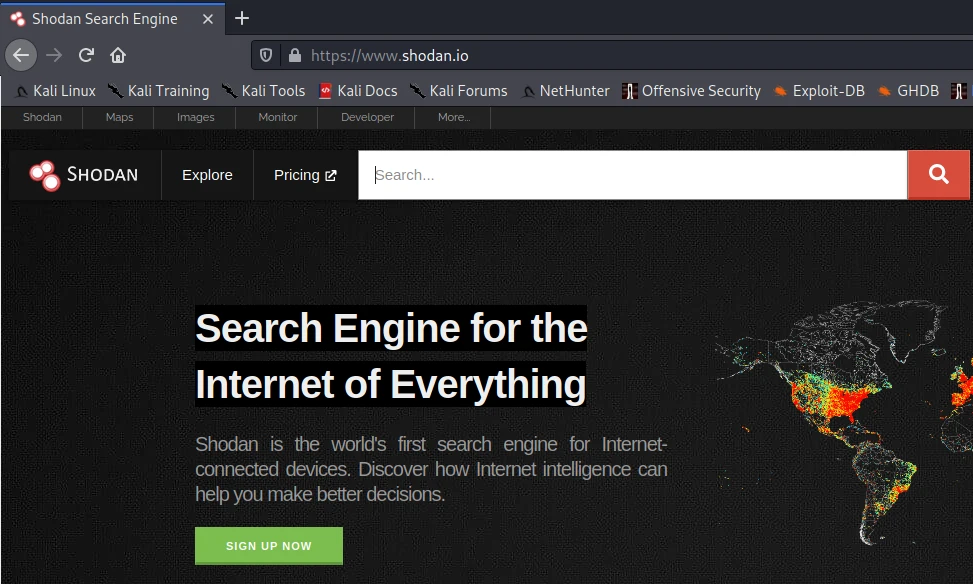
A logged-in account can run interactive searches in the browser and read the facet breakdowns down the left side, which is often faster than the CLI for exploring an unfamiliar target.
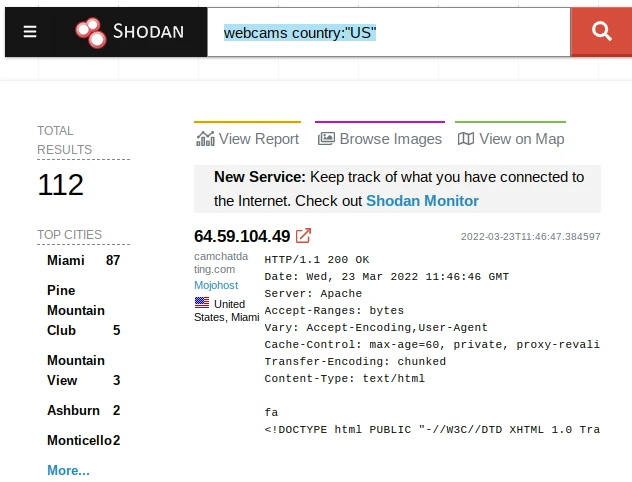
The facets on the left — top countries, ports, products, and organizations — are the fastest way to understand the shape of a target's exposure before you drill into individual hosts.
Optional: corroborate sparse hits with Censys
No query data ties this URL to Censys-specific searches — treat it as an optional second index when Shodan returns thin results on the same authorized domain or CIDR. Censys Search independently indexes Internet-facing hosts, certificates, and web properties, so it can surface observations that differ from Shodan. Certificate pivots remain one of its strengths.
In the browser, start with a full-text domain search, then narrow with CenQL on the dataset you need — host, certificate, or web:
"example.com"
cert.parsed.subject.common_name: "example.com"
The exact fields available depend on which Platform dataset you search. Use = when you need exact matching instead of substring search.
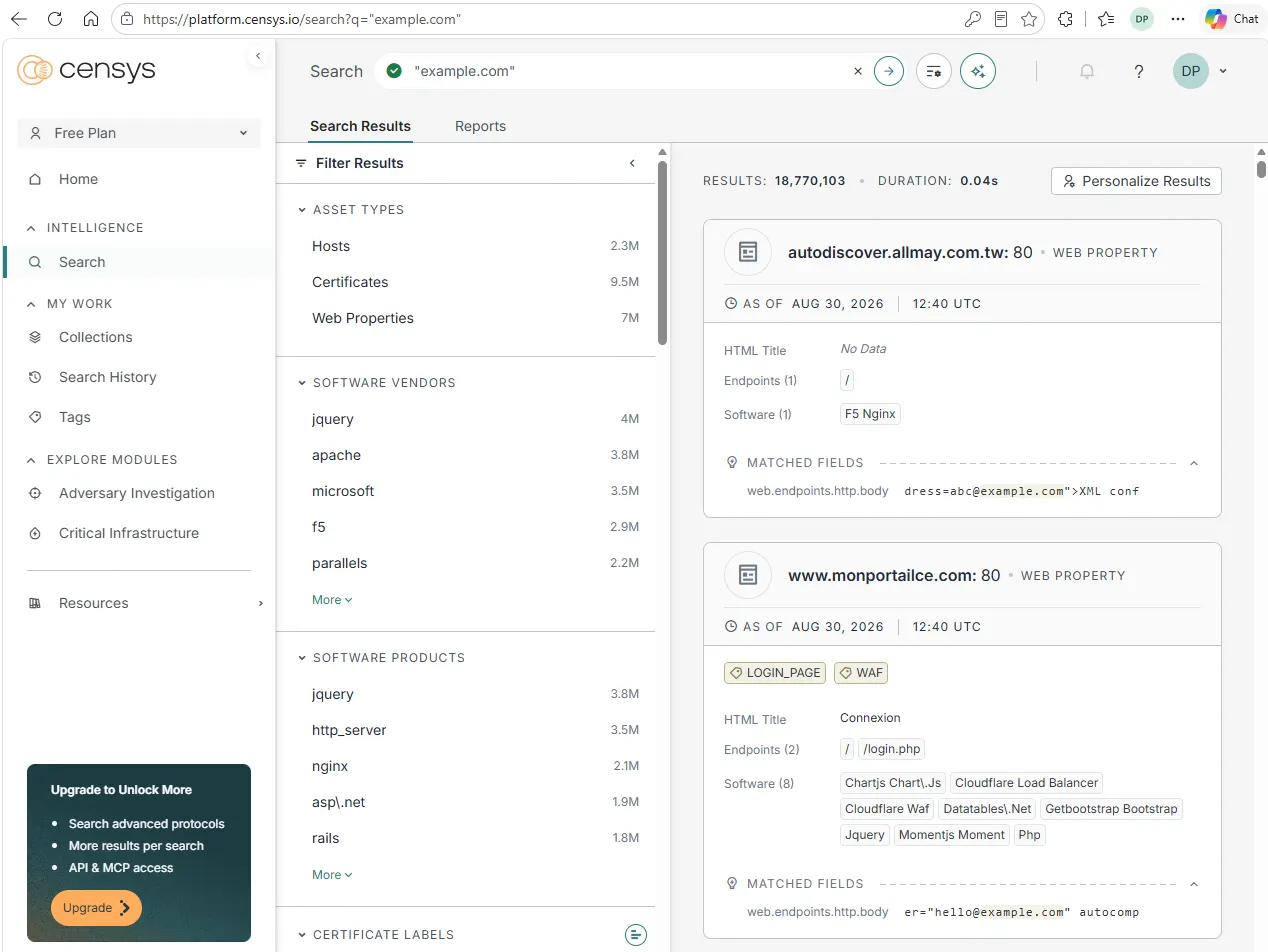
Check the AS OF timestamp on each row before treating a banner as current. Censys also provides a current Platform CLI and API for CenQL searches; for this Shodan tutorial, browser-based corroboration is enough. Use the current Censys documentation before automating against the API.
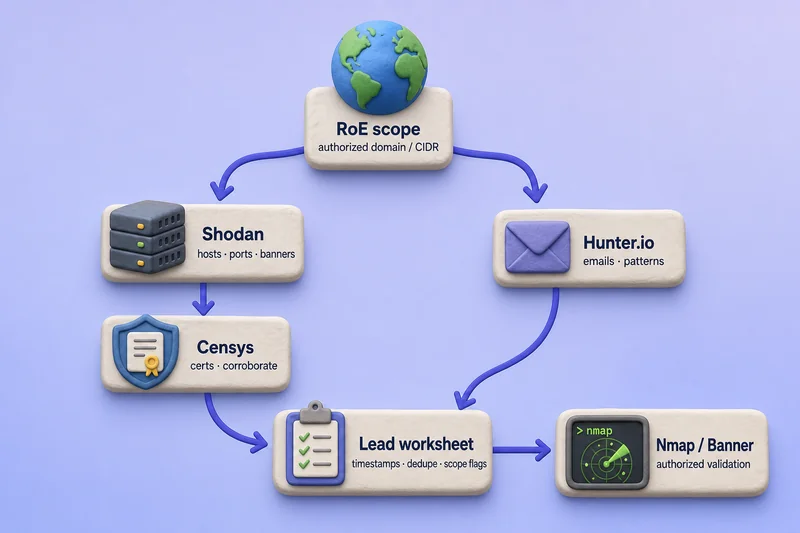
The wider passive workflow — mailboxes, usernames, and other OSINT tools — is covered in the OSINT tools roundup linked at the top. When Shodan and Censys agree on a host, confidence goes up, but both indexes can be stale. Hand off in-scope leads to authorized Nmap or banner grabbing.
Practical Shodan workflow for an authorized pentest
- Start with the authorized domain or CIDR from the rules of engagement. Use
hostname:,net:,org:, orasn:filters rather than global counts. - Run
shodan countto size the result set, thenshodan hoston interesting IPs. - Inspect the
Updatedtimestamp on each host. Shodan shows when it last saw the service, not whether it is live right now. - Scope-check shared or cloud IPs. A hostname on a CDN, shared hosting, or multi-tenant address is not automatically in scope.
- Record the IP, port, product, banner, and last-seen time as leads, not confirmed findings.
- Optionally corroborate sparse hits in Censys, then hand off to authorized active validation with network reconnaissance using Nmap or banner grabbing on in-scope hosts.
Troubleshooting
| Symptom | Likely cause | Fix |
|---|---|---|
Error: Unable to connect to Shodan on shodan init |
No Internet egress or DNS from the host | Confirm the box resolves and reaches api.shodan.io; set a proxy if you are behind one |
Error: Access denied (403 Forbidden) on shodan search |
Account entitlements or query credits | Check shodan info and your account page; use the web interface or add credits or Membership |
shodan host returns an access error |
Account entitlements or Membership requirement | Check Shodan account entitlements; main API host lookup requires Membership — try InternetDB for free IP lookup |
Global shodan count looks alarming |
You queried the whole Internet, not client scope | Narrow with net:, org:, or hostname: inside authorized scope |
| Hostname on a CDN IP looks in scope | Shared infrastructure fronts many names | Verify ownership and RoE before reporting |
Summary
This Shodan tutorial covered install and API-key setup on Kali, the CLI commands that matter (shodan host, shodan count, shodan search, shodan download, shodan parse), filter syntax including asn:, and what the account tested for this guide could access. Shodan is a practical way to review Internet-facing exposure already indexed by a third party. On the account tested here, shodan host and shodan count worked while filtered shodan search returned 403 — check shodan info and current Shodan documentation rather than assuming every plan behaves the same. Main API host lookups require Membership; InternetDB provides free IP lookup.
Use the web interface when CLI search is blocked. Optionally corroborate sparse Shodan hits in Censys Search. Scope-check shared and cloud IPs, treat every index row as a lead with a last-seen timestamp, and confirm anything you plan to report with authorized Nmap or banner grabbing.
References
- Shodan documentation
- Shodan CLI reference
- Shodan search filters
- Shodan query credits
- Shodan InternetDB
- Censys Search
- Censys Platform documentation
Frequently Asked Questions
How do I use Shodan on Kali Linux?
The Shodan CLI is available in Kali and may already be installed depending on your image or metapackage. Confirm it with shodan version, install python3-shodan if needed, register at account.shodan.io to get an API key, then run shodan init YOUR_API_KEY. After initialization, use shodan count and the web interface for available searches. If your account supports main API host lookup, use shodan host IP; otherwise use InternetDB for a free IP lookup.
Is using Shodan legal?
Reading Shodan results is passive because you query a third-party index rather than the target systems, and that is generally lawful. Acting on what you find, such as connecting to a host or testing credentials, needs written authorization and scope in your rules of engagement. Passive lookups do not authorize scanning or access.
What is the difference between Shodan and Censys?
Both independently scan and index Internet-facing infrastructure, but their observations can differ because scan schedules and parsers are not identical. Shodan is usually faster for host, port, and banner discovery. Censys is strong for certificate pivots and corroborating sparse Shodan hits. Use both as passive leads, then confirm with authorized active checks.
What can I do with Shodan for free?
Shodan entitlements vary by account type. On the account tested for this guide, shodan host and shodan count worked while filtered shodan search returned 403 Forbidden. Current Shodan documentation states that main API host lookups require Membership, while InternetDB provides free IP lookup. Query credits are charged when a search uses filters or requests results beyond the first page; one query credit currently covers up to 100 results. shodan download uses query credits as well.
Can Shodan find default passwords?
Shodan indexes service banners and metadata, not a password database. A banner may reveal a product and version whose vendor documentation lists factory-default credentials, but Shodan does not confirm those credentials still work. Testing whether a default login succeeds is an active authentication attempt and needs separate authorization in your rules of engagement. Do not publish default-credential lists in reports.
