
Issue - Yersinia has been configured with --disable-gtk option
Lately while working on Kali Linux I encountered this error when trying
to execute yersinia -G and the Yersinia GUI was not working.
   Hmmm... it seems that you don't have gtk support or Yersinia
   has been configured with --disable-gtk option...
   Go and get it!!
I was using following release of Kali Linux
└─# lsb_release -a
No LSB modules are available.
Distributor ID: Kali
Description:    Kali GNU/Linux Rolling
Release:    2024.1
Codename:   kali-rolling
Solution
I tried to search online for some solutions but couldn't find any. The weird part is that I had installed yersinia by using apt package manager and it has no such option to enable or disable GTK so I assumed it may be a BUG as I could find a couple of users had reported the same issue on GitHub.
To fix this I manually cloned the yersinia repo from github and compiled the binary. So first we need to remove the existing package:
apt remove --auto-remove yersinia
apt purge --auto-remove yersinia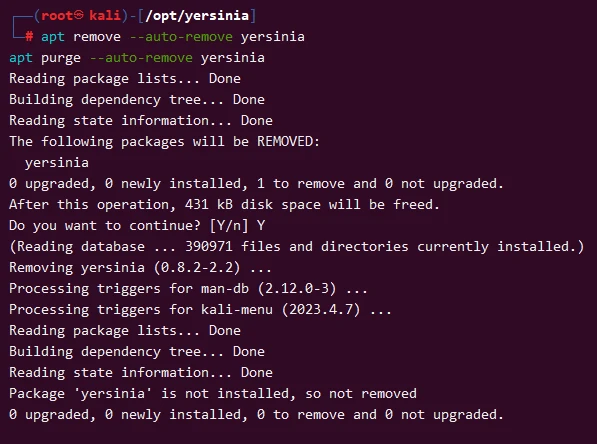
Next, use git clone to copy the Yersinia repository
directly into /opt/yersinia on the Kali Linux machine:
git clone https://github.com/tomac/yersinia /opt/yersiniaNext we need to install some dependent packages required for compilation:
apt install autoconf libgtk-3-dev libnet1-dev libgtk2.0-dev libpcap-dev -ylibpcap-dev package is required or else you may get error during
compilation as !!! couldn't find a complete set of pcap headers.
The rolling Kali yersinia package can ship without GTK support; rebuilding
from GitHub follows the same autotools path as
install airmon-ng on Kali Linux when apt
binaries are not enough. Once the required packages are installed, navigate
inside /opt/yersinia and execute ./autogen.sh.
cd /opt/yersinia
./autogen.sh
Look out for any errors. If there are no errors then execute the following command to configure yersinia with GTK:
./configure --with-gtkNext complete the compilation:
make
make install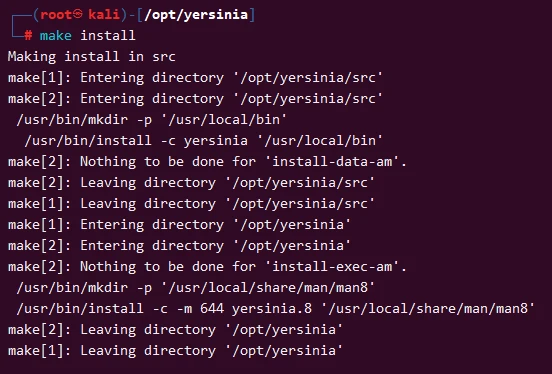
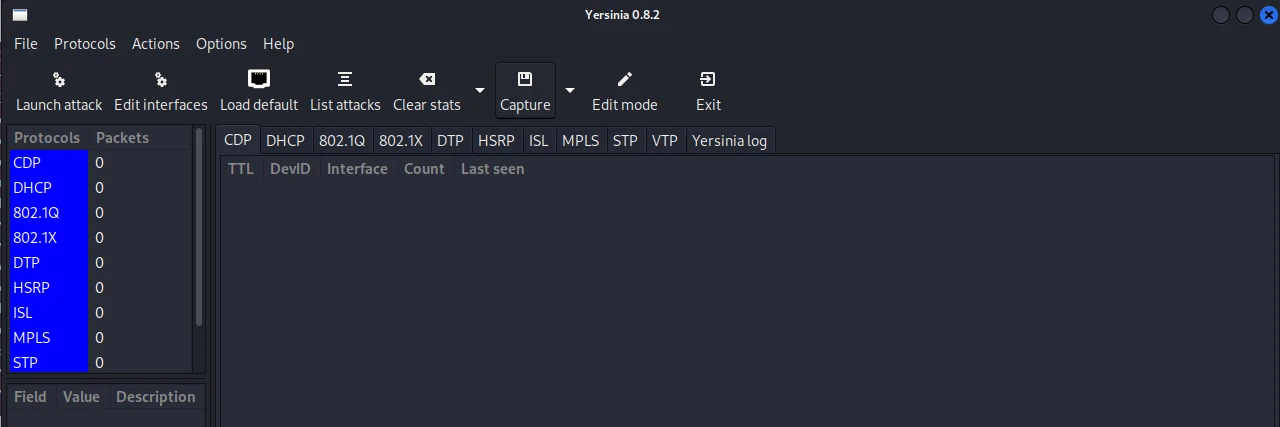
Now attempt to access the Yersinia GUI:
yersinia -Gand this time the GUI has successfully loaded and we don't get the same error as seen earlier.
Hope this helps.
