
| Tested on | Red Hat Enterprise Linux 10.2 (Coughlan) Windows Server 2025 AD DC — WIN-8S0K67EP5EO.lab.example (192.168.56.128) |
|---|---|
| Package | quay.io/keycloak/keycloak:26.7.3 |
| Applies to | Keycloak 26.x with Microsoft Active Directory (LDAP user federation) |
| Privilege | Keycloak realm admin; AD account that can create a bind user (for example Administrator) |
| Lab environment | Keycloak on http://127.0.0.1:8080/ — Install Keycloak with PodmanAD lab layout — Join Linux to AD with adcli |
| Scope | Active Directory user federation: bind account, StartTLS, DC certificate trust, provider setup, user sync, AD sign-in, and READ_ONLY vs WRITABLE. Does not cover AD group mapping, Kerberos/SPNEGO, or identity brokering. |
| Related guides | Install Keycloak with Podman User federation vs identity brokering Keycloak realms Keycloak tutorial |
Keycloak can authenticate Microsoft Active Directory users without creating separate passwords in Keycloak. Configure an Active Directory user federation provider, connect it to AD through LDAP with StartTLS, and choose which directory users Keycloak should import.
This guide connects Keycloak 26.7.3 to a Windows Server 2025 domain controller, imports AD users into realm golinuxcloud, and verifies that an AD account can sign in with its existing AD password. Active Directory remains the source of credentials; Keycloak does not copy AD password hashes into its database.
How Keycloak and Active Directory work together
Keycloak does not replace Active Directory in this setup. AD still owns the accounts and passwords. Keycloak connects to AD over LDAP and exposes those users to applications through OpenID Connect or SAML.
    Application
          |
          | OIDC / SAML
          v
    +-----------+
    | Keycloak  |
    +-----+-----+
          |
          | LDAP + StartTLS
          v
+------------------+
| Active Directory |
| users/passwords  |
+------------------+
When an AD user signs in:
- The application sends the user to Keycloak.
- Keycloak finds the user through its Active Directory federation provider.
- Keycloak validates the submitted password against Active Directory through LDAP.
- If authentication succeeds, Keycloak creates the application session and issues its own tokens.
The AD password is not stored in Keycloak. For how federation differs from signing in through an external IdP, see user federation vs identity brokering.
User synchronization vs password authentication
User synchronization and user authentication are separate parts of the integration:
- Import users allows Keycloak to create a local representation of an AD user when that user is first found or signs in. Profile data is cached and imported into Keycloak, but the AD password is not.
- Sync all users performs that import in bulk for all matching directory users under Users DN, Search scope, and any LDAP filter.
Passwords are never imported. Whether the user arrived through sync or first login, Keycloak still validates the password against AD at authentication time.
What the LDAP bind account does
The bind account is the AD service account Keycloak uses to search the directory. It is not the account your end users type at the login screen.
Keycloak startup / user search
          |
          | keycloak-bind credentials
          v
   Active Directory
          |
          +---- search for jane

User login
          |
          | jane + Jane's AD password
          v
   Active Directory
Lab environment
| Role | Name | Address |
|---|---|---|
| Keycloak | RHEL 10.2, Podman | http://127.0.0.1:8080 |
| Domain controller | WIN-8S0K67EP5EO.lab.example |
192.168.56.128 |
| DNS domain | lab.example |
— |
| LDAP bind account | keycloak-bind |
CN=Keycloak Bind,CN=Users,DC=lab,DC=example |
| Sample AD user | jane |
jane@lab.example |
Keycloak must already be running in an application realm (here golinuxcloud, not master). If you need a fresh install, follow Install Keycloak with Podman first and create that realm before continuing.
Before you connect Keycloak to Active Directory
Information you need from Active Directory
Collect these values before you open the Admin Console:
- Domain DNS name (
lab.example) and DC hostname (win-8s0k67ep5eo.lab.example) - LDAP port (
389with StartTLS in this lab, or636for Active Directory LDAPS) - Base DN for users (
DC=lab,DC=examplein this forest) - A service account DN and password for Keycloak to bind with
Confirm the Keycloak host resolves the DC:
ldapsearch -x -H ldap://192.168.56.128 -b "" -s base namingContextsSample output:
dn:
namingContexts: DC=lab,DC=example
namingContexts: CN=Configuration,DC=lab,DC=example
...
The DC=lab,DC=example line is the suffix you use when you build Users DN and the bind DN.
This domain controller is configured to reject a simple password bind unless LDAP is protected by TLS. The lab therefore uses StartTLS on port 389. A cleartext bind returns Strong(er) authentication required.
Create a dedicated AD bind account
Keycloak needs an AD account that it can use to search the directory. Create a dedicated service account such as keycloak-bind on the domain controller or from a workstation with RSAT. Do not reuse a person's normal login account.
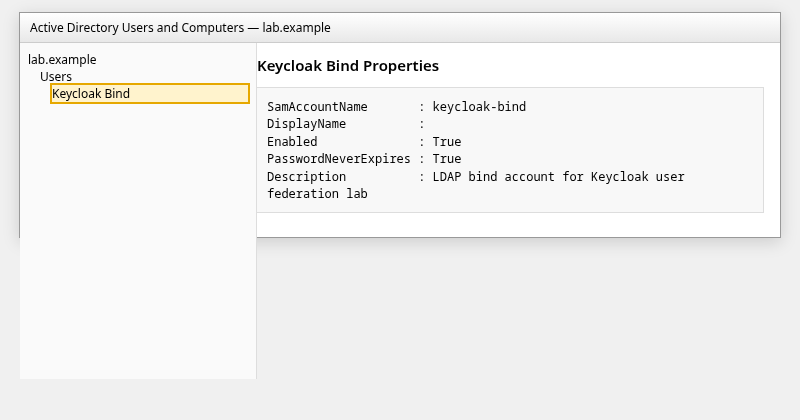
The lab account shows Password never expires so an expired bind password does not break the walkthrough. That is a lab convenience, not a Keycloak requirement. In production, follow your organization's service-account and secrets-management policy.
The permissions the bind account needs depend on whether Keycloak only reads AD or is also allowed to update it:
- READ_ONLY — a normal authenticated AD service account can usually read the standard user attributes Keycloak needs in a default domain. If the directory is hardened, grant read access to the OU that holds your users.
- WRITABLE — delegate only the permissions Keycloak needs on the OUs and attributes it will change. Writing
mailrequires write permission on that attribute; password changes require the appropriate reset permission.
Trust the Active Directory LDAP certificate
Why Keycloak needs the certificate
StartTLS begins as LDAP on port 389 and then upgrades the connection to TLS. Keycloak must trust the certificate the domain controller presents during that upgrade.
In this lab, the certificate presented by the DC's LDAPS listener on port 636 is the certificate needed for the LDAP TLS connection, so we retrieve it there. Keycloak still connects with StartTLS on port 389; port 636 is only used here to obtain the certificate.
Add the certificate to Keycloak's truststore
On the Keycloak host:
mkdir -p ~/keycloak-ad-lab/trust
openssl s_client -connect 192.168.56.128:636 -servername win-8s0k67ep5eo.lab.example </dev/null 2>/dev/null \
  | openssl x509 -outform PEM > ~/keycloak-ad-lab/trust/lab-dc.pem
Check the subject matches your DC hostname:
openssl x509 -in ~/keycloak-ad-lab/trust/lab-dc.pem -noout -subjectSample output:
subject=CN=win-8s0k67ep5eo.lab.examplePoint Keycloak at that PEM through truststore-paths. If Keycloak runs in Podman, mount the file and set truststore-paths=/mnt/trust/lab-dc.pem in keycloak.conf (full container steps live in Install Keycloak with Podman). Restart Keycloak after you add the trust material so StartTLS can complete without PKIX errors.
Leave Use Truststore SPI at Always in the Admin Console if the field appears. Current Keycloak releases mark it deprecated; certificate trust is handled at the server truststore level.
Verify the bind account over StartTLS
Confirm the bind account from the Keycloak host using the PEM you just saved:
export LDAP_BIND_PW='KeycloakBind!2026'
LDAPTLS_CACERT=~/keycloak-ad-lab/trust/lab-dc.pem ldapsearch -x -ZZ -H ldap://192.168.56.128 \
  -D "keycloak-bind@lab.example" -w "$LDAP_BIND_PW" \
  -b "DC=lab,DC=example" -s sub "(sAMAccountName=jane)" sAMAccountName
Sample output:
dn: CN=Jane Admin,CN=Users,DC=lab,DC=example
sAMAccountName: jane
If the search returns jane, the bind credentials, StartTLS connection, and search base are working.
Configure Active Directory user federation in Keycloak
In realm golinuxcloud, open User federation → Add LDAP providers → Active Directory.
Selecting Active Directory as the vendor saves you from manually defining several AD-specific LDAP defaults. Keycloak uses sAMAccountName as the username attribute and objectGUID as the stable user identifier. The preset also adds AD-specific mappers, including support for account state such as disabled users.
Add the Active Directory LDAP provider
Configure the provider with the following values, replacing the lab domain details with your own:
| Setting | Lab value |
|---|---|
| UI name | lab-ad |
| Vendor | Active Directory |
| Connection URL | ldap://win-8s0k67ep5eo.lab.example:389 |
| StartTLS | On |
| Connection pooling | Off (required when StartTLS is on) |
| Bind DN | CN=Keycloak Bind,CN=Users,DC=lab,DC=example |
| Bind credentials | Password for keycloak-bind |
| Users DN | DC=lab,DC=example |
| Search scope | Subtree |
| Username LDAP attribute | sAMAccountName |
| UUID LDAP attribute | objectGUID |
| Edit mode | READ_ONLY (first pass) |
| Import users | On |
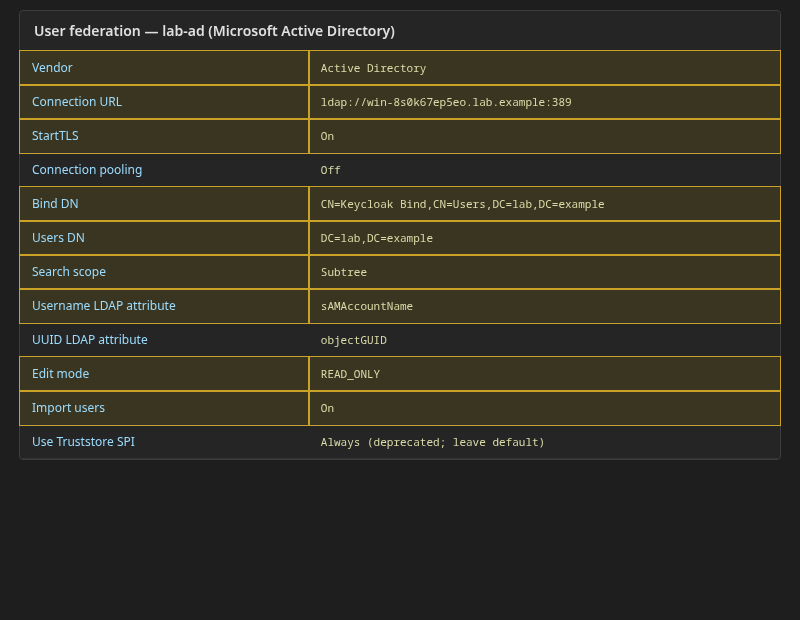
Users DN is where Keycloak starts searching. Search scope = Subtree includes child OUs below that DN. If every account lives directly under CN=Users,DC=lab,DC=example, you can narrow Users DN to that container and use one-level scope instead.
sAMAccountName is the traditional AD logon name (for example jane). With Username LDAP attribute set to sAMAccountName, the Keycloak username for this account is jane; users do not enter an LDAP distinguished name such as CN=Jane Admin,....
Click Save, then run Test connection and Test authentication on the provider page. Fix bind DN, password, or truststore before you sync users.
Sync Active Directory users to Keycloak
Open Synchronization settings for lab-ad and run Sync all users:
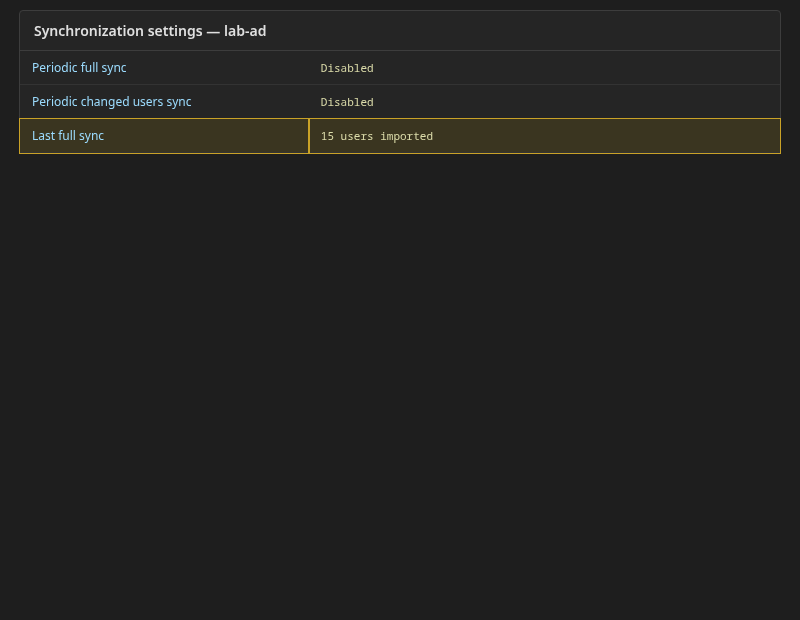
The lab imported 15 accounts. Your count depends on the users under Users DN, Search scope, and any LDAP filters. Periodic full sync and periodic changed-users sync stay disabled here so you can verify the integration manually. For a persistent integration, you can optionally configure Periodic full sync or Periodic changed users sync instead of relying only on manual synchronization and on-demand imports.
Under Users, search for jane. The federation provider should appear on the user record, along with attributes such as LDAP_ID and LDAP_ENTRY_DN.
Test Active Directory login through Keycloak
Keycloak does not import LDAP password hashes. On login it validates the submitted password against Active Directory.
Open the realm Account Console:
http://127.0.0.1:8080/realms/golinuxcloud/account/Sign in as jane with Jane's Active Directory password.
Browser
   |
   | jane + AD password
   v
Keycloak
   |
   | validate credentials through LDAP
   v
Active Directory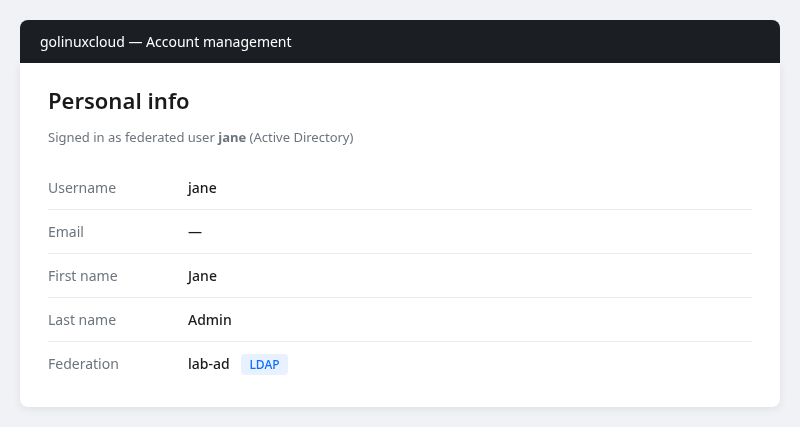
A successful sign-in confirms both parts of the integration: Keycloak can locate the federated AD user and Active Directory accepts that user's password during LDAP authentication. Keycloak does not need a separate local password for jane. Wrong passwords, disabled accounts, and LDAP errors surface on the login form or in the Keycloak server log.
READ_ONLY vs WRITABLE edit mode
Edit mode on the LDAP provider controls whether Keycloak may write mapped data back to AD.
| Edit mode | What happens | When to use it |
|---|---|---|
READ_ONLY |
Keycloak reads mapped user data from AD but does not write mapped attributes or passwords back | AD remains the source of truth |
WRITABLE |
Supported profile and password changes can be written to AD when mappers and AD permissions allow | Keycloak is allowed to update selected AD attributes |
UNSYNCED |
Imported LDAP users can have profile and password changes stored locally in Keycloak instead of being written back to LDAP | Specialized cases where LDAP is read-only but Keycloak must maintain local changes |
With READ_ONLY, updating email on a federated user through the Admin API returns error-user-attribute-read-only. That is expected.
WRITABLE and LDAP attribute mappers
A mapper tells Keycloak how an LDAP attribute maps to a Keycloak user field. The email mapper links AD mail to Keycloak email.
Two additional settings control whether an update can reach AD:
- Mapper Read only — the default email mapper ships with Read only on. Turn it off when
mailshould be written to AD in WRITABLE mode. - Bind ACLs — the bind account needs write permission on the attributes you map.
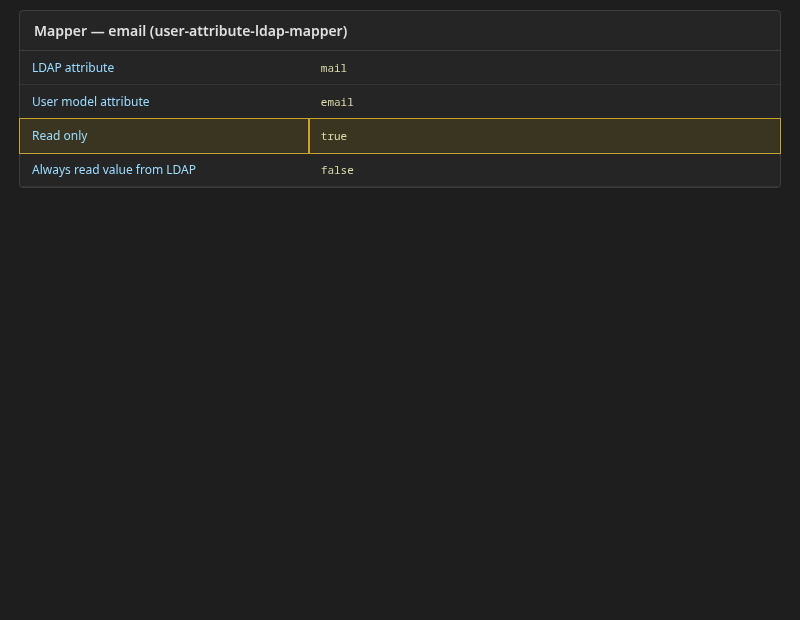
After you enable WRITABLE, adjust mappers, and delegate AD permissions, confirm with ldapsearch on mail for the user. AD group mapping is covered in Map Active Directory groups to Keycloak roles.
Troubleshooting
| Symptom | Likely cause | Fix |
|---|---|---|
Strong(er) authentication required on port 389 |
Cleartext bind blocked on the DC | Use StartTLS in Keycloak and in ldapsearch -ZZ |
PKIX path building failed in Keycloak logs |
DC certificate not in Keycloak truststore | Add PEM via truststore-paths and restart Keycloak |
Sync returns 0 imported |
Wrong Users DN, Search scope, or filter | Run the same base-DN search with ldapsearch and the bind account; if LDAP returns no users, fix the search base before troubleshooting Keycloak — see Keycloak Active Directory users not syncing for AD-specific CN=Users / OU scope and bind 52e |
Can not enable both StartTLS and connection pooling |
Incompatible provider settings | Disable Connection pooling when StartTLS is on |
| Login fails after successful sync | Wrong password, disabled or locked AD account, or LDAP auth error | Verify the account in AD; test an LDAP bind as that user; read the Keycloak server log |
| Email not written in WRITABLE | Mapper still read-only or bind lacks write access | Disable Read only on the mapper; delegate attribute write on the OU |
Most connection failures come down to TLS trust, the LDAP search base, or bind-account permissions.
Summary
You configured Keycloak to use Microsoft Active Directory as a federated user directory: a bind account, StartTLS with a trusted DC certificate, the Active Directory LDAP provider, a full user sync, and AD sign-in through the Account Console. AD keeps the passwords; Keycloak imports attributes and validates credentials over LDAP.
READ_ONLY is the safest default when Active Directory is the authoritative source for user data. WRITABLE only makes sense when the required mappers and AD permissions have been explicitly configured for writes. Next steps: map AD groups to Keycloak roles, or compare this model to identity brokering when users should authenticate at an external IdP instead.
References
- Keycloak Server Administration Guide — User federation
- Keycloak Server Administration Guide — LDAP
- Microsoft Learn — Active Directory Domain Services
- Microsoft Learn — LDAP signing and channel binding
Frequently Asked Questions
Does Keycloak store Active Directory passwords?
No. Keycloak imports user attributes and validates passwords against AD at login time. Password hashes are not copied into the Keycloak database.
Is LDAPS required, or is StartTLS enough?
No. When a domain controller requires LDAP binds to be protected, Keycloak can use StartTLS with ldap://host:389 as long as it trusts the DC certificate. LDAPS on port 636 is another TLS-protected option.
Why does full sync import zero users?
Run Test connection first, then verify Users DN and Search scope with ldapsearch using the same bind DN. A wrong base DN returns an empty set even when AD holds users in child OUs.
When should I use READ_ONLY instead of WRITABLE?
Use READ_ONLY when AD owns account data and Keycloak should authenticate without writing back. Use WRITABLE only for attributes you are willing to let Keycloak change, with mappers set to writable and a bind account that has delegated permission.
