
| Tested on | Red Hat Enterprise Linux 10.2 (Coughlan) Windows Server 2025 AD DC — WIN-8S0K67EP5EO.lab.example (192.168.56.128) |
|---|---|
| Package | quay.io/keycloak/keycloak:26.7.3 |
| Applies to | Keycloak 26.x with Microsoft Active Directory user federation |
| Privilege | Keycloak realm admin; AD bind account (keycloak-bind in the lab) |
| Lab environment | Keycloak on http://127.0.0.1:8080/ with DC PEM in truststore-paths — Install Keycloak with PodmanPrerequisite — Integrate Keycloak with Active Directory (bind account and realm golinuxcloud) |
| Scope | Switch an existing Active Directory federation provider from StartTLS to LDAPS on port 636: confirm LDAPS on the DC, export or trust the DC TLS certificate, Keycloak ldaps:// settings (StartTLS off), host-side ldapsearch, and Test connection. Does not cover Windows CA issuance, LDAP channel binding policy, or generic non-AD LDAPS → Configure LDAPS in Keycloak. PKIX and hostname errors → Fix Keycloak LDAPS certificate errors. |
| Related guides | Integrate Keycloak with Active Directory Configure LDAPS in Keycloak Fix Keycloak LDAPS certificate errors Keycloak AD users not syncing Keycloak tutorial |
Microsoft Active Directory can reject simple LDAP binds that are sent over an unencrypted connection. Keycloak can protect the LDAP session in two common ways:
- StartTLS on port
389, where LDAP connects first and then upgrades to TLS. - LDAPS on port
636, where TLS is established before LDAP traffic is exchanged.
This guide uses LDAPS with the existing Active Directory federation provider lab-ad so the bind credentials and directory traffic are protected by TLS from the start of the connection. LDAP signing and channel binding are separate AD security mechanisms; this walkthrough focuses on protecting Keycloak's LDAP simple bind with TLS.
You already need a bind account, realm golinuxcloud, and DC certificate trust—the same foundation as Integrate Keycloak with Active Directory. The steps below focus on port 636, the ldaps:// connection URL, and checks you can run before you click Test connection.
Keycloak AD LDAPS: Quick Answer
- Confirm the domain controller accepts TLS on port
636. - Export or trust the DC TLS certificate (lab: leaf PEM in
truststore-paths). - Set Connection URL to
ldaps://<dc-fqdn>:636. Use the FQDN listed in the certificate's DNS Subject Alternative Name (SAN); older certificates may rely on the subject/CN when no suitable SAN is present. - Turn StartTLS Off — LDAPS is already encrypted.
- Run Test connection and Test authentication on the Active Directory provider.
- Confirm the same bind and search with
ldapsearchagainstldaps://on the Keycloak host.
For OpenLDAP or vendor-neutral LDAPS mechanics, see Configure LDAPS in Keycloak. When Keycloak logs PKIX path building failed or hostname errors while ldapsearch works, use Fix Keycloak LDAPS certificate errors.
What changes when you switch from StartTLS to LDAPS?
The LDAP search base, bind account, user mappings, and passwords do not change.
Only the transport settings change:
| StartTLS | LDAPS |
|---|---|
ldap://dc.example.com:389 |
ldaps://dc.example.com:636 |
| StartTLS = On | StartTLS = Off |
| TLS begins after the LDAP connection starts | TLS is established before LDAP traffic |
Port 389 must be reachable |
Port 636 must be reachable |
Both modes still require Keycloak to trust the certificate presented by the domain controller.
Why Keycloak Active Directory connections need TLS
Hardened Active Directory environments commonly require LDAP sessions to use appropriate integrity or TLS protection. For a simple bind from Keycloak, StartTLS or LDAPS provides the encrypted transport needed to avoid sending credentials over cleartext LDAP. A cleartext bind on port 389 without TLS can still return Strong(er) authentication required even when the bind DN and password are correct.
Keycloak supports two common patterns against AD:
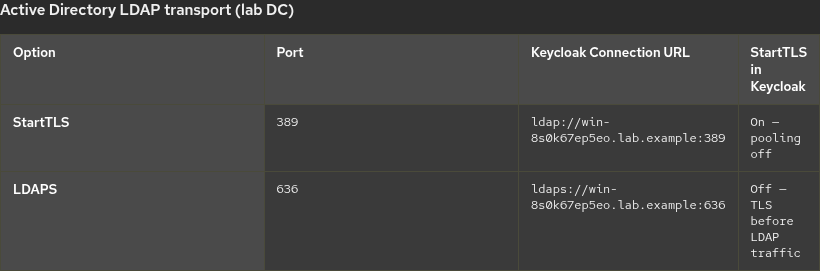
| Transport | Port | When to choose it |
|---|---|---|
| StartTLS | 389 |
LDAP begins cleartext, then upgrades to TLS; Connection pooling must stay off in this provider configuration |
| LDAPS | 636 |
TLS is established before any LDAP protocol data is exchanged; uses a dedicated TLS port (636/tcp), which can make firewall rules more explicit |
Both require Keycloak to trust the certificate the DC presents during TLS. In this lab, the certificate presented by the LDAPS listener on port 636 is also valid for the LDAP TLS connection used by StartTLS. The exact certificate selected by a production domain controller depends on the certificates installed and eligible for LDAPS.
Microsoft documents LDAPS certificate requirements in Configure certificates for LDAP over SSL in Active Directory Domain Services.
Lab layout
This guide assumes the existing lab-ad provider already works with StartTLS from Integrate Keycloak with Active Directory. The goal is only to change the LDAP transport to LDAPS; user search settings, bind account, mappers, and synchronization behavior stay the same.
Before you start:
- The AD bind account (
keycloak-bind) already works against the domain. - The domain controller has a valid LDAPS server certificate and listens on TCP
636. - The Keycloak host can resolve and reach the DC on
636. - The Keycloak container can also resolve and reach the DC (same FQDN as Connection URL).
- The certificate or CA PEM is mounted into the container and loaded through
truststore-paths. ldapsearchchecks in this guide run on the RHEL host, not inside the Keycloak container.- The FQDN in Connection URL must match a DNS name in the certificate SAN (or subject/CN on older certs).
- Users DN, bind DN, LDAP filters, and mappers are already correct; you are switching transport only.
| Role | Value |
|---|---|
| Keycloak | http://127.0.0.1:8080, realm golinuxcloud |
| Domain controller | win-8s0k67ep5eo.lab.example (192.168.56.128) |
| LDAP bind | keycloak-bind@lab.example / CN=Keycloak Bind,CN=Users,DC=lab,DC=example |
| Federation provider | lab-ad (Active Directory vendor) |
| Trust PEM on host | ~/keycloak-ad-lab/trust/lab-dc.pem |
truststore-paths tells Keycloak which CA or certificate files it should trust when opening TLS connections to systems such as Active Directory. Mount the PEM into the container and set truststore-paths in keycloak.conf, then restart Keycloak after you change trust material, as shown in Integrate Keycloak with Active Directory.
If port 636 does not complete a TLS handshake, configure LDAPS on the domain controller before you change Keycloak. If Podman cannot look up win-8s0k67ep5eo.lab.example from inside the container, add --add-host win-8s0k67ep5eo.lab.example:192.168.56.128 to podman run, or use DNS that publishes the domain controller name.
Retrieve the Active Directory LDAPS certificate
First confirm that the DC is listening with TLS on port 636:
openssl s_client -connect win-8s0k67ep5eo.lab.example:636 -servername win-8s0k67ep5eo.lab.example </dev/nullA successful TLS handshake confirms that the domain controller is accepting TLS connections on port 636 and presenting a certificate. The ldapsearch test later in this guide confirms that the certificate is also trusted by the LDAP client. Press Ctrl+C after you see the certificate details if the session stays open.
Export the leaf certificate the lab trusts directly:
mkdir -p ~/keycloak-ad-lab/trust
openssl s_client -connect win-8s0k67ep5eo.lab.example:636 -servername win-8s0k67ep5eo.lab.example </dev/null 2>/dev/null \
  | openssl x509 -outform PEM > ~/keycloak-ad-lab/trust/lab-dc.pem
This lab trusts the DC certificate directly because it is a small isolated environment. In a managed AD environment, prefer trusting the issuing CA or root chain so certificate renewal does not require replacing a pinned DC leaf certificate in Keycloak.
LDAPS encrypts the connection, but Keycloak still has to verify that it is talking to the expected domain controller. It does that by validating the certificate the DC presents against Keycloak's trusted certificates.
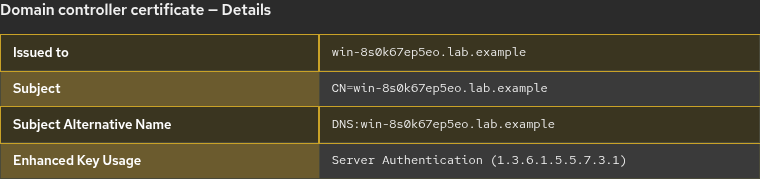
Check the certificate identity before using the hostname in Keycloak:
openssl x509 -in ~/keycloak-ad-lab/trust/lab-dc.pem -noout -subject -ext subjectAltNameSample output:
subject=CN=win-8s0k67ep5eo.lab.example
X509v3 Subject Alternative Name:
    DNS:win-8s0k67ep5eo.lab.example
The FQDN in Connection URL should match a DNS name in the certificate's SAN, or the certificate subject when applicable. Connecting by IP alone often breaks hostname verification even when the certificate is in the truststore.
Verify LDAPS with ldapsearch before Keycloak
Run ldapsearch on the RHEL host where Keycloak runs, not inside the container. Point OpenLDAP clients at the same PEM:
LDAPTLS_CACERT=~/keycloak-ad-lab/trust/lab-dc.pem ldapsearch -x \
  -H ldaps://win-8s0k67ep5eo.lab.example:636 \
  -D "keycloak-bind@lab.example" \
  -W \
  -b "DC=lab,DC=example" -s sub "(sAMAccountName=jane)" sAMAccountName
-W prompts for the bind password without placing it in the command line or an environment variable.
Sample output:
dn: CN=Jane Admin,CN=Users,DC=lab,DC=example
sAMAccountName: jane
# numEntries: 1
A successful host-side search confirms the bind credentials, host DNS, host network path to 636, and OpenLDAP client certificate trust. Keycloak can still fail if the container cannot resolve or reach the DC, or if Keycloak has not loaded the same trust material. If this command fails, fix TLS or networking on the host before you change Keycloak.
Do not pass -ZZ with ldaps:// — -ZZ is for StartTLS on ldap://. LDAPS already negotiates TLS on connect.
Configure Keycloak for Active Directory LDAPS
Open User federation → provider lab-ad in realm golinuxcloud. Update transport settings:
| Setting | LDAPS lab value |
|---|---|
| Connection URL | ldaps://win-8s0k67ep5eo.lab.example:636 |
| StartTLS | Off |
| Connection pooling | On — LDAPS can use pooled SSL connections; StartTLS required pooling off in this provider configuration |
| Bind DN, Users DN, Vendor | Unchanged from the StartTLS setup |
With ldaps://, TLS is already established when the connection opens, so enabling StartTLS would try to apply a second TLS-upgrade mechanism that belongs to plain ldap://.
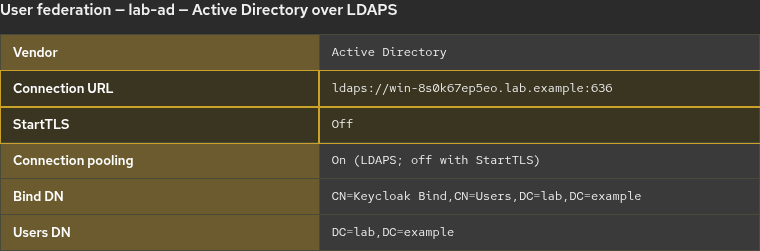
Save the provider, then run Test connection and Test authentication. Both should succeed when truststore-paths includes the DC trust material, the container resolves the DC FQDN, and the connection URL hostname matches the certificate.

Run Sync all users if you changed transport on an existing provider; user counts should match the prior StartTLS sync when Users DN and filters are unchanged. If sync returns zero users, return to Keycloak AD users not syncing — that is a search-scope problem, not LDAPS-specific.
StartTLS vs LDAPS for Keycloak Active Directory
You normally configure one TLS mode per Keycloak LDAP provider, not both at once.
- StartTLS:
ldap://fqdn:389+ StartTLS on, pooling off in this configuration — covered in Integrate Keycloak with Active Directory. - LDAPS:
ldaps://fqdn:636+ StartTLS off — this article.
In this lab, the same lab-dc.pem trust file works for both modes because both sessions use the DC's LDAP TLS certificate. Firewall rules differ: StartTLS needs 389/tcp reachable; LDAPS needs 636/tcp.
Troubleshoot Keycloak AD LDAPS
| Symptom | Likely cause | What to check |
|---|---|---|
PKIX path building failed in Keycloak |
DC cert or CA chain missing from truststore | truststore-paths, container mount, Keycloak restart |
ldapsearch works, Keycloak fails |
Wrong URL scheme, StartTLS left on, or container DNS | ldaps:// with StartTLS off; --add-host or DNS; see Keycloak LDAPS certificate errors |
| FQDN works but IP fails, or hostname verification errors | Connection URL does not match certificate SAN/CN | Use the DC FQDN listed in the certificate SAN |
Can't contact LDAP server on 636 |
Firewall or LDAPS disabled on DC | openssl s_client -connect dc:636; open 636/tcp |
UnknownHost in Keycloak logs |
Container cannot resolve DC FQDN | --add-host on Podman, or corporate DNS from the Keycloak pod/network |
Cleartext bind error on 389 |
Simple bind sent without TLS | Use StartTLS or LDAPS — not cleartext ldap:// without TLS |
Summary
LDAPS on port 636 establishes TLS before LDAP protocol data flows between Keycloak and Active Directory. Confirm LDAPS on the DC, trust the DC TLS certificate (or issuing CA in production), set Connection URL to ldaps://<dc-fqdn>:636, and disable StartTLS on the provider. A host-side ldapsearch against ldaps:// validates bind and trust from the Keycloak host; Test connection still depends on container DNS and Keycloak's truststore.
StartTLS on port 389 remains a valid AD pattern when you prefer that transport; choose one mode per provider and align firewall rules with the port you use. For generic LDAPS setup outside AD-specific defaults, continue with Configure LDAPS in Keycloak.
References
- Keycloak Server Administration Guide — LDAP
- Microsoft Learn — Configure certificates for LDAP over SSL in Active Directory Domain Services
- Microsoft Learn — Configure LDAP signing in Active Directory Domain Services
Frequently Asked Questions
Is LDAPS required for Keycloak and Active Directory?
Not always. Many labs use StartTLS on port 389 with the same DC certificate trust. Production AD environments commonly require LDAP clients to use secure session protection. For Keycloak simple binds, StartTLS on 389 or LDAPS on 636 provides TLS encryption and server authentication.
Why fetch the certificate from port 636 if I use StartTLS on 389?
In this lab, the LDAPS listener presents the same DC certificate used for LDAP TLS. Fetching it from port 636 is a convenient way to inspect or export the certificate before using either LDAPS or StartTLS.
Can I use ldaps:// with an IP address in Connection URL?
Avoid it when possible. AD certificates are issued for the DC hostname. Keycloak and the JVM verify the hostname in the URL against the certificate; use the FQDN that appears in the cert subject or SAN.
Should StartTLS stay enabled for LDAPS?
No. StartTLS upgrades a cleartext ldap:// session. LDAPS (ldaps://) is already encrypted. Enable only one model per provider.
