
| Tested on | Red Hat Enterprise Linux 10.2 (Coughlan) |
|---|---|
| Package | java-21-openjdk-headless-21.0.12.1.1-1.2.el10.x86_64Keycloak 26.7.3 ZIP at /opt/keycloak |
| Applies to | Ubuntu, Debian, RHEL, Rocky Linux and AlmaLinux — the same kc.sh, keycloak.conf, and systemd unit layout apply after a ZIP install |
| Privilege | sudo to write the systemd unit and environment file, manage the service, and create or fix the keycloak service account when it is not already configured |
| Scope | Dedicated Linux user, keycloak.service unit running start-dev, bootstrap credentials through EnvironmentFile, configuration through keycloak.conf, first start with systemctl, boot enablement, and journalctl — not production start, PostgreSQL, TLS, or hostname hardening |
| Related guides | Keycloak start vs start-dev Configure Keycloak with PostgreSQL |
In this article we will run the Keycloak ZIP install as a keycloak.service unit under a dedicated Linux account, sign in to the Admin Console, and see where persistent settings live on a systemd host.
A foreground start-dev process stops when you close the terminal. systemd keeps Keycloak in the background, can restart it after failure, and can start it at boot. This guide assumes /opt/keycloak is already in place from the ZIP install guide; switch to production start when you outgrow development mode.
Before you create the Keycloak service
Complete Install Keycloak on Linux first: Java runtime installed, ZIP extracted to /opt/keycloak, and bin/kc.sh present.
Confirm the install tree exists:
ls -ld /opt/keycloak /opt/keycloak/bin/kc.shSample output:
drwxr-xr-x. 8 keycloak keycloak  138 Sep 14 15:49 /opt/keycloak
-rwxr-xr-x. 1 keycloak keycloak 7137 Aug 31 09:01 /opt/keycloak/bin/kc.sh
If you followed the Linux ZIP install guide, the keycloak account and ownership may already be configured. The next section shows how to verify them and create the account only when it is missing. If /opt/keycloak is missing, finish the install guide before continuing.
Verify or create the Keycloak service account
The Linux keycloak account runs the JVM. That is separate from the Keycloak admin user you sign in with in the Admin Console inside the master realm.
If you followed the Linux installation guide, verify the existing service account:
id keycloakThe output should show a keycloak user and group. Confirm the install tree is owned by that account:
ls -ld /opt/keycloak /opt/keycloak/bin/kc.shSample output:
uid=973(keycloak) gid=972(keycloak) groups=972(keycloak)
drwxr-xr-x. 8 keycloak keycloak  138 Sep 14 15:49 /opt/keycloak
-rwxr-xr-x. 1 keycloak keycloak 7137 Aug 31 09:01 /opt/keycloak/bin/kc.sh
If the account does not exist because Keycloak was installed another way, run groupadd only when the keycloak group is missing and useradd only when the keycloak user is missing. Use /sbin/nologin on RHEL-family systems, or the path your distribution provides for a non-login service shell.
Create the system group when getent group keycloak returned nothing:
sudo groupadd --system keycloakCreate the service user when id keycloak failed:
sudo useradd --system --gid keycloak --home-dir /opt/keycloak --shell /sbin/nologin keycloakFix ownership on the install tree after the account exists. For the ZIP lab layout used in this series, restore the ownership established by the installation guide:
sudo chown -R keycloak:keycloak /opt/keycloakBootstrap credentials before the first start
If you already created the initial administrator during the ZIP install walkthrough, skip this section. The unit file below references /etc/keycloak/keycloak.env with a leading -, so a missing file is harmless.
For a fresh installation, place bootstrap credentials in an environment file before the first service start. KC_BOOTSTRAP_ADMIN_USERNAME and KC_BOOTSTRAP_ADMIN_PASSWORD create a temporary bootstrap administrator when Keycloak initializes the master realm for the first time. These startup bootstrap settings are not a password-reset mechanism for an existing installation — see Keycloak bootstrap admin for the lifecycle after first login.
Create a root-owned directory for service environment files:
sudo install -d -m 750 /etc/keycloakThe directory is created with mode 750 when it did not exist.
Write the bootstrap variables:
sudo tee /etc/keycloak/keycloak.env <<'EOF'
KC_BOOTSTRAP_ADMIN_USERNAME=admin
KC_BOOTSTRAP_ADMIN_PASSWORD=ChangeMe!2026
EOF
Restrict permissions because the file holds a password:
sudo chmod 600 /etc/keycloak/keycloak.envKeep the file root-owned with mode 600. The systemd manager reads EnvironmentFile= and places those values in the service environment before launching Keycloak as User=keycloak; the service account does not need permission to open the file itself.
This keeps the password out of the unit file and restricts normal filesystem access, but an environment file is not a dedicated secrets-management system. This lab removes the file after bootstrap succeeds.
Create the Keycloak systemd unit file
Place a unit file at /etc/systemd/system/keycloak.service. System units in this path override vendor defaults and are the usual location for site-specific services.
  ┌──────────────┐     ┌─────────────────────┐     ┌────────────────────────┐
  │ systemd      │ ──► │ keycloak.service    │ ──► │ kc.sh start-dev        │
  │ multi-user   │     │ User=keycloak       │     │ http://127.0.0.1:8080  │
  └──────────────┘     │ WorkingDirectory=   │     └────────────────────────┘
                       │   /opt/keycloak     │
                       └─────────────────────┘
Write the unit:
sudo tee /etc/systemd/system/keycloak.service <<'EOF'
[Unit]
Description=Keycloak identity and access management server
Documentation=https://www.keycloak.org/server/configuration
After=network.target

[Service]
Type=simple
User=keycloak
Group=keycloak
WorkingDirectory=/opt/keycloak
EnvironmentFile=-/etc/keycloak/keycloak.env
ExecStart=/opt/keycloak/bin/kc.sh start-dev
Restart=on-failure
RestartSec=10

[Install]
WantedBy=multi-user.target
EOF
Important directives:
| Section | Directive | Role |
|---|---|---|
[Unit] |
After=network.target |
Orders Keycloak after the basic networking target; this does not guarantee that external network services are reachable |
[Service] |
Type=simple |
systemd considers the service started after launching the process; Keycloak may still be initializing |
[Service] |
User / Group |
Drop root privileges; run as keycloak |
[Service] |
WorkingDirectory |
Sets Keycloak's process working directory to the installation directory |
[Service] |
EnvironmentFile=-/… |
Optional KC_* vars; leading - ignores a missing file |
[Service] |
ExecStart |
start-dev here matches this development lab; switch to start after configuring the production database, hostname, and HTTP/TLS behavior required by your deployment |
[Service] |
Restart=on-failure |
Automatically restart Keycloak when the service process fails; a normal systemctl stop does not trigger a restart |
[Install] |
WantedBy=multi-user.target |
Enable with systemctl enable for normal boot |
Reload systemd so it picks up the new unit:
sudo systemctl daemon-reloadThe command exits silently when the reload succeeds.
Start and enable Keycloak
enable configures the service to start on future boots; --now also starts it immediately:
sudo systemctl enable --now keycloakSample output:
Created symlink '/etc/systemd/system/multi-user.target.wants/keycloak.service' → '/etc/systemd/system/keycloak.service'.Confirm the unit is enabled for boot:
systemctl is-enabled keycloakSample output:
enabledStartup may take several seconds. On the test VM used for this guide, the first service start took about 25 seconds. Check process state:
systemctl status keycloak --no-pager -lSample output (trimmed):
● keycloak.service - Keycloak identity and access management server
     Loaded: loaded (/etc/systemd/system/keycloak.service; enabled; preset: disabled)
     Active: active (running) since Mon 2026-09-14 16:08:30 IST; 40s ago
       Docs: https://www.keycloak.org/server/configuration
   Main PID: 199128 (kc.sh)
      Tasks: 41 (limit: 48735)
     Memory: 394.9M (peak: 395.1M)
        CPU: 37.954s
     CGroup: /system.slice/keycloak.service
             └─199236 java ... io.quarkus.bootstrap.runner.QuarkusEntryPoint start-dev

Sep 14 16:08:56 vm1.lab.example kc.sh[199236]: ... Keycloak 26.7.3 on JVM ... started in 25.049s. Listening on: http://127.0.0.1:8080
Sep 14 16:08:56 vm1.lab.example kc.sh[199236]: ... Profile dev activated.
Active: active (running) confirms the Keycloak process is running. It does not by itself confirm that Keycloak is ready to accept requests. Wait for the Listening on: message in the journal, or verify the URL with curl below.
Verify HTTP from another terminal while the unit is active:
curl -s -o /dev/null -w '%{http_code}\n' http://127.0.0.1:8080/admin/Sample output:
302HTTP 302 is a redirect response. Here it is expected and confirms that Keycloak is answering HTTP requests on port 8080. A redirect alone does not prove that your bootstrap credentials work.
Open http://127.0.0.1:8080/admin/ on the host to confirm the login page loads. The screenshot matches the ZIP install guide because both use the same start-dev setup:
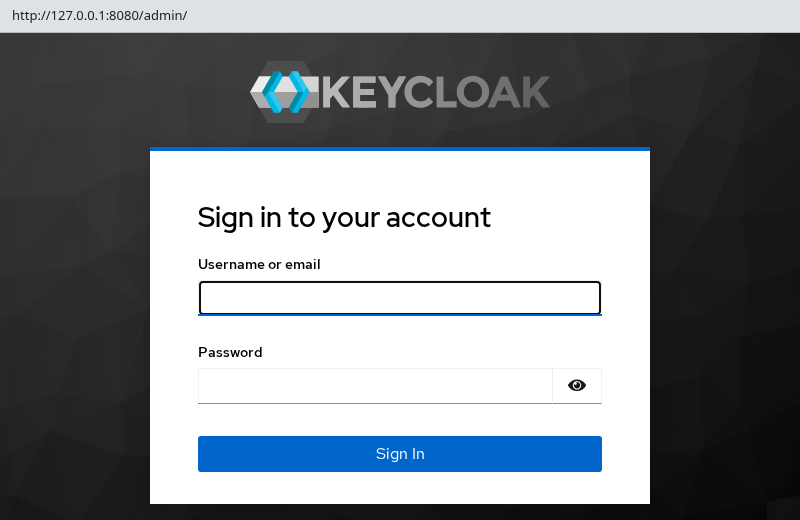
Sign in with username admin and the bootstrap password you configured, or the credentials from your earlier install if the initial administrator already existed.
After you successfully sign in with the temporary bootstrap administrator, remove the bootstrap environment file. The credentials are no longer required for normal restarts:
sudo rm /etc/keycloak/keycloak.envRemoving the environment file does not delete the administrator already stored in Keycloak's database. The currently running process still has the environment it received at startup, but future service starts will no longer load the bootstrap variables. You do not need to restart Keycloak just to remove this file. The leading - on EnvironmentFile=-/etc/keycloak/keycloak.env means a missing file is harmless on later starts.
Choose how to configure Keycloak with systemd
On a ZIP install managed by systemd, Keycloak reads settings from three places you control. They feed the same underlying option names — only the delivery mechanism changes.
/opt/keycloak/conf/keycloak.conf— persistent file settings read on every startKC_*environment variables — loaded fromEnvironmentFile=in the unit, typically/etc/keycloak/keycloak.env- Arguments in
ExecStart— startup mode (start-dev,start) and CLI flags passed tokc.sh
Keycloak maps kebab-case keys in keycloak.conf to environment variables with the KC_ prefix — for example, health-enabled becomes KC_HEALTH_ENABLED.
| Method | Example | Best suited for |
|---|---|---|
conf/keycloak.conf |
health-enabled=true |
Persistent server settings you edit on disk |
EnvironmentFile / KC_* |
KC_BOOTSTRAP_ADMIN_USERNAME=admin in /etc/keycloak/keycloak.env |
Bootstrap credentials or per-host environment values at process start |
ExecStart CLI |
/opt/keycloak/bin/kc.sh start-dev |
Startup mode for this lab; switch to start only after production database, hostname, and HTTP/TLS configuration |
When the service starts, systemd loads EnvironmentFile into the process environment. If you use an EnvironmentFile for other per-host settings later, editing that file does not affect an already running Keycloak process; restart the service to supply the new environment to the next process. Environment variables outrank matching keys in keycloak.conf. For this lab, bootstrap credentials come from the environment file, while keycloak.conf holds ordinary persistent settings. For longer-lived deployments, choose an appropriate secrets-delivery mechanism rather than placing sensitive values directly in keycloak.conf.
This guide used /etc/keycloak/keycloak.env for bootstrap credentials on the first start and left other settings at start-dev defaults.
If you edit keycloak.service itself — for example, changing ExecStart — run sudo systemctl daemon-reload before restarting the service. Changes only to keycloak.conf or keycloak.env do not require daemon-reload.
For build-time vs runtime options, precedence, show-config, and troubleshooting, see Keycloak keycloak.conf configuration.
Add a setting to keycloak.conf
You do not need to edit keycloak.conf for the first start-dev login. When you want a setting to persist across restarts, /opt/keycloak/conf/keycloak.conf is where a ZIP install normally stores it.
keycloak.conf is read by both start-dev and start. This walkthrough continues with start-dev only to show that the service picks up the file; that does not turn the development server into a production deployment.
Back up the template, then add a simple lab example:
sudo cp /opt/keycloak/conf/keycloak.conf /opt/keycloak/conf/keycloak.conf.origThe next command replaces the active file with a short lab configuration. The .orig copy preserves the shipped template. health-enabled=true is only a simple example — the point is to show where systemd-managed configuration lives, not to teach health endpoints. Enabling the health endpoint does not itself make systemd wait for application readiness.
sudo tee /opt/keycloak/conf/keycloak.conf >/dev/null <<'EOF'
health-enabled=true
EOF
Restore ownership to the service account after editing the file:
sudo chown keycloak:keycloak /opt/keycloak/conf/keycloak.confKeycloak reads keycloak.conf when the service starts. Restart after every edit:
sudo systemctl restart keycloakWait for the Listening on: line in the journal again. A successful restart confirms Keycloak accepted the file; the configuration guide shows how to inspect resolved values with show-config.
For longer-lived settings such as database, hostname, and TLS configuration, keycloak.conf is the usual ZIP install path; environment variables remain useful for secrets supplied at process start.
View Keycloak logs with journalctl
Systemd captures stdout and stderr from kc.sh. Read recent lines:
sudo journalctl -u keycloak --no-pager -n 20Sample output (trimmed):
Sep 14 16:08:56 vm1.lab.example kc.sh[199236]: ... Bootstrap completed in 7.420000 seconds
Sep 14 16:08:56 vm1.lab.example kc.sh[199236]: ... Keycloak 26.7.3 on JVM ... started in 25.049s. Listening on: http://127.0.0.1:8080
Sep 14 16:08:56 vm1.lab.example kc.sh[199236]: ... Profile dev activated.
Follow new log lines during startup or after a config change:
sudo journalctl -u keycloak -fPress Ctrl+C to stop following. Use sudo journalctl -u keycloak -b after a reboot to limit output to the current boot.
Restart and stop Keycloak
Restart Keycloak after changing keycloak.conf or any environment file currently referenced by the unit:
sudo systemctl restart keycloakWith Type=simple, systemctl restart can finish before Keycloak's HTTP listener is ready. Check the journal or HTTP endpoint before treating the application as ready.
Confirm systemd still considers the unit active:
systemctl is-active keycloakSample output:
activeTo confirm Keycloak itself is ready, check the journal for Listening on: or repeat the HTTP curl check from the start section.
Stop the service when you need port 8080 free:
sudo systemctl stop keycloakA successful stop leaves the unit inactive until you start it again. Confirm the inactive state:
systemctl is-active keycloakSample output:
inactivesystemctl is-active returns exit status 3 when the unit is inactive — that is expected after stop, not a failed install.
Start an inactive service again:
sudo systemctl start keycloakstop, start, and restart keep realm data under /opt/keycloak/data/. The bootstrap environment variables are not needed again once the master realm has been initialized.
/opt/keycloak/data/ just to reset the bootstrap administrator. It contains the embedded development database, including realms, users, clients, and administrative accounts. Use the admin recovery workflow when you need to recover access.
Remove the Keycloak systemd service
When you no longer want Keycloak managed by systemd, disable and remove the unit this guide created:
sudo systemctl disable --now keycloakRemove the unit file and bootstrap environment file if it still exists:
sudo rm -f /etc/systemd/system/keycloak.service /etc/keycloak/keycloak.envReload systemd so it forgets the removed unit:
sudo systemctl daemon-reloadThis removes the systemd service definition but leaves /opt/keycloak and its data intact. Use the Linux install guide's uninstall section only if you also want to remove the Keycloak installation and development database.
Common Keycloak systemd problems
| Symptom | Likely cause | Fix |
|---|---|---|
| Unit-file changes do not take effect | keycloak.service was edited without reloading systemd |
Run sudo systemctl daemon-reload, then sudo systemctl restart keycloak |
Active: failed immediately; status=203/EXEC |
Executable, path, interpreter, or permission problem with ExecStart |
Confirm /opt/keycloak/bin/kc.sh exists; run ls -l /opt/keycloak/bin/kc.sh and head -1 /opt/keycloak/bin/kc.sh; fix the path or execute bit with sudo chmod +x /opt/keycloak/bin/kc.sh |
Service starts then exits; Permission denied in journal |
data/ or conf/ not writable by keycloak |
Check ownership on the path named in the journal line first; fix with sudo chown keycloak:keycloak on that file or directory, or sudo chown -R keycloak:keycloak /opt/keycloak if ownership is wrong throughout the tree |
Address already in use on port 8080 |
Foreground start-dev or another service still bound |
Stop the other process; sudo ss -tlnp | grep :8080 |
| Java version error in journal | Unsupported or missing Java runtime | Install a Keycloak-supported JDK. Keycloak 26.7.3 supports OpenJDK 17, 21, and 25; the current upstream ZIP Getting Started guide uses OpenJDK 25. This article was tested with OpenJDK 21. Verify with sudo -u keycloak java --version |
start fails after switching from start-dev |
Production-mode configuration is incomplete for your deployment | Keep start-dev for this lab; before switching, configure the database, hostname, and HTTP/TLS behavior required by your deployment and follow the start vs start-dev guide |
| Bootstrap credentials do not work after restart | master realm already exists; startup bootstrap credentials do not reset an existing administrator |
Delete /etc/keycloak/keycloak.env when no longer needed. Use the existing admin account or follow Keycloak's bootstrap-admin recovery procedure if administrative access has been lost |
Admin Console blank while status is active (running) |
Quarkus still starting | Read sudo journalctl -u keycloak -f until Listening on: appears in the journal, then retry curl or the browser |
Summary
Keycloak now runs as keycloak.service under the dedicated keycloak Linux account and can start automatically at boot. Bootstrap credentials in /etc/keycloak/keycloak.env created the temporary administrator on the first start when the master realm did not yet exist; delete that file once sign-in works.
Configuration on a systemd ZIP install arrives through conf/keycloak.conf, KC_* variables in EnvironmentFile, and the ExecStart command. Persistent server settings can live in keycloak.conf, which Keycloak reads when the service starts. Precedence, show-config, and larger configuration topics live in the dedicated Keycloak configuration guide.
This guide deliberately uses start-dev. Use kc.sh start with hostname, TLS, and an external database when you deploy Keycloak beyond a development environment. Use systemctl status keycloak for service state and sudo journalctl -u keycloak for startup logs — wait for the Listening on: line before you assume HTTP is ready.
To remove only the systemd wrapper, disable the unit and delete /etc/systemd/system/keycloak.service; the ZIP install tree under /opt/keycloak stays in place until you follow the Linux install guide's uninstall steps.
References
- Getting started with OpenJDK and the ZIP distribution — upstream ZIP install baseline
- Bootstrapping and recovering an admin account — initial administrator lifecycle
- Configuring Keycloak —
keycloak.confand configuration sources - All configuration — full configuration option reference
- Directory structure —
bin/,conf/,data/, and related paths - systemd.service(5) — unit file directives
Frequently Asked Questions
Should the systemd unit use start-dev or start?
Use start-dev when you are continuing from the ZIP install guide and still learning on loopback HTTP. Switch ExecStart to /opt/keycloak/bin/kc.sh start after you configure the external database and the hostname, HTTP, and TLS settings required by your deployment.
Why does systemctl show active but the Admin Console does not load?
With Type=simple, systemd considers the service started after launching the kc.sh process; it does not wait for Keycloak's HTTP listener to become ready. Read sudo journalctl -u keycloak -f until you see a Listening on: line. In the tested RHEL setup, the service listened on 127.0.0.1:8080; check the journal line on your own system. When Keycloak binds to loopback only on a remote host, forward port 8080 with SSH.
Do I need /etc/keycloak/keycloak.env on every start?
No. The startup bootstrap values are relevant when Keycloak initializes the master realm and establishes the temporary bootstrap administrator. Once administrative access exists in the initialized database, those variables are not a password-reset mechanism and the lab environment file can be removed. The leading - on EnvironmentFile makes a missing file harmless.
