
| Tested on | Red Hat Enterprise Linux 10.2 (Coughlan) |
|---|---|
| Package | quay.io/keycloak/keycloak:26.7.3 |
| Applies to | Any Keycloak 26.x deployment — local user lifecycle in Admin Console and Admin REST API |
| Privilege | Keycloak admin access in the target realm — bootstrap admin on the lab container is enough |
| Lab environment | Keycloak 26.7.3 on http://127.0.0.1:8080/ — Install Keycloak with Podman |
| Scope | Local realm user lifecycle: create, set/reset password, required actions, enable/disable, delete, search, and Admin REST API / kcadm. Short pointers only for groups, roles, attributes, sessions, and federation. |
| Related guides | Keycloak realms explained Keycloak realm roles vs client roles Keycloak user attributes and User Profile |
Keycloak users are created inside a realm. For a local user the usual workflow is:
- Create the account
- Set a password
- Optionally require first-login actions
- Manage the account through Admin Console or Admin REST API
This guide covers that full lifecycle for local users in Keycloak 26.7.3. These are out of scope here:
- Users synchronized from LDAP/AD
- Users created through identity brokering
- Users provisioned through SCIM
What you can manage for a Keycloak user
Every step below runs in an application realm such as golinuxcloud.
- Do not use
masterfor application accounts — that realm administers Keycloak itself - See Keycloak realms explained if you need the isolation model first
For a local user you can:
- Create the account in Admin Console or Admin REST API
- Set or reset a permanent or temporary password
- Assign required actions such as Update Password or Verify Email
- Enable, disable, or delete the account
- Search and list users with pagination
- Automate the same lifecycle with curl or
kcadm.sh
  ┌──────────────────┐         ┌─────────────────────────────┐
  │ Admin Console    │ ──────► │ Application realm           │
  │ (browser)        │         │ Users / Credentials / ...   │
  └──────────────────┘         └─────────────────────────────┘
                                         ▲
  ┌──────────────────┐                   │
  │ Admin REST API   │ ──────────────────┘
  │ curl / kcadm     │
  └──────────────────┘
Create a user in Keycloak Admin Console
Before you open Users:
- The realm selector in the top-left must show your application realm
- If it still shows
master, the list belongs to the admin realm
- Sign in to
http://127.0.0.1:8080/admin/asadminwith passwordChangeMe!2026. - Open Manage realms and click golinuxcloud to switch the current realm.
- Open Users in the left navigation.
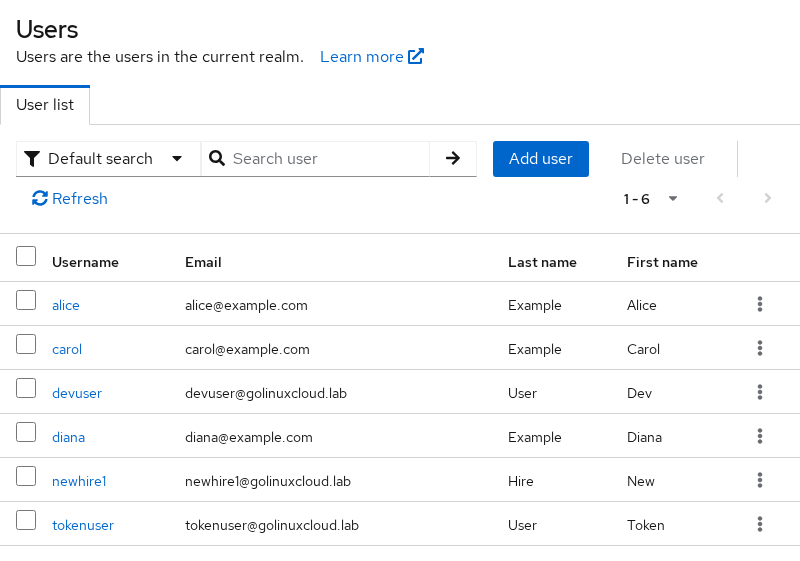
Add a local user with the minimum fields most applications expect:
- Click Add user.
- Set Username to
diana(usernames are unique per realm). - Set Email to
diana@example.com, First name toDiana, and Last name toExample. - Leave Email verified off unless your login flow requires a verified address before first sign-in.
- Keep Enabled on and click Create.
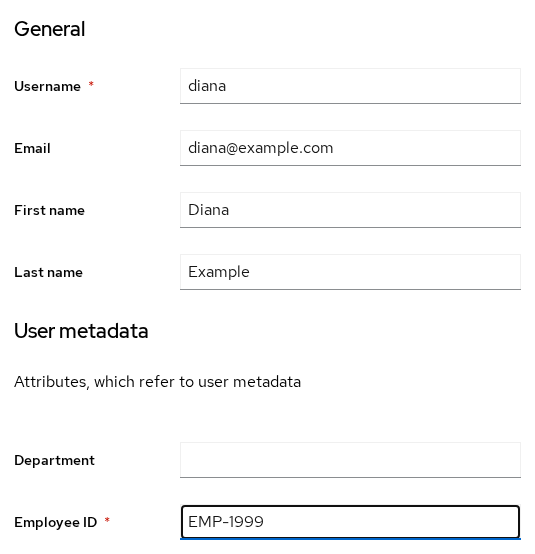
Creating a user does not create login credentials.
- The account exists in the realm
- The user still cannot log in with a password until you set one on the Credentials tab
- Open Credentials next, or assign Required actions on the Details tab if the user must complete a step before login succeeds
Set or reset a user password
Passwords live on the Credentials tab for each user. The Temporary toggle chooses temporary vs permanent.
| Setting | On first login |
|---|---|
| Temporary on | User must change password before normal access |
| Temporary off | User keeps the password you set |
Permanent password in the console
- Open Diana → Credentials tab.
- Click Set password, enter
DianaPerm!2026, turn Temporary off, and confirm.
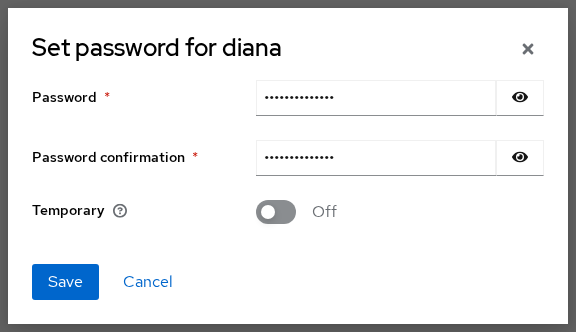
With Temporary off, Keycloak does not add UPDATE_PASSWORD to required actions.
Temporary password (API)
A temporary password adds UPDATE_PASSWORD.
- The user must complete that action before normal login or token issuance
- The examples below reuse Diana from the Console steps
Get an admin token for the API examples
- The following lifecycle sections reuse this
$TOKEN - A complete create-user REST example appears later
TOKEN=$(curl -s -X POST 'http://127.0.0.1:8080/realms/master/protocol/openid-connect/token' \
  -H 'Content-Type: application/x-www-form-urlencoded' \
  -d 'username=admin' -d 'password=ChangeMe!2026' -d 'grant_type=password' -d 'client_id=admin-cli' | python3 -c 'import sys,json; print(json.load(sys.stdin)["access_token"])')
Look up Diana and set a temporary password on her id:
DIANA_ID=$(curl -s 'http://127.0.0.1:8080/admin/realms/golinuxcloud/users?username=diana&exact=true' \
  -H "Authorization: Bearer ${TOKEN}" | python3 -c 'import sys,json; print(json.load(sys.stdin)[0]["id"])')

curl -s -o /dev/null -w '%{http_code}\n' -X PUT \
  "http://127.0.0.1:8080/admin/realms/golinuxcloud/users/${DIANA_ID}/reset-password" \
  -H "Authorization: Bearer ${TOKEN}" -H 'Content-Type: application/json' \
  -d '{"type":"password","value":"TempPass!2026","temporary":true}'
HTTP 204 means the password was accepted. Confirm the required action:
curl -s "http://127.0.0.1:8080/admin/realms/golinuxcloud/users/${DIANA_ID}" \
-H "Authorization: Bearer ${TOKEN}" | python3 -c 'import sys,json; print(json.load(sys.stdin)["requiredActions"])'['UPDATE_PASSWORD']A password grant with the temporary password fails until the change completes:
curl -s -X POST 'http://127.0.0.1:8080/realms/golinuxcloud/protocol/openid-connect/token' \
  -H 'Content-Type: application/x-www-form-urlencoded' \
-d 'username=diana' -d 'password=TempPass!2026' -d 'grant_type=password' -d 'client_id=admin-cli'{"error":"invalid_grant","error_description":"Account is not fully set up"}Clear the loop before you continue:
- Set a permanent password again in the console, or
- Send
"temporary":falsein the reset-password call
curl -s -o /dev/null -w '%{http_code}\n' -X PUT \
  "http://127.0.0.1:8080/admin/realms/golinuxcloud/users/${DIANA_ID}/reset-password" \
  -H "Authorization: Bearer ${TOKEN}" -H 'Content-Type: application/json' \
  -d '{"type":"password","value":"DianaPerm!2026","temporary":false}'
Required actions
Required actions tell Keycloak that the user must complete a task before login finishes. Common examples:
- Change a temporary password
- Verify an email address
Common built-in actions in Keycloak 26.x:
- Update Password
- Verify Email
- Configure OTP
- Update Profile
- Update User Locale
How they get assigned:
- On the user Details tab under Required user actions
- Automatically when you set a temporary password (as with Diana above)
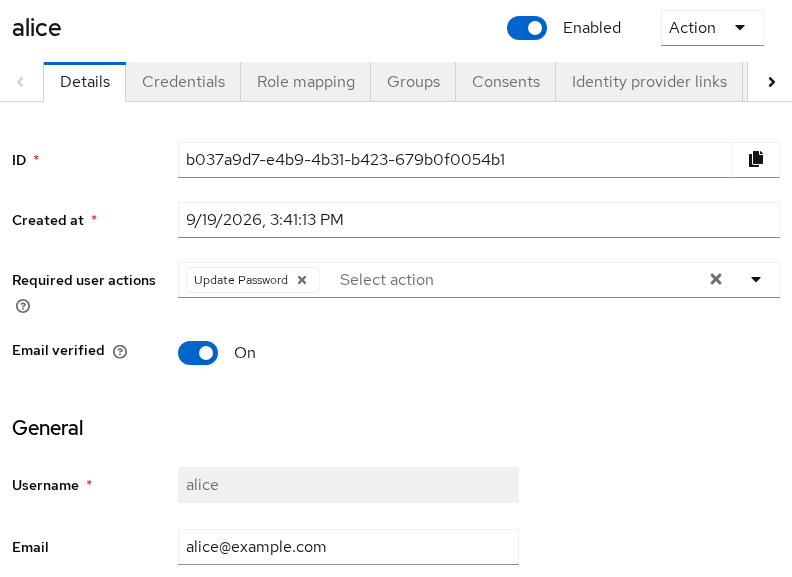
If you remove a required action without changing the password:
- The account stays blocked when the credential is still temporary
- Set a permanent password, or clear the action only when you mean to lift the requirement
Enable, disable, and delete users
- Disable — keeps the user record and role mappings, but blocks authentication
- Delete — removes the user account from that realm, including its local user record
Disable Diana through the API (reuse $DIANA_ID from earlier, or look her up again):
DIANA_ID=$(curl -s 'http://127.0.0.1:8080/admin/realms/golinuxcloud/users?username=diana&exact=true' \
  -H "Authorization: Bearer ${TOKEN}" | python3 -c 'import sys,json; print(json.load(sys.stdin)[0]["id"])')

curl -s -o /dev/null -w '%{http_code}\n' -X PUT \
  "http://127.0.0.1:8080/admin/realms/golinuxcloud/users/${DIANA_ID}" \
  -H "Authorization: Bearer ${TOKEN}" -H 'Content-Type: application/json' \
-d '{"enabled":false}'204Confirm the flag:
curl -s "http://127.0.0.1:8080/admin/realms/golinuxcloud/users/${DIANA_ID}" \
-H "Authorization: Bearer ${TOKEN}" | python3 -c 'import sys,json; print(json.load(sys.stdin)["enabled"])'FalseA disabled user:
- Still appears in Admin Console searches
- Cannot obtain tokens
- Can be toggled the same way in Admin Console: open the user → Details → turn Enabled off
Re-enable Diana so you can keep using her for search below:
curl -s -o /dev/null -w '%{http_code}\n' -X PUT \
  "http://127.0.0.1:8080/admin/realms/golinuxcloud/users/${DIANA_ID}" \
  -H "Authorization: Bearer ${TOKEN}" -H 'Content-Type: application/json' \
-d '{"enabled":true}'Create a disposable user, then delete it:
curl -s -o /dev/null -w '%{http_code}\n' -X POST 'http://127.0.0.1:8080/admin/realms/golinuxcloud/users' \
  -H "Authorization: Bearer ${TOKEN}" -H 'Content-Type: application/json' \
  -d '{"username":"to-delete","enabled":true}'

DELETE_ID=$(curl -s 'http://127.0.0.1:8080/admin/realms/golinuxcloud/users?username=to-delete&exact=true' \
  -H "Authorization: Bearer ${TOKEN}" | python3 -c 'import sys,json; print(json.load(sys.stdin)[0]["id"])')

curl -s -o /dev/null -w '%{http_code}\n' -X DELETE \
  "http://127.0.0.1:8080/admin/realms/golinuxcloud/users/${DELETE_ID}" \
-H "Authorization: Bearer ${TOKEN}"201
204A follow-up search returns an empty list when the user is gone:
curl -s 'http://127.0.0.1:8080/admin/realms/golinuxcloud/users?username=to-delete&exact=true' \
-H "Authorization: Bearer ${TOKEN}"[]Search and list users
Large realms need search and paging on the user list.
- Admin Console: search box on Users
- API: query parameters on
GET /admin/realms/{realm}/users
| Parameter | Purpose |
|---|---|
search |
Broad user search across common profile fields |
username |
Filter by username (use exact=true for exact match) |
email |
Filter by email |
first |
Offset for pagination (0-based) |
max |
Page size (default 100) |
Admin Console search tips:
- Plain text is generally a prefix search
- Use
*value*for an infix match - Use quotes for an exact search
Search by Diana's email:
curl -s 'http://127.0.0.1:8080/admin/realms/golinuxcloud/users?search=diana@example.com' \
-H "Authorization: Bearer ${TOKEN}" | python3 -c 'import sys,json; u=json.load(sys.stdin); print(u[0]["username"] if u else "not found")'dianaPaginate the first ten users:
curl -s 'http://127.0.0.1:8080/admin/realms/golinuxcloud/users?first=0&max=10' \
-H "Authorization: Bearer ${TOKEN}" | python3 -c 'import sys,json; print(len(json.load(sys.stdin)))'7Notes on paging:
- The number depends on how many users already exist in the realm
- When Admin Console feels slow, narrow the search string before raising
max - Automation should always pass
firstandmaxinstead of pulling the full user list on every sync
Create and manage Keycloak users with the Admin REST API
The Admin REST API exposes the same core user lifecycle operations as Admin Console. Base path:
/admin/realms/{realm}/usersReuse the $TOKEN from earlier, or request a new one with the same command.
Create a user with curl
Create user alice with profile fields using the curl command:
curl -s -o /dev/null -w '%{http_code}\n' -X POST 'http://127.0.0.1:8080/admin/realms/golinuxcloud/users' \
  -H "Authorization: Bearer ${TOKEN}" -H 'Content-Type: application/json' \
  -d '{"username":"alice","email":"alice@example.com","firstName":"Alice","lastName":"Example","enabled":true,"emailVerified":true}'
What 201 means:
- The user was created
- Keycloak returns the new id in the
Locationheader when you omit-o /dev/null - Create still does not set a password — set one next, or the account cannot log in
- If create returns
400witherror-user-attribute-required, the realm User Profile requires extra fields — see Keycloak user attributes and User Profile
Look up Alice and set a permanent password:
ALICE_ID=$(curl -s 'http://127.0.0.1:8080/admin/realms/golinuxcloud/users?username=alice&exact=true' \
  -H "Authorization: Bearer ${TOKEN}" | python3 -c 'import sys,json; print(json.load(sys.stdin)[0]["id"])')

curl -s -o /dev/null -w '%{http_code}\n' -X PUT \
  "http://127.0.0.1:8080/admin/realms/golinuxcloud/users/${ALICE_ID}/reset-password" \
  -H "Authorization: Bearer ${TOKEN}" -H 'Content-Type: application/json' \
-d '{"type":"password","value":"AlicePerm!2026","temporary":false}'204Use "temporary":true when the user must change the password on first login (same UPDATE_PASSWORD flow as Diana earlier).
Create a user with kcadm
kcadm.shships in the Keycloak image- The Install Keycloak with Podman guide names the container
keycloak-podman - Set that name (or yours) once:
KC_CONTAINER=keycloak-podmanConfigure credentials inside the container:
podman exec "$KC_CONTAINER" /opt/keycloak/bin/kcadm.sh config credentials \
  --server http://localhost:8080 --realm master --user admin --password 'ChangeMe!2026'
Create frank in golinuxcloud with the same profile fields Alice got over REST. Username alone is not enough when User Profile requires first and last name for login.
podman exec "$KC_CONTAINER" /opt/keycloak/bin/kcadm.sh create users -r golinuxcloud \
  -s username=frank -s enabled=true -s email=frank@example.com \
-s firstName=Frank -s lastName=Example -s emailVerified=trueCreated new user with id 'a00a703e-8b96-44dd-8a19-feaabdf6243b'Set a permanent password after create. Without this step Frank cannot log in with a password.
podman exec "$KC_CONTAINER" /opt/keycloak/bin/kcadm.sh set-password -r golinuxcloud \
  --username frank --new-password 'FrankPerm!2026'
Add -t / --temporary when Frank must change the password on first login.
Common problems
| Symptom | Likely cause | Fix |
|---|---|---|
| User visible in API but not in expected console list | Wrong current realm (master vs application realm) |
Switch realm in top-left selector; confirm URL contains #/golinuxcloud/ |
Account is not fully set up on login |
Temporary password or pending required action | Complete the action at login or set a permanent password and clear stale required actions |
409 / "User exists with same username" on create |
Duplicate username in the same realm | Pick a new username or update the existing user |
| Email login fails but username works | Login with email disabled in realm settings | Enable Login with email or authenticate with username |
| Profile save or login blocked | Required User Profile field missing | Add the field on the user or relax User Profile requirements — see user attributes |
| Federated user missing Credentials tab | Password managed by LDAP/AD | Reset password in the directory or use federation sync tools — not local credential reset |
Related topics
These topics sit next to user lifecycle but belong in dedicated guides:
- Groups and roles — Groups / Role mapping tabs after create. See realm roles vs client roles and groups.
- Attributes and User Profile — custom fields and validation. See user attributes.
- Sessions — sign out or revoke after a credential reset. See sessions.
- LDAP / SCIM — directory-backed users follow different rules than local accounts.
Summary
Local Keycloak users follow a clear lifecycle:
- Create the account
- Set a password
- Optionally require first-login actions
- Enable, disable, search, or delete as needed
Creating a user alone does not grant login. Credentials and required actions decide whether authentication succeeds.
Realm context trips most new admins:
- User lists, searches, and API calls are always scoped to one realm
masteris for Keycloak administration, not application accounts- Use Admin Console for one-off work
- Use Admin REST API or
kcadmfor automation
References
- Keycloak Server Administration Guide — Managing users
- Keycloak Admin REST API — Users
- Keycloak documentation home
Frequently Asked Questions
Can the same username exist in two realms?
Yes. Usernames are unique per realm, not across the whole Keycloak server.
aliceinrealm-aandaliceinrealm-bare different user ids- Each has its own passwords and sessions
What is the difference between disabling a user and deleting one?
- Disable — sets
enabledto false. Record, groups, and roles remain; authentication fails - Delete — removes the user account from that realm, including its local user record
Why does a temporary password block API token requests?
- Keycloak adds the
UPDATE_PASSWORDrequired action whentemporaryis true on a password reset - Until the user completes that step, the account is not fully set up
- Password grants return
invalid_grant
How does Admin Console user search work?
- Plain text is generally a prefix search
- Use
*value*for an infix match - Use quotes for an exact search
- The API also accepts dedicated
usernameandemailfilters withexact=truewhen automation needs a precise match
Can I manage users only through the API?
Yes. The Admin REST API supports the same core user lifecycle operations:
- Create, read, update, delete
- Credentials and required actions
You can automate user management without using the Admin Console.
