
| Tested on | Red Hat Enterprise Linux 10.2 (Coughlan) Windows Server 2025 AD DC — WIN-8S0K67EP5EO.lab.example (192.168.56.128) |
|---|---|
| Package | quay.io/keycloak/keycloak:26.7.3krb5-workstation (host kinit / klist) |
| Applies to | Keycloak 26.x with Microsoft Active Directory user federation (lab-ad) |
| Privilege | Keycloak realm admin; AD account that can create a service user and register SPNs (domain admin in the lab) |
| Lab environment | Keycloak on http://127.0.0.1:8080/ — Install Keycloak with PodmanPrerequisite — Integrate Keycloak with Active Directory (realm golinuxcloud, provider lab-ad) |
| Scope | How to configure Keycloak Kerberos authentication against Microsoft Active Directory when users already come from an LDAP federation provider: HTTP SPN, keytab export, krb5.conf realm mapping, Podman mounts, Allow Kerberos authentication on the existing AD LDAP provider, and Kerberos as Alternative in the browser flow. Does not add a standalone Kerberos user federation provider for this AD-backed setup. Does not cover password login failures after sync (Keycloak AD login fails after sync) or full desktop/browser SPNEGO (Keycloak Kerberos SPNEGO Desktop SSO). |
| Related guides | Integrate Keycloak with Active Directory Keycloak identity brokering explained Keycloak AD login fails after sync Keycloak sAMAccountName vs userPrincipalName Map Active Directory groups to Keycloak roles |
With Kerberos enabled, Keycloak can authenticate an AD user from a Kerberos ticket instead of asking AD to validate the user's password for that login. In browser SSO, Kerberos provides the service ticket and SPNEGO carries that ticket in the HTTP authentication exchange between the browser and Keycloak.
This walkthrough keeps the existing lab-ad LDAP federation from Integrate Keycloak with Active Directory and adds server-side Kerberos on realm golinuxcloud. The HTTP principal uses vm1.lab.example because that is the hostname clients must use later; password login over http://127.0.0.1:8080 is unchanged and cannot prove browser Kerberos against the loopback URL.
Kerberos on lab-ad is user federation, not identity brokering. Keycloak validates tickets against AD through the LDAP provider; it does not register Active Directory as an Identity provider with a browser redirect to Microsoft’s login UI. Use brokering when you need “Sign in with Entra/Okta” style redirects instead of the Keycloak password or Negotiate flow on this realm.
Keycloak Kerberos with Active Directory: Quick Answer
For Active Directory users already federated into Keycloak through LDAP:
- Create a dedicated AD service account for Keycloak.
- Register an HTTP SPN such as
HTTP/vm1.lab.example. - Export that principal to a keytab.
- Configure
krb5.confsolab.examplemaps to Kerberos realmLAB.EXAMPLE. - Mount the keytab and
krb5.confinto Keycloak. - On the existing AD LDAP provider, enable Allow Kerberos authentication.
- Enable Kerberos as Alternative in the browser authentication flow.
You do not need a second standalone Kerberos user federation provider when the users already come from Active Directory LDAP.
How Keycloak Kerberos works with Active Directory
LDAP authentication vs Kerberos authentication
Active Directory is both an LDAP directory and a Kerberos KDC. Password login uses LDAP binds through lab-ad. Kerberos login uses tickets from the same domain controller, resolved against the same LDAP-backed users when Allow Kerberos authentication is on.
          Active Directory
     +-----------------------+
     | LDAP users            |
     | Kerberos KDC          |
     +----------+------------+
                |
        +-------+-------+
        |               |
      LDAP            Kerberos
        |            service ticket
        v               |
 +-----------------------------+
 | Keycloak                    |
 | lab-ad LDAP provider        |
 | Allow Kerberos auth = On    |
 | HTTP/vm1... keytab          |
 +-----------------------------+
                |
                v
          Browser / user
AD supplies both the directory users and Kerberos tickets; the existing LDAP provider ties those identities together in Keycloak.
SPN, service principal, keytab, and SPNEGO
| Term | Meaning here |
|---|---|
| KDC | Active Directory domain controller service that issues Kerberos tickets |
| SPN | Name that identifies the Keycloak HTTP service to Kerberos, such as HTTP/vm1.lab.example |
| Service principal | Full Kerberos identity, for example HTTP/vm1.lab.example@LAB.EXAMPLE |
| Keytab | File containing the service's long-term Kerberos key so Keycloak can accept tickets |
| TGT | Ticket a domain user gets from the KDC and later uses to request service tickets |
| SPNEGO | Browser mechanism that carries the Kerberos ticket to Keycloak over HTTP |
HTTP/ is the Kerberos service class used for browser and web authentication. Even when Keycloak is reached over HTTPS, the Kerberos SPN still uses the HTTP/hostname form—not HTTPS/....
Three identifiers must agree for Kerberos authentication to work:
| Name type | Lab value | Used for |
|---|---|---|
| DNS domain | lab.example |
Hostnames, UPN suffixes |
| Kerberos realm | LAB.EXAMPLE |
Ticket realm, krb5.conf |
| HTTP service principal | HTTP/vm1.lab.example@LAB.EXAMPLE |
Keytab inside Keycloak |
The keytab contains the secret key Keycloak uses to validate tickets issued for its HTTP service principal.
Before you configure Keycloak Kerberos
This guide assumes:
- the
lab-adprovider already connects, Sync all users works, and password login works before you add Kerberos - commands using
ktpassorsetspnrun on the Windows domain controller kinit,klist, andldapsearchrun on the RHEL Keycloak host (not inside the container unless noted)- Keycloak runs inside Podman on that host; Admin Console changes run in your browser
- the Keycloak host and container can resolve
vm1.lab.exampleand the domain controller FQDN - TCP/UDP Kerberos traffic to the AD KDC (port
88) is allowed in your environment - the Keycloak host, domain controller, and later client machines stay synchronized with NTP—excessive clock skew breaks ticket validation even when the SPN and keytab are correct
- clients will eventually reach Keycloak as
vm1.lab.example, which matches the HTTP SPN;localhost,127.0.0.1, or another alias will not match this lab principal - the HTTP SPN is registered on only one AD account
- the keytab is readable by the Keycloak process inside the container and not world-readable on the host
krb5.confis mounted inside the container andJAVA_OPTS_APPENDpoints the JVM to that pathkeycloak-httpis an Active Directory service account, not a Keycloak user—it owns theHTTP/vm1.lab.exampleSPN and the key material in the keytab- host-side
kinittests use the same labkrb5.confthroughKRB5_CONFIG, not only the system/etc/krb5.conf
On RHEL, install Kerberos client utilities on the Keycloak host before you test the keytab:
sudo dnf install -y krb5-workstationkrb5-workstation is installed here for the host-side kinit and klist verification commands. Keycloak itself uses Java Kerberos support and does not depend on those CLI tools at runtime.
| Role | Value |
|---|---|
| Keycloak host | vm1.lab.example (192.168.56.116), Podman publish 127.0.0.1:8080 |
| Domain controller | win-8s0k67ep5eo.lab.example (192.168.56.128) |
| Kerberos realm | LAB.EXAMPLE |
| LDAP provider | lab-ad (unchanged bind and sync settings) |
| Kerberos service account | keycloak-http |
| Keytab on host | ~/keycloak-ad-lab/kerberos/http.keytab |
krb5.conf on host |
~/keycloak-ad-lab/kerberos/krb5.conf |
Create the Keycloak HTTP SPN and keytab in Active Directory
keycloak-http is an Active Directory service account, not a Keycloak user. Its purpose is to own the HTTP/vm1.lab.example SPN and the key material exported into the keytab. Keycloak needs that dedicated AD identity (or a gMSA in production) and an HTTP/ SPN that matches the hostname browsers will use.
Verify the HTTP SPN is unique
On the Windows domain controller, check whether the HTTP SPN is already registered:
setspn -Q HTTP/vm1.lab.exampleThe SPN must belong to only one AD account. If it is already registered elsewhere, remove or fix the duplicate before you create the keytab.
Export the HTTP keytab with ktpass
Create keycloak-http in Active Directory, then export a keytab with ktpass. ktpass -mapuser maps the Kerberos principal to that AD account in this lab. setspn -Q above ensures the HTTP SPN is not already registered on another account before you run ktpass. Store the service-account password in a vault; do not put it on the shell command line in production scripts.
Sample ktpass invocation (run on the Windows DC):
ktpass -out C:\Users\Public\keycloak-http.keytab ^
  -princ HTTP/vm1.lab.example@LAB.EXAMPLE ^
  -mapuser keycloak-http@LAB.EXAMPLE ^
  -pass <service-account-password> ^
  -ptype KRB5_NT_PRINCIPAL -crypto AES256-SHA1
Regenerating the keytab or changing the service-account password changes the Kerberos key material. Keep the account password and the deployed keytab synchronized.
Copy the resulting keycloak-http.keytab to the Keycloak host as ~/keycloak-ad-lab/kerberos/http.keytab. Restrict permissions so the Keycloak process inside the container can read the file and other host users cannot read it unnecessarily (chmod 640 is a reasonable starting point on the host bind-mount).
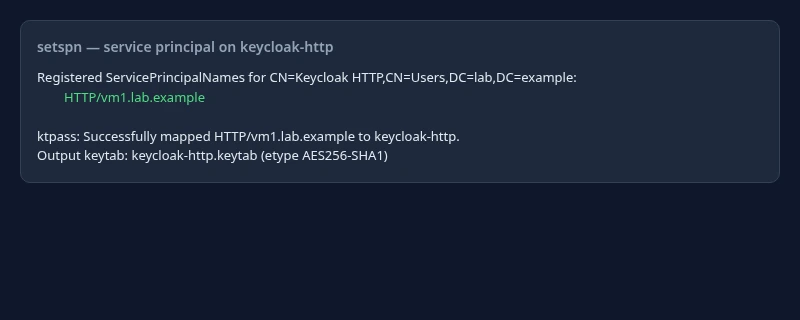
Browsers must eventually access Keycloak as vm1.lab.example. A loopback Admin Console URL such as http://127.0.0.1:8080 is fine for LDAP password login, but it cannot validate Kerberos browser authentication against HTTP/vm1.lab.example.
Configure krb5.conf for the Active Directory realm
Linux and the Keycloak JVM read Kerberos settings from krb5.conf. Point the realm at your domain controller and map the DNS suffix to the realm:
[libdefaults]
    default_realm = LAB.EXAMPLE
    dns_lookup_realm = false
    dns_lookup_kdc = true

[realms]
    LAB.EXAMPLE = {
        kdc = win-8s0k67ep5eo.lab.example
        admin_server = win-8s0k67ep5eo.lab.example
    }

[domain_realm]
    .lab.example = LAB.EXAMPLE
    lab.example = LAB.EXAMPLE
Save that file as ~/keycloak-ad-lab/kerberos/krb5.conf on the Keycloak host.
Mount krb5.conf and the keytab into the container, and tell the Keycloak JVM where to find the Kerberos configuration. JAVA_OPTS_APPEND is a launcher environment variable for JVM options—it is not a normal keycloak.conf setting such as hostname or truststore-paths. On Podman, pass it when you create or update the container (alongside existing mounts for keycloak.conf and the DC trust PEM):
podman run -d --name keycloak-podman \
  -p 127.0.0.1:8080:8080 \
  -e JAVA_OPTS_APPEND="-Djava.security.krb5.conf=/opt/keycloak/conf/krb5.conf" \
  -v ~/keycloak-ad-lab/conf/keycloak.conf:/opt/keycloak/conf/keycloak.conf:Z \
  -v ~/keycloak-ad-lab/trust/lab-dc.pem:/mnt/trust/lab-dc.pem:ro,Z \
  -v ~/keycloak-ad-lab/kerberos/krb5.conf:/opt/keycloak/conf/krb5.conf:ro,Z \
  -v ~/keycloak-ad-lab/kerberos/http.keytab:/opt/keycloak/conf/http.keytab:ro,Z \
  quay.io/keycloak/keycloak:26.7.3 start-dev --hostname=http://127.0.0.1:8080
Add your bootstrap admin and other -e flags from Install Keycloak with Podman if this is a new container. Restart Keycloak after you change the mounts or JAVA_OPTS_APPEND.
Test the keytab with kinit
Run the test on the Keycloak host and explicitly point the Kerberos client at the lab krb5.conf (host kinit normally reads /etc/krb5.conf and will not pick up ~/keycloak-ad-lab/kerberos/krb5.conf unless you set KRB5_CONFIG):
KRB5_CONFIG=~/keycloak-ad-lab/kerberos/krb5.conf kinit -kt ~/keycloak-ad-lab/kerberos/http.keytab HTTP/vm1.lab.example@LAB.EXAMPLEkinit exits silently when the keytab and KDC agree on the HTTP principal. List the ticket to confirm the principal name:
klistTicket cache: KCM:0:...
Default principal: HTTP/vm1.lab.example@LAB.EXAMPLE
Valid starting Expires Service principal
10/17/2026 02:32:14 10/17/2026 12:32:14 krbtgt/LAB.EXAMPLE@LAB.EXAMPLEA successful kinit with KRB5_CONFIG set confirms that the lab krb5.conf, keytab, and KDC reachability work together on the host. Keycloak can still fail if the container cannot read the mounted keytab, cannot resolve the KDC, or is not started with the expected JAVA_OPTS_APPEND. Verify the keytab on the server before troubleshooting browser SPNEGO.
Enable Kerberos on the Keycloak Active Directory provider
Open realm golinuxcloud in the browser → User federation → lab-ad → Settings.
Turn Allow Kerberos authentication on and set Kerberos realm to LAB.EXAMPLE.
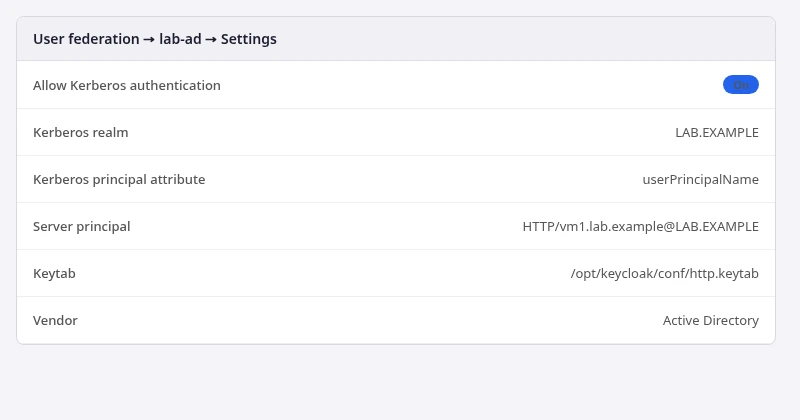
Kerberos realm and principal attribute
Kerberos principal attribute tells Keycloak which LDAP attribute to use when matching the Kerberos identity to an AD user. In this lab, userPrincipalName is used because the federated users already have UPN values such as jane@lab.example.
On lab-ad, set Keytab to /opt/keycloak/conf/http.keytab and Server principal to HTTP/vm1.lab.example@LAB.EXAMPLE (paths inside the container, matching the bind-mounts above).
This does not remove LDAP password validation. It lets Keycloak associate Kerberos principals with users that lab-ad already imports from AD.
Do you also need a separate Kerberos provider?
No, not for this Active Directory setup.
The users in this guide already come from the lab-ad LDAP provider. Enable Allow Kerberos authentication on that provider so Keycloak can associate Kerberos principals with those LDAP-backed users.
Use the standalone Kerberos user federation provider only when Kerberos users are not backed by LDAP; it is not needed for this lab-ad setup.
Enable Kerberos in the Keycloak browser flow
Kerberos login in the browser uses the Kerberos execution in the browser authentication flow. Set Kerberos to Alternative so Keycloak tries Kerberos when the browser supplies a Negotiate token, while still falling back to the normal login form when it does not.
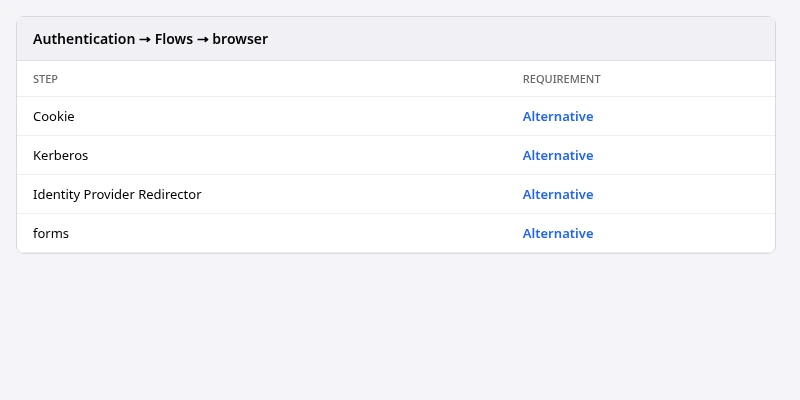
SPNEGO stays disabled until this execution is enabled. Official Keycloak documentation recommends Alternative when regular form login should remain available.
Client DNS, browser policy, and hostname alignment for full desktop SSO are covered in the dedicated Kerberos/SPNEGO lesson. With the steps above, server-side prerequisites (keytab, realm map, LDAP Kerberos flags, browser flow) are in place for that follow-on guide.
Verify the HTTP SPN in Active Directory
Optional cross-check from the Keycloak host: confirm Active Directory stores the SPN on the service account. Use the bind account only for directory reads—not for Kerberos service login.
LDAPTLS_CACERT=~/keycloak-ad-lab/trust/lab-dc.pem ldapsearch -x -ZZ -H ldap://win-8s0k67ep5eo.lab.example:389 -D "keycloak-bind@lab.example" -W -b "DC=lab,DC=example" "(sAMAccountName=keycloak-http)" servicePrincipalNameEnter the bind password when prompted.
dn: CN=Keycloak HTTP,CN=Users,DC=lab,DC=example
servicePrincipalName: HTTP/vm1.lab.example
The servicePrincipalName value must match the principal you passed to ktpass and the HTTP service principal configured on lab-ad.
Troubleshoot Keycloak Kerberos with Active Directory
| Symptom | Likely cause | Fix |
|---|---|---|
kinit -kt fails with Client not found |
Wrong SPN or principal string | Re-run setspn / ktpass; match HTTP/<fqdn>@LAB.EXAMPLE everywhere |
kinit fails with Cannot contact KDC |
DNS or port 88 blocked |
Confirm dig +short _kerberos._tcp.lab.example points at the DC; open firewall to the KDC |
kinit works, Keycloak Kerberos does not |
Container mount, krb5.conf, or keytab path |
Confirm bind-mounts and JAVA_OPTS_APPEND; restart Keycloak |
| Keycloak starts but Kerberos login never triggers | Browser flow Kerberos disabled | Set Kerberos to Alternative in the browser flow |
| Realm mismatch in logs | DNS domain vs Kerberos realm | Add [domain_realm] mapping; set Kerberos realm to uppercase LAB.EXAMPLE |
| Kerberos ticket accepted but user cannot be resolved | Principal does not match Kerberos principal attribute or user outside Users DN | Verify userPrincipalName, Kerberos principal attribute, Users DN, and LDAP lookup |
| Ticket validation fails with no obvious config error | Clock skew | Sync NTP on Keycloak host, DC, and clients |
For wrong-password symptoms after sync, use Keycloak AD login fails after sync instead of re-tracing Kerberos.
Summary
Active Directory Kerberos integration in Keycloak starts on the domain controller: a service account, a unique HTTP/ SPN that matches your public hostname, and a keytab exported with ktpass. On the Keycloak host, krb5.conf maps lab.example to realm LAB.EXAMPLE, and Podman mounts both krb5.conf and the keytab into /opt/keycloak/conf/.
For users already federated through lab-ad, enable Allow Kerberos authentication on that LDAP provider—do not add a second standalone Kerberos federation provider. Set Kerberos to Alternative in the browser flow so Negotiate can run before the password form.
Host-side kinit with KRB5_CONFIG validates the lab krb5.conf, keytab, and KDC reachability; it does not replace checking mounts and JAVA_OPTS_APPEND inside the container. The usual production pitfalls are duplicate SPNs, hostname drift, clock skew, and a keytab the container cannot read. After this foundation is stable, configure browsers and client machines for SPNEGO in the follow-on SSO guide.
References
- Keycloak Server Administration Guide — Kerberos
- Microsoft Learn — Kerberos and Active Directory
- Microsoft Learn — setspn
- Microsoft Learn — ktpass
Frequently Asked Questions
Does Keycloak store Active Directory password hashes when Kerberos is enabled?
No. Kerberos tickets are validated with the HTTP keytab and the KDC; user passwords stay in Active Directory. The lab-ad provider still uses LDAP for password login and user sync.
Can I use the LDAP bind account for the HTTP keytab?
Use a separate service account. The bind account is for directory searches. The HTTP principal should map to its own identity with only the SPN and keytab it needs.
Why is the principal HTTP/vm1.lab.example and not 127.0.0.1?
Kerberos service principals are tied to hostnames. Browsers participating in SPNEGO must reach Keycloak under the same name that appears in the SPN.
Do I need a standalone Kerberos user federation provider with lab-ad?
No. When users come from Active Directory through an LDAP provider, enable Allow Kerberos authentication on that LDAP provider. The standalone Kerberos provider is for non-LDAP-backed Kerberos environments.
Is enabling Kerberos on the browser flow enough for Windows desktop SSO?
Not by itself. You still need client DNS, browser policy, and a URL that matches the SPN. This article stops at server-side keytab and realm configuration.
