
| Tested on | Red Hat Enterprise Linux 10.2 (Coughlan) |
|---|---|
| Package | podman-5.8.2-5.el10_2.x86_64quay.io/keycloak/keycloak:26.7.3 |
| Applies to | RHEL, Rocky Linux, AlmaLinux, and other Linux distributions with Podman installed |
| Privilege | Normal user for rootless Podman (commands below run without root) |
| Scope | Pull the official Keycloak image, run start-dev with rootless podman run, temporary bootstrap admin login, configuration through -e, --env-file, or a mounted keycloak.conf, optional start-dev lab volumes, stop or restart the container, and remove the lab container — not realm setup, Docker Engine steps, or PostgreSQL production layout |
| Related guides | Keycloak start vs start-dev |
In this article we will run Keycloak 26.7.3 in a rootless Podman container on 127.0.0.1:8080, create a temporary bootstrap administrator, and sign in to the Admin Console.
Podman uses the same official Quay image as Docker — only the CLI and rootless networking differ on RHEL-family hosts. This guide covers volumes, SELinux :Z mounts, and where container configuration lives; production start with PostgreSQL is a separate step.
Requirements
Install Podman before you pull the Keycloak image. On RHEL, Rocky Linux, and AlmaLinux, see Install Podman on RHEL; Fedora and other distributions ship Podman from their own repositories with the same workflow.
Confirm Podman responds for your user account:
podman --versionSample output:
podman version 5.8.2The version line confirms Podman is installed for your user.
All commands below run as your normal Linux user. Rootless Podman uses a user namespace so container processes do not run with root privileges on the host. Port 8080 can also be published without elevated privileges.
Before starting the container, check memory and port availability:
- For this walkthrough, allocate about 2 GiB of memory and at least 1 CPU to the host. These are comfortable lab resources, not minimum Keycloak production-sizing requirements
- Port 8080 on the host must be free — check with
ss -tlnp | grep :8080before you run the container
If you standardize on Docker Engine instead of Podman, follow Install Keycloak with Docker — the Quay image and start-dev command are the same.
Pull the Keycloak image with Podman
Keycloak publishes container images on Quay at quay.io/keycloak/keycloak.
Set the version once:
KEYCLOAK_VERSION=26.7.3Exporting the version once keeps the pull and run commands aligned.
Pull the image:
podman pull quay.io/keycloak/keycloak:${KEYCLOAK_VERSION}Sample output (trimmed):
Trying to pull quay.io/keycloak/keycloak:26.7.3...
Getting image source signatures
Copying blob sha256:b3d6c746fb20f88a1d51ed75d6bc5e9af0dd3d8dadcc3b38391b9bc72c122d00
Copying config sha256:7e95c7134d40039d0cc87a2563553e4fda2e6aa628b522f7d94614335fe6b781
Writing manifest to image destination
7e95c7134d40039d0cc87a2563553e4fda2e6aa628b522f7d94614335fe6b781
Podman downloads the image layers once and stores them in your user's local image store. The final line confirms that quay.io/keycloak/keycloak:26.7.3 is ready for podman run. Tag list and release notes live on Quay and in the Keycloak release notes.
Start Keycloak using rootless Podman
The official image starts Keycloak through kc.sh. The final start-dev argument tells Keycloak to use development mode, which enables convenient defaults for this first container setup.
Start Keycloak in the background with podman run -d. This lets the container keep running after the command returns to your shell. The podman run command below binds port 8080 on loopback, sets bootstrap credentials, and names the container keycloak-podman for later log and stop steps:
podman run -d --name keycloak-podman \
  --memory=2g -p 127.0.0.1:8080:8080 \
  -e KC_BOOTSTRAP_ADMIN_USERNAME=admin \
  -e KC_BOOTSTRAP_ADMIN_PASSWORD='ChangeMe!2026' \
  quay.io/keycloak/keycloak:${KEYCLOAK_VERSION} \
start-dev| Flag or argument | Purpose |
|---|---|
-d |
Run detached in the background |
--name keycloak-podman |
Stable name for podman logs, stop, and start |
--memory=2g |
Limit the container to 2 GiB of memory; Keycloak sizes its Java heap as a percentage of this limit |
-p 127.0.0.1:8080:8080 |
Publish container port 8080 on host loopback only |
-e KC_BOOTSTRAP_ADMIN_USERNAME=admin |
Username for the temporary bootstrap administrator |
-e KC_BOOTSTRAP_ADMIN_PASSWORD='ChangeMe!2026' |
Password for the temporary bootstrap administrator |
start-dev |
Development mode with embedded database and relaxed defaults |
The two 8080 values refer to different places. The first is the port on your Linux host; the second is the port where Keycloak listens inside the container. Prefixing the host side with 127.0.0.1 means other machines cannot connect directly to port 8080.
The Keycloak container sizes its Java heap as a percentage of the container memory limit, which is why this example sets --memory=2g rather than leaving container memory unbounded.
KC_BOOTSTRAP_ADMIN_USERNAME and KC_BOOTSTRAP_ADMIN_PASSWORD create a temporary bootstrap administrator when Keycloak initializes the master realm for the first time. These startup bootstrap settings are not a password-reset mechanism for an existing installation. Keycloak marks this account as temporary — see Keycloak bootstrap admin for the lifecycle after first login.
Podman prints the container ID when the run succeeds:
567aadbc10565346b2714b3484696c46c731774b6577e9e006bfc3b9594c635aThe container ID only tells you that Podman launched the process. Next, check that the container stayed running and that Keycloak finished starting.
Check Keycloak container and logs
Confirm the container is still running:
podman ps --filter name=keycloak-podmanSample output:
CONTAINER ID  IMAGE                             COMMAND     CREATED             STATUS             PORTS                                         NAMES
567aadbc1056  quay.io/keycloak/keycloak:26.7.3  start-dev   About a minute ago  Up About a minute  127.0.0.1:8080->8080/tcp, 8443/tcp, 9000/tcp  keycloak-podman
Up means the container process is still running, but it does not guarantee that Keycloak has finished starting.
You may also see 8443/tcp and 9000/tcp. These are ports exposed by the image inside the container. They are not published on the host because there is no host-port-to-container-port mapping for them.
Read startup logs:
podman logs keycloak-podmanSample output (trimmed):
Running the server in development mode. DO NOT use this configuration in production.
2026-09-14 12:43:26,013 INFO  [org.keycloak.services] (main) KC-SERVICES0077: Created temporary admin user with username admin
2026-09-14 12:43:26,551 INFO  [io.quarkus] (main) Keycloak 26.7.3 on JVM (powered by Quarkus 3.33.3.1) started in 40.438s. Listening on: http://0.0.0.0:8080
2026-09-14 12:43:26,552 INFO  [io.quarkus] (main) Profile dev activated.
Wait for the Listening on: line before opening the Admin Console. The Created temporary admin user line confirms that Keycloak created the bootstrap account.
0.0.0.0:8080 here is the address inside the container. Podman publishes that container port only on host address 127.0.0.1, so Keycloak is still reachable from the host at http://127.0.0.1:8080. Follow live logs with podman logs -f keycloak-podman (press Ctrl+C to stop following).
Check HTTP from the host:
curl -s -o /dev/null -w '%{http_code}\n' http://127.0.0.1:8080/admin/Sample output:
302HTTP 302 is a redirect response. Here it is expected and confirms that Keycloak is answering HTTP requests on port 8080.
Open the Keycloak Admin Console
On the same host where port 8080 is published, open:
http://127.0.0.1:8080/admin/When Podman runs on a remote Linux host, forward port 8080 over SSH before you open the URL in a local browser.
The login page should match other Keycloak start-dev installs:
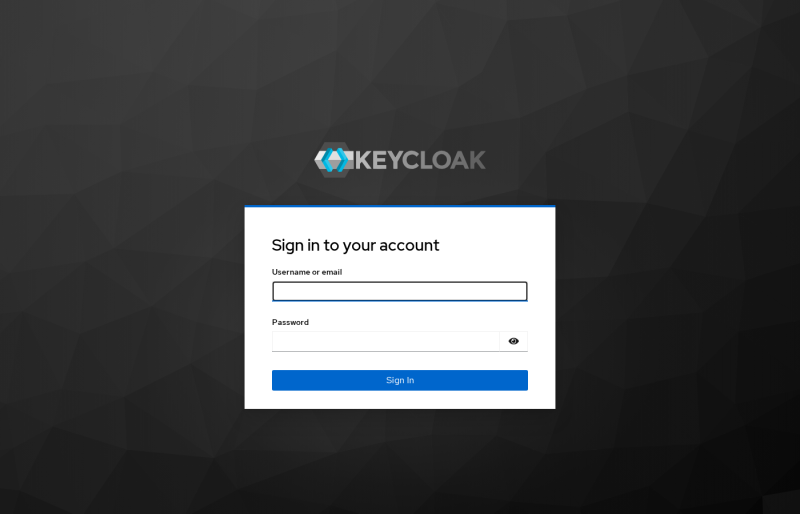
Sign in with username admin and password ChangeMe!2026 from the podman run command.
Choose how to configure Keycloak with Podman
Podman can supply Keycloak settings through -e, --env-file, or a bind-mounted keycloak.conf. You can combine them when different settings come from different sources.
Inside the image, Keycloak reads configuration from /opt/keycloak/conf/keycloak.conf. Keycloak maps kebab-case keys in that file to environment variables with the KC_ prefix — for example, health-enabled becomes KC_HEALTH_ENABLED.
| Method | Example | Best suited for |
|---|---|---|
-e KC_* |
-e KC_BOOTSTRAP_ADMIN_USERNAME=admin |
A few settings or bootstrap credentials on the podman run line |
--env-file |
--env-file ~/keycloak-conf/keycloak.env |
Several variables loaded together instead of repeating -e |
Bind-mounted keycloak.conf |
-v ~/keycloak-conf/keycloak.conf:/opt/keycloak/conf/keycloak.conf:Z |
File-based settings; edit the host file and restart the container |
On RHEL-family hosts with SELinux enforcing, add :Z to a bind mount so Podman relabels the host path for container access. Mount only the file, not the whole conf/ directory — a directory mount hides truststore and cache files the image ships beside keycloak.conf.
Values passed with -e or --env-file are stored when Podman creates the container. A bind-mounted keycloak.conf is read when Keycloak starts, so you can edit the host file and restart without recreating the container — once that mount exists.
This guide used -e for the two bootstrap credentials and left other settings at start-dev defaults.
For build-time vs runtime options, precedence, show-config, and troubleshooting, see Keycloak keycloak.conf configuration.
Stop and restart Keycloak
Stop the container without deleting it:
podman stop keycloak-podmanPodman prints the container name when the stop succeeds:
keycloak-podmanInspect the exited container:
podman ps -a --filter name=keycloak-podmanSample output:
CONTAINER ID  IMAGE                             COMMAND     CREATED        STATUS                       PORTS     NAMES
567aadbc1056  quay.io/keycloak/keycloak:26.7.3  start-dev   5 minutes ago  Exited (143) 2 seconds ago             keycloak-podman
Exit code 143 is expected here because podman stop asks the process to terminate. It does not mean Keycloak crashed.
Start the same container again:
podman start keycloak-podmanpodman start prints the container name and starts the container again using its stored configuration.
Wait for the listening line in the logs, then reopen the Admin Console. podman start reuses the environment stored when you originally ran podman run — you do not pass -e options again. Stopping and starting the same container keeps its embedded Keycloak data when you have not removed the container.
Keep start-dev lab data across container recreation
The start-dev command in this guide uses Keycloak's embedded development database inside the container. That is fine for a first login and short experiments.
podman stop/podman start: data kept in the same containerpodman rmthen a newpodman run: embedded dev data gone unless you attached storage
This section is only for preserving a disposable start-dev lab across container recreation. /opt/keycloak/data holds Keycloak runtime data and the embedded development database; it is not the persistence architecture for a production Keycloak container. Production deployments should use a supported external database such as PostgreSQL — see Configure Keycloak with PostgreSQL when realm data must survive beyond a disposable container.
Named volume
If you specifically want a disposable start-dev database to survive podman rm, you can attach a named Podman volume to /opt/keycloak/data:
podman volume create keycloak-dataPodman creates the volume silently when the name is free.
Creating the volume does not attach it to the existing container. When you recreate the container, add:
-v keycloak-data:/opt/keycloak/dataIf you already created realms or users in the current container, do not remove it unless that data is disposable. This example starts persistence for a new development container; it does not migrate data from the existing container into the volume.
Named Podman volumes handle SELinux labeling internally when you do not need a visible host path.
Bind mount on SELinux systems
Use a bind mount when you want Keycloak's data files in a host directory you can inspect directly. On RHEL-family hosts with SELinux enforcing, a directory can show correct Unix permissions and still produce Permission denied inside Keycloak because SELinux also controls container access.
Podman volume suffixes tell SELinux how to label the mount:
| Suffix | What it does |
|---|---|
:Z |
Gives the bind mount a private SELinux label for this container |
:z |
Shared SELinux label when the same directory must be mounted by multiple containers |
:U |
Recursively changes UID/GID ownership on the host path to match the container user |
:U is not an SELinux option. Podman warns that it recursively changes ownership and should be used with caution. Do not add :U routinely — first verify that SELinux relabeling with :Z is correct and that ownership is actually the remaining problem. It can affect existing host access to those files.
Example for a fresh or disposable container on a host directory in your home folder:
mkdir -p ~/keycloak-bind-data
podman run -d \
  --name keycloak-podman \
  --memory=2g \
  -p 127.0.0.1:8080:8080 \
  -v ~/keycloak-bind-data:/opt/keycloak/data:Z \
  -e KC_BOOTSTRAP_ADMIN_USERNAME=admin \
  -e KC_BOOTSTRAP_ADMIN_PASSWORD='ChangeMe!2026' \
  quay.io/keycloak/keycloak:26.7.3 \
  start-dev
If Keycloak still cannot write because the rootless container UID does not match the host directory ownership, add :U only after confirming that Podman may change ownership of that directory.
After Keycloak creates its database, ls -Z ~/keycloak-bind-data lets you inspect the SELinux label after Podman relabels the directory. The exact context can vary; the important point is that the mount has a container-compatible label rather than its original incompatible host label. Without an appropriate label, Keycloak may report Permission denied or fail to create files under /opt/keycloak/data.
Change Keycloak configuration after installation
How you change a setting later depends on how you supplied it when the container was created.
Environment variables from -e or --env-file become part of the container configuration at podman run time. podman start replays that stored environment, so editing an env file on the host does not change a running or stopped container. Inspect what the container carries:
podman inspect keycloak-podman --format '{{range .Config.Env}}{{println .}}{{end}}' | grep KC_Sample output:
KC_BOOTSTRAP_ADMIN_USERNAME=admin
KC_BOOTSTRAP_ADMIN_PASSWORD=ChangeMe!2026
KC_RUN_IN_CONTAINER=true
podman inspect can reveal environment-variable values, including passwords. That is another reason not to treat plain container environment variables as a secure secrets store.
Changing any of those values means replacing the container: podman rm the old one, then podman run again with the new flags. If the container holds development realms you need, attach a named volume or bind mount from the section above before you remove it.
A bind-mounted keycloak.conf behaves differently once the mount exists. Edit the file on the host and restart:
podman restart keycloak-podmanKeycloak re-reads the mounted file while starting.
You cannot add a bind mount to a container that was already created without one. To introduce a mounted keycloak.conf, recreate the container with -v. If the current container contains development realms you need, preserve or migrate that data first — do not run podman rm on the working lab container just to try a configuration file.
Example for a fresh or disposable container with a host keycloak.conf (health-enabled=true is only a simple illustration, not a health-endpoint tutorial):
mkdir -p ~/keycloak-conf
tee ~/keycloak-conf/keycloak.conf >/dev/null <<'EOF'
health-enabled=true
EOF
podman run -d --name keycloak-podman \
  --memory=2g -p 127.0.0.1:8080:8080 \
  -v ~/keycloak-conf/keycloak.conf:/opt/keycloak/conf/keycloak.conf:Z \
  -e KC_BOOTSTRAP_ADMIN_USERNAME=admin \
  -e KC_BOOTSTRAP_ADMIN_PASSWORD='ChangeMe!2026' \
  quay.io/keycloak/keycloak:${KEYCLOAK_VERSION} \
  start-dev
For longer-lived settings such as database, hostname, and TLS configuration, a mounted keycloak.conf or --env-file both work; environment variables remain useful for secrets supplied at container start. If the same option appears in more than one source, Keycloak applies its precedence rules — the configuration guide covers show-config and override order.
Run Keycloak automatically with systemd
A container created manually with podman run does not automatically start after reboot. Rootless Podman can integrate with systemd through Quadlet .container files. For a complete Quadlet unit, user lingering, reload and start commands, and troubleshooting, see Podman Quadlet systemd units.
Uninstall Keycloak from Podman
Remove the lab container when you no longer need it. Run these commands as the same Linux user that started rootless Podman.
Stop the running container first:
podman stop keycloak-podmanWhen the name prints, remove the container:
podman rm keycloak-podmanpodman rm deletes embedded start-dev realm data unless you attached a named volume or bind mount.
If you created optional lab storage and no longer need its realm data, delete only the storage method you actually used:
podman volume rm keycloak-dataOr, if you used a bind mount under your home directory:
rm -rf ~/keycloak-bind-dataOptionally remove the local image when you will not run Keycloak again soon:
podman rmi quay.io/keycloak/keycloak:${KEYCLOAK_VERSION}Removing the image is optional; keep it if you plan to run Keycloak again. Re-run the install sections from the top when you need a fresh lab.
Common Podman and Keycloak errors
| Symptom | Likely cause | Fix |
|---|---|---|
the container name "keycloak-podman" is already in use |
A stopped or running container already has that name | Run podman ps -a --filter name=keycloak-podman. Start the existing container if you need its data, or remove it only if it is disposable |
bind: address already in use on port 8080 |
Another process or container uses 8080 | ss -tlnp | grep :8080; stop the conflicting service or change the host port in -p |
permission denied on /opt/keycloak/data with a bind mount |
SELinux blocking the mount, or rootless UID/GID ownership mismatch | Confirm the mount uses :Z. Add :U only after :Z is correct and ownership is the remaining problem — :U recursively changes host ownership |
| Container exits immediately | Wrong command, bad image tag, or port bind failure | Run podman logs keycloak-podman; confirm the command ends with start-dev and the image tag exists locally |
| Admin Console unreachable from your laptop | Keycloak published on server loopback only | SSH -L 8080:127.0.0.1:8080 user@server from your workstation |
| Bootstrap credentials do not work after restart | master realm already exists; startup bootstrap credentials do not reset an existing administrator |
Use the existing admin account or follow Keycloak's bootstrap-admin recovery procedure if administrative access has been lost |
| Data missing after recreate | New podman run without lab storage attached first |
Expected for embedded start-dev; attach a named volume or bind mount before podman rm if you need the disposable dev database to survive |
| Keycloak exits with OOM or is very slow | Container or host does not have enough memory for the workload | Check available memory and container limits. For this lab, keep the --memory=2g limit used in the example and inspect podman logs for OOM errors |
Summary
Keycloak now runs as a rootless Podman container on 127.0.0.1:8080. Configuration arrives through -e, --env-file, or a bind-mounted keycloak.conf; this lab used -e for bootstrap credentials on the first podman run. Environment variables are fixed when the container is created, while a mounted configuration file can be edited on the host and picked up after podman restart.
Stopping and starting the same container keeps its embedded development data. A named volume or bind mount on /opt/keycloak/data can preserve a disposable start-dev lab across podman rm, but that path is runtime data — not production persistence. For production, move to external PostgreSQL and production start mode before you change the container command away from start-dev.
To remove the lab, run podman stop keycloak-podman and podman rm keycloak-podman, then delete only the optional storage you created (keycloak-data or ~/keycloak-bind-data). Removing the Quay image is optional if you plan to run Keycloak again soon.
References
- Getting started with Keycloak on Docker — official container quick start (same Quay image)
- Running Keycloak in a container — official container documentation, including memory limits
- Bootstrapping and recovering an admin account — temporary bootstrap administrator lifecycle
- Keycloak on Quay — official image registry
- Podman systemd units (Quadlet) — official Quadlet and systemd integration documentation
- Podman documentation — rootless containers, volumes, and SELinux options
Frequently Asked Questions
Can I run the same image with Docker Engine?
Yes. Keycloak uses the same Quay image with either runtime, and basic options such as -p, -e, and -v are similar. Rootless behavior, networking, SELinux handling, and systemd integration differ, so use the Docker-specific guide when Docker Engine is your runtime.
Do bootstrap environment variables apply on every podman start?
No. podman run creates the container and stores its environment configuration. podman start keycloak-podman starts that same container again; you do not pass -e options again. The bootstrap values are only used to create a temporary bootstrap administrator when Keycloak initializes the master realm for the first time. They are ignored once the master realm already exists.
Does podman rm delete realm data?
Yes, when Keycloak used the embedded start-dev database inside the container. podman rm keycloak-podman removes the container and that data. Optional lab storage — a named volume such as keycloak-data or a bind mount such as ~/keycloak-bind-data — survives until you delete it explicitly.
