
| Tested on | Red Hat Enterprise Linux 10.2 (Coughlan) |
|---|---|
| Package | java-21-openjdk-headless-21.0.12.1.1-1.2.el10.x86_64unzip-6.0-69.el10.x86_64Keycloak 26.7.3 ZIP from GitHub releases |
| Applies to | Ubuntu, Debian, RHEL, Rocky Linux and AlmaLinux — bin/kc.sh and the ZIP layout are the same; Java install commands differ by package manager |
| Privilege | sudo to install Java, create /opt/keycloak, and set ownership |
| Scope | Standalone ZIP/Java runtime installation, bootstrap admin, start-dev, Admin Console login, configuration through keycloak.conf and environment variables, and removing the /opt/keycloak install — not systemd, containers, or Kubernetes |
In this article we will install Keycloak from the official ZIP distribution on Linux, create a dedicated OS account under /opt/keycloak, and reach the Admin Console with start-dev.
The ZIP layout is the same on every supported distribution — only the Java package manager commands differ. You need sudo access, a supported OpenJDK runtime, and port 8080 free locally for the first login check.
Install Java for Keycloak on Linux
Keycloak 26.7 supports OpenJDK 17, 21, and 25. The current Keycloak getting-started guide uses OpenJDK 25, while this walkthrough was tested end to end with supported OpenJDK 21 on RHEL 10.2. Use a supported version available for your distribution.
Install a supported Java runtime plus curl and unzip.
RHEL, Rocky Linux and AlmaLinux
On RHEL-family systems, install the Java 21 headless runtime package and the download tools:
sudo dnf install -y java-21-openjdk-headless unzip curlConfirm the Java runtime is on your PATH:
java --versionSample output:
openjdk 21.0.12.1 2026-08-18 LTS
OpenJDK Runtime Environment (Red_Hat-21.0.12.1.1-1) (build 21.0.12.1+1-LTS)
OpenJDK 64-Bit Server VM (Red_Hat-21.0.12.1.1-1) (build 21.0.12.1+1-LTS, mixed mode, sharing)
A supported OpenJDK version confirms that the Java prerequisite is available. We verify Keycloak itself when we start it later.
Ubuntu and Debian
On Debian and Ubuntu, refresh package indexes first:
sudo apt updateThen install the Java 21 headless runtime and the download tools:
sudo apt install -y openjdk-21-jre-headless unzip curlThe exact Java package name depends on your Ubuntu or Debian release. Verify the install:
java --versionDownload Keycloak
Download a fixed release from the official GitHub releases page — not an unversioned “latest” URL in production docs.
- Release list: github.com/keycloak/keycloak/releases
- Release notes: Keycloak documentation
Store the Keycloak version in a shell variable so the same version is used in the download and extraction commands:
KEYCLOAK_VERSION=26.7.3Use the same variable in the download and extraction commands below.
Download the ZIP to /tmp:
curl -fsSL -o "/tmp/keycloak-${KEYCLOAK_VERSION}.zip" \
  "https://github.com/keycloak/keycloak/releases/download/${KEYCLOAK_VERSION}/keycloak-${KEYCLOAK_VERSION}.zip"
curl -fsSL prints nothing when the download completes without error.
Test the archive for corruption or truncation before you extract it:
unzip -t "/tmp/keycloak-${KEYCLOAK_VERSION}.zip"Sample output (trimmed):
Archive:  /tmp/keycloak-26.7.3.zip
    testing: keycloak-26.7.3/   OK
    testing: keycloak-26.7.3/bin/kc.sh   OK
No errors detected in compressed data of /tmp/keycloak-26.7.3.zip.
Install Keycloak under /opt
/opt is a conventional location for manually installed third-party software on Linux, so this guide installs Keycloak under /opt/keycloak.
The commands below assume /opt/keycloak does not already contain an installation. If it exists, stop and decide whether you are upgrading, reinstalling, or preserving the existing configuration and data rather than overwriting it.
Create the target directory and unzip:
sudo mkdir -p /opt
sudo unzip -q "/tmp/keycloak-${KEYCLOAK_VERSION}.zip" -d /opt
-q keeps unzip quiet when extraction succeeds.
The archive expands to /opt/keycloak-${KEYCLOAK_VERSION}/. Move it to the stable path:
sudo mv "/opt/keycloak-${KEYCLOAK_VERSION}" /opt/keycloak/opt/keycloak is now the stable install path.
Rather than running the Keycloak server as root, create a dedicated keycloak OS account that owns and runs the installation. This is a Linux operating-system account, not a user that signs in to the Keycloak Admin Console.
Before creating the account, check whether a keycloak user or group already exists:
getent group keycloakOn a fresh host, getent prints nothing. Check the service user the same way:
id keycloakIf an existing Keycloak service account is present, inspect and reuse it rather than creating a conflicting account. When both checks show no account, create the group and user:
sudo groupadd --system keycloakCreate the service user in that group:
sudo useradd --system --gid keycloak --home-dir /opt/keycloak --shell /sbin/nologin keycloakGive the dedicated service account ownership of the install tree:
sudo chown -R keycloak:keycloak /opt/keycloakThe official archive normally extracts kc.sh with execute permission. If ls -l /opt/keycloak/bin/kc.sh shows otherwise, restore it with chmod +x.
| Path | Why you'll use it |
|---|---|
bin/ |
Contains kc.sh — start, start-dev, and admin tools |
conf/ |
Contains keycloak.conf for persistent server settings |
data/ |
Local files used by development mode, including the embedded dev-file database; production installs normally use an external supported database |
Start Keycloak on Linux
Keycloak does not have a built-in admin/admin login. On a fresh database, the two KC_BOOTSTRAP_ADMIN_* variables below create a temporary bootstrap administrator in master, Keycloak's built-in administration realm.
The Linux keycloak account runs the server. The Keycloak admin account signs in to the Admin Console. They are separate accounts.
For the first installation check, use start-dev. It starts Keycloak with development-friendly defaults so you can verify that Java, the Keycloak installation, and the Admin Console all work before you configure a production database, TLS, and hostname. start-dev uses an embedded development database under data/, enables HTTP on port 8080, and relaxes hostname checks. See Keycloak start vs start-dev when you move beyond this first login.
This guide supplies the bootstrap variables only to the Keycloak process with env, rather than exporting them into your interactive shell. Full bootstrap options (Welcome Page, keycloak.conf keys, Kubernetes Operator) are in Keycloak bootstrap admin.
From the installation directory:
cd /opt/keycloak
sudo -u keycloak env \
  KC_BOOTSTRAP_ADMIN_USERNAME=admin \
  KC_BOOTSTRAP_ADMIN_PASSWORD='ChangeMe!2026' \
  bin/kc.sh start-dev
sudo -u keycloak runs the server as the Linux keycloak account created earlier. env makes these variables available to this Keycloak process only.
These startup bootstrap settings are effective when Keycloak initializes the master realm for the first time. They are not a password-reset mechanism for an existing installation.
The first start can take longer while Keycloak initializes the server and database. Wait until the log reports that Keycloak is listening on port 8080. Sample output (trimmed):
Running the server in development mode. DO NOT use this configuration in production.
2026-09-14 15:02:35,363 INFO  [org.keycloak.services] (main) KC-SERVICES0050: Initializing master realm
2026-09-14 15:02:44,511 INFO  [org.keycloak.services] (main) KC-SERVICES0077: Created temporary admin user with username admin
2026-09-14 15:02:45,363 INFO  [io.quarkus] (main) Keycloak 26.7.3 on JVM (powered by Quarkus 3.33.3.1) started in 48.306s. Listening on: http://localhost:8080
2026-09-14 15:02:45,365 INFO  [io.quarkus] (main) Profile dev activated.
The Created temporary admin user line confirms that the temporary bootstrap administrator was created. Once Listening on: http://localhost:8080 appears, Keycloak is ready for you to open the Admin Console.
Leave this terminal open while you use the Admin Console. start-dev runs in the foreground until you press Ctrl+C.
Open the Keycloak Admin Console
On the same host where Keycloak runs, open:
http://127.0.0.1:8080/admin/The browser should show the Keycloak Admin Console sign-in page with that URL in the address bar:
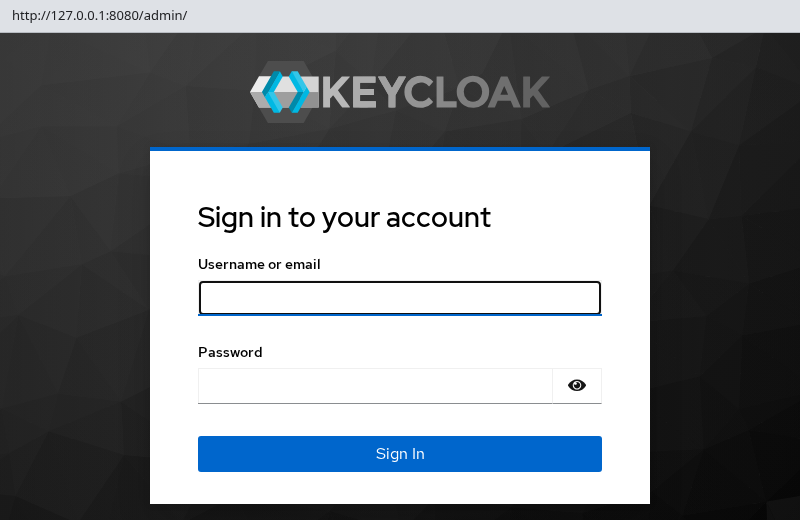
Sign in with username admin and password ChangeMe!2026. If Keycloak marks the bootstrap administrator as temporary, you can use it to complete the initial setup, then create the administrator you intend to keep. The bootstrap admin guide explains that lifecycle in detail.
Verify HTTP from another terminal while the server is running:
curl -s -o /dev/null -w '%{http_code}\n' http://127.0.0.1:8080/Sample output:
302HTTP 302 is a redirect response. Here it is expected and confirms that Keycloak is answering HTTP requests on port 8080.
On the RHEL 10.2 test host used here, Keycloak 26.7.3 start-dev listened on localhost:8080. Current Keycloak documentation specifically notes that WSL is different and binds development mode to 0.0.0.0. Check the Listening on: startup line on your own system before assuming the server is remotely reachable.
Forward port 8080 through SSH instead of exposing start-dev on all interfaces. On your workstation (replace user and server with your login and hostname):
ssh -N -L 8080:127.0.0.1:8080 user@serverLeave that session open, then open http://127.0.0.1:8080/admin/ in your browser. For other forwarding patterns, see SSH port forwarding.
Choose how to configure Keycloak on Linux
On a ZIP install, Keycloak reads settings from three places you control. They all feed the same underlying option names — only the delivery mechanism changes.
/opt/keycloak/conf/keycloak.conf— persistent file settings read on every startKC_*environment variables — values passed throughenv, a shell export, or a systemd unit- Arguments to
bin/kc.sh— startup mode (start-dev,start) and CLI flags such as--http-port=8080
Keycloak maps kebab-case keys in keycloak.conf to environment variables with the KC_ prefix — for example, health-enabled becomes KC_HEALTH_ENABLED.
| Method | Example | Best suited for |
|---|---|---|
conf/keycloak.conf |
health-enabled=true |
Persistent server settings read on every start |
KC_* environment variables |
KC_BOOTSTRAP_ADMIN_USERNAME=admin via env on the start command |
Bootstrap credentials, secrets, or values injected at process start |
CLI arguments to kc.sh |
start-dev, start, --http-port=8080 |
Startup mode and flags; outrank matching KC_* variables |
You can combine methods — for example, pass bootstrap credentials through env on the first start while keeping other settings in keycloak.conf. This guide used env for the two KC_BOOTSTRAP_ADMIN_* variables during the initial start-dev run above.
For build-time vs runtime options, precedence, show-config, and troubleshooting, see Keycloak keycloak.conf configuration.
Add a setting to keycloak.conf
You do not need to edit keycloak.conf for the first start-dev login. When you want a setting to persist across restarts, /opt/keycloak/conf/keycloak.conf is where a ZIP install normally stores it. The shipped file is a commented template with key=value lines in kebab-case.
keycloak.conf is read by both start-dev and start. This walkthrough continues with start-dev only to show that a ZIP installation picks up the file; that does not turn the development server into a production deployment. Read the start vs start-dev guide before you switch to production start, an external database, hostname rules, and TLS.
Back up the template, then replace the active file with a short lab example:
sudo cp /opt/keycloak/conf/keycloak.conf /opt/keycloak/conf/keycloak.conf.origThe next command replaces the active file with a short lab configuration. The .orig copy preserves the shipped template. health-enabled=true is used only as a simple example of a persistent setting; the purpose here is to demonstrate where Linux ZIP configuration lives, not to cover health endpoints.
sudo tee /opt/keycloak/conf/keycloak.conf >/dev/null <<'EOF'
health-enabled=true
EOF
Restore ownership to the dedicated service account after replacing the file:
sudo chown keycloak:keycloak /opt/keycloak/conf/keycloak.confKeycloak reads keycloak.conf when it starts. Restart the server after every edit. To inspect the resolved configuration and see which source supplied each value, use the show-config workflow in the Keycloak configuration guide.
Stop the foreground start-dev process with Ctrl+C, then start Keycloak again:
cd /opt/keycloak
sudo -u keycloak bin/kc.sh start-dev
Wait for the Listening on: line again. A successful startup confirms Keycloak accepted the configuration file; the dedicated configuration guide shows how to inspect resolved values with show-config.
For a direct Linux ZIP installation, keycloak.conf is a convenient place for longer-lived settings such as database, hostname, and TLS configuration; environment variables remain useful for values such as secrets supplied at process start.
Stop and restart Keycloak
While start-dev runs in the foreground, press Ctrl+C in that terminal to stop the server cleanly.
To start again with the same data/ directory (development data preserved):
cd /opt/keycloak
sudo -u keycloak bin/kc.sh start-dev
Keycloak reuses the existing development database under data/, so realms and users from the previous run remain available. The bootstrap variables are not needed again because the master realm has already been initialized.
/opt/keycloak/data/ just to reset the bootstrap administrator. It contains the embedded development database, including realms, users, clients, and administrative accounts. Use the admin recovery workflow when you need to recover access.
Next steps after installation
For a persistent Linux deployment, move from start-dev to production start with an external database, hostname rules, and TLS. Configure Keycloak as a systemd service and point it at PostgreSQL when realm data must survive beyond this ZIP lab. Container and Kubernetes install paths are covered in the Podman and Operator install guides if those fit your environment better.
Uninstall Keycloak from Linux
Remove the ZIP install when you no longer need this lab. Stop the server first — press Ctrl+C in the terminal where start-dev runs if it is still in the foreground.
sudo rm -rf /opt/keycloak deletes the install tree and the embedded development database under data/. Then remove the dedicated OS account and download archive:
sudo rm -rf /opt/keycloak
sudo userdel keycloak
sudo groupdel keycloak 2>/dev/null || true
rm -f "/tmp/keycloak-${KEYCLOAK_VERSION}.zip"
Do not remove the keycloak user or group if another Keycloak installation or service on the host still uses that account.
This walkthrough does not remove OpenJDK, unzip, or curl. Re-run the install sections from the top when you need a fresh Keycloak lab.
Common Keycloak Linux installation problems
| Symptom | Likely cause | Fix |
|---|---|---|
java: command not found |
Java runtime not installed or not on PATH | Install a supported Java runtime from the sections above; verify with java --version |
| Keycloak exits on startup; Java version error | Unsupported Java version | Use a supported runtime: OpenJDK 17, 21, or 25 |
Permission denied on kc.sh |
Extracted without execute bit or wrong owner | sudo chmod +x /opt/keycloak/bin/kc.sh; sudo chown -R keycloak:keycloak /opt/keycloak |
| Keycloak cannot bind to port 8080 | Another process already uses port 8080 | Run `sudo ss -tlnp |
| Browser cannot open Admin Console on remote host | start-dev bound to localhost on the test host; WSL and other environments can differ |
Check the Listening on: startup line; use SSH -L 8080:127.0.0.1:8080 from your workstation |
| Bootstrap credentials do not work after restart | master realm already exists; startup bootstrap credentials do not reset an existing administrator |
Use the existing admin account or follow the admin recovery workflow. Delete data/ only for an intentionally disposable lab where all realm data can be lost |
Summary
You installed a supported Java runtime on Ubuntu, Debian, or RHEL-family Linux, downloaded the official Keycloak ZIP, extracted it to /opt/keycloak, and started the server with bin/kc.sh start-dev. Bootstrap environment variables on the first database initialization created temporary bootstrap administrator admin; the log line Listening on: http://localhost:8080 is your signal to open the Admin Console.
On a ZIP install, configuration arrives through conf/keycloak.conf, KC_* environment variables, or CLI flags to kc.sh. The first login used process-local bootstrap variables; persistent settings such as health-enabled=true belong in keycloak.conf, which Keycloak reads when it starts. Precedence, show-config, and larger configuration topics live in the dedicated Keycloak configuration guide.
start-dev keeps development files under data/ and is intended for development and initial verification. Check the Listening on: line on your host before assuming remote access, and use SSH port forwarding when Keycloak runs on a remote VM. For a persistent Linux deployment, the next step is normally a systemd unit and external PostgreSQL.
To remove the lab, stop start-dev, run sudo rm -rf /opt/keycloak, remove the keycloak OS user and group, and delete the ZIP from /tmp. Java and download tools installed from your package manager are left in place.
References
- OpenJDK getting started — upstream ZIP quick start
- Directory structure —
bin/,conf/,data/, and related paths - Supported configurations — supported Java versions and platform guidance
- GitHub releases — official distribution downloads
