
| Tested on | Red Hat Enterprise Linux 10.2 (Coughlan) |
|---|---|
| Package | docker-ce-3:29.8.0-1.el10.x86_64 (Docker Engine 29.8.0)docker compose v5.5.1quay.io/keycloak/keycloak:26.7.3postgres:16 |
| Applies to | Any Linux host with Docker Engine and Docker Compose installed |
| Privilege | Normal user when your site allows it; root or sudo when Docker requires elevated access |
| Scope | A two-service compose.yaml with Keycloak start, PostgreSQL 16, bootstrap admin login, volume persistence, stack verification, confirming Keycloak data in PostgreSQL, and removing the Compose project — not single-container docker run, Podman Quadlet, or production TLS |
Docker Compose gives you a reproducible Keycloak stack with PostgreSQL in one project directory. You define both services in compose.yaml, start them together, and persist PostgreSQL's database files in a named Docker volume instead of using Keycloak's embedded development database.
This guide runs Keycloak 26.7.3 on 127.0.0.1:8080 with PostgreSQL 16, uses current KC_BOOTSTRAP_ADMIN_* variables to create a temporary bootstrap administrator, and verifies that Keycloak stores the master realm in PostgreSQL.
If you only need the finished files, jump to Complete Keycloak + PostgreSQL Compose configuration.
How the Keycloak Compose stack works
Two containers start from one Compose project:
- PostgreSQL
16— stores Keycloak realm and user data in a named Docker volume - Keycloak
26.7.3— connects over the Compose network with thestartcommand and PostgreSQL settings
  ┌──────────────┐   JDBC (postgres:5432)   ┌─────────────────┐
  │ Keycloak     │ ───────────────────────► │ PostgreSQL 16   │
  │ start        │                          │ volume: pgdata  │
  └──────┬───────┘                          └─────────────────┘
         │
         └── 127.0.0.1:8080 (Admin Console on host)
Keycloak resolves the database hostname postgres through Docker Compose service DNS on the default project network. That hostname is the PostgreSQL service name, not localhost on your Linux host.
Requirements
Install Docker Engine and the Compose plugin before you create the project. On Debian and Ubuntu, see install Docker on Debian; on RHEL 8, 9, or 10, follow Install Docker on RHEL and verify docker compose version before continuing.
Confirm Docker Engine responds:
docker versionSample output (client and server sections trimmed):
Client: Docker Engine - Community
 Version:           29.8.0

Server: Docker Engine - Community
 Engine:
  Version:          29.8.0
Confirm the Compose plugin is available:
docker compose versionSample output:
Docker Compose version v5.5.1Before you start the stack, check memory and port availability:
- For this walkthrough, use a host with at least 4 GiB of available memory. The Keycloak container is capped at 2 GiB, while PostgreSQL, Docker, and the host OS need additional memory
- Port 8080 on the host must be free — check with
ss -tlnp | grep :8080
If you only need a single disposable Keycloak container without PostgreSQL, use Install Keycloak with Docker instead.
Create the Keycloak Compose project
Create a project directory and move into it:
mkdir -p ~/keycloak-compose
cd ~/keycloak-compose
Both commands succeed silently when the directory already exists.
Choose how to configure Keycloak with Docker Compose
Compose can supply Keycloak settings through environment:, env_file:, or a mounted keycloak.conf. You can combine them when different settings come from different sources.
Keycloak reads server options from environment variables with the KC_ prefix — for example, health-enabled becomes KC_HEALTH_ENABLED.
| Method | Example | Best suited for |
|---|---|---|
environment: |
KC_HTTP_ENABLED: "true" under the keycloak service |
Settings in compose.yaml, optionally using ${VAR} from the project .env |
env_file: |
env_file: - keycloak.env |
Several variables loaded from a file instead of a long environment: block |
Mounted keycloak.conf |
./conf/keycloak.conf:/opt/keycloak/conf/keycloak.conf:ro |
File-based settings; edit the host file and restart Keycloak |
Compose has two different concepts that sound similar:
- Project
.env— supplies values Compose uses to replace${VAR}placeholders incompose.yaml env_file:— loads environment variables directly into a container
This guide uses the first approach: .env stores the values, and environment: maps what Keycloak and PostgreSQL receive. Changing .env alone does not update a running container unless those variables are referenced under environment:.
For build-time vs runtime options, precedence, and troubleshooting, see Keycloak keycloak.conf configuration.
Store project values in .env
Compose automatically reads a file named .env from the project directory and uses its values when it encounters placeholders such as ${POSTGRES_PASSWORD} in compose.yaml.
For example, POSTGRES_PASSWORD: ${POSTGRES_PASSWORD} under the postgres service means "take POSTGRES_PASSWORD from the Compose .env file and pass it to the PostgreSQL container."
Store passwords and the pinned Keycloak version in .env so compose.yaml stays readable:
cat > .env << 'EOF'
KEYCLOAK_VERSION=26.7.3
POSTGRES_DB=keycloak
POSTGRES_USER=keycloak
POSTGRES_PASSWORD=KcDb!2026
KC_BOOTSTRAP_ADMIN_USERNAME=admin
KC_BOOTSTRAP_ADMIN_PASSWORD=ChangeMe!2026
EOF
These variables are read by Compose when it expands ${VAR} placeholders in compose.yaml. They reach Keycloak only because the next section maps them under keycloak.environment. Add .env to .gitignore before using real credentials. For this lab the passwords are deliberately simple example values — .env is not secret storage, so do not commit it to version control.
Create compose.yaml
Create compose.yaml with PostgreSQL, a database health check, and Keycloak configured to connect to it:
cat > compose.yaml << 'EOF'
services:
  postgres:
    image: postgres:16
    environment:
      POSTGRES_DB: ${POSTGRES_DB}
      POSTGRES_USER: ${POSTGRES_USER}
      POSTGRES_PASSWORD: ${POSTGRES_PASSWORD}
    volumes:
      - pgdata:/var/lib/postgresql/data
    healthcheck:
      test: ["CMD-SHELL", "pg_isready -U ${POSTGRES_USER} -d ${POSTGRES_DB}"]
      interval: 5s
      timeout: 5s
      retries: 10
      start_period: 10s

  keycloak:
    image: quay.io/keycloak/keycloak:${KEYCLOAK_VERSION}
    depends_on:
      postgres:
        condition: service_healthy
    command: start
    environment:
      KC_HOSTNAME: http://127.0.0.1:8080
      KC_HTTP_ENABLED: "true"
      KC_DB: postgres
      KC_DB_URL: jdbc:postgresql://postgres:5432/${POSTGRES_DB}
      KC_DB_USERNAME: ${POSTGRES_USER}
      KC_DB_PASSWORD: ${POSTGRES_PASSWORD}
      KC_BOOTSTRAP_ADMIN_USERNAME: ${KC_BOOTSTRAP_ADMIN_USERNAME}
      KC_BOOTSTRAP_ADMIN_PASSWORD: ${KC_BOOTSTRAP_ADMIN_PASSWORD}
    ports:
      - "127.0.0.1:8080:8080"
    mem_limit: 2g

volumes:
  pgdata:
EOF
You now have a two-service project file in the current directory.
This example uses Keycloak's start command, so Keycloak runs with the production profile. This is still a local learning setup: HTTP is explicitly enabled, KC_HOSTNAME matches the loopback URL you open in the browser, and the Admin Console is published only on 127.0.0.1. A real production deployment still needs a public hostname, TLS or reverse-proxy configuration, secrets management, and other production controls.
KC_BOOTSTRAP_ADMIN_USERNAME and KC_BOOTSTRAP_ADMIN_PASSWORD create the temporary bootstrap administrator during initial startup. Older tutorials may show the legacy KEYCLOAK_ADMIN and KEYCLOAK_ADMIN_PASSWORD names; use the KC_BOOTSTRAP_ADMIN_* variables with current Keycloak releases.
Understand the Keycloak Compose file
| Part | Role in this stack |
|---|---|
postgres service |
Runs PostgreSQL 16 and creates database keycloak with user keycloak on first startup |
pgdata volume |
Docker-managed named volume; PostgreSQL writes database files to /var/lib/postgresql/data inside the container while Docker keeps that data separately from the container itself |
healthcheck + depends_on |
Waits for pg_isready to confirm PostgreSQL is accepting connections before Compose starts Keycloak |
quay.io/keycloak/keycloak:${KEYCLOAK_VERSION} |
Official Keycloak image pinned to 26.7.3 through .env |
command: start |
Runs Keycloak with the production profile rather than start-dev |
KC_DB=postgres |
Selects PostgreSQL as Keycloak's database vendor. The stock image used here handles this setting during startup; optimized production images normally set the database vendor while building the image. See Keycloak start vs start-dev for the distinction |
KC_HOSTNAME |
Public URL Keycloak uses for redirects and issuer URLs; set to http://127.0.0.1:8080 so it matches how you open the Admin Console on the host |
KC_DB_URL |
JDBC URL; hostname postgres is the Compose service name on the project network |
KC_DB_USERNAME / KC_DB_PASSWORD |
Application credentials that match POSTGRES_USER and POSTGRES_PASSWORD |
KC_BOOTSTRAP_ADMIN_* |
Creates a temporary bootstrap administrator when the master realm is initialized for the first time |
"127.0.0.1:8080:8080" |
Publishes the Admin Console on host loopback only |
mem_limit: 2g |
Caps Keycloak container memory; Keycloak uses this limit when sizing its JVM |
The POSTGRES_* variables configure the PostgreSQL container itself, while Keycloak's KC_DB_* variables tell Keycloak how to connect to that database. The username and password therefore need to agree on both sides.
PostgreSQL uses POSTGRES_DB, POSTGRES_USER, and POSTGRES_PASSWORD when initializing an empty data directory. Once pgdata contains an initialized database, changing those values does not recreate the database or automatically change the existing role password.
The pgdata named volume is why PostgreSQL data survives when Compose recreates the PostgreSQL container. PostgreSQL's container can be running before the database is ready for connections; the health check prevents Keycloak from starting during that window.
Inside the Keycloak container, localhost points at Keycloak itself — not PostgreSQL. The JDBC hostname must be postgres, the service name Compose publishes on the internal network. See Configure Keycloak with PostgreSQL for the same hostname rule on Podman networks.
Start Keycloak and PostgreSQL
Start both services in the background from the project directory:
docker compose up -dCompose pulls missing images, creates the pgdata volume if needed, waits for PostgreSQL to become healthy, then starts Keycloak. Startup time depends on the host. On the test VM used here, Keycloak initialized the new PostgreSQL database and became ready in about 51 seconds.
Sample output (trimmed):
 Container keycloak-compose-postgres-1 Healthy
 Container keycloak-compose-keycloak-1 Started
Compose names containers from the project directory — for ~/keycloak-compose, expect names such as keycloak-compose-postgres-1 and keycloak-compose-keycloak-1.
Verify both containers
List running services:
docker compose psSample output:
NAME                          IMAGE                              COMMAND                  SERVICE    STATUS                    PORTS
keycloak-compose-keycloak-1   quay.io/keycloak/keycloak:26.7.3   "/opt/keycloak/bin/k…"   keycloak   Up About a minute         127.0.0.1:8080->8080/tcp
keycloak-compose-postgres-1   postgres:16                        "docker-entrypoint.s…"   postgres   Up 2 minutes (healthy)    5432/tcp
Up on Keycloak confirms that Docker still has the container process running; it does not prove that Keycloak has finished starting. Check the Keycloak logs next. healthy on PostgreSQL means the health check passed.
PostgreSQL shows 5432/tcp without a host mapping because this lab does not publish the database port to the Linux host. Keycloak can still reach PostgreSQL on port 5432 through the internal Compose network.
Confirm PostgreSQL accepts connections. These values match POSTGRES_USER and POSTGRES_DB from .env:
docker compose exec postgres pg_isready -U keycloak -d keycloakSample output:
/var/run/postgresql:5432 - accepting connectionsaccepting connections confirms PostgreSQL is ready for Keycloak's JDBC URL.
Read Keycloak startup logs:
docker compose logs keycloakSample output (trimmed):
Initializing database schema. Using changelog META-INF/jpa-changelog-master.xml
KC-SERVICES0050: Initializing master realm
KC-SERVICES0077: Created temporary admin user with username admin
Keycloak 26.7.3 on JVM (powered by Quarkus 3.33.3.1) started in 50.553s. Listening on: http://0.0.0.0:8080
Profile prod activated.
Installed features: [agroal, cdi, hibernate-orm, jdbc-postgresql, keycloak, ...]
Wait for the Listening on: line before you open the Admin Console. The schema initialization messages indicate that Keycloak reached the configured database. The later PostgreSQL query provides direct confirmation that Keycloak's realm data was written there.
Check HTTP from the host:
curl -s -o /dev/null -w '%{http_code}\n' http://127.0.0.1:8080/admin/Sample output:
302HTTP 302 is a redirect response. Here it is expected: /admin/ redirects your browser toward Keycloak's login flow, so the response confirms that Keycloak is answering HTTP requests.
Open the Keycloak Admin Console
On the same host where port 8080 is published, open:
http://127.0.0.1:8080/admin/When Docker runs on a remote Linux host, forward port 8080 over SSH before you open the URL in a local browser.
Sign in with username admin and password ChangeMe!2026 from your .env file. Keycloak created this account as a temporary bootstrap administrator during first startup.
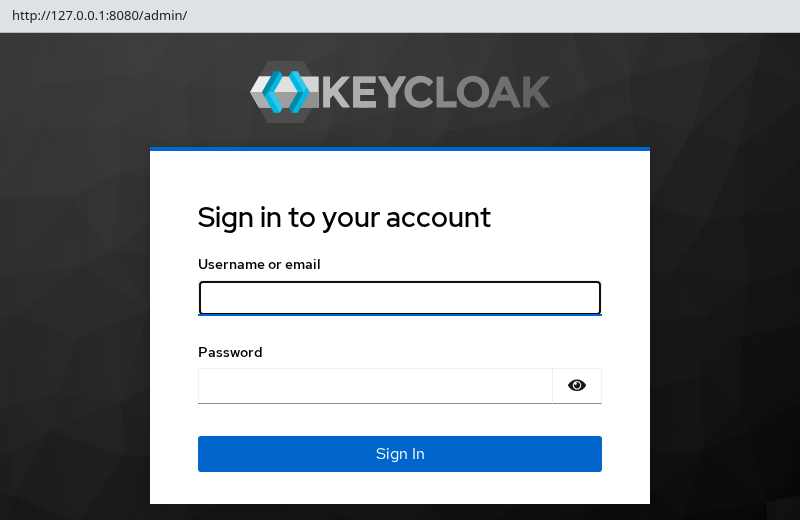
The bootstrap account is temporary. For a longer-lived setup, use this temporary account to establish your normal administrative access, then follow the Keycloak bootstrap admin guide for the appropriate cleanup and recovery lifecycle. For a disposable learning lab, you can leave the bootstrap variables in place temporarily.
Verify Keycloak is actually using PostgreSQL
Keycloak logs show schema initialization. Confirm the realm data landed in PostgreSQL directly:
docker compose exec postgres psql -U keycloak -d keycloak -c "SELECT name FROM realm;"Sample output:
  name
--------
 master
(1 row)
Seeing the master realm directly in PostgreSQL confirms that this Keycloak instance initialized and is using the external database.
Stop and restart the stack
To pause both services without removing containers, run:
docker compose stopThe command exits silently when both services stop.
Bring the existing containers back with:
docker compose startThen check docker compose ps and the Keycloak logs until PostgreSQL is healthy and Keycloak has finished starting. The pgdata volume keeps the existing database files.
docker compose down is different: it removes containers and the project network but keeps named volumes such as pgdata by default. Use down when you want to tear down the Compose project while retaining PostgreSQL data for a later docker compose up -d.
Remove the Compose stack
From the project directory, remove containers and the project network while keeping PostgreSQL data:
cd ~/keycloak-compose && docker compose downTo remove containers, the network, and the named database volume:
docker compose down -vThe second command permanently deletes the PostgreSQL data for this Compose project. Delete ~/keycloak-compose afterward if you no longer need the configuration files.
Change Keycloak configuration after installation
There is an important difference between environment-based configuration and a bind-mounted file after Compose has created the containers.
After changing environment: values, a file referenced by env_file:, or values substituted into the service configuration, run:
docker compose up -dCompose compares the desired service configuration with the existing container and recreates the affected service when necessary. The pgdata volume survives unless you remove it with docker compose down -v or docker volume rm.
Editing the project .env file alone does not change a running container unless those variables are referenced under environment: and Compose recreates the service on the next up.
A bind-mounted keycloak.conf behaves differently. Edit the host file and restart Keycloak:
docker compose restart keycloakKeycloak reads the mounted configuration when it starts.
POSTGRES_DB, POSTGRES_USER, and POSTGRES_PASSWORD are initialization settings for an empty PostgreSQL data directory. Changing them in .env after pgdata already exists does not reinitialize the database. For an existing database, make the corresponding database, user, or password changes inside PostgreSQL and keep Keycloak's KC_DB_* settings in sync. For a disposable lab, docker compose down -v lets you initialize a fresh database from the new values.
For resolved values and precedence rules, use the show-config workflow in the Keycloak configuration guide.
Pin a new Keycloak version in .env, run docker compose pull keycloak, then docker compose up -d. Read the Keycloak release notes before you upgrade production data.
Common Keycloak Docker Compose problems
| Symptom | Likely cause | Fix |
|---|---|---|
Connection to localhost:5432 refused in Keycloak logs |
JDBC URL uses localhost instead of the Compose service name |
Set KC_DB_URL to jdbc:postgresql://postgres:5432/keycloak — inside Keycloak, localhost is the Keycloak container |
password authentication failed for user |
Keycloak password does not match the existing PostgreSQL role | Correct the role and password on both sides. For a disposable lab only, docker compose down -v wipes the database so it can be initialized again from the current .env values |
Keycloak exits before Listening on: while PostgreSQL is still starting |
Race before PostgreSQL accepts connections | Keep the PostgreSQL healthcheck and depends_on: condition: service_healthy shown above |
| Bootstrap login fails on an existing stack | The master realm was already initialized |
Use an existing administrator or follow Keycloak bootstrap recovery — startup bootstrap variables apply only on first database initialization |
Realm data missing after docker compose down -v |
Used -v or deleted the pgdata volume |
Expected when the volume is removed; omit -v to keep PostgreSQL data |
Tutorial uses KEYCLOAK_ADMIN |
Outdated Compose examples use legacy bootstrap variable names | Replace with KC_BOOTSTRAP_ADMIN_USERNAME and KC_BOOTSTRAP_ADMIN_PASSWORD |
Added KC_* to .env but Keycloak ignores it |
Project .env only expands ${VAR} in compose.yaml |
Also add the variable under keycloak.environment or use env_file: |
bind: address already in use on port 8080 |
Another process or container uses 8080 | ss -tlnp | grep :8080; stop the conflicting service or change the host port in ports |
Complete Keycloak + PostgreSQL Compose configuration
If you followed the walkthrough above, this is the same configuration collected in one place for reference.
services:
  postgres:
    image: postgres:16
    environment:
      POSTGRES_DB: ${POSTGRES_DB}
      POSTGRES_USER: ${POSTGRES_USER}
      POSTGRES_PASSWORD: ${POSTGRES_PASSWORD}
    volumes:
      - pgdata:/var/lib/postgresql/data
    healthcheck:
      test: ["CMD-SHELL", "pg_isready -U ${POSTGRES_USER} -d ${POSTGRES_DB}"]
      interval: 5s
      timeout: 5s
      retries: 10
      start_period: 10s

  keycloak:
    image: quay.io/keycloak/keycloak:${KEYCLOAK_VERSION}
    depends_on:
      postgres:
        condition: service_healthy
    command: start
    environment:
      KC_HOSTNAME: http://127.0.0.1:8080
      KC_HTTP_ENABLED: "true"
      KC_DB: postgres
      KC_DB_URL: jdbc:postgresql://postgres:5432/${POSTGRES_DB}
      KC_DB_USERNAME: ${POSTGRES_USER}
      KC_DB_PASSWORD: ${POSTGRES_PASSWORD}
      KC_BOOTSTRAP_ADMIN_USERNAME: ${KC_BOOTSTRAP_ADMIN_USERNAME}
      KC_BOOTSTRAP_ADMIN_PASSWORD: ${KC_BOOTSTRAP_ADMIN_PASSWORD}
    ports:
      - "127.0.0.1:8080:8080"
    mem_limit: 2g

volumes:
  pgdata:
.env for the same project:
KEYCLOAK_VERSION=26.7.3
POSTGRES_DB=keycloak
POSTGRES_USER=keycloak
POSTGRES_PASSWORD=KcDb!2026
# Bootstrap credentials for the first startup only
KC_BOOTSTRAP_ADMIN_USERNAME=admin
KC_BOOTSTRAP_ADMIN_PASSWORD=ChangeMe!2026
After you establish normal administrative access, follow the bootstrap admin guide to remove the temporary bootstrap account and delete the two KC_BOOTSTRAP_ADMIN_* entries from .env and compose.yaml.
Summary
Keycloak now runs with PostgreSQL as a two-service Docker Compose project. Compose waits for PostgreSQL to become healthy before starting Keycloak, and the pgdata named volume keeps realm data when containers are recreated. Inside the Compose network, Keycloak reaches PostgreSQL using the service hostname postgres, not localhost.
This example uses Keycloak's start command so Keycloak runs with the production profile, but it deliberately exposes HTTP only on 127.0.0.1 for a local lab. A real production deployment still needs an appropriate public hostname, TLS or reverse-proxy configuration, and production secrets management.
To remove the lab, run docker compose down from ~/keycloak-compose, then docker compose down -v when you want to delete keycloak-compose_pgdata and all realm data. Delete the project directory last if you no longer need the files.
References
- Running Keycloak in a container — official container documentation
- Configuring the database — PostgreSQL and
KC_DB_*variables - Bootstrapping and recovering an admin account — temporary bootstrap administrator lifecycle
- Docker Compose documentation — project files,
depends_on, and volumes - Keycloak on Quay — official image registry
Frequently Asked Questions
Can I use start-dev in this Compose file?
Yes. start-dev can connect to PostgreSQL, but it still runs Keycloak with development-mode defaults. This guide deliberately uses start so Keycloak runs with the production profile while backed by PostgreSQL. The surrounding HTTP and hostname configuration here is still intended for a local lab, not a production deployment.
Why does the JDBC URL use postgres instead of localhost?
Inside the Keycloak container, localhost refers to Keycloak itself. Docker Compose publishes the PostgreSQL service on the project network under its service name postgres, which is the hostname other containers must use in KC_DB_URL.
Do KC_BOOTSTRAP_ADMIN variables apply every time I run docker compose up?
No. The variables create a temporary bootstrap administrator when Keycloak initializes the master realm for the first time. Once the master realm exists, restarting or recreating the Keycloak container does not create another bootstrap administrator.
Does docker compose down delete realm data?
No. docker compose down removes containers and the project network but keeps the keycloak-compose_pgdata volume. Run docker compose down -v when you want to wipe PostgreSQL data and start fresh.
Why did my KC_* variable in .env not change Keycloak?
The project .env file is for Compose variable substitution in compose.yaml. Keycloak receives settings only through environment:, env_file:, or a mounted keycloak.conf. Add the variable under keycloak.environment or move it to an env_file: entry.
