
| Tested on | Red Hat Enterprise Linux 10.2 (Coughlan) |
|---|---|
| Package | docker-ce-3:29.8.0-1.el10.x86_64 (Docker Engine 29.8.0)quay.io/keycloak/keycloak:26.7.3 |
| Applies to | Any Linux host with Docker Engine installed |
| Privilege | Normal user when your site allows it; root or sudo when Docker requires elevated access |
| Scope | Pull the official Keycloak image, run start-dev with docker run, temporary bootstrap admin login, verify with docker ps and docker logs, and stop or restart the container — not Docker Compose, PostgreSQL, or production TLS |
| Related guides | Install Keycloak with Podman Keycloak Docker Compose with PostgreSQL Install Keycloak on Linux |
Keycloak provides an official container image on Quay, so you can start a development server without installing Java or unpacking the Keycloak ZIP distribution on the host.
This guide runs Keycloak 26.7.3 on 127.0.0.1:8080, creates a temporary bootstrap administrator for the first login, and verifies the container through its logs and Admin Console. The example uses start-dev; production configuration is covered separately.
Keycloak Docker requirements
You need a working Docker Engine installation before continuing. On Debian and Ubuntu, see install Docker on Debian and verify docker version before returning here. On RHEL 8, 9, or 10, follow Install Docker on RHEL and verify docker version before returning here.
Confirm Docker Engine responds:
docker versionSample output (client and server sections trimmed):
Client: Docker Engine - Community
 Version:           29.8.0
 API version:       1.56
 OS/Arch:           linux/amd64

Server: Docker Engine - Community
 Engine:
  Version:          29.8.0
  API version:      1.56 (minimum version 1.40)
  OS/Arch:          linux/amd64
Both Client and Server sections should list Docker Engine. If only a client line appears and the command reports that the daemon is not running, start Docker with systemctl start docker before you continue.
Before starting the container, check memory and port availability:
- For this walkthrough, allocate about 2 GiB of memory and at least 1 CPU to the Docker host. These are comfortable lab resources, not minimum Keycloak production-sizing requirements — official sizing guidance is workload-based
- Port 8080 on the host must be free for the publish mapping used below — check with
ss -tlnp | grep :8080before you run the container
Pull the official Keycloak Docker image
Keycloak publishes container images on Quay at quay.io/keycloak/keycloak. Each Keycloak release has its own image tag, such as 26.7.3. This guide pins that version so your commands and output match the examples below.
Set the version once:
KEYCLOAK_VERSION=26.7.3Use the same tag in docker pull and docker run below.
Pull the image:
docker pull quay.io/keycloak/keycloak:${KEYCLOAK_VERSION}Sample output (trimmed):
26.7.3: Pulling from keycloak/keycloak
22b80f495f9d: Pull complete
b3d6c746fb20: Pull complete
Digest: sha256:29be7252db0a106f1cd2ac17b9a56ff2668073da645638a38b9fc67deeb2d6c4
Status: Downloaded newer image for quay.io/keycloak/keycloak:26.7.3
quay.io/keycloak/keycloak:26.7.3
Docker downloads the Keycloak image layers once and stores them locally. The final line confirms that quay.io/keycloak/keycloak:26.7.3 is now available for docker run; Docker does not need to download the same unchanged layers again each time you start a container. Tag list and release notes live on Quay and in the Keycloak release notes.
Choose how to configure Keycloak in Docker
Docker can supply Keycloak settings through the following mechanisms. You can use one or combine them — for example, keep general settings in keycloak.conf while injecting a password through an environment variable.
Keycloak settings can be supplied as environment variables using the KC_ prefix. For example, the Keycloak option health-enabled becomes KC_HEALTH_ENABLED when supplied as an environment variable.
| Method | Example | Best suited for |
|---|---|---|
| Individual environment variables | -e KC_HOSTNAME=auth.example.com |
A few settings, quick labs, or values supplied directly by deployment tooling |
| Environment file | --env-file keycloak.env |
Several environment variables that you want to load together instead of repeating -e |
Mounted keycloak.conf |
-v ./keycloak.conf:/opt/keycloak/conf/keycloak.conf:ro |
File-based server settings; edit the host file and restart Keycloak to apply changes |
The -v example makes a keycloak.conf file from the Docker host available at Keycloak's default configuration path inside the container. The :ro suffix mounts it read-only. Keycloak's documented container installation root is /opt/keycloak, and conf/ contains keycloak.conf.
For example, an environment file might contain:
KC_HEALTH_ENABLED=true
KC_METRICS_ENABLED=true
The equivalent keycloak.conf contains:
health-enabled=true
metrics-enabled=true
--env-file is a Docker feature. Docker reads the file and passes each entry into the container as an environment variable; Keycloak then reads the KC_* variables.
Individual -e values and --env-file both deliver environment variables to Keycloak; a mounted keycloak.conf delivers settings through Keycloak's configuration file. They can represent the same server options—for example, KC_HEALTH_ENABLED=true and health-enabled=true both enable health support.
A common pattern is to keep non-sensitive server settings in keycloak.conf while supplying passwords separately through environment variables or the secret-management feature provided by your deployment platform.
You do not need to choose only one configuration source forever, but avoid defining the same setting in multiple places unless you intentionally want one source to override another.
This guide chooses the first method: it passes the two bootstrap administrator settings directly with -e and relies on start-dev defaults for everything else. For longer-lived deployments, choose whichever configuration delivery method fits your tooling—you can also combine them when different settings have different sources.
For option names, precedence, interpolation, and troubleshooting, see Keycloak keycloak.conf configuration.
Start Keycloak with Docker
The official image starts Keycloak through kc.sh. The final start-dev argument starts Keycloak in development mode for learning and testing.
Start Keycloak in detached mode:
docker run -d --name keycloak-docker \
  --memory=2g -p 127.0.0.1:8080:8080 \
  -e KC_BOOTSTRAP_ADMIN_USERNAME=admin \
  -e KC_BOOTSTRAP_ADMIN_PASSWORD='ChangeMe!2026' \
  quay.io/keycloak/keycloak:${KEYCLOAK_VERSION} \
start-dev| Flag or argument | Purpose |
|---|---|
-d |
Run detached in the background |
--name keycloak-docker |
Stable name for docker logs, stop, and start |
--memory=2g |
Cap container memory at 2 GiB; Keycloak sizes the JVM heap as a percentage of that limit rather than treating all 2 GiB as Java heap |
-p 127.0.0.1:8080:8080 |
Publish container port 8080 on host loopback only |
-e KC_BOOTSTRAP_ADMIN_USERNAME=admin |
Temporary bootstrap administrator username |
-e KC_BOOTSTRAP_ADMIN_PASSWORD='ChangeMe!2026' |
Password paired with that temporary bootstrap user |
quay.io/keycloak/keycloak:26.7.3 |
Official image and pinned tag |
start-dev |
Development mode for learning/testing; enables HTTP and other convenient development defaults. Do not use it for production. |
The two 8080 values refer to different places. The first is the port on your Linux host; the second is the port where Keycloak listens inside the container. Prefixing the host side with 127.0.0.1 means other machines cannot connect directly to port 8080.
Because this is a fresh container with no existing master realm, the first start needs bootstrap administrator credentials so you can sign in to the Admin Console. KC_BOOTSTRAP_ADMIN_USERNAME and KC_BOOTSTRAP_ADMIN_PASSWORD create a temporary administrator when Keycloak initializes the master realm for the first time. Keycloak marks this account as temporary. For a longer-lived setup, use it to create your normal administrative account and then remove the temporary account.
Docker prints the container ID when the run succeeds:
6f5e8cca1e803797af73d30d668e5cc494b51c7f2accbf0272236da3b30abb65Startup time depends on the host. On the test VM used here, Keycloak became ready in about 36 seconds. docker run returning an ID only means the container process started — not that HTTP is ready yet.
Verify the Keycloak container
Confirm the container is running:
docker ps --filter name=keycloak-dockerSample output:
CONTAINER ID   IMAGE                              COMMAND                  CREATED              STATUS              PORTS                                          NAMES
6f5e8cca1e80   quay.io/keycloak/keycloak:26.7.3   "/opt/keycloak/bin/k…"   About a minute ago   Up About a minute   8443/tcp, 127.0.0.1:8080->8080/tcp, 9000/tcp   keycloak-docker
STATUS Up confirms that Docker still has the container process running; it does not prove that Keycloak has finished starting. Check the Keycloak logs next. 8443/tcp and 9000/tcp in the PORTS column are container ports; because there is no host-port->container-port mapping for them, this command has not published them on the host. Wait for Keycloak to finish booting before you treat HTTP as ready.
Read startup logs:
docker logs keycloak-dockerSample output (trimmed):
Running the server in development mode. DO NOT use this configuration in production.
2026-09-14 12:37:25,420 INFO  [org.keycloak.services] (main) KC-SERVICES0077: Created temporary admin user with username admin
2026-09-14 12:37:26,124 INFO  [io.quarkus] (main) Keycloak 26.7.3 on JVM (powered by Quarkus 3.33.3.1) started in 35.887s. Listening on: http://0.0.0.0:8080
2026-09-14 12:37:26,125 INFO  [io.quarkus] (main) Profile dev activated.
Look for Created temporary admin user and Listening on: before you rely on the Admin Console. 0.0.0.0:8080 here is the address inside the container. Docker publishes that container port only on host address 127.0.0.1, so Keycloak is still reachable from the host at http://127.0.0.1:8080. Follow live logs during the next boot with docker logs -f keycloak-docker (press Ctrl+C to stop following).
Check HTTP from the host:
curl -s -o /dev/null -w '%{http_code}\n' http://127.0.0.1:8080/admin/Sample output:
302HTTP 302 is a redirect response. Here it is expected: /admin/ redirects your browser toward Keycloak's login flow, so the response confirms that Keycloak is answering HTTP requests.
Open the Admin Console
On the same host where port 8080 is published, open:
http://127.0.0.1:8080/admin/The login page should match other Keycloak start-dev labs:
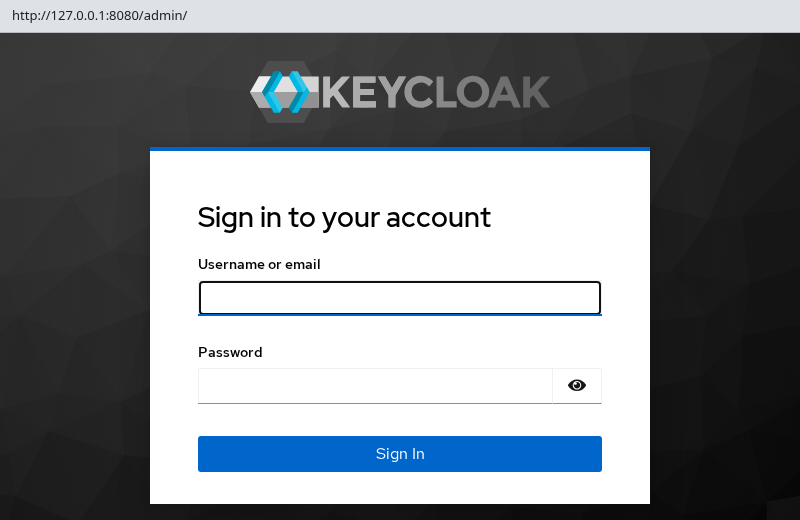
Sign in with username admin and password ChangeMe!2026 from the docker run command. Keycloak created this as a temporary bootstrap administrator because the master realm did not exist yet. For this disposable lab you can continue using it, but for a longer-lived environment create a regular administrator and remove the temporary bootstrap account. Restarting the same container keeps whichever users exist in its embedded database — see Keycloak bootstrap admin if administrative access is lost.
When Keycloak runs on a remote Linux host, forward port 8080 over SSH before you open the URL in a local browser.
Stop and restart Keycloak
Stop the container without deleting it:
docker stop keycloak-dockerDocker prints the container name when the stop succeeds:
keycloak-dockerInspect the exited container:
docker ps -a --filter name=keycloak-dockerSample output:
CONTAINER ID   IMAGE                              COMMAND                  CREATED         STATUS                       PORTS     NAMES
6f5e8cca1e80   quay.io/keycloak/keycloak:26.7.3   "/opt/keycloak/bin/k…"   2 minutes ago   Exited (143) 2 seconds ago             keycloak-docker
Start the same container again:
docker start keycloak-dockerdocker start prints the container name when the process resumes.
Wait for the listening line in the logs, then reopen the Admin Console. docker stop and docker start keep realm data inside that container's filesystem. docker rm deletes the container and its writable layer — with this guide's configuration, embedded development data is lost on the next docker run.
Change Keycloak configuration after installation
There is an important difference between environment-based configuration and a bind-mounted file after the container has been created.
Docker stores values passed through -e or --env-file in the container configuration when docker run creates the container. Editing the original env file later therefore does not modify that existing container. Environment variables stored in an existing container cannot be changed with docker start. To use different values, remove the container (docker rm keycloak-docker) and run docker run again with the new flags. Do this only after accounting for persistence, because this lab keeps its development data inside the container.
docker inspect can expose environment-variable values, so do not treat -e as a secret-storage mechanism by itself. To see what an existing container carries:
docker inspect keycloak-docker \
--format '{{range .Config.Env}}{{println .}}{{end}}' | grep KC_KC_BOOTSTRAP_ADMIN_USERNAME=admin
KC_BOOTSTRAP_ADMIN_PASSWORD=********The password is masked in the sample above for publication.
A bind-mounted keycloak.conf behaves differently. Edit the host file and restart the container:
docker restart keycloak-dockerKeycloak reads the mounted configuration when it starts.
If the same Keycloak option is present in multiple configuration sources, Keycloak applies its configuration precedence rules — see the configuration guide linked from Choose how to configure Keycloak in Docker above.
Persist Keycloak data
The start-dev command in this guide uses Keycloak's embedded development database inside the container. That is fine for a first login and short experiments, but it is not a production persistence model.
docker stop/docker start: data kept in the same containerdocker rmthen a newdocker runwith this guide's configuration: embedded development data is lost
The embedded database is suitable only for development and testing. If the container is removed, treat its data as disposable. Use an external supported database such as PostgreSQL when realms and users must survive container replacement — Configure Keycloak with PostgreSQL walks through PostgreSQL with Docker.
Run Keycloak in production mode
start-dev uses development-friendly defaults, including HTTP and relaxed hostname handling. Production deployments use start with appropriate hostname and TLS or reverse-proxy configuration. Production deployments should also use a supported external database rather than the embedded development database.
Simply replacing start-dev with start in the command above is therefore not a complete production setup. Production container deployments commonly pre-build an optimized image. See Keycloak start vs start-dev and the configuration guide linked from Choose how to configure Keycloak in Docker above before you change the container command.
Common Keycloak Docker problems
| Symptom | Likely cause | Fix |
|---|---|---|
Conflict. The container name "/keycloak-docker" is already in use |
A stopped or running container already has that name | Run docker ps -a --filter name=keycloak-docker. Start the existing container if you need its data, or remove it only if it is disposable |
| Container exits immediately | Keycloak startup or configuration error | Run docker logs keycloak-docker; verify the command and configuration; stay on start-dev for this guide |
Bind for 127.0.0.1:8080 failed: port is already allocated |
Another process or container uses 8080 | ss -tlnp | grep :8080; stop the conflicting service or change the host port in -p |
| Admin Console unreachable from your laptop | Keycloak published on server loopback only | SSH -L 8080:127.0.0.1:8080 user@server from your workstation |
| Bootstrap credentials do not work | The master realm was already initialized, so startup bootstrap credentials are no longer used | Use an existing administrator, or follow Keycloak's bootstrap-admin recovery procedure if administrative access has been lost |
Local access required or HTTPS errors under start |
Production mode without hostname/TLS configuration | Use start-dev for this install guide, or add full production config before start |
| Permission denied on Docker socket | User not in docker group and policy requires root |
Run the command with sudo, or configure Docker access according to your distribution's Docker installation instructions |
| Data missing after recreate | New docker run without external database |
Expected for embedded start-dev; use PostgreSQL when realms must survive container replacement |
Summary
Keycloak now runs in a Docker container on 127.0.0.1:8080. Use docker logs keycloak-docker to check startup, docker stop and docker start to control the same container, and remember that with this guide's no-external-storage setup, removing the container also removes its embedded development data. Use an external supported database and production start configuration for deployments beyond this local development setup.
References
- Getting started with Keycloak on Docker — official Docker quick start
- Running Keycloak in a container — official container documentation, including memory limits
- Bootstrapping and recovering an admin account — temporary bootstrap administrator lifecycle
- Keycloak on Quay — official image registry
- Docker run reference —
docker runflags used in this guide
Frequently Asked Questions
Can I use the same commands with Podman?
The core image name and basic docker run, -p, -e, and start-dev syntax are similar with Podman, but rootless networking, permissions, and SELinux bind-mount labeling can differ. Use the dedicated Podman install guide rather than mechanically replacing every docker command.
Do I need KC_BOOTSTRAP_ADMIN_* on every docker start?
No. docker run creates the container and stores its environment configuration. docker start keycloak-docker starts that same container again; you do not pass -e options again. The bootstrap values are only used to create a temporary bootstrap administrator when Keycloak initializes the master realm for the first time. They are ignored for creating another startup administrator once the master realm already exists. In a Compose file or other persistent deployment definition, remove bootstrap credentials after the first successful login so they are not left in configuration longer than necessary.
