
| Tested on | Red Hat Enterprise Linux 10.2 (Coughlan) |
|---|---|
| Package | podman-5.8.2-5.el10_2.x86_64quay.io/keycloak/keycloak:26.7.3 |
| Applies to | Any Linux host with Podman or Docker |
| Privilege | Normal user for browser login tests; Keycloak admin access to copy flows, bind realms, and export configuration |
| Lab environment | Keycloak 26.7.3 on http://127.0.0.1:8080/ — Install Keycloak with Podman |
| Scope | Custom browser authentication flow that requires OTP for users with realm role mfa-lab-required, group-to-role mapping, Admin Console copy/bind workflow, four-user login matrix, rollback of browserFlow, and partial realm export. Requirement semantics live in Keycloak authentication flows explained; OTP enrollment in Keycloak TOTP and 2FA. |
| Related guides | Keycloak authentication flows explained Keycloak conditional authentication Keycloak TOTP and 2FA Keycloak realms explained Keycloak clients explained |
This guide answers one concrete question: How do I create a custom Keycloak browser flow that requires OTP only for selected users? You copy the built-in browser flow, gate a Group MFA subflow with Condition - user role, and bind the copy as browserFlow on Keycloak 26.7.3.
If a matching user already has OTP configured, Keycloak asks for the OTP code. If not, the Required OTP Form sends the user through OTP setup before login can finish. This is the key difference from a flow that uses Condition - user configured, which would simply skip the OTP branch for users who have not enrolled yet.
How the custom authentication flow works
The policy is group-based, but the authentication condition is role-based. To connect the two, assign realm role mfa-lab-required to mfa-lab-group. Every group member inherits the role, and the custom flow checks that role before requiring OTP.
- Create group
mfa-lab-groupand realm rolemfa-lab-required - Map the role onto the group under Role mapping
- Users who join the group inherit
mfa-lab-required - Condition - user role evaluates that role — not group membership directly
mfa-lab-group
      |
      | group role mapping
      v
mfa-lab-required
      |
      | inherited by members
      v
Condition - User Role
      |
      v
run Group MFA
Inside the copied forms subflow, the target tree is:
browser-mfa-group forms
  ├── [REQUIRED]     Username Password Form
  ├── [DISABLED]     Browser - Conditional 2FA
  └── [CONDITIONAL]  Group MFA
        ├── [REQUIRED] Condition - user role   (mfa-lab-required)
        └── [REQUIRED] OTP Form
Policy flow for a group member:
Has mfa-lab-required role?
         |
       no ─────────────► password only
         |
        yes
         |
         v
Has OTP configured?
    |          |
   yes         no
    |          |
 OTP prompt    Keycloak requires OTP setup
When OTP Form is Required and the user has no OTP credential yet, Keycloak schedules the OTP setup required action rather than silently skipping MFA. For how Conditional subflows evaluate their child conditions, see Keycloak authentication flows explained.
| User | In mfa-lab-group |
OTP already enrolled | Expected browser login |
|---|---|---|---|
mfa-group-otp |
Yes | Yes | Password → OTP |
mfa-group-plain |
Yes | No | Password → configure OTP → MFA completed |
mfa-otp-only |
No | Yes | Password only |
tokenuser |
No | No | Password only |
Before you modify the browser flow
Binding a browser flow affects every interactive login in the realm, including the Admin Console. Keep a second admin session available and verify that you can restore the default browser binding before testing the custom flow.
- Open a second browser profile signed into the master realm admin (
adminonhttp://127.0.0.1:8080/admin/). Ifgolinuxcloudbrowser login breaks, you can still restorebrowserFlowfrom master. - Never edit the built-in
browserflow. Copy it, edit the copy, bind the copy. - Export or note the current
browserFlowvalue before binding. - Test rollback (
browserFlow→browser) before announcing the custom flow to application owners.
Create a public OIDC test client named auth-flow-test:
- Client authentication: OFF
- Standard flow: ON
- Valid redirect URI:
http://127.0.0.1:8765/callback - PKCE: S256
If you already built another public PKCE client in the Keycloak PKCE tutorial, you may reuse it instead.
Export shared lab variables:
export KC_BASE='http://127.0.0.1:8080'
export REALM='golinuxcloud'
export TEST_CLIENT='auth-flow-test'
export REDIRECT_URI='http://127.0.0.1:8765/callback'
The optional Admin REST examples below use admin-cli only for this local lab. You can create the entire flow through the Admin Console; do not treat the password-grant example as an application authentication pattern.
Create the test users, group, and role
Create realm role mfa-lab-required and group mfa-lab-group, then map the role onto the group under Groups → mfa-lab-group → Role mapping → Assign role.
Create these users under Users, set non-temporary passwords, and add only the first two users to mfa-lab-group:
| User | Password | Add to mfa-lab-group |
Configure OTP before test |
|---|---|---|---|
mfa-group-otp |
MfaGroupOtp!2026 |
Yes | Yes |
mfa-group-plain |
MfaGroupPlain!2026 |
Yes | No initially |
mfa-otp-only |
MfaOtpOnly!2026 |
No | Yes |
tokenuser |
TokenUser!2026 |
No | No |
To pre-enroll OTP for mfa-group-otp and mfa-otp-only, sign in as each user to the Keycloak Account Console at http://127.0.0.1:8080/realms/golinuxcloud/account/, open Account security → Signing in, and configure an authenticator application by scanning the QR code with a TOTP app. Keep mfa-group-plain without OTP so you can prove that the custom flow forces enrollment during login.
See Keycloak TOTP and 2FA for a detailed enrollment walkthrough.
Copy the built-in Browser flow
Admin Console: open Authentication → Flows, select browser, click Duplicate, and name the copy browser-mfa-group.
Admin API equivalent:
ADMIN_TOKEN=$(curl -sS -X POST "${KC_BASE}/realms/master/protocol/openid-connect/token" \
  -d 'grant_type=password' -d 'client_id=admin-cli' \
  -d 'username=admin' -d 'password=YOUR_ADMIN_PASSWORD' | \
  python3 -c "import sys,json; print(json.load(sys.stdin)['access_token'])")

curl -sS -o /dev/null -w 'copy-flow:%{http_code}\n' -X POST \
  -H "Authorization: Bearer ${ADMIN_TOKEN}" -H 'Content-Type: application/json' \
  "${KC_BASE}/admin/realms/${REALM}/authentication/flows/browser/copy" \
  -d '{"newName":"browser-mfa-group"}'
HTTP 201 creates browser-mfa-group with builtIn=false. Read the current browser binding before you change it:
curl -sS -H "Authorization: Bearer ${ADMIN_TOKEN}" \
  "${KC_BASE}/admin/realms/${REALM}" | \
python3 -c "import sys,json; r=json.load(sys.stdin); print('browserFlow:', r.get('browserFlow'))"browserFlow: browserAdd conditional MFA to the custom flow
Open Authentication → Flows → browser-mfa-group, expand the copied browser-mfa-group forms subflow, and work inside that section.
Admin Console steps:
- Leave Username Password Form as Required and keep it above Group MFA.
- Set the copied Browser - Conditional 2FA subflow to Disabled so the default OTP policy does not apply to every enrolled user. The copied browser flow already contains Keycloak's normal conditional 2FA logic. If you leave that subflow active alongside Group MFA, a user who already has OTP configured can be evaluated by both MFA branches, defeating the role-only policy and potentially producing an extra OTP prompt.
- Click Add sub-flow, name it Group MFA, and set requirement to Conditional.
- Inside Group MFA, add Condition - user role. Open its Settings (gear) and set User role to
mfa-lab-required.
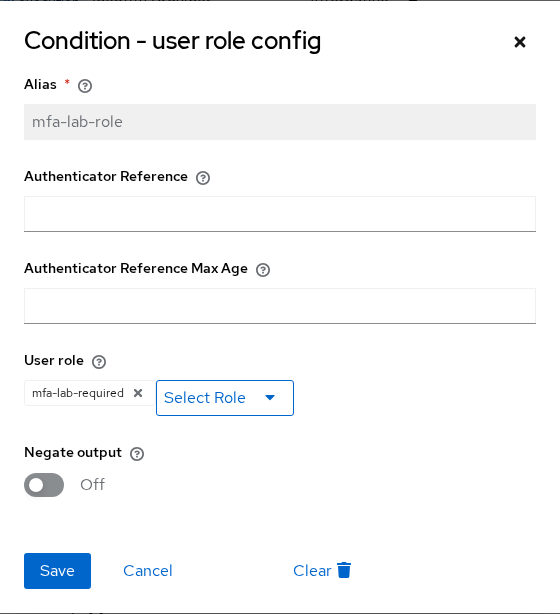
The User role field expects a realm role name — not a group name. Select mfa-lab-required, the same role you mapped onto mfa-lab-group.
- Add OTP Form and set it to Required.
Order matters. Keep Username Password Form above Group MFA so Keycloak identifies the user before evaluating the role condition. The Admin API exposes that ordering as execution priorities.
1. Username/password identifies the user
             ↓
2. Condition - User Role can evaluate that user
             ↓
3. OTP runs when the role condition matches
Target shape after your edits:
  browser-mfa-group forms
    ├── [REQUIRED]     Username Password Form
    ├── [DISABLED]     Browser - Conditional 2FA
    └── [CONDITIONAL]  Group MFA
          ├── [REQUIRED]     Condition - user role
          └── [REQUIRED]     OTP Form
The expanded tree in the Admin Console should match that shape — Browser - Conditional 2FA disabled, Group MFA conditional, and OTP Form required inside it.
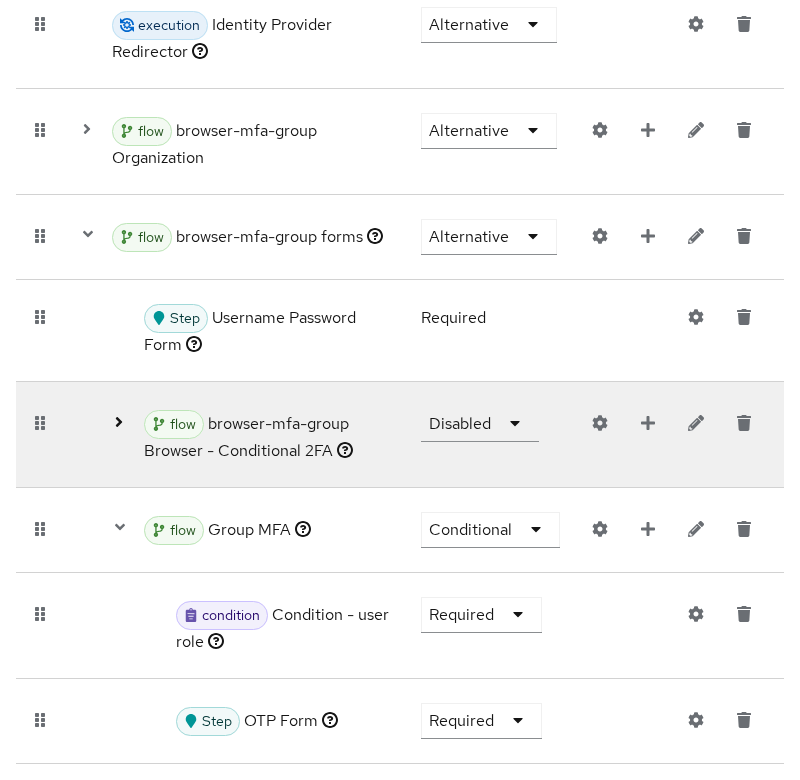
Confirm Username Password Form sits above Group MFA, the copied default 2FA subflow is Disabled, and Group MFA contains only Condition - user role plus Required OTP Form.
Admin API equivalent — locate the Group MFA execution and set requirement to Conditional:
GROUP_MFA_ID=$(curl -sS -H "Authorization: Bearer ${ADMIN_TOKEN}" \
  "${KC_BASE}/admin/realms/${REALM}/authentication/flows/browser-mfa-group/executions" | \
  python3 -c "import sys,json; print([e['id'] for e in json.load(sys.stdin) if e.get('displayName')=='Group MFA'][0])")

curl -sS -o /dev/null -w 'set-conditional:%{http_code}\n' -X PUT \
  -H "Authorization: Bearer ${ADMIN_TOKEN}" -H 'Content-Type: application/json' \
  "${KC_BASE}/admin/realms/${REALM}/authentication/flows/browser-mfa-group/executions" \
  -d "{\"id\":\"${GROUP_MFA_ID}\",\"requirement\":\"CONDITIONAL\"}"
Configure Condition - user role through the API:
ROLE_COND_ID=$(curl -sS -H "Authorization: Bearer ${ADMIN_TOKEN}" \
  "${KC_BASE}/admin/realms/${REALM}/authentication/flows/Group%20MFA/executions" | \
  python3 -c "import sys,json; print([e['id'] for e in json.load(sys.stdin) if e.get('providerId')=='conditional-user-role'][0])")

curl -sS -o /dev/null -w 'role-config:%{http_code}\n' -X POST \
  -H "Authorization: Bearer ${ADMIN_TOKEN}" -H 'Content-Type: application/json' \
  "${KC_BASE}/admin/realms/${REALM}/authentication/executions/${ROLE_COND_ID}/config" \
  -d '{"alias":"mfa-lab-role","config":{"condUserRole":"mfa-lab-required"}}'
Export the flattened tree for your runbook:
curl -sS -H "Authorization: Bearer ${ADMIN_TOKEN}" \
  "${KC_BASE}/admin/realms/${REALM}/authentication/flows/browser-mfa-group/executions" | \
  python3 -c "
import sys,json
for e in json.load(sys.stdin):
    indent='  '*e.get('level',0)
    print(f\"{indent}[{e.get('requirement'):12}] {e.get('displayName')} (priority={e.get('priority')})\")
"
Confirm Group MFA contains only Condition - user role and Required OTP Form — no Condition - user configured row.
Bind the custom Browser flow
Admin Console: open Realm settings → Authentication flow (or Authentication → Bindings), set Browser flow to browser-mfa-group, and save.
The Flows list marks bound aliases in the Used by column. After binding, browser-mfa-group shows a green check on Browser flow.
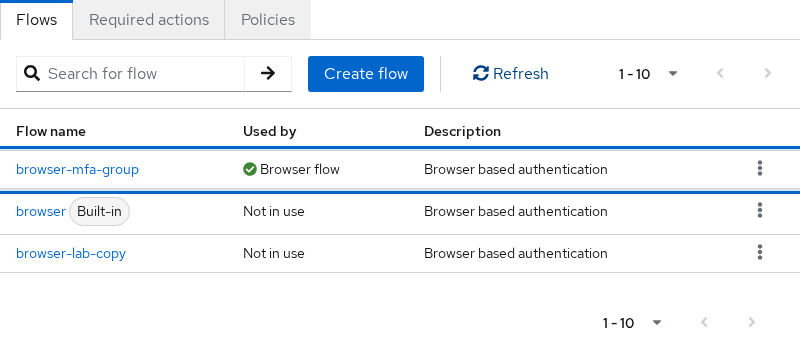
Admin API equivalent:
curl -sS "${KC_BASE}/admin/realms/${REALM}" -H "Authorization: Bearer ${ADMIN_TOKEN}" > /tmp/realm.json

python3 -c "
import json
with open('/tmp/realm.json') as f: r=json.load(f)
r['browserFlow']='browser-mfa-group'
with open('/tmp/realm-bind.json','w') as f: json.dump(r,f)
"

curl -sS -o /dev/null -w 'bind-custom:%{http_code}\n' -X PUT \
  -H "Authorization: Bearer ${ADMIN_TOKEN}" -H 'Content-Type: application/json' \
  -d @/tmp/realm-bind.json "${KC_BASE}/admin/realms/${REALM}"
Rehearse restore before you announce the binding: set Browser flow back to browser, confirm you can still sign in, then bind browser-mfa-group again for testing.
Test the four MFA scenarios
Use client auth-flow-test with redirect http://127.0.0.1:8765/callback. Run each test with prompt=login in a clean browser session so cookie SSO does not mask the custom tree.
Walk through each row:
- mfa-group-otp — password step, then OTP prompt, then redirect with
?code=... - mfa-group-plain — password step, then OTP setup wizard because the user has the role but no credential yet
- mfa-otp-only — password only; role condition fails even though OTP is enrolled
- tokenuser — password only baseline
Keycloak 26 username-first login shows the password field on a second screen after you submit the username. Wait for #password before you conclude the OTP step was skipped.
| User | Password | OTP step | Result |
|---|---|---|---|
mfa-group-otp |
MfaGroupOtp!2026 |
Required | Redirect with ?code=... after valid TOTP |
mfa-group-plain |
MfaGroupPlain!2026 |
Setup required | OTP enrollment, then successful login |
mfa-otp-only |
MfaOtpOnly!2026 |
Skipped | Password only despite enrolled OTP |
tokenuser |
TokenUser!2026 |
Skipped | Password only (baseline) |
There is no application listening on port 8765 in this lab. After Keycloak completes authentication, your browser may show a connection-refused page when it redirects to the callback URL. That is expected. A successful test is confirmed by the callback address containing code=...; a real application would receive and process that authorization code.
A successful group-member login ends at a callback similar to:
http://127.0.0.1:8765/callback?state=...&session_state=...&code=eeccd49b-0b8a-d030-9ef3-86d883f6513b....Troubleshoot the custom authentication flow
| Symptom | Likely cause | Fix |
|---|---|---|
| OTP before password | Group MFA sorted above Username Password Form | Move username/password above Group MFA in the Admin Console |
| OTP for everyone with TOTP | Copied Browser - Conditional 2FA still Conditional | Set the copied default 2FA subflow to Disabled |
| OTP never appears for group members | Missing role mapping or wrong role in Condition - user role | Map mfa-lab-required to mfa-lab-group; verify the user inherited the role |
| Group member completes login with password only | Condition - user configured still present, or OTP Form not Required | Remove Condition - user configured; set OTP Form to Required |
| Admin Console unreachable | Bad browserFlow binding |
Restore browserFlow to browser from a master-realm session |
Enable LOGIN events on the realm when you need to see where authentication stopped. Realm events shows whether login completed; structural changes appear under Admin events.
Roll back the Browser flow
Admin Console: set Browser flow back to browser and save.
Admin API equivalent:
python3 -c "
import json
with open('/tmp/realm.json') as f: r=json.load(f)
r['browserFlow']='browser'
with open('/tmp/realm-restore.json','w') as f: json.dump(r,f)
"

curl -sS -o /dev/null -w 'restore-browser:%{http_code}\n' -X PUT \
  -H "Authorization: Bearer ${ADMIN_TOKEN}" -H 'Content-Type: application/json' \
  -d @/tmp/realm-restore.json "${KC_BASE}/admin/realms/${REALM}"
HTTP 204 puts browser login back on the built-in tree. Keep browser-mfa-group in the realm as a documented copy until you no longer need the reference.
Export the custom authentication flow
Once the four test cases behave as expected, export the realm configuration so the same flow can be reviewed and reproduced elsewhere.
Admin Console: Realm settings → Action → Partial export
Admin API equivalent:
curl -sS -H "Authorization: Bearer ${ADMIN_TOKEN}" \
  "${KC_BASE}/admin/realms/${REALM}/partial-export?exportGroupsAndRoles=true&exportClients=false" \
  -o /tmp/golinuxcloud-partial.json
Inspect authentication-related sections in the export (authenticationFlows, authenticatorConfig, browserFlow) before promoting the same structure to staging.
Summary
Copy browser to browser-mfa-group, disable the copied default Browser - Conditional 2FA, add a Group MFA conditional subflow gated by role mfa-lab-required, set OTP Form to Required, order executions so password runs before OTP, bind browserFlow, and test four user states. Group members without OTP are prompted to enroll instead of skipping MFA. Keep a documented restore path to browser. For requirement types and binding maps, continue with Keycloak authentication flows explained.
References
- Keycloak Server Administration Guide — Authentication flows
- Keycloak Server Administration Guide — OTP policies
Frequently Asked Questions
Can I edit the built-in Browser flow?
No. Built-in flows are read-only templates. Copy browser, edit the copy, bind browserFlow to the copy, and leave browser untouched so you always have a known-good rollback target.
How do I avoid admin lockout?
Keep a master-realm admin session open, record the current browserFlow, and rehearse restore (browserFlow → browser) before you bind a custom tree. Never bind an untested custom flow unless you have a second administrative path that can restore the previous binding.
Why is an execution skipped?
Conditional subflows run only when every Required condition inside them succeeds. If the user lacks the configured role, Group MFA is skipped — often the intended outcome for users outside the policy. If the user has the role but no OTP credential, a Required OTP Form should trigger setup instead of skipping MFA.
How do I revert the binding?
Set browserFlow back to browser under Realm settings → Authentication flow (or with PUT /admin/realms/{realm}). HTTP 204 means the binding changed; verify with a fresh browser login.
Can flows be exported?
Yes. Use Realm settings → Action → Partial export or the partial-export Admin API shown above. Store exports in version control after you validate the four user states in the lab matrix.
