
| Tested on | Red Hat Enterprise Linux 10.2 (Coughlan) |
|---|---|
| Package | podman-5.8.2-5.el10_2.x86_64quay.io/keycloak/keycloak:26.7.3 |
| Applies to | Any Linux host with Podman or Docker |
| Privilege | Keycloak admin access for OTP policy and credential management; normal user for browser enrollment and login tests |
| Lab environment | Keycloak 26.7.3 on http://127.0.0.1:8080/ — Install Keycloak with Podman |
| Scope | How TOTP works in Keycloak, realm OTP policy fields, forcing Configure OTP, authenticator app enrollment, browser login with OTP Form, selective enforcement patterns, admin credential removal for lost devices, recovery-code relationship, clock skew and invalid-code troubleshooting. Does not cover custom conditional-flow wiring, the full recovery-codes walkthrough, or WebAuthn passkeys. |
| Related guides | Install Keycloak with Podman Keycloak required actions Create and manage users in Keycloak Keycloak authentication flows explained Keycloak recovery codes |
When a user enrolls an authenticator app, Keycloak creates an otp credential for that user. That credential contains the secret Keycloak uses to verify the time-based codes submitted during login.
You configure the TOTP period, algorithm, digits, and validation window at realm level, while each enrolled user has their own OTP credential. The built-in Browser - Conditional 2FA subflow prompts for a code only when that credential exists.
This guide walks enrollment and login on Keycloak 26.7.3 with user totp-lab-user in realm golinuxcloud. You will set OTP policy, assign Configure OTP, scan the QR code (or copy the manual key), verify a second factor at login, reject stale codes when the look-ahead window is tight, and remove a lost OTP credential from the Admin Console.
How TOTP works in Keycloak
TOTP combines a shared secret with the current time interval to generate a short numeric code.
In this lab, Keycloak uses a 30-second period and 6-digit codes, so both Keycloak and the authenticator app calculate a new six-digit value every 30 seconds from the same secret. Keycloak accepts codes within the realm look-ahead window around the current step.
  Enrollment                         Login (browser flow)
  ┌──────────────┐  secret + QR       ┌──────────────┐
  │ Configure OTP│ ────────────────► │ OTP credential│
  │ required act │                   │ on user record│
  └──────┬───────┘                   └──────┬───────┘
         │ user scans app                  │
         v                                 v
  ┌──────────────┐   6-digit code   ┌──────────────┐
  │ Authenticator│ ◄──────────────► │ OTP Form in  │
  │ app          │   each 30s step  │ browser flow │
  └──────────────┘                  └──────────────┘
Keycloak never shows the raw secret again after enrollment. Admin API responses list an otp credential with algorithm metadata only. For enrollment triggers and email links, see Keycloak required actions — this page focuses on the OTP policy, credential, and login path.
Configure the realm OTP policy
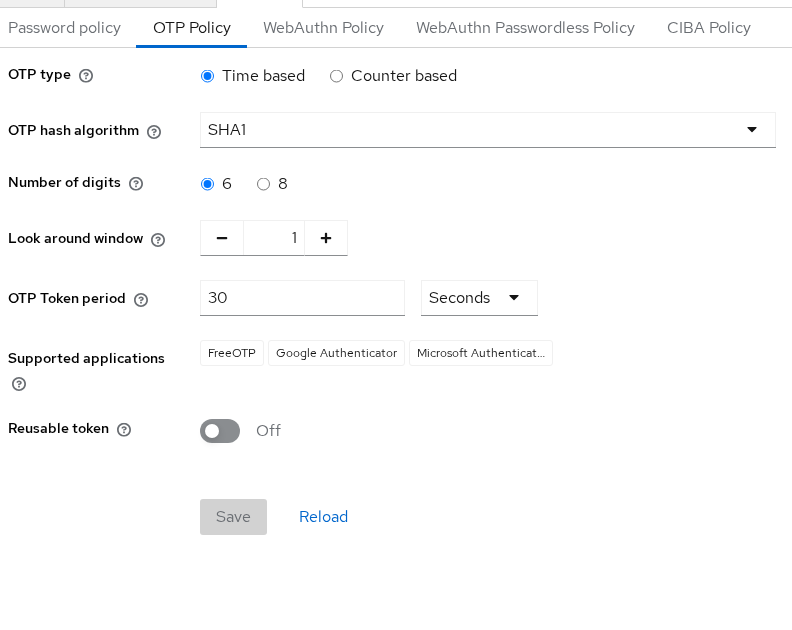
Realm OTP policy defines what enrolled apps must generate: type, digits, period, algorithm, and how many adjacent windows Keycloak accepts.
| Field | Lab default | What it controls |
|---|---|---|
otpPolicyType |
totp |
Time-based OTP (not counter-based HOTP) |
otpPolicyDigits |
6 |
Code length |
otpPolicyPeriod |
30 |
Seconds per step |
otpPolicyAlgorithm |
HmacSHA1 |
HMAC algorithm (matches most apps) |
otpPolicyLookAheadWindow |
1 |
Accept codes from ±1 window when clocks drift |
otpPolicyCodeReusable |
false |
Whether the same code works twice in one window |
With reusable codes disabled, a TOTP that has already been accepted during its current validity window cannot simply be submitted again for another authentication.
Open Authentication → Policies → OTP policy in the Admin Console:
Read the live policy through the Admin REST API when you automate deployments:
curl -sS -H "Authorization: Bearer ${ADMIN_TOKEN}" \
  "${KC_BASE}/admin/realms/${REALM}" | \
  python3 -c "import sys,json; r=json.load(sys.stdin); print('digits', r['otpPolicyDigits'], 'period', r['otpPolicyPeriod'], 'lookAhead', r['otpPolicyLookAheadWindow'])"
Sample output:
digits 6 period 30 lookAhead 1Keep the default look-ahead window of 1 unless you have a specific reason to change it.
A value of 0 requires tighter clock alignment. Higher values tolerate more clock drift but also widen the window in which a code can be accepted, so fix time synchronization rather than increasing the window unnecessarily.
Tighten otpPolicyLookAheadWindow to 0 in a lab when you want to reproduce clock-skew rejection.
Important: Configuring OTP Policy does not automatically enable 2FA for every user. The policy defines how OTP works once a user has enrolled.
To make a user enroll an authenticator, assign the Configure OTP required action, enable it as a default action for new users, or enforce enrollment through a custom authentication flow.
Require users to configure OTP
Keycloak separates enrollment (Configure OTP required action) from login-time verification (OTP Form in the browser flow). Users must finish enrollment before the conditional 2FA subflow can challenge them.
Three common enforcement patterns:
| Pattern | When to use | How |
|---|---|---|
| Per-user | One account or a pilot group | Set requiredActions to include CONFIGURE_TOTP |
| Default action | Every new user at creation | Enable Configure OTP and turn on Default action |
| Email link | Remote enrollment | execute-actions-email with ["CONFIGURE_TOTP"] (needs SMTP) |
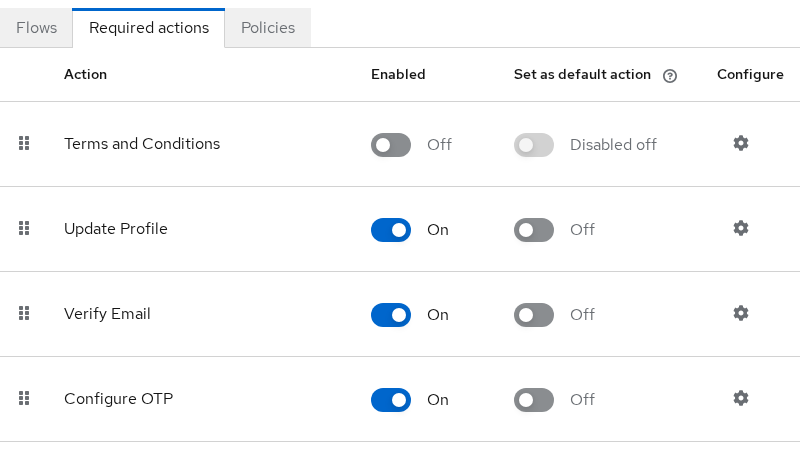
Ensure Configure OTP is enabled under Authentication → Required actions:
Assign Configure OTP to the lab user through the API (the golinuxcloud realm also requires employeeId on create — see Create and manage users in Keycloak):
TOTP_USER_ID=$(curl -sS -H "Authorization: Bearer ${ADMIN_TOKEN}" \
  "${KC_BASE}/admin/realms/${REALM}/users?username=totp-lab-user&exact=true" | \
  python3 -c "import sys,json; u=json.load(sys.stdin); print(u[0]['id'])")

curl -sS -o /dev/null -w 'assign-configure-otp:%{http_code}\n' -X PUT \
  -H "Authorization: Bearer ${ADMIN_TOKEN}" -H 'Content-Type: application/json' \
  "${KC_BASE}/admin/realms/${REALM}/users/${TOTP_USER_ID}" \
  -d '{"requiredActions":["CONFIGURE_TOTP"],"enabled":true,"attributes":{"employeeId":["EMP-5501"]}}'
Sample output:
assign-configure-otp:204HTTP 204 means the user will see the Mobile Authenticator Setup screen after the next successful password validation.
Enroll an authenticator app
Sign in through the Account Console client so Configure OTP runs as a required action:
http://127.0.0.1:8080/realms/golinuxcloud/protocol/openid-connect/auth?client_id=account&redirect_uri=http://127.0.0.1:8080/realms/golinuxcloud/account/&response_type=code&scope=openidUse totp-lab-user / TotpLab!2026. Keycloak shows a QR code for FreeOTP, Google Authenticator, or Microsoft Authenticator:
The QR code contains the OTP enrollment information, including the shared secret and the realm's TOTP parameters. Scanning it saves those values in the authenticator app so the app and Keycloak can generate matching codes.
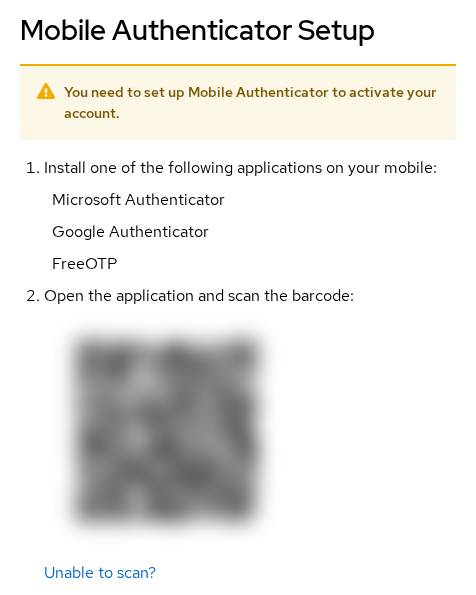
The enrollment secret is intentionally redacted. Treat the QR code and manual key like a password.
Click Unable to scan? when you need the plain secret for a manual entry or lab automation. Copy the grouped key from the page (not the hidden form field) into your app:
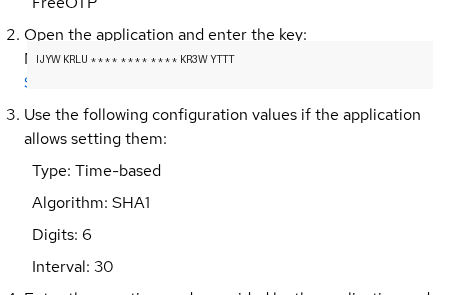
Enter the current six-digit code from the app, add a device label such as lab-phone, and submit. Keycloak stores an otp credential and clears CONFIGURE_TOTP from requiredActions.
List credentials to confirm enrollment without reading the secret back:
curl -sS -H "Authorization: Bearer ${ADMIN_TOKEN}" \
  "${KC_BASE}/admin/realms/${REALM}/users/${TOTP_USER_ID}/credentials" | \
  python3 -c "import sys,json; [print(c['type'], c.get('userLabel','')) for c in json.load(sys.stdin)]"
Sample output:
password
otp lab-phone
Test two-factor login
After enrollment, the built-in browser flow runs Browser - Conditional 2FA when the user already has an OTP credential. Password validation succeeds first; then OTP Form asks for the current code.
Start a fresh browser session (clear cookies or use a private window) and open the same Account Console auth URL. After username and password, Keycloak stops on the OTP step:
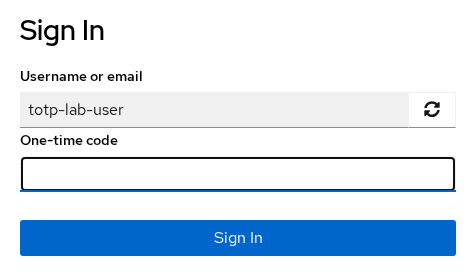
Enter a deliberately incorrect code—for example, change one digit from the code currently displayed by your authenticator app—to confirm Keycloak rejects bad codes before issuing tokens:
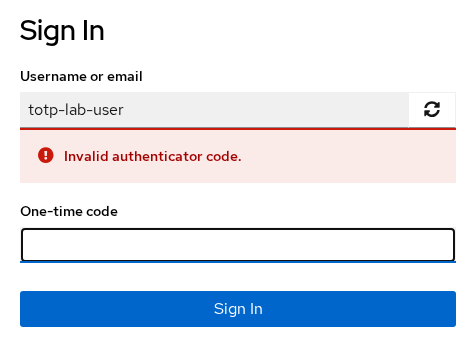
The UI reports Invalid authenticator code. and keeps you on the OTP step. Sign in again with a fresh session and enter the live code from the app to reach the Account Console.
The OTP Form execution lives inside the browser authentication flow. For how conditions and subflows fit together, see Keycloak authentication flows explained — this article does not rewire those executions.
Apply TOTP selectively
Keycloak lets you decide which users must enroll and when the OTP step should run:
-
Conditional 2FA (default): OTP runs only when the user has enrolled. Unenrolled users stay password-only until you assign Configure OTP.
-
Default required action: New users enroll before first app access; turn the default off after onboarding waves complete.
-
Per-user assignment: Add or remove
CONFIGURE_TOTPon individual accounts through the Admin Console or API. -
Group- or role-gated MFA: Requires a copied browser flow with extra conditions — keep that work in a dedicated conditional-flow guide rather than here.
Pick one primary pattern per realm stage. Mixing default actions with ad-hoc assignments without cleanup leaves some users on password-only login while others see OTP every session.
Lost device and credential reset
When a user loses the phone that held their enrolled OTP credential, an admin must delete the otp credential and re-assign Configure OTP.
The Admin Console can list the OTP credential, but it does not expose the enrollment secret again. Reset therefore means deleting the old credential and enrolling a new one rather than retrieving the old QR code.
List credentials and note the OTP credential ID:
curl -sS -H "Authorization: Bearer ${ADMIN_TOKEN}" \
  "${KC_BASE}/admin/realms/${REALM}/users/${TOTP_USER_ID}/credentials" | \
  python3 -c "import sys,json; [print(c['id'], c['type'], c.get('userLabel')) for c in json.load(sys.stdin)]"
Sample output:
69d90af0-29b9-4580-9e0c-6f19982b89f2 password None
3f3eb615-1ca1-4cdd-a418-98e2daea410c otp lab-phone
Capture the OTP credential ID from the list, then delete only that row:
OTP_CRED_ID=$(curl -sS -H "Authorization: Bearer ${ADMIN_TOKEN}" \
  "${KC_BASE}/admin/realms/${REALM}/users/${TOTP_USER_ID}/credentials" | \
  python3 -c "import sys,json; print(next(c['id'] for c in json.load(sys.stdin) if c['type']=='otp'))")

curl -sS -o /dev/null -w 'delete-otp:%{http_code}\n' -X DELETE \
  -H "Authorization: Bearer ${ADMIN_TOKEN}" \
  "${KC_BASE}/admin/realms/${REALM}/users/${TOTP_USER_ID}/credentials/${OTP_CRED_ID}"
Sample output:
delete-otp:204Re-assign Configure OTP so the user can enroll a replacement device on next login. The Admin Console Credentials tab should show password only:
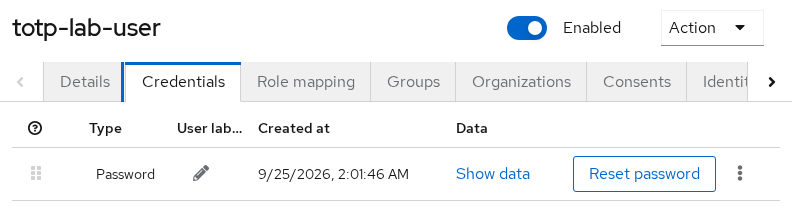
After deleting the lost OTP credential, re-assign Configure OTP.
On the user's next login:
- The password is validated.
- Keycloak sees the pending
CONFIGURE_TOTPrequired action. - The user must enroll a new authenticator before completing login.
If you delete the OTP credential without assigning Configure OTP again, the default conditional browser flow can fall back to password-only login because the user no longer has an OTP credential.
TOTP with recovery codes
Recovery codes are a separate credential type from TOTP. The default browser flow ships with Recovery Authentication Code Form disabled.
Recovery codes are not enabled for login just by generating them. The Recovery Authentication Codes required action must be enabled, and Recovery Authentication Code Form must also participate in the browser flow, normally as an Alternative second-factor method.
Pair TOTP with recovery codes in production: enroll OTP for daily login, issue recovery codes once, and store them offline. The dedicated Keycloak recovery codes walkthrough covers enrollment and rotation — this page only removes and re-issues TOTP.
Troubleshoot invalid OTP
| Symptom | Likely cause | Fix |
|---|---|---|
Invalid authenticator code right after enrollment |
Typo, expired step, or wrong secret scanned | Re-open manual setup; wait for the next 30s window |
| Valid phone code rejected intermittently | Clock skew beyond look-ahead window | Sync NTP on app host and Keycloak nodes; keep otpPolicyLookAheadWindow at 1 unless you have a documented reason to change it |
| Valid code rejected after policy change | Digits, period, or algorithm no longer match the enrolled credential | Remove OTP credential and re-enroll |
| OTP prompt never appears | User not enrolled or conditional subflow disabled | Confirm otp credential exists; check browser flow bindings |
| User locked out after many attempts | Brute-force detection (when enabled) | Clear brute-force flags in Admin Console or temporarily relax realm lockout policy |
Simulate clock skew by setting otpPolicyLookAheadWindow to 0 and submitting a code from an earlier window. A stale code produces the same Invalid authenticator code message as a mistyped code, so the UI alone does not tell you which condition failed.
Restore otpPolicyLookAheadWindow to 1 after the test. When brute-force protection is enabled on the realm, repeated wrong OTP attempts count toward temporary lockout the same way failed passwords do — plan recovery through credential removal plus Configure OTP rather than guessing codes.
Summary
Realm OTP policy sets the time step, digits, and look-ahead window every authenticator app must follow. Assign Configure OTP per user, as a default action, or through execute-actions email, then let users scan the QR code or paste the manual key to create an otp credential.
Successful enrollment switches the browser flow to OTP Form on the next login. Wrong or stale codes return Invalid authenticator code without issuing tokens; sync NTP when clocks drift rather than widening the look-ahead window without cause.
When a device is lost, delete the OTP credential in the Admin API or Console, re-assign Configure OTP, and point users toward recovery codes for backup access. Deleting the credential alone can leave password-only login until Configure OTP is assigned again. Selective MFA for subsets of users belongs in authentication-flow customization — keep this page focused on standard TOTP enrollment, login, and reset.
References
- Keycloak Server Administration Guide — OTP policies
- Keycloak Server Administration Guide — Configure OTP required action
- RFC 6238 — TOTP: Time-Based One-Time Password Algorithm
Frequently Asked Questions
Which authenticator apps work with Keycloak TOTP?
Any app that supports standard TOTP with SHA-1, six digits, and a 30-second period. Keycloak lists FreeOTP, Google Authenticator, and Microsoft Authenticator in the enrollment screen; other RFC 6238-compatible apps work when they match the realm OTP policy.
How do I force every user to set up OTP?
Enable Configure OTP under Required actions, set Default action on for new users, or assign CONFIGURE_TOTP through automation on existing accounts. Users complete enrollment at next login or through an execute-actions email link when SMTP is configured.
Why is a valid authenticator code rejected?
Common causes are clock drift outside the look-ahead window, a code from the previous 30-second step, or an OTP policy change after enrollment. Sync time with NTP, try the next code, or remove the OTP credential and enroll again. Fix clock synchronization before raising the look-ahead window.
How do I reset TOTP when a user loses their phone?
Delete the otp credential through the Admin Console Credentials tab or DELETE .../credentials/{id}, then assign Configure OTP again. The user must complete enrollment before login finishes. Without Configure OTP, conditional 2FA may allow password-only login. Issue recovery codes beforehand if you need backup access between removal and re-enrollment.
TOTP vs passkeys — which should I use?
TOTP works on any smartphone authenticator app and is quick to roll out. Passkeys (WebAuthn) use device-bound keys and resist phishing differently. Keycloak supports both; choose TOTP for broad app compatibility and add passkeys when you are ready for WebAuthn enrollment flows.
