
| Tested on | Red Hat Enterprise Linux 10.2 (Coughlan) |
|---|---|
| Package | podman-5.8.2-5.el10_2.x86_64quay.io/keycloak/keycloak:26.7.3openldap-servers-2.6.10-1.el10_2.x86_64 / openldap-clients-2.6.10-1.el10.x86_64 |
| Applies to | Keycloak 26.x with OpenLDAP or compatible LDAP directories (Other vendor) |
| Privilege | Keycloak realm admin; OpenLDAP admin DN for bootstrap |
| Lab environment | Keycloak on http://127.0.0.1:18120/ — Install Keycloak with PodmanOpenLDAP directory on ldap://127.0.0.1:1389 — OpenLDAP tutorial |
| Scope | OpenLDAP user federation in Keycloak: lab directory bootstrap, bind and search checks with ldapsearch, LDAP provider settings (Other vendor, uid, entryUUID), full user sync, and sign-in with the directory password. Does not cover group mappers, LDAPS truststores, or Active Directory presets — see linked guides. |
| Related guides | Install Keycloak with Podman User federation vs identity brokering LDAP and OpenLDAP basics Keycloak LDAP sync configuration Keycloak tutorial |
Keycloak can authenticate OpenLDAP users without copying password hashes into its database. Add an Other LDAP user federation provider, point it at your inetOrgPerson tree, and let Keycloak validate passwords against OpenLDAP at login time.
This walkthrough stands up a small OpenLDAP directory on port 1389, runs Keycloak 26.7.3 on http://127.0.0.1:18120 so it does not collide with an existing Keycloak on 8080, imports jane and john into realm golinuxcloud, and signs in with Jane's LDAP password.
How Keycloak uses OpenLDAP for login
OpenLDAP remains the system of record for accounts and passwords. Keycloak connects over LDAP, imports profile fields you map, and checks the password with the directory when someone signs in.
┌─────────────┐      ┌──────────────────┐      ┌─────────────────────┐
│ Application │ ───► │ Keycloak 26.7.3  │ ───► │ OpenLDAP (port 1389) │
│ OIDC / SAML │      │ realm            │      │ uid + userPassword   │
└─────────────┘      └──────────────────┘      └─────────────────────┘
When a federated user signs in:
- The browser or client sends credentials to Keycloak.
- Keycloak locates the user through the LDAP provider (imported or on first login).
- Keycloak binds to OpenLDAP to verify the password.
- Keycloak issues its own tokens or session cookies to the application.
For how this differs from redirecting login to an external IdP, see user federation vs identity brokering.
Import vs password check
Bulk Sync all users creates Keycloak user records for every entry that matches Users DN, Search scope, and your LDAP filter. Import users also allows first-time creation when someone logs in before a sync runs.
Passwords are never imported. Whether the account arrived from sync or first login, Keycloak still validates userPassword in OpenLDAP during authentication.
Lab layout
| Role | Value |
|---|---|
| Keycloak | http://127.0.0.1:18120, realm golinuxcloud |
| OpenLDAP | ldap://127.0.0.1:1389 on the RHEL host (0.0.0.0:1389 so the Podman container can reach it) |
| Base DN | dc=example,dc=com |
| Users OU | ou=people,dc=example,dc=com |
| Directory admin | cn=admin,dc=example,dc=com / adminpass |
| Federation provider | lab-openldap (vendor Other) |
| Sample user | jane / JanePass!2026 |
Keycloak inside Podman uses ldap://host.containers.internal:1389 as Connection URL so the container reaches the host's LDAP listener. If Keycloak runs directly on the host, use ldap://127.0.0.1:1389 instead.
Install Podman and the OpenLDAP packages if they are not already present:
sudo dnf install -y podman openldap-servers openldap-clientsThe install command exits quietly when the packages are already installed.
Bootstrap OpenLDAP for the lab
Use an isolated configuration under ~/keycloak-openldap-lab so you do not modify the system slapd service. The lab listens on port 1389 only.
Create directories and a minimal slapd.conf:
LAB=~/keycloak-openldap-lab
mkdir -p "$LAB"/{data,run,etc,ldif}
Generate a hashed password for the directory administrator:
slappasswd -s adminpassSample output:
{SSHA}FxBWSi0cULDwXqVtsfuMIFQubnhJs9//Paste the {SSHA}… line into rootpw in the config below (your hash differs if you re-run slappasswd):
cat > "$LAB/etc/slapd.conf" <<'EOF'
include /etc/openldap/schema/core.schema
include /etc/openldap/schema/cosine.schema
include /etc/openldap/schema/inetorgperson.schema

pidfile /root/keycloak-openldap-lab/run/slapd.pid
argsfile /root/keycloak-openldap-lab/run/slapd.args

database mdb
suffix "dc=example,dc=com"
rootdn "cn=admin,dc=example,dc=com"
rootpw {SSHA}FxBWSi0cULDwXqVtsfuMIFQubnhJs9//
directory /root/keycloak-openldap-lab/data

index objectClass eq
index uid eq
EOF
Validate the syntax before you start the server:
slaptest -f "$LAB/etc/slapd.conf"Sample output:
config file testing succeededStop any previous lab slapd on this path, then start a new instance on all interfaces so Podman can connect:
pkill -f 'slapd.*keycloak-openldap-lab' 2>/dev/null || true
slapd -h "ldap://0.0.0.0:1389/" -f "$LAB/etc/slapd.conf"
slapd does not print a banner when it starts in the background; confirm the listener with ss:
ss -tlnp | grep 1389Sample output:
LISTEN 0 2048 0.0.0.0:1389 0.0.0.0:* users:(("slapd",pid=...,fd=...))Load the base DN, people OU, and two inetOrgPerson users:
cat > "$LAB/ldif/base.ldif" <<'EOF'
dn: dc=example,dc=com
objectClass: top
objectClass: dcObject
objectClass: organization
o: Example Corp
dc: example

dn: ou=people,dc=example,dc=com
objectClass: organizationalUnit
ou: people

dn: uid=jane,ou=people,dc=example,dc=com
objectClass: inetOrgPerson
objectClass: organizationalPerson
objectClass: person
cn: Jane Developer
sn: Developer
uid: jane
mail: jane@example.com
userPassword: JanePass!2026

dn: uid=john,ou=people,dc=example,dc=com
objectClass: inetOrgPerson
objectClass: organizationalPerson
objectClass: person
cn: John Analyst
sn: Analyst
uid: john
mail: john@example.com
userPassword: JohnPass!2026
EOF
Apply the LDIF with the admin bind:
ldapadd -x -H ldap://127.0.0.1:1389 -D "cn=admin,dc=example,dc=com" -w adminpass -f "$LAB/ldif/base.ldif"Sample output:
adding new entry "dc=example,dc=com"
...
adding new entry "uid=john,ou=people,dc=example,dc=com"
Confirm Jane is visible under the people OU:
ldapsearch -x -H ldap://127.0.0.1:1389 -D "cn=admin,dc=example,dc=com" -w adminpass \
  -b "ou=people,dc=example,dc=com" "(uid=jane)" uid mail
Sample output:
dn: uid=jane,ou=people,dc=example,dc=com
uid: jane
mail: jane@example.com
If LDAP returns Jane's DN, the bind account and Users DN you will enter in Keycloak are aligned.
Start Keycloak on a dedicated lab port
Pull the pinned image and run start-dev on 127.0.0.1:18120 so another Keycloak instance can keep port 8080:
KEYCLOAK_VERSION=26.7.3
podman run -d --name keycloak-openldap-kc \
  -p 127.0.0.1:18120:8080 \
  -e KC_BOOTSTRAP_ADMIN_USERNAME=admin \
  -e KC_BOOTSTRAP_ADMIN_PASSWORD='Admin!2026' \
  quay.io/keycloak/keycloak:${KEYCLOAK_VERSION} \
  start-dev --http-port=8080 --hostname-strict=false
Wait until HTTP responds on the host port:
curl -s -o /dev/null -w '%{http_code}\n' http://127.0.0.1:18120/Sample output:
302HTTP 302 means the dev server is up and redirecting to the Admin Console.
Sign in at http://127.0.0.1:18120/admin/ as admin / Admin!2026, create realm golinuxcloud, and leave Enabled on. The rest of the guide uses that realm instead of master.
Add the OpenLDAP LDAP provider
In realm golinuxcloud, open User federation → Add LDAP providers → Other. The Other vendor fits generic OpenLDAP layouts; it does not apply Active Directory defaults such as sAMAccountName or objectGUID.
Configure lab-openldap with these values:
| Setting | Lab value |
|---|---|
| UI name | lab-openldap |
| Vendor | Other |
| Connection URL | ldap://host.containers.internal:1389 |
| StartTLS | Off (cleartext lab LDAP on the loopback host) |
| Bind DN | cn=admin,dc=example,dc=com |
| Bind credentials | adminpass |
| Users DN | ou=people,dc=example,dc=com |
| Search scope | Subtree |
| Username LDAP attribute | uid |
| RDN LDAP attribute | uid |
| UUID LDAP attribute | entryUUID |
| User object classes | inetOrgPerson, organizationalPerson |
| Edit mode | READ_ONLY |
| Import users | On |
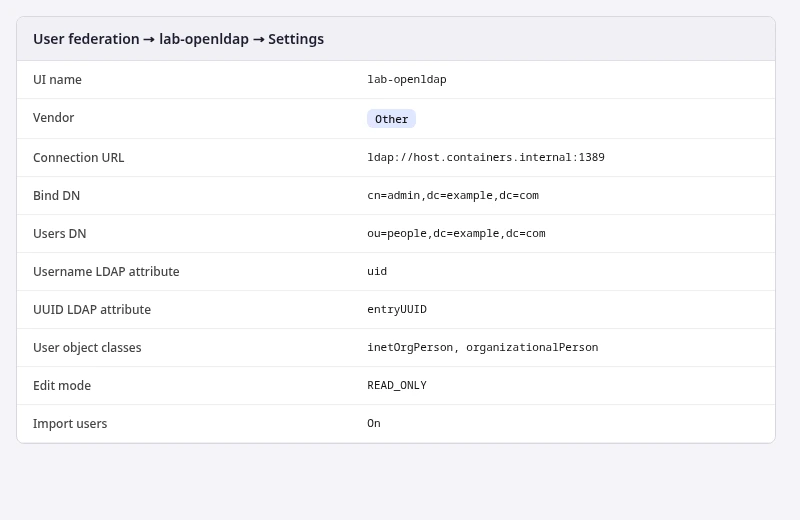
Users DN limits where Keycloak searches for users. Subtree includes ou=people and any child OUs. With Username LDAP attribute set to uid, the Keycloak username is jane, not the full DN.
entryUUID is OpenLDAP's stable identifier for each entry. Keycloak stores it in LDAP_ID on the user record. If your directory does not expose entryUUID, use another unique attribute documented for your server (for example nsUniqueId on some layouts).
Click Save, then run Test connection and Test authentication on the provider page. Fix Connection URL, bind credentials, or Users DN before you sync if either test fails.
Sync OpenLDAP users into Keycloak
Open Synchronization settings for lab-openldap and run Sync all users:
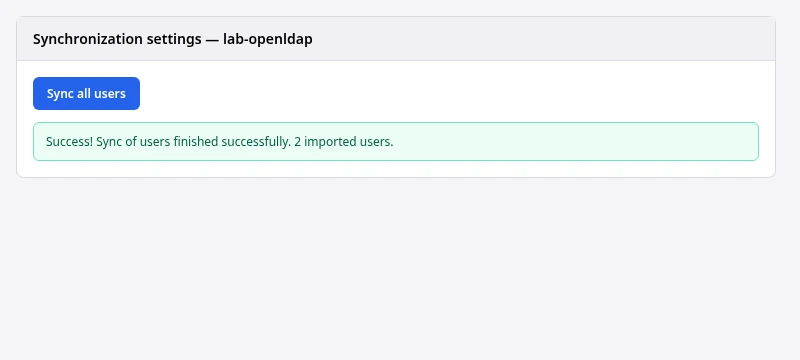
The lab reports two imported users (jane and john). Your count depends on entries under Users DN and any custom LDAP filter.
Under Users, open jane. The Identity provider field should show lab-openldap, with attributes such as LDAP_ENTRY_DN and LDAP_ID populated from OpenLDAP.
Test OpenLDAP login through Keycloak
Keycloak does not store Jane's LDAP password hash. Sign-in checks OpenLDAP over LDAP.
Open the realm Account Console:
http://127.0.0.1:18120/realms/golinuxcloud/account/Sign in as jane with JanePass!2026. A successful login confirms both lookup and password validation against OpenLDAP.
To verify from the shell, create a public OIDC client with direct access grants enabled in the Admin Console (lab-app), then request a token:
curl -s -X POST 'http://127.0.0.1:18120/realms/golinuxcloud/protocol/openid-connect/token' \
  -H 'Content-Type: application/x-www-form-urlencoded' \
  -d 'client_id=lab-app' \
  -d 'grant_type=password' \
  -d 'username=jane' \
  -d 'password=JanePass!2026' | python3 -m json.tool | head -8
Sample output:
{
    "access_token": "eyJhbGciOiJSUzI1NiIsInR5cCIgOiAiSldUI...",
    "expires_in": 300,
    "refresh_expires_in": 1800,
    "token_type": "Bearer",
    "not-before-policy": 0,
    "scope": "profile email"
}
An access_token in the JSON response means Keycloak accepted Jane's OpenLDAP password for that client.
OpenLDAP mapping choices that matter
| Setting | Typical OpenLDAP value | What goes wrong when it is wrong |
|---|---|---|
| Vendor | Other | Active Directory presets set sAMAccountName / objectGUID and break plain uid trees |
| Username LDAP attribute | uid |
Login expects a DN or mail while users type jane |
| UUID LDAP attribute | entryUUID |
Duplicate or unstable LDAP_ID if the attribute is missing or reused |
| Users DN | ou=people,dc=example,dc=com |
Sync imports zero users when accounts live outside that OU |
| Connection URL | Reachable from the Keycloak process | localhost inside a container points at the container, not the host LDAP |
For periodic sync, import modes, and edit modes in depth, see Keycloak LDAP sync configuration. Group membership belongs in Keycloak LDAP group mapper once user federation works.
Troubleshooting
| Symptom | Likely cause | Fix |
|---|---|---|
| Test connection fails from Podman Keycloak | Connection URL uses 127.0.0.1 inside the container |
Use ldap://host.containers.internal:1389 or attach Keycloak to the host network |
| Test connection fails on the host | slapd not listening or firewalled |
Confirm ss -tlnp | grep 1389; restart the lab slapd command |
Sync imports 0 users |
Wrong Users DN or scope | Run the same subtree search with ldapsearch and the bind DN |
| Login fails after sync | Wrong password or user outside Users DN | ldapwhoami as the user against OpenLDAP; read Keycloak server logs |
| Duplicate or unstable users | Weak UUID LDAP attribute | Prefer entryUUID; avoid non-unique attributes |
Summary
You built a small OpenLDAP tree on port 1389, ran Keycloak 26.7.3 on 18120, and configured an Other LDAP provider with uid and entryUUID mapping. Full sync imported directory users into realm golinuxcloud, and Jane signed in with her OpenLDAP password through Keycloak.
The usual production gaps are TLS (ldap:// vs ldaps:// or StartTLS), truststores, and group mappers. Treat READ_ONLY as the default when OpenLDAP owns account data; only enable WRITABLE when you deliberately delegate write access to the bind account.
Next steps: Keycloak LDAP sync configuration for import and periodic sync, or Configure LDAPS in Keycloak when cleartext LDAP is not acceptable on the network path.
References
- Keycloak Server Administration Guide — User federation
- Keycloak Server Administration Guide — LDAP
- OpenLDAP Software — Administrator's Guide
Frequently Asked Questions
Should I pick OpenLDAP or Active Directory as the vendor in Keycloak?
Use Other for OpenLDAP and most RFC-style directories. Choose Active Directory only when the backend is Microsoft AD so Keycloak applies sAMAccountName, objectGUID, and AD account controls automatically.
Does Keycloak copy OpenLDAP password hashes?
No. Keycloak imports attributes and validates passwords against OpenLDAP at login. userPassword stays in the directory.
Why does Sync all users import zero accounts?
Run Test connection, then repeat the search with ldapsearch using the same bind DN, Users DN, and subtree scope. An empty LDAP result means the base DN or filter is wrong before you change Keycloak settings.
Can Keycloak reach OpenLDAP on localhost when Keycloak runs in Podman?
Not with ldap://127.0.0.1 from inside the container. Use host.containers.internal on Podman for Linux, publish LDAP on the host gateway, or run both services on a shared container network.
