
| Tested on | Red Hat Enterprise Linux 10.2 (Coughlan) |
|---|---|
| Package | podman-5.8.2-5.el10_2.x86_64quay.io/keycloak/keycloak:26.7.3 |
| Applies to | Any Linux host with Podman or Docker |
| Privilege | Keycloak admin access in the target realm for assignment and email triggers; normal user for browser login tests |
| Lab environment | Keycloak 26.7.3 on http://127.0.0.1:8080/ — Install Keycloak with Podman |
| Scope | What Keycloak Required Actions are, Admin Console enable/default/priority settings, common built-in actions, trigger paths (per-user, default, temporary password, kc_action, execute-actions-email), login-time testing, action-token lifespans, and troubleshooting. Does not cover forgot-password flows, full SMTP production setup, or custom required-action SPI development. |
| Related guides | Create and manage users in Keycloak Keycloak authentication flows explained Keycloak TOTP and 2FA Keycloak user attributes and User Profile Install Keycloak with Podman |
Keycloak Required Actions are one-time tasks a user must complete before Keycloak considers an authentication or account-management flow finished. Examples include changing a password, verifying an email address, or configuring OTP.
They often appear after login, but they can also be triggered by an administrator, a temporary password, an application using kc_action, or an emailed action link. This guide explains how to assign required actions, when they run, and how to troubleshoot them on Keycloak 26.7.3. For day-to-day user edits, see Create and manage users in Keycloak.
What are Keycloak Required Actions?
A required action is a named Keycloak task that must be completed before the current authentication or account-management flow can finish. During a normal browser login, it usually appears after the user authenticates but before Keycloak returns the user to the application.
Required actions are not the same as authentication flow executions:
- Authentication executions run during login (username form, OTP form, WebAuthn, and similar).
- Required actions handle additional account tasks that Keycloak still requires before the current flow can finish.
User starts login
      |
      v
+------------------+
| Keycloak login   |
| username/password|
+------------------+
      |
      | authentication succeeds
      v
+----------------------+
| Required Actions?    |
| UPDATE_PASSWORD      |
| VERIFY_EMAIL         |
| CONFIGURE_TOTP       |
+----------------------+
      |
      | user completes all pending actions
      v
+------------------+
| Application      |
+------------------+
Required actions do not replace the authentication flow. Authentication usually establishes the user's identity.
If several required actions are pending, Keycloak does not simply follow the order of aliases in requiredActions. It uses the configured provider priority to decide which action should be presented first. After an action is completed, Keycloak removes that pending action and continues with the next one.
Common Keycloak Required Actions
Common built-in required actions include:
| Alias | Typical use |
|---|---|
UPDATE_PASSWORD |
Rotate password (often after a temporary password) |
VERIFY_EMAIL |
Confirm the mailbox before full access |
CONFIGURE_TOTP |
Enroll authenticator app OTP |
UPDATE_PROFILE |
Force profile fields after admin import |
webauthn-register |
Register a security key |
CONFIGURE_RECOVERY_AUTHN_CODES |
Generate and save recovery authentication codes |
The exact providers available in a realm depend on the Keycloak version and enabled features. Keycloak may also expose providers for actions such as update email, delete credential, passwordless WebAuthn, IdP linking, and others depending on version and enabled features.
Configure Required Actions in the Admin Console
Open Authentication → Required actions in the Admin Console to enable providers, toggle Default action, and adjust priority.
The realm-level Required Actions page controls three different things:
- Enabled — whether this required-action provider can be used in the realm
- Default action — whether the action should automatically apply to newly created or newly registered users
- Priority/order — which required action Keycloak presents first when several are pending
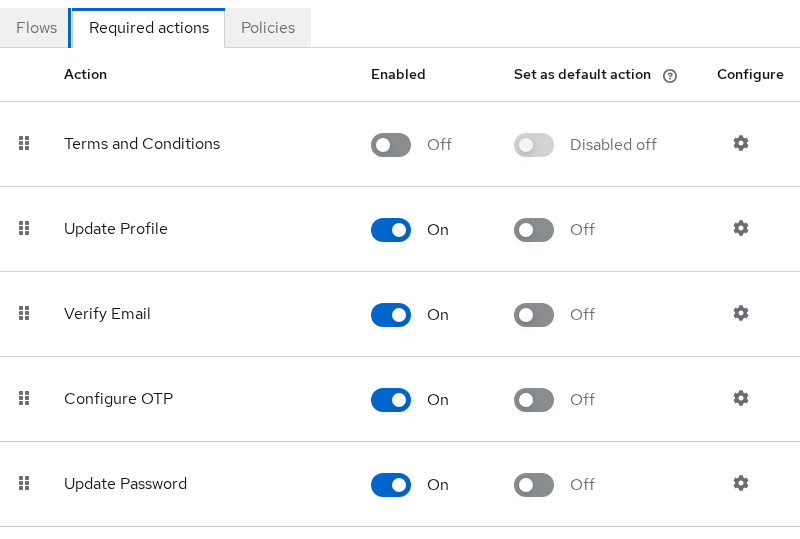
This page is where you enable required actions, choose defaults for new users, and set their order. A required-action provider must be enabled in the realm before Keycloak can execute it. Even if an alias appears in a user or request, a disabled provider cannot complete the action.
For automation, the Admin REST API exposes the same required-action configuration through GET /admin/realms/{realm}/authentication/required-actions. It also provides endpoints to raise or lower action priority.
How Required Actions are triggered
There are two main ways a required action gets presented to a user:
- Persistent user requirement — the action is stored on the user's account and appears during a later login
- Request-specific action — Keycloak asks the user to perform the action for one particular browser or email flow, such as
kc_actionorexecute-actions-email
execute-actions-email is not the same as simply adding an alias to user.requiredActions. Keycloak documents kc_action as an Application Initiated Action, and execute-actions-email embeds requested actions in a signed action token.
| Trigger source | Who sets it | When it runs | Typical alias |
|---|---|---|---|
Per-user requiredActions |
Admin Console or Admin REST | Next browser login | UPDATE_PASSWORD, VERIFY_EMAIL |
| Realm Default action | Authentication → Required actions | Added when the user is created | CONFIGURE_TOTP |
| Temporary password | reset-password with temporary: true |
Next login (Keycloak appends UPDATE_PASSWORD) |
UPDATE_PASSWORD |
execute-actions-email |
Admin REST PUT …/execute-actions-email |
User opens emailed action link | Any enabled alias |
Application-initiated (kc_action) |
Client adds kc_action to auth URL |
During that authorization request | e.g. UPDATE_PASSWORD |
Federated users: required actions can behave differently when user data comes from LDAP or Active Directory, especially when attributes are read-only or provider-specific mappers influence account state. Test required actions against your federation edit mode and mapper configuration.
Assign an action to one user
On Users → {user} → Details, use Required user actions to attach aliases to an existing account.
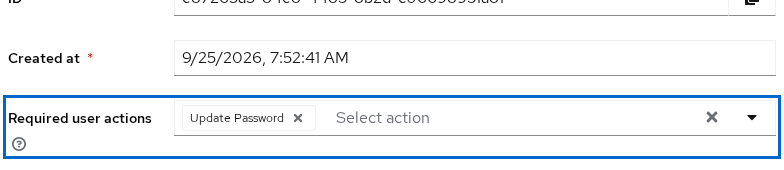
The same operation can be automated with kcadm.sh or the Admin REST API.
requiredActions is an array on the user representation. If your update sends only ["UPDATE_PASSWORD"], you can remove another action that was already present. Read the user first, merge the existing values, then update.
Lab user reqaction-pwd / ReqAction!2026 tests UPDATE_PASSWORD. User reqaction-verify tests VERIFY_EMAIL.
Set a default action for new users
Open Authentication → Required actions, enable a provider, and turn Default action on before creating the user. Default actions apply to newly created or newly registered users and are required at first login.
To test this, enable Configure OTP as a default action, create user reqaction-new, then turn the default off again so later users are unaffected. The same operation can be automated with kcadm.sh or the Admin REST API.
Temporary passwords and UPDATE_PASSWORD
When an administrator sets a password with "temporary": true, Keycloak adds UPDATE_PASSWORD so the user must choose a new password at the next login. This is a common onboarding path and behaves like a persistent required action on the account.
Trigger a required action from an application with kc_action
An OIDC client can request a supported required action during authorization by adding kc_action to the login URL:
https://keycloak.example.com/realms/myrealm/protocol/openid-connect/auth
  ?client_id=myapp
  &response_type=code
  &redirect_uri=https://app.example.com/callback
  &kc_action=UPDATE_PASSWORD
The application adds kc_action to the normal authorization request; Keycloak then inserts that action into that browser flow. This is called an Application Initiated Action (AIA). It can run even when the user already has an active SSO session, although Keycloak may require re-authentication depending on the action and its configured maximum authentication age.
Send an execute-actions email
execute-actions-email asks Keycloak to email a signed action link instead of waiting for the user to log in. The realm needs working SMTP. This lab pointed SMTP at a local listener on 127.0.0.1:1025 for testing only.
execute-actions-email is different from adding an item to the user's persistent requiredActions list. Keycloak creates a time-limited action token containing the requested actions. When the user opens the link, that token starts a browser flow for those actions.
Lab user reqaction-email tests the emailed Verify Email path.
Test Required Actions at login
Once authentication succeeds, Keycloak checks whether any required actions remain. If several are pending, Keycloak presents them according to required-action priority and does not complete the application login until the required steps are resolved.
Pending requiredActions run after username and password succeed. This lab uses the built-in account client because it allows standard browser login without PKCE parameters:
http://127.0.0.1:8080/realms/golinuxcloud/protocol/openid-connect/auth?client_id=account&redirect_uri=http://127.0.0.1:8080/realms/golinuxcloud/account/&response_type=code&scope=openidThese three screens show the same mechanism with different pending actions. The login succeeds, but Keycloak pauses the flow until the required task is completed.
Sign in as reqaction-pwd and Keycloak stops on Update password before redirecting:
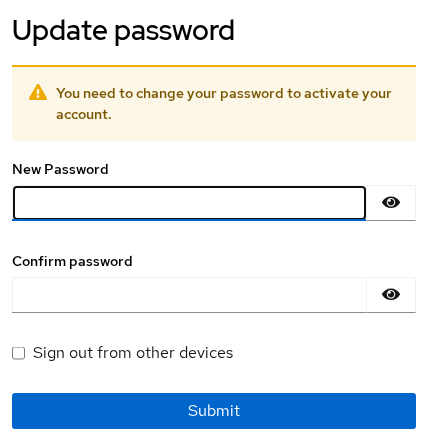
reqaction-verify shows the email verification step instead:
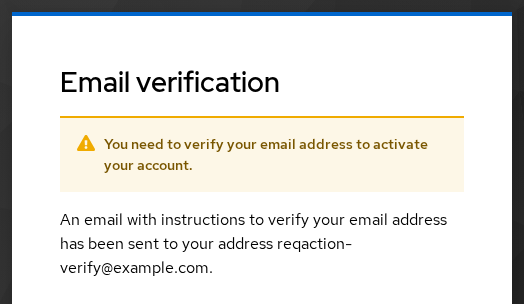
reqaction-new (created while CONFIGURE_TOTP was a default action) lands on OTP enrollment. Enrollment details live in Keycloak TOTP and 2FA:
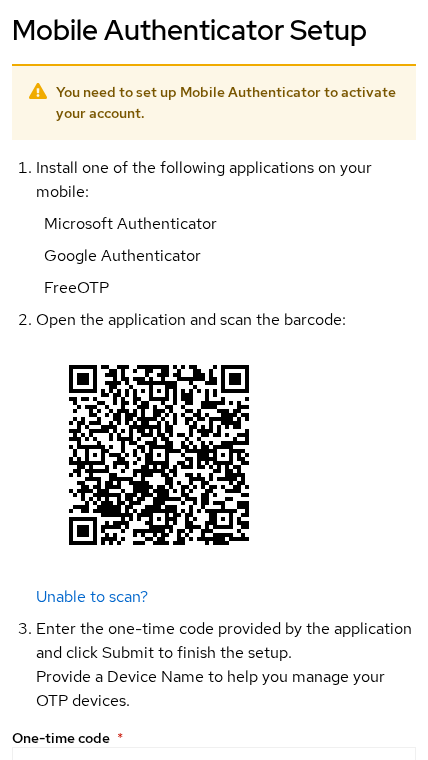
During a normal browser login, Keycloak does not complete the login and return the user to the application until the required actions for that flow are resolved.
Send Required Actions by email
Send Verify Email with client context and a five-minute lifespan:
export KC_BASE='http://127.0.0.1:8080'
export REALM='golinuxcloud'

ADMIN_TOKEN=$(curl -sS -X POST "${KC_BASE}/realms/master/protocol/openid-connect/token" \
  -d 'grant_type=password' -d 'client_id=admin-cli' \
  -d 'username=admin' -d 'password=ChangeMe!2026' | \
  python3 -c "import sys,json; print(json.load(sys.stdin)['access_token'])")

EMAIL_USER_ID=$(curl -sS -H "Authorization: Bearer ${ADMIN_TOKEN}" \
  "${KC_BASE}/admin/realms/${REALM}/users?username=reqaction-email&exact=true" | \
  python3 -c "import sys,json; print(json.load(sys.stdin)[0]['id'])")

curl -sS -o /dev/null -w 'execute-actions-email:%{http_code}\n' -X PUT \
  -H "Authorization: Bearer ${ADMIN_TOKEN}" -H 'Content-Type: application/json' \
  "${KC_BASE}/admin/realms/${REALM}/users/${EMAIL_USER_ID}/execute-actions-email?client_id=pkce-lab-spa&redirect_uri=http%3A%2F%2F127.0.0.1%3A8765%2Fcallback&lifespan=300" \
  -d '["VERIFY_EMAIL"]'
Sample output:
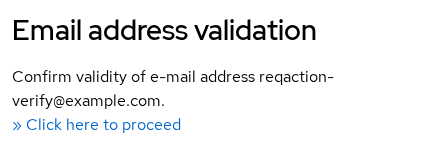
execute-actions-email:204HTTP 204 means Keycloak accepted the request and handed the message to SMTP. The plain-text body contains a link shaped like:
http://127.0.0.1:8080/realms/golinuxcloud/login-actions/action-token?key=eyJhbGciOiJIUzUxMiIs...When the user opens the signed link, Keycloak reads the action token and starts the requested action flow. Keycloak may still require authentication or re-authentication depending on the action, current user session, and security settings.
Query parameters on execute-actions-email:
| Parameter | Purpose |
|---|---|
client_id |
Client context embedded in the action token |
redirect_uri |
Where Keycloak sends the browser after success |
lifespan |
Per-email override in seconds (here 300) |
If you send redirect_uri, you must also provide the matching client_id, and the URI must be valid for that client.
The JSON body is a JSON array of action aliases, for example ["VERIFY_EMAIL","UPDATE_PASSWORD"].
Action token lifespans
If you do not pass lifespan, Keycloak uses the realm's configured action-token lifetime:
| Setting | Meaning |
|---|---|
actionTokenGeneratedByAdminLifespan |
Default lifetime for admin-generated action tokens |
actionTokenGeneratedByUserLifespan |
Default lifetime for user-initiated action tokens |
lifespan on execute-actions-email overrides the lifetime for that particular generated link.
To verify expiry behavior in the lab, send a test link with lifespan=1. After it expires, Keycloak displays the Action expired page:
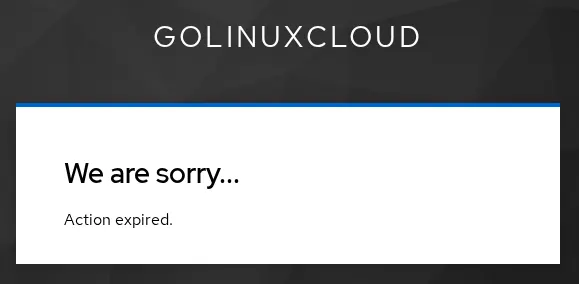
Match redirect_uri to a valid client redirect exactly. Typos fail before the action form renders.
Required Action priority and ordering
When several required actions are pending, Keycloak does not rely on the order of aliases in user.requiredActions. It uses the configured provider priority on Authentication → Required actions to decide which action runs first.
Lower priority numbers surface earlier. After the user completes one action, Keycloak removes that alias and presents the next pending action according to priority.
Clear a pending Required Action
Remove a pending action only when the underlying requirement was already handled another way—for example, the help desk reset the password outside Keycloak while UPDATE_PASSWORD is still pending on the account.
Admin Console (simplest): open Users → {user} → Required user actions, remove the completed action, and save.
Admin REST API: requiredActions is a list on the user representation. Read the user, remove only the alias you intend to clear, then PUT the updated user back. Do not set requiredActions=[] unless you deliberately want to drop every pending action, including unrelated ones such as VERIFY_EMAIL or CONFIGURE_TOTP.
Look up the user and show pending actions:
export KC_BASE='http://127.0.0.1:8080'
export REALM='golinuxcloud'
# Reuse ADMIN_TOKEN from an earlier admin login in this shell session

USER_ID=$(curl -sS -H "Authorization: Bearer ${ADMIN_TOKEN}" \
  "${KC_BASE}/admin/realms/${REALM}/users?username=reqaction-pwd&exact=true" | \
  python3 -c "import sys,json; print(json.load(sys.stdin)[0]['id'])")

curl -sS -H "Authorization: Bearer ${ADMIN_TOKEN}" \
  "${KC_BASE}/admin/realms/${REALM}/users/${USER_ID}" | \
  python3 -c "import sys,json; u=json.load(sys.stdin); print('requiredActions:', u.get('requiredActions', []))"
Sample output:
requiredActions: ['UPDATE_PASSWORD']Remove UPDATE_PASSWORD from that list and write the user back:
USER_JSON=$(curl -sS -H "Authorization: Bearer ${ADMIN_TOKEN}" \
  "${KC_BASE}/admin/realms/${REALM}/users/${USER_ID}")

UPDATED=$(echo "$USER_JSON" | python3 -c "
import json, sys
user = json.load(sys.stdin)
user['requiredActions'] = [
    a for a in user.get('requiredActions', [])
    if a != 'UPDATE_PASSWORD'
]
print(json.dumps(user))
")

curl -sS -X PUT -H "Authorization: Bearer ${ADMIN_TOKEN}" \
  -H 'Content-Type: application/json' \
  "${KC_BASE}/admin/realms/${REALM}/users/${USER_ID}" \
  -d "$UPDATED"

echo "$UPDATED" | python3 -c "import sys,json; print('requiredActions:', json.load(sys.stdin).get('requiredActions'))"
Sample output:
requiredActions: []Replace UPDATE_PASSWORD with the alias you actually resolved. If other actions should stay pending, the final list should still contain them.
Common Required Action errors
| Symptom | Likely cause | Fix |
|---|---|---|
| Login succeeds but no password-change screen | requiredActions empty or action disabled realm-wide |
Reassign alias; confirm Enabled on Authentication → Required actions |
Account is not fully set up on a direct/password-grant token request |
User has a pending required action such as UPDATE_PASSWORD or CONFIGURE_TOTP |
Complete the action through a browser flow, or clear the pending action manually if you resolved the requirement another way |
| Verify Email never appears | User is already marked emailVerified=true, the action is disabled, or the action is no longer pending |
Set emailVerified false before testing; confirm the action is enabled and still assigned |
execute-actions-email returns 500 |
SMTP/configuration/server error | Check Keycloak server logs first; if mail sending failed, verify SMTP connectivity and realm mail settings |
| Emailed link shows expired immediately | lifespan too low or clock skew |
Increase lifespan or resend; sync NTP on Keycloak nodes |
| Action repeats every login | Action is not being completed/removed, or external automation/provider logic adds it again | Inspect the user's requiredActions, required-action provider state, and any automation/federation that may be re-adding it |
| Federated user stuck on profile update | LDAP attribute marked read-only | Relax mapper or User Profile constraint |
Summary
Keycloak Required Actions are one-time account tasks such as changing a password, verifying email, or configuring OTP. During normal login, Keycloak checks for pending actions after authentication and completes the login only after those actions are resolved.
The first thing to identify is how the action was added. An administrator can assign a persistent action to a user, a realm can add default actions to new users, an application can request an action with kc_action, and execute-actions-email can send a time-limited action-token link. When troubleshooting, first identify the trigger, then check whether the action is enabled and still pending for that user.
For OTP enrollment depth, continue with Keycloak TOTP and 2FA. For where login conditions differ from post-login tasks, see Keycloak authentication flows explained.
References
- Keycloak Server Administration Guide — Required actions
- Keycloak Admin REST API — users
- Keycloak Admin REST API — execute-actions-email
Frequently Asked Questions
What is the difference between a required action and an authenticator?
Authenticators run inside an authentication flow execution (for example OTP form during browser login). Required actions run afterward, when the user's account still has a task that must be completed, such as UPDATE_PASSWORD. Flow conditions decide whether OTP is asked; required actions decide whether the user must finish account setup before login completes.
How do I force a password change on next login?
Set requiredActions to ["UPDATE_PASSWORD"] on the user, or reset the password with "temporary": true. Both paths block login until the user submits a new password. Remove the alias manually only when you intentionally want to lift the requirement without a password rotation.
Why is Verify Email skipped?
Keycloak skips VERIFY_EMAIL when emailVerified is already true, when the action is disabled realm-wide, or when the user already completed verification and you did not reassign the alias. Set emailVerified to false before testing the prompt or the emailed action link.
How long does an execute-actions email link last?
On this tested realm, actionTokenGeneratedByAdminLifespan is 43,200 seconds (12 hours) when you omit lifespan on the request. Pass lifespan on the execute-actions-email call to override that for one message. User-initiated verification resends use actionTokenGeneratedByUserLifespan instead.
Can I create a custom required action?
Yes, through a Required Action SPI that registers a new provider alias. That is a Java extension project, not a realm toggle. This article covers built-in actions only.
