
| Tested on | Red Hat Enterprise Linux 10.2 (Coughlan) |
|---|---|
| Package | podman-5.8.2-5.el10_2.x86_64quay.io/keycloak/keycloak:26.7.3 |
| Applies to | Any Linux host with Podman or Docker |
| Privilege | Keycloak admin access for authentication flows and required actions; normal user for enrollment and login tests |
| Lab environment | Keycloak 26.7.3 on http://127.0.0.1:8080/ — Install Keycloak with Podman |
| Scope | Recovery authentication codes on Keycloak 26.3+: enable Recovery Authentication Code Form in Browser - Conditional 2FA, turn on Configure Recovery Codes required action, generate and store the twelve-code set, sign in with Try another way, verify one-time use and regeneration invalidation, tune warning threshold, and help-desk recovery process. Does not cover TOTP enrollment, passkey policy, or general authentication-flow theory. |
| Related guides | Install Keycloak with Podman Keycloak TOTP two-factor authentication Keycloak required actions Keycloak authentication flows explained Create and manage users in Keycloak |
Keycloak recovery codes are one-time backup codes that a user can use when their normal second-factor device is unavailable. For example, if a user normally enters a TOTP (time-based one-time password) code from Google Authenticator, Microsoft Authenticator, or another authenticator app but loses the phone, they can choose Recovery Authentication Code at login and enter one of the backup codes they saved earlier.
Keycloak calls these Recovery Authentication Codes. To use them, an administrator enables the recovery-code authenticator in the browser flow, and the user generates a set of twelve codes through the Configure Recovery Codes required action. This guide shows the complete setup and verifies one-time use, regeneration, and the remaining-code counter.
The examples use realm golinuxcloud on Keycloak 26.7.3 with user recovery-lab-user, who already enrolled TOTP.
What Keycloak Recovery Codes Are
In two-factor authentication (2FA), the password is normally the first factor and something such as a TOTP code or WebAuthn security key is the second factor. Recovery codes are a backup for that second factor.
Recovery codes (Keycloak labels them Recovery Authentication Codes) are one-time backup 2FA codes that users save in advance. Each code works once; Keycloak tracks how many remain on the user credential.
Recovery authentication codes do not replace the user's password and are not password-reset codes. In the default browser flow, the user still completes the primary authentication step and uses a recovery code instead of another configured second factor such as TOTP.
  Normal 2FA login                    Phone unavailable
  ┌─────────────────────┐            ┌─────────────────────┐
  │ Username + password │            │ Username + password │
  └──────────┬──────────┘            └──────────┬──────────┘
             v                                  v
  ┌─────────────────────┐            ┌─────────────────────┐
  │ TOTP code from phone│            │ Try Another Way     │
  └──────────┬──────────┘            └──────────┬──────────┘
             v                                  v
  ┌─────────────────────┐            ┌─────────────────────┐
  │ Signed in           │            │ Recovery Auth Code  │
  └─────────────────────┘            └──────────┬──────────┘
                                                v
                                   ┌─────────────────────┐
                                   │ Enter requested     │
                                   │ backup code         │
                                   └──────────┬──────────┘
                                              v
                                   ┌─────────────────────┐
                                   │ Signed in           │
                                   └─────────────────────┘
The recovery code replaces the normal second factor for that login. It does not replace the user's password.
| Concept | Detail |
|---|---|
| Credential type | recovery-authn-codes (hashed at rest; plain codes shown only at generation) |
| Set size | Twelve codes per generation on Keycloak 26.7.x |
| Consumption | Sequential — the login form asks for Recovery code #N in order |
| Login path | Username/password first; at the 2FA step choose Try Another Way → Recovery Authentication Code |
| Enrollment | Configure Recovery Codes required action or Account Console signing-in page |
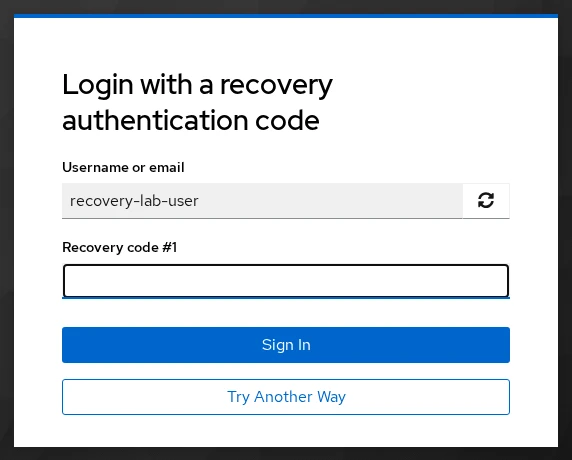
Unlike backup-code systems where any unused code can be entered, Keycloak asks for a specific numbered code. If the form says Recovery code #3, use code #3 from the saved list.
Recovery codes are intended as a backup for another second factor such as TOTP or WebAuthn 2FA. For example, a user can enter a recovery code if their authenticator phone or security key is unavailable. They do not replace a lost passkey that is being used as the user's primary passwordless login method.
Support and Prerequisites
Recovery authentication codes became a supported Keycloak feature in version 26.3. This guide was tested on Keycloak 26.7.3 with the built-in browser flow unchanged except for the recovery execution requirement.
Before you start:
- A running Keycloak instance — if needed, see Install Keycloak with Podman.
- A test user with a password and a configured second factor such as TOTP (TOTP is used in the examples below).
- Admin REST access or Admin Console rights to edit authentication executions and required actions.
Export the variables used in the API examples:
export KC_BASE='http://127.0.0.1:8080'
export REALM='golinuxcloud'
export KC_ADMIN_USER='admin'
read -s KC_ADMIN_PASSWORD
echo

ADMIN_TOKEN=$(curl -sS -X POST "${KC_BASE}/realms/master/protocol/openid-connect/token" \
  -d 'grant_type=password' -d 'client_id=admin-cli' \
  -d "username=${KC_ADMIN_USER}" -d "password=${KC_ADMIN_PASSWORD}" | \
  python3 -c "import sys,json; print(json.load(sys.stdin)['access_token'])")
The token prints no output when the request succeeds — store it in ADMIN_TOKEN for the remaining calls.
Enable Recovery Codes in the Keycloak Browser Flow
Keycloak's browser authentication flow defines the steps users complete when signing in. In the default flow, second-factor methods such as TOTP are grouped under Browser - Conditional 2FA. Keycloak already includes Recovery Authentication Code Form in this subflow, but it is disabled by default. You only need to enable it as an alternative.
In a newly created realm using Keycloak's default browser flow, Recovery Authentication Code Form is present under Browser - Conditional 2FA but disabled by default. Users do not see Recovery Authentication Code as an alternative login method until you change Recovery Authentication Code Form from DISABLED to ALTERNATIVE. ALTERNATIVE means this authenticator can satisfy the second-factor step instead of another alternative such as OTP; the user does not have to complete both.
In the Admin Console:
- Open Authentication → Flows.
- Open the browser flow.
- Expand Browser - Conditional 2FA.
- Change Recovery Authentication Code Form from Disabled to Alternative.
The REST API check below verifies the same setting and is useful for automation or troubleshooting. Capture the recovery execution ID from the conditional 2FA subflow:
RECOVERY_EXEC_ID=$(curl -sS -H "Authorization: Bearer ${ADMIN_TOKEN}" \
  "${KC_BASE}/admin/realms/${REALM}/authentication/flows/Browser%20-%20Conditional%202FA/executions" | \
  python3 -c "
import sys,json
for e in json.load(sys.stdin):
    if 'recovery' in (e.get('providerId') or '').lower():
        print(e['id'])
        break
")
Sample output when you echo the variable (your realm will have a different UUID):
a5752f43-a607-4cde-b640-910bdc2acd60Update the execution through the flow executions endpoint:
curl -sS -o /dev/null -w 'put-execution:%{http_code}\n' -X PUT \
  -H "Authorization: Bearer ${ADMIN_TOKEN}" -H 'Content-Type: application/json' \
  "${KC_BASE}/admin/realms/${REALM}/authentication/flows/Browser%20-%20Conditional%202FA/executions" \
  -d "{\"id\":\"${RECOVERY_EXEC_ID}\",\"requirement\":\"ALTERNATIVE\"}"
Sample output:
put-execution:204HTTP 204 confirms the change. On the tested 26.7.3 instance, PUT .../authentication/executions/{id} returned HTTP 404; updating the requirement through the flow executions endpoint above returned 204.
Setting both OTP Form and Recovery Authentication Code Form to ALTERNATIVE lets Keycloak offer them as alternative 2FA methods. If the user has both credentials configured, Keycloak displays the higher-priority method first. The user can select the other method through Try Another Way. For how the rest of the conditional 2FA flow works, see Keycloak authentication flows explained.
  Browser - Conditional 2FA
    ├── [REQUIRED]     Condition - user configured
    ├── [REQUIRED]     Condition - credential
    ├── [ALTERNATIVE]  OTP Form
    ├── [ALTERNATIVE]  Recovery Authentication Code Form   ← this article
    └── [DISABLED]     WebAuthn Authenticator
Enable Recovery Code Enrollment
A required action is a task Keycloak asks a user to complete during sign-in, such as configuring TOTP, updating a password, or generating recovery codes.
Enrollment is separate from login-time verification. Keycloak implements recovery-code enrollment using the Recovery Authentication Codes required action (alias CONFIGURE_RECOVERY_AUTHN_CODES).
In the Admin Console, open Authentication → Required actions, find Recovery Authentication Codes, and set it to Enabled.
The API check below confirms the same setting:
curl -sS -H "Authorization: Bearer ${ADMIN_TOKEN}" \
  "${KC_BASE}/admin/realms/${REALM}/authentication/required-actions/CONFIGURE_RECOVERY_AUTHN_CODES" | \
  python3 -c "import sys,json; r=json.load(sys.stdin); print('enabled', r['enabled'], 'config', r.get('config'))"
Sample output:
enabled True config {'warning_threshold': '4'}There are two common ways to enroll recovery codes: configure them automatically when the user sets up TOTP, or assign the Recovery Authentication Codes required action separately.
Option 1: Add recovery codes during TOTP setup
If your users configure TOTP through Keycloak's Configure OTP required action, you do not have to assign Configure Recovery Codes separately to every user. Under Authentication → Required actions → Configure OTP, enable Add recovery codes. When a user configures OTP and does not already have recovery codes, Keycloak also asks them to generate and save a recovery-code set.
Option 2: Assign recovery codes separately
Assign Configure Recovery Codes after the user has enrolled the configured second factor (TOTP is used in the examples below):
- Open Users → recovery-lab-user → Details.
- Under Required user actions, choose Configure Recovery Codes.
- Click Save.
Resolve the user ID for the API checks later in this guide:
RECOVERY_USER_ID=$(curl -sS -H "Authorization: Bearer ${ADMIN_TOKEN}" \
  "${KC_BASE}/admin/realms/${REALM}/users?username=recovery-lab-user&exact=true" | \
  python3 -c "import sys,json; print(json.load(sys.stdin)[0]['id'])")
For default-on enrollment, bulk email links, and action ordering with other required actions, see Keycloak required actions.
Generate and Store Codes
Sign in as the test user. When TOTP is already enrolled, Keycloak runs password → OTP → Configure Recovery Codes on the next login.
The generation screen lists twelve codes in XXXX-XXXX-XXXX format, with Print, Download, and Copy actions. Keycloak shows the plain codes once — after you leave the page they are not retrievable from the Admin Console. If the user leaves this page without saving the codes, an administrator cannot retrieve the original plaintext values later. The user must generate a new set instead.
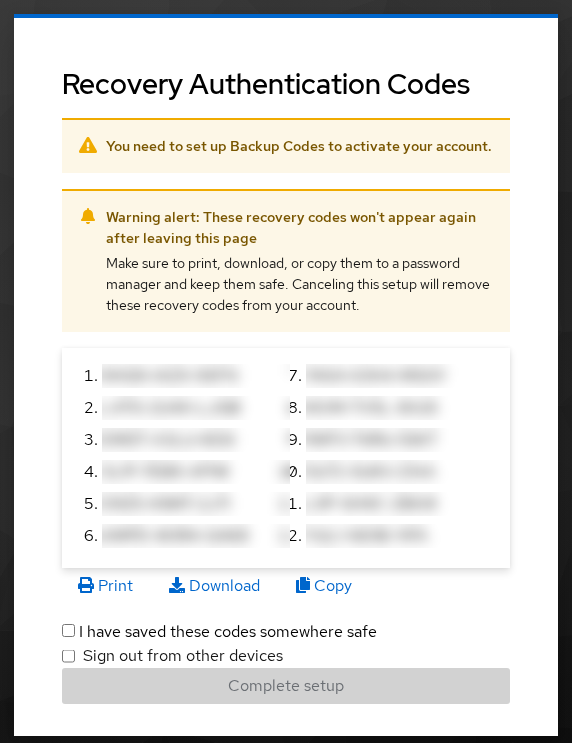
Check I have saved these codes somewhere safe, then click Complete setup. After the user completes this required action, Keycloak stores the recovery-code credential and removes the completed recovery-code action from the user's pending actions.
Users can also enroll or regenerate their own codes from Account Console → Account Security → Signing in → Recovery authentication codes.
Verify the credential metadata (never includes plain codes):
curl -sS -H "Authorization: Bearer ${ADMIN_TOKEN}" \
  "${KC_BASE}/admin/realms/${REALM}/users/${RECOVERY_USER_ID}/credentials" | \
  python3 -c "
import sys,json
for c in json.load(sys.stdin):
    if c.get('type')=='recovery-authn-codes':
        print(c['type'], c.get('credentialData'))
"
Sample output:
recovery-authn-codes {"algorithm":"SHA-512","totalCodes":12,"remainingCodes":12}Storage guidance for production:
- Treat recovery codes like backup login credentials — anyone who has the next valid code may be able to use it as the configured second factor. Never paste codes into tickets, chat, or application logs.
- Store them in a trusted password manager or keep a printed copy in a secure physical location.
- When recovery codes are intended as backup 2FA, make sure the primary second-factor method is also enrolled or being enrolled in the same onboarding flow.
Example format only (not real codes): ABCD-EFGH-IJKL, MNOP-QRST-UVWX.
Use a Code During Login
When the OTP app is unavailable, the user completes password validation, reaches the OTP step, and switches factor:
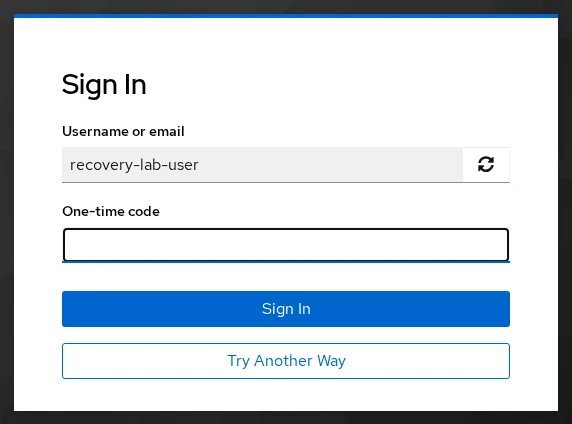
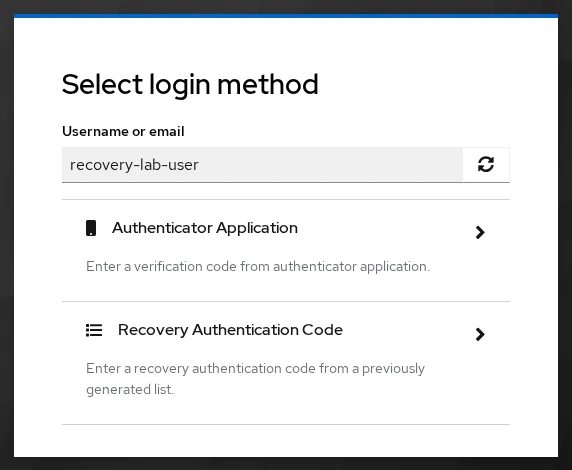
Click Try another way, then choose Recovery Authentication Code:
Enter the next unused code. The form label shows Recovery code #1 on first use:
After the recovery code is accepted, login completes normally and Keycloak decrements remainingCodes by one.
One-Time Use, Regeneration, and Warnings
One-time consumption and reuse rejection
Each code works exactly once. Submitting a spent code returns Invalid recovery authentication code:
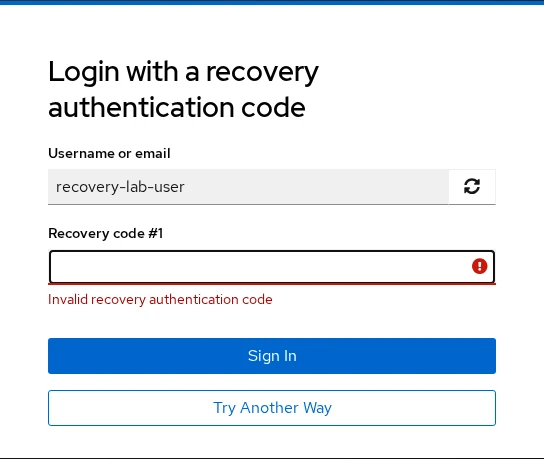
Always use the next numbered code shown on the form, not an arbitrary line from the saved list. For example, if Keycloak asks for Recovery code #4, entering unused code #7 will not act as a generic backup code. Use the numbered entry Keycloak requests from the saved list.
After one successful recovery login, re-read the credential row to confirm the counter dropped:
curl -sS -H "Authorization: Bearer ${ADMIN_TOKEN}" \
  "${KC_BASE}/admin/realms/${REALM}/users/${RECOVERY_USER_ID}/credentials" | \
  python3 -c "import sys,json; print(next(c.get('credentialData') for c in json.load(sys.stdin) if c.get('type')=='recovery-authn-codes'))"
Sample output:
{"algorithm":"SHA-512","totalCodes":12,"remainingCodes":11}Regeneration invalidates the old set
Assign Configure Recovery Codes again from the Admin Console, Account Console, or an execute-actions email. The user completes password → OTP → a fresh generation screen. Saving the new set replaces the old credential — every code from the previous list stops working immediately. Do not keep both lists. Once a new set is generated, discard the previous list because none of those codes will work.
In testing, a code from the pre-regeneration set returned Invalid recovery authentication code, while the first code from the new set signed the user in successfully.
When the last recovery code is used to log in, Keycloak presents the recovery-code setup again so the user can generate a new set.
Low-code warning threshold
Configure warning_threshold on the required action (default 4). When remainingCodes drops below the threshold, the Account Console Signing in page warns users to regenerate.
Update the threshold through the config endpoint (use lowercase warning_threshold — uppercase keys return HTTP 400):
curl -sS -o /dev/null -w 'config-threshold:%{http_code}\n' -X PUT \
  -H "Authorization: Bearer ${ADMIN_TOKEN}" -H 'Content-Type: application/json' \
  "${KC_BASE}/admin/realms/${REALM}/authentication/required-actions/CONFIGURE_RECOVERY_AUTHN_CODES/config" \
  -d '{"config":{"warning_threshold":"4"}}'
Sample output:
config-threshold:204The threshold controls when the warning appears; it does not change how many recovery codes Keycloak generates.
Reset Keycloak Recovery Codes for a Locked-Out User
When a user loses both their second factor and backup codes, an administrator resets credentials — recovery codes cannot be read back, only reissued.
| Step | Action |
|---|---|
| 1 | Verify the user's identity through your organization's approved recovery process (out of band — not Keycloak-specific) |
| 2 | Delete the otp and/or recovery-authn-codes credentials from Users → Credentials or DELETE .../credentials/{id} |
| 3 | Assign CONFIGURE_TOTP and/or CONFIGURE_RECOVERY_AUTHN_CODES as needed |
| 4 | User enrolls fresh factors at next login |
Deleting the old second-factor credentials and assigning required actions does not itself authenticate the user. Your organization still needs a trusted recovery process that lets the verified user complete the next login or enrollment without allowing an attacker to bypass MFA.
List credentials before deletion:
curl -sS -H "Authorization: Bearer ${ADMIN_TOKEN}" \
  "${KC_BASE}/admin/realms/${REALM}/users/${RECOVERY_USER_ID}/credentials" | \
  python3 -c "import sys,json; [print(c['id'][:8]+'…', c['type']) for c in json.load(sys.stdin)]"
Sample output:
69d90af0… password
3f3eb615… otp
6837817a… recovery-authn-codes
Delete only the rows you intend to replace. After removal, assign the matching required actions so the user can enroll fresh credentials and recovery codes.
Troubleshooting
| Symptom | Likely cause | Fix |
|---|---|---|
| Try Another Way is missing | Only one usable 2FA authenticator is available for the user or flow | Confirm both the normal 2FA method and Recovery Authentication Code Form are configured as alternatives and the user has recovery codes |
| No Recovery Authentication Code on Try another way | Execution still DISABLED or user lacks recovery-authn-codes credential |
Set Recovery Authentication Code Form to ALTERNATIVE; complete Configure Recovery Codes enrollment |
| Configure Recovery Codes never appears | Required action disabled or not assigned | Enable CONFIGURE_RECOVERY_AUTHN_CODES; assign Configure Recovery Codes in the Admin Console after the user enrolls their second factor |
PUT .../executions/{id} returns 404 |
Wrong endpoint on the tested Keycloak 26.7.3 instance | Use PUT .../flows/{flowAlias}/executions with id and requirement in JSON body |
| Invalid recovery authentication code on first try | Wrong sequential number, typo, or regenerated set | Read Recovery code #N label; reissue codes if the list is exhausted or unknown |
remainingCodes is zero |
All recovery codes have been consumed and a new set has not yet been completed | Complete the recovery-code setup presented after the last code, or generate a fresh set from Account Console / Configure Recovery Codes |
| Warning never appears | remainingCodes still above warning_threshold |
Lower remaining count or raise threshold temporarily to verify Account Console banner |
Summary
Keycloak recovery codes give users twelve one-time backup codes for the 2FA step when their normal authenticator is unavailable.
Enable Recovery Authentication Code Form as Alternative in Browser - Conditional 2FA, and enable Recovery Authentication Codes under Required Actions so users can generate their set. Recovery codes normally back up another second factor such as TOTP or WebAuthn 2FA. Users can generate them through a required action, during TOTP setup, or from the Account Console.
Generation produces twelve sequential one-time codes shown only once — store them in a password manager or printed copy, not in tickets or logs. At login, users choose Try another way → Recovery Authentication Code when the OTP app is unavailable; spent codes return Invalid recovery authentication code, and generating a new set—through the required action or Account Console—invalidates the previous list immediately.
Set warning_threshold so the Account Console warns users before their codes run out, and document a help-desk recovery process that deletes stale credentials and re-assigns enrollment actions rather than attempting to recover plain codes from the server.
References
- Keycloak — Recovery Authentication Codes
- Keycloak Server Administration Guide — Recovery codes
- Keycloak Server Administration Guide — Required actions
- Keycloak 26.3.0 released — Account recovery with 2FA recovery codes
Frequently Asked Questions
Are Keycloak recovery codes a replacement for a lost password?
No. Keycloak recovery authentication codes are designed as backup 2FA credentials. In the normal browser flow, they replace another second factor such as TOTP or WebAuthn 2FA; they do not replace the user's password or automatically recover a lost passwordless passkey.
How many codes are generated?
Keycloak generates twelve recovery authentication codes each time the user completes Configure Recovery Codes. The Admin API exposes totalCodes: 12 on the recovery-authn-codes credential metadata.
Can a code be reused?
No. Each code is single-use. After a successful login the code hash is consumed. Submitting the same code again returns Invalid recovery authentication code.
Why is the recovery option missing at login?
Common causes are Recovery Authentication Code Form still set to DISABLED, the user never finished Configure Recovery Codes, or the browser flow binding points at a copy that omits the recovery execution. Enable the form as ALTERNATIVE and confirm the user has a recovery-authn-codes credential.
What happens after regeneration?
Saving a newly generated set replaces the old credential. All codes from the previous list stop working immediately, and remainingCodes resets to twelve on the new credential.
Where should users store codes?
Offline and separate from the MFA device — a password manager secure note or a physical printout in controlled storage. Do not store codes in email, chat, or service desks where plain text might leak.
