
| Tested on | Red Hat Enterprise Linux 10.2 (Coughlan) |
|---|---|
| Package | podman-5.8.2-5.el10_2.x86_64quay.io/keycloak/keycloak:26.7.3 |
| Applies to | Any Linux host with Podman or Docker |
| Privilege | Keycloak admin access for realm policy and credential management; normal user for browser passkey ceremonies |
| Lab environment | Keycloak 26.7.3 on http://localhost:8080/ — Install Keycloak with Podman |
| Scope | Passkeys and WebAuthn passwordless on Keycloak 26.7.x, WebAuthn Passwordless policy, passkey registration and conditional UI login, roaming security keys, second-factor WebAuthn in browser flows, RP ID and origin troubleshooting, admin credential removal. Does not cover passwordless strategy overview, TOTP setup, or custom-frontend WebAuthn REST APIs. |
| Related guides | Install Keycloak with Podman Keycloak TOTP two-factor authentication Keycloak authentication flows explained Keycloak required actions Create and manage users in Keycloak |
Keycloak 26.7.3 stores passkeys as discoverable WebAuthn credentials and exposes them through the built-in login form when Enable Passkeys is on. You configure the WebAuthn Passwordless policy once, assign Webauthn Register Passwordless, and users register from the Account Console or a required-action screen.
This guide uses realm golinuxcloud, user passkey-lab-user, and browser URLs on http://localhost:8080. WebAuthn rejects IP addresses such as 127.0.0.1 as relying party IDs, so the lab hostname matters as much as the policy toggles.
Passkeys, WebAuthn, and passwordless — terminology
WebAuthn is the browser standard Keycloak uses for FIDO2 ceremonies. A passkey is a type of WebAuthn credential and user experience — usually a discoverable platform or roaming key the browser can offer without a password. Keycloak can use WebAuthn either as the primary passwordless credential or as a second factor after a password.
                    WebAuthn
                       |
             +---------+---------+
             |                   |
             v                   v
     Passkey/passwordless    Second factor
     webauthn-passwordless     webauthn
             |                   |
       no password           password first
Keycloak exposes passkeys in two ways on the login form. Conditional UI lets the browser suggest a passkey from the username field. The Sign in with Passkey button starts a modal WebAuthn picker explicitly. They use the same registered passkey, but the browser interaction is different.
| Mode | Credential | When to use |
|---|---|---|
| Integrated Passkeys | webauthn-passwordless |
Normal Keycloak 26.7 passkey login through the default username/password forms |
| Dedicated WebAuthn passwordless flow | webauthn-passwordless |
Custom loginless flow using WebAuthn Passwordless Authenticator |
| WebAuthn second factor | webauthn |
Password first, WebAuthn second |
For the normal Keycloak 26.7 passkey experience in this article, you do not need to add WebAuthn Passwordless Authenticator to the Browser flow. Keycloak integrates passkeys directly into its default username forms.
  Registration                         Authentication (passkey)
  ┌────────────────────┐                 ┌───────────────────┐
  │ Password validated │                 │ Username optional │
  │ (required action)  │                 │ or empty field    │
  └────────┬───────────┘                 └────────┬──────────┘
           │ navigator.credentials.create()       │ navigator.credentials.get()
           v                                      v
  ┌────────────────────┐                 ┌───────────────────┐
  │ webauthn-          │                 │ webauthn-         │
  │ passwordless cred  │                 │ passwordless cred │
  └────────────────────┘                 └───────────────────┘
Current Keycloak passkey support (26.7.x tested)
Integrated passkey login became a supported Keycloak feature in 26.4. In current Keycloak 26.7, the passkeys:v1 feature is available by default; you still enable passkeys separately for each realm through Enable Passkeys.
What changed from older WebAuthn guides:
- Integrated login form UI replaces adding WebAuthn Passwordless Authenticator to the browser flow for primary passkey login.
- Conditional UI is controlled by Passkey Mediation on the WebAuthn Passwordless policy (
conditionalby default). - Condition - credential in Browser - Conditional 2FA skips OTP/WebAuthn second factor when the user already authenticated with a passkey (
webauthn-passwordless).
Upgraded realms that imported flows from Keycloak 24 or earlier may still have custom browser flows without Condition - credential. See Upgraded realms and custom flow caveats before rolling passkeys to production.
HTTPS, hostname, and browser prerequisites
WebAuthn ceremonies require a secure context in production (https://). Local development is the exception: http://localhost is treated as secure by Chromium and Firefox.
| Requirement | Lab value | Production note |
|---|---|---|
| Origin | http://localhost:8080 |
Must match public URL (https://auth.example.com) |
| RP ID | localhost |
Registrable domain suffix of the origin — not an IP address |
| Discoverable Credential | required (passwordless policy default) |
Makes the credential discoverable for passwordless/passkey login |
| User verification | required (passwordless policy default) |
Biometric or PIN on the authenticator |
Older Keycloak and WebAuthn documentation may call discoverable credentials resident keys. Keycloak 26.7 labels the setting Discoverable Credential.
Use localhost consistently in browser URLs during development. Opening http://127.0.0.1:8080 while RP ID is localhost (or empty) breaks registration with SecurityError: This is an invalid domain.
Export base variables for optional Admin REST examples later in this guide:
export KC_BASE='http://127.0.0.1:8080'
export REALM='golinuxcloud'
Configure WebAuthn Passwordless policy
Admin Console: open Authentication → Policies → WebAuthn Passwordless Policy (the same Enable Passkeys toggle also appears under Realm settings → Login).
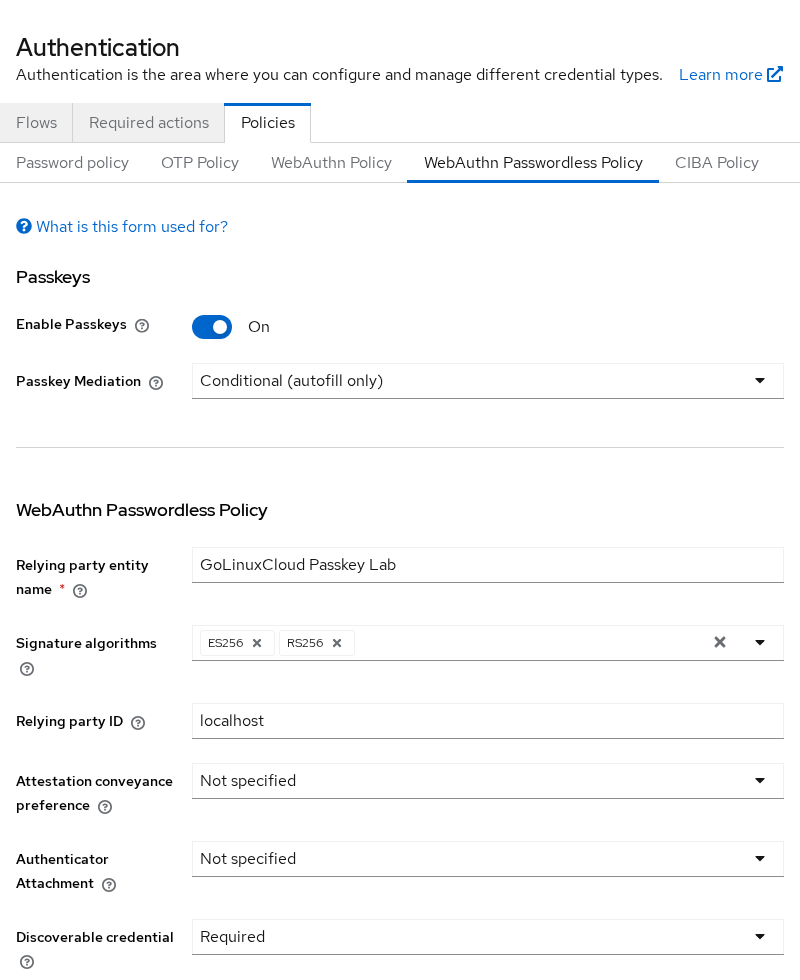
Important fields:
| Policy field | Lab value | Why |
|---|---|---|
| Enable Passkeys | ON | Enables integrated passkey UI |
| Passkey Mediation | conditional |
Offers passkeys through username autofill |
| Relying Party ID | localhost |
RP ID for this local origin |
| Discoverable Credential | required |
Makes the credential discoverable for passwordless/passkey login |
| User Verification | required |
Requires authenticator user verification such as PIN/biometric |
Admin REST equivalent — obtain an admin token and apply the same profile:
ADMIN_TOKEN=$(curl -sS -X POST "${KC_BASE}/realms/master/protocol/openid-connect/token" \
  -d 'grant_type=password' -d 'client_id=admin-cli' \
  -d 'username=admin' \
  -d 'password=YOUR_ADMIN_PASSWORD' | \
  python3 -c "import sys,json; print(json.load(sys.stdin)['access_token'])")
The Admin REST commands are optional lab automation; the passkey setup can be completed entirely through the Admin Console.
curl -sS -H "Authorization: Bearer ${ADMIN_TOKEN}" \
  "${KC_BASE}/admin/realms/${REALM}" > /tmp/realm-passkeys.json

python3 - <<'PY'
import json
with open("/tmp/realm-passkeys.json") as f:
    r = json.load(f)
r["webAuthnPolicyPasswordlessPasskeysEnabled"] = True
r["webAuthnPolicyPasswordlessMediation"] = "conditional"
r["webAuthnPolicyPasswordlessRpId"] = "localhost"
with open("/tmp/realm-passkeys-out.json", "w") as f:
    json.dump(r, f)
PY

curl -sS -o /dev/null -w 'passkeys-policy:%{http_code}\n' -X PUT \
  -H "Authorization: Bearer ${ADMIN_TOKEN}" -H 'Content-Type: application/json' \
  -d @/tmp/realm-passkeys-out.json \
  "${KC_BASE}/admin/realms/${REALM}"
Sample output:
passkeys-policy:204HTTP 204 confirms the realm now serves passkey UI on the login form.
Confirm the live values:
curl -sS -H "Authorization: Bearer ${ADMIN_TOKEN}" \
  "${KC_BASE}/admin/realms/${REALM}" | \
  python3 -c "import sys,json; r=json.load(sys.stdin); print('passkeys', r.get('webAuthnPolicyPasswordlessPasskeysEnabled')); print('rpId', repr(r.get('webAuthnPolicyPasswordlessRpId'))); print('mediation', r.get('webAuthnPolicyPasswordlessMediation'))"
Sample output:
passkeys True
rpId 'localhost'
mediation conditional
Register a passkey
Users enroll through the Webauthn Register Passwordless required action or from the Account Console Signing in page. Both paths call the same WebAuthn create() ceremony.
Ensure both WebAuthn required actions are enabled under Authentication → Required actions:
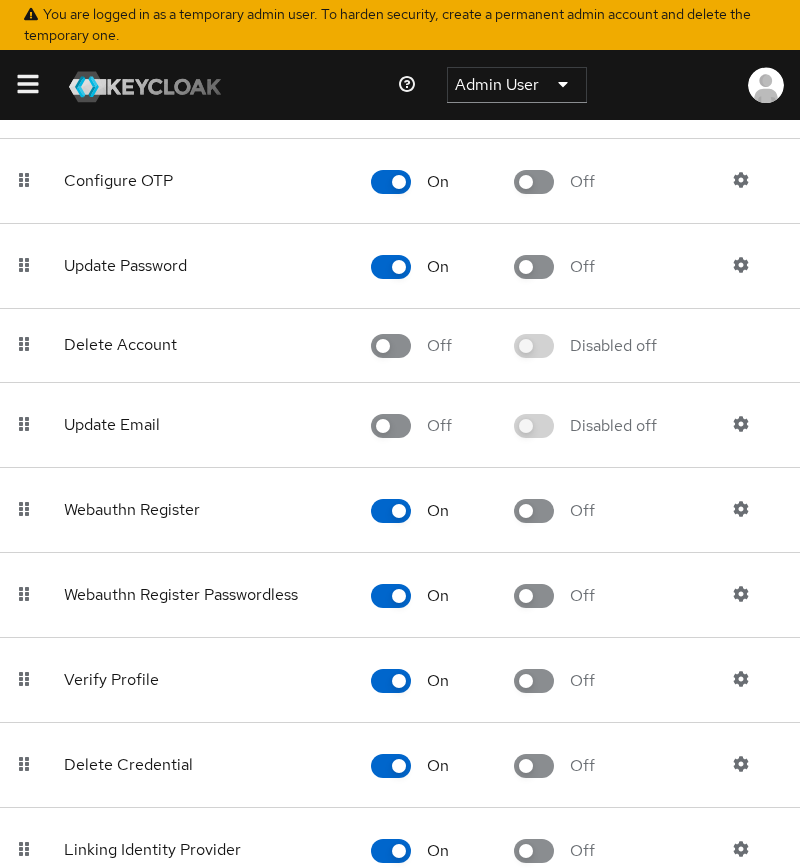
Create the lab user and assign passwordless registration:
curl -sS -o /dev/null -w 'create-user:%{http_code}\n' -X POST \
  -H "Authorization: Bearer ${ADMIN_TOKEN}" -H 'Content-Type: application/json' \
  "${KC_BASE}/admin/realms/${REALM}/users" \
  -d '{"username":"passkey-lab-user","email":"passkey-lab-user@example.com","firstName":"Passkey","lastName":"Lab","enabled":true,"requiredActions":["webauthn-register-passwordless"]}'

PASSKEY_USER_ID=$(curl -sS -H "Authorization: Bearer ${ADMIN_TOKEN}" \
  "${KC_BASE}/admin/realms/${REALM}/users?username=passkey-lab-user&exact=true" | \
  python3 -c "import sys,json; print(json.load(sys.stdin)[0]['id'])")

curl -sS -o /dev/null -w 'set-password:%{http_code}\n' -X PUT \
  -H "Authorization: Bearer ${ADMIN_TOKEN}" -H 'Content-Type: application/json' \
  "${KC_BASE}/admin/realms/${REALM}/users/${PASSKEY_USER_ID}/reset-password" \
  -d '{"type":"password","value":"PasskeyLab!2026","temporary":false}'
Sample output:
create-user:201
set-password:204
Open the Account Console auth URL on localhost (not 127.0.0.1):
http://localhost:8080/realms/golinuxcloud/protocol/openid-connect/auth?client_id=account&redirect_uri=http%3A%2F%2Flocalhost%3A8080%2Frealms%2Fgolinuxcloud%2Faccount%2F&response_type=code&scope=openidSign in with passkey-lab-user / PasskeyLab!2026. Keycloak stops on Passkey Registration after password validation:
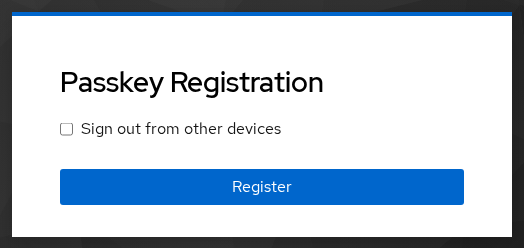
Click Register and complete the browser WebAuthn prompt (platform passkey, security key, or virtual authenticator in automated tests). Keycloak stores a webauthn-passwordless credential and clears the required action.
List credentials through the API:
curl -sS -H "Authorization: Bearer ${ADMIN_TOKEN}" \
  "${KC_BASE}/admin/realms/${REALM}/users/${PASSKEY_USER_ID}/credentials" | \
  python3 -c "import sys,json; [print(c['type'], c.get('userLabel','')) for c in json.load(sys.stdin)]"
Sample output:
password
webauthn-passwordless Passkey (Default Label)
The webauthn-passwordless row confirms discoverable passkey enrollment succeeded.
Sign in with a passkey
After enrollment, the login form shows Sign in with Passkey when Enable Passkeys is on. With Passkey Mediation set to conditional, Chromium also advertises passkeys through the username field autofill UI (autocomplete="username webauthn").
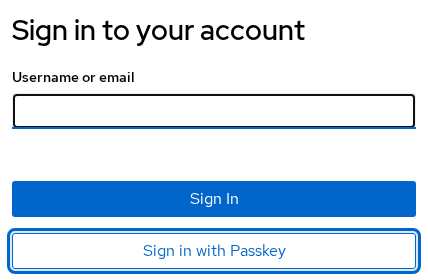
Passkey primary login skips the password step when the user selects a discoverable credential. The built-in Condition - credential execution then prevents a redundant OTP or second-factor WebAuthn challenge in the same session.
Test from a fresh private window on http://localhost:8080:
- Open the auth URL from the registration section.
- Click Sign in with Passkey (modal UI), or pick the passkey from conditional autofill after focusing the username field.
- Complete the platform or security-key prompt.
Keycloak redirects to the Account Console when the ceremony succeeds. Password fallback remains available for users who have not enrolled a passkey or who prefer password plus TOTP two-factor authentication.
Security keys and second-factor WebAuthn
Roaming FIDO2 security keys (USB or NFC) register through the same passwordless policy when Authenticator Attachment is not specified. To force security keys only, set Authenticator Attachment to cross-platform on the WebAuthn Passwordless policy. Platform passkeys require platform.
Second-factor WebAuthn is separate. It uses the Webauthn Policy (not passwordless) and the WebAuthn Authenticator execution inside Browser - Conditional 2FA. In the built-in Browser flow, WebAuthn Authenticator may be Disabled until you intentionally configure WebAuthn as a second factor. If you want password + WebAuthn, configure that separate flow accordingly.
| Setting | Second-factor WebAuthn | Passkeys |
|---|---|---|
| Policy tab | Webauthn Policy | Webauthn Passwordless Policy |
| Required action | Webauthn Register | Webauthn Register Passwordless |
| Credential type | webauthn |
webauthn-passwordless |
| Browser flow change | Set WebAuthn Authenticator to Alternative | Not required in 26.7 (integrated form UI) |
| Discoverable Credential | Usually discouraged |
required |
Enable second-factor WebAuthn only when you want password-first login with a security key second step — not for primary passkey login. For OTP as second factor instead, see Keycloak TOTP two-factor authentication.
Upgraded realms and custom flow caveats
Realms upgraded from Keycloak 24 or earlier may keep cloned browser flows without passkey-aware executions. Compare your browser flow to the built-in default:
- Condition - credential with
credentials=webauthn-passwordlessshould sit inside Browser - Conditional 2FA so passkey login does not trigger OTP immediately after. - WebAuthn Authenticator may remain Disabled until you intentionally enable second-factor WebAuthn.
- Custom flows that still mount WebAuthn Passwordless Authenticator as a standalone step can show duplicate or conflicting UI now that passkeys integrate into the username/password form.
If passkeys work on a fresh realm but not on an upgraded realm, bind Browser flow to the built-in browser alias temporarily, confirm passkey login, then diff executions against your custom flow. See Keycloak authentication flows explained for flow binding and execution requirements.
Recovery and credential management
When a user loses a device, delete the webauthn-passwordless credential from Users → Credentials and re-assign Webauthn Register Passwordless. Keycloak cannot recover the private key material.

After deleting the lost credential, open Users → passkey-lab-user → Required user actions and assign Webauthn Register Passwordless again.
Delete the passkey credential by ID:
CRED_ID=$(curl -sS -H "Authorization: Bearer ${ADMIN_TOKEN}" \
  "${KC_BASE}/admin/realms/${REALM}/users/${PASSKEY_USER_ID}/credentials" | \
  python3 -c "import sys,json; print(next(c['id'] for c in json.load(sys.stdin) if c['type']=='webauthn-passwordless'))")

curl -sS -o /dev/null -w 'delete-passkey:%{http_code}\n' -X DELETE \
  -H "Authorization: Bearer ${ADMIN_TOKEN}" \
  "${KC_BASE}/admin/realms/${REALM}/users/${PASSKEY_USER_ID}/credentials/${CRED_ID}"
Sample output:
delete-passkey:204Plan a recovery path before making passkeys the primary sign-in method. Depending on your authentication design, that may be password fallback, administrator-assisted passkey re-enrollment, another registered passkey, or recovery codes if your authentication flow is explicitly configured to accept them.
Troubleshoot RP ID, origin, and missing UI
| Symptom | Likely cause | Fix |
|---|---|---|
| Sign in with Passkey missing | webAuthnPolicyPasswordlessPasskeysEnabled is false |
Enable passkeys on WebAuthn Passwordless policy |
SecurityError: invalid domain on register |
RP ID is an IP (127.0.0.1) or mismatched hostname |
Set RP ID to localhost and browse via http://localhost:8080 |
| Passkey works on one URL only | Origin and RP ID disagree across hosts | Align DNS, reverse proxy hostname, and webAuthnPolicyPasswordlessRpId |
| OTP still prompts after passkey login | Missing Condition - credential in custom browser flow | Add execution or bind built-in browser flow |
| Conditional autofill never appears | Browser lacks passkeys for RP ID, or mediation not conditional |
Confirm enrolled credential; check Passkey Mediation |
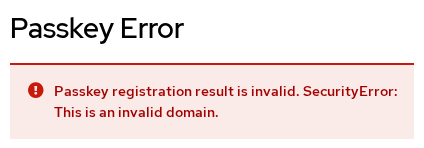
RP ID mismatch (lab reproduction)
Setting RP ID to 127.0.0.1 while registering on http://127.0.0.1:8080 produces:
Restore a valid domain RP ID:
curl -sS -H "Authorization: Bearer ${ADMIN_TOKEN}" \
  "${KC_BASE}/admin/realms/${REALM}" > /tmp/realm-fix-rpid.json

python3 - <<'PY'
import json
with open("/tmp/realm-fix-rpid.json") as f:
    r = json.load(f)
r["webAuthnPolicyPasswordlessRpId"] = "localhost"
with open("/tmp/realm-fix-rpid-out.json", "w") as f:
    json.dump(r, f)
PY

curl -sS -o /dev/null -w 'fix-rpid:%{http_code}\n' -X PUT \
  -H "Authorization: Bearer ${ADMIN_TOKEN}" -H 'Content-Type: application/json' \
  -d @/tmp/realm-fix-rpid-out.json \
  "${KC_BASE}/admin/realms/${REALM}"
Sample output:
fix-rpid:204Behind a reverse proxy, make sure Keycloak generates the correct public origin and configure an RP ID that is valid for that origin. For example, an origin of https://login.example.com can use login.example.com or an appropriate parent domain such as example.com as its RP ID. The browser-facing origin must use HTTPS with a certificate valid for that hostname.
Summary
Keycloak 26.7.3 treats passkeys as discoverable webauthn-passwordless credentials controlled by the WebAuthn Passwordless Policy. Enabling Enable Passkeys adds conditional UI and Sign in with Passkey to the default login form without wiring a separate passwordless authenticator into the browser flow.
You configured RP ID localhost, assigned Webauthn Register Passwordless, registered a platform passkey after password validation, and confirmed the credential through the Admin API. Second-factor WebAuthn Authenticator remains a separate path inside Browser - Conditional 2FA for password-first security-key deployments.
The most frequent lab failures are hostname mismatches — browsing 127.0.0.1 while RP ID expects a domain — and upgraded realms missing Condition - credential. Align origin, RP ID, and proxy hostname before rolling passkeys to staging or production.
References
- Keycloak 26.4 — Passkeys support announcement
- Keycloak Server Administration Guide — WebAuthn
- W3C Web Authentication (WebAuthn) Level 2
- FIDO Alliance — Passkeys overview
Frequently Asked Questions
What is the difference between a passkey and WebAuthn in Keycloak?
WebAuthn is the browser API Keycloak uses for all FIDO2 ceremonies. A passkey is a discoverable WebAuthn credential registered through the Webauthn Register Passwordless action and stored as type webauthn-passwordless. Second-factor WebAuthn uses the regular Webauthn Register action and credential type webauthn after a password step.
Do I need to edit the Browser flow to enable passkeys?
Not on Keycloak 26.7 with Enable Passkeys turned on. Primary passkey login uses the integrated username/password form. You only change Browser - Conditional 2FA when you enable second-factor WebAuthn or OTP alongside passkeys, or when an upgraded realm is missing Condition - credential.
Why is the passkey button missing on the login page?
Confirm webAuthnPolicyPasswordlessPasskeysEnabled is true, at least one user has a webauthn-passwordless credential (or will enroll through required actions), and you open the login page on the same hostname as the configured RP ID. Empty RP ID falls back to the page hostname — 127.0.0.1 and localhost are not interchangeable.
Can users keep a password fallback?
Yes. Passkey enrollment does not remove the password credential. Users with both credential types can sign in with either method unless you disable passwords through policy or required-action design.
Why does RP ID validation fail with SecurityError?
The RP ID must be a registrable domain suffix of the browser origin. IP addresses such as 127.0.0.1 are rejected. Use localhost for local labs or your real auth domain in production, and browse Keycloak with a matching hostname.
