
| Tested on | Red Hat Enterprise Linux 10.2 (Coughlan) |
|---|---|
| Package | podman-5.8.2-5.el10_2.x86_64quay.io/keycloak/keycloak:26.7.3 |
| Applies to | Any Linux host with Podman or Docker |
| Privilege | Keycloak admin access to edit realm Email settings and call Admin REST test endpoints |
| Lab environment | Keycloak 26.7.3 on http://127.0.0.1:8080/ — Install Keycloak with Podman |
| Scope | What Keycloak SMTP configuration is, Admin Console Email settings, SSL versus STARTTLS, test connection, in-container connectivity checks, password and XOAUTH2 authentication, triggering verify-email and password-reset mail, and troubleshooting transport failures. Does not cover forgot-password UX, email themes, or custom TLS truststore import. |
| Related guides | Install Keycloak with Podman Configure forgot password in Keycloak Keycloak required actions Create and manage users in Keycloak Keycloak brute-force detection |
Keycloak uses email for verify-email links, password-reset messages, execute-actions email, and admin test mail. All of those features depend on the realm SMTP configuration under Realm settings → Email.
This guide shows how to configure SMTP in Keycloak, test that delivery works, and fix common connection, TLS, and authentication errors on Keycloak 26.7.3. The lab uses a plain catcher on 127.0.0.1:1025 with host-network Podman so 127.0.0.1 inside the container matches the listener on the host.
What is Keycloak SMTP configuration?
Keycloak does not deliver email directly to Gmail, Outlook, or another user's mailbox. Instead, Keycloak connects to an SMTP server (mail relay). The relay accepts the message from Keycloak and delivers it to the recipient's mail system.
Keycloak
   |
   | SMTP connection
   | host + port + TLS + authentication
   v
+-------------+
| SMTP relay  |
+-------------+
   |
   | delivers email
   v
Recipient mailbox
The settings under Realm settings → Email tell Keycloak how to connect to that SMTP relay.
Keycloak uses the realm SMTP configuration for test messages, verification emails, and password-reset emails:
| Feature | What gets sent |
|---|---|
| Admin Test connection | [KEYCLOAK] - SMTP test message to the logged-in admin's email |
execute-actions-email |
Action-token links such as VERIFY_EMAIL |
| Forgot-password flow | Reset link via the reset-credentials authentication flow |
Features such as email verification and password reset depend on the realm's SMTP configuration. Some user-facing flows intentionally show a generic confirmation message for security reasons, while SMTP test or Admin API calls can return an error when Keycloak cannot send the message.
Configure SMTP in Keycloak
Open Realm settings → Email in the Admin Console. Fill the sender fields first, then the connection and authentication settings for your SMTP relay.
Sender fields
| Field | What it means |
|---|---|
| From | Address recipients see as the sender |
| From display name | Friendly sender name such as GoLinuxCloud Keycloak |
| Reply to | Address used when the recipient clicks Reply |
| Envelope from | SMTP bounce/return-path address |
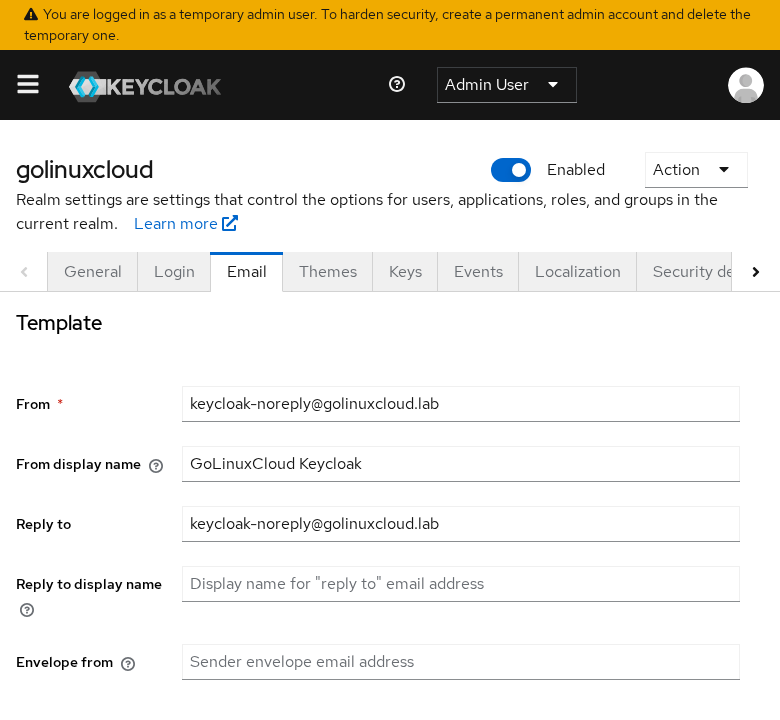
Host, port and authentication
| Field | What it means |
|---|---|
| Host | SMTP server Keycloak connects to |
| Port | SMTP server port |
| SSL | Implicit TLS from the first byte (common on port 465) |
| StartTLS | Upgrade a plain SMTP connection to TLS after EHLO (common on port 587) |
| Authentication | Whether Keycloak must log in to the SMTP server |
| Allow UTF-8 | Enable only if your SMTP server advertises the SMTPUTF8 extension; leave disabled unless you need non-ASCII characters in email addresses |
Set Host, Port, SSL, StartTLS, and Authentication to match your provider documentation, then click Save.
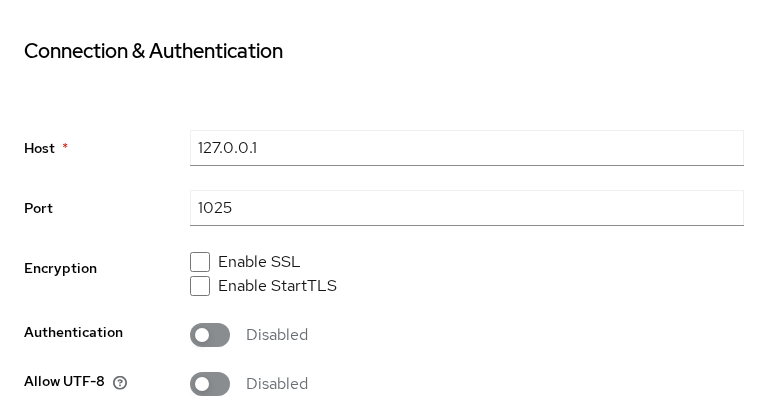
For the local lab, set Port to 1025 and leave Enable SSL, Enable StartTLS, and Authentication disabled unless your relay requires them.
The lab profile below was tested on Keycloak 26.7.3 against a local catcher. Provider rows in later sections follow vendor documentation and were not exercised in this lab:
| Tested in this lab | From documentation |
|---|---|
127.0.0.1:1025, no TLS, no authentication |
Microsoft 365 and Gmail host, port, and encryption |
| Test connection success and failure | STARTTLS on 587, implicit TLS on 465 |
/dev/tcp connectivity from the container |
Password and XOAUTH2 authentication |
REST testSMTPConnection failure output |
Commercial relay sender policies |
Lab profile for a local catcher (no encryption, no authentication):
host=127.0.0.1 port=1025 ssl=false starttls=false auth=falseConfigure SMTP with the Admin REST API
The realm representation exposes SMTP settings as an smtpServer map. The same values you enter in the Admin Console can be sent through the Admin REST API:
"smtpServer": {
  "host": "smtp.example.com",
  "port": "587",
  "from": "keycloak@example.com",
  "starttls": "true",
  "ssl": "false",
  "auth": "true"
}
Use the Admin Console for first-time setup. The REST API is useful for automation once the values are known.
SSL vs STARTTLS
STARTTLS starts as a normal SMTP connection and then upgrades that connection to TLS. Implicit TLS/SSL starts the connection encrypted from the first byte.
These are common SMTP conventions, but the provider's documentation is authoritative:
| Common port | Typical mode | Keycloak setting |
|---|---|---|
| 25 | Plain SMTP or STARTTLS, depending on relay | Set starttls=true only when the relay requires or supports STARTTLS |
| 587 | Message submission with STARTTLS | Usually starttls=true, ssl=false |
| 465 | Implicit TLS/SMTPS | Usually ssl=true, starttls=false |
  STARTTLS (port 587)                 Implicit TLS (port 465)
  ┌────────┐  EHLO   ┌────────┐      ┌────────┐  TLS first  ┌────────┐
  │Keycloak│ ──────► │  SMTP  │      │Keycloak│ ──────────► │  SMTP  │
  │        │ ◄────── │ relay  │      │        │  encrypted  │ relay  │
  │        │ STARTTLS│        │      │        │  session    │        │
  │        │ ──────► │        │      └────────┘             └────────┘
  └────────┘  MAIL   └────────┘
Provider examples:
| Provider example | Host | Port | Encryption |
|---|---|---|---|
| Microsoft 365 / Exchange Online | smtp.office365.com |
587 | STARTTLS |
| Gmail / Google Workspace SMTP | smtp.gmail.com |
587 | STARTTLS |
| Gmail / Google Workspace SMTP | smtp.gmail.com |
465 | Implicit SSL |
| Local lab catcher | 127.0.0.1 |
1025 | None |
Note: the Gmail rows above describe SMTP transport only. Keycloak's built-in XOAUTH2 SMTP integration currently documents Microsoft 365 support, while the Keycloak documentation states that its token-authentication approach does not currently support Google Mail.
Make sure the From address complies with your SMTP provider's sender policy. Some providers reject unauthorized sender addresses during SMTP submission, while others may accept the message but later fail delivery.
Test the SMTP configuration
In the Admin Console, Test connection sends a test message to the email address of the administrator currently logged in. Make sure that admin account has an email address configured first. A successful test displays SMTP connection successful. E-mail was sent!
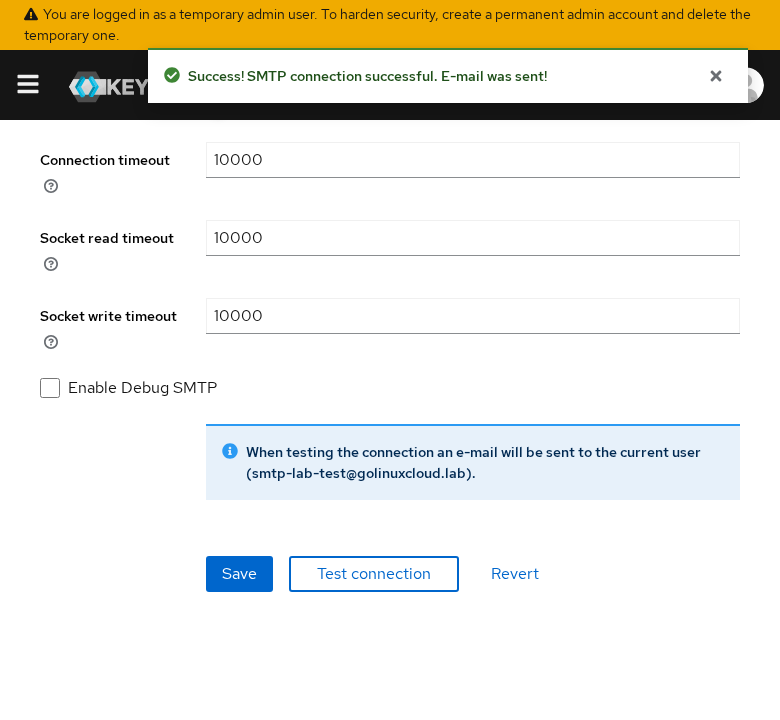
The test message is sent to the email address of the currently logged-in administrator, not to an arbitrary address you type into a dialog.
The Admin REST API exposes the same check as POST /admin/realms/{realm}/testSMTPConnection. HTTP 204 from testSMTPConnection means Keycloak completed the SMTP test request successfully. It confirms that Keycloak could connect and submit the test message, but it does not guarantee that the recipient's mail provider will place the message in the inbox. A relay can accept the message and bounce or filter it later.
In this lab, testing against an unreachable relay returned HTTP 500 with {"errorMessage":"Failed to send email"}. Test again after network, TLS, or credential changes.
Test connectivity from a Keycloak container
Keycloak opens the SMTP socket from its own network namespace. A relay that answers on the host loopback is only reachable when the container shares the host network or you point Host at an address the container can route to.
From inside the Keycloak container, confirm that Keycloak can reach the SMTP host and port with Bash built-ins. The tested Keycloak 26.7.3 container did not include nc or openssl, so this lab uses Bash /dev/tcp:
export KC_CONTAINER=keycloak-podman

podman exec "$KC_CONTAINER" sh -c 'timeout 2 bash -c "echo >/dev/tcp/127.0.0.1/1025" && echo port_1025_open"'
Sample output:
port_1025_openProve the failure mode on a closed port before you change realm settings:
podman exec "$KC_CONTAINER" sh -c 'timeout 2 bash -c "echo >/dev/tcp/127.0.0.1/19999" 2>&1 || echo connection_refused"'Sample output:
bash: connect: Connection refused
connection_refused
On the host (or in a debug image with openssl), inspect STARTTLS on a submission port:
openssl s_client -connect smtp.example.com:587 -starttls smtp -brief 2>&1 | head -6Sample output (trimmed):
CONNECTION ESTABLISHED
Protocol version: TLSv1.3
If TCP fails from the container but works on the host, fix routing or switch Podman to host networking before changing the SSL or StartTLS settings.
SMTP authentication
Keycloak 26.x supports two SMTP authentication choices in the Admin Console:
- Password — username and password authentication
- Token — XOAUTH2; Keycloak obtains an OAuth access token and uses it for SMTP authentication
In REST data, password authentication maps to authType basic. Token authentication enables XOAUTH2.
Username and password
For password-based relays, set Authentication to on and supply the SMTP username and password in the Email tab.
Do not store SMTP passwords in Git or baked container images. Keycloak supports vault-backed values for SMTP password fields, so prefer deployment-time secret injection or a supported vault mechanism.
When you rotate credentials through the Admin REST API, include the authentication fields your provider expects. After rotation, run Test connection again to confirm that email is working.
XOAUTH2 / token authentication
Use Token authentication when your mail provider requires XOAUTH2. Keycloak obtains the SMTP OAuth token using the configured client-credentials settings. Provider-side setup differs significantly, so follow the vendor's SMTP OAuth documentation. Keycloak's current documentation provides a tested Microsoft 365 example. It also notes that Google Mail is not currently compatible with this Client Credentials-based XOAUTH2 implementation.
AWS SES SMTP still expects password authentication, not XOAUTH2.
Send a real verification or password-reset email
After SMTP passes the test, confirm the flows your realm actually uses.
Verify-email through execute-actions-email requires a user with an email attribute. See Create and manage users in Keycloak and Keycloak required actions for user setup and the email trigger.
Password-reset mail uses the same SMTP session when a user submits Forgot Password? on the login form. The forgot-password walkthrough and enumeration-safe UI behavior are documented in Configure forgot password in Keycloak so this page stays focused on SMTP transport.
Common Keycloak SMTP errors
| Symptom | Likely cause | Fix |
|---|---|---|
testSMTPConnection returns HTTP 500 |
Connection, TLS, authentication, sender, or relay error | Check Keycloak logs for the underlying JavaMail/Angus exception; then verify host, port, encryption, and credentials |
Connection refused in Keycloak logs |
Wrong host/port or relay down | Fix Host; test /dev/tcp/host/port from the container |
Test mail HTTP 500 after save |
Wrong port or SSL/StartTLS combination | Match provider guidance; 587 usually uses StartTLS, 465 usually uses SSL |
| Test succeeds but user does not receive mail | Recipient address, spam filtering, sender policy, or user-flow configuration | Verify the target user's email, inspect relay logs/spam folders, and confirm the actual Keycloak flow triggered an email |
| Auth errors in logs | Bad username/password or wrong authentication type | Re-enter credentials; confirm Password versus Token matches the provider |
| Forgot-password banner but no mail | SMTP broke after test; user has no email |
Re-run test; set and verify email on the account |
Reproduce a refused connection through the test API:
export KC_BASE='http://127.0.0.1:8080'
export REALM='golinuxcloud'

ADMIN_TOKEN=$(curl -sS -X POST "${KC_BASE}/realms/master/protocol/openid-connect/token" \
  -d 'grant_type=password' -d 'client_id=admin-cli' \
  -d 'username=admin' -d 'password=ChangeMe!2026' | \
  python3 -c "import sys,json; print(json.load(sys.stdin)['access_token'])")

curl -sS -w ' HTTP:%{http_code}\n' -X POST \
  -H "Authorization: Bearer ${ADMIN_TOKEN}" -H 'Content-Type: application/json' \
  "${KC_BASE}/admin/realms/${REALM}/testSMTPConnection" \
  -d '{"host":"127.0.0.1","port":"19999","from":"bad@test","ssl":"false","starttls":"false","auth":"false"}'
Sample output:
{"errorMessage":"Failed to send email"} HTTP:500Investigate JavaMail/SMTP errors in the logs:
export KC_CONTAINER=keycloak-podman

podman logs --tail 20 "$KC_CONTAINER" 2>&1 | grep -iE 'ConnectException|SMTP|Authentication|Failed to send'
Sample output:
Caused by: java.net.ConnectException: Connection refused
	at org.eclipse.angus.mail.smtp.SMTPTransport.openServer(SMTPTransport.java:2193)
If certificate validation fails against a private CA, add that CA to the trust material used by your Keycloak deployment. Full Keycloak truststore configuration is outside this article.
Summary
Keycloak SMTP configuration tells Keycloak how to connect to your mail relay. Configure sender fields, host, port, encryption, and authentication under Realm settings → Email, then use Test connection to confirm that email is working.
Match SSL versus StartTLS to your provider's port guidance, make sure the logged-in admin has an email address before testing, and verify connectivity from the Keycloak container when the relay is unreachable. After SMTP is stable, enable the user-facing flows that send mail and keep relay logs alongside Keycloak events when delivery still fails.
References
- Keycloak Server Administration Guide — Configuring email for a realm
- Keycloak Server Administration Guide — XOAUTH2 email configuration
- Keycloak Admin REST API — RealmAdminResource.testSMTPConnection
Frequently Asked Questions
What is the difference between SSL and STARTTLS in Keycloak?
SSL (implicit TLS) encrypts from the first byte, typically on port 465 with SSL on and StartTLS off. STARTTLS begins as plaintext SMTP and upgrades after EHLO, typically on port 587 with StartTLS on and SSL off. Using the wrong pair for your port produces handshake or connection errors.
Why does the test email work but reset mail does not?
Both paths use the same SMTP settings. If test mail succeeds and user mail does not, check the target user's email attribute, provider spam filtering, and whether the From address is allowed for application mail. Reset and verify flows can also fail silently in the UI when SMTP errors occur after the success banner.
Can I use Gmail or Microsoft 365?
Yes. Microsoft 365 client SMTP submission commonly uses smtp.office365.com:587 with STARTTLS, and current Keycloak documentation includes a Microsoft 365 XOAUTH2 example. Gmail supports smtp.gmail.com on 587 with STARTTLS or 465 with implicit TLS, but Keycloak's current SMTP token-authentication implementation does not support Google's OAuth model; use an authentication method permitted by your Google or Workspace configuration.
Where should the SMTP password be stored?
Prefer vault references or deployment-time secret injection over plain realm export files. Keycloak supports vault-backed values for SMTP password fields on supported distributions.
How do I debug a TLS certificate error?
Confirm StartTLS versus SSL flags and port first. If trust fails on a private CA, add that CA to the trust material used by your Keycloak deployment. Full Keycloak truststore configuration is outside this article. Use openssl s_client from a host or debug container to inspect the server certificate chain before you change Keycloak.
