
| Tested on | Red Hat Enterprise Linux 10.2 (Coughlan) |
|---|---|
| Package | podman-5.8.2-5.el10_2.x86_64quay.io/keycloak/keycloak:26.7.3curl-8.12.1-4.el10_2.4.x86_64jq-1.7.1-11.el10_2.2.x86_64 |
| Applies to | Keycloak 26.7.x native SCIM (--features=scim-api, Preview). Keycloak 26.8+ enables SCIM by default; Entra field names and OAuth client-credentials flow are the same. Microsoft Entra ID (formerly Azure AD) tenant with permission to configure enterprise-application provisioning. |
| Lab environment | Keycloak on http://127.0.0.1:18083 (isolated from other labs on port 8080). Entra cloud provisioning requires an HTTPS URL reachable by Microsoft; use a tunnel or reverse proxy for a real Entra Test connection — see Prerequisites and assumptions. |
| Privilege | Keycloak bootstrap admin; Entra Application Administrator or equivalent to create a non-gallery app and provisioning job |
| Scope | How to configure Microsoft Entra ID → Keycloak user provisioning with native SCIM (OAuth client credentials, User Profile externalId, mappings and matching, Provision on demand). User provisioning first; group provisioning is optional. Does not cover Keycloak → Entra, LDAP federation, or generic SCIM authentication theory — see linked guides. |
| Related guides | Keycloak SCIM API Keycloak SCIM authentication Manage users and groups with SCIM Fix Keycloak SCIM 401 and 403 LDAP vs SAML vs OIDC vs SCIM |
This guide shows how to provision users from Microsoft Entra ID (formerly Azure AD) into Keycloak using Keycloak's built-in SCIM API. Entra obtains an OAuth access token from Keycloak, then uses that token to create and update users through /realms/<realm>/scim/v2.
The setup has four parts:
- Enable SCIM in Keycloak.
- Create an OAuth client with
manage-users(and the SCIM audience mapper). - Configure Entra with the Keycloak SCIM Tenant URL and token endpoint.
- Map attributes, match existing users correctly, and test one user before assigning a larger scope.
This walkthrough focuses on user provisioning first. Group provisioning is optional and needs a separate Entra group mapping — it is not included in the first test.
Entra is the SCIM client; Keycloak is the service provider. That direction is not the same as Microsoft Entra's own SCIM Provisioning API, where Entra receives users from another system.
I'll prepare the Keycloak side on 26.7.3 at 127.0.0.1:18083, then describe the Entra enterprise-application fields you need. I tested token issuance, SCIM discovery, user creation, and active=false deactivation against Keycloak 26.7.3 in this lab. I did not run Test connection or Provision on demand against Microsoft's cloud provisioning service in this article — those steps require your Entra tenant and a public HTTPS SCIM URL that Microsoft can reach.
Quick answer
- On Keycloak: enable
--features=scim-api(26.7.x), turn SCIM API on for the realm, define User Profile attributeexternalIdmapped to SCIMexternalId, and create confidential cliententra-scim-provisionerwith Service account roles andrealm-management/manage-users. - Add an Audience mapper so the access token lists the exact SCIM base URL (
https://<host>/realms/<realm>/scim/v2). - On Keycloak 26.8+, set Full Scope Allowed to Off on the dedicated scope and assign
manage-userson both dedicated Scope mappings and Service account roles. - In Entra: create a non-gallery enterprise application, set provisioning to Automatic, choose OAuth2 client credentials grant, and paste Tenant URL, token endpoint, client ID, client secret, and How credentials are sent.
- Map attributes (including
objectId→externalId), confirm the matching property Entra uses for lookups, assign a test user, run Provision on demand, and verify the account in Keycloak.
Microsoft Entra provisioning service
            |
            | client_id + client_secret
            v
+------------------------------------+
| Keycloak OAuth token endpoint      |
| /protocol/openid-connect/token     |
+------------------------------------+
            |
            | access token
            v
Microsoft Entra provisioning service
            |
            | Authorization: Bearer <token>
            | SCIM POST / PATCH / GET
            v
+------------------------------------+
| Keycloak SCIM API                  |
| /realms/<realm>/scim/v2            |
+------------------------------------+
            |
            v
     Keycloak users / groups
Architecture: Entra is the SCIM client, Keycloak is the service provider
LDAP vs SAML vs OIDC vs SCIM separates login protocols from account provisioning. Entra may already authenticate users through OIDC or SAML into Keycloak; SCIM adds or updates realm accounts that those flows can target.
| Direction | Who calls whom | This article |
|---|---|---|
| Entra → Keycloak | Entra provisioning service POSTs/PATCHes /scim/v2/Users and /Groups |
Yes |
| Keycloak → Entra | Keycloak would call Entra's SCIM API | No |
| Entra SCIM Provisioning API | External HR pushes into Entra | No — opposite of Keycloak as target |
Keycloak does not expose a static "SCIM secret" header by default. Entra obtains a short-lived bearer token from the realm token endpoint using the client's ID and secret, then calls SCIM with Authorization: Bearer. That matches Keycloak SCIM authentication.
Prerequisites and assumptions
What you need
- A Keycloak realm with the native SCIM API enabled — start from Keycloak SCIM API if the route still returns HTTP
404. - A Microsoft Entra ID tenant and a role that can create Enterprise applications and edit Provisioning (for example Application Administrator).
- A confidential Keycloak client dedicated to Entra (
entra-scim-provisionerin this lab).
Licensing
Automatic application provisioning is license-dependent. Microsoft changes packaging over time, so verify that your tenant includes application provisioning before you rely on this workflow in production. Do not confuse this Entra → Keycloak connector with Microsoft's separate SCIM Provisioning API, which has its own licensing and billing model.
Public HTTPS requirement
Microsoft's cloud provisioning agent connects outbound to your Tenant URL. http://127.0.0.1 works for curl in this lab; Entra Test connection in the portal does not. Publish Keycloak behind HTTPS on a hostname Entra can resolve (load balancer, ingress, or a lab tunnel). The public endpoint must present a TLS certificate that Microsoft's provisioning service trusts; a local self-signed certificate on a private hostname normally fails Test connection even when curl works inside your network.
For a typical Keycloak deployment, both the token endpoint and the SCIM Tenant URL use the same public Keycloak hostname. Entra lets you configure those URLs independently, but they usually share one host. The audience requirement applies to the SCIM base URL: the value in the token's aud claim must match the externally visible SCIM URL Keycloak expects.
Assumptions used in this guide
- User Profile: Keycloak maps core SCIM fields such as
userName,email,name, andactiveautomatically. The SCIMexternalIdfield is different: configure a User Profile attribute and map it to SCIMexternalIdbefore Entra sendsobjectIdinto it (see below). - User storage: This guide assumes the test users are stored locally in Keycloak. If the realm uses LDAP or another user-storage provider that handles new registrations, SCIM-created users may be written there instead, and non-imported federated users have current SCIM limitations — see Manage users and groups with SCIM.
- First pilot user: The first Provision on demand test assumes the target
userName(UPN) does not already exist as a conflicting Keycloak user. If a matching user is already present, Entra may update that account instead of creating a new one, depending on your matching property. - Groups: User provisioning steps stand alone. Group sync requires enabling Entra Provision group objects and Keycloak
/Groupsmappings when you need it. - Lab vs Entra cloud: Keycloak-side steps and curl examples were run on the lab host. Entra portal steps follow current Microsoft documentation; validate Test connection, Provision on demand, and Provisioning logs in your own tenant.
--features=scim-api). Plan upgrades carefully; 26.8+ promotes SCIM to supported and requires dedicated-scope role mappings in addition to service-account roles.
Prepare Keycloak for Entra provisioning
The lab uses container keycloak-scim-entra on port 18083 so it does not collide with other Keycloak instances on 8080.
Export the URLs once. Replace the host when you move from loopback to the public HTTPS name Entra will call:
KC_PORT=18083
REALM=golinuxcloud
SCIM_BASE="http://127.0.0.1:${KC_PORT}/realms/${REALM}/scim/v2"
TOKEN_URL="http://127.0.0.1:${KC_PORT}/realms/${REALM}/protocol/openid-connect/token"
Enable SCIM on the server and realm
Start Keycloak with the SCIM feature and create realm golinuxcloud with scimApiEnabled=true. The Keycloak SCIM API guide shows the 404 → 401 progression when the server feature or realm switch is missing.
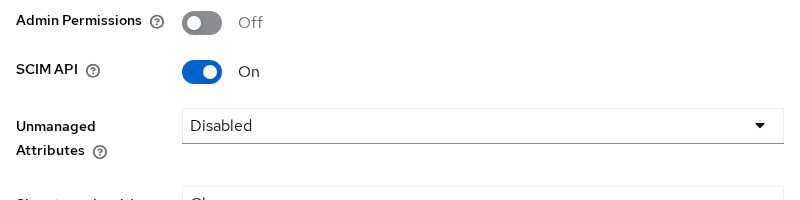
In Realm settings → General, switch SCIM API to On and save:
Create the Entra provisioning client
Create client entra-scim-provisioner with Client authentication on, Standard flow off, and Service account roles on.
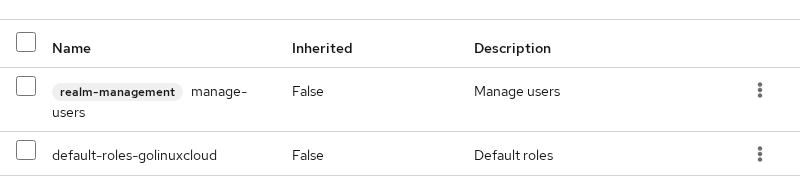
Assign realm-management / manage-users on Service account roles. Entra needs create, update, and deactivate — not merely view-users.
Copy the client secret from Credentials into a vault. In commands below, use a placeholder:
ENTRA_CLIENT_SECRET='paste-generated-secret-here'Configure the SCIM audience mapper
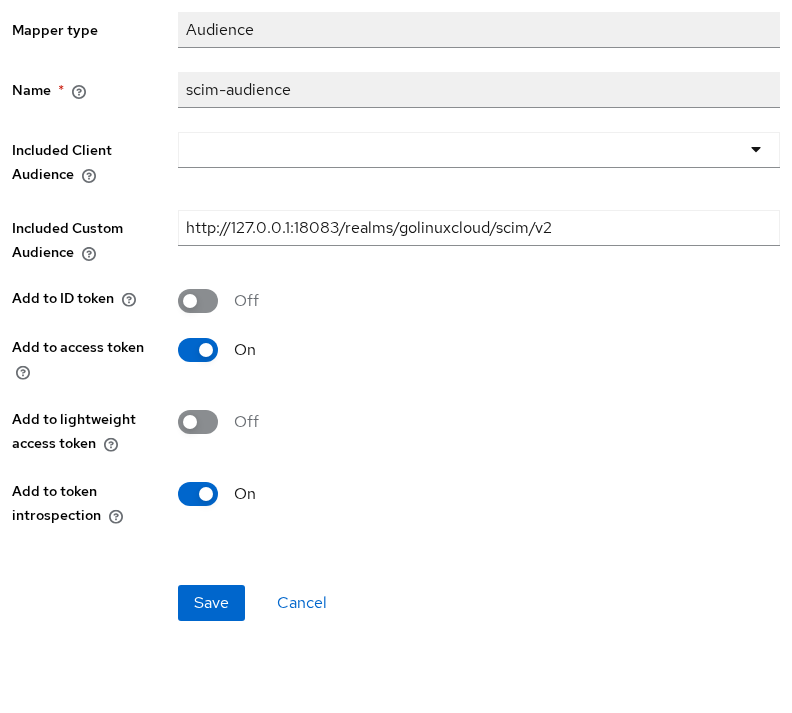
Without the SCIM URL in JWT aud, Keycloak returns 401 Invalid token audience before Entra's JSON is evaluated. Add mapper scim-audience on entra-scim-provisioner-dedicated with Included Custom Audience equal to SCIM_BASE (use the public HTTPS URL in production):
Keycloak 26.8 and later: dedicated scope role mappings
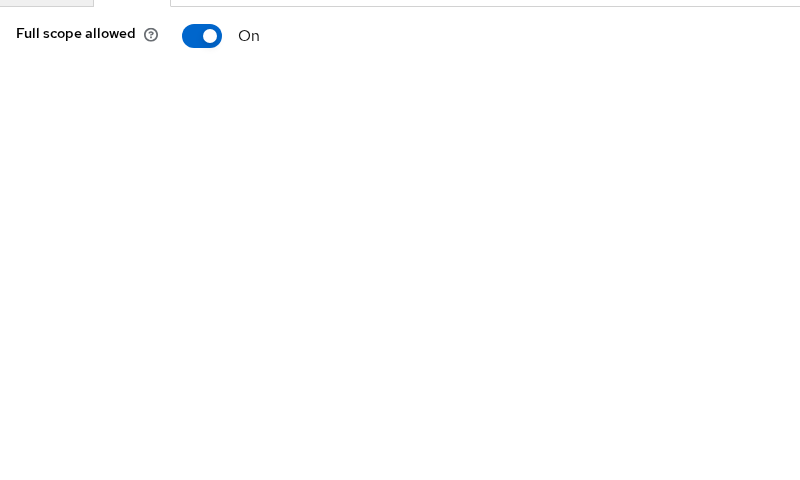
On Keycloak 26.8+, do not rely on Service account roles alone. Disable Full Scope Allowed on the dedicated scope and assign the same realm-management roles in both places. The access token receives the intersection of those lists.
- Open Clients →
entra-scim-provisioner→ Client scopes →entra-scim-provisioner-dedicated→ Scope. - Set Full scope allowed to Off and assign realm-management →
manage-usersunder scope role mappings. - Assign
manage-usersagain under Clients →entra-scim-provisioner→ Service account roles (as in the screenshot above).
Prove the Keycloak endpoint before Entra
Request a token the same way Entra will:
TOKEN=$(curl -sS -X POST "$TOKEN_URL" \
  -H 'Content-Type: application/x-www-form-urlencoded' \
  -d 'grant_type=client_credentials' \
  -d 'client_id=entra-scim-provisioner' \
  -d "client_secret=$ENTRA_CLIENT_SECRET" | jq -r '.access_token')
A non-empty token means client authentication succeeded. Call discovery:
curl -sS -w '\nHTTP %{http_code}\n' -H "Authorization: Bearer $TOKEN" \
-H 'Accept: application/scim+json' "$SCIM_BASE/ServiceProviderConfig" | tail -3... "authenticationSchemes":[{"type":"oauthbearertoken","name":"OAuth Bearer Token"...
HTTP 200Your local GET /ServiceProviderConfig test proves the same Keycloak authentication and discovery path you need before you expose the URL to Entra. Test connection in Entra verifies that Entra can obtain a token and successfully communicate with the configured SCIM endpoint.
Configure externalId in the Keycloak User Profile
Microsoft Entra uses a stable source identifier to correlate an existing target account with later updates. In this guide, Entra's objectId is sent as the SCIM externalId.
Keycloak stores externalId as a custom user-profile attribute. Configure that attribute before you rely on the Entra mapping. A SCIM body that includes externalId does not persist or round-trip until User Profile declares the SCIM mapping — see Manage users and groups with SCIM.
Entra objectId
      |
      v
SCIM externalId
      |
      v
Keycloak User Profile attribute
      |
      v
stable source identifier stored
In the Admin Console:
- Open Realm settings → User profile → Create attribute (or edit
externalIdif it already exists). - Set Attribute [Name] to
externalIdand Display name toExternal ID. - Under Permission, allow Admin to view and edit (SCIM provisioning uses administrative permissions on the service account).
- Open the SCIM section and set SCIM attribute to
externalId. - Save.
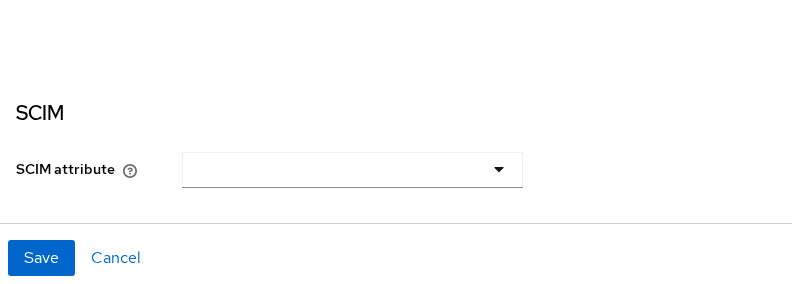
Admin view lets the mapped value appear in SCIM responses. Admin edit lets SCIM create and update operations write it.
Create the Entra non-gallery enterprise application
In the Microsoft Entra admin center:
- Open Identity → Applications → Enterprise applications → New application.
- Choose Create your own application.
- Name it
Keycloak SCIM (golinuxcloud)(or your standard), select Integrate any other application you don't find in the gallery (Non-gallery), and create.
This application is only the provisioning connector — not an OIDC login app for users unless you configure that separately.
Configure OAuth2 client credentials for provisioning
In Entra, set authentication to OAuth2 client credentials grant and supply:
| Entra field | Keycloak value |
|---|---|
| Authentication method | OAuth2 client credentials grant |
| Tenant URL | https://<public-host>/realms/<realm>/scim/v2 |
| OAuth token endpoint | https://<public-host>/realms/<realm>/protocol/openid-connect/token |
| Client identifier | entra-scim-provisioner (or your client ID) |
| Client secret | Secret from Clients → Credentials |
| How credentials are sent | Body if you follow the curl example below; Header also works once validated against your Keycloak client |
Entra also lets you choose How credentials are sent. Header sends the client ID and secret using HTTP Basic authentication (client_secret_basic). Body sends them as form parameters (client_secret_post). Keycloak supports client-secret authentication. The curl examples below use the body form. In this lab, Keycloak accepted client-secret authentication using form-body credentials. If you choose Header in Entra, validate that mode against your Keycloak client before enabling provisioning.
- Open the new enterprise application → Provisioning → Get started.
- Set Provisioning Mode to Automatic.
- Under Admin Credentials, set the fields in the table above (authentication method, Tenant URL, token endpoint, client ID, client secret, and How credentials are sent).
- Click Test connection, then Save.
Test connection verifies that Entra can obtain a token and successfully communicate with the configured SCIM endpoint. If it fails while curl works on loopback, the problem is usually reachability (firewall, TLS, wrong hostname) or an audience mismatch on the public SCIM URL.
Configure SCIM attribute mappings
Entra ships default mappings. For Keycloak, confirm at least:
| Entra source | SCIM target | Notes |
|---|---|---|
userPrincipalName or mail |
userName |
Login identifier |
objectId |
externalId |
Stable source ID stored in Keycloak User Profile |
givenName / surname |
name.givenName / name.familyName |
Display names |
IsSoftDeleted (computed) |
active |
Inverted — see below |
Mapping versus matching
Mapping and matching answer different questions. A newcomer often assumes objectId → externalId alone tells Entra how to find the same user on the next cycle — that is not automatic.
| Concept | Question it answers | Example |
|---|---|---|
| Mapping | What value should Entra write to the target? | objectId → externalId |
| Matching | Which target attribute should Entra search before it decides to create versus update? | Often userName or externalId — set under Match objects using this attribute |
objectId  ──mapping──>  externalId  (stored in Keycloak User Profile)

matching property  ──search──>  existing Keycloak user?
                                      |
                         create new    |    update existing
Map Entra objectId to SCIM externalId to preserve a stable source identifier in Keycloak (after User Profile is configured). Separately, open the Entra mapping marked Match objects using this attribute and choose the attribute Entra should query before create or update. If mapping and matching disagree, you can still get duplicate users or unexpected updates.
Confirm the mapping list includes userPrincipalName or mail → userName, objectId → externalId, and the active mapping tied to IsSoftDeleted.
Map IsSoftDeleted to active
Entra uses the computed IsSoftDeleted attribute when a user leaves provisioning scope. Keycloak exposes account state as SCIM active. The values are inverted: an in-scope user stays enabled; an out-of-scope or soft-deleted user is disabled.
Entra user still in scope
        |
        v
SCIM active = true
        |
        v
Keycloak account enabled

User removed / soft-deleted / out of scope
        |
        v
SCIM active = false
        |
        v
Keycloak account disabled
Map Entra's IsSoftDeleted state to SCIM active so that:
IsSoftDeleted=false→active=trueIsSoftDeleted=true→active=false
If your Entra mapping editor already provides the standard IsSoftDeleted → active expression, keep that template rather than typing a custom formula. Common expressions include Not([IsSoftDeleted]) or Switch([IsSoftDeleted], , "False", "True", "True", "False") — verify the expression in your tenant's mapping UI before you save.
Optional: enable Provision group objects only if you plan to sync Entra groups into Keycloak SCIM /Groups.
Assign users, Provision on demand, and automatic cycles
Assign one test user
        |
        v
Provision on demand
        |
        v
Check Provisioning logs
        |
        v
Verify user in Keycloak
        |
        v
Enable broader automatic scope- Open Users and groups on the enterprise application and assign a security group with one or two test users — not the whole directory on the first run. Pick a user whose UPN does not already exist in the Keycloak realm (or expect an update to the matched account instead of a fresh create).
- Open Provisioning and run Provision on demand for the assigned user. Microsoft recommends this for testing a user that is in scope without waiting for the next scheduled cycle.
- Open Provisioning logs and confirm a successful create or update for that user.
- When the pilot works, leave Provisioning Mode on Automatic. After the initial cycle, incremental provisioning typically runs about every 40 minutes.
Verify the Keycloak SCIM behavior before connecting Entra
Before connecting Entra, I used these requests to confirm that Keycloak accepts the user-create and deactivation operations Entra will need. They do not prove that the Entra provisioning service completed an end-to-end cloud cycle — only Test connection, Provision on demand, and provisioning logs in your tenant do that.
The SCIM payload below matches the attributes the Entra mapping will send (externalId as a GUID, userName as UPN, and active for lifecycle):
curl -sS -w '\nHTTP %{http_code}\n' -X POST "$SCIM_BASE/Users" \
  -H "Authorization: Bearer $TOKEN" \
  -H 'Content-Type: application/scim+json' \
  -H 'Accept: application/scim+json' \
  -d '{
  "schemas": ["urn:ietf:params:scim:schemas:core:2.0:User"],
  "externalId": "a1b2c3d4-e5f6-7890-abcd-ef1234567890",
  "userName": "pat.entra@contoso.com",
  "name": { "givenName": "Pat", "familyName": "Entra" },
  "displayName": "Pat Entra",
  "active": true,
  "emails": [{ "value": "pat.entra@contoso.com", "type": "work", "primary": true }]
}'... "userName":"pat.entra@contoso.com" ... "active":true ...
HTTP 201HTTP 201 means Keycloak accepted the create. After User Profile externalId is configured, read the user back and confirm externalId is present:
USER_ID='<id-from-create-response>'
curl -sS -H "Authorization: Bearer $TOKEN" -H 'Accept: application/scim+json' \
  "$SCIM_BASE/Users/$USER_ID" | jq '{userName, externalId, active}'
In the Admin Console, open Users and confirm pat.entra@contoso.com exists in realm golinuxcloud. After a real Entra Provision on demand run, repeat the same checks.
Request a fresh token before long test runs — lab tokens expired after five minutes (expires_in: 300).
Test updates and deprovisioning
When an assigned user moves out of provisioning scope, Entra normally tries to disable the target account by setting SCIM active to false. Hard-delete behavior is a separate lifecycle case and depends on provisioning configuration and how the user leaves scope.
Simulate deactivation with PATCH (replace USER_ID with the id from the create response):
curl -sS -w '\nHTTP %{http_code}\n' -X PATCH "$SCIM_BASE/Users/$USER_ID" \
  -H "Authorization: Bearer $TOKEN" \
  -H 'Content-Type: application/scim+json' \
-d '{"schemas":["urn:ietf:params:scim:api:messages:2.0:PatchOp"],"Operations":[{"op":"replace","path":"active","value":false}]}' | tail -2... "active":false ...
HTTP 200Confirm the account is inactive:
curl -sS -H "Authorization: Bearer $TOKEN" -H 'Accept: application/scim+json' \
"$SCIM_BASE/Users/$USER_ID" | jq '{userName, active}'{
"userName": "pat.entra@contoso.com",
"active": false
}Entra provisioning logs should show an update event when a live connector performs the same step.
Troubleshoot Test Connection and provisioning logs
| Symptom | Likely cause | Fix |
|---|---|---|
| Entra Test connection timeout | Keycloak not reachable from the internet | HTTPS ingress or tunnel; open firewall to /scim/v2 |
401 Invalid token audience |
aud lacks SCIM URL |
Audience mapper; public SCIM URL must match exactly |
401 Bearer token required |
Wrong Tenant URL or no token | Token endpoint and client secret in Entra |
403 on create |
Missing manage-users |
Service account roles and 26.8+ dedicated scope |
| Duplicate users in Keycloak | Mapping without matching, or missing User Profile externalId |
Configure User Profile externalId; set Match objects using this attribute to the attribute Entra should search |
| Loopback works, Entra fails | HTTP vs HTTPS or wrong host | Use public HTTPS hostname for the same paths |
Step-by-step curl reproductions for 401 and 403 live in Fix Keycloak SCIM 401 and 403.
Keycloak behaviors that matter to Entra
A few Keycloak SCIM behaviors are worth knowing before you enable provisioning for a large group:
- Bulk is not supported; Entra sends individual SCIM operations (
maxOperations: 0inServiceProviderConfig). - List and search responses are capped at 100 results per request (
filter.maxResultsinServiceProviderConfig); connectors must paginate. - Group provisioning requires
/Groupsand membership mappings — enable Entra group sync only when you need it. - SCIM
externalIdrequires an explicit User Profile attribute mapped to SCIMexternalIdbefore values persist or appear in reads; core fields such asuserNameandactivedo not need that extra step.
Summary
Microsoft Entra ID provisions into Keycloak when Entra is the SCIM client and Keycloak exposes /realms/<realm>/scim/v2 with OAuth bearer security. Prepare Keycloak with the SCIM feature and realm switch, User Profile externalId mapped to SCIM externalId, confidential entra-scim-provisioner, manage-users (and on 26.8+ dedicated-scope mappings with Full Scope Allowed off), and an audience mapper tied to your public SCIM URL. In Entra, create a non-gallery enterprise app, use OAuth2 client credentials grant, configure How credentials are sent, map attributes and matching properties, assign a pilot user, and run Provision on demand before assigning a larger user or group scope.
This lab validated token issuance, ServiceProviderConfig, SCIM user create with externalId, and active=false deactivation on Keycloak 26.7.3 at 127.0.0.1:18083. When you connect Entra, replace the loopback host with the public HTTPS hostname for the same Keycloak endpoints. If authentication errors persist after the URL is correct, work through Keycloak SCIM authentication before changing Entra attribute maps.
References
- Keycloak Server Administration Guide — SCIM
- Keycloak 26.8.0 release announcement — SCIM API supported
- Microsoft Entra — Application provisioning and automatic user provisioning
- RFC 7644 — SCIM Protocol
Frequently Asked Questions
Can Microsoft Entra ID provision users to Keycloak?
Yes, when Keycloak runs the native SCIM API, User Profile maps externalId, and Entra is configured as a non-gallery application with automatic provisioning. Entra calls Keycloak's /scim/v2 endpoints with a bearer token from the realm token endpoint.
Is this Azure AD to Keycloak or Keycloak to Entra?
This article configures Entra → Keycloak (Microsoft Entra ID, formerly Azure AD). Entra pushes users and groups into a Keycloak realm. It is not Keycloak exporting users into Entra.
Can Entra use OAuth client credentials with Keycloak SCIM?
Yes. Set Entra's authentication method to OAuth2 client credentials grant and supply the Keycloak token endpoint, client ID, and client secret. Choose How credentials are sent (Header or Body) and validate token issuance. Keycloak returns an access token whose audience must include the SCIM base URL.
Does Keycloak need a public HTTPS URL for Entra?
For Microsoft cloud provisioning and Test connection, yes. The provisioning service runs in Microsoft's cloud and must reach your Tenant URL over HTTPS. Local 127.0.0.1 testing with curl validates Keycloak only.
How often does Entra provisioning run?
After the initial cycle, incremental provisioning cycles typically run about every 40 minutes. For testing, use Provision on demand to process an assigned user without waiting for the next scheduled cycle.
