| Tested on | RHEL 10.2 (Coughlan) |
|---|---|
| Package | Wireshark 4.4.2, tcpdump 4.99.4 |
| Applies to | Wireshark on Linux, Windows, or macOS when analyzing Ethernet frames that may carry 802.1Q tags |
| Privilege | Normal user for PCAP analysis; sudo or CAP_NET_RAW to capture on an interface |
| Scope | How 802.1Q appears in Wireshark, display filters such as vlan.id, reading VLAN ID and priority, and why the 802.1Q header can be missing on access ports, SPAN sessions, or after NIC offload. Does not cover switch VLAN design, trunk configuration on vendor CLIs, or STP. |
| Related guides | Wireshark tutorial Wireshark IP filters cheat sheet DNS troubleshooting in Wireshark TCP connection failures in Wireshark Wireshark remote packet capture |
Use Wireshark display filters on vlan and vlan.id when you need to separate traffic by VLAN ID, and expand the 802.1Q header when you need proof the tag was on the frame at your capture point.
The hard part is not the filter syntax. An access port, a mirror that strips tags, or a VLAN subinterface on Linux often delivers untagged Ethernet to the capture even though the same flow was tagged on a trunk. The screenshots below compare trunk-side and access-side PCAPs so you can tell absent tags from a wrong capture location.
Before you read the captures:
- Trunk — carries traffic for multiple VLANs, normally using 802.1Q tags on the wire.
- Access port — connects an endpoint to one VLAN and normally sends that traffic untagged to the host.
- SPAN / mirror port — copies switch traffic to a monitoring interface; tag visibility depends on mirror settings.
Key takeaways
- On the wire, an 802.1Q tag sits after the source MAC and before the original EtherType. The tag adds four bytes between the source MAC address and the original EtherType.
- An 802.1Q tag contains a 12-bit VLAN ID field. Normal VLAN IDs are 1–4094; ID 0 is used for priority tagging and 4095 is reserved.
vlanshows any tagged frame;vlan.id == 10isolates one VLAN; combine IDs withvlan.id == 10 || vlan.id == 20.- If the 802.1Q row is missing, the frame may never have been tagged at your tap, or the tag was removed before the packet reached Wireshark.
- Access ports usually present untagged frames to the host; capture on a trunk, SPAN port configured for tagged mirror, or an inline tap if you must see tags.
- Wireshark cannot reconstruct a VLAN tag that was stripped upstream; compare captures from two points when you need proof.
Capture environment
The figures in this guide come from paired PCAPs on a small Linux test network (trunk leg vs access leg). You do not need to rebuild that lab to use the filters and troubleshooting steps.
| Capture | What it represents |
|---|---|
| Trunk-side capture | Tagged VLAN 10 and VLAN 20 ICMP |
| Access-side capture | Untagged endpoint traffic (no 802.1Q in the file) |
| Test protocol | ICMP |
What an 802.1Q VLAN tag looks like
Tagged Ethernet keeps the same destination and source addresses. The switch or host inserts an 802.1Q header before the payload EtherType:
      Destination MAC (6) + Source MAC (6)
                     ↓
           802.1Q tag (4 bytes)
                     ↓
        Original EtherType + payload (IP, etc.)
In the detail pane, Wireshark labels that block 802.1Q Virtual LAN. An 802.1Q tag contains three main values:
- PCP — 3-bit priority value used for QoS (
vlan.priorityin filters). - DEI — drop-eligible indicator used during congestion handling (
vlan.dei). - VLAN ID — the 12-bit VLAN identifier (
vlan.id).
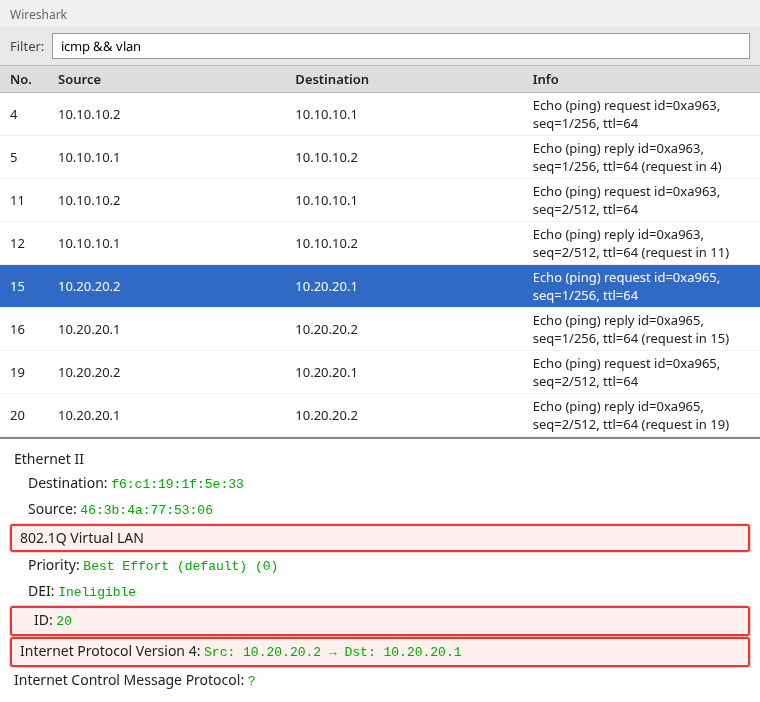
The screenshot is from a trunk-side capture: ICMP between 10.20.20.2 and 10.20.20.1 with ID: 20 highlighted in the 802.1Q tree. On an access capture of the same style of host traffic, that layer is often missing even though the IP endpoints match.
Wireshark VLAN filters
Type a display filter in the toolbar. A green background means Wireshark accepted the expression. These filters apply to the loaded file; they do not change what the NIC records.
Show every tagged frame:
vlanOne VLAN ID:
vlan.id == 10Several IDs:
vlan.id == 10 || vlan.id == 20Match priority (PCP) when you care about QoS markings:
vlan.priority == 0vlan.id == 10 is a Wireshark display filter. If you filter while capturing with tcpdump or libpcap, use BPF syntax instead, for example vlan 10 or vlan and host 10.10.10.2. A capture filter written only for untagged Ethernet can miss tagged traffic because the VLAN header shifts protocol offsets.
Example capture filters for tagged traffic:
tcpdump -i eth0 'vlan and host 10.10.10.2'To match a single VLAN ID in BPF, use the vlan keyword with the numeric ID:
tcpdump -i eth0 'vlan 10'To sanity-check a file from the shell without opening the GUI, use tshark with the same display filter syntax as Wireshark. Point -r at your PCAP and ask for VLAN ID and endpoints:
tshark -r trunk-tagged.pcapng -Y 'vlan.id == 10 && icmp' -T fields -e frame.number -e vlan.id -e ip.src -e ip.dstSample output:
4	10	10.10.10.2	10.10.10.1
5	10	10.10.10.1	10.10.10.2
11	10	10.10.10.2	10.10.10.1
12	10	10.10.10.1	10.10.10.2
Each line ties a frame number to VLAN 10 and the ICMP peers. If this filter returns nothing while icmp alone works, treat the capture as untagged at that location.
For a quick count of which VLAN IDs appear in the file:
tshark -r trunk-tagged.pcapng -Y vlan -T fields -e vlan.id | sort -n | uniq -cSample output:
     10 10
     11 20
That summary confirms both VLAN 10 and VLAN 20 show up on the trunk capture. For broader filter patterns on IP and port fields, see the Wireshark IP filters cheat sheet.
Find the VLAN ID in a packet
Pick one frame that should be tagged (for example ICMP from a trunk capture). Do not rely only on the Protocol column; Wireshark often shows the upper-layer protocol (ICMP, TCP, DNS) there even when a VLAN tag is present.
Select the frame and expand the packet details. If the tag is in the file, Wireshark shows an 802.1Q Virtual LAN layer between Ethernet II and the payload protocol. The ID line is the VLAN ID. Priority is the PCP value; DEI is the drop-eligible bit.
If you only see Ethernet II jumping straight to IPv4 or IPv6, do not assume VLAN 1 or “no VLAN.” At this capture point the tag is simply not in the bytes Wireshark received.
For repeated VLAN analysis, add the VLAN ID as a custom column:
- Expand 802.1Q Virtual LAN on any tagged frame.
- Right-click ID.
- Choose Apply as Column.
The packet list then shows the VLAN ID for each tagged frame.
Compare traffic from multiple VLANs
On a trunk or SPAN session that preserves tags, the packet list mixes frames from every VLAN crossing the link. Filter with vlan.id == 10 || vlan.id == 20 (or icmp && vlan) and read the VLAN ID column after you add it.
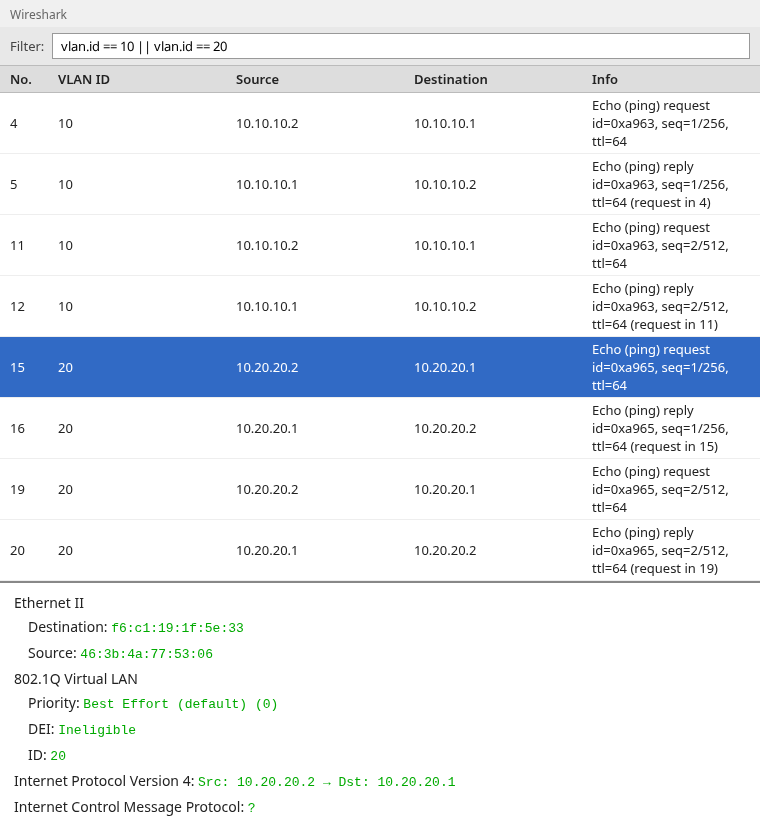
The screenshot uses a custom VLAN ID column and the display filter vlan.id == 10 || vlan.id == 20. The custom column makes it easy to see which VLAN each ICMP flow belongs to (10.10.10.x on VLAN 10, 10.20.20.x on VLAN 20).
Isolate both IDs from the shell:
tshark -r trunk-tagged.pcapng -Y 'vlan.id == 10 || vlan.id == 20' -T fields -e frame.number -e vlan.idSample output:
1	10
2	10
...
6	20
7	20
Frame numbers differ by capture; the pattern to trust is grouped or alternating IDs matching the VLANs you expect on the trunk.
Why Wireshark does not show the VLAN tag
Missing 802.1Q is usually a capture placement or driver story, not a Wireshark decode bug. Wireshark only renders bytes that reached the capture interface.
Capturing on an access port
An access port sends the host untagged Ethernet. The switch already applied VLAN membership; the host NIC sees a normal frame. Wireshark displays IP directly under Ethernet with no VLAN child.
SPAN and mirror-port configuration
Many switches can mirror with or without tags depending on the monitor session. A mirror configured for access-style output strips tags even though the production trunk still carries 802.1Q. Check the switch manual for “encapsulation replicate” or equivalent wording.
Native or untagged VLAN on a trunk
A trunk does not always mean every frame is tagged. Some configurations send the native / PVID VLAN untagged while other VLANs remain tagged.
If one VLAN appears without 802.1Q while others show tags, check the trunk native VLAN and PVID settings before assuming Wireshark lost the tag.
NIC and driver VLAN stripping
Capturing on a VLAN subinterface such as eth0.10 often shows de-tagged traffic because that interface represents traffic after VLAN classification. Capture on the underlying physical interface if you need the original 802.1Q header, but even there NIC and driver offload can change whether the tag appears in the PCAP.
On Linux, inspect VLAN-related offload with ethtool:
ethtool -k enp0s3 | grep vlanSample output:
rx-vlan-offload: on
tx-vlan-offload: on [fixed]
rx-vlan-filter: on [fixed]
You do not need to disable offload in every case. Use the output to see whether hardware tagging or filtering might explain a missing or altered VLAN header compared with a switch mirror.
Capture location
Ask where the frame was tagged end to end:
        Trunk (tags visible)
              ↓
         Access port
              ↓
      Host NIC (often untagged)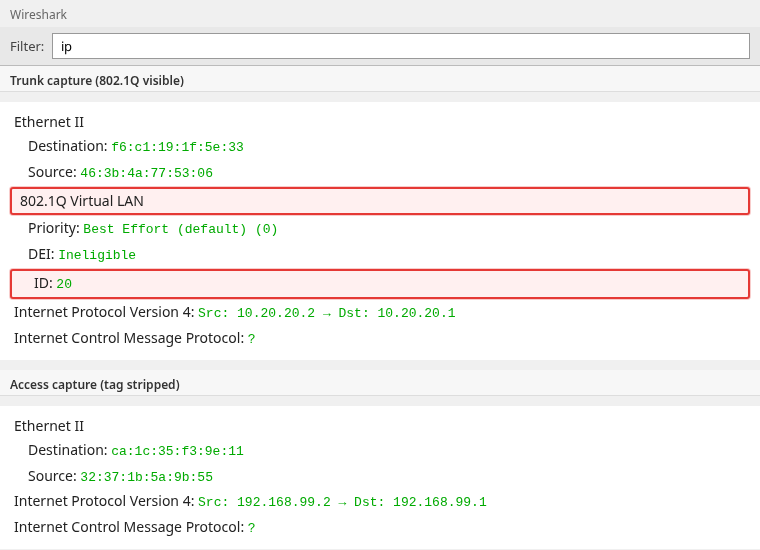
The figure pairs illustrative trunk-side and access-side captures from the lab environment above—not the same frame saved twice. The trunk pane shows tagged ICMP on VLAN 20; the access pane shows untagged ICMP. Only the trunk decode includes 802.1Q Virtual LAN.
Prove whether the VLAN tag is present
If Wireshark does not show an 802.1Q header, compare captures from two points instead of assuming the VLAN design is wrong.
| Capture point | What you should see |
|---|---|
| Trunk/tap or SPAN that preserves tags | 802.1Q Virtual LAN and matching vlan.id |
| Access-side host or stripped mirror | Ordinary Ethernet II → IPv4 with no 802.1Q layer |
If the trunk capture shows VLAN 20 but the endpoint capture does not, the switch or access path removed the tag before the frame reached the laptop. That is expected access-port behavior, not a decode error.
Wireshark cannot recover a VLAN ID that is no longer present in the captured frame. When you mirror production traffic, place the probe on the trunk or configure tagged SPAN. For remote collectors, see Wireshark remote packet capture.
VLAN priority (PCP)
The 802.1Q header carries a 3-bit Priority Code Point (PCP). Wireshark exposes it as vlan.priority (0–7). Best-effort lab ICMP usually stays at 0.
Filter marked traffic when troubleshooting QoS:
vlan.priority > 0PCP does not change the VLAN ID filter; combine vlan.id and vlan.priority when both matter. DEI is covered in the tag field list above; there is no separate troubleshooting section for it.
What about QinQ?
QinQ carries multiple VLAN tags, commonly an outer provider S-tag (802.1ad, often TPID 0x88a8) around an inner customer C-tag (802.1Q, TPID 0x8100). Wireshark shows nested 802.1Q / provider tag layers in the detail tree.
In Wireshark, expand both VLAN layers and read each ID. A display filter such as vlan.id == 200 can match a frame that contains 200 in either tag position. If outer versus inner position matters, inspect the repeated VLAN layers in the tree rather than assuming one vlan.id test targets only the outer tag.
For capture filters on stacked tags, libpcap supports repeated vlan terms, for example vlan 100 && vlan 200 for outer 100 and inner 200. Verify on a known SPAN before relying on that syntax in production.
Summary
802.1Q adds a four-byte VLAN header between the MAC addresses and the payload EtherType. In Wireshark, vlan and vlan.id isolate tagged traffic; the ID field under 802.1Q Virtual LAN is the number you configured on the network. Add ID as a column when you compare multiple VLANs in one file.
When the 802.1Q section is missing, the frame at your capture point is probably untagged. Access ports, native VLAN on trunks, stripped SPAN sessions, VLAN subinterfaces, and NIC offload can all hide tags even though the same conversation is tagged elsewhere.
Prove it with two captures: one on a trunk or tagged mirror where vlan.id matches expectations, and one on an access-style interface where IP sits directly under Ethernet. Use display filters in Wireshark and BPF vlan terms when capturing so tagged traffic is not filtered out by mistake.
For other decode problems (fragmentation, TCP handshakes), continue with packet fragmentation in Wireshark or TCP connection failures in Wireshark once L2 VLAN placement is settled.
References
- Wireshark Display Filter Reference — VLAN
- Wireshark Wiki — VLAN
- IEEE 802.1Q — Bridges and Bridged Networks
- Wireshark User’s Guide
Frequently Asked Questions
What filter shows VLAN IDs in Wireshark?
Use vlan for any tagged frame, or vlan.id == 10 for a specific ID. Combine IDs with vlan.id == 10 || vlan.id == 20. The VLAN ID also appears as ID under 802.1Q Virtual LAN, or in a custom column after you choose Apply as Column on ID.
Why is the 802.1Q section missing?
The capture likely came from an access port, a native VLAN on a trunk, a mirror that strips tags, a VLAN subinterface, or a NIC path that removed the tag before the frame was saved. Wireshark only shows tags present in the PCAP bytes.
Does an access port include VLAN tags?
Usually no. The switch maps the port to a VLAN but sends untagged frames to the endpoint. Tags appear on trunks and on mirrors configured to replicate tagged frames.
Can Wireshark recover a stripped VLAN tag?
No. If the tag was removed before capture, the information is not in the file. Capture again on a trunk, tagged SPAN, or tap that preserves 802.1Q.
Can Wireshark capture multiple VLANs from a trunk?
Yes, when the capture interface receives tagged frames from multiple VLANs. Use vlan or per-ID filters and add ID as a packet-list column to read each frame VLAN.