| Tested on | RHEL 10.2 (Coughlan) |
|---|---|
| Package | Wireshark 4.4.2tcpdump 4.99.4 |
| Applies to | Any host with Wireshark for offline or live DHCP capture |
| Privilege | Normal user for PCAP analysis; sudo to capture UDP ports 67–68 on an interface |
| Scope | Finding an unauthorized DHCP server from a capture: filter offers, compare Server Identifier, gateway, and DNS against your authorized list, read which offer the client accepted, trace the rogue MAC to a switch port. Does not cover full DHCP server deployment. |
| Related guides | Wireshark tutorial Find duplicate IP with Wireshark Wireshark IP filters cheat sheet Discover network loops with Wireshark |
When devices suddenly get the wrong IP address, gateway, or DNS server, a second DHCP server on the network is a common cause. DHCP (Dynamic Host Configuration Protocol) is the service that hands each device its IP address and network settings, and a rogue DHCP server is one nobody approved. Wireshark shows every DHCP server that answers a client, so you can pick out the unauthorized one and then find the switch port it is plugged into.
Capture on the affected client whenever possible. Many DHCP replies go only to the client that asked, so on a switched network an ordinary admin PC usually cannot see another device's DHCP exchange. If you must watch a different device, use a SPAN port (also called a mirror port), which is a switch port set up to copy another port's traffic to your capture PC.
Key takeaways
To find a rogue DHCP server in Wireshark, filter for DHCP Offer packets with dhcp.option.dhcp == 2 and compare all offers that share the same transaction ID. Check the DHCP Server Identifier, gateway, DNS, and source MAC against your authorized DHCP servers. Then inspect the client's DHCP Request to see which server it selected, and trace the suspicious MAC through the switch MAC/CAM table to locate the physical port.
- Filter DHCP offers with
dhcp.option.dhcp == 2. - Multiple offers for the same transaction only mean that more than one DHCP server responded; they do not prove that one is rogue.
- Compare the DHCP Server Identifier (
dhcp.option.dhcp_server_id), the IP address identifying the DHCP server that issued the offer, with the servers authorized for that VLAN. - Use gateway, DNS, offered IP, and source MAC as supporting clues.
- Check the client's DHCP Request to see which server it selected.
- If the server is on the same Layer 2 network (same switches and VLAN, no router in between), trace its source MAC through the switch MAC/CAM table.
- If DHCP relay is involved, rely on the Server Identifier because the visible Ethernet source may belong to the relay.
If the words Discover, Offer, Request, and ACK are new to you, read DHCP DORA in 60 seconds near the end first. It takes a minute and makes the screenshots easier to follow.
Quick Wireshark filters for rogue DHCP
| Goal | Filter or menu |
|---|---|
| All DHCP traffic | dhcp |
| DHCPOFFER only (type 2 = Offer) | dhcp.option.dhcp == 2 |
| Two offers in one transaction | dhcp.option.dhcp == 2 then match dhcp.id |
| Client's chosen server (type 3 = Request) | dhcp.option.dhcp == 3 and read dhcp.option.dhcp_server_id |
| Offers from one Server Identifier | dhcp.option.dhcp_server_id == <ip> |
| Live capture filter (capture filter) | udp port 67 or udp port 68 |
The first five rows are display filters: they hide packets in a capture you already have. The last row is a capture filter: it decides what Wireshark records in the first place. Wireshark 3.0 and later name DHCP fields with the dhcp prefix. Older guides use bootp.*, which still works as an alias, but prefer dhcp.*.
Already have an affected Windows client? Run ipconfig /all and read DHCP Server. That can reveal the suspicious server IP immediately. Wireshark still helps confirm multiple responders, compare their options, and collect the Layer 2 address you need to trace the device.
Example used in this guide
The screenshots below use one client and two DHCP servers on the same network:
| Role | IP address | Purpose |
|---|---|---|
| Authorized DHCP server | 192.168.50.2 |
Expected DHCP server |
| Unauthorized DHCP server | 192.168.50.99 |
Rogue server used in the examples |
| Client | DHCP-assigned | Device requesting an address |
The authorized server hands out addresses from 192.168.50.100 to 192.168.50.149, gateway 192.168.50.1, and DNS server 192.168.50.2. Those are the normal values that the rogue offer is compared against in the sections below.
The exact addresses are only examples. On your network, compare the DHCP offers with the servers and settings that are actually authorized for that VLAN. If you do not have that list, ask whoever runs the network or check your DHCP server configuration. In a Windows Active Directory domain, the DHCP console lists the servers authorized in the domain under Manage authorized servers.
Capture DHCP traffic in Wireshark
A client only sends DHCP messages when it needs an address, so start the capture first and then make the client renew its lease.
- Open Wireshark and choose Capture → Options.
- Select the interface the client uses to reach the network. The small traffic graph next to each name shows which one is active.
- In Capture filter for selected interfaces, type
udp port 67 or udp port 68. DHCP servers listen on UDP port 67 and clients on port 68, so this records DHCP and skips everything else. - Click Start.
- Renew the client's DHCP lease. On Windows, run
ipconfig /releasefollowed byipconfig /renew. On Linux, renew the lease using your system's network manager. If you do not see a new Discover and Offer in Wireshark, reconnect the interface or perform a full lease release and renewal. - Wait a few seconds, then click the red square Stop button and save the file with File → Save As.
On a Linux server without a desktop, tcpdump records the same traffic to a file you can open in Wireshark later. Replace enp0s3 with your interface name from ip -br link:
sudo tcpdump -i enp0s3 -nn -w dhcp-renew.pcap 'udp port 67 or udp port 68'tcpdump confirms which interface it is listening on and then waits:
dropped privs to tcpdump
tcpdump: listening on enp0s3, link-type EN10MB (Ethernet), snapshot length 262144 bytes
Renew the lease while it runs, then press Ctrl+C. tcpdump prints how many packets it captured. It writes classic PCAP format, so keep the .pcap extension.
Find multiple DHCP offers in Wireshark
Open the capture with File → Open, or keep working in the window if you just stopped a live capture. Wireshark shows three panes:
- Packet list (top): one row per packet
- Packet details (middle): the selected packet's fields as an expandable tree
- Packet bytes (bottom): the raw hex of the selected packet
The display filter bar sits above the packet list. A green background means the filter syntax is valid, and red means Wireshark cannot parse it.
Filter DHCPOFFER packets
Type the filter below in the display filter bar and press Enter. dhcp.option.dhcp is the DHCP message type, and 2 means Offer, the reply a server sends to say "you can have this address":
dhcp.option.dhcp == 2The packet list should shrink to Offer packets only. In the example capture, two rows share transaction ID 0xa1b2c3d4 but list different Source addresses (192.168.50.99 and 192.168.50.2).
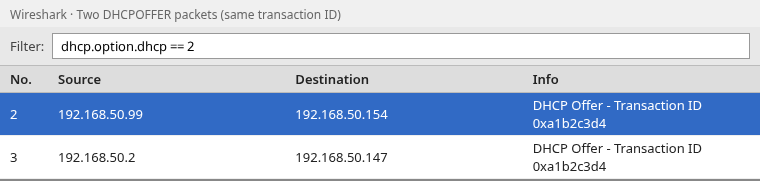
Two Offer rows with the same transaction ID tell you that more than one DHCP server responded. The next step is to determine whether both are authorized.
Match the transaction ID
The transaction ID is a random number the client picks and copies into every message of one DHCP exchange, so replies can be matched to the request. Offers with the same transaction ID but different Server Identifiers show that multiple DHCP servers answered the same client exchange.
Change the filter to dhcp so the full exchange is visible. You should see Discover, both Offers, Request, and ACK from the server the client selected.
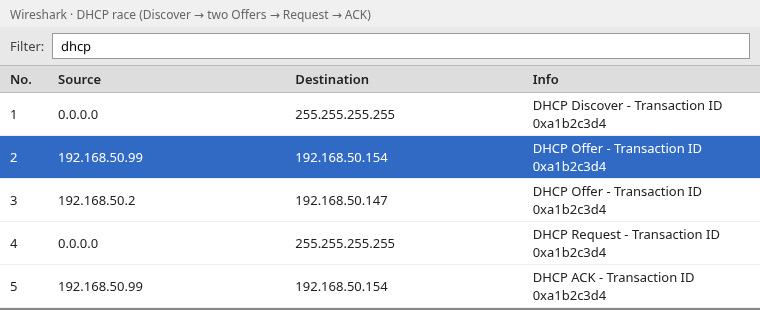
To see the value yourself, click any row, expand Dynamic Host Configuration Protocol (DHCP) in the packet details pane, and read Transaction ID (dhcp.id). Every frame in this exchange shows 0xa1b2c3d4.
You can list the same exchange with tshark, the command-line version of Wireshark. Replace rogue-dhcp-race.pcap with your capture file and the transaction ID with yours; column -t lines the values up under their headers:
tshark -r rogue-dhcp-race.pcap -Y 'dhcp.id == 0xa1b2c3d4' -T fields -E header=y \
  -e frame.number -e dhcp.option.dhcp_server_id -e _ws.col.Info | column -t -s $'\t'
Sample output:
frame.number  dhcp.option.dhcp_server_id  _ws.col.info
1                                         DHCP Discover - Transaction ID 0xa1b2c3d4
2             192.168.50.99               DHCP Offer    - Transaction ID 0xa1b2c3d4
3             192.168.50.2                DHCP Offer    - Transaction ID 0xa1b2c3d4
4             192.168.50.99               DHCP Request  - Transaction ID 0xa1b2c3d4
5             192.168.50.99               DHCP ACK      - Transaction ID 0xa1b2c3d4
The Discover in frame 1 has no Server Identifier because the client sends it before any server answers. In this capture, both servers replied to the same Discover. The client then selected the offer from 192.168.50.99, as shown by the following DHCP Request and ACK.
Identify which DHCP server is unauthorized
Compare the Server Identifier in each Offer with the DHCP servers that are authorized for this VLAN. An unknown Server Identifier is the strongest sign that you have found an unauthorized server. The offered address, gateway, DNS settings, and Ethernet source MAC can then help confirm what the server is doing and locate it.
DHCP Server Identifier
In the packet list, click the suspicious Offer. In the packet details pane, expand Dynamic Host Configuration Protocol (DHCP) and read Option: (54) DHCP Server Identifier. DHCP settings travel as numbered options, and option 54 carries the server's identity.
The Server Identifier (dhcp.option.dhcp_server_id) identifies the DHCP server that sent the Offer. Compare this address with the DHCP servers authorized for that VLAN. Filter a single server with:
dhcp.option.dhcp == 2 && dhcp.option.dhcp_server_id == 192.168.50.99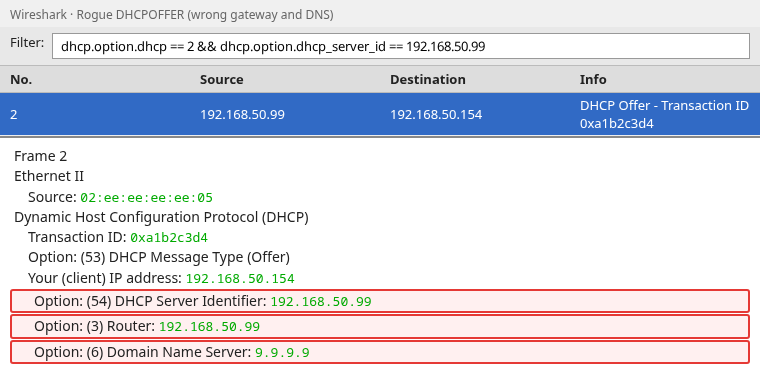
Option 54 shows 192.168.50.99, which is not the authorized server at 192.168.50.2. Option 3 and Option 6 in the same frame show the wrong gateway and DNS this server would push to clients.
Source MAC
Still on the Offer row, expand Ethernet II and read Source. A MAC address is the hardware address of the network card that sent the frame. The Server Identifier tells you which IP address is handing out leases, but the MAC is what finds the physical device, because switches track devices by MAC address rather than by IP.
In the example, the rogue MAC is 02:ee:ee:ee:ee:05. If a DHCP relay sits between the client and the server, this MAC belongs to the relay instead (see What if DHCP relay is in use?).
Offered IP
Read Your (client) IP address (dhcp.ip.your) in the Offer. The offered address can provide another clue if it falls outside the address range you expect on that VLAN. An address inside the normal pool does not prove that the offer is legitimate, because a rogue DHCP server can deliberately use the same subnet and pool.
In the example capture, the rogue server offered 192.168.50.154, which sits outside the authorized pool (192.168.50.100–192.168.50.149).
Default gateway
Expand Option: (3) Router (dhcp.option.router). The default gateway is the router a client sends all traffic to when the destination is on another network, including the internet. The rogue offer pointed clients at 192.168.50.99 instead of the real gateway 192.168.50.1. Clients accepting that offer would try to send off-subnet traffic to 192.168.50.99; if that device does not route the traffic, external connectivity will fail.
DNS servers
Read Option: (6) Domain Name Server (dhcp.option.domain_name_server). A DNS server turns names such as example.com into IP addresses. Clients that accept the rogue offer send every name lookup to whatever appears here, 9.9.9.9 in the example instead of the internal resolver 192.168.50.2.
Compare both offers side by side
Clicking through each Offer works, but tshark can print the clues for all offers in one table:
tshark -r rogue-dhcp-race.pcap -Y 'dhcp.option.dhcp == 2' -T fields -E header=y \
  -e dhcp.option.dhcp_server_id -e dhcp.ip.your -e dhcp.option.router \
  -e dhcp.option.domain_name_server -e eth.src | column -t -s $'\t'
Sample output:
dhcp.option.dhcp_server_id  dhcp.ip.your    dhcp.option.router  dhcp.option.domain_name_server  eth.src
192.168.50.99               192.168.50.154  192.168.50.99       9.9.9.9                         02:ee:ee:ee:ee:05
192.168.50.2                192.168.50.147  192.168.50.1        192.168.50.2                    02:dd:dd:dd:dd:04
Read each row from left to right: server, offered address, gateway, DNS, and MAC. The first row does not match this network's expected DHCP settings: the gateway equals the unknown server address and DNS points at 9.9.9.9 instead of your internal resolver.
Find which DHCP offer the client accepted
After it collects offers, the client broadcasts a DHCP Request (message type 3) that names the one server it picked. Every server sees that broadcast, and the servers that were not picked simply drop their offer. Filter for the Request:
dhcp.option.dhcp == 3Click the Request row. In the packet details pane, expand Dynamic Host Configuration Protocol (DHCP) and read Option: (54) DHCP Server Identifier and Option: (50) Requested IP Address.
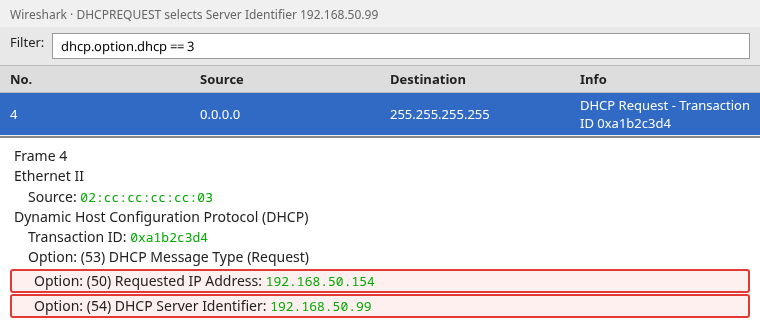
Option 54 names 192.168.50.99, so the client committed to the rogue server in this capture.
The same check from the command line prints the chosen server and the address the client asked for:
tshark -r rogue-dhcp-race.pcap -Y 'dhcp.option.dhcp == 3' -T fields -E header=y \
  -e frame.number -e dhcp.option.dhcp_server_id -e dhcp.option.requested_ip_address | column -t -s $'\t'
Sample output:
frame.number  dhcp.option.dhcp_server_id  dhcp.option.requested_ip_address
4             192.168.50.99               192.168.50.154
The ACK in frame 5 comes from 02:ee:ee:ee:ee:05 and confirms the lease, so this client is now using the rogue gateway and DNS.
Locate the rogue server on the network
Find its MAC
Write down the Ethernet source MAC from the rogue DHCPOFFER (02:ee:ee:ee:ee:05 in the example). That address belongs to the device answering DHCP, or to the relay that forwarded its reply.
Trace MAC through the switch CAM/MAC table
Switches keep a MAC address table, often called the CAM table, that records which MAC address was last seen on which port. Log in to the switch that serves the affected VLAN and look the rogue MAC up there.
Cisco IOS writes MAC addresses as three groups of four hex digits, so 02:ee:ee:ee:ee:05 becomes 02ee.eeee.ee05. A typical lookup and result look like this:
show mac address-table address 02ee.eeee.ee05
          Mac Address Table
-------------------------------------------
Vlan    Mac Address       Type        Ports
----    -----------       --------    -----
  50    02ee.eeee.ee05    DYNAMIC     Gi1/0/28
Total Mac Addresses for this criterion: 1
The Ports column (Gi1/0/28 here) is where the rogue device, or the next switch toward it, is connected. Other vendors use different commands, for example display mac-address on Huawei and H3C or show ethernet-switching table on Juniper, so search your switch documentation for "MAC address table".
What if DHCP relay is in use?
A DHCP relay, called an IP helper on Cisco routers, is a router that forwards DHCP messages between subnets so one server can serve many networks. When a relay is involved, the Ethernet source MAC on an Offer at the client side may be the relay's MAC, not the server's.
Always read the Server Identifier (dhcp.option.dhcp_server_id) inside the DHCP payload, because that IP identifies the server no matter which device forwarded the packet. Wireshark also shows dhcp.ip.relay (the relay's address) and Option 82, extra information some relays add about where the request came from.
If the Ethernet source is your default gateway's MAC but the Server Identifier points at an unknown IP, investigate that remote server or the relay configuration rather than the gateway itself.
Why multiple DHCP offers do not always mean a rogue server
Two Offer packets only prove that two servers answered. Authorized designs also produce multiple offers:
- DHCP failover pairs: two servers share one address range so either can answer
- Redundant servers on the same scope (a scope is the address range a server hands out)
- Split scopes: two servers each own part of the same range
- Multiple authorized servers behind one relay
Treat the capture as rogue only when an Offer's Server Identifier is not on your authorized list for that VLAN. Gateway, DNS, and source MAC then help you confirm the impact and locate the device.
Contain and prevent rogue DHCP
Remove or shut down unauthorized service
After you identify the switch port, disconnect the device, disable the port, or stop the unintended DHCP service (misconfigured VM, Wi‑Fi router on a LAN port, VPN profile handing out addresses).
Renew a test client after the fix. A clean capture shows Offers from your authorized Server Identifier only.
DHCP snooping
DHCP snooping is a switch feature that only accepts DHCP server replies on ports you mark as trusted. On Cisco Catalyst switches, access ports are untrusted by default once snooping is on, so the switch drops Offer and ACK messages that arrive on them.
Typical steps:
- Enable DHCP snooping on the VLAN.
- Mark uplinks and the port toward the authorized server as trusted.
- Leave user-facing ports untrusted so rogue Offers never reach clients.
DHCP snooping stops new rogue leases at the edge; it does not replace finding the source when troubleshooting an active incident.
Why the rogue server may be hard to find
Forum threads often report surprises when tracing the MAC:
- A virtual machine on a hypervisor host (the MAC belongs to a vSwitch port)
- VPN or hotspot software running on a laptop
- A home router accidentally patched into an office wall jack
- An unmanaged switch hiding the real device behind one uplink MAC
If the MAC table points at a port that connects to another switch (an uplink), repeat the lookup on that switch, or match the MAC against your ARP tables and inventory tools.
What is a rogue DHCP server?
A rogue DHCP server is any DHCP service on your LAN that is not on your authorized server list. It may appear when someone connects a home router, a VM with DHCP enabled, or VPN software that hands out addresses.
The real problem is usually the network settings in the rogue offer. A rogue server can assign a wrong default gateway or DNS server, which sends traffic through an attacker or breaks name resolution even when the IP address looks valid.
DHCP DORA in 60 seconds
DHCP lease setup follows four steps, often called DORA after Discover, Offer, Request, and ACK:
              Client broadcasts DHCP Discover
                            ↓
         Each server may reply with DHCP Offer
                            ↓
    Client broadcasts DHCP Request (picks one server)
                            ↓
         Chosen server sends DHCP ACK (lease active)
A broadcast is a message sent to every device on the local network, which is how a client with no address yet can reach a DHCP server it does not know. Release and Renew are separate message types you may see during troubleshooting, but the rogue-server hunt usually starts at Discover and Offer.
Message type numbers in Wireshark (dhcp.option.dhcp): 1 Discover, 2 Offer, 3 Request, 5 ACK, 6 NAK.
Summary
When clients report wrong gateways or DNS, capture DHCP traffic on the affected client or a SPAN port while a host renews its address, then filter Offers with dhcp.option.dhcp == 2. Matching transaction IDs (dhcp.id) show every server that answered the same Discover.
Compare Server Identifier on each Offer against your authorized list first. Gateway, DNS, and Ethernet source then help confirm what the unauthorized server would hand out and where to trace it. The client's Request reveals which server it selected through dhcp.option.dhcp_server_id. Trace the rogue Offer's source MAC through the switch CAM table when the server is on the same Layer 2 segment.
Multiple Offers alone are not proof of an attack; failover and redundant servers do the same. Treat a server as rogue only when its Server Identifier is unauthorized. DHCP snooping on access ports helps prevent repeats after you remove the rogue device.
References
- RFC 2131 — Dynamic Host Configuration Protocol
- Wireshark Display Filter Reference: DHCP/Bootp
- Cisco — DHCP Snooping Configuration Guide
Frequently Asked Questions
Should I use bootp or dhcp display filters in Wireshark?
Prefer dhcp.* filters. Wireshark renamed Bootp dissector fields to dhcp.* starting in version 3.0. Legacy bootp.* names still work as aliases but may show deprecation warnings.
Can I capture DHCP on a laptop that already has an IP?
Yes. Capture DHCP traffic on the affected interface, then renew the client's DHCP lease using the method provided by your operating system or network manager so that a fresh Discover/Offer exchange appears in the capture.
What if both offers look valid?
Compare every option against your documented standard, including gateway, DNS, lease time, and domain name. If both match authorized servers, you likely have redundancy rather than a rogue. Investigate only the Offer whose Server Identifier is not on your list.