| Tested on | Windows Server 2025 Standard, version 24H2 (build 26100.32230) |
|---|---|
| Package | Network Policy and Access Services (NPS) |
| Applies to | Windows Server with the NPS role |
| Privilege | Local Administrator for NPS installation and configuration; appropriate Active Directory permissions are also required to register NPS in the domain |
| Example environment | One Windows Server 2025 domain controller that also runs NPS, and a RADIUS client on the same network |
| Scope | What NPS is, why the RADIUS client is the network device rather than the user's laptop, which UDP ports NPS listens on, how to install the role and register the server in Active Directory, and which client, shared secret, and network policy still have to exist before a login succeeds. Does not cover Cisco IOS AAA commands or PEAP wireless profiles. |
| Related guides | Cisco AAA with Windows NPS PEAP MS-CHAPv2 with NPS Wireshark tutorial FreeRADIUS PAP and CHAP FreeRADIUS with LDAP |
Install Network Policy Server when you want your routers, switches, access points, or VPN servers to check logins against one central place instead of keeping a local user list on every device. NPS is Microsoft's RADIUS server. RADIUS is the protocol those devices use to ask "should this user get in?" Installing the role starts the service that listens for those questions. It does not, by itself, let anyone in.
A working login still needs three things on NPS:
- A RADIUS client: an entry for the network device that asks NPS for a decision.
- A shared secret: a password that only that device and NPS know.
- A network policy: a rule that says which users may connect.
When the user accounts live in Active Directory, you also register the NPS server in the domain. At the end you will see a real login request answered with Access-Accept. The Cisco router side of the setup is in Cisco AAA with Windows NPS.
Key takeaways
- Network Policy Server (NPS) is Microsoft's RADIUS server and proxy.
- RADIUS provides centralized authentication, authorization, and accounting (AAA).
- The RADIUS client is the network access device, such as a router, switch, access point, or VPN server, not the end user's laptop.
- Authentication normally uses UDP 1812 and accounting uses UDP 1813. NPS also listens on the older ports 1645 and 1646.
- Installing the NPS role does not make authentication work by itself. You still need a RADIUS client, a matching shared secret, and a network policy.
- When NPS uses Active Directory accounts, register the NPS server in AD so it can read the required user account information.
What Network Policy Server does
Think of NPS as the security desk behind every network door. A login through NPS goes like this:
- A user types a username and password into a router SSH prompt, a Wi-Fi login, or a VPN client.
- The device in front of the user does not decide on its own. It packs those credentials into a RADIUS request and sends it to NPS.
- NPS checks the account and decides whether access is allowed.
- NPS sends the answer back, and the device lets the user in or blocks them.
- Optionally, the device reports the session to NPS so there is a record of it.
Sometimes the device does not collect a plain password. Wi-Fi with 802.1X uses EAP (Extensible Authentication Protocol), a way to run a longer, encrypted login conversation through the device. NPS handles both cases.
NPS can work in two roles:
- RADIUS server. NPS makes the decision itself, checking Active Directory or the server's local accounts. This page sets it up this way.
- RADIUS proxy. NPS only forwards the request to another RADIUS server and passes the answer back. A proxy does not need a network policy for those users or registration in Active Directory, because it never reads their accounts.
This page prepares NPS as a RADIUS server for Active Directory accounts. A wireless PEAP profile is a later step, covered in PEAP MS-CHAPv2 with NPS.
AAA and RADIUS in one diagram
RADIUS carries three jobs. Authentication and authorization travel together in the access exchange. Accounting is a separate exchange on its own port.
┌──────────────────┐   ┌──────────────────┐   ┌──────────────────┐
│ Authentication   │   │ Authorization    │   │ Accounting       │
│ Who is this user?│   │ What may they do?│   │What did they use?│
└──────────────────┘   └──────────────────┘   └──────────────────┘
Authentication
Authentication answers "is this really that user?" The network device, called the NAS (network access server) in RADIUS terms, sends an Access-Request with the username and password. NPS checks them:
- Access-Accept means authentication succeeded and the applicable policy allows the connection.
- Access-Reject means NPS processed the request, but authentication or authorization did not allow the connection.
- Access-Challenge means NPS needs another round before it can decide. EAP logins use this to exchange several messages.
Authorization
Authorization answers "now that we know who it is, what may they do?" It is not a second login. NPS adds extra fields, called attributes, to the Access-Accept. For example, an attribute can give a router admin privilege level 15, or put a laptop on a specific VLAN. The device reads those attributes and enforces them. NPS only sends them.
Accounting
Accounting answers "what happened during the session?" It records when the session started, when it stopped, and how much traffic it used. The NAS sends Accounting-Request packets. NPS answers with Accounting-Response, which only means "record received." Accounting never decides whether the user may connect.
RADIUS client vs RADIUS server vs end user
The word "client" is the usual source of confusion. In everyday IT, the client is the user's computer. In RADIUS, the client is the network device that asks NPS for a decision. The user's laptop talks to the switch or the VPN server, and only that device talks RADIUS to NPS. The laptop never sends a RADIUS packet.
┌──────────┐      ┌──────────────────────────┐      ┌──────────────────────────┐
│ End user │ ───► │ RADIUS client (the NAS)  │ ───► │ NPS, the RADIUS server   │
│ laptop   │      │ router, switch, AP, VPN  │ 1812 │ checks Active Directory  │
└──────────┘ └──────────────────────────┘ └──────────────────────────┘| Piece | What it is | Example |
|---|---|---|
| End user | The person or device that wants on the network | A laptop, a phone, an admin opening SSH |
| RADIUS client | The network access server (NAS) that receives that attempt and queries NPS | A Cisco router, a switch, an access point, a VPN server |
| RADIUS server | The service that accepts or rejects the request | NPS on Windows Server |
| Shared secret | A password known only to that NAS and to NPS | Configured on both, never sent as its own RADIUS attribute |
NPS silently ignores requests from any IP address you have not added as a RADIUS client. So if an admin cannot log in to a router, adding the admin's PC to NPS does not help. Add the router's IP address.
Ports and packets you will see
RADIUS runs over UDP, and NPS listens on four ports on each connected network adapter:
- UDP 1812: authentication and authorization (Access-Request and its answers). This is the official port, and most current devices use it.
- UDP 1813: accounting (Accounting-Request and Accounting-Response). This is the official accounting port.
- UDP 1645 and 1646: an older authentication and accounting pair. Some devices, including many Cisco IOS releases, still use these by default.
Because NPS listens on both pairs, either default works. The port only becomes a problem if someone changes it on one side, or a firewall between the device and NPS blocks it.
| Packet | UDP port | What it means |
|---|---|---|
| Access-Request | 1812 or 1645 | The NAS asks NPS to check this attempt |
| Access-Accept | 1812 or 1645 | Credentials and policy allow access. Authorization attributes may be included |
| Access-Reject | 1812 or 1645 | NPS processed the request, but authentication or authorization did not allow it |
| Access-Challenge | 1812 or 1645 | NPS needs another round, often for EAP |
| Accounting-Request | 1813 or 1646 | The NAS reports a session start, update, or stop |
| Accounting-Response | 1813 or 1646 | NPS accepted the accounting record |
Open the capture in Wireshark and filter on radius. The pair below is one successful login. The NAS at 192.168.56.116 sent Access-Request. NPS at 192.168.56.128 answered Access-Accept.

I also sent two failing requests, and they look different in the capture:
- Wrong user password, correct shared secret. NPS answered Access-Reject. It processed the request, then authentication or authorization did not allow the connection.
- Wrong shared secret. In this capture NPS sent no reply, and
radclienttimed out.
A normal bad-password decision usually produces Access-Reject. No reply points you first toward transport or the RADIUS client and shared secret, not toward the user account.
An Accounting-Request sent to UDP 1813 received an Accounting-Response in this setup. That confirms NPS processed the accounting request. It does not by itself prove the record was written to a log file. The Accounting section shows how to check that.
Environment used for the examples
These captures come from a small Windows Server 2025 domain. To keep it small, NPS runs on the domain controller itself. In production you would usually put NPS on its own member server. The RADIUS client is a Linux machine on the same network that plays the part of a router or switch. This page does not cover building the virtual machines.
| Piece | In these captures |
|---|---|
| Domain | lab.example |
| NPS host | WIN-8S0K67EP5EO.lab.example (192.168.56.128) |
| RADIUS client | lab-nas at 192.168.56.116 |
| Ports | UDP 1812, 1813, 1645, and 1646 |
| Account | An Active Directory user matched by a network policy |
Your names and addresses will differ. The messages to look for are Access-Request and Access-Accept.
Install the NPS role
NPS ships with Windows Server as the Network Policy and Access Services role. You only need to turn it on.
PowerShell
Open PowerShell as Administrator on the server and install the role. NPAS is the short name of the role. -IncludeManagementTools also installs the NPS console and the NPS PowerShell commands used later on this page:
Install-WindowsFeature NPAS -IncludeManagementToolsSuccess : True
RestartNeeded : No
ExitCode : NoChangeNeededSuccess is True and RestartNeeded is No, so the role is present and no reboot is needed. I ran the command on a server that already had the role, so it reports NoChangeNeeded. A fresh install reports Success instead.
The install also turns on these inbound Windows Firewall rules, so you do not have to open the ports by hand:
- Network Policy Server (RADIUS Authentication - UDP-In)
- Network Policy Server (RADIUS Accounting - UDP-In)
- Network Policy Server (Legacy RADIUS Authentication - UDP-In)
- Network Policy Server (Legacy RADIUS Accounting - UDP-In)
A firewall elsewhere on the network, between the device and NPS, still has to allow the same UDP ports.
Server Manager
If you prefer the GUI:
- Open Server Manager and select Manage, then Add Roles and Features.
- Choose Role-based or feature-based installation and select this server.
- Tick Network Policy and Access Services. When Windows asks to add the management tools, click Add Features.
- Leave the feature list as it is, click Install, and wait until it reports success.
Afterwards, open the NPS console from Server Manager, Tools, Network Policy Server. You can also press Win+R and run nps.msc. Every console step later on this page starts from this window.
Register NPS in Active Directory
Registration adds the NPS server's computer account to an Active Directory group called RAS and IAS Servers. The name is historical: RAS was Remote Access Service, and IAS (Internet Authentication Service) was the old name of NPS.
Why registration matters
That group membership gives NPS permission to read Active Directory dial-in properties when a policy evaluates them during authorization.
Every user account in Active Directory Users and Computers has a Dial-in tab. Its Network Access Permission setting has three choices:
- Allow access: the user may connect, as long as a policy matches.
- Deny access: the user is refused, even if a policy would grant access.
- Control access through NPS Network Policy: the default, which leaves the decision to the network policy.
The tab's name dates from modem access. A network policy can be set to ignore those properties, so NPS does not have to read them on every request.
When to register:
- Register in the domain that contains the user accounts. That is the standard setup when NPS authenticates and authorizes Active Directory users.
- Skip registration only when NPS is a proxy and never reads the accounts.
- On a domain controller that also runs NPS, the computer account being registered is the domain controller itself.
Run this on the NPS server. The first value is your domain name and the second is the NPS server's host name, so replace both with yours:
netsh nps add registeredserver lab.example WIN-8S0K67EP5EOOk.Ok. means the computer account was added to RAS and IAS Servers. Running it again on a server that is already registered also returns Ok.
To do the same in the NPS console, right-click NPS (Local), select Register server in Active Directory, and click OK on both prompts.
What still needs to be configured after installation
At this point the service is running, but it will ignore or reject every login. Three settings still have to exist before Access-Accept:
- A RADIUS client, so NPS answers the device at all.
- A matching shared secret, so NPS trusts what the device sends.
- A network policy that grants access, so NPS says yes to the user.
Accounting is optional and is not one of those three.
RADIUS client
A RADIUS client entry tells NPS to accept requests from one device IP address and to expect that device's shared secret. When you add one:
- Add one entry per device. Every router, switch, access point, or VPN server that sends RADIUS requests should have a matching RADIUS client entry in NPS.
- Use the address the device sends from. That is the source IP of the RADIUS packet. On a router with several interfaces, it is the interface that faces NPS, unless you set a RADIUS source interface on the router.
- NPS matches the source address, not an attribute inside the packet.
- Pick a friendly name you will recognize later in the logs, such as
core-switchorbranch-vpn.
To add one in the console:
- In the NPS console, expand RADIUS Clients and Servers.
- Right-click RADIUS Clients and select New.
- Enter a friendly name and the device's IP address.
- Leave Manual selected, type the shared secret twice, and click OK.
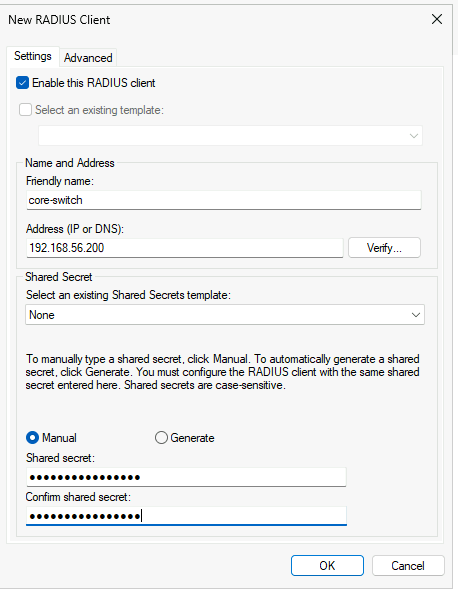
The address must be the IP the device sends RADIUS from. The Advanced tab holds the vendor, which stays RADIUS Standard for most devices.
From PowerShell the same entry is one command. Replace the name, address, and secret with your device's values:
New-NpsRadiusClient -Name "core-switch" -Address "192.168.56.200" -SharedSecret "Use-A-Long-Random-Secret"List the clients to check the entry. The server in these captures has the test device lab-nas:
Get-NpsRadiusClient | Format-List Name, Address, Enabled, VendorNameName : lab-nas
Address : 192.168.56.116
Enabled : True
VendorName : RADIUS StandardEnabled is True, so NPS will accept RADIUS requests from 192.168.56.116. Leave the vendor as RADIUS Standard. Change it only if a vendor's documentation tells you to.
Shared secret
The shared secret is known by both the NAS and NPS. What it does and does not do:
- For PAP, it protects the User-Password value carried in the RADIUS request.
- It is also used in RADIUS authenticator checks, including validation of the Message-Authenticator attribute when that attribute is present.
- It is not the user's password, and the end user never types it.
- It does not encrypt the whole packet. Classic RADIUS sends the username and other attributes in clear text. Methods such as EAP add protection to the authentication exchange.
Enter the same value in two places: the device's RADIUS settings, and the RADIUS client entry on NPS. Secrets are case-sensitive, so a long random value pasted into both places works better than one typed by hand.
To test this without a real router, I used radclient on the Linux machine that is registered as the RADIUS client. radclient comes in the freeradius-utils package, and it sends a single RADIUS request the same way a router would. The parts of the command:
printf '...'supplies the RADIUS attributes, here the username and password, separated by commas.-xprints the packets that were sent and received.-t 2waits two seconds for a reply before giving up.192.168.56.128:1812is the NPS address and authentication port.authsends an Access-Request.- The last argument is the shared secret.
In this test, a deliberately wrong shared secret produced no usable reply, and radclient timed out:
printf 'User-Name = radiususer,User-Password = Radius-User-2026!\n' \
| radclient -t 2 -x 192.168.56.128:1812 auth 'WrongSecret'(0) No reply from server for ID 151 socket 5A timeout commonly points to one of these, rather than to a normal user-policy rejection:
- The RADIUS client entry is missing, or uses a different IP from the one the device sends from.
- The shared secret differs between the device and NPS.
- A firewall drops UDP 1812 between the device and NPS.
- A routing problem means the packet, or the reply, never arrives.
- The NPS service is not running or not reachable.
A normal bad-password decision usually produces Access-Reject, whereas no reply points you first toward transport or RADIUS-client and shared-secret configuration.
Network policy
A network policy is a rule that says who may connect and how. Each policy has:
- Conditions that a request must match, such as "the user is in the RADIUS Users group."
- A permission, either Grant access or Deny access.
- Allowed authentication methods, meaning the ways the password may be sent.
How NPS uses them:
- NPS checks policies from the top of the list down.
- If a policy's conditions do not match, NPS moves to the next policy.
- When a policy's conditions match, NPS evaluates its constraints and settings. If a required constraint fails, the request is rejected rather than passed to a later policy.
- The two default policies that ship with NPS deny access.
So until you add your own policy above them, a correctly set up device still gets Access-Reject for every user.
Before you create the policy, put the users in an Active Directory group. A group is easier to manage than individual users: to give someone access later, you add them to the group, and the policy stays the same. In these examples, the group is RADIUS Users and it contains radiususer.
To add the policy in the console:
- Expand Policies, right-click Network Policies, and select New.
- Give the policy a name, such as
Lab-RADIUS-User, and click Next. - Click Add, choose Windows Groups, and add the group of users who should get in.
- Choose Access granted.
- Select the authentication methods the device uses. For a router login with PAP, tick Unencrypted authentication (PAP, SPAP).
- Accept the remaining pages and click Finish.
Select Network Policies in the console to check the order:
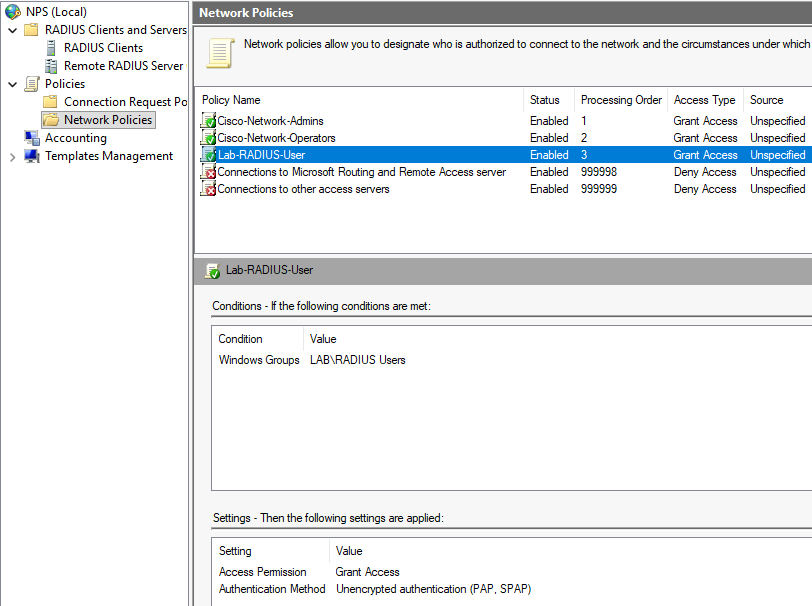
Place your Grant Access policy above the default Deny Access policies, shown at the bottom of this policy list, so it is evaluated first for requests that should be allowed. The two Cisco policies shown above Lab-RADIUS-User belong to another configuration and are not required for this setup. The lower pane shows the selected policy's condition and the authentication method it allows.
The Access-Accept in the capture matched the Lab-RADIUS-User policy. It grants access to members of one Active Directory group and allows PAP (Password Authentication Protocol). What to know about PAP:
- How it works: the device sends the password inside the request, protected with the shared secret.
- Why use it here: it is the simplest method and good for proving the setup works. Router logins often use PAP.
- Its limit: PAP does not encrypt the entire RADIUS conversation, so do not treat classic RADIUS over an untrusted network as an encrypted transport.
- Wi-Fi is different: Wi-Fi logins normally use PEAP, which needs a certificate on NPS and a different policy.
Accounting
NPS listens on the RADIUS accounting ports when the role is installed, but storing accounting records is a separate setting. Authentication works whether or not accounting logging is enabled, so check your server instead of assuming. Show the local file logging settings:
netsh nps show filelogAccounting = Enabled
Authentication = Enabled
Periodic accounting status = Enabled
Periodic authentication status = Enabled
Directory = C:\WINDOWS\system32\LogFiles
Format = ODBC formattingOn this Windows Server 2025 server, local file logging was on, and NPS was writing IN2610.log in C:\Windows\System32\LogFiles. If yours shows Disabled, open Accounting in the NPS console and choose a local file, SQL Server, or both.
Verify NPS is listening and ready
Confirm the service, the ports, and one success event before you point production devices at the server.
Service
NPS runs as a Windows service with the short name IAS, from its old name, and the display name Network Policy Server. Check it:
Get-Service IASName : IAS
Status : Running
StartType : AutomaticRunning means the listener is up. Automatic means it starts again after a reboot.
Ports
List the UDP ports the server is listening on, filtered to the four RADIUS ports:
netstat -an -p udp | findstr "1812 1813 1645 1646"UDP 10.0.2.15:1645 *:*
UDP 10.0.2.15:1646 *:*
UDP 10.0.2.15:1812 *:*
UDP 10.0.2.15:1813 *:*
UDP 192.168.56.128:1645 *:*
UDP 192.168.56.128:1646 *:*
UDP 192.168.56.128:1812 *:*
UDP 192.168.56.128:1813 *:*How to read the output:
*:*means the port is open and waiting for any sender.- Each of the server's two addresses has all four ports.
192.168.56.128is the address the device sends to.10.0.2.15belongs to a second network adapter on the same server.
If the address your devices use is missing from the list, NPS is not listening on that adapter.
Test login
With the RADIUS client, shared secret, and network policy in place, send one test login from the device. This time the secret matches, and NPS answered Access-Accept:
printf 'User-Name = radiususer,User-Password = Radius-User-2026!,NAS-IP-Address = 192.168.56.116\n' \
| radclient -x 192.168.56.128:1812 auth 'LabRadiusKey-2026'Sent Access-Request Id 215 from 0.0.0.0:33959 to 192.168.56.128:1812 length 90
User-Name = "radiususer"
NAS-IP-Address = 192.168.56.116
Received Access-Accept Id 215 from 192.168.56.128:1812 to 192.168.56.116:33959 length 84How to read the output:
Received Access-Acceptis the line that matters. A real device would now let the user in and apply any attributes in the answer.Id 215appears on both lines, which is how the reply is matched to the request.NAS-IP-Addressidentifies the NAS inside the RADIUS request. NPS still identifies the configured RADIUS client from the source address of the packet.
Security log
Successful and rejected NPS authentication decisions can be recorded in the Windows Security log. The two event IDs to know:
- Event 6272: NPS granted access.
- Event 6273: NPS denied access. The event includes a reason code that says why.
When a device reports Access-Reject, this log is the first place to look. You can open it in Event Viewer under Windows Logs, Security, or pull the latest grant from PowerShell:
Get-WinEvent -FilterHashtable @{LogName='Security'; Id=6272} -MaxEvents 1 |
Format-List TimeCreated, Id, MessageTimeCreated : 10/6/2026 7:11:39 AM
Id : 6272
Message : Network Policy Server granted access to a user.
User:
Account Name: radiususer
Account Domain: LAB
...
RADIUS Client:
Client Friendly Name: lab-nas
Client IP Address: 192.168.56.116
Authentication Details:
Network Policy Name: Lab-RADIUS-User
Authentication Type: PAPThe event answers four questions:
- Who logged in: Account Name
radiususer. - Which device asked: Client Friendly Name
lab-nas. - Which policy matched: Network Policy Name
Lab-RADIUS-User. - How the password was sent: Authentication Type PAP.
For a 6273 event, change Id=6272 to Id=6273 and read the Reason Code and Reason lines. Reason code 16 means the username or password was wrong.
The same event in Event Viewer, under Windows Logs, Security, filtered on event ID 6272:
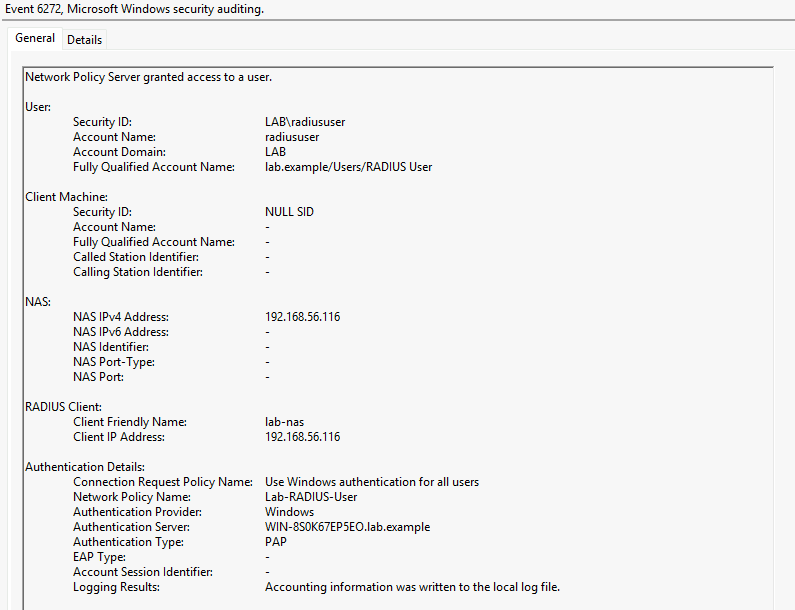
Check four fields when you troubleshoot: Account Name, Client Friendly Name, Network Policy Name, and Authentication Type. If the policy name is not the one you expected, a policy higher in the list matched first.
Common NPS setup mistakes
| Symptom | Likely cause | Fix |
|---|---|---|
| No RADIUS reply, client times out | The RADIUS client entry, shared secret, firewall, routing, or server reachability | Confirm the source address NPS sees, copy the secret again, and check that UDP 1812 can arrive |
| Access-Reject, event 6273 reason 16 | The user name or password does not match an account | Fix the account. The client and secret are already accepted |
| Access-Reject, policy name empty | No network policy matched, or only the default deny policies matched | Add a policy that matches this NAS and grants the account |
| Request never arrives | A firewall between the device and NPS drops UDP, or someone changed the RADIUS port on one side only | Allow UDP 1812 and 1813 (or 1645 and 1646) through the firewall, and keep the device on a port NPS listens on |
| Domain accounts fail after the client is correct | NPS is not in RAS and IAS Servers | Register the server in Active Directory |
Summary
NPS is the Windows RADIUS server. The user's laptop is not the RADIUS client. The router, switch, access point, or VPN server is. That device sends Access-Request to UDP 1812, and NPS answers Access-Accept, Access-Reject, or Access-Challenge. Accounting uses UDP 1813. The older ports 1645 and 1646 are open as well.
Installing the role only gets the IAS service running. To get Access-Accept, I still had to:
- Register the server in Active Directory.
- Define the NAS as a RADIUS client with a shared secret.
- Give NPS a network policy that grants access to an Active Directory group.
In this test, a wrong shared secret produced no reply. A wrong password, with the right secret, produced Access-Reject.
Once Access-Accept shows up for a test account, point the real NAS at this server with the same secret and the same port. Cisco AAA commands for that device are the next step, not part of getting NPS installed.
References
- Network Policy Server — Microsoft Learn
- Configure NPS UDP port information — Microsoft Learn
- Register an NPS in an Active Directory domain — Microsoft Learn
- Plan NPS configuration — Microsoft Learn
- Configure Network Policy Server accounting — Microsoft Learn
- RFC 2865, Remote Authentication Dial In User Service — IETF
- RFC 2866, RADIUS Accounting — IETF
Frequently Asked Questions
Does installing the NPS role make authentication work?
No. The role starts the RADIUS listener. You still add each NAS as a RADIUS client, set a shared secret that matches the NAS, and add a network policy that grants access. Domain accounts also need the NPS server registered in Active Directory.
Is the user's laptop the RADIUS client?
No. The RADIUS client is the network device that asks NPS whether that user may connect. Add the router, switch, access point, or VPN server. Adding the laptop's address does not authenticate the person using it.
Why did the wrong shared secret get no reply?
In this test, a deliberately wrong shared secret produced no usable reply and radclient timed out. A timeout commonly points to the RADIUS client definition, shared secret, firewall, routing, or server reachability. A normal bad-password decision usually produces Access-Reject, whereas no reply points you first toward transport or RADIUS-client and shared-secret configuration.
Which ports does NPS listen on?
Authentication is UDP 1812, and accounting is UDP 1813. NPS also listens on UDP 1645 and 1646 for devices that still default to the older ports. The port you configure on the device has to be one of those, or NPS never sees the request.
Do I have to register NPS in Active Directory?
Register NPS for a normal deployment that authenticates and authorizes Active Directory users. Registration adds the computer to RAS and IAS Servers so NPS can read dial-in properties when a policy evaluates them. A network policy can ignore those properties, and a proxy that never reads accounts can skip registration. Registration is still the standard setup for domain accounts.