| Tested on | RHEL 10.2 (Coughlan) |
|---|---|
| Package | Wireshark 4.4.2 |
| Applies to | Wireshark on Linux, Windows, or macOS |
| Privilege | Normal user |
| Scope | How to create and copy a Wireshark configuration profile, which analysis settings it keeps, how Wireshark 4.4 can select a profile with an Auto Switch Filter, and how to export a personal profile as a ZIP. A DNS troubleshooting profile is the worked example. Does not cover DNS server administration. |
| Related guides | Wireshark tutorial Wireshark IP filters cheat sheet Install Wireshark on Ubuntu Analyze HTTP response in Wireshark |
A Wireshark configuration profile is a saved analysis workspace. It can store columns, display filters, coloring rules, protocol preferences, and Decode As mappings. It does not contain packet captures.
Instead of rebuilding columns, filters, and colors every time you troubleshoot a different protocol, you can keep each setup in its own profile. This guide builds a DNS troubleshooting profile as a practical example, but the same steps work for TCP, TLS, HTTP, VoIP, WLAN, or any other analysis workflow.
Key takeaways
- Create a profile from Edit → Configuration Profiles. Use + for a new profile or Copy when you want to keep the selected profile's existing settings.
- A Wireshark profile saves your analysis workspace, not packets. It can keep custom columns, display filters, filter buttons, coloring rules, protocol preferences, Decode As settings, and other profile-specific configuration.
- Changes belong to the active profile. Switch profiles from the status bar when you need a different troubleshooting layout.
- Personal profiles can be exported as ZIP files and imported on another workstation. Default and global profiles are not exported.
- Wireshark 4.4 and later can choose a profile automatically when its Auto Switch Filter matches one of the packets Wireshark checks while opening a capture.
- Choose auto-switch filters carefully. Broad filters such as
iportcpmatch too many captures, and only the first matching profile is selected.
What does a Wireshark configuration profile save?
Every Wireshark window is always using some profile, even if you never created one. Out of the box that profile is called Default. Look at the bottom-right corner of the main window: the status bar shows Profile: Default. When you change a column or add a coloring rule, Wireshark saves that change into whichever profile is named there.
To see all profiles, open Edit → Configuration Profiles (Shift+Ctrl+A on Linux and Windows, Shift+Cmd+A on macOS). The dialog lists every profile Wireshark can switch to.
Think of a profile as a set of glasses for the same packets. The capture file does not change. Switching profiles only changes which columns you see, which rows get colored, and which shortcuts are on the toolbar.
Wireshark keeps these with a profile:
- Preferences, including the packet-list columns
- Saved capture filters (which packets to record) and display filters (which recorded packets to show)
- Display-filter macros, which are short names for long filter expressions
- Filter buttons on the toolbar
- Coloring rules, which paint matching rows in the packet list
- Disabled protocols and Decode As mappings, which tell Wireshark how to interpret traffic on unusual ports
- Some window layout choices, such as pane sizes
A profile stores many analysis and display settings, but not every Wireshark setting is profile-specific. Some files in your personal configuration directory are shared by every profile, and a profile never contains packet captures.
This guide customizes only the pieces most useful for the DNS example: columns, filter buttons, and coloring rules.
Create a Wireshark configuration profile
Open Edit → Configuration Profiles and click + at the bottom of the list. Wireshark adds a row named New profile with the name ready to edit. Type DNS Troubleshooting, press Enter, and click OK.
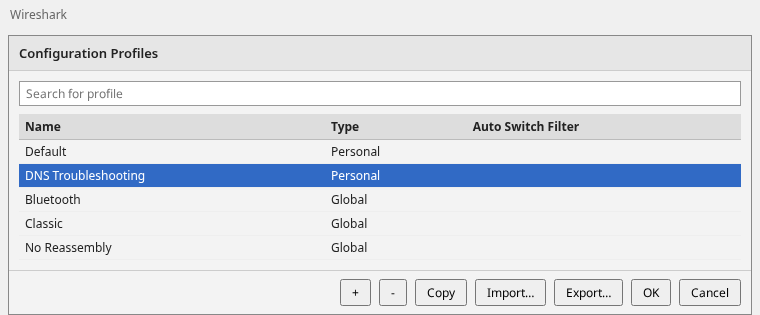
Wireshark switches to the new profile as soon as you click OK, and the status bar now says Profile: DNS Troubleshooting. The Type column in the dialog says Personal, which means the profile belongs to your user account.
From now on, anything you change while the status bar shows DNS Troubleshooting is saved into this profile. Default stays as it was.
Build a DNS troubleshooting profile
Open a capture file with File → Open. Any capture that contains DNS lookups works. Type dns in the display filter bar above the packet list and press Enter so only DNS packets are shown while you set things up.
The screenshots show a short DNS exchange: a normal lookup, a slow lookup, and a lookup for a name that does not exist. Your own capture will have different names and times.
Add useful DNS columns
Every value Wireshark decodes has a field name, such as dns.id. You use field names in columns, filters, and coloring rules. To find one, click a line in the packet details pane (the middle pane). The status bar at the bottom shows the field name of the line you clicked.
Click a DNS response packet in the packet list, then expand Domain Name System in the packet details. Right-click each line below and choose Apply as Column. Wireshark adds a column to the right of the packet list:
| Field | Line in packet details | What the column shows |
|---|---|---|
dns.id |
Transaction ID | A number shared by a query and its response, so you can pair them |
dns.qry.name |
Name (under Queries) | The name that was looked up |
dns.flags.rcode |
Reply code (under Flags) | Whether the lookup worked. No error (0) means it did. No such name (3), also called NXDOMAIN, means the name does not exist |
dns.time |
Time | How long the server took to answer, in seconds |
After those four columns, a DNS exchange looks like this:
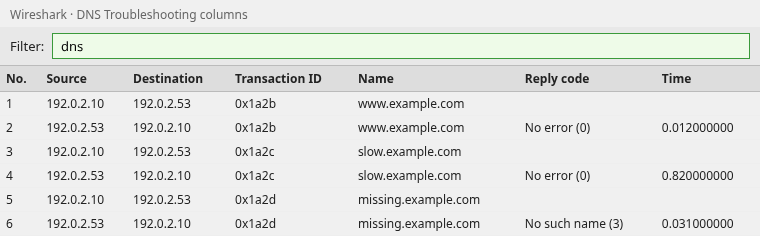
Each lookup appears as two rows: the query going out and the response coming back, with the same Transaction ID. The query rows leave Reply code and Time empty because those fields only exist in the response.
Read the Time column as seconds. 0.012000000 is 12 ms, a quick answer. 0.820000000 is 820 ms, a noticeably slow one.
The column title Time is easy to confuse with the packet timestamp. Right-click the column header, choose Edit Column, and change the title to Response time. The values do not change.
Add reusable filter buttons
A display filter decides which captured packets the packet list shows. You type it in the display filter bar above the packet list and press Enter. The bar turns green when Wireshark understands the filter and red when it does not. The Wireshark IP filters cheat sheet has more examples of the same syntax.
A filter button saves a display filter you use often, so you click it instead of typing it again. To add one, click the + at the right end of the display filter bar. Fill in a Label (the text on the button) and a Filter, then click OK. The button appears on the toolbar and belongs to the active profile.
Add these three buttons:
| Button | Filter | What it shows |
|---|---|---|
| Responses | dns.flags.response == 1 |
DNS answers, not the queries |
| Errors | dns.flags.rcode != 0 |
Answers whose reply code is anything other than No error |
| Slow | dns.time > 0.5 |
Answers that took more than 0.5 seconds |
The operators read like plain comparisons:
==means "equals"!=means "is not equal to">means "greater than"
dns.time is in seconds, so dns.time > 0.5 means slower than 0.5 seconds, which is 500 ms (not 0.5 ms). 500 ms is an example troubleshooting threshold, not an official definition of slow DNS. Pick a number that makes sense on your network.
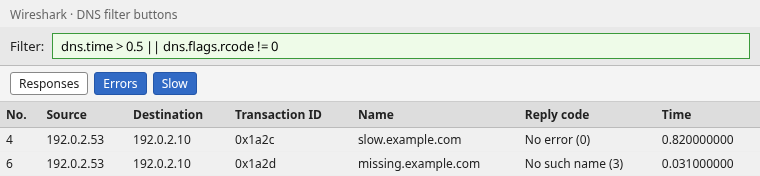
Pressing a button applies only that button's filter. The screenshot instead uses the combined filter dns.time > 0.5 || dns.flags.rcode != 0, where || means "or", so the slow response and the DNS error are visible together. Two rows remain: slow.example.com took 0.820 seconds, and missing.example.com came back with reply code No such name (3).
To show the full DNS list again, clear the display filter bar or type dns and press Enter.
Add coloring rules
Filter buttons hide the rows you are not interested in. Coloring rules do the opposite: every row stays visible, and the ones that need attention stand out while you scroll.
Open View → Coloring Rules and click + to add a rule. Type a name and a filter, then use the Foreground and Background buttons to pick colors. Add these two rules:
| Name | Filter | Color it |
|---|---|---|
| DNS error | dns.flags.rcode != 0 |
Red, for any reply that is not No error |
| Slow DNS | dns.time > 0.5 |
Amber, for replies slower than the 0.5 second example |
Wireshark checks rules from the top of the list down and uses the first one that matches. Drag DNS error above Slow DNS, so a reply that is both slow and failed is shown as an error. Keep the checkbox next to each rule ticked, then click OK.
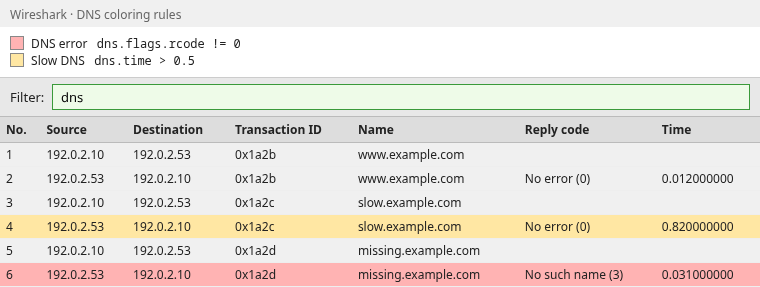
The numbers in the No. column identify each row. Row 4 is amber because its response took 0.820 seconds. Row 6 is red because the reply code is No such name (3), even though that answer was fast (0.031 seconds). The row you have selected is drawn in the selection color instead, so click another row to see its coloring.
Automatically switch Wireshark profiles
Switching profiles by hand is fine, but you can also let Wireshark pick the profile for you. Wireshark 4.4 added an Auto Switch Filter column to Edit → Configuration Profiles for this. Check Help → About Wireshark if you are not sure which version you have; older versions do not show the column.
How Auto Switch Filter works
An Auto Switch Filter is a display filter attached to a profile. In the Configuration Profiles dialog, click the Auto Switch Filter cell on the DNS Troubleshooting row, type dns, and click OK.
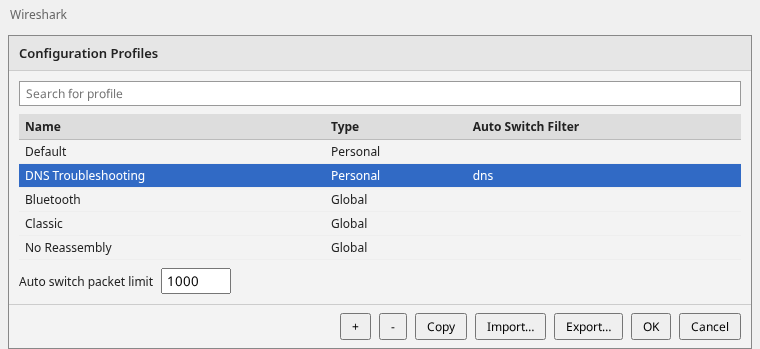
The next time you open a capture, Wireshark checks the first packets of the file against each profile's Auto Switch Filter. If DNS packets are among them, it activates DNS Troubleshooting, and the status bar shows that name.
The filter only chooses the profile. It does not hide packets. After the switch, every packet is still listed until you apply a display filter yourself.
If you pick a profile yourself from the status bar, Wireshark stops switching automatically until you open a different capture file. That keeps it from undoing your choice.
Packet limit
Wireshark does not read the whole file before choosing, because that would slow down opening large captures. The Auto switch packet limit box under the list sets how many packets from the start of the file it checks:
- The default in Wireshark 4.4.2 is 1000 packets.
- A matching packet that appears after that limit does not trigger the switch.
- Setting the limit to
0turns automatic switching off.
First matching profile wins
Only one profile can be active. If several Auto Switch Filters match the same capture, for example dns on one profile, udp on another, and ip on a third, Wireshark activates the first matching profile and ignores the rest. Avoid giving many common protocols their own broad auto-switch rule, or the profile you get becomes hard to predict.
Avoid broad triggers
tcp and ip are poor Auto Switch Filters. Almost every ordinary capture contains them, so Wireshark would jump to that profile nearly every time you open a file.
dns works for this example, but it is not a filter to copy onto every profile. Most captures include at least one DNS lookup, so this rule can put you in DNS Troubleshooting more often than you wanted. If you only want the profile when something went wrong, use a narrower filter such as dns.flags.rcode != 0, which matches only when a DNS error appears within the packet limit.
Switch between profiles
Click the Profile: name in the bottom-right corner of the status bar and choose another profile from the menu. Wireshark reloads that profile's columns, buttons, and colors right away. The open capture stays loaded, so you can look at the same packets through a different layout.
Choose Default when you want the standard layout back, and DNS Troubleshooting when you want the DNS columns and buttons again. To build a second profile, for example for TCP, repeat the + or Copy step, then change columns and colors while the new profile is active.
TShark is the command-line version of Wireshark. It can use the same profiles with the -C option. Put the profile name in quotes because it contains a space:
tshark -C "DNS Troubleshooting" -r capture.pcapngTShark prints one line per packet with the DNS Troubleshooting columns. Replace capture.pcapng with the path to your own capture file.
Export and import a Wireshark profile
Exporting is how you back up a profile or share it with a colleague. The result is an ordinary ZIP file that holds the profile's settings files.
Open Edit → Configuration Profiles. Select DNS Troubleshooting, then use the buttons along the bottom. Export saves the selected personal profile. Import brings a profile in from a ZIP or a folder.
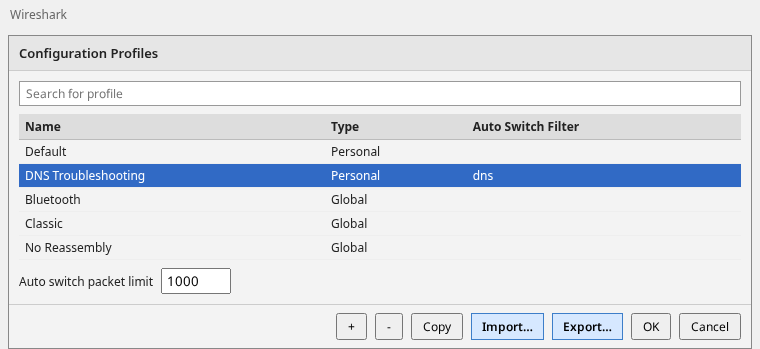
Click Export and choose where to save the ZIP. Only personal profiles can be exported, so Global profiles and Default are skipped.
To import on another computer:
- Copy the ZIP to that computer.
- Open Edit → Configuration Profiles and click Import.
- Choose the option to import from a ZIP file and select the file.
- Click OK, then pick the imported profile from the status bar.
Wireshark skips a profile whose name already exists on that computer, so it never overwrites one silently. A profile named Default in the ZIP is skipped too.
A finished copy of the profile from this page is dns-troubleshooting-profile.zip. Import it, open a capture of your own that contains DNS, and you should see the Transaction ID, Name, Reply code, and Time columns plus the three filter buttons. The ZIP holds settings only. It does not contain packets.
Personal vs global profiles
| Profile | Meaning |
|---|---|
| Personal | Saved in your user configuration. You can edit, delete, and export it |
| Global | Installed with Wireshark for every user. You can use it, but not delete or export it |
| Default | Your normal starting profile. Deleting it resets it instead of removing it |
Wireshark ships a few global profiles as ready-made starting points. On this Wireshark 4.4.2 install they are Bluetooth, Classic, and No Reassembly. The Type column in the Configuration Profiles dialog tells you which kind each profile is.
If you want to customize a global profile, select it and use Copy to create your own personal version. Your changes go into the copy, and the original stays available.
Where Wireshark stores configuration profiles
You rarely need to open these folders yourself, because Import and Export handle copying. They help when you want to back up every profile at once or check that a profile really exists.
The paths differ between Linux, Windows, and macOS. To see the exact folders your copy of Wireshark uses, open Help → About Wireshark and select the Folders tab. Personal configuration is the folder for your own settings. Global configuration is the folder that ships with Wireshark. On Linux, tshark -G folders prints the same list in a terminal.
On the RHEL 10.2 system used for this guide, the personal configuration directory is ~/.config/wireshark (~ is your home directory), and each personal profile is a subdirectory under profiles:
~/.config/wireshark/profiles/DNS Troubleshooting/You do not need to edit these files by hand, because the dialogs write them for you. On the Wireshark 4.4.2 system used for this guide, the DNS Troubleshooting folder contains these files:
| File | What it stores |
|---|---|
preferences |
Columns and other preferences |
dfilter_buttons |
Responses, Errors, and Slow buttons |
dfilters |
Named display filters |
colorfilters |
DNS error and Slow DNS coloring rules |
profile_settings |
The Auto Switch Filter (auto_switch_filter: dns) |
On this RHEL 10.2 install, global profiles are under /usr/share/wireshark/profiles/.
Summary
A configuration profile is a saved analysis workspace: columns, filters, coloring rules, and similar display settings. It is not a capture file, and it does not hold every Wireshark setting. The status bar always shows which profile is active, and every change you make goes into that profile. Use + when you want a fresh profile, and Copy when you want to keep the columns and colors you already have.
The DNS example adds four columns (Transaction ID, Name, Reply code, and Time), three filter buttons (Responses, Errors, and Slow), and two coloring rules. dns.time is measured in seconds, so dns.time > 0.5 means slower than half a second, or 500 ms. That threshold is only an example, so adjust it for your network.
Wireshark 4.4 can load a profile on its own when its Auto Switch Filter matches one of the first packets in a file, and only the first matching profile is used. Keep those filters narrow and leave out tcp and ip. When the profile works the way you like, export it to a ZIP to back it up or use it on another computer.
References
- Wireshark User's Guide: Configuration Profiles
- Wireshark User's Guide: Configuration Files
- What's new in Wireshark 4.4
Frequently Asked Questions
Does creating a new Wireshark profile copy my current settings?
No. The + button starts a separate profile. If you want to preserve the settings from an existing profile, select it and use Copy, then customize the copied profile.
Does a Wireshark profile contain packets?
No. A profile stores display and analysis settings. Packet captures stay in the files you open with File → Open.
Where are Wireshark profiles stored?
Open Help → About Wireshark and select the Folders tab to see the directories Wireshark is actually using. Personal profiles live under the profiles directory of the personal configuration folder.
Why did Wireshark not switch to my profile?
The Auto Switch Filter has to match a packet inside the auto-switch packet limit, counted from the start of the file. The default limit in Wireshark 4.4.2 is 1000, and 0 disables switching. Choosing a profile from the status bar also turns automatic switching off until you open a different file. If several profiles match, Wireshark uses only the first one.
Can I export the Default profile or a global profile?
No. Export skips Default and every global profile. Copy a global profile first if you want a personal version you can export.