| Tested on | RHEL 10.2 (Coughlan) |
|---|---|
| Package | Wireshark 4.4.2editcap 4.4.2scapy 2.8.0 |
| Applies to | Any host with Wireshark and the Wireshark CLI tools |
| Privilege | Normal user for offline PCAP editing; sudo for live capture labs |
| Scope | Editing saved PCAP files with editcap and Scapy. Does not cover live packet injection on the wire. |
| Related guides | Wireshark tutorial Wireshark IP filters cheat sheet Measure bandwidth in Wireshark TTL in Wireshark — TCP RST source |
You have a PCAP and need to change something in it — remove frames, shift timestamps, rewrite an IP address, or modify a payload field. The answer depends on what you are changing.
Current Qt-based Wireshark does not expose the old experimental Packet Editor for arbitrary decoded fields. Use the right tool for each job, then reopen the file in Wireshark to verify the result.
Can you edit packets in Wireshark?
| What you need to change | Recommended tool |
|---|---|
| Remove or select packets | editcap |
| Shift timestamps | editcap -t |
| Remove duplicates | editcap -d |
| Change MAC/IP headers in bulk | tcprewrite or bittwiste |
| Modify supported protocol fields or payload | Scapy |
| Raw or unsupported data | Byte-level editing |
| Add comments or time shifts in the GUI | Wireshark (Edit menu) |
editcap edits capture-file structure and metadata. It is not a general decoded-field editor inside the GUI.
What happened to Wireshark's old Packet Editor?
Some older GTK-era Wireshark builds could be compiled with an experimental Packet Editor. Current Wireshark does not provide an equivalent general-purpose editor for arbitrary decoded packet fields. Packet menus focus on marking, ignoring, time shifting, and comments — not rewriting protocol fields in place.
Installing an obsolete build just for this is not recommended. Edit the PCAP with CLI tools or Scapy, then inspect the result in a current Wireshark release.
Before you start: where the commands run
The examples use two command-line tools. Run them in a terminal, not inside the Wireshark window:
editcap— installed together with Wireshark. On Linux it may be in a separate package, for examplewireshark-clion RHEL/Fedora orwireshark-commonon Debian/Ubuntu. On Windows it is inC:\Program Files\Wireshark\, so either run the commands from that folder or add it to yourPATH. Check that it works witheditcap -v.- Scapy — a Python library for building and rewriting packets. Install it with
pip install scapyand check it withpython3 -c "import scapy; print(scapy.__version__)".
Always write the result to a new file. Keep the original capture untouched so you can compare the two and start again if an edit goes wrong.
Example 1 — Remove packets with editcap
The lab capture http-original.pcap contains a short HTTP exchange between 10.10.10.10 and 10.10.10.20.
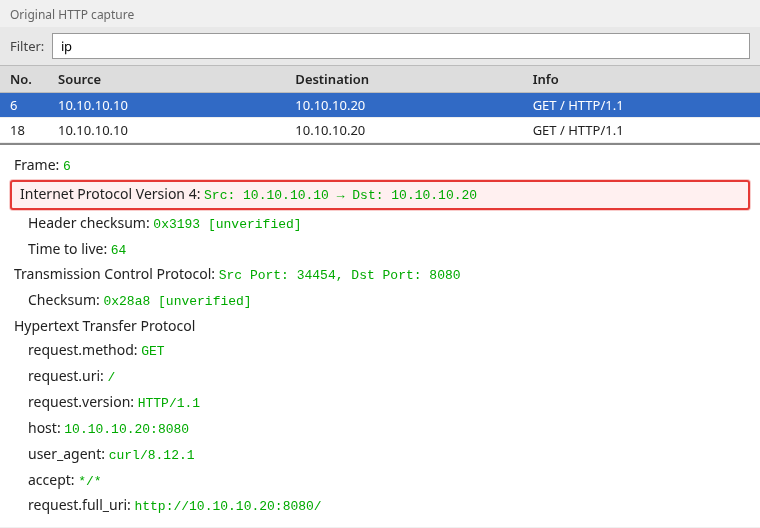
The frame number is the value in the No. column of the packet list. In this capture, frame 6 is the first HTTP request. Keep frame 6 onward to remove the earlier ARP and TCP setup traffic:
editcap -r http-original.pcap http-trimmed.pcapng 6-99999The parts of the command:
-r— keep only the listed frames. Without-r,editcapdoes the opposite and deletes the listed frames.6-99999— the frame range.99999is just a number larger than the last frame, meaning "to the end of the file".- The first file name is the input and the second is the output.
editcap defaults to PCAPNG output, so use a .pcapng extension unless you pass -F pcap for classic libpcap.
Open http-trimmed.pcapng in Wireshark and confirm the capture now starts at the HTTP request. Your capture will have different frame numbers — find the first frame you want to retain in Wireshark, then use that number in the editcap range.
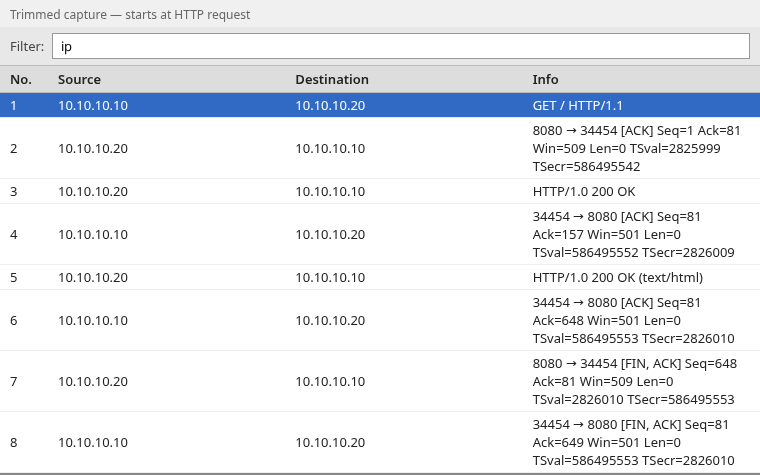
In the trimmed file, frame 1 is the HTTP GET. The earlier ARP and TCP handshake frames are gone.
Example 2 — Shift timestamps with editcap
Move every frame two seconds forward without changing packet bytes:
editcap -t 2 http-original.pcap http-shifted.pcapng-t 2 adds two seconds to every timestamp. Use a negative value such as -t -0.5 to move frames back in time.
By default, the Wireshark Time column shows seconds since the first packet in the file. That value does not change when every packet moves by the same amount, so the shift looks invisible. Switch the column to clock time first: choose View → Time Display Format → Date and Time of Day, then open both files and compare the same frame:
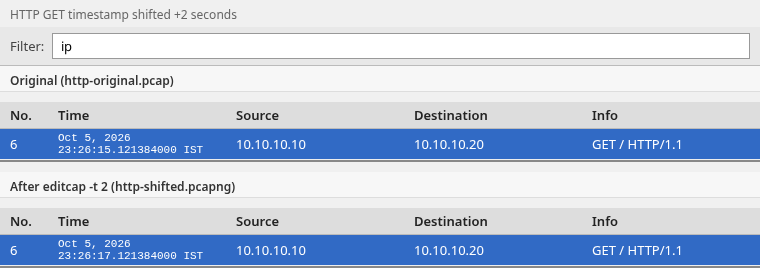
Frame 6 keeps the same packet bytes; only the timestamp moves from 23:26:15 to 23:26:17. Timestamp editing is useful when merging captures or aligning traces from different clocks.
Example 3 — Rewrite IP addresses with Scapy
editcap cannot change source or destination IP addresses inside frames. For header rewrites, use tcprewrite, bittwiste, or Scapy.
This lab rewrites client 10.10.10.10 to 192.168.50.10 and lets Scapy recalculate IPv4 and transport checksums. Use a .pcap output name because wrpcap() writes classic libpcap format.
The command below runs a short Python script directly from a Linux or macOS terminal. The two file names after python3 - are passed to the script as the input and output files. On Windows, save everything between the <<'PY' and PY lines as rewrite.py and run python rewrite.py http-original.pcap http-rewritten-ip.pcap. Replace the two IP addresses with the ones you want to change.
What the script does, line by line:
rdpcap()reads every packet from the input file into memory.- For each packet that has an IPv4 header, it replaces the old address wherever it appears as the source or destination.
- If anything changed, it deletes the stored checksum and length values so Scapy recalculates them.
wrpcap()writes all packets, changed and unchanged, to the output file.
python3 - http-original.pcap http-rewritten-ip.pcap <<'PY'
import sys
from scapy.all import IP, TCP, UDP, rdpcap, wrpcap
in_path, out_path = sys.argv[1], sys.argv[2]
pkts = rdpcap(in_path)
for p in pkts:
    changed = False
    if IP in p:
        if p[IP].src == "10.10.10.10":
            p[IP].src = "192.168.50.10"
            changed = True
        if p[IP].dst == "10.10.10.10":
            p[IP].dst = "192.168.50.10"
            changed = True
        if changed:
            del p[IP].chksum
            del p[IP].len
            if TCP in p:
                del p[TCP].chksum
            elif UDP in p:
                del p[UDP].chksum
wrpcap(out_path, pkts)
PY
Changing an IPv4 source or destination address invalidates the IPv4 header checksum. It also invalidates the TCP or UDP checksum because the transport checksum includes the IP addresses in its pseudo-header. Deleting those fields tells Scapy to recalculate them when it serializes the modified packets.
Reopen the edited file. The HTTP request now shows the new source address:
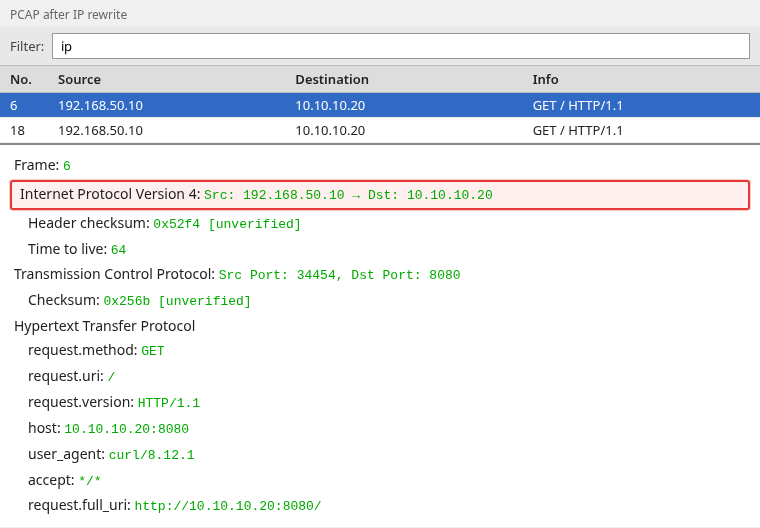
Notice that only the client IP was rewritten; the HTTP request itself and destination address remain unchanged. The checksums show [unverified] because Wireshark does not check them by default. The verification section below shows how to turn checking on.
Always verify addresses, ports, and checksums after a rewrite. A header rewrite without updating dependent checksums can produce bad-checksum warnings or cause problems if the edited packets are later processed or replayed.
Why manual byte editing breaks packets
Changing raw bytes in a hex editor does not automatically update dependent fields:
        Modify application payload
                     ↓
        Application-specific length may change
                     ↓
        UDP length or TCP sequence space may be affected
                     ↓
        IP total length may change
                     ↓
        Relevant checksums must be recalculated
If you edit a RADIUS username, HTTP body, or other payload by hand, walk the length and checksum chain or use a library that rebuilds the stack for you.
Verify every edited PCAP in Wireshark
After any edit:
- Open the new file beside the original. Start a second copy of Wireshark so each file has its own window.
- Choose Analyze → Expert Information to look for malformed packets or checksum problems, and check the relevant IPv4/TCP/UDP checksum fields in the detail pane.
- Confirm the field you intended to change — IP, port, timestamp, or frame count.
- Re-run display filters you rely on in tests or documentation.
Turn on checksum validation
Wireshark does not check IPv4, TCP, or UDP checksums by default. Until you turn checking on, the detail pane shows [unverified] or [validation disabled] next to each checksum, and Expert Information cannot report checksum errors.
To enable it:
- Choose Edit → Preferences (on macOS, Wireshark → Preferences).
- Expand Protocols in the left panel and select IPv4. Tick Validate the IPv4 checksum if possible.
- Select TCP and tick Validate the TCP checksum if possible. For UDP traffic, select UDP and tick Validate the UDP checksum if possible.
- Click OK. Wireshark re-reads the open file.
A quicker route: in the detail pane, right-click the Internet Protocol Version 4 line and use Protocol Preferences to toggle the same option.
Now select the HTTP request frame, expand Internet Protocol Version 4 and Transmission Control Protocol, and confirm that both checksums show [correct]:
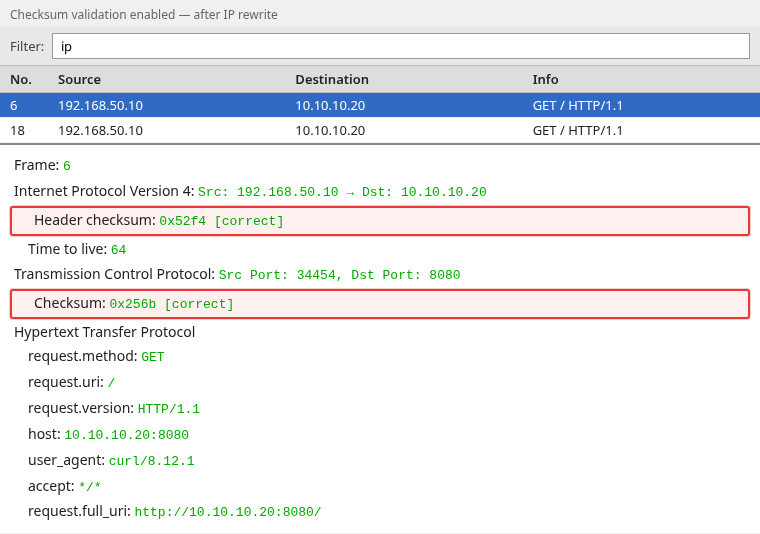
If the original capture was recorded on the machine that sent the traffic, Wireshark may flag that machine's outgoing TCP checksums with a note about TCP checksum offload. The network card fills those checksums in after Wireshark has already copied the packet, so they are not real errors. The rewritten packets do not have this problem because Scapy calculated complete checksums.
Turn validation off again when you finish. Leaving it on makes normal live captures noisy for the offload reason above.
Treat checksum and length warnings as a sign the edit is incomplete, not as noise to ignore.
Summary
Modern Wireshark is excellent for inspecting edited PCAPs, but not for arbitrary in-GUI field rewrites. Use editcap when you need to trim, shift time, deduplicate, or convert captures. Use Scapy or dedicated rewrite tools when IP/MAC headers or payloads must change.
The workflow is always the same: edit offline, reopen in Wireshark, and verify lengths, checksums, and the fields you care about. For capture analysis patterns, see the Wireshark tutorial and IP filters cheat sheet.
References
Frequently Asked Questions
Can I edit a packet directly in Wireshark today?
Not arbitrary decoded fields. Current Wireshark supports comments, ignoring, marking, and time shifting in the GUI. For packet-content changes, use Scapy or another packet rewrite tool. Use editcap for capture-level operations such as selecting frames, shifting timestamps, or deduplicating packets.
What is the difference between editcap and editing packet contents?
editcap changes which frames are stored, their timestamps, snap length, encapsulation, and similar capture metadata. It does not rewrite IP addresses or application payloads inside frames.
How do I change the source IP in a PCAP?
Use a rewrite tool such as tcprewrite or Scapy to modify the IPv4 header and recalculate checksums, then verify the result in Wireshark.