| Tested on | RHEL 10.2 (Coughlan) |
|---|---|
| Package | Wireshark 4.4.2openldap-clients 2.6.10tcpdump 4.99.5 |
| Applies to | Any host with Wireshark and LDAP client tools |
| Privilege | Normal user for offline PCAP analysis; sudo to capture live traffic on an interface |
| Scope | Read plain LDAP and StartTLS on TCP/389: bind DN, bind errors, search base/filter, resultCode, and ldap.time slow-response checks. Does not cover full LDAPS decryption — see decrypt HTTPS and LDAPS traffic for TLS key logging. |
| Related guides | Wireshark tutorial Wireshark IP filters cheat sheet LDAP and OpenLDAP basics Decrypt HTTPS and LDAPS traffic Kerberos authentication packet analysis |
When an application fails to authenticate or query LDAP, the packet capture can answer four useful questions: did the bind fail, which DN did the client send, which search filter ran, and what resultCode did the server return?
Display filters and messageID pairing let you follow one LDAP operation from request to response without memorizing packet numbers.
Wireshark LDAP display filters
| Goal | Wireshark display filter |
|---|---|
| All LDAP messages | ldap |
| Capture filter (live sniff) | tcp port 389 or tcp port 636 |
| Bind requests and responses | `ldap.bindRequest_element |
| Search requests | ldap.searchRequest_element |
| Search completion | ldap.searchResDone_element |
| Any failed LDAP operation | ldap.resultCode != 0 |
| One LDAP transaction | ldap.messageID == 1 |
| Slow directory response | ldap.time > 1 |
Apply ldap in the display filter bar, then narrow with the rows above. For bind failures, start with ldap.resultCode != 0 and read resultCode on the bindResponse packet.
How to apply and read these filters
Wireshark decodes LDAP on TCP port 389 (plain or StartTLS) and TCP port 636 (LDAPS).
Display filters go in the bar above the packet list, the text box that says Apply a display filter. Type the filter and press Enter. The bar turns green when the filter is valid and red when it is not. Click the X at the right end of the bar to clear it.
How to read the filter syntax:
ldap.bindRequest_element— matches packets that contain a bind request. The_elementfields exist for each LDAP operation, such assearchRequest_elementandsearchResDone_element.||means or.ldap.bindRequest_element || ldap.bindResponse_elementshows bind requests and bind responses together.&&means and. Both conditions must match.!=means not equal.ldap.resultCode != 0shows every response that did not succeed.ldap.messageID == N— replaceNwith the number from the request you are following.
Capture filters are different. They use a separate syntax, such as tcp port 389, and decide which packets get recorded in the first place. Set them before you start a capture, as shown in the next section. Display filters only hide packets in a capture you already have.
ldap.resultCode works on every LDAP response type. Wireshark 4.6+ also adds operation-specific fields such as ldap.bindResponse_resultCode; use ldap.resultCode when you need a filter that works across versions.
What an LDAP conversation looks like
Every LDAP request carries a messageID. Responses that belong to that operation use the same ID, which lets you correlate a request with its response without relying on packet numbers.
        Client                         LDAP server
           |                                 |
           |-------- TCP handshake --------->|
           |<------- SYN/ACK, ACK ----------|
           |                                 |
           |--- BindRequest (messageID 1) -->|
           |<-- BindResponse (messageID 1) --|
           |                                 |
           |-- SearchRequest (messageID 2) ->|
           |<- SearchResultEntry (ID 2) -----|
           |<- SearchResultDone (ID 2) ------|
           |                                 |
           |-------- UnbindRequest --------->|
In this exchange:
- TCP handshake establishes the connection to the LDAP server before any LDAP operation is sent.
- BindRequest carries the authentication request. For a simple bind, this can include the bind DN and password.
- BindResponse tells you whether authentication succeeded. Check
resultCode;0means success. - SearchRequest contains the base DN, search scope, LDAP filter, and requested attributes.
- SearchResultEntry contains an entry returned by the directory. One search can return multiple
searchResEntrypackets with the samemessageID. - SearchResultDone marks the end of that search and contains the final
resultCode. - UnbindRequest tells the LDAP server that the client is closing the LDAP session. LDAP does not send a matching Unbind response.
After you apply the ldap display filter, click a BindRequest and note its messageID. For example:
ldap.messageID == 1This shows the packets associated with that LDAP operation. The same method works for searches: a SearchRequest, any returned searchResEntry packets, and the final searchResDone all use the same messageID.
Simple bind vs SASL (what you will see)
LDAP bind authentication falls into two families:
- Simple bind — anonymous (empty DN/password), unauthenticated, or name/password sent in the bind request
- SASL bind — mechanism negotiated between client and server (GSSAPI/Kerberos, EXTERNAL, and others)
In Wireshark, simple bind shows ldap.name and ldap.simple under bindRequest. SASL bind shows ldap.sasl with a mechanism name instead of a cleartext password.
LDAP vs StartTLS vs LDAPS
| Mode | Port | What Wireshark sees |
|---|---|---|
| Plain LDAP | TCP/389 | Full LDAP decode (bindRequest, searchRequest, and so on) |
| LDAP + StartTLS | TCP/389 | Starts as LDAP; the client sends the StartTLS extended operation, then the connection becomes TLS. For password authentication, a correctly configured client should complete StartTLS before sending bind credentials |
| LDAPS | TCP/636 | TLS from the first byte — LDAP is encrypted until you supply session keys |
On port 389, look for an extendedRequest with OID 1.3.6.1.4.1.1466.20037 (StartTLS) before the stream turns into TLS records. On port 636, treat it as encrypted LDAP unless you have keys from decrypt HTTPS and LDAPS traffic.
Capture LDAP traffic
You can capture directly in Wireshark on Windows, Linux, or macOS:
- On the Wireshark start screen, type
tcp port 389 or tcp port 636in the capture filter box labelled …using this filter, just above the interface list. - Double-click the network interface that reaches the LDAP server to start recording.
- Reproduce the failing login or directory query in your application.
- Click the red Stop button, then save the capture with File → Save As.
- Type
ldapin the display filter bar and press Enter.
If your directory listens on a non-standard port, such as 10389, Wireshark will not recognise the traffic as LDAP automatically and shows plain TCP instead. Right-click a packet from that connection, choose Decode As…, set the Current column to LDAP for that port, and click OK.
On a Linux server where the GUI is not installed, tcpdump is a convenient way to save the traffic and open the PCAP later in Wireshark:
sudo tcpdump -i any -nn host ldap.example.com and \( tcp port 389 or tcp port 636 \) -w ldap-live.pcaptcpdump writes libpcap format regardless of the filename extension. Press Ctrl+C to stop the capture, then open ldap-live.pcap in Wireshark.
To reproduce bind and search traffic with standard CLI tools (replace the host and credentials with your environment):
export LDAP_HOST=ldap.example.com
export LDAP_BIND_DN='uid=jane,ou=people,dc=example,dc=com'
Test authentication with ldapwhoami:
ldapwhoami -x -H ldap://${LDAP_HOST} -D "${LDAP_BIND_DN}" -WWhen prompted, enter the bind password. A successful bind prints the resolved DN:
dn:uid=jane,ou=people,dc=example,dc=comRun a directory search in the same capture window:
ldapsearch -x -H ldap://${LDAP_HOST} \
  -D "${LDAP_BIND_DN}" -W \
  -b 'ou=people,dc=example,dc=com' '(uid=john)' cn
After you enter the password, ldapsearch prints matching entries or a result code at the end.
See the full LDAP flow in one capture
Apply ldap and scan the packet list before you drill into individual operations:
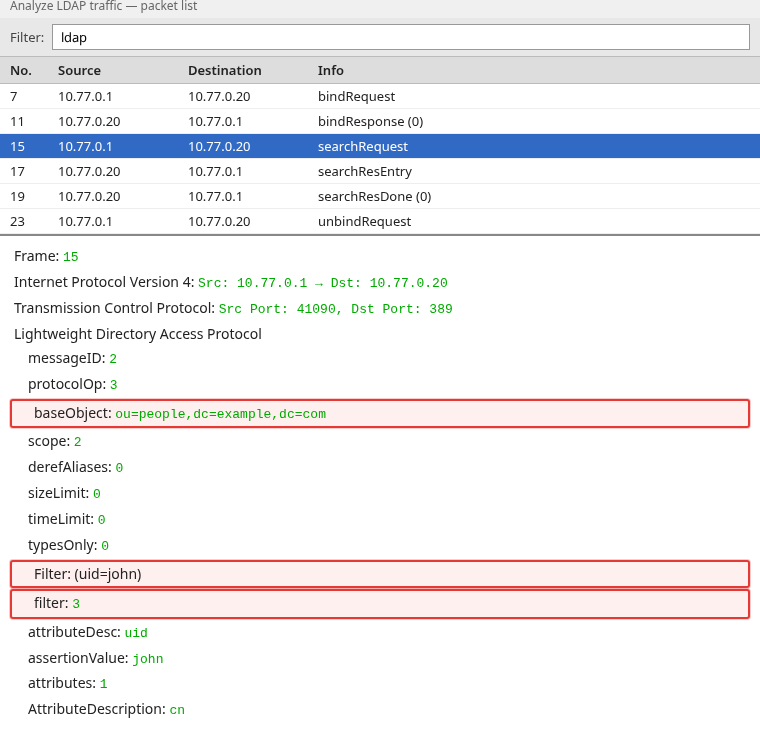
This is the normal LDAP pattern we will use as the baseline: authenticate with Bind, run the Search, receive one or more entries, and finish with SearchResultDone.
Analyze a successful LDAP bind
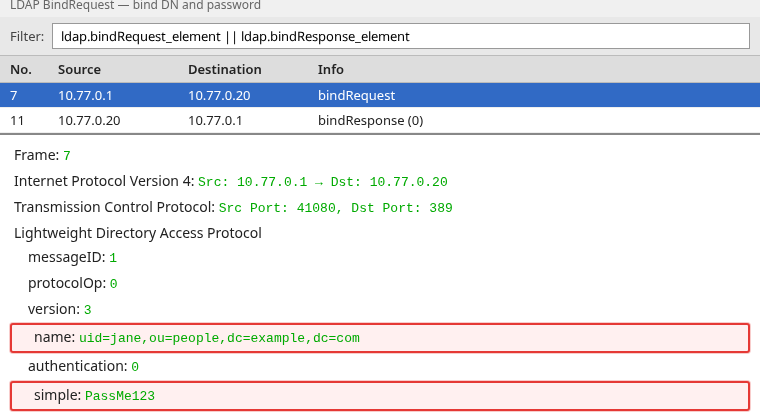
Filter bind traffic so the packet list stays short. In the Wireshark display filter bar, apply:
ldap.bindRequest_element || ldap.bindResponse_elementSelect the bindRequest packet first. In the detail pane, click the arrows to expand Lightweight Directory Access Protocol, then the LDAPMessage line under it, and read:
messageID— ties this request to its responseldap.name— the bind DN the application sent. A DN (distinguished name) is the full path of the account in the directory, such asuid=jane,ou=people,dc=example,dc=com. It is not always the short login name shown in the applicationldap.simple— password bytes on plain LDAP (another reason to use TLS in production)
The matching bindResponse with the same messageID carries resultCode. success (0) means the server accepted the credentials.
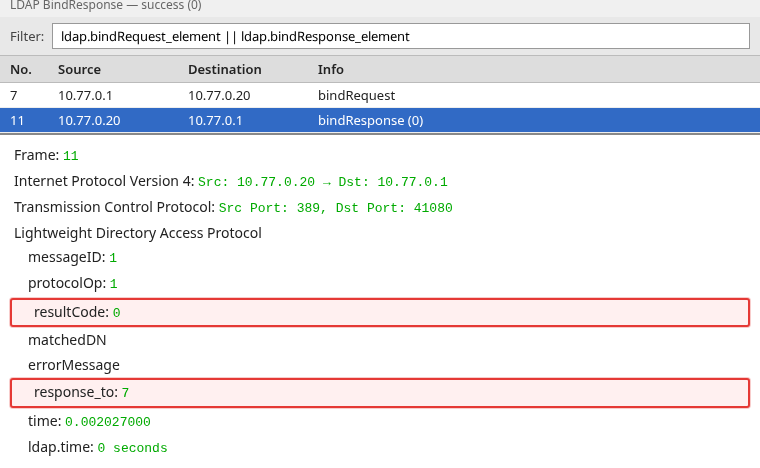
Wireshark also adds a Response In line on the request and a Response To line on the reply. Double-click either line to jump straight to the matching packet.
If resultCode is 0 but the application still fails, the problem is usually after authentication — a search, group lookup, or TLS issue — not the bind itself.
Analyze an LDAP search
Filter search operations with this display filter:
ldap.searchRequest_element || ldap.searchResDone_elementOpen the searchRequest and note:
baseObject— search base DNscope— where LDAP searches:0only the base object,1its immediate children, or2the entire subtree- Filter assertion — for example
(uid=john) - Requested attributes — for example
cn
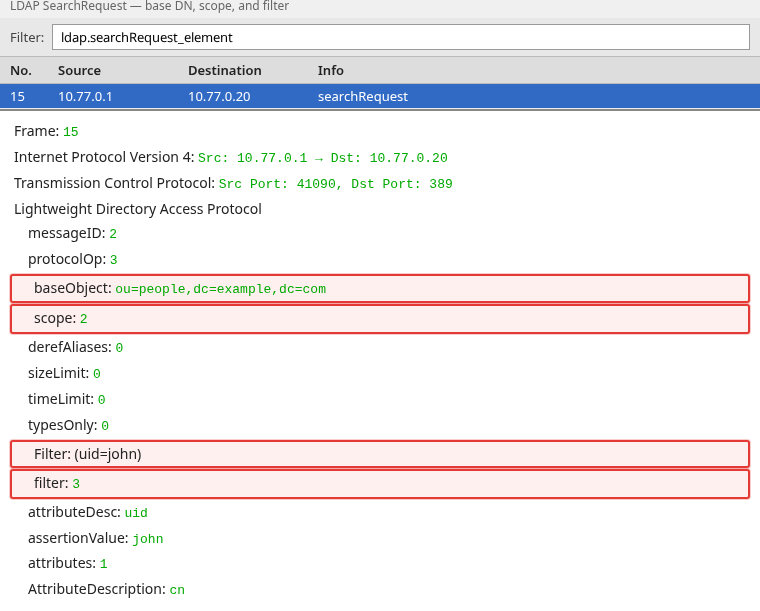
The searchResDone with the same messageID closes the search. resultCode: success (0) with one or more searchResEntry packets means the directory returned data.
Troubleshoot LDAP authentication failure
Wrong passwords produce bindResponse with resultCode: invalidCredentials (49).
Filter every failed LDAP operation with:
ldap.resultCode != 0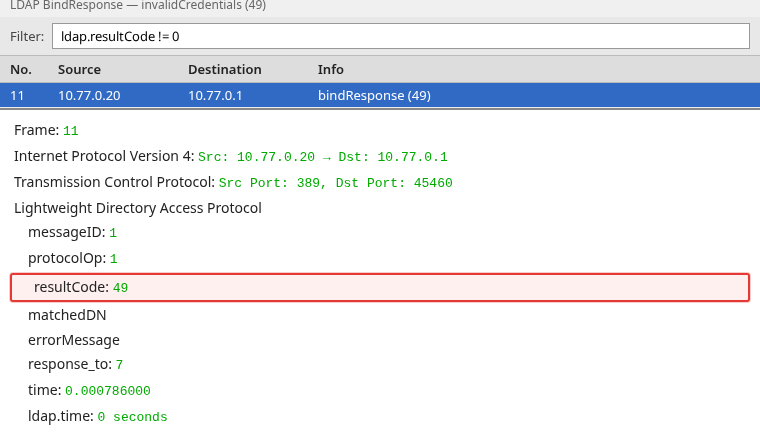
Compare the failing trace with a working application on the same server. Filter both captures with ldap.bindRequest_element and diff:
- Bind DN (
ldap.name) — typos and missing OU components are common - LDAP version
- Simple vs SASL bind type
Bind succeeded but LDAP search failed
Authentication and authorization are separate steps. A successful bind means the server accepted that authentication attempt; it does not mean the account has permission to perform the searches the application needs.
Typical pattern:
bindResponse→resultCode: success (0)searchRequest→ valid base and filtersearchResDone→resultCodeis not zero
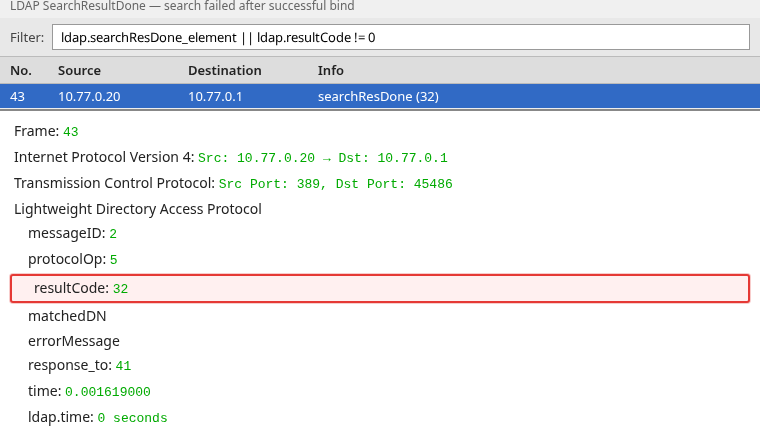
Common searchResDone result codes:
| resultCode | Name | Typical meaning |
|---|---|---|
| 32 | noSuchObject | The requested base DN does not exist or is not visible to the bound user. First verify the base DN; ACLs can also make an entry appear nonexistent on some directory servers |
| 50 | insufficientAccessRights | Authenticated, but ACL denies the read |
| 53 | unwillingToPerform | Server policy blocks the operation |
When bind works in Wireshark but the app reports “invalid credentials,” check whether the app fails on a follow-up search for group membership — not on the initial bind.
Find slow LDAP queries
Wireshark adds ldap.time on response packets: elapsed seconds between the LDAP request and its matching response.
Filter slow operations with:
ldap.time > 1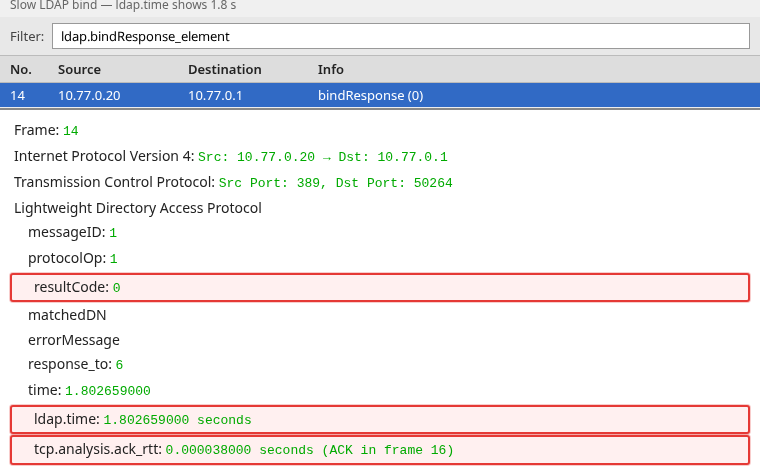
The screenshot shows ldap.time near 1.8 seconds, meaning about 1.8 seconds elapsed between the LDAP request and its matching response. The client ACK in frame 16 has tcp.analysis.ack_rtt of about 38 microseconds, so the TCP round trip after that bind response was not waiting on the network.
To decide whether a delay is in the network or in LDAP processing, check the TCP stream for retransmissions and compare the normal TCP RTT using fields such as tcp.analysis.ack_rtt. If RTT remains low and there are no packet-loss indicators while ldap.time is several seconds, the delay is more likely inside the directory or application processing path.
To scan a long capture quickly, add ldap.time as a column. Click a response packet, expand the LDAP section in the details pane, right-click the Time line, and choose Apply as Column. Then click the new column header to sort the slowest responses to the top.
What if LDAP traffic is encrypted?
LDAPS on TCP/636 is encrypted from the start of the connection. With StartTLS on TCP/389, the session begins as LDAP and then upgrades to TLS after the StartTLS request succeeds.
Once encryption starts, Wireshark shows TLS records instead of LDAP fields such as ldap.name, search filters, and resultCode.
Options:
- For a lab where you want to inspect LDAP fields without configuring TLS decryption, generate a separate intentionally plain LDAP connection on an isolated test network.
- Decrypt the TLS session with a key log file — see decrypt HTTPS and LDAPS traffic using Wireshark.
- If the failure happens during the TLS handshake, troubleshoot it using the
tlsprotocol first. LDAP errors such asresultCodeare visible only after Wireshark can decrypt the LDAP payload.
Optional: Check LDAP failures with TShark
If you are troubleshooting from a terminal or processing a large PCAP, TShark can apply the same Wireshark display filters without opening the GUI.
List failed LDAP operations:
tshark -r ldap-live.pcap -Y 'ldap.resultCode != 0' \
  -T fields \
  -e frame.number \
  -e ldap.messageID \
  -e ldap.resultCode \
  -e ldap.errorMessage
Sample output when the password is wrong:
6 1 49 Summarize LDAP response times across the whole capture (useful when ldap.time on individual packets is not enough):
tshark -r ldap-live.pcap -q -z ldap,srtSample output from a slow-bind lab capture:
===================================================================
LDAP SRT Statistics:
Filter: ldap.protocolOp
Index  Procedure              Calls    Min SRT    Max SRT    Avg SRT    Sum SRT
    0  Bind                        1   1.802659   1.802659   1.802659   1.802659
===================================================================
TShark is included with Wireshark and is available on Windows, Linux, and macOS. For interactive troubleshooting, the Wireshark GUI used in the previous sections is usually easier.
LDAP troubleshooting cheat sheet
| Symptom | Filter / field to check | What to verify |
|---|---|---|
| Login fails immediately | ldap.bindResponse_element |
resultCode 49 = invalid credentials; commonly wrong password or an invalid/unknown bind identity |
| App says OK but no data | ldap.searchResDone_element |
resultCode 32 or 50 after success bind |
| Wrong account used | ldap.name in bindRequest |
DN sent on the wire vs configured in the app |
| Intermittent timeouts | ldap.time column |
Values above ~1s on otherwise healthy TCP |
| Nothing decoded | Frame protocol column | Port 636 or post-StartTLS — need TLS keys |
| Two apps, one works | ldap.messageID pairing |
Compare bind DN and search base side by side |
Summary
LDAP troubleshooting in Wireshark starts with ldap, then narrows to bind or search operations with ldap.bindRequest_element, ldap.searchRequest_element, and ldap.resultCode != 0. The messageID field links every request to its response, so you can read the exact bind DN, search filter, and resultCode the directory returned.
Bind failures show up as invalidCredentials (49) on bindResponse. A success (0) bind followed by a non-zero searchResDone means credentials were accepted but the search was denied or the base DN was wrong — a pattern that confuses many application logs. Use ldap.time together with TCP RTT and retransmission checks to distinguish a slow LDAP response from a transport problem.
When traffic is encrypted on port 636 or after StartTLS, switch to TLS decryption or capture at a point where LDAP is still cleartext. For the wider filter set, see the Wireshark tutorial hub and the IP filters cheat sheet.
References
- Wireshark LDAP display filter reference
- Wireshark Wiki — LDAP
- RFC 4511 — LDAP Protocol
- RFC 4513 — LDAP Authentication Methods
Frequently Asked Questions
What Wireshark filter shows LDAP bind failures?
Use ldap.resultCode != 0 to list every failed operation, or ldap.bindResponse_element && ldap.resultCode == 49 for invalid-credentials binds only. Open the bindResponse packet and read ldap.errorMessage when the server sends one.
How do I find which DN an application sent on the wire?
Filter ldap.bindRequest_element and read ldap.name in the packet detail pane. That DN is what the directory evaluated — it may differ from the short username typed in a login form.
Why does bind succeed in Wireshark but the app still fails?
The client may fail on a later searchRequest (group lookup, mail attribute, and so on). Filter ldap.searchResDone_element and check resultCode after a successful bind. Codes 32 and 50 mean the credentials worked but the search was denied or the base DN was not visible.
Can Wireshark read LDAPS on port 636 without keys?
No. LDAPS encrypts from the first byte. You need TLS session keys through SSLKEYLOGFILE or server key material, then load them in Wireshark as described in the site LDAPS decryption walkthrough. In a lab you can also generate a separate plain LDAP capture on an isolated test network when you need readable LDAP fields.