| Tested on | RHEL 10.2 (Coughlan) |
|---|---|
| Package | Wireshark 4.4.2 |
| Applies to | Any host with Wireshark for a saved or live HTTP capture |
| Privilege | Normal user to open and filter a saved capture |
| Scope | Finding an HTTP/1.x response, its status code, the request that produced it, requests with no linked response, the time from request to response, and how Wireshark reassembles a body that spans several TCP segments. Does not cover DHCP, DNS, or the TCP handshake, and does not walk through TLS decryption setup. |
| Related guides | Wireshark tutorial Decrypt TLS in Wireshark Wireshark IP filters cheat sheet |
A browser or tool such as curl sends an HTTP request, for example GET /index.html. The server answers with an HTTP response. That response has three parts:
- A status code such as
200(success),404(not found), or500(server error) - Headers, which are name and value lines such as
Content-Type: text/html - Usually a body, which is the page, file, or error text itself
Wireshark can show only those replies, jump from a 500 back to the request that caused it, and show how long each request waited for its answer. The steps below assume you already have a saved capture, or a live capture from your own environment, that includes the HTTP conversation.
Key takeaways
To analyze an HTTP response in Wireshark, use http.response to show replies and http.response.code to filter status codes such as 404 or 500. Open a response and use http.request_in to find the request that produced it. http.time shows the elapsed time from that request to the response at your capture point. If a large response spans multiple TCP segments, Wireshark reassembles those segments before displaying the complete HTTP message.
- Use
http.responseto show HTTP/1.x responses andhttp.response.codeto filter by status code. http.response.code >= 400finds client and server errors;http.response.code >= 500isolates server-side errors.- Wireshark adds
http.request_inandhttp.response_inso you can move between a request and its matching response. http.timeis the elapsed time Wireshark associates with the request/response pair. It is not pure server processing time, because network delay is included.- Large HTTP responses can span several TCP segments. Wireshark reassembles them before presenting the complete HTTP message.
http.request && !http.response_inlists requests with no linked HTTP response in the capture. That does not prove the server never replied.- HTTPS must be decrypted before HTTP request and response fields become visible.
Wireshark HTTP response filters
Enter these filters in Wireshark's display filter bar and press Enter. A green background means the filter is valid. A red background means Wireshark could not parse it.
| Goal | Filter |
|---|---|
| All HTTP/1.x | http |
| Requests only | http.request |
| Responses only | http.response |
| HTTP 200 | http.response.code == 200 |
| 4xx and 5xx | http.response.code >= 400 |
| 5xx only | http.response.code >= 500 |
| Exact 404 | http.response.code == 404 |
| Slow responses | http.time > 1 |
| Requests with no response | http.request && !http.response_in |
In these filters, == means equals, >= means greater than or equal to, && means both conditions must match, and !field means that field is absent. http.time is measured in seconds.
A display filter only hides rows in a capture you already have. Nothing is deleted.
The screenshots in this article use client 192.168.60.20 and HTTP server 192.168.60.10. The capture includes successful responses, redirects, 4xx/5xx errors, a slow response, and a larger response split across multiple TCP segments. Use the equivalent IPs, URI, and TCP stream from your own capture.
Find an HTTP response in Wireshark
Open a saved capture with File → Open, or stay in the live capture you already started. Wireshark shows three panes. The packet list at the top has one row per packet, and the No. column is the frame number this guide uses ("frame 8"). The packet details pane in the middle is the packet you clicked, as a tree you open with the arrow beside each line. The packet bytes pane at the bottom is raw hex, and you will not need it here.
Type http in the display filter bar and press Enter. Both requests and responses stay visible, which is the easiest way to see each GET next to its reply.
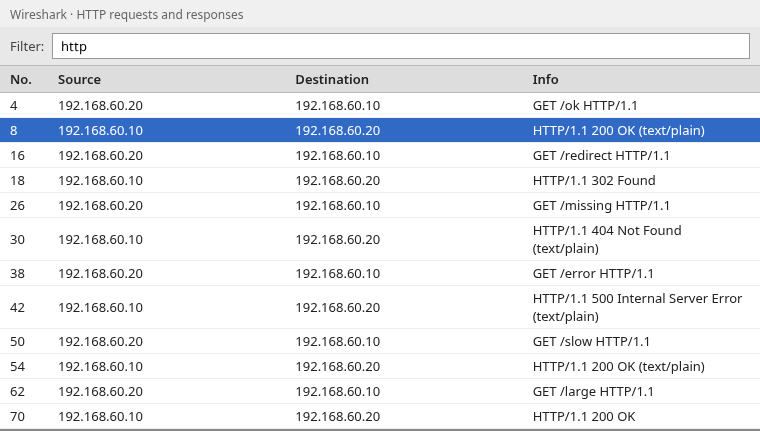
Read the Info column first. For a request it shows the method and path, such as GET /ok HTTP/1.1. For a response it shows the status line, such as HTTP/1.1 200 OK. In this capture, frame 8 is the 200 OK for the GET /ok in frame 4, and frame 42 is the 500.
If you check status codes often, give them their own column:
- Click any response row, such as frame 8.
- In the packet details pane, expand Hypertext Transfer Protocol.
- Right-click the Status Code line and choose Apply as Column.
A new Status Code column appears in the packet list. Repeat the same steps on Request URI in a request and on Time since request in a response if you want those as columns too.
Status code
Click frame 8 and expand Hypertext Transfer Protocol in the packet details pane. The highlighted line is the status code.
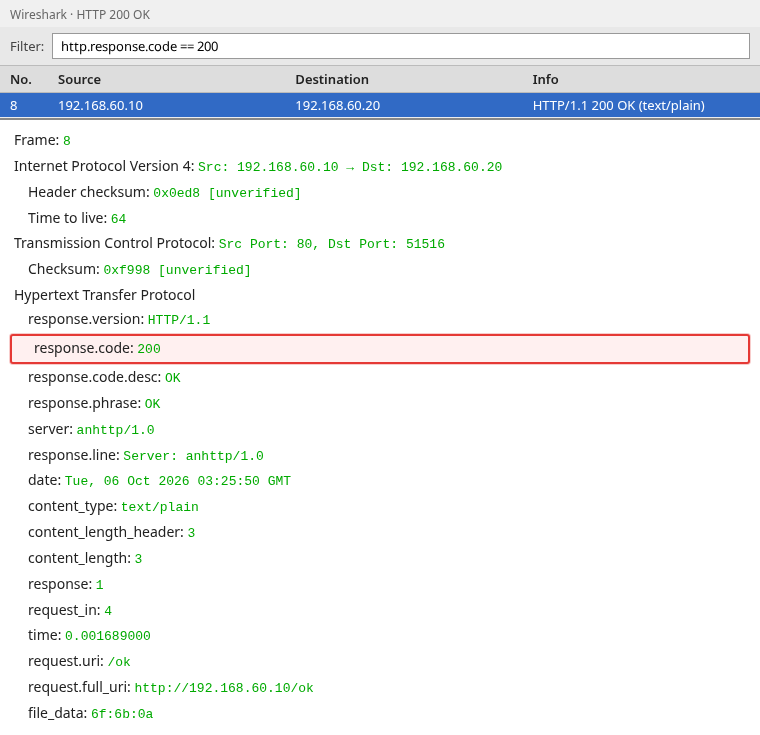
The screenshot uses the short field names, such as response.code. In the Wireshark window the same line reads Status Code: 200. Click any line in the details pane and the status bar at the very bottom of the window shows its full filter name. For this line, the name is http.response.code, which is the name you type in the filter bar. 200 means the server completed the request.
Content-Type, Content-Length, and other headers
The other lines under Hypertext Transfer Protocol are the response headers. Each one can be used in a filter:
content_typeis the Content-Type header. It tells the client what kind of body this is. Here it istext/plain, which means plain text.content_length_headeris the Content-Length header as the server sent it.content_lengthis Wireshark's numeric copy of that value. Both are3here, so the body is three bytes long.- A
302redirect response also has a Location header (http.location). That is the URL the client should open next.
In this capture, the 302 in frame 18 points at http://192.168.60.10/ok. The Server header names the software that answered. Headers describe the reply, but the status code and the requested path are what tell you whether the request worked.
Match an HTTP response to its request
A busy capture has many requests and responses mixed together, so you need a reliable way to pair them. Wireshark does this for you. Every response gets a field called Request in frame (http.request_in), which holds the frame number of the request it answers. Every request that got a reply gets Response in frame (http.response_in).
Wireshark shows these generated fields in square brackets, such as [Request in frame: 38]. The square brackets mean Wireshark calculated the value. The server never sent it.
To find the request that caused a server error, type this in the display filter bar:
http.response.code == 500Click the one remaining row and expand Hypertext Transfer Protocol.
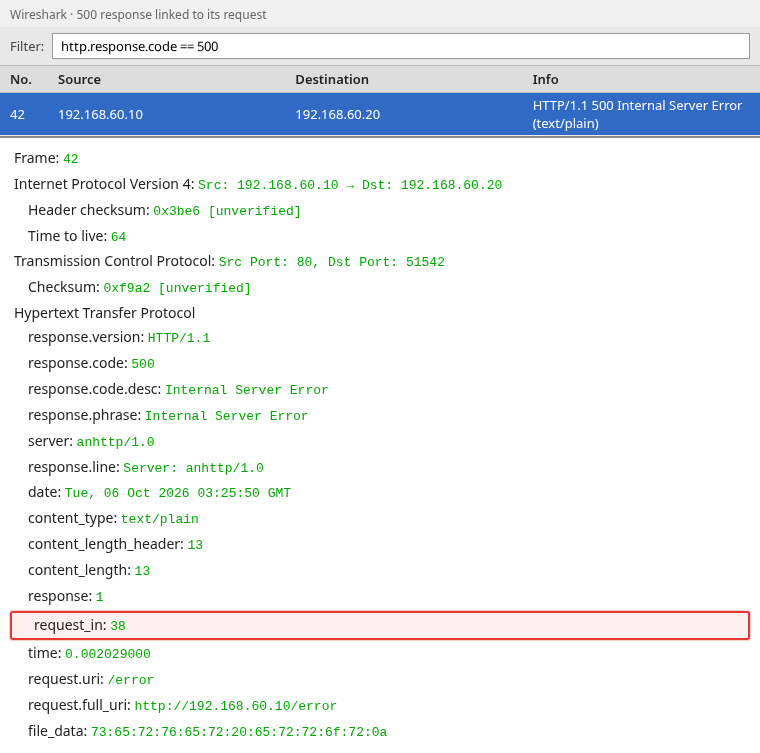
request_in is 38, and request.uri is /error. Frame 38 is the GET /error that produced this 500. To get there:
- Double-click the Request in frame line in the packet details pane. Wireshark jumps to frame 38. If the request is hidden by your current filter, clear the filter first.
- Or type
frame.number == 38in the display filter bar and press Enter.
The same request/response relationship can be printed with TShark. -2 enables a two-pass read so the request can include http.response_in, which points to a later frame. Replace http-responses.pcap with your file:
tshark -2 -r http-responses.pcap -Y 'http.request.uri == "/error" || http.response.code == 500' -T fields -E header=y -e frame.number -e http.request.method -e http.response.code -e http.request_in -e http.response_in | column -t -s $'\t'Sample output:
frame.number  http.request.method  http.response.code  http.request_in  http.response_in
38            GET                                                       42
42                                 500                 38
Frame 38 is the GET, and its http.response_in is 42. Frame 42 is the 500, and its http.request_in is 38. The two frames point at each other, so this request and response belong together.
Find requests with no response
If the request is present but no HTTP response appears in the capture, filter requests that do not have an http.response_in field:
http.request && !http.response_inThis can mean the response was never captured, the connection failed before an HTTP response arrived, or the capture ended too early. It does not by itself prove that the server never replied.
When the filter shows a request, right-click it and choose Conversation Filter → TCP. A TCP reset (RST) can explain why no HTTP response arrived. If the capture simply ends after the request, you cannot tell from that file whether the server replied later.
Every request in this example has a matching response, so this filter shows no packets here. The Wireshark window fills in http.response_in automatically. tshark only does that with -2. Without -2, the field is empty on every request, and this filter would wrongly list requests that did get a reply.
Find HTTP errors
4xx responses indicate a client-error condition, such as requesting a resource that does not exist (404). 5xx responses indicate that the server encountered an error while handling the request, such as 500 Internal Server Error. This filter shows error-status responses in the capture:
http.response.code >= 400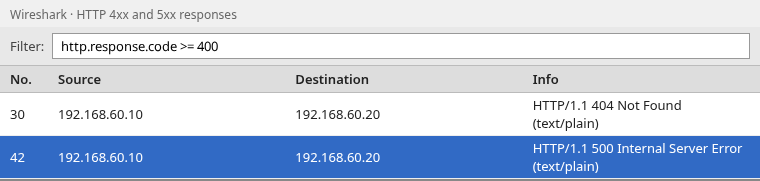
Frame 30 is 404 Not Found for /missing. Frame 42 is 500 Internal Server Error for /error. Use http.response.code == 404 or http.response.code >= 500 when you only want one of those groups.
TShark can print the same error rows:
tshark -r http-responses.pcap -Y 'http.response.code >= 400' -T fields -E header=y -e frame.number -e http.response.code -e http.request_in -e http.request.uri | column -t -s $'\t'Sample output:
frame.number  http.response.code  http.request_in  http.request.uri
30            404                 26               /missing
42            500                 38               /error
Each row is one error response. The http.request_in column is the frame of the request that caused it. Open that frame in Wireshark when you need the request headers, such as the cookies or parameters the client sent.
Measure HTTP response time
http.time is Wireshark's Time since request value for the matched HTTP response. It measures elapsed time at the capture point and includes network delay. Depending on TCP/HTTP reassembly, the HTTP response may be dissected on the frame where Wireshark has enough bytes to complete the message. It is not pure server processing time. A capture on the client cannot split server time from network delay.
The value is in seconds. 0.002 is two milliseconds, and 1.5 is one and a half seconds.
The /slow path in this capture waits about 1.5 seconds before it answers. To show responses that took more than one second, type this filter:
http.time > 1Click the remaining row and expand Hypertext Transfer Protocol. The highlighted line is Time since request.
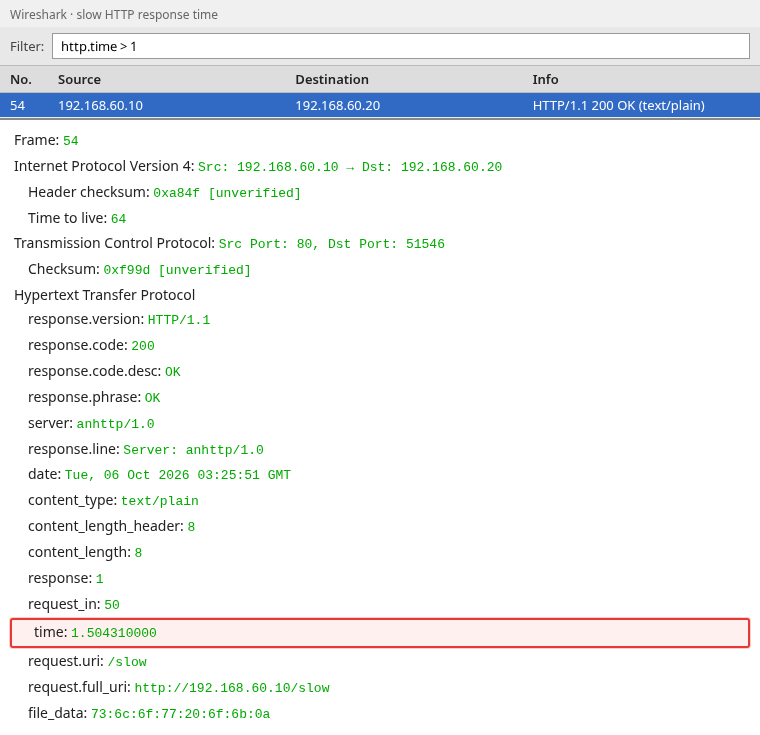
Frame 54 is still a 200, for /slow, and time is 1.504310000 seconds. The status is successful. The important clue here is the 1.5-second response time. If no rows appear for your capture, lower the number, for example http.time > 0.5.
The same slow response from TShark:
tshark -r http-responses.pcap -Y 'http.time > 1' -T fields -E header=y -e frame.number -e http.time -e http.request.uri | column -t -s $'\t'Sample output:
frame.number  http.time    http.request.uri
54            1.504310000  /slow
Only /slow crossed one second. Where you capture changes the number: a capture taken next to the server shows less network delay than a capture taken on the far side of a WAN link. Compare times only between captures taken in the same place.
Analyze a large HTTP response
An HTTP response larger than the TCP payload that fits in one segment is carried across multiple TCP segments. TCP is the transport protocol under HTTP. It splits the response bytes into numbered pieces called segments, and Wireshark puts those segments back together before it shows you one HTTP message. Putting them back together is called reassembly.
      HTTP response
            ↓
       TCP segment
       TCP segment
       TCP segment
            ↓
Wireshark TCP reassembly
            ↓
 complete HTTP response
GET /large asks for 20,000 bytes, which is too big for one segment. To see every packet that carried it, filter on that one TCP connection:
- Type
http.request.uri == "/large"in the display filter bar and press Enter. - Click the request and expand Transmission Control Protocol in the packet details pane.
- Read the Stream index value. Wireshark numbers each TCP connection in the capture starting at
0. In this capture it is5. Yours will differ. - Replace the filter with the stream number you found:
tcp.stream == 5 && tcp.len > 0tcp.stream == 5 keeps only that connection. tcp.len > 0 drops the small acknowledgment packets that carry no data, so only the request and the response pieces remain.
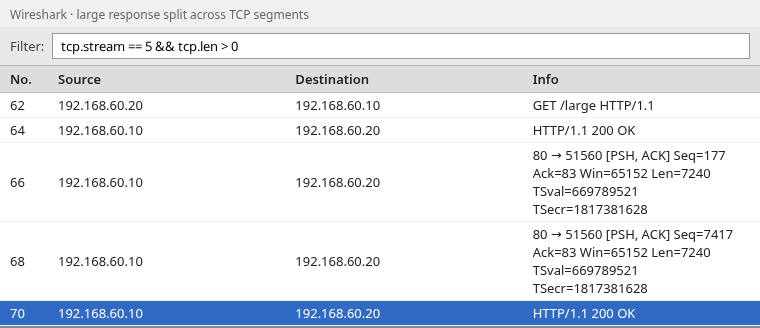
Read the rows from top to bottom:
- Frame 62 is the
GET /largerequest. - Frame 64 is the first piece of the response, 176 bytes holding the status line and headers.
- Frames 66 and 68 carry 7240 bytes of body each. They have no HTTP header of their own, so the Info column shows only TCP details such as
Len=7240. - Frame 70 carries the last 5520 bytes. That is the segment that completes the response, so Wireshark reassembles all four pieces here and shows the full message, including Content-Length
20000.
The second HTTP/1.1 200 OK entry does not mean the server sent another response. Wireshark displays the reassembled HTTP message again on the frame where the complete response becomes available. Click frame 70 and look just above Hypertext Transfer Protocol in the packet details pane. Wireshark shows [4 Reassembled TCP Segments (20176 bytes): #64(176), #66(7240), #68(7240), #70(5520)], which lists every frame that carried the response.
TCP and HTTP reassembly is enabled by default. If Wireshark does not reconstruct the response, verify that HTTP body reassembly and Allow subdissector to reassemble TCP streams are enabled under Edit → Preferences → Protocols.
To read the body as text, select frame 70 and choose Analyze → Follow → HTTP Stream. A window opens with the request and response as readable text. The two colors only mark the two directions of the connection: one color is what the client sent, and the other is what the server sent. Follow → TCP Stream shows the same bytes without HTTP decoding. Following a stream also replaces your display filter with tcp.stream eq 5, so click the X in the filter bar afterward to see all packets again.
HTTPS shows no HTTP response until decryption
HTTPS is HTTP inside TLS. Until the TLS session is decrypted, Wireshark cannot expose the HTTP/1.x fields inside it, so http.response matches nothing. After decryption, if the session uses HTTP/1.x, the http.* filters above work. If it uses HTTP/2, use the corresponding http2.* fields below. The decrypt TLS in Wireshark guide covers the key log and RSA key setup.
Filter an HTTP/2 status and response time
HTTP/2 is commonly used over HTTPS and uses different Wireshark fields from HTTP/1.x. It does not use http.response.code. After decryption, the status is http2.headers.status, and the time since the request is http2.time. A 500 in HTTP/2 is:
http2.headers.status == 500If http.response matches nothing on decrypted HTTPS, try http2 in the filter bar. If rows appear, the session is HTTP/2. The rest of this page is HTTP/1.1, which is what http.response matches.
HTTP response troubleshooting cheat sheet
| You want | Do this |
|---|---|
| Only replies | http.response |
| One status | http.response.code == 404 |
| Any error | http.response.code >= 400 |
| The request for a response | Read http.request_in, or Request in frame |
| The response for a request | Read http.response_in, or Response in frame |
| A request with no response | http.request && !http.response_in |
| Replies slower than one second | http.time > 1 |
| The whole body | Analyze → Follow → HTTP Stream |
| HTTPS shows no HTTP | Decrypt TLS, then filter again |
Summary
Filter with http.response and read http.response.code when you need the status. http.response.code >= 400 leaves the 404s and 500s, and http.request_in on each of those frames is the request that produced it. http.request && !http.response_in lists requests that have no linked HTTP response in the file.
http.time is the delay from that request to that response at your capture point, network delay included. A large body shows up as several TCP segments first. Wireshark presents the complete HTTP message on the frame where reassembly finishes, and Follow → HTTP Stream shows the body as text. Encrypted HTTPS stays invisible to these filters until the TLS session is decrypted.
References
- RFC 9110, HTTP Semantics
- Wireshark Display Filter Reference: HTTP
- Wireshark Display Filter Reference: HTTP2
Frequently Asked Questions
Does http.time mean the server was slow?
Not by itself. http.time is the time from the request to the response at the place you captured, so it includes network delay. A packet capture on one side of the path cannot split server processing time from the time the packets spent in transit.
Why does http.response match nothing when the site is HTTPS?
The HTTP message is inside TLS, so Wireshark cannot see the status code until the session is decrypted. After decryption, HTTP/1.x still uses http.response and http.response.code. If the session is HTTP/2, use http2.headers.status instead.
Why does my filter bar turn red?
Wireshark could not understand the filter. Check the spelling of the field name, use == rather than a single =, and put text values in double quotes, such as http.request.uri == "/error".