| Tested on | RHEL 10.2 (Coughlan) |
|---|---|
| Package | Wireshark 4.4.2iperf3 3.17.1tcpdump 4.99.5 |
| Applies to | Any host with Wireshark for offline PCAP analysis |
| Privilege | Normal user for PCAP analysis; sudo to capture live traffic on an interface |
| Scope | Measuring observed throughput and finding top traffic consumers with I/O Graphs, Endpoints, Conversations, and Protocol Hierarchy. Does not cover ISP speed-test methodology or capacity benchmarking beyond observed packet throughput. |
| Related guides | Wireshark tutorial Wireshark IP filters cheat sheet TTL in Wireshark — TCP RST source Analyze LDAP traffic in Wireshark |
Wireshark can measure the traffic rate visible in a packet capture and show which hosts, conversations, or protocols are using it.
For traffic over time, open Statistics → I/O Graphs, set the Y axis to Bits, and choose an interval such as 1 second. To find the biggest consumers, use Statistics → Endpoints or Statistics → Conversations. Wireshark reports the throughput seen at the capture point — it does not directly measure the maximum capacity of your Internet link.
Wireshark throughput quick reference
| Goal | Where in Wireshark |
|---|---|
| Traffic rate over time | Statistics → I/O Graphs — Y axis Bits, interval 1 sec |
| Top hosts by bytes sent | Statistics → Endpoints → IPv4 — sort Tx Bytes |
| Top hosts by bytes received | Statistics → Endpoints → IPv4 — sort Rx Bytes |
| Top TCP flows | Statistics → Conversations → TCP — sort Bytes |
| Protocol mix | Statistics → Protocol Hierarchy — read Percent Bytes |
| Graph one host only | I/O Graphs → + new row → Display Filter ip.addr == <host-ip> |
The troubleshooting workflow is:
I/O Graph          → When did traffic spike?
Endpoints          → Which host sent or received the most?
Conversations      → Which connection carried the bytes?
Filtered graph     → Does that host explain the spike?
Protocol Hierarchy → What protocol generated the traffic?
Before you start: open or record a capture
Every statistic in this guide is calculated from a capture file, so you need one first:
- Existing capture — choose File → Open and select the
.pcapor.pcapngfile. - New capture — on the Wireshark start screen, double-click the interface that carries the traffic (for example
eth0,ens33, orWi-Fi). Let it record while the slow period or heavy download happens, then click the red Stop button and save with File → Save As.
Clear the main display filter bar before opening the Statistics menus. Endpoints, Conversations, and Protocol Hierarchy can be limited to the displayed packets, so a leftover filter hides traffic from the totals.
Measure traffic rate with I/O Graphs
Choose Statistics → I/O Graphs. The window has two parts: the chart at the top and a table of graph definitions underneath. Each row in that table is one line on the chart. Wireshark usually creates an All Packets row by default.
To turn the All Packets row into a throughput graph:
- Make sure the Enabled checkbox on the All Packets row is ticked. Untick any other rows, such as TCP Errors, so only one line is drawn.
- Double-click the Y Axis cell in that row and choose Bits from the drop-down.
- Below the graph table, open the Interval drop-down and choose 1 sec.
- If the chart does not redraw on its own, click Reset at the bottom of the window to rescale the axes.
With a 1-second interval, the number of bits in each bucket is also the bits-per-second rate for that second. If you use a longer interval, Wireshark adds up traffic into larger time buckets. Tick Avg over Time on the row when you want an average rate across each interval instead of a raw total.
The X axis shows seconds since the start of the capture. Tick Time of day under the graph table if you want clock times instead, which helps when you are matching a spike to a user complaint like "it was slow at 10:42".
Hover over a peak to see the value for that interval. Clicking a point on the graph jumps to the matching packet in the main packet list.
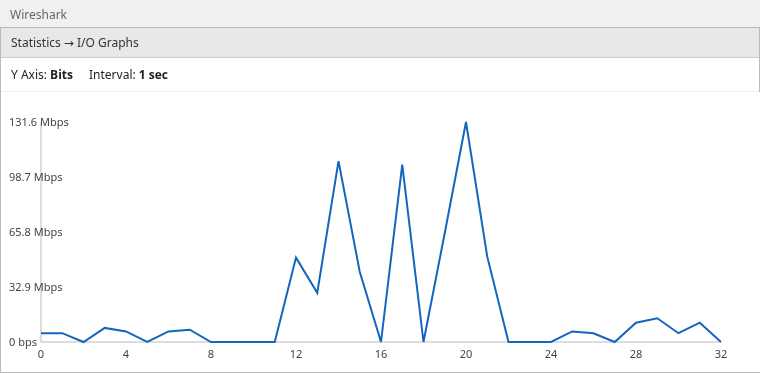
The capture is quiet at first, then traffic rises sharply and stays high for part of the test before dropping again. The I/O Graph shows when the heavy traffic occurred, but not yet which host caused it.
On Wireshark 4.6+, Statistics → Plots is useful for individual field values over time; use I/O Graphs for interval-based throughput analysis.
Capture used in the screenshots
The screenshots come from one PCAP with three clients sending traffic to an iperf3 server:
10.0.0.11 ──┐
10.0.0.20 ──┼──> 10.0.0.100:5201
10.0.0.30 ──┘
The three clients generate different amounts of traffic. We will use only the PCAP statistics to identify which client dominates the capture.
Find which host uses the most bandwidth
An endpoint is one address that sent or received traffic. Endpoints lists every address in the capture with its packet and byte counts.
- Choose Statistics → Endpoints.
- Click the IPv4 tab. If you do not see it, tick IPv4 in the list of endpoint types on the left side of the window.
- Click the Tx Bytes column header to sort by bytes sent. Click the header a second time if the largest value is not at the top. Wireshark toggles between ascending and descending order.
The columns that matter here:
- Tx Bytes — bytes the address sent. Sort this when looking for uploads or the host pushing most of the traffic.
- Rx Bytes — bytes the address received. Sort this when looking for the largest downloader.
- Bytes — Tx and Rx combined.
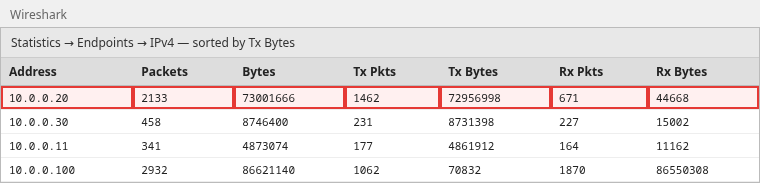
In this capture, 10.0.0.20 tops Tx Bytes at about 73 MB sent. 10.0.0.30 (~8.7 MB) and 10.0.0.11 (~4.9 MB) follow with smaller totals.
So the first likely bandwidth-heavy client is 10.0.0.20; the next step is to find which connection from that host accounts for the bytes.
On a server-side capture, the server IP may lead the Bytes column because it received every flow. Tx Bytes and Rx Bytes answer different questions — pick the column that matches whether you care about senders or receivers.
Find which connection uses the bandwidth
A conversation is traffic between two endpoints. On the TCP tab, each row is one connection, identified by both IP addresses and both port numbers.
- Choose Statistics → Conversations.
- Click the TCP tab. Use the UDP tab instead for traffic such as video calls, DNS, or QUIC.
- Click the Bytes column header (total bytes in both directions) to sort, and click again if needed so the largest flow is at the top.
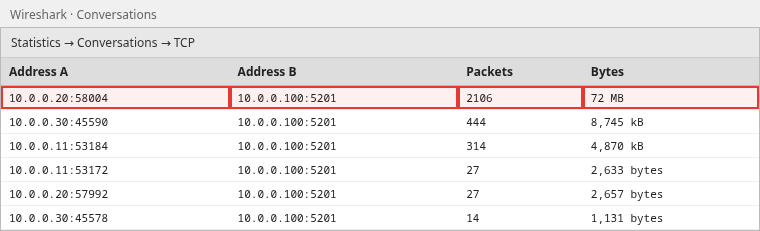
The top row identifies the heaviest TCP conversation: 10.0.0.20:58004 ↔ 10.0.0.100:5201, accounting for about 72 MB in this capture. Smaller rows are the lighter flows from the other clients.
The server port tells you which service carried the traffic. Port 5201 is the iperf3 default; on a real network you might see 443 (HTTPS), 445 (SMB file sharing), or 22 (SSH/SCP). The client port, 58004 here, is a temporary port picked by the client and is usually not meaningful.
To inspect the packets of that connection, right-click the row and choose Apply as Filter → Selected → A ↔ B. The main packet list then shows only that conversation.
Graph only the heavy host
After Endpoints and Conversations point to 10.0.0.20, confirm that this host really explains the spike. The filter belongs in the I/O Graph window, not the main Wireshark filter bar. Typing it in the main bar does not change the graph.
- Go back to Statistics → I/O Graphs.
- Click the + button below the graph table to add a new row.
- Double-click the new row's Display Filter cell, type the filter below, and press Enter:
ip.addr == 10.0.0.20- Double-click the new row's Y Axis cell and choose Bits, the same as the All Packets row.
- Optionally double-click Color and pick a contrasting colour so the two lines are easy to tell apart.
ip.addr matches packets where the host is either the source or the destination, so the line includes traffic in both directions. Use ip.src == 10.0.0.20 if you only want what the host sent.
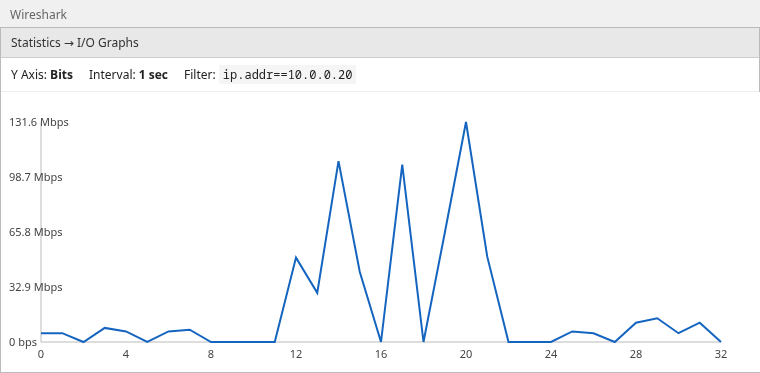
The filtered graph looks very similar to the original because this host accounts for most of the traffic in the capture. Because the filtered graph preserves nearly all of the large peaks, 10.0.0.20 is responsible for most of the high-throughput period seen in the original graph.
If the filtered line stays low while the All Packets line spikes, the host you picked is not the cause. Go back to Endpoints and try the next address in the list.
Find which protocol is responsible
We now know the host and TCP conversation. Protocol Hierarchy tells us what kind of traffic accounts for those captured bytes.
Open Statistics → Protocol Hierarchy.
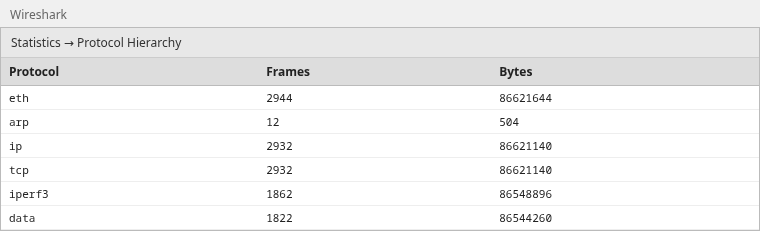
The window is a tree. Each protocol is nested under the protocol that carries it, so the path reads like a stack: Ethernet → IPv4 → TCP → application. Expand the arrows to drill down.
Read the Percent Bytes column in Wireshark to see each protocol's share of the captured bytes. Percent Packets can be misleading for bandwidth work because many tiny packets, such as TCP ACKs, add up to a high packet count but few bytes.
In this capture, almost everything is TCP carrying iperf3 payload. On a production LAN you might see HTTP, TLS, SMB, or DNS mixed in — the hierarchy shows which protocols accounted for the captured bytes. Encrypted web traffic usually appears as Transport Layer Security under TCP, or as QUIC under UDP.
Bandwidth vs throughput in Wireshark
These terms are related but not identical:
- Bandwidth / capacity — the maximum rate a link can carry, such as 1 Gbit/s on a switch port.
- Throughput — how much traffic was observed at the capture point during an interval.
- Goodput — useful application data after protocol overhead and retransmissions.
Wireshark calculates traffic rate from the packets visible at the capture point. That tells you observed throughput during the capture, not necessarily the maximum capacity of the network path.
A quiet capture on a 1 Gbit/s LAN may show only a few megabits per second because nothing generated heavy traffic while you were recording. To stress a link, run a traffic generator such as iperf3 or copy a large file during the capture.
Why Wireshark numbers differ from Task Manager or router stats
Several factors explain different Mbps readings across tools:
- Capture point — Wireshark only sees traffic that reaches the sniffing interface. A PC capture sees that PC's traffic; a SPAN/mirror port can see mirrored switch traffic; a gateway capture sees traffic traversing that router.
- Packet overhead — Wireshark counts the bytes present in the captured frames, while application monitors may count payload only.
- Missed packets — drops during live capture lower the observed rate.
- Averaging interval — 1-second I/O Graph buckets differ from a router's 5-minute average.
Wireshark may show IP addresses instead of hostnames when DNS for those hosts was not in the capture. Name resolution is optional and does not change the byte counters used to find heavy consumers.
Optional: Throughput from TShark
TShark can print per-second byte counts when you need a quick terminal check on a headless host or over SSH:
tshark -r your-capture.pcapng -q -z io,stat,1Sample output:
|  9 <> 10 |   1234 |  9123456 |
| 10 <> 11 |   1180 |  8987654 |
Each row is one 1-second interval. The columns are the time range in seconds, the number of frames, and the number of bytes. Multiply the bytes by 8 to get bits per second: 9123456 × 8 ≈ 73 Mbit/s for the 9–10 second interval.
TShark ships with Wireshark on Windows, Linux, and macOS. For interactive graphs, the GUI I/O Graph is usually faster.
Summary
Wireshark measures observed throughput from captured packets — not the theoretical maximum bandwidth of a link. Start with Statistics → I/O Graphs (Y axis Bits, 1-second interval) to see when utilization spikes.
Then use Endpoints to find the top host, Conversations to name the heavy TCP flow, a filtered I/O Graph to confirm that host owns the peaks, and Protocol Hierarchy to see whether the bytes are HTTP, TLS, iperf3, or something else.
On a switched LAN, remember that your capture only includes traffic visible to the sniffing interface. For more display filters, see the Wireshark tutorial and the IP filters cheat sheet.
References
- Wireshark User's Guide — I/O Graphs
- Wireshark User's Guide — Endpoints
- Wireshark User's Guide — Conversations
- Wireshark User's Guide — Protocol Hierarchy
Frequently Asked Questions
Can Wireshark measure my Internet speed?
Wireshark measures observed traffic in a capture — not the maximum speed your ISP sold you. For capacity testing, use a purpose-built speed test or iperf3; Wireshark can then show the traffic rate actually observed during that test.
Why does Wireshark show less traffic than my router?
Wireshark only counts packets visible at the capture interface. A router may see traffic from every device on the network, while a capture taken on one laptop usually sees only that laptop's traffic plus broadcasts and multicasts. Capture drops and different averaging intervals can also change the reported rate.
What is the difference between bandwidth and throughput in Wireshark?
Bandwidth usually means link capacity. Throughput is how much data was observed at the capture point during the interval. Wireshark reports throughput from visible packets at the capture point.
Which Wireshark menu shows bandwidth over time?
Use Statistics → I/O Graphs. Set the Y axis to Bits and pick an interval such as 1 sec.
How do I find which device is using the most bandwidth?
Open Statistics → Endpoints → IPv4. Sort Tx Bytes for the largest senders or Rx Bytes for the largest receivers. Follow with Statistics → Conversations to identify the specific TCP or UDP flow.