| Tested on | RHEL 10.2 (Coughlan), capturing Linux host 192.168.90.20 interface eth0 over SSH |
|---|---|
| Package | wireshark-cli-4.4.2-10.el10_2.x86_64 (SSHDump 1.2.0)tcpdump-4.99.4-10.el10.x86_64 |
| Applies to | Wireshark 4.x on Linux, Windows, or macOS, capturing a Linux host that has tcpdump or dumpcap |
| Privilege | SSH user who can run dumpcap or tcpdump without an interactive password. On this host the wireshark group can execute dumpcap, and file capabilities let dumpcap open the card |
| Scope | How to capture a remote Linux interface in local Wireshark over SSH, how to keep that SSH session out of the capture, and the permission errors that stop SSHDump. Does not cover installing OpenSSH, a full tcpdump reference, or deploying RPCAP. |
| Related guides | How to use Wireshark tcpdump command Wireshark tutorial Analyze an HTTP response |
Use SSHDump when Wireshark is on your workstation and the packets you need are on a Linux server that does not have Wireshark installed. SSHDump opens an SSH session, starts tcpdump or dumpcap on that server, and feeds the packet stream back into the local capture window.
The server needs a capture command the SSH user can run without typing a password. The examples below use user wscap on 192.168.90.20, interface eth0. A capture filter of not tcp port 22 keeps the SSH session that carries the capture from filling the packet list.
Key takeaways
- Use Wireshark's SSH remote capture interface, SSHDump, to capture a Linux server over SSH. Wireshark stays on your workstation. The server only needs
dumpcaportcpdump. - Enter the remote host, the SSH username, a private key, and the interface name that exists on the server. That name is not your workstation's interface.
- The SSH account must capture without an interactive password prompt. Prefer
dumpcapwith capture privileges on that program, rather than running the whole capture as root. - Exclude the SSHDump transport with a remote capture filter when that session is not the problem you are investigating.
not tcp port 22is the simple form. A host-specific filter keeps unrelated SSH traffic. - The packet stream comes back through SSH to local Wireshark. The normal SSHDump workflow does not create a PCAP file on the server.
How Wireshark remote capture over SSH works
Wireshark stays on the workstation. The packets are read on the server, then copied back over the same SSH connection you used to log in.
A few names show up in every step:
- SSH: a login from your computer to the server. SSHDump uses that login to start the capture
- Interface: the server's network card.
eth0is one common name. It is not the network card in your workstation - Capture filter: a rule applied on the server while packets are collected. Packets that do not match are never sent back
- Display filter: a rule you type in Wireshark afterward. It only hides rows. The packets are already in the capture
- Capture program:
dumpcapcomes with Wireshark. The server needs this, ortcpdump. It does not need the Wireshark window - Frame: one row in Wireshark's packet list
- PCAP / PCAPNG: common capture-file formats that store packets. Wireshark reads both. Modern
dumpcapuses pcapng by default
  Local Wireshark
         ↓
 SSHDump over SSH
         ↓
 Remote Linux host
         ↓
tcpdump or dumpcap
         ↓
  interface eth0
What SSHDump and extcap mean
SSHDump is an extcap program. Extcap is Wireshark's plug-in slot for an outside capture helper. Wireshark lists that helper in the same place as a network card, and the helper is what actually collects the packets.
Select SSH remote capture, not a network card on the workstation, when the packets you want are on the server. How to use Wireshark covers the local capture window. The gear or options button on that row is where the host, user, interface, and filter go. If that row is missing, the helper is not installed. The requirements section shows the same check from a terminal.
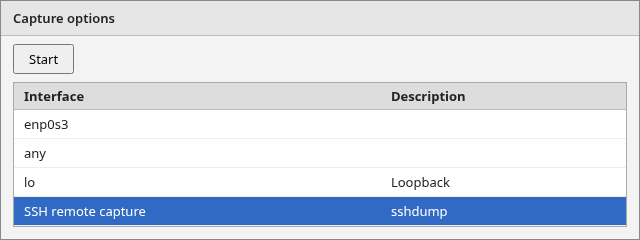
Select SSH remote capture. The other rows are NICs on the workstation.
What runs on the remote server
SSHDump does not run Wireshark on the server. It runs a capture command over SSH. For the filtered capture on this host, the remote process was:
dumpcap -i eth0 -w - -c 40 -f not tcp port 22Read the flags from the left:
-i eth0is the server's network card-w -writes the capture to standard output, which is where a command normally prints. The dash means "print it," not "save a file on the server"-c 40stops after 40 packets-fis the capture filter. It runs on the server before a packet is copied across SSH
A display filter in Wireshark is too late for that last job. The SSH packets would already have been captured and copied.
tcpdump is the other built-in choice, and it is the default. This account can run dumpcap. Without an extra privilege, it cannot open a capture socket with tcpdump, so the SSHDump captures use dumpcap.
Requirements for SSH remote capture
Four things have to be true before you open the capture window:
- Your local Wireshark install includes the SSHDump helper
- You can log in with SSH
tcpdumpordumpcapis installed on the server, and you know the interface name that program sees- That command is allowed to open the network card
Check that SSHDump exists locally
Open Wireshark and look at the capture interface list. SSH remote capture has to be in that list. The figure above is that row.
The same list from a terminal uses tshark, which is Wireshark on the command line. -D prints every capture source, including helpers:
tshark -D | grep sshdump17. sshdump (SSH remote capture)If that row is missing, SSHDump was not installed with the local Wireshark package. It is not always on your shell PATH. In the Wireshark window, open Help, then About Wireshark, then Folders, and look for the extcap directory. The sshdump program should be in that folder.
SSH connectivity
Prefer SSH key authentication, ideally with an SSH agent. SSHDump warns that passwords entered in its password option are stored in plaintext, so avoid saving a login password there when key authentication is available.
Confirm the login and the capture tools. This host answers as wscap:
ssh wscap@192.168.90.20 'command -v tcpdump'/usr/sbin/tcpdumpdumpcap is the Wireshark capture helper, and it is present too:
ssh wscap@192.168.90.20 'command -v dumpcap'/usr/bin/dumpcapFind the remote capture interface
SSHDump does not list the server's cards for you. You type the name. Ask the capture program you will actually run, because that is the list it can open.
dumpcap -D is the right list when the remote command is dumpcap. On this server the card is entry 1:
ssh wscap@192.168.90.20 'dumpcap -D'1. eth0
2. any
3. lo (Loopback)The same host also lists USB and monitor devices after lo. Ignore those. The name to type is eth0.
tcpdump -D is the matching list when the remote command is tcpdump:
ssh wscap@192.168.90.20 'tcpdump -D'1.eth0 [Up, Running, Connected]
2.any (Pseudo-device that captures on all interfaces) [Up, Running]
3.lo [Up, Running, Loopback]The later lines are the same extra devices. eth0 on your laptop is not the same card as eth0 on the server. A wrong name fails immediately. any captures every card the program can see, which is rarely what you want for one server interface.
Capture permissions
Capturing packets needs privileges an ordinary user does not get automatically. Linux can give those privileges to dumpcap without running the whole program as root. On this server only root and the wireshark group may run the file:
ssh wscap@192.168.90.20 'ls -l /usr/bin/dumpcap'-rwxr-x---. 1 root wireshark 153168 May 13 05:30 /usr/bin/dumpcapThe group only controls who may execute the file. getcap prints the capture privileges on the file itself:
ssh wscap@192.168.90.20 'getcap /usr/bin/dumpcap'/usr/bin/dumpcap cap_net_admin,cap_net_raw=epThe group and the capabilities do different jobs. The wireshark group lets wscap execute /usr/bin/dumpcap. The cap_net_admin and cap_net_raw capabilities give that program the packet-capture privileges. Group membership alone does not open the card.
Privilege none means "do not put sudo in front of the command." That is the right setting once dumpcap can already capture.
tcpdump does not have those file permissions. The same user can start the program and still cannot open the card:
ssh wscap@192.168.90.20 'tcpdump -i eth0 -c 1 -n icmp'tcpdump: eth0: You don't have permission to perform this capture on that device
(socket: Operation not permitted)That is the error SSHDump shows when the remote capture command is tcpdump and privilege is left at none. Prefer dumpcap for an account that can already run it. Use tcpdump only when that account can already capture with it, without anyone typing a password.
Capture a remote Linux interface with SSHDump
Open the options for SSH remote capture. Four fields decide where the packets come from. Leave the password empty when a key is selected.
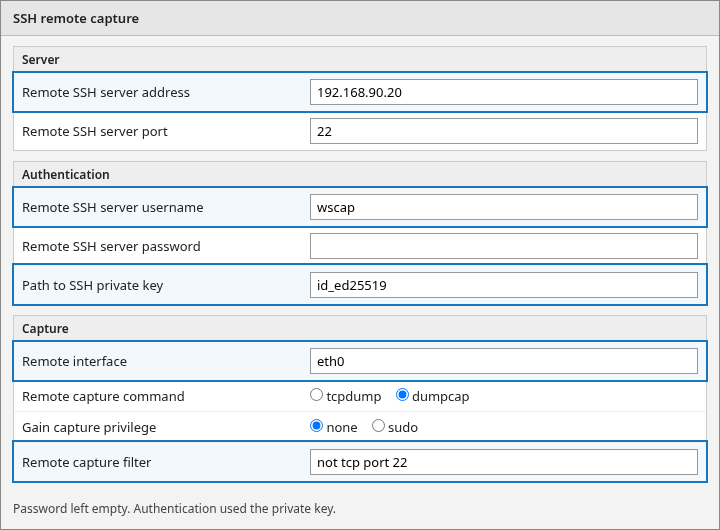
Select the remote host and interface
The server fields are the SSH target, not your workstation:
- Address
192.168.90.20is the server - Port
22is normal SSH. Change it only when your SSH server listens somewhere else - Interface
eth0is the network card on that server
Choose SSH authentication
The account fields are a normal SSH login:
- Username
wscap - Private key: a file on the workstation running Wireshark, not a path on the server. The public half of that key is listed in the user's
authorized_keysfile on the server, which is the list of keys allowed to log in. The figure showsid_ed25519. Use the full local path if the short name could be confused with a remote file - Privilege none, because dumpcap is already allowed
Choosing tcpdump, or choosing sudo, is what produces the errors below.
Apply a remote capture filter
The figure uses the simple filter not tcp port 22. It runs inside dumpcap on the server. Start the capture, then send some traffic to the server so the packet list is not an idle card. That simple filter drops every SSH conversation on the card. The next section shows why, and a tighter filter that keeps unrelated SSH.
Exclude the SSH capture session
The SSH session that carries the capture is itself traffic on eth0. dumpcap will record it unless the capture filter says not to.
Why the SSH traffic appears in the capture
With the remote filter set to ip, which means "keep every IP packet," this capture showed the problem:
- The first 30 packets were TCP port 22
- Fifteen of those were decoded as SSH
- A ping and an HTTP request were sent during the same capture
- Neither appeared. The SSH stream used up the 30-packet stop count first
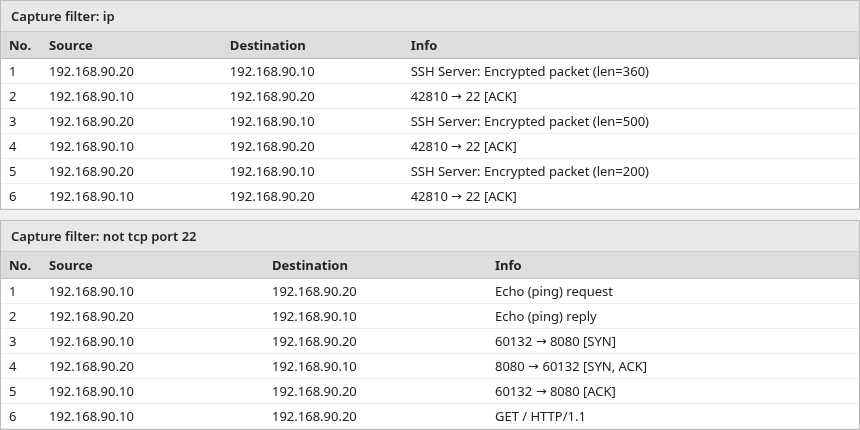
The top list is SSH only. The bottom list, with not tcp port 22, starts with the ping and the HTTP GET.
Hiding SSH with a display filter does not fix this:
- The packets were already captured on the server
- They were already sent back over SSH
- Those SSH packets are more traffic on
eth0, so dumpcap captures them too
The exclusion has to be the remote capture filter, so the SSH packets are never collected.
Simple and host-specific exclusion
Keep both filters in mind. The comparison figure uses the simple one:
not tcp port 22removes all SSH on that card, including sessions that are not SSHDumpnot (tcp port 22 and host 192.168.90.10)removes only SSH with the workstation.192.168.90.10is the computer running Wireshark. SSH between the server and any other host stays in the capture
Use the second form when the server has other SSH sessions you may want to see.
When not to exclude SSH
Skip both filters when SSH itself is what you are investigating:
- A failed login, a stall, or a session you opened on purpose would disappear from the capture
- If the server's admin login uses a different port, exclude that port instead, and keep 22 when you still need to see it
Verify the remote capture
A useful capture shows the traffic you generated, on the interface you named. This filtered capture did. The workstation 192.168.90.10 pinged the server, requested http://192.168.90.20:8080/, and sent a DNS query for example.com to that host.
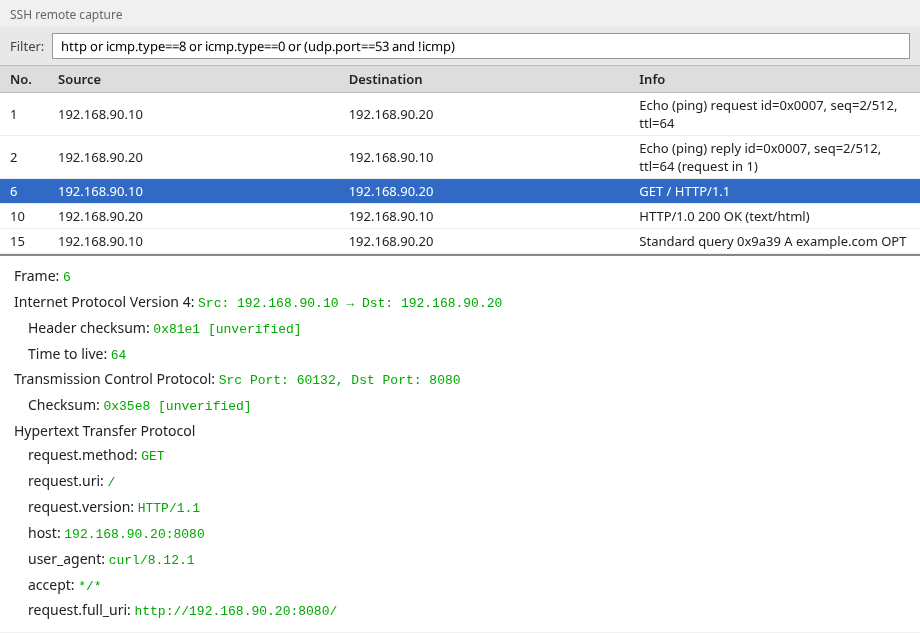
Match the rows to the traffic that was sent:
- Frame 6 is the HTTP GET from
192.168.90.10, the workstation - Frame 10 is the HTTP 200 from the server
- Frame 15 is a DNS query for
example.com. Nothing was listening on UDP port 53, so there is no DNS answer. The query is still proof the packet crossedeth0 - The missing numbers are packets the display filter hid. Most of them are the TCP handshake, the short exchange that opens a connection before the HTTP request. They are still in the file
- The packet list in the figure does not print the interface name. The capture file's interface metadata does:
eth0, the remote interface configured in SSHDump
Troubleshoot SSHDump
sudo requires an interactive terminal
Choosing sudo tells SSHDump to run sudo tcpdump on the server. It does not allocate a terminal, so sudo cannot ask for a password:
ssh wscap@192.168.90.20 'sudo tcpdump -i eth0 -c 1 -n icmp'sudo: a terminal is required to read the password; either use ssh's -t option or configure an askpass helper
sudo: a password is requiredsudo prints its usual lecture first. A separate test with ssh -t can make sudo interactive in your own shell. That does not fix SSHDump. SSHDump still runs the remote command without a terminal, so the command has to work without anyone typing a password.
Prefer dumpcap, with privilege left at none, once that program can already capture. If the host requires tcpdump through sudo, SSHDump cannot answer the password prompt. Ask the administrator for a narrowly controlled non-interactive capture command or wrapper for that host. Do not grant passwordless root for every argument tcpdump accepts. Depending on the build, tcpdump can write root-owned files, so that grant is wider than permission to capture packets.
Set the privilege field to sudo only after that non-interactive policy is already in place.
tcpdump permission denied
Privilege none plus the tcpdump command produces the socket error from the tcpdump run above, not a sudo error. Switch the remote capture command to dumpcap, or use a capture command the account can already run without a password.
SSH authentication failed
A key the server does not accept ends the session before any capture starts. SSHDump says it cannot find a valid authentication, then disconnects. Check these three:
- The username
- The path to the private key on your workstation
- A matching line in
authorized_keyson the server
If the same key works with the ssh command and SSHDump still rejects it, the key may use an obsolete algorithm. Prefer a current Ed25519 key, or a modern RSA key, rather than turning on old SHA-1 SSH compatibility. The settings figure uses id_ed25519.
If you use the password field instead, the SSH server has to allow password logins. Many servers do not.
SSH remote capture missing
The interface list has no SSH remote capture row when the local Wireshark package did not include SSHDump. The tshark -D check in the requirements section is the same test. In the Wireshark window, open Help, then About Wireshark, then Folders. The extcap folder listed there is where sshdump is installed. It does not have to be on your shell PATH.
Wrong remote interface
eth9 is not a device on this server. dumpcap says so at once:
ssh wscap@192.168.90.20 'dumpcap -i eth9 -c 1 -w /dev/null'Capturing on 'eth9'
dumpcap: There is no device named "eth9".
(No such device exists)Read the name from dumpcap -D or tcpdump -D on the server and type that name again. The workstation's interface list is not the list SSHDump will open.
Stream tcpdump or dumpcap over SSH without SSHDump
This is the same capture without the SSHDump dialog. The ssh command runs the capture program on the server, and > saves the printed capture in a file on your workstation. The account still has to be allowed to capture. -c stops after a set number of packets so the command returns. Leave -c out to keep capturing.
dumpcap writes pcapng. This account can already run it:
ssh wscap@192.168.90.20 "dumpcap -i eth0 -w - -f 'not tcp port 22' -c 20" > remote.pcapngCapturing on 'eth0'
File: -
Packets captured: 20
Packets received/dropped on interface 'eth0': 20/0 (pcap:0/dumpcap:0/flushed:0/ps_ifdrop:0) (100.0%)dumpcap also prints a running packet count on that same line before the totals.
File: - means the capture was written to standard output. The file remote.pcapng is created on the workstation, in the directory where you ran ssh. The server does not get a copy.
Open remote.pcapng in Wireshark with File, then Open. The display filter icmp or http leaves the ping and the web request. The other packets stay in the file. The filter only hides them.
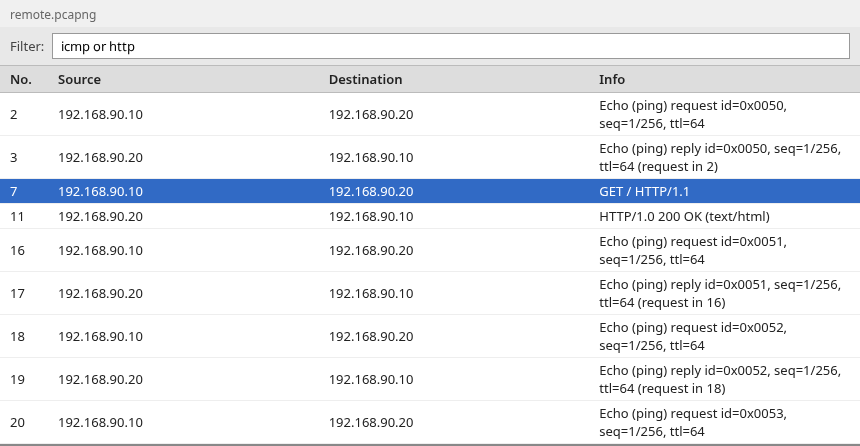
Frame 2 is the ping from 192.168.90.10. Frame 7 is the HTTP GET. Frame 11 is the HTTP 200.
Once tcpdump is allowed to open the card, the same kind of SSH command can stream it. -U writes each packet promptly instead of holding a large buffer. -w - sends the PCAP to standard output. The > sits outside the quotes, so the file is created on the workstation, not on the server:
ssh wscap@192.168.90.20 "tcpdump -U -i eth0 -c 6 -w - 'not tcp port 22'" > remote.pcaptcpdump: listening on eth0, link-type EN10MB (Ethernet), snapshot length 262144 bytes
6 packets captured
17 packets received by filter
0 packets dropped by kernel-c 6 stops the write at six packets. tcpdump still counts every packet the filter accepted before the process exited, which is why received is higher than captured. The file is remote.pcap.
Open it in Wireshark the same way. The display filter icmp leaves the ping:
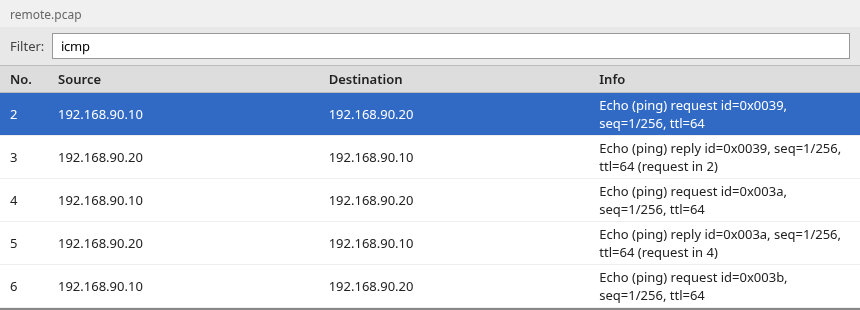
Frame 2 is the echo request from the workstation. Frame 3 is the reply. The capture stopped on the next request, so that last row has no reply in the file.
You can also send the stream straight into the Wireshark window instead of saving a file first. -k starts the capture immediately. -i - reads the pipe. dumpcap's -c 6 is what ends the remote command. Leave -c out to keep capturing.
ssh wscap@192.168.90.20 "dumpcap -i eth0 -w - -f 'not tcp port 22' -c 6" | wireshark -k -i -Wireshark opens the packet list. It does not print the packets in the terminal. The list is the same kind of window as the remote.pcapng figure above.
From a terminal, tshark -r remote.pcapng or tshark -i - reads those same packets. SSHDump is still the simpler path when that interface is installed. The pipe is the fallback when you want the stream without the SSHDump dialog.
SSHDump vs RPCAP
RPCAP is a different remote-capture method. A daemon is a program that stays running and waits for connections. rpcapd is that program:
- It often listens on TCP port 2002
- Older Windows installs provided it through WinPcap. Current Windows builds can do the same with Npcap
- Wireshark opens a remote-interface URL instead of logging in with SSH
Keep RPCAP for a host that already runs that daemon. On a Linux server that already has SSH, SSHDump is the practical starting point. It uses the login and the capture command you already have, and it does not add another service.
Summary
SSHDump is the remote capture interface in Wireshark 4. It logs in with SSH, runs dumpcap or tcpdump on the server, and displays the stream locally. Wireshark does not have to be installed on the server. The SSH user does have to be allowed to capture without an interactive password.
The capture filter is applied on the server. not tcp port 22 keeps every SSH session on that card out of the packet list. not (tcp port 22 and host 192.168.90.10) drops only SSH with the workstation and leaves other SSH visible. Skip both when SSH itself is what you are debugging. A display filter cannot replace that, because the SSH packets would already have been copied back.
When SSHDump stops, the message names the cause: a missing local helper, a bad interface name, a rejected key, a sudo password prompt, or no permission to capture. The same stream can be saved with ssh and dumpcap or tcpdump when you want a file instead of the live window. RPCAP stays a separate service.
References
Frequently Asked Questions
Does Wireshark need to be installed on the remote server?
No. Wireshark runs on your workstation. The server needs a capture command such as tcpdump or dumpcap, plus an SSH login for the user who will run it.
What is SSHDump?
SSHDump is the extcap helper shipped with Wireshark. It shows up in the interface list as SSH remote capture. Wireshark uses it to start tcpdump or dumpcap on another host and read the packets over SSH.
Why does SSHDump fail with sudo?
SSHDump does not attach a terminal. sudo then cannot ask for a password, and it reports that a terminal is required. Prefer dumpcap for an account that can already capture. If tcpdump has to run through sudo, the administrator needs a non-interactive capture policy for that host. Do not grant passwordless root for every tcpdump argument.
How do I exclude the SSH connection itself?
Set the remote capture filter to not tcp port 22 when every SSH session on that card can be dropped. To keep other SSH conversations, exclude only SSH with the workstation, for example not (tcp port 22 and host 192.168.90.10). Do not exclude SSH when that is the traffic you need. A display filter hides packets after they have already been captured.
Does remote capture save the PCAP on the remote server?
No. SSHDump starts the remote command with -w -, so the capture is written to standard output and sent back over SSH. The file, if you save one, is on the workstation.
Is RPCAP the same as SSHDump?
No. RPCAP is a capture daemon the remote host has to run. SSHDump uses the SSH server you already have and a normal capture command. On a Linux server with SSH, SSHDump is the practical starting point.