| Tested on | RHEL 10.2 (Coughlan) |
|---|---|
| Package | Wireshark 4.4.2tcpdump 4.99.5 |
| Applies to | Any host with Wireshark for offline PCAP analysis |
| Privilege | Normal user for PCAP analysis; sudo to capture live traffic on an interface |
| Scope | IPv4 ip.ttl hop-distance analysis and spotting middlebox TCP resets. Does not cover DNS record TTL or HTTP cache lifetime. IPv6 uses ipv6.hlim (brief note only). |
| Related guides | Wireshark tutorial Wireshark IP filters cheat sheet Analyze LDAP traffic in Wireshark Kerberos authentication packet analysis |
A TCP reset (RST) is a packet that aborts a connection immediately. Applications usually report it as "connection reset by peer". The reset may appear to come from the remote server because the RST uses the server's source IP. But a firewall, intrusion prevention system (IPS), proxy, or another device in the path (often called a middlebox) can generate that reset instead.
One clue is the packet's IPv4 TTL. Compare the TTL of normal server packets with the TTL of the suspicious RST. If they differ significantly, the reset may have been generated somewhere else on the path.
In this guide, we'll reproduce both cases, capture the packets, and use Wireshark to identify the difference.
Wireshark TTL display filters
| Goal | Wireshark display filter |
|---|---|
| Show every packet with an IPv4 TTL field | ip.ttl |
| Isolate TCP resets | tcp.flags.reset == 1 |
| Server traffic only | ip.src == <server-ip> |
| Compare baseline to anomaly | Add ip.ttl as a column and read values side by side |
Apply ip.ttl in the display filter bar, then add Time to Live as a column (right-click the field in the detail pane → Apply as Column). Compare the TTL on normal packets from the endpoint with the TTL on a suspicious RST. A large difference suggests the reset may not have followed the same routed path as the normal server traffic and may have been generated by a nearer device.
Do not confuse the IPv4 ip.ttl field with DNS record TTL or HTTP Cache-Control lifetime — this guide analyzes the IPv4 hop-limit field only.
What TTL tells you in a packet capture
Every IPv4 packet carries a TTL counter. Each router that forwards the packet subtracts one. When TTL reaches zero, the packet is dropped.
What you see in Wireshark is the observed TTL at your capture point:
Observed TTL = Initial TTL − routed hopsExample:
Sender starts with TTL 64
         ↓ router
63
         ↓ router
62
         ↓ router
61 observed in Wireshark
You normally do not know the sender's initial TTL. Common starting values are 64, 128, or 255, but operating systems and appliances can differ. TTL inference is therefore a likely-origin check, not proof of which device sent a packet.
In the lab captures below, server packets arrive at the client with TTL 45 (server initial TTL 46 minus one router hop). The injected RST shows TTL 64 — consistent with a packet generated by a nearby device and delivered to the client without crossing the same routed path as the real server traffic.
Show TTL in Wireshark
Open your capture with File → Open. The Wireshark window has three panes: the packet list at the top, the packet details in the middle, and the raw bytes at the bottom. Above the packet list is the display filter bar, the text box that says Apply a display filter.
Click in the display filter bar, type the filter below, and press Enter:
ip.ttlThe bar turns green when the filter is valid and red when Wireshark cannot understand it. To remove a filter, click the X at the right end of the bar.
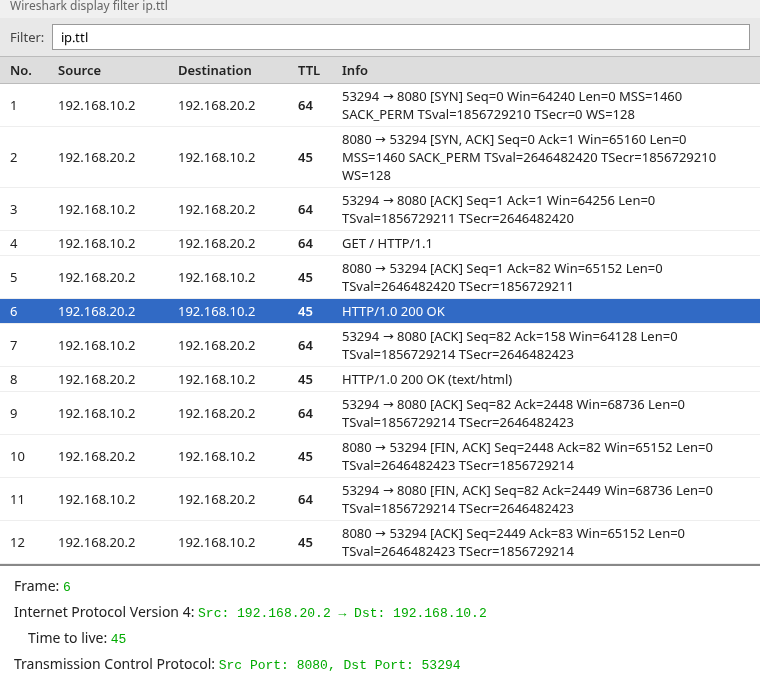
To add TTL as a column:
- Click any packet in the packet list.
- In the details pane, click the arrow next to Internet Protocol Version 4 to expand it.
- Right-click the Time to Live line and choose Apply as Column.
The packet list now shows TTL beside Source, Destination, and Info — the fastest way to spot an outlier during reset investigation. You can drag the column header to move it, or right-click the header and untick it to hide it later.
Establish the normal TTL baseline
Capture traffic while the application works. On the Wireshark start screen, double-click the network interface that carries the traffic, use the application normally, then click the red Stop button and save with File → Save As. In the lab, the client at 192.168.10.2 reaches an HTTP server at 192.168.20.2 through a router namespace.
Filter server-to-client traffic and read the TTL column. Replace 192.168.20.2 with the IP address of your own server:
ip.src == 192.168.20.2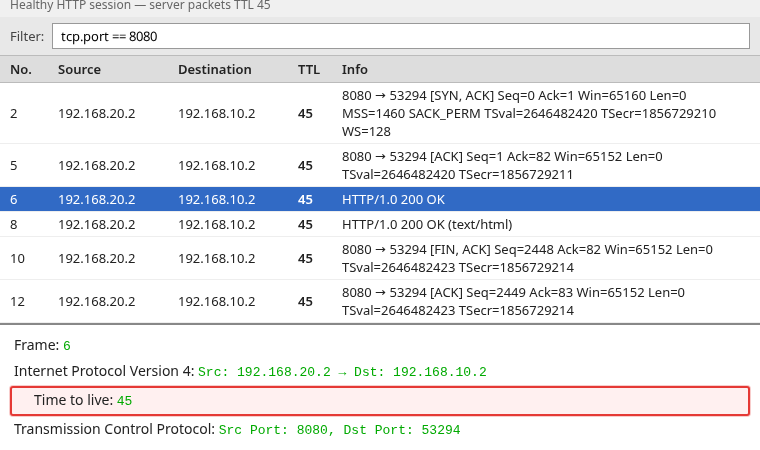
Every server packet in this baseline carries TTL 45. That becomes your reference for what "normal" looks like on this path.
The detail pane on a typical server packet shows the same value:
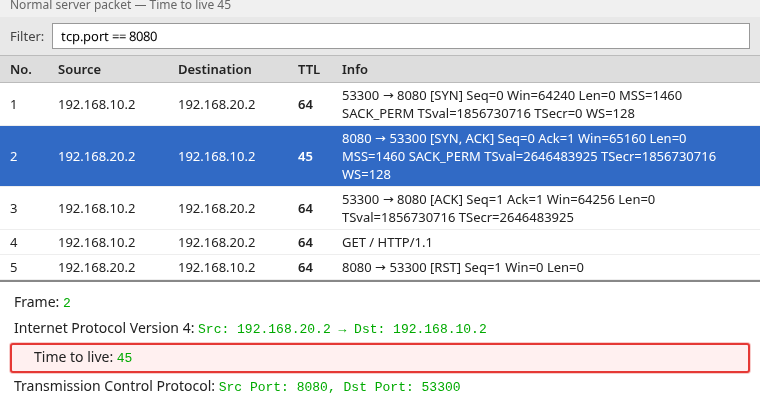
Do not copy the TTL numbers from this lab. Your server may arrive with TTL 55, 117, 243, or another value. What matters is whether normal packets from the same endpoint have a consistent TTL and whether the suspicious RST suddenly differs.
Troubleshoot a TCP reset using TTL
Now capture the failure. In the lab, the middle router runs an nftables reject with tcp reset rule on established HTTP data from the client. The reset appears to come from the server IP, but the TTL tells a different story.
Filter resets:
tcp.flags.reset == 1In the packet list, resets show [RST] or [RST, ACK] in the Info column. Wireshark's default colouring rules also draw them with a dark background and red text, so they stand out while scrolling.
On a busy capture, that filter may list resets from many unrelated sessions. Isolate the failed connection first, then inspect only the RST packets in that flow. Either method works:
- Conversation Filter — right-click any packet from the failed connection and choose Conversation Filter → TCP. Wireshark replaces the display filter with one that matches only that connection.
- Follow TCP Stream — right-click a packet from the connection and choose Follow → TCP Stream. A window opens showing the conversation as text. Close it, and the display filter stays set to
tcp.stream eq N, whereNis the stream number Wireshark assigned to that connection.
Then add the reset condition to the stream filter. && means "and", so both conditions must match:
tcp.stream eq 0 && tcp.flags.reset == 1Replace 0 with the stream number shown in your display filter bar.
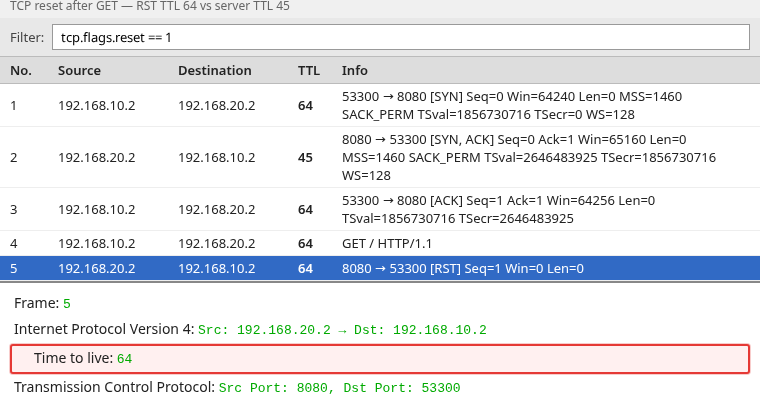
The pattern:
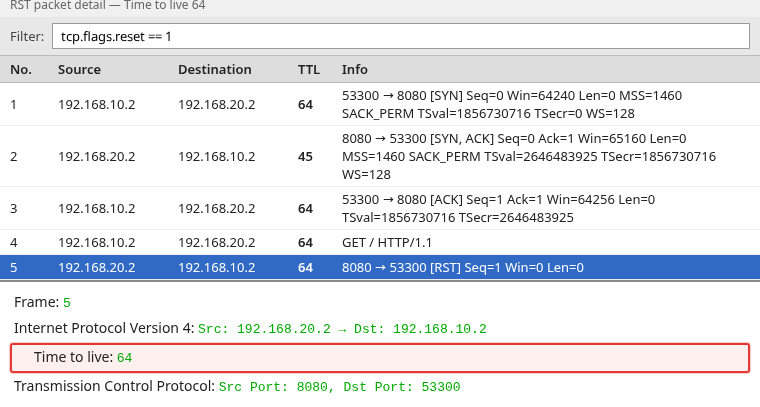
- TCP three-way handshake completes — the server's SYN-ACK reply shows TTL 45
- Client sends
GET / - RST arrives from
192.168.20.2:8080with TTL 64
The RST source IP matches the server, but the TTL does not match the baseline. If this really came from the same server, why did its TTL suddenly jump from 45 to 64? That mismatch is the clue: the reset likely did not follow the same routed path as genuine server replies.
Click the RST packet, expand Internet Protocol Version 4 in the details pane, and read Time to Live:
What the TTL mismatch tells you
Treat the TTL difference as evidence, not a verdict.
| Observation | What it suggests in this lab |
|---|---|
| Server packets stay at TTL 45 | Genuine server traffic has a stable baseline of 45 |
| RST arrives with TTL 64 | The reset did not arrive with the same TTL pattern as normal server traffic and was generated much closer to the capture point |
| Conclusion | In this lab, the intermediate firewall generated the RST rather than the application server |
In a real capture, you usually do not know the sender's initial TTL, so the exact numbers matter less than the change from the established baseline.
Vendor middleboxes (firewalls, IPS, proxies) often inject TCP resets when they block a session. SonicWall and Fortinet document TTL comparison as one way to tell whether a reset came from an intermediate device rather than the remote host.
TTL is one clue, not the only one. If you need stronger evidence, compare the suspicious RST with normal packets for TCP options, timestamps, IP ID behavior, and sequence/acknowledgment consistency, or capture on both sides of the suspected device.
Reproduce the failure (Linux network namespaces)
You do not need to reproduce this lab to use the troubleshooting method; the setup below only explains how the captures used in this article were generated.
The captures come from a three-namespace lab — no GNS3 routers and no hand-edited packet fields in Wireshark:
  client (192.168.10.2)
           |
      [ router / fw ]
           |
server (192.168.20.2)| Namespace | Role | Address |
|---|---|---|
client |
curl capture point | 192.168.10.2/24 |
fw |
IP forwarding; injects RST on HTTP data | 192.168.10.1 / 192.168.20.1 |
server |
Python HTTP on port 8080; ip_default_ttl=46 |
192.168.20.2/24 |
Why TTL 46? The lab deliberately changes the server's initial TTL to 46, so traffic crossing the router arrives at the client with an easy-to-recognize baseline of 45. Real hosts more commonly start at values such as 64, 128, or 255; the exact number is not important.
ip netns exec server sysctl -qw net.ipv4.ip_default_ttl=46On the firewall namespace, nftables injects a TCP reset on established HTTP data from the client:
ip netns exec fw nft add rule ip filter forward ct state established \
  ip saddr 192.168.10.2 tcp dport 8080 tcp flags psh \
  reject with tcp reset
Captures were taken on the client namespace with tcpdump while curl fetched the HTTP page — once before the firewall rule and once after. The screenshots in this article use ttl-baseline-success.pcapng and ttl-rst-firewall.pcapng, with genuine TTL values and no hand-edited fields.
Optional: Verify TTL from TShark
TShark applies the same display filters when you need a quick terminal view of a large PCAP.
List TCP resets with source, destination, and TTL:
tshark -r ttl-rst-firewall.pcapng \
  -Y 'tcp.flags.reset == 1' \
  -T fields \
  -e frame.number \
  -e ip.src \
  -e ip.dst \
  -e ip.ttl
Sample output from the lab RST capture:
5 192.168.20.2 192.168.10.2 64Summarize TTL values grouped by source address:
tshark -r ttl-rst-firewall.pcapng -q -z ip_ttl,treeTShark is included with Wireshark on Windows, Linux, and macOS. For interactive comparison, the Wireshark GUI with a TTL column is usually faster.
When TTL cannot prove the source
TTL comparison is powerful but has limits:
- Different initial TTL defaults — Linux often uses 64; some network gear starts at 255
- Asymmetric routing — forward and return paths may decrement TTL differently
- Tunnels and MPLS — extra encapsulation can change what you observe at the capture point
- TTL modification — some devices rewrite TTL for visibility or policy reasons
- Capture location — a SPAN port or cloud vSwitch may not show the same hop count as the application host
Use TTL together with routing knowledge, TCP retransmission checks, and firewall logs. Treat a large TTL gap as strong evidence that the RST was not generated by the same endpoint under the same path conditions as the normal server traffic — not as automatic proof of a specific vendor or rule.
IPv6 Hop Limit
IPv6 does not have an IPv4 TTL field. The equivalent is Hop Limit:
| Protocol | Wireshark field |
|---|---|
| IPv4 | ip.ttl |
| IPv6 | ipv6.hlim |
Filter IPv6 hop limit with ipv6.hlim. The same baseline-versus-anomaly comparison applies to middlebox resets on IPv6 traffic.
TTL troubleshooting cheat sheet
| Symptom | Filter / column | What to verify |
|---|---|---|
| Unexpected TCP reset | tcp.flags.reset == 1 |
RST TTL vs baseline server TTL |
| Reset claims to be remote server | ip.ttl column |
Large TTL jump on RST alone |
| Need normal reference | ip.src == <server> |
Steady TTL on data packets before the failure |
| Many resets in a big PCAP | TCP Conversation Filter first, then tcp.flags.reset == 1 |
Isolate the failed session before comparing TTL |
| TTL distribution across sources | tshark -z ip_ttl,tree |
TTL counts per source address |
| IPv6 capture | ipv6.hlim column |
Same comparison on hop limit |
Summary
TTL troubleshooting in Wireshark starts with ip.ttl and a TTL column on the packet list. Capture a healthy session first so you know the normal observed TTL for genuine server traffic. When a TCP reset appears, compare its TTL to that baseline.
In the lab, server packets consistently show TTL 45 while the injected RST shows 64 — strong evidence that the RST was not generated by the same endpoint under the same path conditions as the normal server traffic, even though the source IP matches the server. That pattern is common when a firewall or security appliance sends reject with tcp reset on a forwarded flow.
TTL alone cannot name the device, but together with reset filters and a known-good capture it quickly separates remote server behavior from middlebox interference. For more display filters, see the Wireshark tutorial and the IP filters cheat sheet.
References
- Wireshark IPv4 TTL display filter reference
- Wireshark Wiki — TCP
- RFC 791 — Internet Protocol (TTL field)
- Wireshark Q&A — TTL on RST vs normal server traffic
Frequently Asked Questions
What Wireshark filter shows the IPv4 TTL field?
Use ip.ttl in the display filter bar. Right-click Time to Live in the IPv4 detail pane and choose Apply as Column to compare TTL values across packets without opening each frame.
How do I find TCP resets in Wireshark?
Filter with tcp.flags.reset == 1. On a busy capture, isolate the failed connection with Follow TCP Stream or a TCP Conversation Filter first. Add the TTL column and compare each reset to the baseline TTL on normal packets from the same remote IP.
Can TTL prove which firewall sent a reset?
No. TTL shows hop distance from the sender's likely starting value, not the device name. A reset with a very different TTL from normal packets sent by the same apparent endpoint suggests it may have been generated elsewhere on the path, often by a nearby firewall or other middlebox — but you still need routing context and device logs to confirm.
Is DNS TTL the same as IP TTL in Wireshark?
No. DNS record TTL controls resolver cache lifetime. Wireshark shows DNS TTL inside DNS protocol fields. IP hop analysis uses the IPv4 header field ip.ttl (or ipv6.hlim for IPv6).