
| Package | Proxmox VE 9.2-1 (x86_64 ISO) |
|---|---|
| Privilege | root on the Proxmox host; sudo on Kali after the VM is installed |
| Scope | Group 2 hypervisor foundation for the Active Directory lab (GOAD): installer values, storage pools, vmbr0/vmbr1 with bridge-ports none, static addressing, and direct Web UI access from a Windows workstation. Does not cover installing Kali or deploying GOAD. |
This course uses a dedicated bare-metal Proxmox server with separate management and isolated lab bridges. From a Windows workstation on the same network, you open the Proxmox Web UI on the server, then manage VMs and SSH into Kali from there. This article prepares Group 2 — the Proxmox foundation for the Active Directory lab (GOAD). Metasploitable and DVWA belong to the VirtualBox Group 1 lab. The reference build below runs on an HP ProLiant blade; substitute your own addresses and disk sizes — the shape is what matters.
Proxmox lab topology and addressing
The host carries two bridges with different jobs. vmbr0 is bridged to a physical port and carries management traffic: the Proxmox Web UI, SSH, and admin access to Kali. vmbr1 has no bridge ports attached to a physical NIC; Kali's lab NIC and the GOAD Windows VMs attach only to it.
| Piece | This build |
|---|---|
| Hardware | Dual Xeon E5-2620, 128 GiB RAM, 2× 838 GiB HDD |
| Hypervisor | Proxmox VE 9.2-1 (x86_64) |
| Proxmox host | proxmox-lab at 192.168.100.10/24 on vmbr0 |
| Isolated lab | vmbr1 at 10.10.10.1/24 with no physical port |
| Workstation | Windows PC on the same LAN as vmbr0 — Web UI and SSH to Proxmox and Kali |
              [ Windows workstation ]
                        |
                HTTPS :8006 / SSH
                        |
    vmbr0 (management)  192.168.100.0/24
    +--------------------------------------------------+
    |  Proxmox host (192.168.100.10)                   |
    |  Kali eth0 (192.168.100.50 — SSH from Windows)   |
    +--------------------------------------------------+
                        |
    vmbr1 (isolated lab)  10.10.10.0/24 (no physical port)
    +--------------------------------------------------+
    |  Kali eth1 .10  |  GOAD .20-.22 (Windows AD)     |
    +--------------------------------------------------+
Kali is dual-homed so it can be administered from the management side while also reaching GOAD targets on vmbr1. Assign 10.10.10.1/24 to vmbr1 on the Proxmox host so the hypervisor can reach Kali and the GOAD VMs for troubleshooting. VMs on the same /24 reach one another directly at Layer 2 and do not need a default gateway for that traffic.
Static addresses keep the GOAD lab predictable once you start writing target lists and Ansible inventories. Both segments use a /24 mask (255.255.255.0); the table lists host addresses only:
| VM or role | Bridge | IP |
|---|---|---|
| Proxmox host | vmbr0 |
192.168.100.10 |
| Proxmox host | vmbr1 |
10.10.10.1 |
Kali, management (eth0) |
vmbr0 |
192.168.100.50 |
Kali, lab (eth1) |
vmbr1 |
10.10.10.10 |
| GOAD DC01 (kingslanding) | vmbr1 |
10.10.10.20 |
| GOAD DC02 (winterfell) | vmbr1 |
10.10.10.21 |
| GOAD SRV02 (castelblack) | vmbr1 |
10.10.10.22 |
GOAD's own documentation assumes 192.168.56.0/24. Either keep that range on vmbr1 or move everything to 10.10.10.0/24, but decide once and stay with it, because changing subnets after GOAD is provisioned means editing its inventory. Windows domain DNS for GOAD targets is configured when you deploy GOAD — see Deploy GOAD-Light on Proxmox.
Install Proxmox VE on the lab server
Download the Proxmox VE 9.2-1 ISO from the Proxmox download page. For the x86-64 server used in this course, use the standard Proxmox VE 9.2 ISO. Proxmox also publishes an ARM64 build, but it is not the course reference platform. On older server hardware, writing the ISO to USB or booting it over PXE is usually faster than mounting it as virtual media through the out-of-band management controller. If you already run Debian 12 or 13 and need custom partitioning instead of the ISO installer, follow install Proxmox VE on Debian first, then return here for bridges and storage pools.
| Installer screen | Value used here |
|---|---|
| Target disk | First disk for the OS; second disk left unformatted |
| Filesystem | ext4 on spinning disks |
| Hostname | proxmox-lab |
| IP, gateway, DNS | 192.168.100.10/24, gateway 192.168.100.1 |
| Root password | Strong password, used for both the Web UI and SSH |
Leaving the second disk untouched during installation is intentional when you have two disks. Partitioning it afterwards gives you a clean split between VM block storage and bulk files, which the next section shows in the course's example storage layout.
After the first boot, update the installation before you rely on the Web UI for storage or network changes:
apt update
apt dist-upgrade
Then open the Web UI on port 8006 over HTTPS. Accept the self-signed certificate and dismiss the subscription notice on login.
Plan storage pools for VM disks and ISOs
Before you install Kali or deploy GOAD, decide where VM disks and ISO images live:
- VM disks →
local-lvm(or another LVM-thin pool) - ISO images and backups → directory storage (
localon a single-disk install, or a separate pool if you add a second disk)
One physical disk is enough for a lab. A second disk is optional and makes it easier to keep large ISOs and backups away from VM disk growth.
Create opt-store (two-disk course server only)
Skip this subsection on a single-disk Proxmox install — use local for ISO images instead.
On the reference HP ProLiant two-disk host, add a directory storage pool on the second disk:
- Identify the unused disk (example
/dev/sdb— confirm withlsblkbefore you partition or format). - Create one partition and a filesystem, then mount it at
/opt:
parted /dev/sdb --script mklabel gpt mkpart primary ext4 0% 100%
mkfs.ext4 /dev/sdb1
mkdir -p /opt
echo '/dev/sdb1 /opt ext4 defaults 0 2' >> /etc/fstab
mount -a- Register the pool in Proxmox:
pvesm add dir opt-store --path /opt --content iso,vzdump,backup- Confirm it appears in
pvesm statusbefore you upload ISOs or GOAD kits.
On default Proxmox installations, local is directory storage on the root filesystem and commonly stores ISO images. local-lvm is used for VM disks.
opt-store is specific to the two-disk course server described below. On a default single-disk Proxmox installation, use local for ISO images and local-lvm for VM disks.
Example storage layout used for this course
The table matches the tested HP ProLiant host with two disks. Your sizes will differ; follow the roles, not the exact gigabyte counts.
| Pool | Used for |
|---|---|
local-lvm |
VM disks and snapshots |
opt-store (mounted at /opt on the second disk) |
ISO images, vzdump backups, GOAD kit |
Confirm the storage pools you plan to use are active:
pvesm statusName Type Status Total (KiB) Used (KiB) Available (KiB) %
local dir active 98497780 22931112 70517120 23.28%
local-lvm lvmthin active 946864128 0 946864128 0.00%
opt-store dir active 657710244 2104 624224840 0.00%On the reference two-disk host, local-lvm holds VM disks and opt-store holds ISOs. A single-disk install shows local and local-lvm only.
The Storage view under Datacenter should list your active pools with the expected content types:
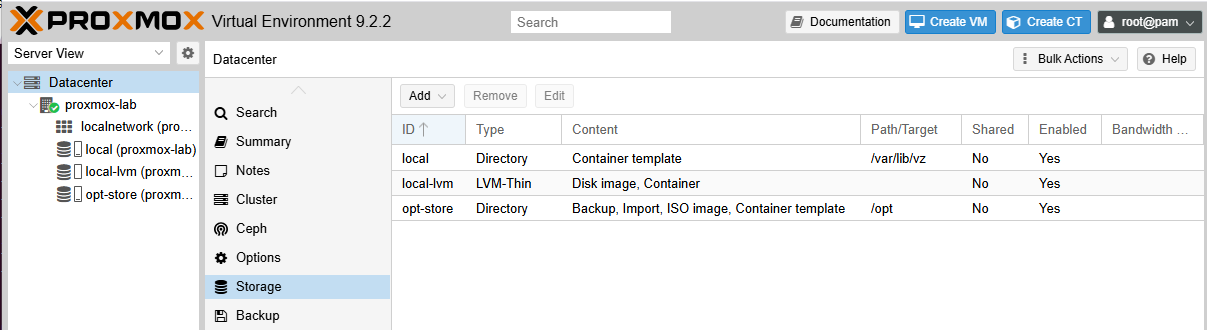
On the course two-disk server, upload installer ISOs to opt-store → ISO Images. On a single-disk install, use local → ISO Images instead.
Create the isolated lab bridge
The installer already created vmbr0 on the physical port and gave it the address you typed during setup:
auto vmbr0
iface vmbr0 inet static
    address 192.168.100.10/24
    gateway 192.168.100.1
    bridge-ports nic0
    bridge-stp off
    bridge-fd 0
The lab bridge uses the same stanza format with one crucial difference: bridge-ports none. That prevents vmbr1 from being directly bridged to a physical NIC and keeps the lab segment Layer-2 isolated from the physical LAN by default. Do not enable IP forwarding, routing, or NAT between vmbr1 and vmbr0 unless a later lab explicitly requires it. Append the stanza to the interfaces file:
cat >> /etc/network/interfaces <<'EOF'

auto vmbr1
iface vmbr1 inet static
    address 10.10.10.1/24
    bridge-ports none
    bridge-stp off
    bridge-fd 0
EOF
Assign 10.10.10.1/24 to vmbr1 for this course. This gives the Proxmox host an address on the isolated lab network so it can reach Kali and the GOAD VMs for troubleshooting. The lab VMs still communicate directly with one another on the same subnet and do not need a default gateway for that traffic.
ifreload applies interface changes without dropping the ones that are already up, which matters when your only access to the box is over vmbr0:
ifreload -aIt prints nothing at all when the configuration parses and applies cleanly. Any output here means a syntax problem worth fixing before you go further.
Now confirm what the kernel actually created, rather than what you asked for:
ip -br alo UNKNOWN 127.0.0.1/8 ::1/128
nic0 UP
nic1 DOWN
vmbr0 UP 192.168.100.10/24 fe80::5054:ff:fe12:3456/64
vmbr1 UNKNOWN 10.10.10.1/24 fe80::a41c:2dff:fe7b:19c2/64Both bridges carry the addresses from the plan. vmbr1 shows UNKNOWN rather than UP, which is normal and not a fault: a bridge with no ports and no attached VMs has no carrier to report yet. The second physical port nic1 stays DOWN because nothing needs it, and leaving it down is one less way to accidentally bridge the lab to a real network.
vmbr1, set IPv4 to 10.10.10.1/24, leave Bridge ports empty, enable Autostart, then apply. Leaving the ports field empty is the equivalent of bridge-ports none.
Connect from your Windows workstation
This course assumes a dedicated Proxmox server on your lab network — the HP ProLiant reference build in the intro, or any spare x86-64 host with enough RAM for GOAD. You manage it directly from Windows when the server is reachable on vmbr0.
- Open
https://192.168.100.10:8006in a browser (substitute your Proxmox management IP). Accept the self-signed certificate and log in asroot. - Use the Proxmox Web UI to upload ISOs, create VMs, open consoles, and take snapshots.
- After Kali is installed with
net0onvmbr0, SSH to192.168.100.50from Windows with PuTTY or OpenSSH — or use the VM console in the Proxmox UI.
Do not run pentest tooling on the Proxmox host. The hypervisor is infrastructure; Kali is the attacker VM.
Verify the Proxmox lab foundation
The foundation is ready when all of the following are true:
- The Proxmox Web UI opens from your Windows workstation.
ip -br ashowsvmbr0with the management address andvmbr1with10.10.10.1/24.vmbr1has no physical bridge port — confirm in/etc/network/interfacesor Node → Network in the Web UI.pvesm statusshows at least one ISO-capable storage pool and one VM-disk storage pool asactive. On the course two-disk server, those areopt-storeandlocal-lvm; on a single-disk install, uselocalandlocal-lvm.
Next, install Kali on local-lvm with dual NICs — see Install Kali Linux on Proxmox. Upload the Kali ISO to your ISO storage (opt-store on the course server, or local on a single-disk install), attach net0 to vmbr0 and net1 to vmbr1, walk through the installer, and snapshot before you install tools. Then deploy GOAD — see Deploy GOAD-Light on Proxmox.
Summary
The core networking decision is bridge-ports none on vmbr1. Keeping vmbr1 free of physical bridge ports provides a separate Layer-2 segment for the GOAD lab. Keep routing and NAT between that bridge and external networks disabled unless a lab explicitly requires it. Assign 10.10.10.1/24 to vmbr1 so the Proxmox host can reach lab VMs for troubleshooting.
For storage, put VM disks on local-lvm and ISO images on directory storage — local on a single-disk install, or opt-store on the course two-disk server.
From Windows, open the Proxmox Web UI on the dedicated server, install Kali, then deploy GOAD. A laptop running VirtualBox remains the right starting point if you do not already have a spare server.
References
- Proxmox VE installation guide
- Proxmox VE network configuration
- Proxmox VE storage documentation
- GOAD-Light lab description
Frequently Asked Questions
Why use a separate internal bridge instead of a VLAN for the lab?
A bridge with no physical ports is not directly connected to the physical LAN at Layer 2. A VLAN still traverses a physical uplink and depends on VLAN configuration on the host and switch. For a deliberately vulnerable lab, an isolated bridge with no bridge ports is simpler to reason about than trusting VLAN tagging alone.
Can I run this lab on a single disk?
Yes. Use local for ISO images and local-lvm for VM disks, and monitor space carefully. A second disk is optional and makes it easier to keep large ISOs and backups away from VM disk growth.
Do I need Proxmox to build a pentest lab?
No. VirtualBox or VMware Workstation on a normal PC runs the same lab topology, and most people should start there. Proxmox earns its place when you have a spare server and want to keep several Windows Active Directory VMs snapshotted and powered off between sessions.
How do I reach the Proxmox Web UI from my PC?
Browse directly to https://<proxmox-ip>:8006 when the server is on your home or lab LAN. Do not port-forward port 8006 to the Internet. Restrict management access to trusted networks and use strong passwords.
