
| Tested on | Proxmox lab — Proxmox VE 9.2 on node proxmox-lab |
|---|---|
| Package | GOAD-Light (main branch snapshot, 28 August 2026)Packer 1.11.2Terraform 1.9.8Python 3.13.5 with ansible-core 2.18.0 |
| Privilege | Root on the Proxmox host for Packer, Terraform, and goad.sh; sudo on Kali for post-install verification scans |
| Scope | Clone GOAD, install Packer and Terraform, build a Windows Server 2019 template, set GOAD-Light IPs to the course lab plan (.20/.21/.22), deploy on vmbr1 with goad.sh, verify the domains from Kali, and snapshot goad-clean. This guide assumes the Proxmox management network has working Internet access during installation and that the GOAD VMs receive temporary outbound access during provisioning. Does not cover individual AD attack walkthroughs. |
| Related guides | Pentest lab requirements |
You already have Proxmox and a Kali attacker VM from Proxmox pentest lab setup and Install Kali Linux on Proxmox. This guide adds GOAD-Light, the Game of Active Directory vulnerable Windows domain used for Kerberoasting, pass-the-hash, BloodHound paths, and lateral movement practice.
GOAD-Light drops the second forest from full GOAD and keeps three Windows Server 2019 nodes: two domain controllers and one member server running IIS and MSSQL. That is one forest with a parent and a child domain, which is enough for most PenTest+ and home-lab AD tracks without running five Windows VMs at once.
GOAD-Light lab and network plan
GOAD-Light is a three-VM Active Directory forest on your isolated vmbr1 bridge. The installer runs in three stages:
- Packer builds one Windows Server 2019 golden template from the evaluation ISO.
- Terraform clones that template into three VMs on
vmbr1. - Ansible promotes the parent and child domains, seeds users, and plants the vulnerable settings you practice against.
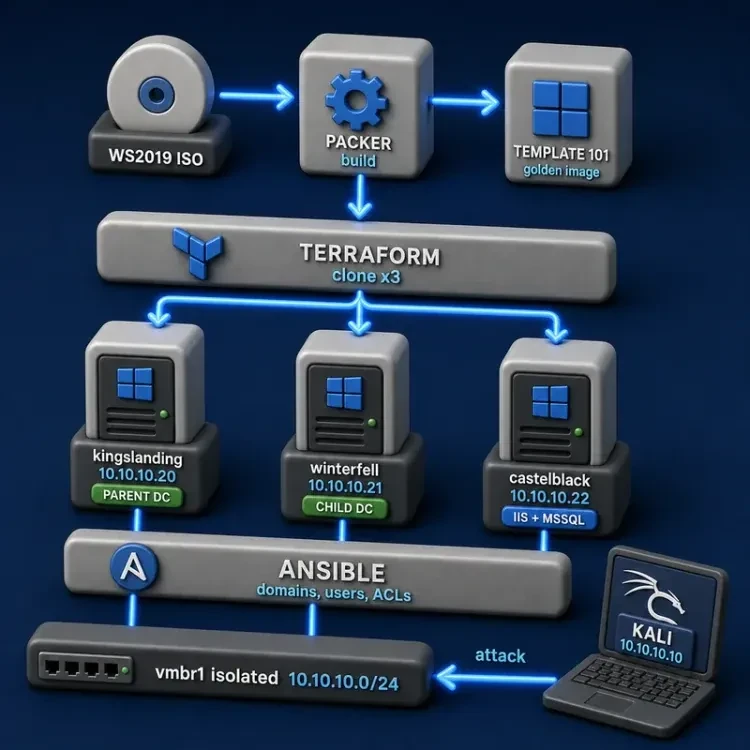
The course uses these addresses on vmbr1 (10.10.10.0/24, mask 255.255.255.0):
| Role | Hostname | IP |
|---|---|---|
Proxmox host (vmbr1) |
— | 10.10.10.1 |
Kali lab NIC (eth1) |
kali | 10.10.10.10 |
| DC01 | kingslanding | 10.10.10.20 |
| DC02 | winterfell | 10.10.10.21 |
| SRV02 | castelblack | 10.10.10.22 |
Kali's management NIC on vmbr0 stays at 192.168.100.50 so your Windows workstation can SSH to Kali while attacks cross eth1 to the GOAD nodes.
GOAD upstream defaults DC01 and DC02 to .10 and .11. This course assigns those roles to .20 and .21 so Kali and the domain controllers never share an address. Edit the provider files before ./goad.sh -t install.
Windows VMs need temporary outbound access during provisioning for package downloads and evaluation activation. vmbr1 is still not bridged to your physical LAN — the course enables NAT and DNS forwarding on 10.10.10.1 only for the install window. See Provide temporary outbound access for provisioning.
If Proxmox, Kali, or vmbr1 are not ready yet, finish Proxmox pentest lab setup and Install Kali Linux on Proxmox first.
GOAD-Light topology
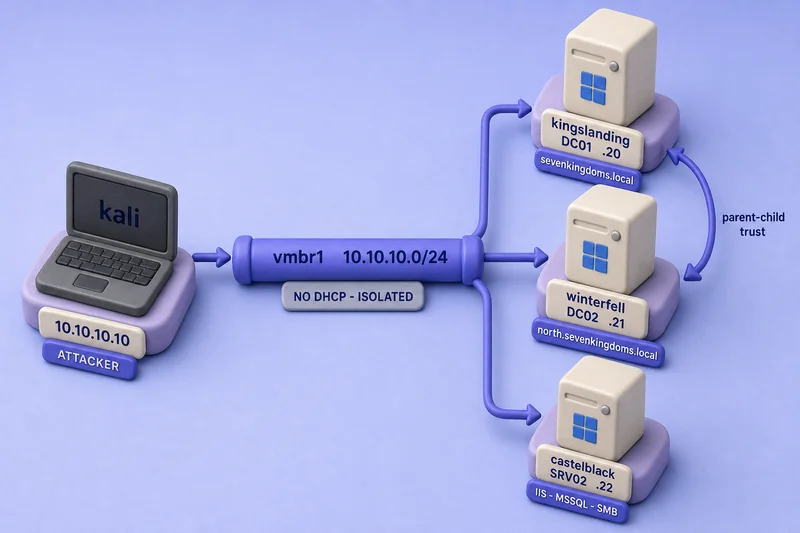
Four VMs share one isolated bridge — Kali plus the three Windows nodes:
Before you start
Confirm Proxmox and Kali are ready
Before you clone GOAD, confirm the foundation from the Proxmox setup guide:
vmbr0carries the management address (192.168.100.10in the course plan).vmbr1exists at10.10.10.1/24with no physical bridge port.- Kali is dual-homed:
192.168.100.50onvmbr0and10.10.10.10onvmbr1. - The host has enough RAM and disk for one Windows template plus three running GOAD VMs (roughly 20 GiB RAM while all three Windows nodes run).
Confirm storage names
GOAD commands reference Proxmox storage pool names. Substitute yours if they differ:
| Purpose | Course build | Default Proxmox |
|---|---|---|
| ISO storage name | opt-store |
local |
| ISO filesystem path | /opt/isos |
/var/lib/vz/template/iso |
| VM disks | local-lvm |
local-lvm |
All commands below use opt-store, local-lvm, and /opt/isos because that matches the tested two-disk course server. If you use default local storage, substitute local for the storage pool name and /var/lib/vz/template/iso for /opt/isos in every copy, symlink, and download path below.
Provide temporary outbound access for provisioning
GOAD's Proxmox provider sets every Windows VM's gateway and DNS to {{ip_range}}.1 — 10.10.10.1 in this course. During ./goad.sh -t install, Ansible pulls packages from the Internet and Windows evaluation media must activate within 10 days. A bridge address alone does not forward traffic or answer DNS.
This course uses temporary NAT and DNS forwarding from 10.10.10.1 during provisioning. vmbr1 is still not bridged to your physical LAN. You allow outbound traffic from the Windows VMs through the Proxmox host so packages and activation can complete. That does not make the GOAD VMs directly reachable from your LAN or the Internet.
Enable IP forwarding and NAT from the lab subnet out through vmbr0:
sysctl -w net.ipv4.ip_forward=1
iptables -t nat -A POSTROUTING -s 10.10.10.0/24 -o vmbr0 -j MASQUERADE
Install and configure a DNS forwarder bound to 10.10.10.1 (example with dnsmasq):
apt install -y dnsmasqAdd a listener on vmbr1 that forwards queries upstream. Create /etc/dnsmasq.d/goad-lab.conf with:
interface=vmbr1
bind-interfaces
listen-address=10.10.10.1
server=192.168.100.1
Replace 192.168.100.1 with a DNS resolver reachable from the Proxmox management network. On many home networks the router provides DNS, which is why the course example uses .1.
Restart dnsmasq. You can run a basic host-side check from the Proxmox host:
systemctl restart dnsmasq
ping -c 2 -I 10.10.10.1 8.8.8.8
That ping confirms the host can send traffic using the 10.10.10.1 source address. It does not prove forwarded VM traffic works. The final test happens when the Windows VMs are created during deployment. If they cannot resolve names or download packages, use the troubleshooting entry below.
Keep temporary outbound access enabled until GOAD-Light provisioning completes and Windows Server evaluation activation succeeds. Once the lab is fully provisioned, the domain controllers provide Active Directory DNS internally. If later exercises do not require Internet access, you can remove the temporary NAT rule and dnsmasq listener to return vmbr1 to an isolated lab network.
Download required: Windows Server 2019 Evaluation ISO
GOAD-Light needs only Windows Server 2019 evaluation media. You do not need Windows 10, Server 2016, or Server 2022 ISOs for this lab. Download one evaluation ISO from the Microsoft Evaluation Center before you start Packer.
Prepare the GOAD provisioning environment
Everything in this section runs on the Proxmox VE host. Connect as root, install packages, clone GOAD, install Packer and Terraform, create the API user and resource pool, and let goad.sh create the Python environment it uses for Ansible.
Connect to the Proxmox host:
ssh root@192.168.100.10Confirm the node name matches what you will put in goad.ini and the Packer variables:
hostnameproxmox-labCreate a directory for build and install logs:
mkdir -p /opt/goad-depsInstall required packages
GOAD ships a scripts/setup_proxmox.sh helper, but do not run it for this course. Let goad.sh create the Python virtual environment under /root/.goad/.venv that the install commands use.
Install the host packages the Packer and ISO steps need before you clone GOAD. Proxmox VE 9 is Debian 13 (trixie), where there is no mkisofs package: the mkisofs binary that build_proxmox_iso.sh calls ships inside genisoimage.
apt update
apt install -y git curl unzip genisoimage sshpass python3-venv
Clone GOAD
GOAD ships as a Git repository with the Packer templates, Terraform providers, and Ansible roles the installer drives. Clone it into /opt/GOAD:
git clone https://github.com/Orange-Cyberdefense/GOAD.git /opt/GOADList the top-level tree to confirm the clone landed:
ls /opt/GOADad
ansible
Dockerfile
docs
extensions
globalsettings.ini
goad
goad_docker.sh
goad.py
goad.sh
guacamole.ymlYou should see goad.sh, globalsettings.ini, and the ad, ansible, and packer directories. Those are the pieces the rest of this guide edits and runs.
Record the commit you cloned. This guide edits upstream files such as packer.json.pkr.hcl, windows.tf, and the Proxmox inventory, and those files change over time, so the hash tells you which revision your notes describe:
git -C /opt/GOAD rev-parse --short HEADKeep that short hash with your lab notes so you know which upstream revision your edits describe.
Install Packer and Terraform
Install Packer and Terraform from the official HashiCorp release archives into /usr/local/bin. These are the versions used for the tested build. Newer versions may change output or provider behavior:
curl -fsSLo /tmp/packer.zip https://releases.hashicorp.com/packer/1.11.2/packer_1.11.2_linux_amd64.zip
curl -fsSLo /tmp/terraform.zip https://releases.hashicorp.com/terraform/1.9.8/terraform_1.9.8_linux_amd64.zip
unzip -o /tmp/packer.zip -d /usr/local/bin
unzip -o /tmp/terraform.zip -d /usr/local/bin
Confirm where both binaries landed:
command -v packer/usr/local/bin/packerCheck Terraform the same way:
command -v terraform/usr/local/bin/terraformCheck the version Packer reports:
packer versionPacker v1.11.2Terraform prints its version and platform:
terraform versionTerraform v1.9.8
on linux_amd64If either command is not found, your PATH is missing /usr/local/bin or the download did not complete.
Initialize the GOAD Python environment
goad.sh runs Ansible from a Python virtual environment under /root/.goad/.venv. The launcher creates and populates it on first run. Move into the repository first:
cd /opt/GOADStart the launcher, which creates the venv and installs ansible-core plus the Python dependencies:
./goad.shConfirm the interpreter and pip from inside the venv:
/root/.goad/.venv/bin/python -m pip --versionpip 26.2.1 from /root/.goad/.venv/lib/python3.13/site-packages/pip (python 3.13)Type exit to leave the GOAD console for now. You come back to it after the template exists and the configuration is in place.
Create the Proxmox API user
You can point GOAD at root@pam, but a dedicated user keeps the lab credentials out of your root login. Create a packer user in the pve realm with a password you will reuse in goad.ini:
pveum user add packer@pve --password '<PACKER_PASSWORD>'Packer, Terraform, and Ansible all touch VMs, storage, pools, and the datastore, so grant the user the Administrator role on the root path:
pveum acl modify / --user packer@pve --role AdministratorConfirm the grant landed before you rely on it:
pveum acl list┌────────────┬───────────────┬──────┬────────────┬───────────┐
│ path │ roleid │ type │ ugid │ propagate │
╞════════════╪═══════════════╪══════╪════════════╪═══════════╡
│ / │ Administrator │ user │ packer@pve │ 1 │
└────────────┴───────────────┴──────┴────────────┴───────────┘Keep the password handy. It goes into both the Packer variables and goad.ini, and Terraform reads it when it clones the VMs.
Create the GOAD resource pool
A resource pool keeps the lab VMs grouped in the Web UI and matches the pm_pool value you set in goad.ini. Create a pool named GOAD:
pvesh create /pools --poolid GOADList pools to confirm it exists:
pvesh get /pools --output-format json[{"poolid":"GOAD"}]An empty list means the pool was not created, so rerun the create command before Packer or Terraform run. The template VM and the three lab VMs all land inside this pool.
Checkpoint before continuing
Before you download ISOs or run Packer, confirm:
packer versionandterraform versionprint the expected releases.vmbr1exists at10.10.10.1/24.- The
packer@pveAPI user can authenticate (the ACL list showsAdministratoron/). - Your ISO storage name (
opt-storeor your substitute) and VM disk pool (local-lvm) match what you will put in Packer andgoad.ini. - The ISO storage pool has enough free space for the Windows eval ISO plus helper images.
- NAT and DNS forwarding on
10.10.10.1are in place if you followed the course outbound path.
Prepare Windows Server 2019
GOAD-Light needs only Windows Server 2019 evaluation media. All three VMs are Server 2019. You supply the ISO, then add the autounattend ISO, Cloudbase-init, and VirtIO drivers Packer attaches during install.
Download and upload the Windows Server 2019 evaluation ISO
Neither GOAD nor Packer downloads Windows for you, so the file has to sit in your Proxmox ISO pool before the build starts. Download it through a browser on any machine with Internet access:
- Open the Microsoft Evaluation Center.
- Complete Microsoft's registration and download flow in a browser.
- Choose Windows Server 2019 | 64-bit ISO and save it. On this build the file downloaded as
17763.3650.221105-1748.rs5_release_svc_refresh_SERVER_EVAL_x64FRE_en-us.iso.
Copy the downloaded ISO into the Proxmox ISO directory (/opt/isos on this build):
scp 17763.3650.221105-1748.rs5_release_svc_refresh_SERVER_EVAL_x64FRE_en-us.iso root@192.168.100.10:/opt/isos/For a multi-gigabyte ISO the Proxmox Web UI is often easier than scp: open your ISO storage pool → ISO Images → Upload and pick the file.
Confirm the ISO landed in your ISO directory:
ls -lh /opt/isos/17763.3650.221105-1748.rs5_release_svc_refresh_SERVER_EVAL_x64FRE_en-us.isoAdd the expected ISO filename/symlink
Packer reads the ISO by the file name set in windows_server2019_proxmox_cloudinit.pkvars.hcl, which is the short GOAD name, not the long Microsoft build name. Add a symlink so both names point at the same file:
ln -sf /opt/isos/17763.3650.221105-1748.rs5_release_svc_refresh_SERVER_EVAL_x64FRE_en-us.iso /opt/isos/windows_server2019_x64FREE_en-us.isoVerify the symlink Packer will read:
ls -lh /opt/isos/windows_server2019_x64FREE_en-us.isolrwxrwxrwx 1 root root 85 Aug 28 11:42 /opt/isos/windows_server2019_x64FREE_en-us.iso -> /opt/isos/17763.3650.221105-1748.rs5_release_svc_refresh_SERVER_EVAL_x64FRE_en-us.isoIn the Packer variables you will reference opt-store:iso/windows_server2019_x64FREE_en-us.iso. Substitute your ISO storage pool name if you use local instead of opt-store.
Prepare Cloudbase-init, unattended setup, and VirtIO
Cloudbase-init applies the IP and hostname at clone time, and the autounattend ISO answers the Windows setup prompts. Download Cloudbase-init on a machine with Internet access and place the MSI here:
/opt/GOAD/packer/proxmox/scripts/sysprep/CloudbaseInitSetup_Stable_x64.msiConfirm the MSI is the full download and not a truncated few-kilobyte file:
ls -lh /opt/GOAD/packer/proxmox/scripts/sysprep/CloudbaseInitSetup_Stable_x64.msi-rw-r--r-- 1 root root 62M Aug 28 11:42 /opt/GOAD/packer/proxmox/scripts/sysprep/CloudbaseInitSetup_Stable_x64.msiMove into the Packer directory:
cd /opt/GOAD/packer/proxmoxRun the ISO builder, which wraps the unattended answer files into small ISOs Packer attaches during install:
bash ./build_proxmox_iso.shThe script updates the checksums in the .pkvars.hcl files and prints genisoimage warnings for long file names, which are safe to ignore. The Server 2019 lines you care about look like this:
[+] Build iso winserver2019 with cloudinit
Warning: Creating ISO-9660:1999 (version 2) filesystem.
Warning: ISO-9660 filenames longer than 31 may cause buffer overflows in the OS.
Total translation table size: 0
Total rockridge attributes bytes: 257
Total directory bytes: 376
Path table size(bytes): 10
Max brk space used 0
192 extents written (0 MB)
[+] update windows_server2019_proxmox_cloudinit.pkvars.hcl
The builder also tries Windows 10, Server 2016, and Windows 11 answer files. For GOAD-Light, only confirm that Autounattend_winserver2019_cloudinit.iso was created. Errors related only to unused Windows 10/11 answer files do not block this build.
Confirm the 2019 autounattend image exists:
ls -lh /opt/GOAD/packer/proxmox/iso/Autounattend_winserver2019_cloudinit.iso-rw-r--r-- 1 root root 384K Aug 28 11:42 /opt/GOAD/packer/proxmox/iso/Autounattend_winserver2019_cloudinit.isobuild_proxmox_iso.sh also creates scripts_withcloudinit.iso under the Packer tree, but Packer reads it from Proxmox ISO storage. Upstream packer.json.pkr.hcl also expects virtio-win.iso there. Copy the scripts ISO into your ISO directory:
cp /opt/GOAD/packer/proxmox/iso/scripts_withcloudinit.iso /opt/isos/Download the current stable VirtIO driver ISO into the same directory:
curl -L -o /opt/isos/virtio-win.iso https://fedorapeople.org/groups/virt/virtio-win/direct-downloads/stable-virtio/virtio-win.isoConfirm both files are present before you edit Packer:
ls -lh /opt/isos/scripts_withcloudinit.iso /opt/isos/virtio-win.isoYou will point packer.json.pkr.hcl at opt-store:iso/... for these two files in the next section.
Build the Windows Server template
Packer boots the ISO, runs the unattended install, applies Cloudbase-init, syspreps the disk, and converts the result into a reusable template. A fresh GOAD clone also needs a network edit in packer.json.pkr.hcl that is easy to miss.
Timing on this lab: the Packer build ran for 46 minutes. Budget 45 to 90 minutes depending on your disk and CPU.
Configure Packer variables
Move into the Packer directory:
cd /opt/GOAD/packer/proxmoxCopy the Packer variables template so you can edit your own copy:
cp config.auto.pkrvars.hcl.template config.auto.pkrvars.hclEdit config.auto.pkrvars.hcl to match this build, using the packer@pve user and password you created earlier:
proxmox_url              = "https://192.168.100.10:8006/api2/json"
proxmox_username         = "packer@pve"
proxmox_password         = "<PACKER_PASSWORD>"
proxmox_skip_tls_verify  = "true"
proxmox_node             = "proxmox-lab"
proxmox_pool             = "GOAD"
proxmox_iso_storage      = "opt-store"
proxmox_vm_storage       = "local-lvm"
Point the ISO path at opt-store in windows_server2019_proxmox_cloudinit.pkvars.hcl:
iso_file = "opt-store:iso/windows_server2019_x64FREE_en-us.iso"Point Packer at vmbr1 and your ISO storage
A fresh GOAD clone needs three edits in packer.json.pkr.hcl before packer init: the lab bridge, and the two helper ISO paths.
Network. Upstream hardcodes the throwaway build VM onto vmbr3 with VLAN tag 10:
network_adapters {
  bridge   = "vmbr3"
  model    = "virtio"
  vlan_tag = "10"
}
Your pm_network_bridge = vmbr1 and pm_vlan = 0 settings in goad.ini apply to the Terraform-created GOAD VMs, not to this Packer build VM. Change the block to your lab bridge and drop vlan_tag for an untagged vmbr1:
network_adapters {
  bridge = "vmbr1"
  model  = "virtio"
}
Helper ISOs. Upstream also hardcodes local:iso/virtio-win.iso and local:iso/scripts_withcloudinit.iso. Point both at opt-store, where you placed the files in the previous section:
iso_file = "opt-store:iso/virtio-win.iso"iso_file = "opt-store:iso/scripts_withcloudinit.iso"Substitute your ISO storage pool name in both helper ISO paths if you use local instead of opt-store.
Validate the Packer configuration
Initialize the Packer plugins for the Proxmox builder:
packer init .Validate the Server 2019 template definition before you spend an hour on a build:
packer validate -var-file=config.auto.pkrvars.hcl -var-file=windows_server2019_proxmox_cloudinit.pkvars.hcl .Before continuing, confirm:
- The Windows Server 2019 ISO and symlink exist in your ISO storage pool.
virtio-win.isoandscripts_withcloudinit.isoare in the same pool.Autounattend_winserver2019_cloudinit.isowas built successfully.vmbr1exists at10.10.10.1/24.packer.json.pkr.hclpoints the build VM atvmbr1with your ISO storage paths.- The
packer@pvecredentials inconfig.auto.pkrvars.hclmatch the API user you created.
Run the template build
Start the build, which takes roughly 45 to 90 minutes. Tee the output to a log so you can watch it and keep a record:
packer build -var-file=config.auto.pkrvars.hcl -var-file=windows_server2019_proxmox_cloudinit.pkvars.hcl . 2>&1 | tee /opt/goad-deps/packer-build.logEarly in the run Packer creates a throwaway VM, starts it, and waits for WinRM:
==> proxmox-iso.windows: Creating VM
==> proxmox-iso.windows: No VM ID given, getting next free from Proxmox
==> proxmox-iso.windows: Starting VM
==> proxmox-iso.windows: Waiting for WinRM to become available...
In the Proxmox Web UI you should see that VM appear (VMID 101 here) under the GOAD pool while the build runs.
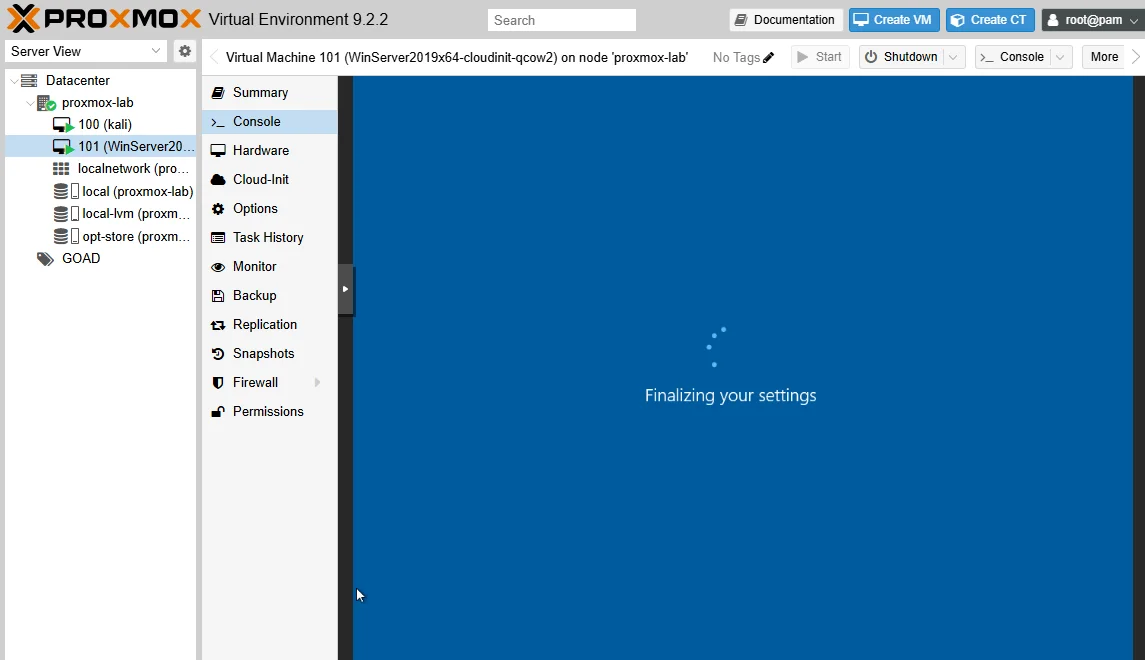
The console shows the Windows Server desktop once the unattended install finishes. If the build continues on its own, skip to Confirm the template was created.
Because this course keeps DHCP disabled on vmbr1, the temporary Packer VM may stop at Waiting for WinRM to become available.... If that happens after the Windows desktop appears, assign the temporary 10.10.10.50 address using Packer stuck waiting for WinRM. This is expected with the DHCP-less course network and does not mean the Windows installation failed.
Confirm the template was created
The tee command already shows Packer progress in the current terminal. To watch the same log from another session, open a second SSH connection to the Proxmox host and run:
tail -f /opt/goad-deps/packer-build.log==> proxmox-iso.windows: Stopping VM
==> proxmox-iso.windows: Converting VM to template
Build 'proxmox-iso.windows' finished after 46 minutes 9 seconds.In this lab the template was:
- Name:
WinServer2019x64-cloudinit-qcow2 - VMID:
101 - State: stopped, marked as a template in the Proxmox UI
That is the only VM you should see right after Packer, and it is a golden image, not the GOAD lab. The install step clones it into three separate VMs, each with its own IP and Active Directory role. Note the VMID, since goad.ini maps it next.
Configure GOAD-Light
With the template built, edit goad.ini and the GOAD-Light provider files so Terraform and Ansible land the three nodes on .20, .21, and .22.
Configure goad.ini
On its first run, GOAD creates ~/.goad/goad.ini. Edit the default, proxmox, and template blocks so they match this build:
[default]
lab = GOAD-Light
provider = proxmox
provisioner = local
ip_range = 10.10.10

[proxmox]
pm_api_url = https://192.168.100.10:8006/api2/json
pm_user = packer@pve
pm_pass = <PACKER_PASSWORD>
pm_node = proxmox-lab
pm_pool = GOAD
pm_full_clone = false
pm_storage = local-lvm
pm_vlan = 0
pm_network_bridge = vmbr1
pm_network_model = virtio

[proxmox_templates_id]
winserver2019_x64 = 101
A few of these values trip people up, so check them against your build:
pm_vlan = 0means untagged. Leaving it blank causes a Terraform variable error on some GOAD revisions, so set it to0for a flat bridge with no VLAN tag.winserver2019_x64under[proxmox_templates_id]maps GOAD's template name to a VMID. Set it to the VMID Packer created (101here). GOAD reads this key through Python's ConfigParser, so the exact case does not matter.pm_userandpm_passare thepacker@pvecredentials from earlier, not your root login.
Save the file. GOAD reads it when you run the check and install tasks.
Change the GOAD-Light IP addresses
Before ./goad.sh -t install, point kingslanding and winterfell at .20 and .21. GOAD upstream defaults those roles to .10 and .11, which is where Kali sits in this course.
Edit both files below. Terraform reads windows.tf; Ansible reads providers/proxmox/inventory.
In ad/GOAD-Light/providers/proxmox/windows.tf, set the DC IPs:
"dc01" = {
  ...
  dns     = "{{ip_range}}.1"
  ip      = "{{ip_range}}.20/24"
  gateway = "{{ip_range}}.1"
}
"dc02" = {
  ...
  dns     = "{{ip_range}}.1"
  ip      = "{{ip_range}}.21/24"
  gateway = "{{ip_range}}.1"
}
Match the Ansible hosts in ad/GOAD-Light/providers/proxmox/inventory:
dc01 ansible_host={{ip_range}}.20 dns_domain=dc01 dict_key=dc01
dc02 ansible_host={{ip_range}}.21 dns_domain=dc01 dict_key=dc02
srv02 ansible_host={{ip_range}}.22 dns_domain=dc02 dict_key=srv02
Leave castelblack at .22. With ip_range = 10.10.10 in goad.ini, the three GOAD nodes land at .20, .21, and .22 on vmbr1.
Confirm template VMID, bridge, storage, and VLAN settings
Double-check these values in ~/.goad/goad.ini before you deploy:
winserver2019_x64under[proxmox_templates_id]matches the VMID Packer created (101here).pm_network_bridge = vmbr1andpm_vlan = 0for an untagged lab bridge.pm_storage = local-lvm(or your VM disk pool name).pm_userandpm_passare thepacker@pvecredentials, not your root login.
Deploy GOAD-Light
The install runs Terraform first to clone the template, then Ansible to build the domains. Budget several hours for the Ansible phase.
Timing on the tested build: on the HDD-based course server, Terraform took about 2 minutes and Ansible took about 6 hours. Faster SSD or NVMe hosts may complete substantially sooner.
Run the preflight check
Move into the GOAD repository root before you run the check:
cd /opt/GOADRun the preflight check for the Proxmox provider:
./goad.sh -t check -l GOAD-Light -p proxmox -ip 10.10.10The check prints the GOAD banner, confirms Terraform and Ansible are on the path, and reports the Ansible collections:
    Game Of Active Directory
      Pwning is coming

[+] terraform found in PATH
[+] ansible-playbook found in PATH
[+] Ansible galaxy collection ansible.windows is installed
[+] Ansible galaxy collection community.general is installed
[+] Ansible galaxy collection community.windows is installed
That preflight verifies local tooling only. It does not log in to Proxmox, confirm the template VMID, validate the bridge, or test storage pools. Fix anything the check flags before you install.
Start the deployment
Before continuing, confirm:
- The Packer template exists and its VMID matches
goad.ini. - DC01/DC02 edits to
.20/.21are saved in bothwindows.tfandinventory. pm_network_bridge = vmbr1andpm_vlan = 0.- Windows VMs will have outbound access through
10.10.10.1during provisioning. - The host still has enough RAM and disk for three running Windows nodes.
When the check is clean, start the full deploy and tee it to a log you can follow:
./goad.sh -t install -l GOAD-Light -p proxmox -ip 10.10.10 2>&1 | tee /opt/goad-deps/goad-install.logWhat Terraform does
The install runs Terraform first. Terraform clones the template into three VMs in about two minutes:
Plan: 3 to add, 0 to change, 0 to destroy.
proxmox_virtual_environment_vm.bgp["dc01"]: Creation complete after 1m55s [id=102]
proxmox_virtual_environment_vm.bgp["dc02"]: Creation complete after 1m55s [id=103]
proxmox_virtual_environment_vm.bgp["srv02"]: Creation complete after 1m56s [id=104]
Apply complete! Resources: 3 added, 0 changed, 0 destroyed.
Before you wait on the long Ansible phase, open one GOAD VM console in Proxmox and confirm it received the expected static address, gateway 10.10.10.1, and DNS 10.10.10.1. From an elevated Command Prompt on that VM, run ipconfig /all and nslookup www.microsoft.com. If outbound connectivity fails, fix Provide temporary outbound access for provisioning before troubleshooting individual Ansible roles.
What Ansible does
Ansible then takes over the slow work: promoting the parent and child domains, seeding users and groups, planting vulnerable ACLs, and installing IIS and MSSQL on castelblack. The tee command already shows install progress in the current terminal. To watch the same log from another session, open a second SSH connection to the Proxmox host and run:
tail -f /opt/goad-deps/goad-install.logOn the tested HDD-based server, Ansible ran for about six hours and ended with a clean recap:
PLAY RECAP *********************************************************************
dc01                       : ok=18   changed=5    unreachable=0    failed=0    skipped=2    rescued=0    ignored=0
dc02                       : ok=33   changed=14   unreachable=0    failed=0    skipped=6    rescued=0    ignored=0
srv02                      : ok=18   changed=10   unreachable=0    failed=0    skipped=1    rescued=0    ignored=0

[*] Lab successfully provisioned in 06:05:12
How to identify a successful deployment
failed=0 on all three hosts is the signal that the domains, users, and services are in place. In the Proxmox UI you now have the template plus three running VMs under the GOAD pool.
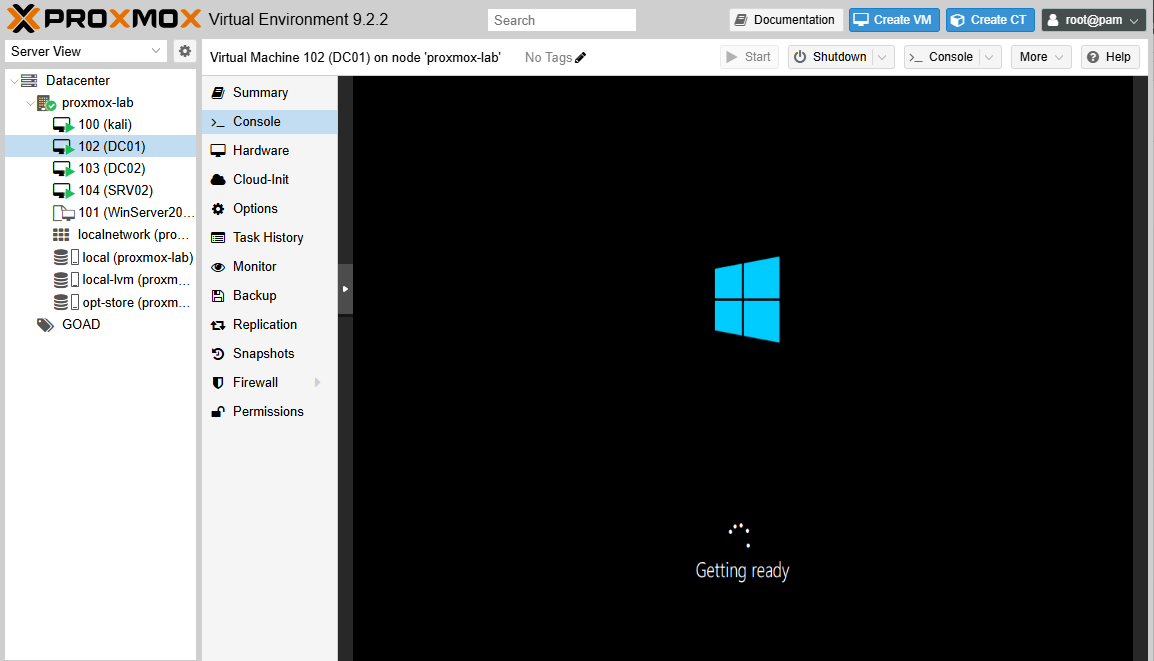
The left tree shows the finished lab: Kali (100), the template (101), and the three GOAD nodes DC01 (102), DC02 (103), and SRV02 (104).
/opt/GOAD/workspace/, and you can resume Ansible only against that instance with ./goad.sh -t install -a 1 -i <instance-id> (for example be8dea-goad-light-proxmox). List the workspace directory to find your instance ID.
Verify GOAD-Light from Kali
The lab is only useful if Kali can reach the GOAD nodes on vmbr1. SSH to Kali through its management address on vmbr0, then run the checks below from inside Kali.
Connect to Kali through its management IP
From your Windows workstation or any host on the management network:
ssh kali@192.168.100.50Confirm the lab interface
Confirm Kali has both a management address and the lab address on vmbr1:
ip -4 addr show2: eth0: <BROADCAST,MULTICAST,UP,LOWER_UP> ...
inet 192.168.100.50/24 brd 192.168.100.255 scope global noprefixroute eth0
3: eth1: <BROADCAST,MULTICAST,UP,LOWER_UP> ...
inet 10.10.10.10/24 brd 10.10.10.255 scope global noprefixroute eth1eth1 holds 10.10.10.10, which is the interface that talks to the GOAD nodes.
Ping the three GOAD nodes
Send each node a couple of packets with the ping command to confirm layer-3 reachability:
ping -c 2 10.10.10.2064 bytes from 10.10.10.20: icmp_seq=1 ttl=128 time=0.516 ms
64 bytes from 10.10.10.20: icmp_seq=2 ttl=128 time=0.255 msA TTL around 128 is consistent with a Windows host on the local segment. Repeat for .21 and .22.
Resolve the parent and child domains
Active Directory lives on DNS, so the real test is whether the domain controllers answer name queries. Resolve the root domain through kingslanding:
nslookup sevenkingdoms.local 10.10.10.20Server: 10.10.10.20
Address: 10.10.10.20#53
Name: sevenkingdoms.local
Address: 10.10.10.20Resolve the child domain through winterfell:
nslookup north.sevenkingdoms.local 10.10.10.21Server: 10.10.10.21
Address: 10.10.10.21#53
Name: north.sevenkingdoms.local
Address: 10.10.10.21Both DCs answer for their own zones, which confirms the forest and its child domain came up.
Check essential AD ports
A quick port scan confirms the domain services are listening. Scan the classic AD ports across all three nodes:
nmap -Pn -n --open -p 53,88,135,139,389,445,464,636,1433,3268,3389,5985 10.10.10.20-22Sample output below, shortened. DC02 is omitted because its open AD ports match DC01; castelblack is included to show MSSQL on 1433:
Nmap scan report for 10.10.10.20
PORT     STATE SERVICE
53/tcp   open  domain
88/tcp   open  kerberos-sec
135/tcp  open  msrpc
139/tcp  open  netbios-ssn
389/tcp  open  ldap
445/tcp  open  microsoft-ds
464/tcp  open  kpasswd5
636/tcp  open  ldapssl
3268/tcp open  globalcatLDAP
3389/tcp open  ms-wbt-server
5985/tcp open  wsman

Nmap scan report for 10.10.10.22
PORT     STATE SERVICE
135/tcp  open  msrpc
139/tcp  open  netbios-ssn
445/tcp  open  microsoft-ds
1433/tcp open  ms-sql-s
3389/tcp open  ms-wbt-server
5985/tcp open  wsman
The two DCs expose DNS, Kerberos, LDAP, and the global catalog. Castelblack exposes MSSQL on 1433, which is the service you abuse in the MSSQL labs. When ping, DNS, and the port scan succeed, the lab is live and ready for attacks.
Verify host/domain names with NetExec (optional)
If nxc is installed on Kali, netexec (formerly CrackMapExec) reads the SMB banner from all three hosts in one pass:
nxc smb 10.10.10.20 10.10.10.21 10.10.10.22SMB 10.10.10.22 445 CASTELBLACK [*] Windows 10 / Server 2019 Build 17763 x64 (name:CASTELBLACK) (domain:north.sevenkingdoms.local) (signing:False) (SMBv1:None)
SMB 10.10.10.21 445 WINTERFELL [*] Windows 10 / Server 2019 Build 17763 x64 (name:WINTERFELL) (domain:north.sevenkingdoms.local) (signing:True) (SMBv1:None) (Null Auth:True)
SMB 10.10.10.20 445 KINGSLANDING [*] Windows 10 / Server 2019 Build 17763 x64 (name:KINGSLANDING) (domain:sevenkingdoms.local) (signing:True) (SMBv1:None) (Null Auth:True)If nxc is not installed, skip this optional check. The ping, DNS, and Nmap checks above are enough to confirm the deployment.
Snapshot the clean GOAD-Light lab
Before you run password attacks, ACL changes, lateral movement, or GPO work, snapshot all three GOAD VMs so you can roll back to a clean forest in seconds. Take the snapshots from the Proxmox host, not from Kali.
Use the VMIDs Terraform created on your server. The tested build used 102, 103, and 104:
qm snapshot 102 goad-clean --description "Clean GOAD-Light state after successful provisioning"
qm snapshot 103 goad-clean --description "Clean GOAD-Light state after successful provisioning"
qm snapshot 104 goad-clean --description "Clean GOAD-Light state after successful provisioning"
Confirm the snapshot exists on each VM:
qm listsnapshot 102`-> goad-clean 2026-08-28 22:10:59 Clean GOAD-Light state after successful provisioning
`-> current You are here!Restore all three GOAD VMs to the matching goad-clean snapshots when an exercise changes lab state you want to undo, such as resetting passwords, modifying group membership or ACLs, altering GPOs, or adding persistence. When resetting the forest, restore all three GOAD VMs together rather than restoring only one domain controller.
Activities that do not modify lab state, such as requesting service tickets for Kerberoasting, normally do not require a snapshot rollback.
Troubleshooting GOAD-Light on Proxmox
Most first-run failures fall into a handful of buckets. Match the symptom, apply the fix, and rerun the check or install task.
| Symptom | Likely cause | Fix |
|---|---|---|
| Packer never reaches WinRM and no build VM boots correctly | packer.json.pkr.hcl still points the build VM at vmbr3 / VLAN 10, or helper ISOs are missing |
Point Packer at vmbr1 and confirm the helper ISOs exist in your configured ISO storage |
Packer hangs on Waiting for WinRM to become available... |
vmbr1 has no DHCP, so the temporary Windows build VM received an APIPA 169.254.x.x address |
Assign the temporary 10.10.10.50/24 address from the Windows console as described below |
| Template not found during GOAD installation | winserver2019_x64 in goad.ini does not match the Packer template VMID |
Set it to the VMID created by Packer |
Terraform tries to assign 10.10.10.10 to a domain controller |
GOAD's default DC addresses were not changed | Set DC01/DC02 to .20/.21 in both providers/proxmox/windows.tf and providers/proxmox/inventory |
Terraform reports an error for pm_vlan |
pm_vlan is empty |
Set pm_vlan = 0 for the untagged vmbr1 bridge |
| GOAD VMs cannot resolve names or reach the Internet during provisioning | Temporary NAT or DNS forwarding through 10.10.10.1 is missing or incorrect |
Verify IP forwarding, the MASQUERADE rule, dnsmasq, and the upstream DNS server before continuing with Ansible |
Packer stuck waiting for WinRM
On this course network, a WinRM stall after the Windows desktop appears is the normal outcome when vmbr1 has no DHCP. Windows falls back to an APIPA address (169.254.x.x) instead of a routable 10.10.10.x address, and Packer cannot reach WinRM over that link-local address from the Proxmox host.
Open the VM console in Proxmox, sign in as vagrant if prompted, and run ipconfig. The screenshot below shows the tell-tale 169.254.x.x autoconfiguration address with no default gateway:
Pick any free address on 10.10.10.0/24 that does not collide with Kali (.10) or the GOAD IPs you plan to use. This lab used 10.10.10.50. Set it from an elevated Command Prompt:
netsh interface ip set address name="Ethernet" static 10.10.10.50 255.255.255.0If netsh returns a syntax error, set the same address through the GUI instead:
- Press Win+R, type
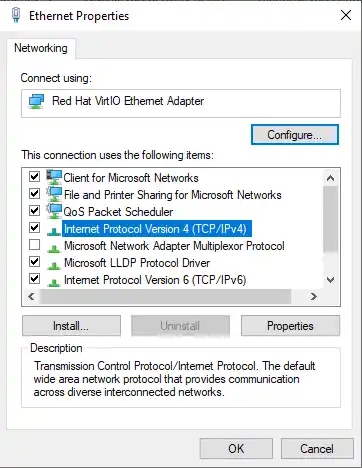
ncpa.cpl, and press Enter. - Right-click Ethernet, choose Properties.
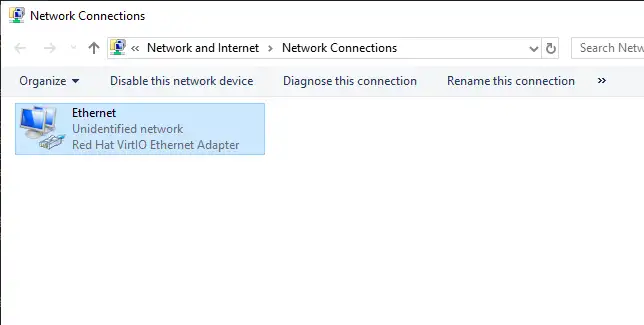
- Select Internet Protocol Version 4 (TCP/IPv4), choose Properties.
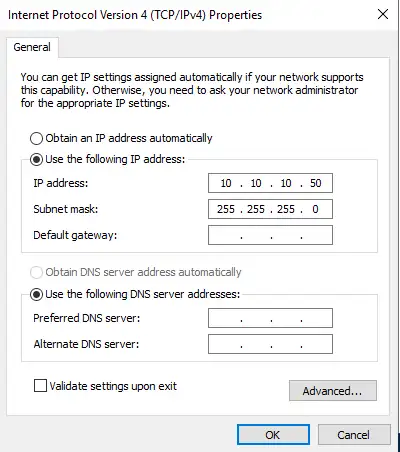
- Choose Use the following IP address and enter
10.10.10.50with subnet mask255.255.255.0. - Leave the default gateway blank on this isolated bridge, then click OK on both dialogs.
Run ipconfig again to confirm the static address took effect:
Within a couple of minutes the Packer log moves past WinRM and continues with Cloudbase-init, sysprep, shutdown, and template conversion.
Summary
GOAD-Light on Proxmox is a three-stage pipeline. Packer builds one Windows Server 2019 template, Terraform clones it into three VMs on vmbr1, and Ansible turns those VMs into a vulnerable forest with a parent and a child domain. The single command ./goad.sh -t install -l GOAD-Light -p proxmox -ip 10.10.10 drives Terraform and Ansible once the template and goad.ini are ready.
When the install finishes, the lab looks like this:
| Piece | Address / name |
|---|---|
| Kali attacker (lab NIC) | 10.10.10.10 |
| kingslanding (DC01) | 10.10.10.20, sevenkingdoms.local root DC |
| winterfell (DC02) | 10.10.10.21, north.sevenkingdoms.local child DC |
| castelblack (SRV02) | 10.10.10.22, IIS and MSSQL member server |
| Proxmox lab IP / temporary provisioning gateway | 10.10.10.1 on vmbr1 |
The parts that most often cause installation failures are the surrounding infrastructure rather than GOAD itself: pointing the Packer build VM at vmbr1, placing the helper ISOs in the correct Proxmox storage, mapping winserver2019_x64 to the correct template VMID, setting pm_vlan = 0, changing the GOAD-Light nodes to .20/.21/.22, and providing temporary NAT and DNS through 10.10.10.1 while provisioning runs.
Once all three Windows nodes respond from Kali and Active Directory DNS and services are available, take the matching goad-clean snapshot on all three GOAD VMs before starting attack exercises.
References
- GOAD project documentation
- GOAD-Light lab description
- GOAD installation overview
- Cloudbase-init
- HashiCorp Packer downloads
- HashiCorp Terraform downloads
Frequently Asked Questions
Do I need a Windows license for GOAD-Light?
No. GOAD uses Microsoft evaluation ISOs. Windows Server 2019 Evaluation runs for 180 days per install, but the evaluation installation must activate over the Internet within the first 10 days. Keep the temporary NAT and DNS forwarding through 10.10.10.1 available until activation succeeds.
Is GOAD-Light enough or do I need GOAD-Full?
GOAD-Light covers Kerberoasting, AS-REP roasting, NTLM relay, MSSQL abuse, child-domain trust paths, and lateral movement on three Windows Server nodes. GOAD-Full adds a second forest and extra VMs for optional depth, which most certification study tracks do not require.
What IP addresses does GOAD-Light use on this lab network?
On vmbr1 (10.10.10.0/24), Kali uses 10.10.10.10 and GOAD-Light uses 10.10.10.20 (kingslanding), 10.10.10.21 (winterfell), and 10.10.10.22 (castelblack). GOAD upstream defaults to .10 and .11 for the domain controllers; this course assigns those roles to .20 and .21 so Kali and the DCs never share an address. Edit providers/proxmox/windows.tf and providers/proxmox/inventory before you install.
How long does GOAD-Light provisioning take on Proxmox?
Budget several hours on the first run. On the tested HDD-based server, Packer built one Windows Server 2019 template in about 45 minutes, Terraform cloned the three VMs in about two minutes, and Ansible then configured the domains, users, and vulnerable settings in about six hours. Faster SSD or NVMe hosts may finish substantially sooner.
Which Windows ISO does GOAD-Light need on Proxmox?
Only the Windows Server 2019 evaluation ISO. Download it from Microsoft, place it in your Proxmox ISO storage pool, and symlink it to windows_server2019_x64FREE_en-us.iso because Packer expects that file name.
