
| Tested on | Proxmox lab — Proxmox VE 9.2; Kali Linux 2026.2 installer (amd64) |
|---|---|
| Package | Kali Linux 2026.2Proxmox VE 9.2-1 |
| Privilege | Root on the Proxmox host for VM creation; sudo on Kali after install |
| Scope | Download the Kali ISO into a Proxmox storage pool, create a dual-NIC VM, walk through the graphical installer (primary interface, guided LVM, GRUB, the no-sound-card prompt), set static IPs on both NICs with nmcli, enable SSH and the guest agent, detach the ISO, and take a kali-clean snapshot. Does not cover Proxmox installation, bridge creation, or course exploitation walkthroughs. |
| Related guides | Install Metasploitable 2 on Proxmox Pentest lab on VirtualBox |
You already have Proxmox running. This guide adds a Kali Linux attacker VM with two network interfaces: net0 on vmbr0 for SSH and package updates, and net1 on vmbr1 for isolated lab traffic against Metasploitable, GOAD, and other targets.
If you still need to install Proxmox, lay out storage, or create vmbr1, use the Proxmox VE ISO via Proxmox pentest lab setup, or install Proxmox VE on Debian when you already have Bookworm or Trixie with a custom disk layout. Everything below assumes you can open the Proxmox Web UI or log in to the host with SSH.
qm commands create the VM and attach the ISO. The graphical Kali installer itself runs in the Proxmox console, so you click through the language, disk, and network screens yourself. Expect no DHCP on either bridge — both addresses get set by hand after first boot.
Before you start
This guide was tested on the lab below. Substitute your own Proxmox address and management subnet if yours differs; keep the 10.10.10.x range stable once you add targets on vmbr1.
| Piece | This build |
|---|---|
| Proxmox host | 192.168.100.10/24 on vmbr0 — Web UI https://192.168.100.10:8006, SSH as root |
| Management gateway / DNS | 192.168.100.1 |
| ISO storage | opt-store (/opt/isos) |
| VM disk pool | local-lvm (~60 GiB free for this VM) |
| Lab bridge | vmbr1 at 10.10.10.1/24, no physical port |
| Internet | eth0 must reach your mirrors after install (apt update, tool installs) |
Kali VM plan
| Setting | Value | Why |
|---|---|---|
| VMID | 100 (change if taken) |
First lab VM; easy to remember |
| Name | kali |
Matches course docs |
| vCPU / RAM | 4 / 8 GiB | Burp + Metasploit + Docker headroom |
| Disk | 60 GiB on local-lvm |
OS, tools, Docker images, snapshots |
net0 / eth0 |
vmbr0 → 192.168.100.50/24, gateway 192.168.100.1 |
SSH, remote editing, apt |
net1 / eth1 |
vmbr1 → 10.10.10.10/24, no gateway |
Metasploitable, GOAD, internal scans |
| CD-ROM | Kali ISO on opt-store |
Installer only; detach after install |
Neither NIC gets an address from DHCP in this lab:
vmbr1has no DHCP server — it is an isolated segment with no physical port.vmbr0may run site DHCP, but it does not know the VM's virtio MAC even though it leased one to the Proxmox host.
Set both addresses statically after first login.
Connect to Proxmox
Use the Web UI for the installer console and hardware clicks. Use SSH when you prefer the command line.
Open https://192.168.100.10:8006 in your browser, log in as root, and accept the self-signed certificate.
For CLI work on the hypervisor:
ssh root@192.168.100.10All qm commands below run on that host.
Download the Kali ISO to Proxmox
You need the installer image, not a prebuilt VMware/VirtualBox/Hyper-V disk and not a live ISO. On kali.org/get-kali, open Installer images and take the current 64-bit build. This guide uses Kali 2026.2:
| Pick | Skip |
|---|---|
kali-linux-2026.2-installer-amd64.iso (~4.5 GiB) |
*-live-*, *-vmware-*, *-virtualbox-*, *-hyperv-* |
kali-linux-2026.2-installer-netinst-amd64.iso (~743 MiB) if bandwidth is tight |
ARM64 unless your CPU is ARM |
Official direct link:
https://cdimage.kali.org/kali-images/kali-2026.2/kali-linux-2026.2-installer-amd64.isoWhere the ISO file lives on Proxmox
Proxmox does not read arbitrary paths on disk. The file must sit in a storage pool that has ISO image content enabled. The pool name and filesystem path are not always the same thing.
List pools and confirm which one carries ISO content:
pvesm statusName Type Status Total (KiB) Used (KiB) Available (KiB) %
local dir active 98497780 4198000 89250232 4.26%
local-lvm lvmthin active 946864128 0 946864128 0.00%
opt-store dir active 657710244 25026596 599200348 3.81%All three pools are active. From this output:
local-lvm— thin pool for VM disks; not where ISOs live.opt-store— directory pool for ISO files on this build.
The Content column is not visible in pvesm status, so read the storage definitions next:
cat /etc/pve/storage.cfgdir: local
path /var/lib/vz
content vztmpl
lvmthin: local-lvm
thinpool data
vgname pve
content images,rootdir
dir: opt-store
path /opt
content vztmpl,import,backup,isoFrom storage.cfg:
local—vztmplonly; no ISO content.opt-store— listsiso; use this pool name inpvesm listandqmCD-ROM references.- Filesystem path —
/opt/isos/on this build (exposed to Proxmox as/opt/template/iso/through a symlink).
Option A: Download on the Proxmox host (recommended)
SSH to Proxmox, cd into the ISO directory for your pool, then download.
Default install (local pool with ISO content):
cd /var/lib/vz/template/iso
wget https://cdimage.kali.org/kali-images/kali-2026.2/kali-linux-2026.2-installer-amd64.iso
Split-disk lab (opt-store pool — path /opt, ISOs in /opt/isos):
mkdir -p /opt/isos
cd /opt/isos
wget https://cdimage.kali.org/kali-images/kali-2026.2/kali-linux-2026.2-installer-amd64.iso
If /opt/template/iso does not exist yet, link it so the Web UI and pvesm agree on the path:
mkdir -p /opt/template
ln -s /opt/isos /opt/template/iso
Confirm Proxmox sees the file. Replace opt-store with your ISO pool name:
pvesm list opt-store --content isoVolid Format Type Size VMID
opt-store:iso/kali-linux-2026.2-installer-amd64.iso iso iso 4802531328The opt-store:iso/... volid is what you attach in qm or pick in the Create VM wizard:
- Use
opt-store:iso/...on a split-disk lab like this one. - Do not use
local:iso/...unlesspvesm list local --content isoactually lists the file.
Optional checksum (run from the same directory as the ISO):
wget -q https://cdimage.kali.org/kali-images/kali-2026.2/SHA256SUMS
grep installer-amd64.iso SHA256SUMS | sha256sum -c -kali-linux-2026.2-installer-amd64.iso: OKOption B: Web UI upload or download from URL
In the Web UI:
- Datacenter → Storage → your ISO pool (
opt-storeon a split-disk lab, orlocalon a default install). - ISO Images → Download from URL — paste the
cdimage.kali.orglink above and start the download on the host. - Or Upload if you already downloaded the
.isoon your workstation.
Wait until the file appears in the ISO list before you create the VM.
Create the Kali VM
You can create the VM in the Web UI or with qm on the Proxmox shell. Both paths produce the same layout.
Option A: Web UI
- Create VM → set VM ID
100, namekali. - OS → pick the Kali ISO from opt-store (or your ISO pool); guest OS type Linux, version 6.x - 2.6 Kernel.
- System → SCSI controller VirtIO SCSI single; enable QEMU Guest Agent.
- Disks → 60 GiB on
local-lvm, SCSI, cache default. - CPU → 4 cores, type host.
- Memory → 8192 MiB.
- Network → device 0: virtio, bridge
vmbr0; add device 1: virtio, bridgevmbr1. - Confirm → finish, then Start the VM.
Option B: Command line
SSH to the Proxmox host and pick a free VMID:
pvesh get /cluster/nextid100Create the VM with virtio disk and NICs, Kali ISO attached, and QEMU guest agent enabled. Use the volid from pvesm list — on a split-disk pentest lab that is opt-store:iso/...:
qm create 100 --name kali --memory 8192 --cores 4 --cpu host --ostype l26 --scsihw virtio-scsi-single --scsi0 local-lvm:60,format=raw --net0 virtio,bridge=vmbr0 --net1 virtio,bridge=vmbr1 --ide2 opt-store:iso/kali-linux-2026.2-installer-amd64.iso,media=cdrom --boot order=scsi0\;ide2 --agent enabled=1On a default Proxmox install where local has ISO content, swap the CD-ROM line to:
--ide2 local:iso/kali-linux-2026.2-installer-amd64.iso,media=cdromConfirm the layout:
qm config 100agent: enabled=1
boot: order=scsi0;ide2
cores: 4
cpu: host
ide2: opt-store:iso/kali-linux-2026.2-installer-amd64.iso,media=cdrom,size=4689972K
memory: 8192
name: kali
net0: virtio=BC:24:11:3B:B6:41,bridge=vmbr0
net1: virtio=BC:24:11:27:3E:0F,bridge=vmbr1
ostype: l26
scsi0: local-lvm:vm-100-disk-0,size=60G
scsihw: virtio-scsi-singleStart the VM:
qm start 100Open the installer console
In the Web UI: Datacenter → your node → VM 100 (kali) → Console. Use noVNC or xterm.js. The Kali boot menu appears within a few seconds of qm start.
Run the Kali graphical installer
Work through the installer in the Proxmox console. Menu labels shift slightly between Kali releases, so match the intent rather than the exact wording.
Boot and early prompts
- Select Graphical install (or Install for the text installer).
- Choose language, location, and keyboard layout. These three screens carry no Proxmox-specific choices — take the defaults that suit you.
No sound card detected
Proxmox does not attach a virtual sound device, so the installer may show:
No sound card detected - Continue anyway?Press Enter or select Continue. A headless attacker VM has no use for audio, and skipping it changes nothing later.
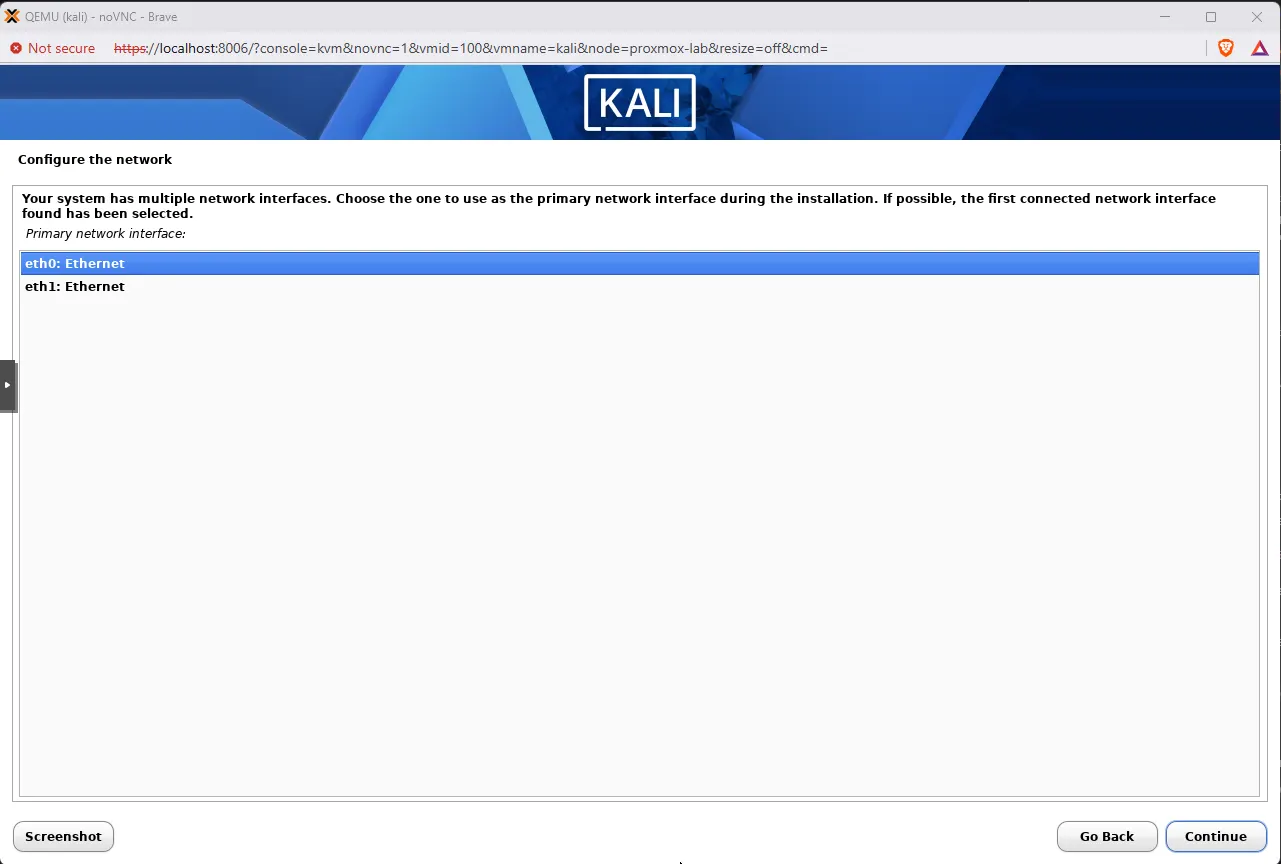
Pick the primary network interface
This screen is the first place the dual-NIC design shows up. Because the VM has two virtio adapters, the installer asks which one to use during installation.
- Choose
eth0—net0onvmbr0, with a path to your network and package mirrors. - Do not pick
eth1— it points at the isolated lab bridge with no gateway; package downloads stall. - If
vmbr0has no DHCP, autoconfiguration fails and the installer offers manual entry. Fill in address, netmask, gateway, and DNS foreth0, or skip and set both interfaces after first boot.
Hostname and users
| Screen | Value used here |
|---|---|
| Hostname | kali |
| Domain name | leave blank, or something local like lab.local |
| Root password | strong password, recorded somewhere you trust |
| User full name | your name |
| Username | kali |
| User password | strong password |
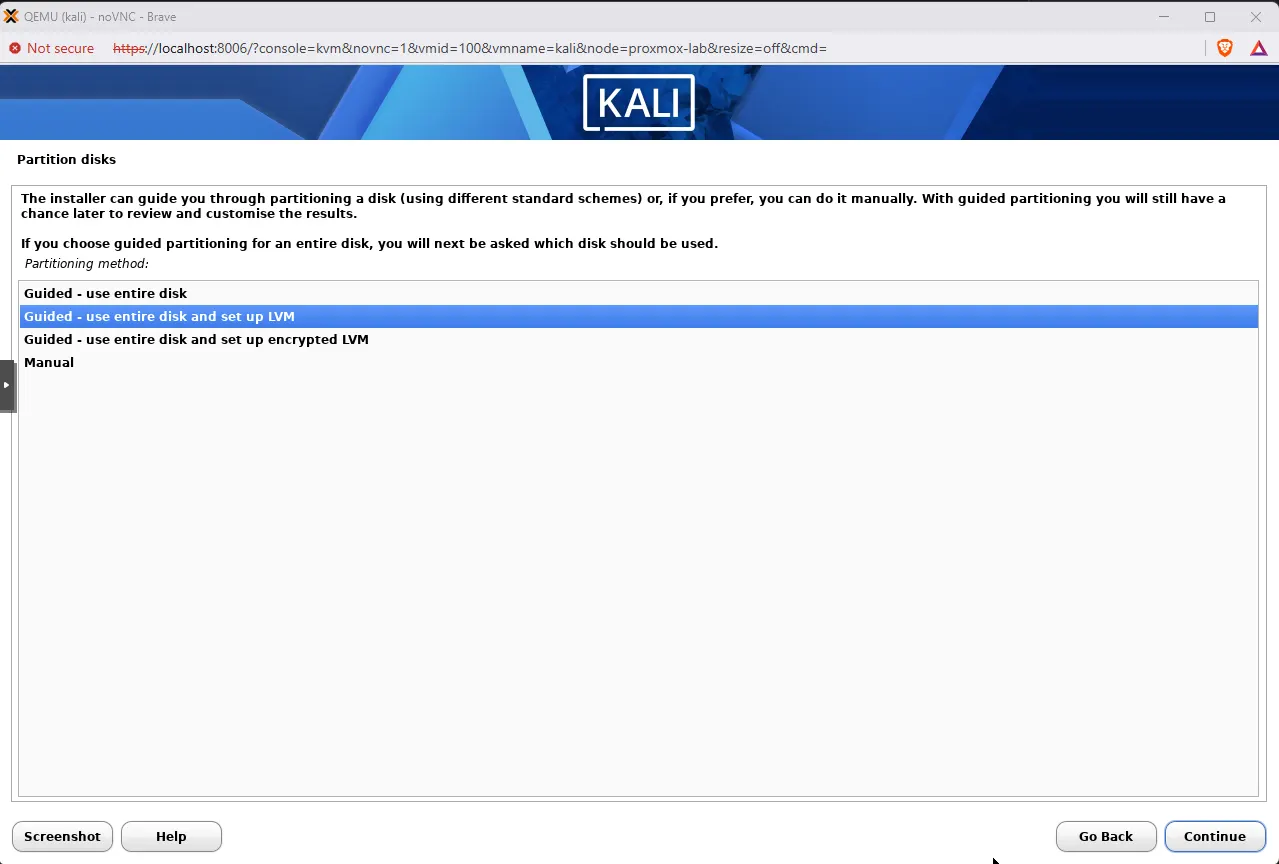
Partition the virtio disk
The VM has one 60 GiB virtio SCSI disk and nothing else, which makes guided partitioning safe.
- Pick Guided - use entire disk and set up LVM — LVM lets you grow the root volume later without rebuilding the VM.
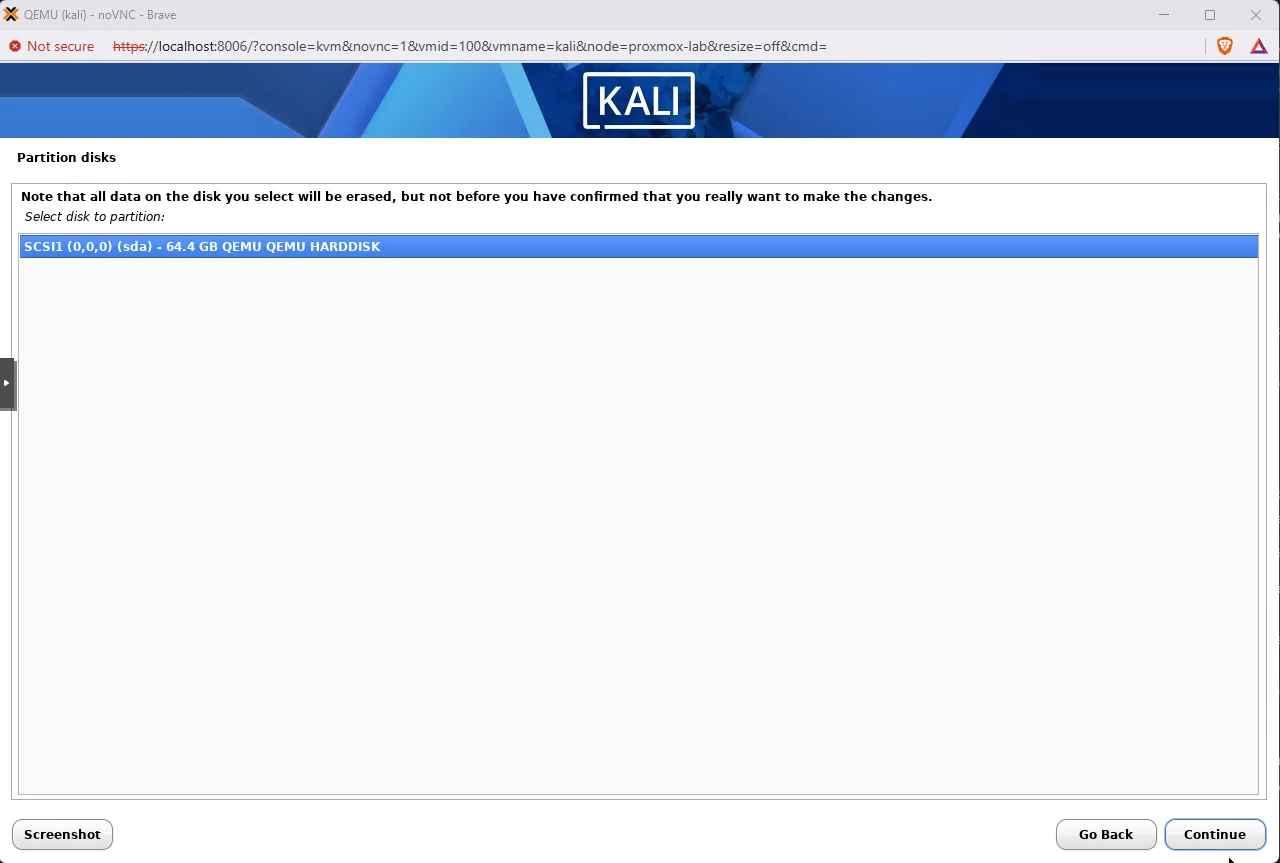
On the next screen, only one device should appear:
SCSI1 (0,0,0) (sda)— reported as 64.4 GB because the installer counts decimal GB while Proxmox allocated 60 GiB.- Empty list — the disk did not attach; recheck
qm config 100.
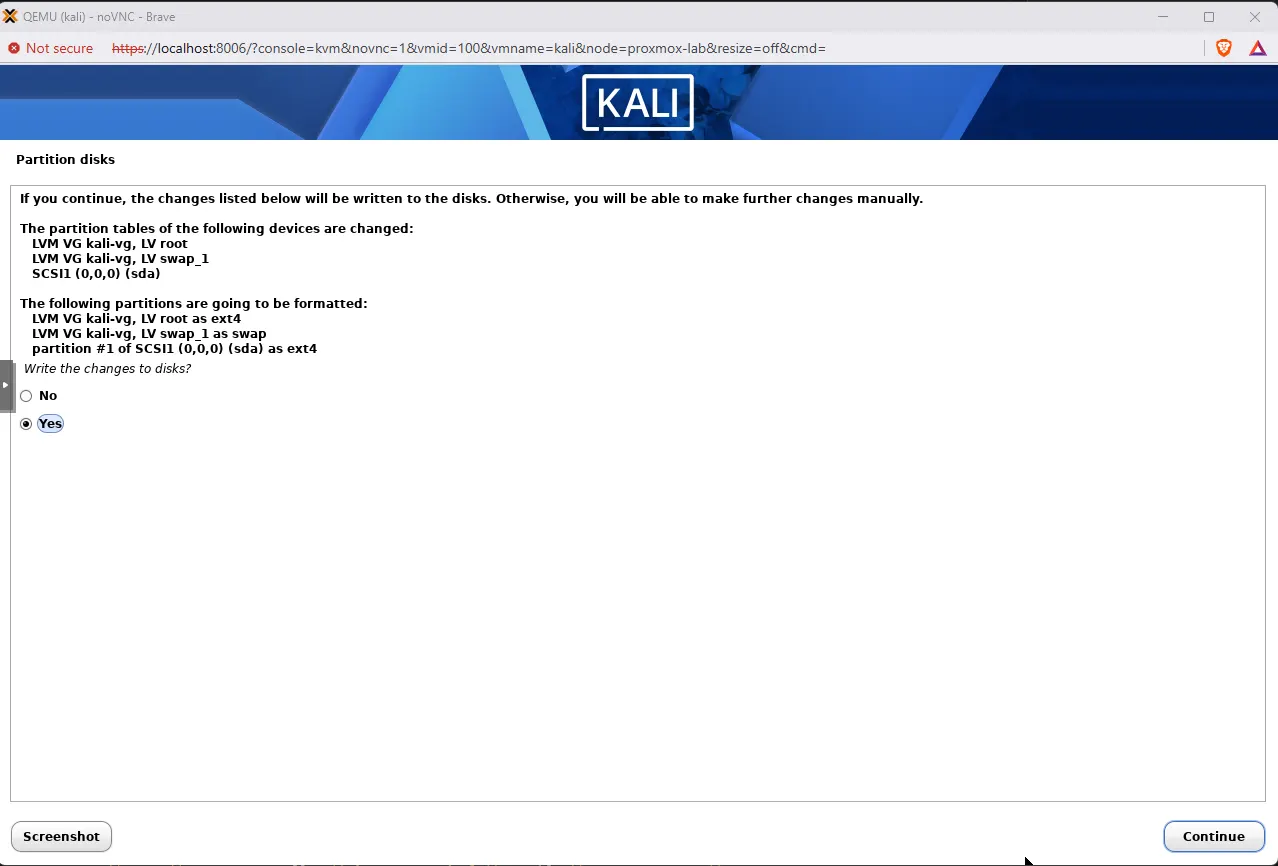
Then work through the remaining prompts:
- All files in one partition for the scheme.
- Whole volume group when asked how much to allocate.
- On the final summary, read both lists before Yes — expect
kali-vgwithroot(ext4) andswap_1(swap), plus/bootonsda. This is the only irreversible step.
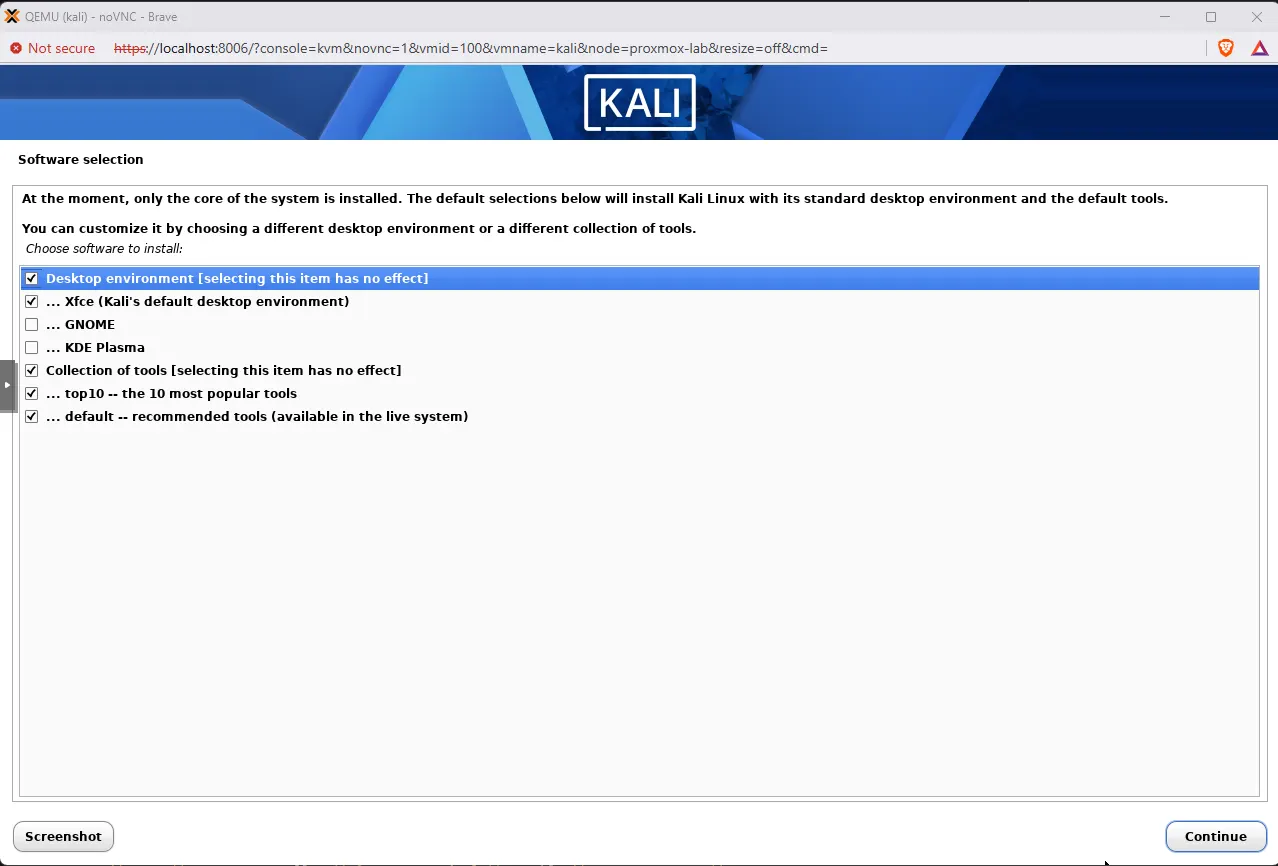
Software selection
Keep the defaults:
- Xfce — lighter than GNOME or KDE over noVNC.
- top10 and default tool sets — Nmap, Metasploit, Burp, and the rest of the PenTest+ toolchain without hand-picking packages.
- Expect a wait on spinning disks — this stage pulls roughly 2,700 files.
Install GRUB
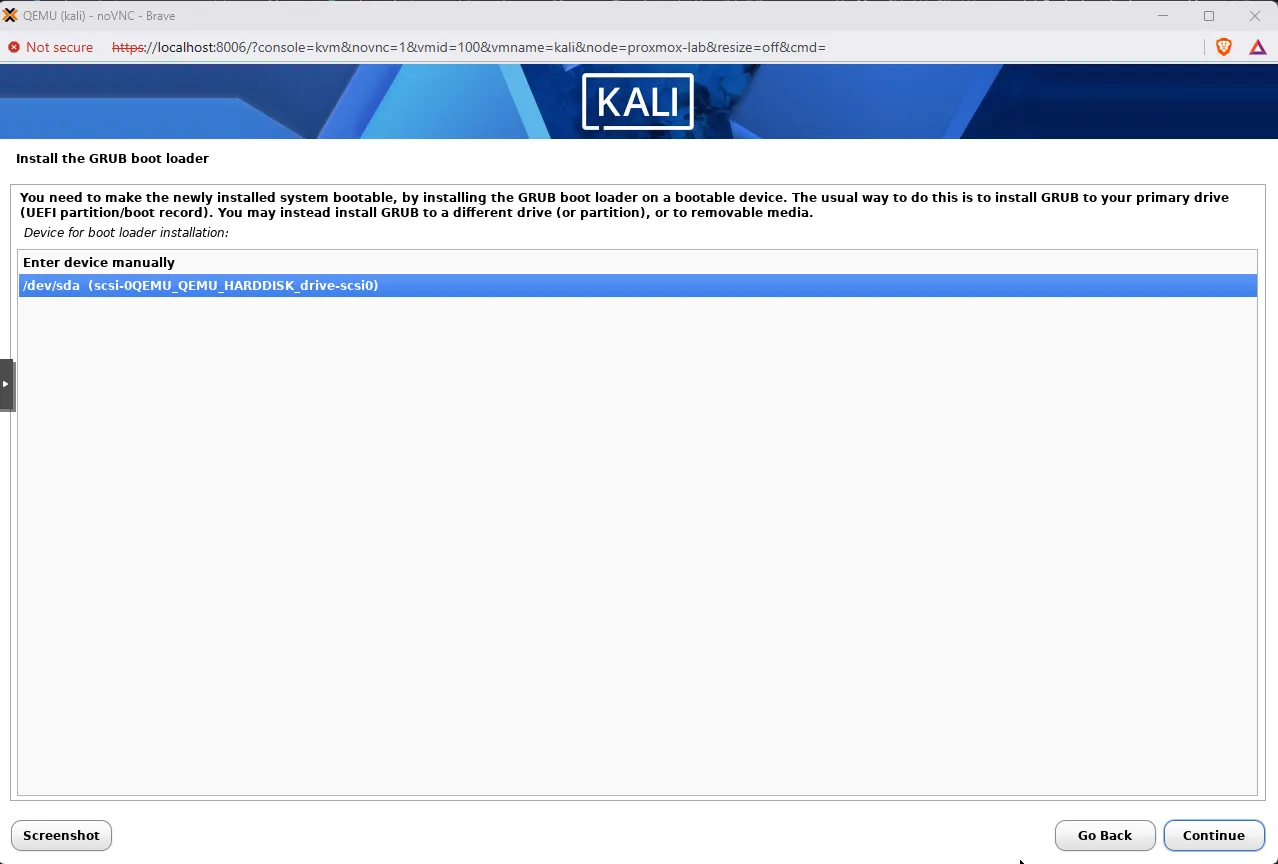
Answer Yes to installing GRUB to the primary drive, then pick /dev/sda — the same virtio disk you just partitioned. There is no other bootable device in the VM, so this is the only correct answer.
Finish and reboot
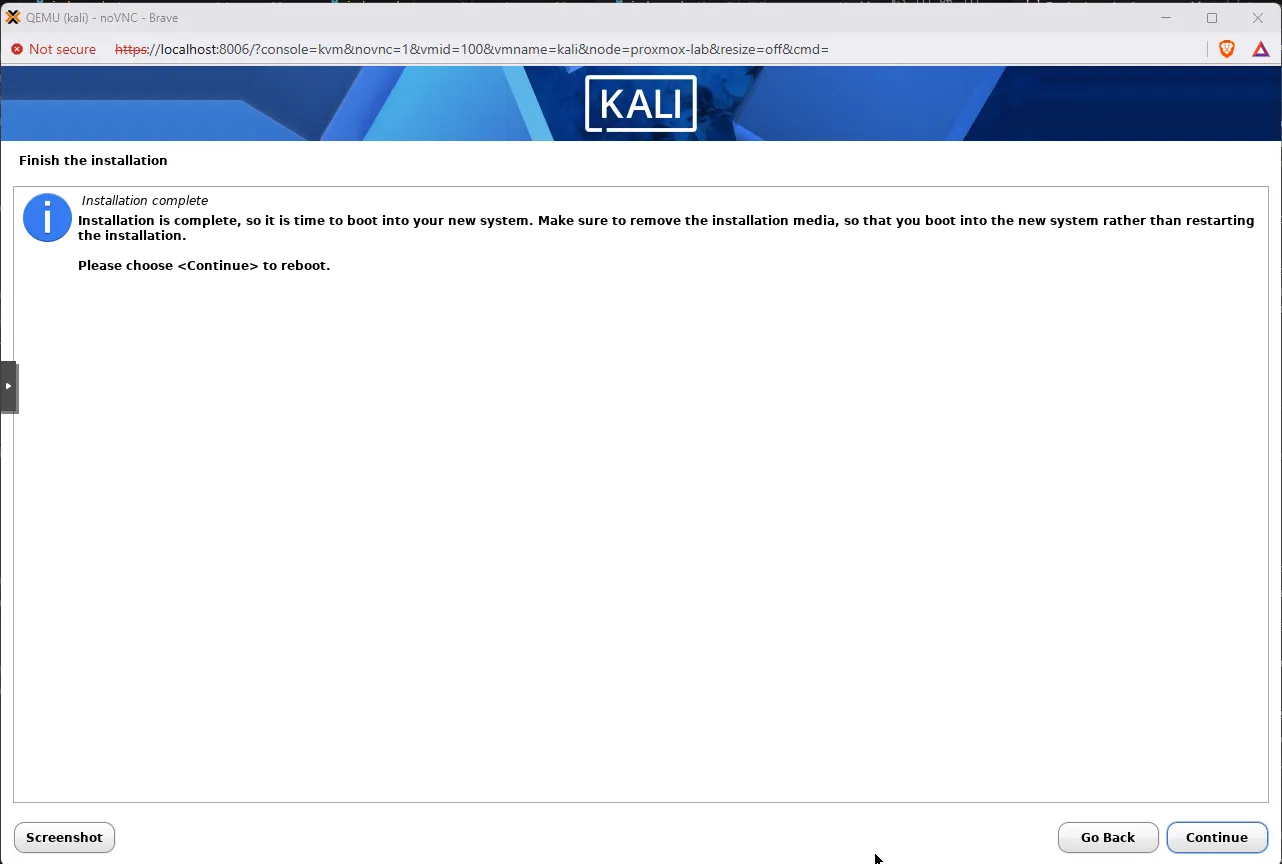
When the installer finishes, it shows Installation complete and reminds you to remove the installation media. Detach the CD-ROM before you click Continue, or the VM boots straight back into the installer.
- Web UI — VM → Hardware → CD/DVD Drive → Edit → Do not use any media.
- CLI on the Proxmox host:
qm set 100 --ide2 noneupdate VM 100: -ide2 noneThen choose Continue in the installer to reboot into the installed system.
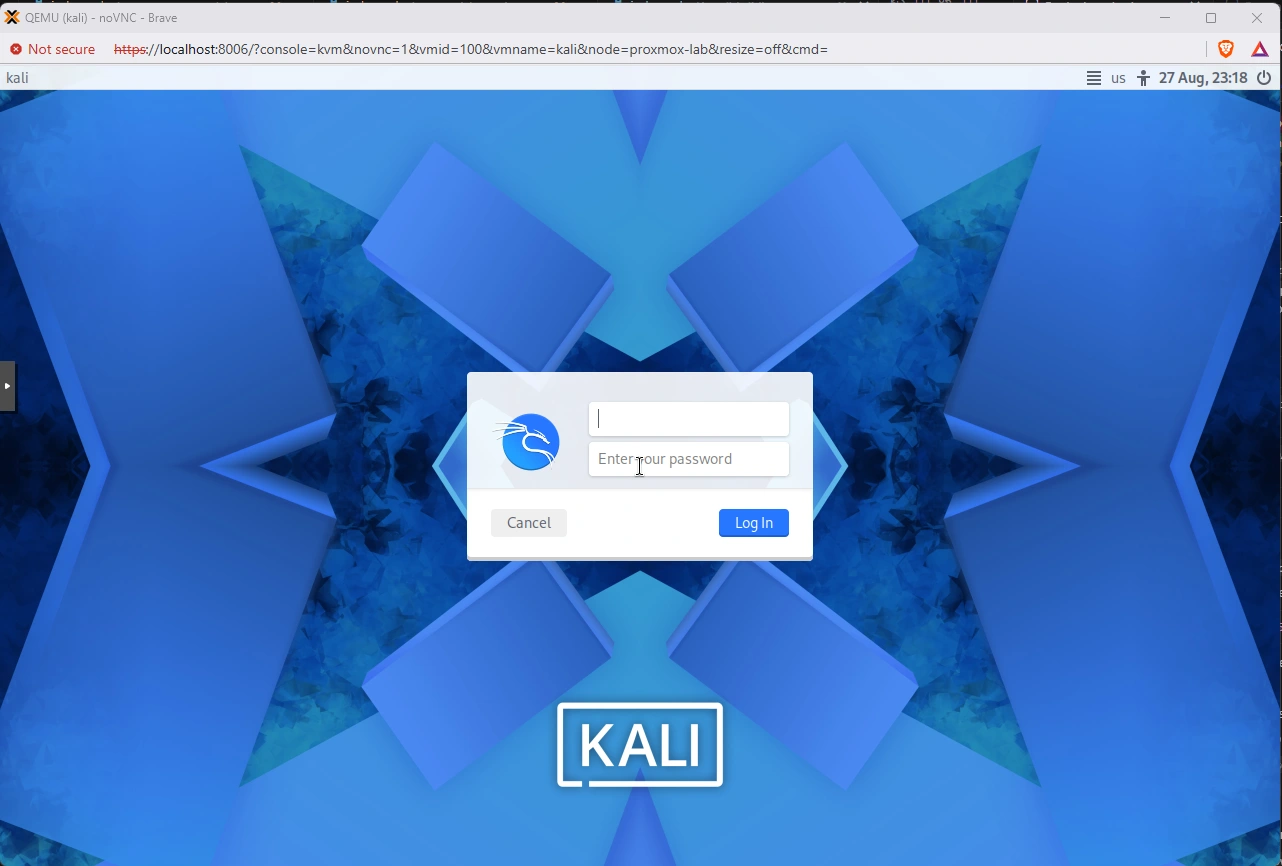
The login screen after reboot means the install is done and GRUB found the root volume. Log in as the kali user you created.
Set static IPs on both interfaces
Neither NIC gets an address on its own in this lab:
vmbr1— isolated bridge with no DHCP server.vmbr0— site DHCP does not know the VM's virtio MAC even though it handed one to the Proxmox host.
Static addressing on both interfaces is simpler than adding DHCP reservations and keeps course commands copy-pasteable.
After first login, confirm the state before you touch anything. Both links come up, but neither gets an IPv4 address, and NetworkManager only knows about one wired profile:
ip -br alo UNKNOWN 127.0.0.1/8 ::1/128
eth0 UP
eth1 UPnmcli con showNAME UUID TYPE DEVICE
Wired connection 1 4e2fc23b-1e01-4489-909e-521501c61964 ethernet eth1
lo f60c9f3a-aa4d-4455-b0f8-4959d4f46ac4 loopback lonmcli con show reveals the starting state:
eth0— no profile at all.eth1— installer's defaultWired connection 1, but no static address on it either.- Interface names —
eth0/eth1on Kali 2026.2; other builds may showens18/ens19.
Management interface on vmbr0
Do not pass ipv4.* settings inline on nmcli con add — recent NetworkManager builds reject that and return an error like this:
sudo nmcli con add type ethernet ifname eth0 con-name mgmt ipv4.method manual ipv4.addresses 192.168.100.50/24 ipv4.gateway 192.168.100.1 ipv4.dns 192.168.100.1Error: invalid or not allowed setting 'ipv4': 'ipv4' not among [connection, 802-3-ethernet (ethernet), ...].Create the profile first, set addressing in a second step, then bring it up:
sudo nmcli con add type ethernet ifname eth0 con-name mgmtsudo nmcli con modify mgmt ipv4.method manual ipv4.addresses 192.168.100.50/24 ipv4.gateway 192.168.100.1 ipv4.dns 192.168.100.1sudo nmcli con up mgmtConnection 'mgmt' (9ab02faa-d0d9-493c-a2f3-b4cd59798896) successfully added.
Connection successfully activated (D-Bus active path: /org/freedesktop/NetworkManager/ActiveConnection/61)Use an address that is genuinely free on your management subnet. A quick sweep from the Proxmox host shows what is already answering:
nmap -sn 192.168.100.0/24Pick something outside that list, and outside your DHCP scope if one exists.
Lab interface on vmbr1
The installer's leftover profile on eth1 is still bound before you create the lab profile — often named Wired connection 1. Remove it first, or the two connections fight over the same interface:
nmcli -t -f NAME,DEVICE con show
sudo nmcli con delete "Wired connection 1"
Use the NAME column from your output if the default installer label differs — do not copy a UUID from screenshots.
Same two-step pattern as eth0:
- No gateway, no DNS.
ipv4.never-default yesso this connection cannot steal the default route from the management NIC.
sudo nmcli con add type ethernet ifname eth1 con-name labsudo nmcli con modify lab ipv4.method manual ipv4.addresses 10.10.10.10/24 ipv4.never-default yessudo nmcli con up labConnection 'lab' (bf88af25-da9a-4f9e-b4c8-69460ccc5dc4) successfully added.
Connection successfully activated (D-Bus active path: /org/freedesktop/NetworkManager/ActiveConnection/62)Confirm the result
ip -br alo UNKNOWN 127.0.0.1/8 ::1/128
eth0 UP 192.168.100.50/24 fe80::ea9b:aa3d:d2d6:8e10/64
eth1 UP 10.10.10.10/24 fe80::7d05:48e5:7d46:2db/64The routing table matters as much as the addresses:
ip routedefault via 192.168.100.1 dev eth0 proto static metric 100
10.10.10.0/24 dev eth1 proto kernel scope link src 10.10.10.10 metric 101
192.168.100.0/24 dev eth0 proto kernel scope link src 192.168.100.50 metric 100The routing table should show:
- One default route — out
eth0via192.168.100.1. - Lab subnet only on
eth1—10.10.10.0/24as a link-local route; traffic never leavesvmbr1.
Ping the hypervisor side of the lab bridge:
ping -c 2 10.10.10.1PING 10.10.10.1 (10.10.10.1) 56(84) bytes of data.
64 bytes from 10.10.10.1: icmp_seq=1 ttl=64 time=0.589 ms
64 bytes from 10.10.10.1: icmp_seq=2 ttl=64 time=0.129 msA reply proves eth1 is really on vmbr1 and that future targets on that segment will be reachable.
Enable SSH and the guest agent
Kali ships openssh-server but leaves the service disabled at boot. Work through these in order:
sudo systemctl enable --now sshsudo systemctl is-enabled sshenabledenabled is the word to look for. active alone only tells you the service is running right now, not that it will come back after a reboot.
Install the QEMU guest agent so Proxmox can report the VM's IP addresses and shut it down cleanly:
sudo apt updatesudo apt install -y qemu-guest-agentsudo systemctl enable --now qemu-guest-agentTest SSH from your workstation:
ssh kali@192.168.100.50Linux kali 6.12.x-amd64 #1 SMP PREEMPT_DYNAMIC Kali GNU/Linux
kali@kali:~$From here on, work over SSH rather than the noVNC console:
- Copy-paste and scrollback work normally.
- Your editor's remote workflow behaves as expected.
For lab convenience only: ssh-copy-id kali@192.168.100.50 and PermitRootLogin yes in /etc/ssh/sshd_config — never on a machine exposed to a real network.
Take a clean snapshot
Snapshot the VM now, while networking works and nothing else has been installed. This is the cheapest insurance in the whole lab.
Web UI: VM 100 → Snapshots → Take Snapshot, name kali-clean.
On the Proxmox host:
qm snapshot 100 kali-clean --description 'Fresh Kali install, dual NIC static, ssh enabled, before tools'freeze guest filesystem
snapshotting 'drive-scsi0' (local-lvm:vm-100-disk-0)
Logical volume "snap_vm-100-disk-0_kali-clean" created.
thaw guest filesystemThe freeze and thaw lines come from the guest agent flushing the filesystem before the LVM snapshot, which is why installing qemu-guest-agent earlier was worth the extra command. Without it you would still get a snapshot, just a crash-consistent one.
qm listsnapshot 100`-> kali-clean 2026-08-28 10:45:23 Fresh Kali install, dual NIC static, ssh enabled, before tools
`-> current You are here!Roll back to kali-clean whenever a lesson leaves the VM in a bad state. It takes seconds, against roughly half an hour to reinstall from ISO.
Verify the Kali VM
| Check | Where | Expected |
|---|---|---|
| Both NICs addressed | ip -br a on Kali |
eth0 at 192.168.100.50; eth1 at 10.10.10.10 |
| One default route | ip route on Kali |
Single default via line, out eth0 |
| SSH survives reboot | systemctl is-enabled ssh on Kali |
enabled |
| SSH works | ssh kali@192.168.100.50 from your PC |
Login shell |
| Lab bridge reachable | ping 10.10.10.1 from Kali |
Reply from vmbr1 on Proxmox |
| Kali reachable on lab bridge | ping 10.10.10.10 on Proxmox |
Reply from Kali eth1 |
| Guest agent responding | qm agent 100 ping on Proxmox |
No error |
| ISO detached | qm config 100 on Proxmox |
ide2: none,media=cdrom |
| Snapshot exists | Snapshots tab | kali-clean listed |
With all checks green, Kali is ready as the attacker box. Next targets on vmbr1:
- Metasploitable 2 at
10.10.10.30 - DVWA as a Docker container on Kali
- Pentest lab requirements — memory and disk budget before Windows AD targets
Troubleshooting
| Symptom | Likely cause | Fix |
|---|---|---|
| ISO missing in Create VM wizard | File not in an ISO storage pool, or wrong pool in qm |
Download to /opt/isos (or /var/lib/vz/template/iso on default installs); confirm with pvesm list opt-store --content iso; use opt-store:iso/... in qm, not local:iso/... when local has no ISO content |
| Installer loops to boot menu | ISO still attached | Detach CD-ROM; qm set 100 --ide2 none |
| No sound card detected | No virtual audio hardware | Press Enter; continue install |
| Blank console | Browser issue | Try another browser or switch noVNC / xterm.js |
| Only one NIC in guest | Second NIC not added | Hardware → Add → Network Device on vmbr1 |
| No IP on either NIC after install | No DHCP on vmbr0 for the VM MAC; none at all on vmbr1 |
Set both interfaces statically with nmcli as shown above |
nmcli con add ... ipv4.addresses errors out |
Recent NetworkManager rejects inline ipv4.* on con add |
Split into con add, then con modify, then con up |
| SSH gone after reboot | Service was started but never enabled | sudo systemctl enable --now ssh; verify with systemctl is-enabled ssh |
| Cannot SSH to Kali | Wrong IP or SSH off | Check eth0 address; sudo systemctl status ssh |
apt update fails |
No Internet path on eth0 |
Confirm gateway and DNS on the management profile; eth0 must reach your mirrors |
Lab ping fails but eth1 has an address |
net1 attached to the wrong bridge |
qm config 100 should show net1: virtio=...,bridge=vmbr1 |
Summary
You downloaded the Kali installer ISO into a Proxmox ISO storage pool, created a dual-NIC VM on vmbr0 and vmbr1, and worked through the graphical installer. The decisions that mattered most:
eth0as the primary interface — package downloads need a route out throughvmbr0.- Guided LVM on the single virtio disk — grow the root volume later without reinstalling.
- The no sound card prompt — harmless; press Enter.
Neither interface gets an address by itself, so both were set statically with nmcli:
eth0— routable address, gateway, and DNS.eth1— address only, withnever-defaultso the default route stays oneth0.
Enable ssh rather than just starting it, detach the ISO, and take a kali-clean snapshot before Metasploitable, Docker targets, or GOAD join the lab. That snapshot is the one you will restore most often.
References
- Kali Linux downloads
- Kali documentation: verify image integrity
- Proxmox VE qm manual
- Proxmox guest agent
- nmcli manual page
Frequently Asked Questions
Can I install Kali on Proxmox without a second network bridge?
Yes for early lessons. A single NIC on vmbr0 is enough for recon and scanning. Add a second NIC on vmbr1 before you import Metasploitable or deploy GOAD so attack traffic stays on an isolated lab segment.
What does the no sound card detected message mean during install?
It is harmless. Proxmox VMs do not emulate an audio device by default. Press Enter to continue. Kali does not need a sound card for a headless attacker VM.
Should Kali get a static IP or DHCP during install?
Use static addresses on both NICs so course commands stay copy-pasteable. This build uses 192.168.100.50 on vmbr0 for SSH and 10.10.10.10 on vmbr1 for lab targets.
Why does the Kali VM get no IP address from DHCP?
Two separate reasons. The isolated bridge vmbr1 has no DHCP server on it at all, because it is a private segment with no physical port. On the management bridge vmbr0 there may well be a DHCP server, but it does not know the VM's virtio MAC address even though it gave the Proxmox host an address. Set both interfaces statically instead of adding DHCP reservations.
Do I need to run a DHCP server for the lab VMs?
No. A handful of lab VMs with fixed addresses is simpler to reason about and keeps lesson commands stable. You could run dnsmasq on the Proxmox host bound to vmbr1 if you prefer leases, but nothing in the PenTest+ track requires it.
Why does nmcli reject ipv4.addresses when I add the connection?
Recent NetworkManager builds do not accept ipv4.* properties inline on nmcli con add. Create the profile first with con add, apply addressing with con modify, then activate it with con up.
How much RAM and disk should I give the Kali VM?
Plan for 4 vCPUs, 8 GiB RAM, and a 60 GiB disk on local-lvm. That leaves room for Burp, Metasploit, and Docker web targets.
When do I remove the Kali ISO from the VM?
After the installer finishes and the VM reboots into the installed system, detach the CD-ROM in the Web UI or run qm set 100 --ide2 none on the Proxmox host. Leaving the ISO attached can make the VM boot back into the installer.
