
| Tested on | Kali GNU/Linux Rolling 2026.2 (kali-rolling) |
|---|---|
| Package | gvm 25.04.3gvmd 26.24.0-1gsad 24.16.0-1openvas-scanner 23.45.1-1greenbone-security-assistant 26.17.0-0kali1 |
| Lab environment | Pentest lab |
| Cert prep | CompTIA PenTest+ PT0-003 — network vulnerability scanning and result analysis |
| Privilege | sudo for package install, gvm-setup, feed sync, service management, and gvm-cli through the packaged _gvm account (sudo -u _gvm); normal user for the web UI |
| Scope | Kali apt install of Greenbone/GVM, gvm-setup and gvm-check-setup, feed synchronization readiness and import progress checks, web UI login, target and task workflow, reading severity/CVE/QoD fields, validating findings, credentialed vs uncredentialed scans, troubleshooting missing scan configs, and a concise OpenVAS vs Nessus comparison. Does not cover Docker/container deployment in depth, source builds, or exploitation walkthroughs. |
| Related guides | Vulnerability scanning concepts |
Most "installed OpenVAS but cannot scan" threads share the same problem: the web UI comes up before feeds and scan configurations finish loading. This article uses the Kali gvm package path. Install, prove the feeds are ready, create a target against Metasploitable 2 in the lab, run a scan, and read what a result row actually means.
OpenVAS was the original name for the scanner engine. Today the open-source stack is Greenbone Community Edition, managed by GVM (Greenbone Vulnerability Manager). Search engines and exam prep still say “OpenVAS,” so this article keeps that word in headings and uses the current package names in commands.
OpenVAS, GVM, and Greenbone: what you are installing
Greenbone spreads the work across a web front end, a manager, a scanner, and feed data:
| Component | Role |
|---|---|
| Greenbone Security Assistant (gsad) | Web UI at https://127.0.0.1:9392 on Kali |
| gvmd | Manager: stores targets, tasks, users, and report metadata |
| ospd-openvas / openvas-scanner | Runs Network Vulnerability Tests (NVTs) against targets |
| Feeds | NVT scripts, SCAP/CERT data, and gvmd objects that populate scan configs and port lists |
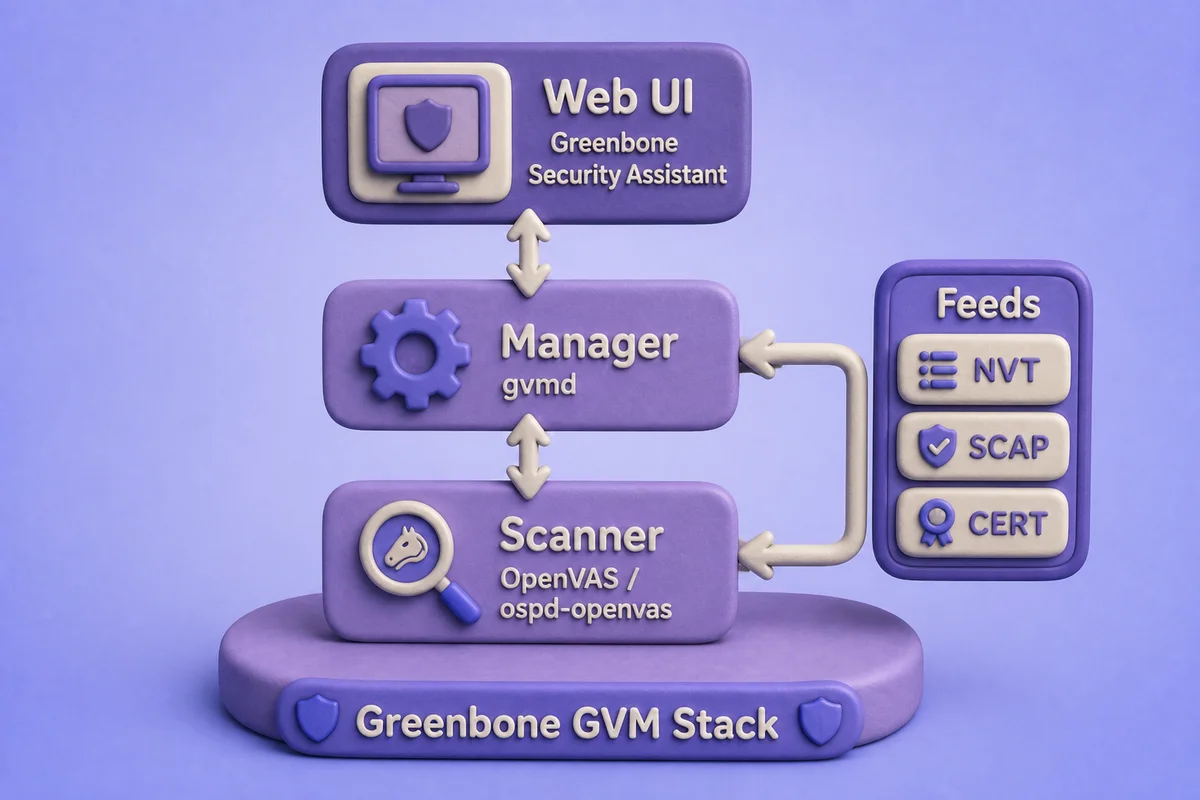
The login page is not the finish line. You need feed data imported so profiles like Full and fast show up under Scan Configs.
Install Greenbone / OpenVAS on Kali Linux
Size the VM before installing. Feed data plus PostgreSQL can eat many gigabytes, and the first sync is slow even on a good link:
- Prefer 80 to 100 GB disk and 12 to 16 GB RAM
- 8 GB RAM is the Greenbone minimum; tighter disks fill during SCAP import
Install the metapackage:
sudo apt update
sudo apt install -y gvm
Confirm the core components:
dpkg -l gvm gvmd gsad openvas-scanner | awk '/^ii/{print $2, $3}'greenbone-security-assistant 26.17.0-0kali1
gsad 24.16.0-1
gvm 25.04.3
gvmd 26.24.0-1
openvas-scanner 23.45.1-1Run the Kali setup script. It creates certificates, PostgreSQL objects, the admin user, and starts an initial feed sync:
sudo gvm-setupWhen setup finishes, it prints a one-time admin password. Copy it somewhere safe right away:
[+] Done
[*] Please note the password for the admin user
[*] User created with password 'xxxxxxxx-xxxx-xxxx-xxxx-xxxxxxxxxxxx'.
Replace that UUID in your notes with the value from your own terminal. You will not see it again in plain text.
Check the installation:
sudo gvm-check-setupBefore certificates and feeds finish, you may see missing CA files or empty NVT directories. After gvm-setup but before feeds finish, a typical failure looks like:
        ERROR: Directories containing the NVT collection not found.
        FIX: Run the NVT synchronization script greenbone-feed-sync.
        sudo greenbone-feed-sync --type nvt

 ERROR: Your GVM-25.04.0 installation is not yet complete!
That message means “do not create a task yet,” not “reinstall Kali.” A clean check is useful, but it is not the final feed-readiness test. On a fresh Kali install, gvm-check-setup ended with It seems like your GVM-25.04.0 installation is OK while the manager still returned zero NVTs and zero scan configurations. The files had downloaded, but gvmd was still loading them into PostgreSQL.
Enable the services so they start after reboot:
sudo systemctl enable --now gvmd gsad ospd-openvasOn Kali, gsad listens on 127.0.0.1:9392 by default. Open the UI from the Kali desktop or through an SSH tunnel. Do not reach it from another host unless you change the unit file.
Wait for Greenbone feeds before scanning
Feed sync is the step most install guides skip. Without it you get no scan configurations, no port lists, and tasks that fail with “config not found.” There are two separate phases:
greenbone-feed-syncdownloads feed files into directories under/var/lib/openvas,/var/lib/notus, and/var/lib/gvm.- The scanner and
gvmdload that data into Redis and PostgreSQL. This import keeps going after the download command exits, and the database can stay busy for a long time.
That is why the XML for Full and fast can sit at /var/lib/gvm/data-objects/gvmd/scan-configs/ while the web UI still shows an empty Scan Configs page.
Synchronize all feed types (NVT, SCAP, CERT, gvmd data):
sudo greenbone-feed-sync --type allIf only the vulnerability-test download failed, retry that feed alone:
sudo greenbone-feed-sync --type nvtInitial sync pulls large rsync trees from feed.community.greenbone.net. It can take a long time. If your network drops idle connections, rsync may exit with errors like:
rsync: [Receiver] safe_read failed to read 1 bytes: Connection reset by peer (104)
rsync error: error in rsync protocol data stream (code 12) at io.c(283) [Receiver=3.4.4]
Re-run sudo greenbone-feed-sync --type all after a download error. After the download succeeds:
- Leave
gvmd, PostgreSQL, andospd-openvasrunning so they can finish the import - Do not start several sync commands at once (lock files block concurrent writers)
You are ready when all of these are true:
sudo gvm-check-setupexits withoutERRORlines. Treat that as an install check, not proof by itself.- Administration → Feed Status shows current feed versions, not
unknownor0. - Configuration → Scan Configs lists profiles such as
Full and fast.
While gvmd is still importing into PostgreSQL, Feed Status can show Current for NVTs and Update in progress... for SCAP, CERT, and GVMD_DATA (the feed that carries scan configurations and port lists):
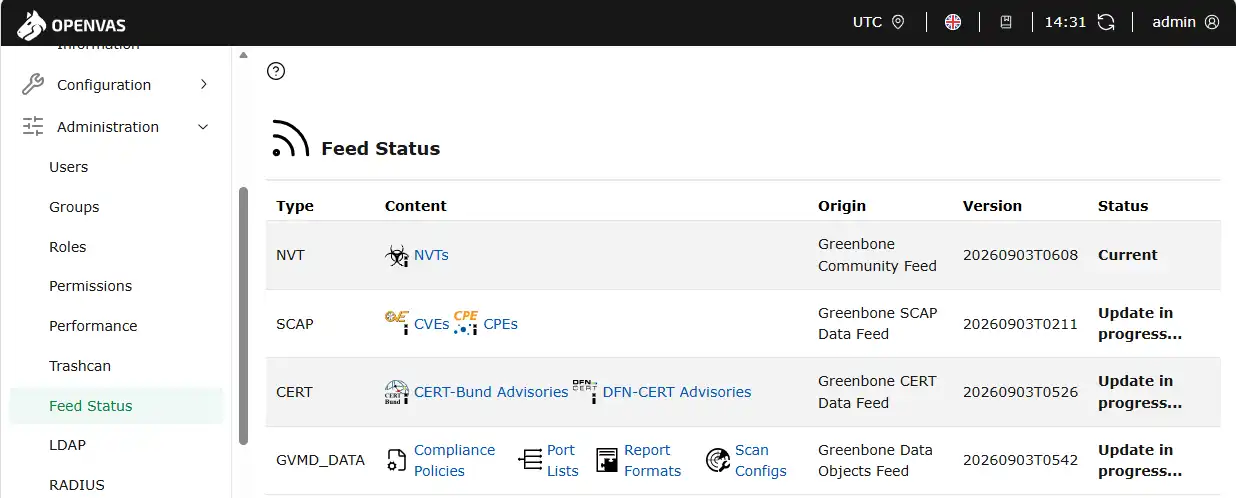
That pattern showed up on a fresh Kali install with 11 GB RAM and a 96 GB root volume. Downloads finished first; the database import kept going for another hour or more. Do not create a task until GVMD_DATA reaches Current and Scan Configs lists Full and fast.
If Scan Configs is still empty while feeds import, the UI looks like this. That is not a cue to click New Scan Config:
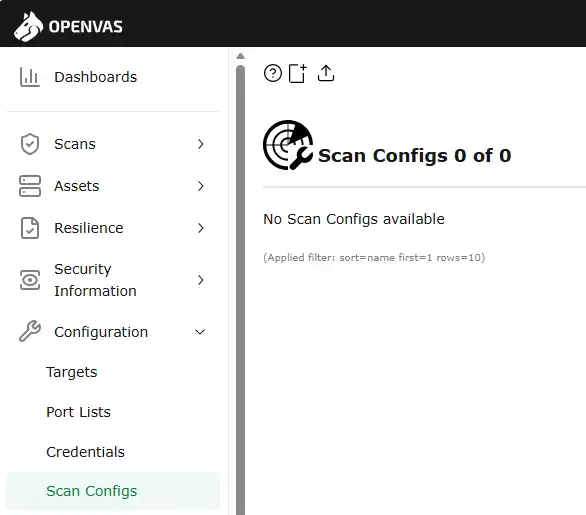
The page shows Scan Configs 0 of 0 until gvmd finishes loading gvmd data objects. Wait for import to finish instead of building a custom config from the + icon.
You can also check from the command line. On Kali, gvm-cli must not run as root. Use the packaged _gvm service account, which can read /run/gvmd/gvmd.sock:
sudo -u _gvm gvm-cli --gmp-username admin --gmp-password '<admin-password>' \
  socket --socketpath /run/gvmd/gvmd.sock --xml "<get_configs/>" --pretty
The first request can take tens of seconds while the manager is busy. Before the import completes, the response is valid but empty:
<get_configs_response status="200" status_text="OK">
  <configs start="1" max="1000"/>
  <config_count>0<filtered>0</filtered><page>0</page></config_count>
</get_configs_response>
Status 200 means the socket, manager, and login work. config_count of 0 means the scanner is not ready. After import, the same command returns named configurations, including Full and fast.
Import phases and when scan configs appear
Feed readiness is not one step. After greenbone-feed-sync exits, gvmd imports several feed types. Scan configurations load only in the last phase (GVMD_DATA), which is why the UI can look broken for hours even though login works.
| Phase | What happens | How you know it is running | Scan configs yet? |
|---|---|---|---|
| NVT | Vulnerability tests download, then load into the scanner | Feed Status → NVT shows Current first | No |
| SCAP | CVE/CPE data copied into PostgreSQL; slow UPDATE on ~1.8M CPE rows |
Log shows update_scap: Updating data from feed, year files like nvdcve-2.0-2024.json.gz, then Updating CVSS scores and CVE counts for CPEs, then update_scap_end: Updating SCAP info succeeded |
No |
| NVT (manager DB) | gvmd pulls ~95k VTs from ospd-openvas over OSP into PostgreSQL |
Log shows OSP service has different VT status ... Starting update; process list shows gvmd: OSP: Upd; SELECT count(*) FROM public.nvts stays 0 until this bulk load commits |
No |
| CERT | CERT advisories import (can finish while SCAP is still open) | Log shows sync_cert: Updating CERT info succeeded |
No |
| GVMD_DATA | Scan configs, port lists, and report formats load from /var/lib/gvm/data-objects/gvmd/ |
Feed Status → GVMD_DATA flips to Current; public.configs count rises |
Yes: Full and fast appears here |
On a lab VM with 11 GB RAM and a 96 GB root disk, the XML for Full and fast already existed at /var/lib/gvm/data-objects/gvmd/scan-configs/ while Scan Configs still showed 0 of 0. The manager had not imported those objects into PostgreSQL yet.
Track import progress and estimate remaining time
Use these checks instead of guessing from the login page alone.
1. Feed Status in the web UI
Open Administration → Feed Status. A common mid-import pattern:
- NVT: Current
- SCAP, CERT, GVMD_DATA: Update in progress...
That means downloads finished and the database import is still running. Do not restart services or rerun greenbone-feed-sync just because SCAP is slow.
2. Scan config count
sudo -u postgres psql -d gvmd -tAc "SELECT count(*) FROM public.configs;"0 means not ready. When GVMD_DATA import completes, this jumps to a positive number and Scan Configs lists Full and fast.
- Is
gvmdstill syncing?
ps aux | grep 'gvmd: Sync\|gvmd: OSP'
sudo systemctl status gvmd postgresql
Healthy signs during import:
- Child processes named
gvmd: Synchron,gvmd: Syncing, orgvmd: OSP: Upd(NVT load into the manager after SCAP) - A PostgreSQL child with high CPU (
COPY scap2...orUPDATE scap2.cpes)
4. Live log tail
sudo tail -f /var/log/gvm/gvmd.logExample log lines from a first import, and what they mean:
update_scap: Updating data from feed
Updating /var/lib/gvm/scap-data/nvdcve-2.0-2024.json.gz
Updating CVSS scores and CVE counts for CPEs
update_scap_end: Updating SCAP info succeeded
OSP service has different VT status (version 202609030608) from database (version (null), 0 VTs). Starting update ...
sync_cert: Updating CERT info succeeded
After update_scap_end, Scan Configs can still be empty. The manager next loads vulnerability tests from the scanner (gvmd: OSP: Upd). That step handled 95,255 plugin files before public.nvts and public.configs moved off zero. Once GVMD_DATA starts, the log shifts toward gvmd data objects, and Scan Configs fills in shortly after that phase completes.
5. PostgreSQL size
du -sh /var/lib/postgresql/*/mainOn a fresh Kali install the gvmd database often grows from a few gigabytes toward 20 to 25 GB during the first SCAP import. A rising size with active gvmd: Syncing usually means work in progress, not a hang.
6. Current database query (optional)
sudo -u postgres psql -d gvmd -c \
  "SELECT pid, state, left(query, 100) FROM pg_stat_activity \
   WHERE datname='gvmd' AND state='active' AND query NOT LIKE '%pg_stat_activity%';"
During SCAP you may see long-running COPY scap2.affected_products or UPDATE scap2.cpes SET (severity, cve_refs). The CPE update step alone took about 45 to 90 minutes on an 11 GB VM after the CVE JSON files finished loading.
How long to plan for
There is no timer in the UI. These ranges come from a Kali lab run and match what other Greenbone CE installs report on modest hardware:
| Stage | Typical duration (first install) |
|---|---|
greenbone-feed-sync download |
20 to 60 minutes (network dependent) |
| NVT import | Often the first feed to reach Current |
| SCAP import (largest phase) | 1 to 2+ hours on 8 to 11 GB RAM |
NVT load into gvmd (OSP update after SCAP) |
15 to 45 minutes for ~95k VTs; log may pause on one line while gvmd: OSP: Upd runs |
| CERT import | Often minutes; may complete before SCAP commits |
| GVMD_DATA import (scan configs appear) | 15 to 30 minutes after SCAP finishes |
| Total before first scan | 2 to 4 hours is realistic on a lab VM; faster hardware finishes sooner |
If NVT is Current but Scan Configs is still empty after two hours, check /var/log/gvm/gvmd.log and PostgreSQL activity before assuming failure. High CPU on gvmd: Syncing and a growing database usually mean the import is still working.
Sizing reminder:
- Prefer 80 to 100 GB disk and 12 to 16 GB RAM
- An 8 GB VM with a 55 GB disk stalled during the SCAP CPE update and nearly filled the volume
Check whether feed import is still working
Do not restart a busy manager only because the UI stays empty. Check process names and recent log entries:
sudo systemctl status gvmd ospd-openvas postgresql
sudo tail -n 80 /var/log/gvm/gvmd.log
During the first import, systemctl status gvmd showed child processes named gvmd: Synchron and gvmd: Syncing, while PostgreSQL showed an active COPY. The log recorded update_scap: Updating data from feed. Those are signs of work, not a hang. CPU use may stay high until the transaction commits, so database counts can sit at zero and then appear together.
While gvmd: Syncing is active and the log still advances:
- Do not restart
gvmdor PostgreSQL (that aborts the long SCAP transaction) - Do not rerun
greenbone-feed-syncjust to “speed things up” (it does not help PostgreSQL load and can hit lock files)
One retry failed when the kernel reported a PostgreSQL soft lockup and the database restarted. The manager log then contained:
sql_exec_internal: PQexec failed: server closed the connection unexpectedly
FATAL: the database system is not yet accepting connections
DETAIL: Consistent recovery state has not been yet reached.
In that case, confirm PostgreSQL and gvmd recover, then let the automatic import retry. Do not delete the database or rerun gvm-setup over a transient recovery message. If the same lockup repeats, check CPU, RAM, disk I/O, and the PostgreSQL journal before you rebuild anything.
Log in and confirm the scanner is ready
Open the web UI locally:
https://127.0.0.1:9392Accept the self-signed certificate warning on first access. The login page shows the OpenVAS Community Edition branding and a Sign in form:
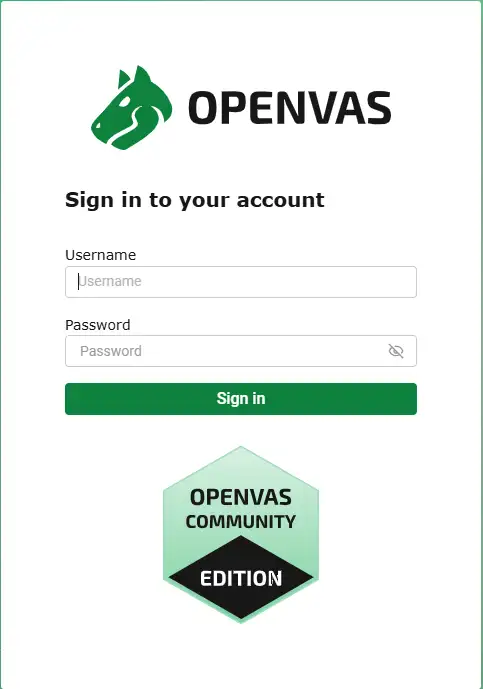
Log in as admin with the password gvm-setup printed. If you reset the password during lab testing, use that value instead.
Before you create a task, confirm:
- Administration → Feed Status: feeds show a version and recent sync time.
- Configuration → Scan Configs: at least one policy (for example
Full and fast) is listed. - Configuration → Scanners: the default OpenVAS scanner is present and reachable.
When the GVMD_DATA import finishes, Scan Configs looks like this (7 of 7, with Full and fast at 60 families and 186,269 NVTs):
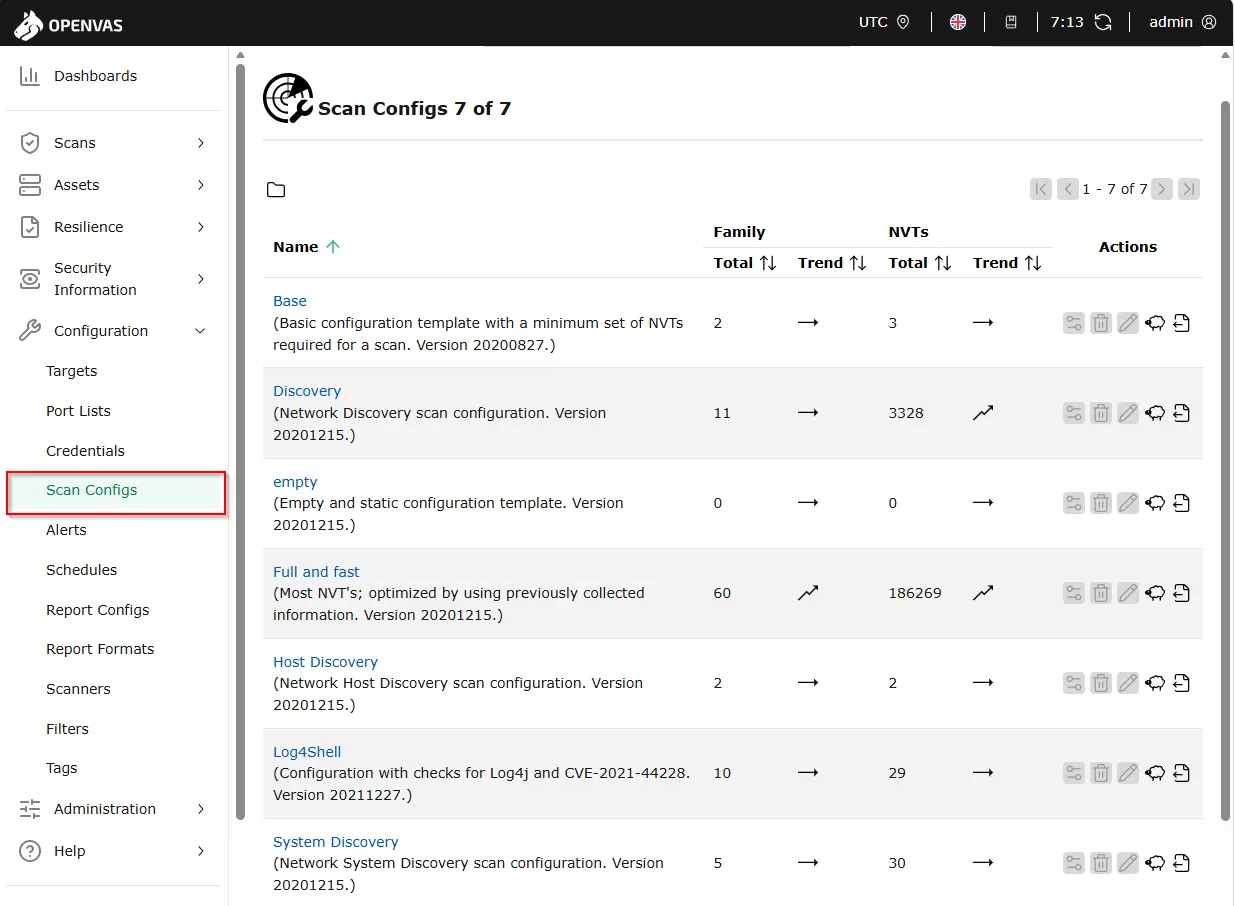
Confirm Full and fast is in the list before you create a task. If the page is still empty, go back to the feed sync section. Creating a task early produces confusing errors even when the login page works.
Create a scan target
A target is the host or range Greenbone will probe. In the UI, open Configuration → Targets → New Target and set:
| Field | Lab value | Why it matters |
|---|---|---|
| Name | Metasploitable2-lab |
Label for tasks and reports |
| Port list | All IANA assigned TCP or 1-65535 |
Defines which ports NVTs may test |
| Credentials | (leave empty for first scan) | Optional SSH/SMB creds for authenticated checks later |
Save the target only after you confirm the IP responds to ping or Nmap from Kali. The New Target form used Hosts 192.168.56.127, Port List All IANA assigned TCP, and empty credentials:
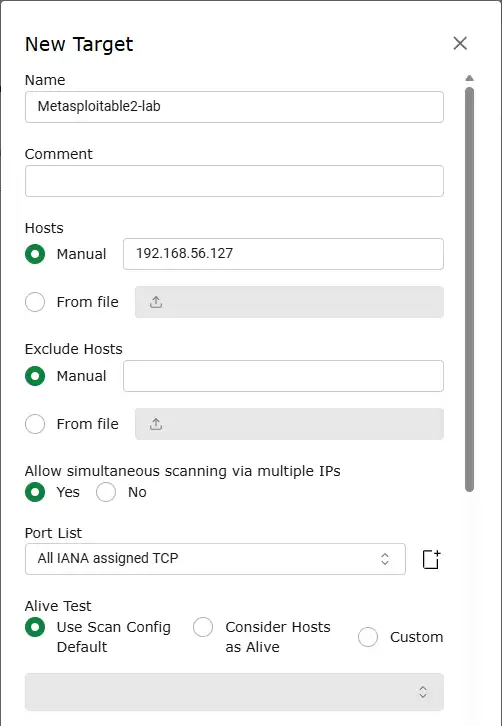
Click Create. The target then appears under Configuration → Targets.
Create a target from the CLI (optional)
gvm-cli refuses to run as root. On Kali, run it through the packaged _gvm service account:
sudo -u _gvm gvm-cli --gmp-username admin --gmp-password '<admin-password>' \
  socket --socketpath /run/gvmd/gvmd.sock \
  --xml "<create_target><name>Metasploitable2-lab</name><hosts>192.168.56.127</hosts><port_range>1-65535</port_range></create_target>" \
--pretty<create_target_response status="201" status_text="OK, resource created" id="b5c79e15-84fc-4653-80fc-276a03a8f8d9"/>List targets to verify:
sudo -u _gvm gvm-cli --gmp-username admin --gmp-password '<admin-password>' \
  socket --socketpath /run/gvmd/gvmd.sock --xml "<get_targets/>" --pretty
The response should show your host under <hosts>.
Create and run a vulnerability scan
In the UI:
- Open Scan → Tasks → New Task
- Name the task (for example
MS2-full-fast) - Select the Metasploitable2-lab target
- Choose scan config Full and fast (a balanced default that runs common NVTs without every exhaustive check)
- Select the default OpenVAS scanner
- Save, then click the start (play) icon on the task row
The New Task form used name MS2-full-fast and Scan Targets Metasploitable2-lab. Further down the same form, set Scanner to OpenVAS Default and Scan Config to Full and fast:
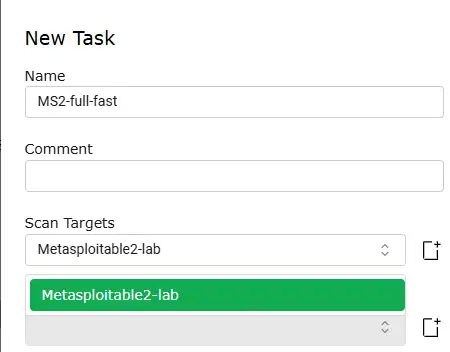
Full and fast fits a first lab scan: broad TCP coverage with reasonable runtime. Save Full and deep for later, when you have time and RoE approval for heavier probing.
If scan configs are missing
Starting a task before feeds finish fails at the manager. A CLI attempt with a known Full and fast UUID returns:
<create_task_response status="404" status_text="Failed to find config 'daba56c8-73ec-11df-a475-002264764cea'"/>That 404 means the configuration object is not in gvmd yet. Finish feed import and re-check Scan Configs in the UI.
While a scan runs, the task page shows progress percentage and status:
- Running at 0% for the first several minutes is normal on Full and fast (host discovery and NVT queue setup)
- The task went Requested, then Queued, then Running
ospd-openvasloggedStarting scan, andopenvas --scan-startwas active while the UI still showed 0%
After discovery finishes, the percentage moves. The Tasks list looks like this once the bar leaves 0% (here MS2-full-fast at 12% with one live report link):
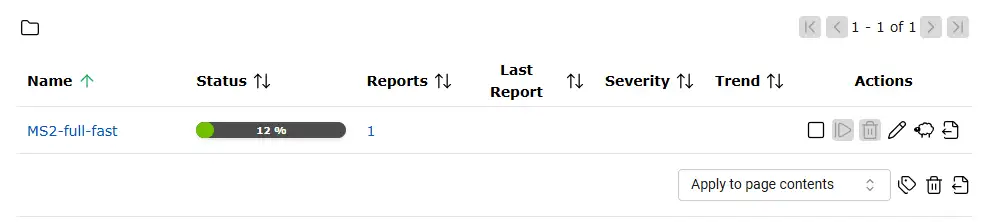
Treat a stuck scan as a problem when either of these holds:
- Status never leaves Requested
- Progress stays at 0% for a long time and no
openvasprocess is running
Then check whether the target is reachable, the scanner service is up, or feeds are still importing. See troubleshooting below.
When the scan finishes, the Tasks page shows Status Done and a severity pill for the worst host score. On Metasploitable 2 with Full and fast, that score reached 10.0 (Critical):
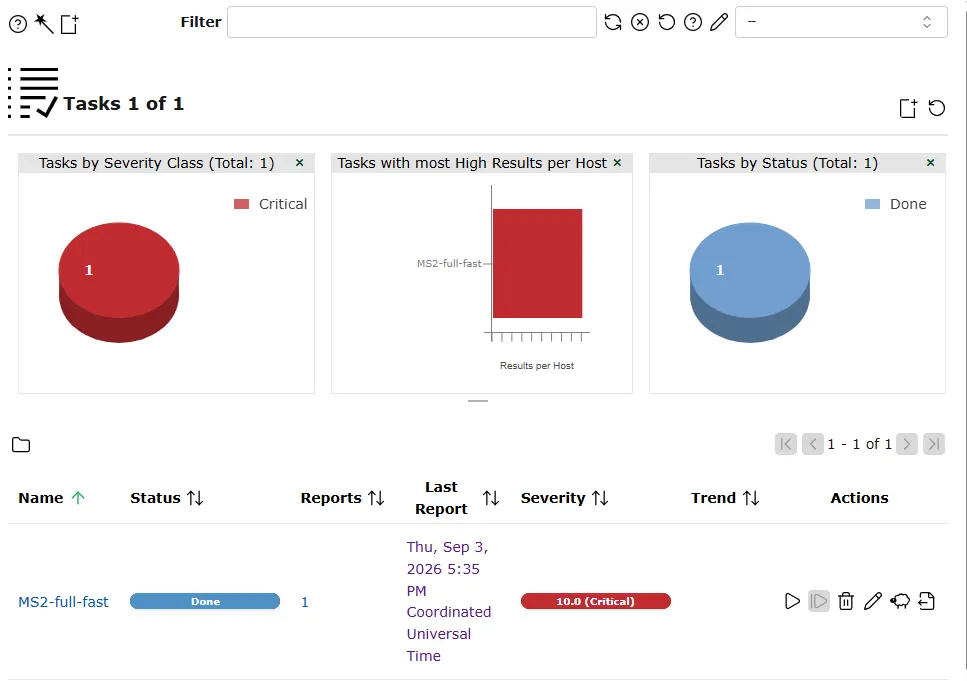
Click the report link (or open Scans → Reports) to read the counts.
Read the Greenbone scan report
Open Scans → Reports and select the finished task. The Reports list shows status, task name, overall severity, and per-class counts. The Metasploitable Full and fast report on this lab finished with Critical 11, High 9, Medium 40, Low 6, and Log 90 (False Pos. 0):
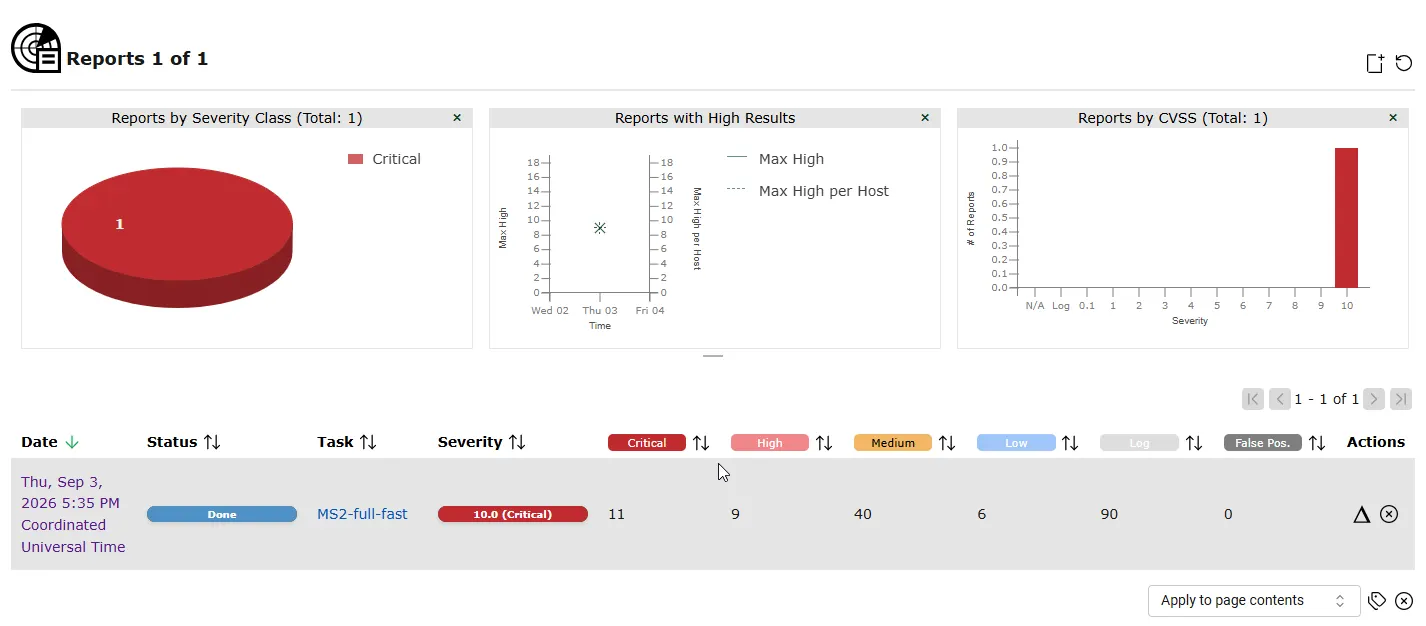
Open the report, then open the Results view. Results ranked by severity put Critical rows first. The top Critical row on this scan was a TWiki finding on 192.168.56.127:80/tcp with QoD 80%:
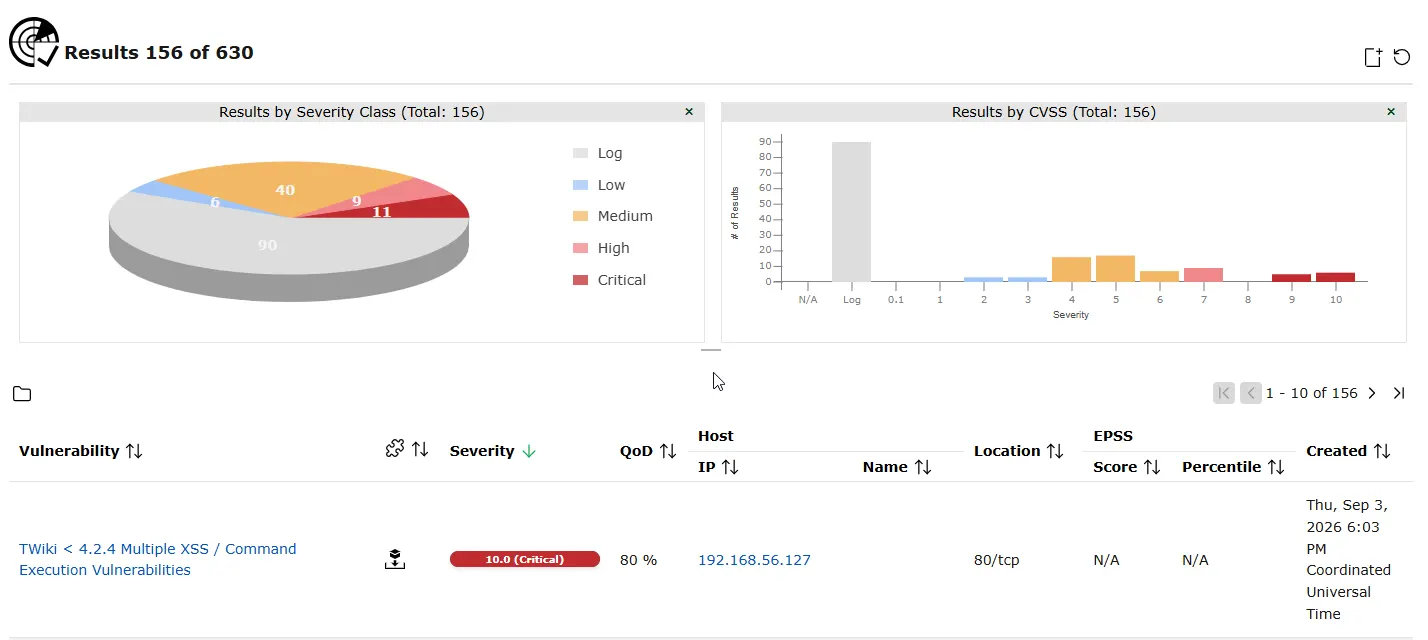
Use these fields when you open any result row:
| Column / field | What it tells you |
|---|---|
| Severity | Normalized risk score for sorting, not proof of exploitability |
| Host | Affected IP or hostname |
| Port / service | Where the NVT matched (for example 80/tcp, ftp) |
| NVT | Network Vulnerability Test name (the plugin that fired) |
| CVE | Public identifier when the NVT maps to a CVE |
| QoD (Quality of Detection) | How confident Greenbone is that the detection is correct |
| Result / evidence | Banner text, version string, or plugin output. Read this first. |
| Solution | Vendor-oriented remediation summary |
| Affected software | Version range the plugin believes matched |
One finding (lab example)
The TWiki Critical row from the Results list above looked like this in the detail view:
| Field | Lab value |
|---|---|
| Severity | 10.0 (Critical) |
| Host | 192.168.56.127 |
| Port | 80/tcp |
| NVT | TWiki < 4.2.4 Multiple XSS / Command Execution Vulnerabilities |
| QoD | 80 % |
| Result | Installed version 01.Feb.2003; fixed version 4.2.4 |
Other Critical rows on the same host included Apache/phpMyAdmin/PostgreSQL end-of-life detections and Samba/ProFTPD issues. Many of those carry QoD 30 %, so treat them as leads until you confirm the version or banner yourself.
The color of the severity bar matters less than whether the detection result matches the host:
- Banner, version, and reachable port should agree with the Result text
- High QoD with consistent evidence belongs in vulnerability triage notes
- High severity with weak QoD or vague evidence needs a manual check first
Validate a Greenbone finding
Scanner output is a lead, not a finding for your final report. A short validation loop:
- Confirm the host and port are reachable from your test position.
- Read the Result and QoD fields, not only severity.
- Compare the reported version or banner to manual enumeration (
nmap -sV, service login banner, package query when credentialed). - Open the CVE or vendor advisory and check prerequisites (exact build, configuration, backdoored tarball vs stock package).
- Decide validate, defer, or reject, and document why.
For exploit selection after validation, continue with validate scan results and exploit selection. This article stops at confirmation; exploitation belongs in scoped follow-on work.
Credentialed vs uncredentialed scans
| Mode | What Greenbone can see | Tradeoff |
|---|---|---|
| Uncredentialed | Exposed services, banners, unauthenticated checks | Matches external attacker view; misses patch levels visible only after login |
| Credentialed (SSH/SMB) | Local package versions, configuration files, missing patches on the host | Stronger findings; requires safe credentials and RoE approval |
Your first lab scan against Metasploitable 2 should stay uncredentialed so you learn the UI and severity model. Add SSH or SMB credentials in the target only when your engagement authorizes authenticated scanning and you have a test account to use.
OpenVAS / Greenbone troubleshooting
| Problem | Likely cause | What to check |
|---|---|---|
| No scan configurations in UI | Feed files are missing or gvmd is still importing them |
Check Feed Status; run SELECT count(*) FROM public.configs; tail /var/log/gvm/gvmd.log; wait for GVMD_DATA Current |
gvm-check-setup says OK but configs are empty |
Setup checks passed before database import finished | Normal during SCAP import; look for gvmd: Syncing, rising PostgreSQL size, and config_count 0 in get_configs |
| No port lists | gvmd data feed download/import incomplete | Check Administration → Feed Status and wait for the gvmd data import |
gvm-check-setup NVT directory error |
NVT rsync not finished or failed | sudo greenbone-feed-sync --type nvt; inspect rsync errors |
| Task fails: config not found | Scan configs empty | Wait for feeds; confirm Scan Configs in UI |
| Scan stays at 0 % | Early in the scan, or target/scanner problem | First minutes of Full and fast: wait and check openvas --scan-start is running. If it never moves, ping the target and sudo systemctl status ospd-openvas gvmd |
| Web UI loads but no results | Scan never started or target has no open ports | Confirm task status Done; check host firewall |
gvm-cli “MUST NOT be run as root” |
Invoked as root or without socket access | Run through the packaged account: sudo -u _gvm gvm-cli … |
rsync Connection reset by peer |
Network timeout or proxy | Retry feed sync; avoid interrupting long downloads |
| PostgreSQL connection closes during first import | Database restarted or recovered after a stall | Check journalctl and gvmd.log; allow the recovered manager to retry before rebuilding anything |
| Old CVE data | Feeds stale | Schedule periodic greenbone-feed-sync; compare feed dates |
Official references: Greenbone Community Edition documentation and Kali GVM tools.
OpenVAS / Greenbone vs Nessus
| Topic | Greenbone Community Edition (GVM) | Nessus (Essentials / Professional) |
|---|---|---|
| Licensing | Open source; community feeds | Proprietary; Essentials is free with limits |
| Setup | Heavier: PostgreSQL, feeds, multiple services | Installer-driven; faster first scan for many users |
| Feeds / plugins | Community feed via greenbone-feed-sync |
Tenable plugin feed |
| GUI | Greenbone Security Assistant web UI | Nessus web UI |
| Credentialed scans | Supported with stored credentials | Supported |
| Reporting | Built-in reports; export for triage | Strong reporting templates |
| Best fit | Learning, self-hosted lab, unlimited IPs in CE | Quick commercial-style assessments, Tenable ecosystem |
Accuracy depends on feed freshness, scan configuration, credentials, and how well version detection matches the target. Greenbone fits a self-hosted lab when open-source scanning depth matters. Nessus fits when the workflow or client standardizes on Tenable. Follow the Nessus vulnerability scanner tutorial for that path.
Greenbone containers (alternative install)
Greenbone publishes container images for labs that prefer Docker or Podman over the Kali packages. Containers trade package integration for a repeatable stack. This article uses the Kali gvm metapackage because it matches PenTest+ lab search intent and the ethical hacking course toolchain.
Summary
Kali's OpenVAS path is the GVM packages: apt install gvm, then gvm-setup and gvm-check-setup. The UI at https://127.0.0.1:9392 will load before the scanner is useful. Scan configs only show up after the feeds download and PostgreSQL finishes importing them. On a lab VM that often takes 2 to 4 hours.
While feeds are still importing:
- Watch Administration → Feed Status and
/var/log/gvm/gvmd.log - Run
SELECT count(*) FROM public.configsand wait until the count is above zero - Leave
gvmdand PostgreSQL alone; an empty Scan Configs page is normal until GVMD_DATA finishes
After configs appear, create a target, start a Full and fast task, and open the report. Read QoD, port, NVT name, CVE, and the Result text along with severity, then validate those hits by hand before treating them as confirmed. If a feed download fails partway through, re-run greenbone-feed-sync. That usually fixes it without a reinstall.
References
- Greenbone Community Edition documentation
- Kali Linux — gvm package
- Greenbone feed sync (
greenbone-feed-sync) - NVD — National Vulnerability Database
Frequently Asked Questions
Why does OpenVAS show no scan configurations?
Feed data is missing or not fully imported. Run sudo greenbone-feed-sync --type all once if the download failed, leave the services running, and inspect /var/log/gvm/gvmd.log. Scan configs appear only in the GVMD_DATA phase, after NVT, SCAP, and CERT data load into PostgreSQL. gvm-check-setup may report success while SCAP is still running and SELECT count(*) FROM public.configs still returns 0.
How long does Greenbone feed sync take?
Often 2 to 4 hours end to end on a first Kali install, not just the download. The rsync step may finish in 20 to 60 minutes; SCAP import into PostgreSQL is usually the longest phase (1 to 2+ hours on 8 to 11 GB RAM). Scan configurations appear only in the final 15 to 30 minutes when GVMD_DATA imports. Track progress with Feed Status, sudo tail -f /var/log/gvm/gvmd.log, and SELECT count(*) FROM public.configs rather than refreshing the Scan Configs page alone.
What login URL does Kali use?
Default local URL: https://127.0.0.1:9392 with the admin password printed by gvm-setup. Remote access requires SSH port forwarding or changing gsad listen settings.
What does QoD mean in OpenVAS results?
Quality of Detection: the scanner’s confidence that the test result is correct. High severity with low QoD still needs manual validation.
Is OpenVAS the same as Greenbone?
OpenVAS is the scanner engine name many users still search for. The full stack is Greenbone Community Edition managed by GVM, with the Greenbone Security Assistant web UI.
