
| Tested on | Kali GNU/Linux Rolling 2026.2 (kali-rolling) |
|---|---|
| Package | spiderfoot 4.0-0kali5 |
| Lab environment | Pentest lab |
| Cert prep | CompTIA PenTest+ PT0-003 — Domain 2 (Reconnaissance and Enumeration) |
| Privilege | Normal user to run scans; sudo for apt install |
| Scope | SpiderFoot tutorial on Kali Linux: apt install, web UI on port 5001, passive domain scan workflow, Summary, Browse, Graph, and correlation output, CLI passive scans, API key settings, and brief Docker or source-install pointers. Does not cover full Docker deployment, Termux or Android ports, module-by-module tuning, or exploitation. |
| Related guides | OSINT tools for pentesters |
Manual OSINT recon usually means opening WHOIS, certificate transparency, breach indexes, and search APIs in separate tabs for every hostname you find. SpiderFoot automates that work on Kali Linux: one apt install, a web UI on port 5001, and modular collectors that feed a single correlated workspace you can read in the browser or export from the CLI.
I ran every command here on the pentest lab on August 30, 2026. The walkthrough follows that path with screenshots from SpiderFoot 4.x — a passive scan against example.com, then the Scans list, Summary table, and Data Types chart. Use any authorized domain, IP, or email as the seed; the install and run steps stay the same.
SpiderFoot quick start on Kali
If you only need the shortest path from install to first scan, install the package first:
sudo apt install spiderfootWith the package in place, start the web console on localhost:
spiderfoot -l 127.0.0.1:5001Leave that terminal open, then open http://127.0.0.1:5001/ in a browser. Click New Scan, enter an authorized target such as example.com, and select the Passive use case before you start the scan.
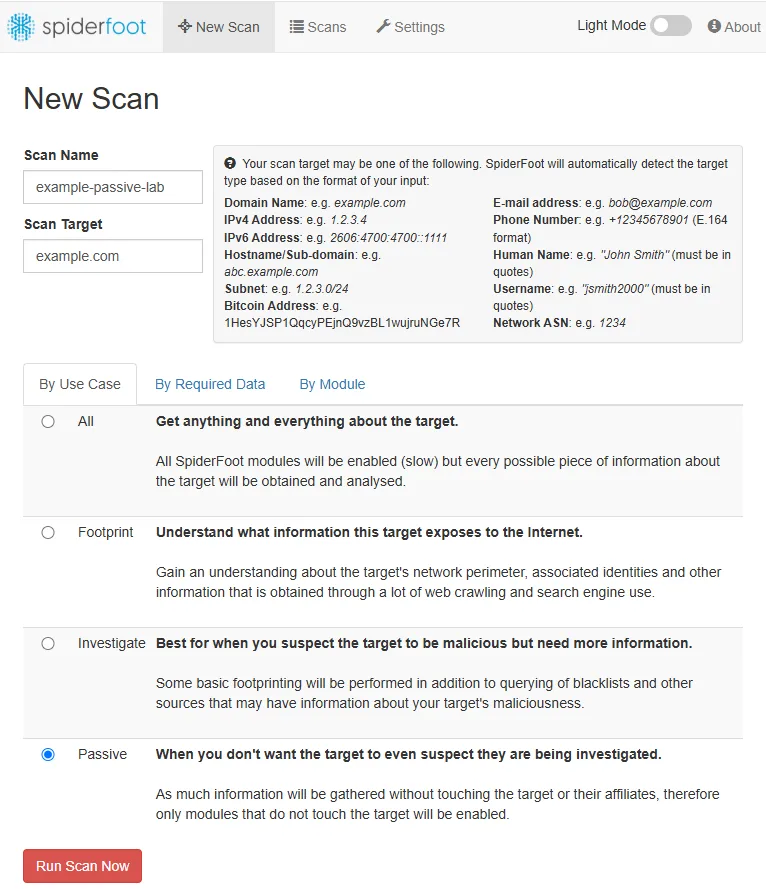
The sections below walk through install verification, result tabs, CLI usage, and deployment alternatives in more detail.
What is SpiderFoot?
SpiderFoot is an open-source OSINT automation and reconnaissance tool. It can start from a domain, hostname, IP address, subnet, ASN, email address, or person's name, then run modular collectors and correlate the resulting intelligence in one workspace.
Each module queries a data source (DNS, certificate transparency, breach archives, search indexes, social APIs) and emits typed events. SpiderFoot deduplicates those events, draws relationships in a graph view, and applies built-in correlation rules that flag patterns worth a human review.
For example, one module may resolve DNS addresses for your seed domain, another may search certificate transparency logs, and another may query Shodan when you configure an API key. Each module emits events into the same scan, which is why one hostname can lead to several new pieces of information.
| Term | Meaning |
|---|---|
| Module | Collector that queries a source (for example sfp_dnsresolve, sfp_shodan) |
| Event | One item a module emits (an IP, hostname, or email row) |
| Data type | Classification such as IP Address, Domain Name, or Email Address |
| Correlation | Rule that connects multiple events into a noteworthy pattern |
This tutorial uses a domain seed because that is the most common starting point for penetration-testing reconnaissance. The same web UI and CLI workflow apply when your seed is an IP, email, or other supported target type.
What can SpiderFoot scan?
| Starting target | Example use |
|---|---|
| Domain | Subdomains, DNS records, certificates, related emails |
| IP address / hostname | Infrastructure relationships and service context |
| Netblock / ASN | Organizational footprint and routing context |
| Email address | Public exposure and related accounts |
| Person's name | Public OSINT relationships across indexed sources |
For penetration testing, treat SpiderFoot as a correlation hub after you know the in-scope asset. It complements single-purpose OSINT tools rather than replacing them.
Install SpiderFoot on Kali Linux
Kali ships SpiderFoot as an apt package. Install it when spiderfoot is not already on the PATH.
sudo apt install spiderfootConfirm the package version before you match screenshots to your own system:
dpkg-query -W spiderfootspiderfoot 4.0-0kali5The /usr/bin/spiderfoot wrapper calls sf.py 4.0.0. Kali also ships a spiderfoot-cli helper; check spiderfoot-cli --help for the operations supported by your packaged build. This guide uses the main spiderfoot command for install, the web UI, and CLI scans.
Other ways to run SpiderFoot
Kali's apt package is the path this guide tests end to end. Upstream also supports other deployments when Kali is not your host:
- Kali package — recommended here;
apt install spiderfootmatches the Kali tool page and needs no container setup. - Docker / Docker Compose — useful for an isolated deployment; the SpiderFoot repository ships
docker-compose.ymlthat exposes port5001and mounts a persistentspiderfoot-datavolume. - Python / source install — clone the upstream repo and run
sf.pydirectly when you need a custom module tree or a non-Kali Linux host.
This article does not walk through Docker or source install step by step. If you only need to run SpiderFoot on Kali, stay on the apt package above.
Start the SpiderFoot web console
The web UI is the easiest way to pick a use case and review correlated output. Bind it to localhost so only your Kali session can reach it.
spiderfoot -l 127.0.0.1:50012026-08-29 03:38:37,111 [INFO] sf : Starting web server at 127.0.0.1:5001 ...
2026-08-29 03:38:37,141 [WARNING] sf : Warning: passwd file contains no passwords. Authentication disabled.SpiderFoot 4.x warns when the web UI has no login configured. That is acceptable on an isolated lab bound to 127.0.0.1; do not expose port 5001 to a network without adding authentication. The home screen lists existing scans and links to New Scan.
Run a passive OSINT scan
SpiderFoot's Passive preset enables modules designed not to contact the target directly. Those modules may still query third-party APIs, public DNS infrastructure, archives, and other Internet data sources. A passive CLI run can therefore include DNS resolver output (sfp_dnsresolve, sfp_dnsraw) without SpiderFoot probing the target host itself.
These DNS queries go through resolver infrastructure and may ultimately cause authoritative DNS lookups, so Passive here refers to SpiderFoot's preset classification rather than zero network activity.
In the web UI, click New Scan, enter the authorized domain in Scan Target, and choose Passive under Use case. Review the module list SpiderFoot enables for that preset, then start the scan. The quick-start section above shows the same New Scan screen.
After you click Run Scan Now, the home page lists the job with status RUNNING:
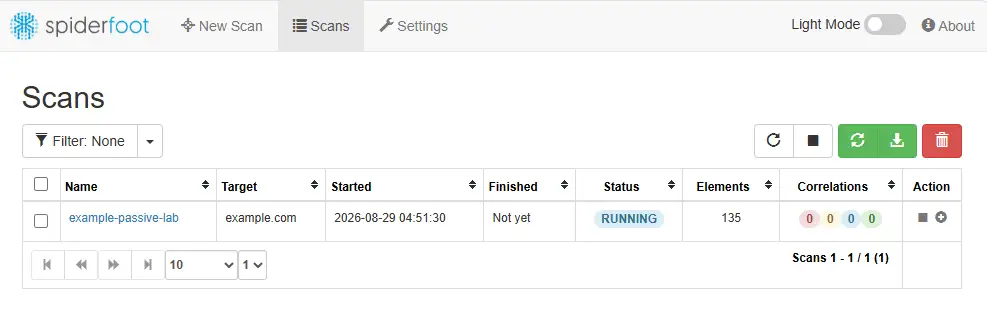
Large domains can take several minutes because the Passive preset may enable many third-party data-source modules, each with its own latency and rate limits. When the scan completes, the status column changes to FINISHED:
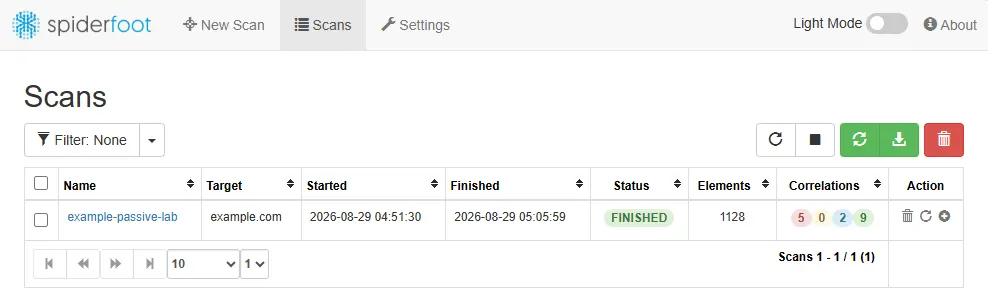
Open the scan name to review results. Do not export or cite counts until the status reads FINISHED.
Read SpiderFoot scan results
Open the finished scan to move from raw events to reportable intelligence. SpiderFoot splits the same dataset across tabs so you can start with severity and drill into evidence.
Summary and correlation counts
The Summary tab groups events by type and shows correlation rule hits (HIGH, MEDIUM, LOW, INFO). These are SpiderFoot correlation-rule priorities, not CVSS scores or confirmed vulnerability severity ratings. Use the tab to see whether the scan produced net-new hostnames, mail addresses, or certificate overlaps worth validating.
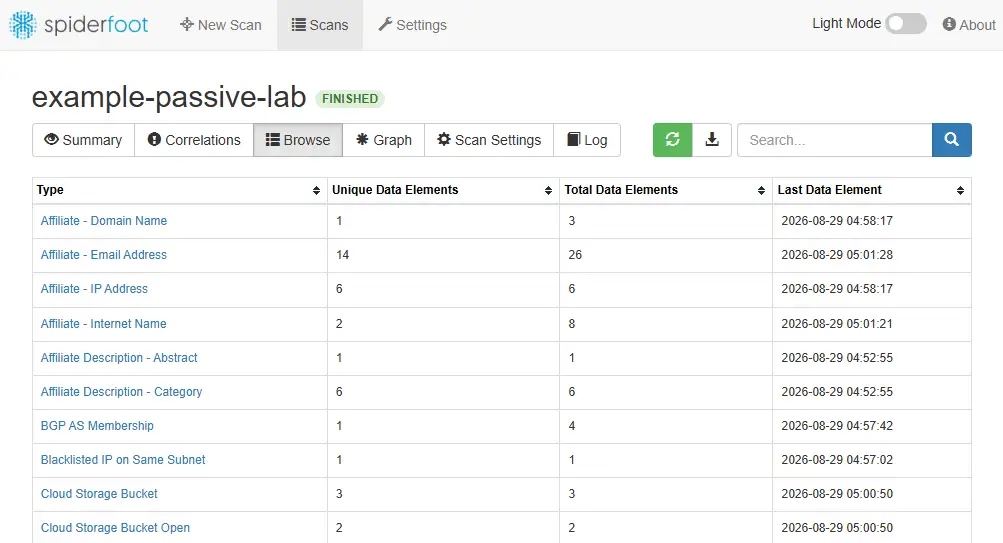
The Data Types chart on the same tab gives a quick visual of which event categories dominate the scan:
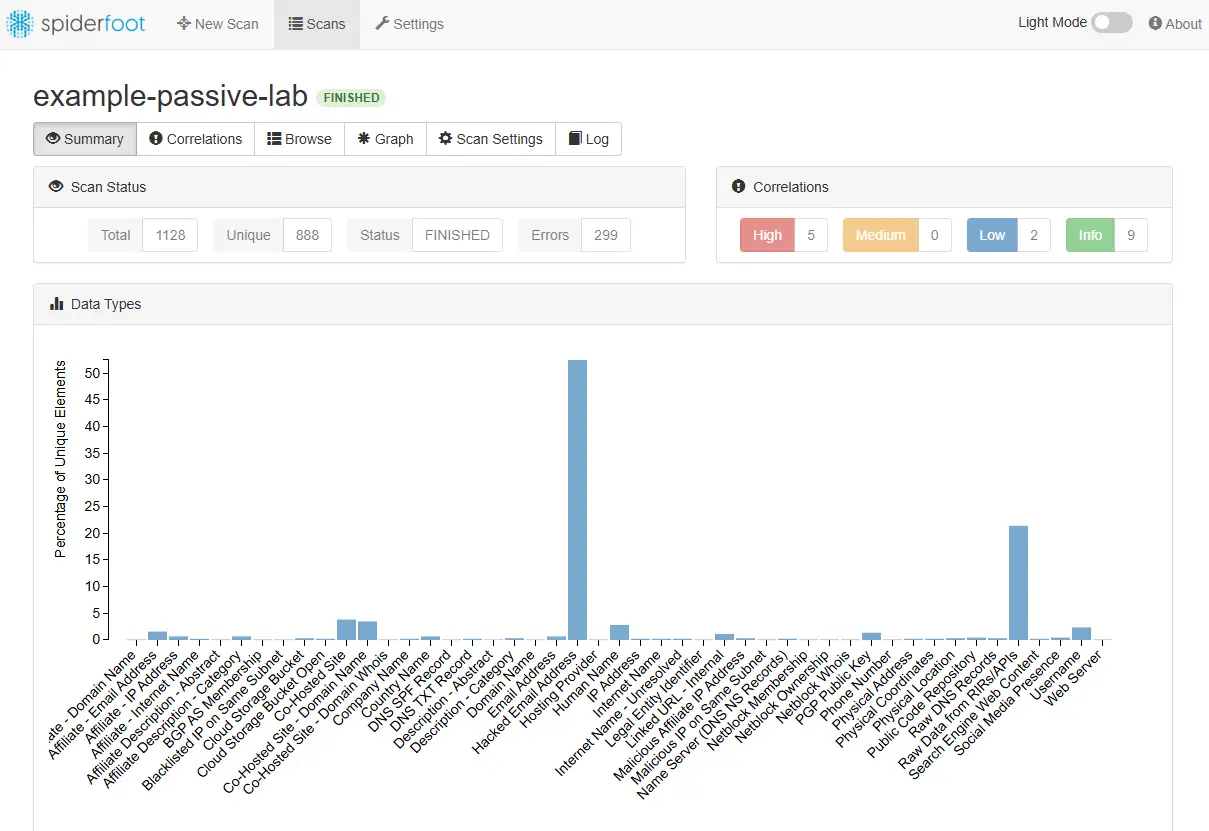
An empty correlation bucket is normal on low-signal lab targets. Note the event types with the highest totals, then open Browse for the underlying rows.
Browse typed events
Browse lists every collected element with module source, data type, and timestamp. Filter by type when you only need mail addresses, subdomains, or raw API payloads.
For example, when sfp_dnsresolve reports 104.20.23.154 as an IP Address for example.com, Browse shows the hostname, data type, source module, and timestamp in the same row. That row is the bridge between the CLI transcript above and the web UI.
Export only rows that fall inside scope. SpiderFoot will happily collect unrelated third-party noise when modules share a common string with your seed domain.
Graph view for pivots
The Graph tab draws nodes for entities and edges for relationships (for example, a hostname linked to an IP or certificate). Follow the graph when you need to explain how a subdomain entered the dataset.
A graph edge means SpiderFoot observed a relationship in one or more data sources; it does not by itself prove ownership, current reachability, or a vulnerability.
Right-click nodes to pivot or hide branches while you trim false positives. Copy the final subgraph into your report only after you verify each hop against scope.
Run SpiderFoot from the CLI
The CLI is useful when you want JSON or CSV on disk without clicking through the UI. SpiderFoot exposes the same use-case presets as the web wizard.
Check the passive flag before you script scans:
spiderfoot --helpusage: sf.py [-h] [-d] [-l IP:port] [-m mod1,mod2,...] [-M] [-C scanID]
[-s TARGET] [-t type1,type2,...]
[-u {all,footprint,investigate,passive}] ...
-u {all,footprint,investigate,passive}
Select modules automatically by use caseRun a quiet passive scan against the authorized domain and print tab-separated rows:
spiderfoot -s example.com -u passive -q -o tabSource Type Data
SpiderFoot UI Internet Name example.com
SpiderFoot UI Domain Name example.com
sfp_dnsresolve IP Address 172.66.147.243
sfp_dnsresolve IP Address 104.20.23.154
sfp_dnsraw Raw DNS Records example.com. 86400 IN NS hera.ns.cloudflare.com.The first rows confirm the seed. Later lines show which module produced each artifact. Redirect full output to a file when you need an audit trail: spiderfoot -s example.com -u passive -q -o json > example-passive.json.
After a web UI scan finishes, you can run correlation rules against its ID:
spiderfoot -C SCAN_IDReplace SCAN_ID with the value from the scan list (for example 7B13F3BF in the lab run). This applies SpiderFoot's installed correlation rules to the stored scan and prints matching rules for manual review.
SpiderFoot scan and use-case modes
Pick the narrowest use case that answers your question. Review the enabled module list before using anything broader than passive.
| Use case | Purpose | Contact risk |
|---|---|---|
passive |
Gather OSINT without directly contacting the target | Lowest |
footprint |
Build a broader picture of the target's Internet footprint | May include target interaction |
investigate |
Investigate the reputation or risk of a suspicious target | May include target interaction |
all |
Enable every compatible module | Highest / noisiest |
Choose the narrowest mode that answers your question:
- First reconnaissance against a client →
passive - Broader external footprinting and scope permits interaction →
footprint - Investigating a suspicious indicator →
investigate all→ avoid unless you understand every enabled module
Stay on passive until your rules of engagement cover broader interaction with the target network.
Configure API keys for SpiderFoot modules
Many modules call external APIs. You do not need every API key — configure only the providers relevant to your target and engagement. Missing credentials usually mean that module skips or returns limited output.
- Open Settings in the SpiderFoot web UI (
http://127.0.0.1:5001/opts). - Search the left sidebar for the provider or module — for example SHODAN, Hunter.io, or VirusTotal. Modules marked with a lock icon in the sidebar typically require credentials; each module's Settings page also documents whether an API key is required.
- Paste the provider API key into the module's key field.
- Click Save Changes at the top of the page.
- Re-run the scan or enable the module on New Scan if it was disabled.
- Review module errors in the scan log if the module still produces no data.
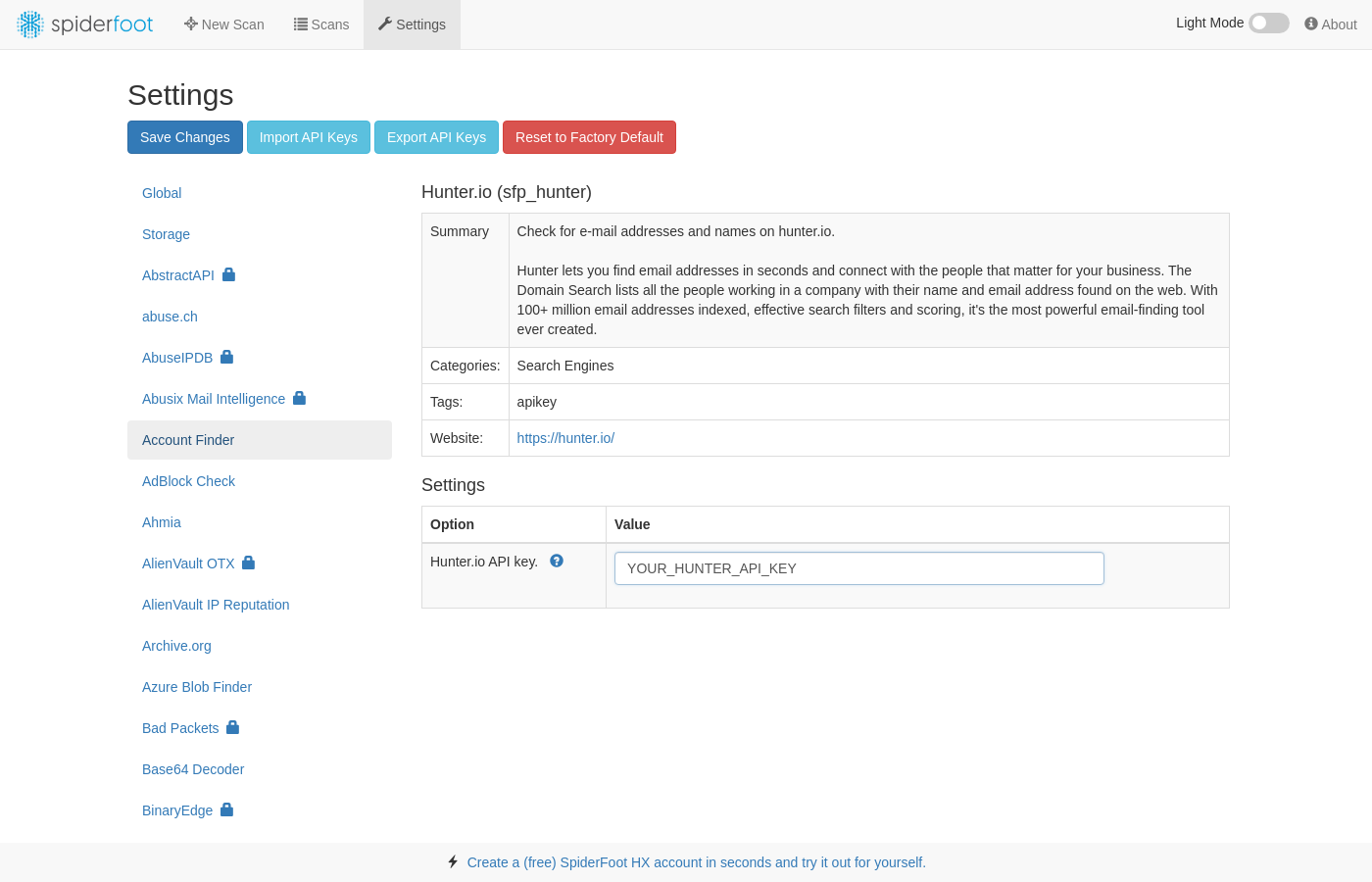
The screenshot shows Hunter.io (sfp_hunter) under Settings. Other providers follow the same pattern — select the module in the sidebar, paste the key, and save. You can also use Import API Keys when you already have a SpiderFoot key export file.
Store keys only on engagement systems you are allowed to use. Remove engagement-specific keys from shared lab systems when the project ends, and rotate any key that may have been exposed. Never commit key files into scan exports or screenshots.
What to do after SpiderFoot finds something
SpiderFoot output is a lead list, not a finished report. Map each data type to the next authorized step:
| Finding | Next step (when in scope) |
|---|---|
| Hostname / subdomain | Verify against the SoW → correlate with certificate transparency or passive DNS → subdomain enumeration tools or DNS enumeration |
| IP address | Cross-check in Shodan or Censys → authorized Nmap only when the RoE permits |
| Email address | Enrich with Hunter.io or breach indexes where permitted → validate before any credential testing |
| Relationship in Graph | Verify manually — a graph edge does not prove ownership or a vulnerability |
Export only in-scope rows, dedupe on lowercase hostname and email, and link each validated finding to an asset in your penetration test report.
Troubleshooting
| Symptom | Likely cause | Fix |
|---|---|---|
Browser cannot reach http://127.0.0.1:5001/ |
Web UI not running or bound to another host | Start spiderfoot -l 127.0.0.1:5001 and keep the terminal open; use SSH -L 5001:127.0.0.1:5001 from a remote workstation |
Scan stays RUNNING for a long time |
Passive preset enables many third-party modules, each with its own latency | Wait for completion, reduce modules manually on New Scan, or run a narrower CLI scan with -m |
| Module shows errors in the log | Missing API key or provider rate limit | Add the key under Settings, reduce parallel threads with -max-threads 1, or disable the module |
| Huge unrelated domains in Browse | Shared strings in third-party indexes | Filter by type, delete false-positive rows from exports, and document discarded noise in your notes |
spiderfoot: command not found |
Package not installed | Run sudo apt install spiderfoot and open a new shell |
Summary
SpiderFoot on Kali answers the install-and-run question in a few commands: apt install spiderfoot, then spiderfoot -l 127.0.0.1:5001 and the web UI at http://127.0.0.1:5001/. From there you pick a seed (domain, IP, email, and other supported types), choose a use case, and let modular collectors build a correlated dataset.
This guide walks a passive domain scan because that matches early pentest reconnaissance, but the same UI and CLI apply to other target types. The Summary, Browse, and Graph tabs are where raw module output becomes reportable intelligence, and -u passive on the CLI mirrors the web wizard when you need JSON or CSV.
Map findings to the next authorized step — hostnames to DNS work, IPs to exposure indexes or Nmap, emails to enrichment tools — before they reach a client deliverable. Docker and source installs are valid upstream options when Kali is not your host; the apt package remains the tested path here. Passive does not mean risk-free—third-party APIs still log your lookups—so keep rules of engagement visible, export only in-scope rows, and validate graph pivots before reporting.
References
- SpiderFoot project documentation
- SpiderFoot GitHub repository
- Kali Linux tool listing — spiderfoot
Frequently Asked Questions
How do I install SpiderFoot on Kali Linux?
Install the Kali package with sudo apt install spiderfoot, then confirm the version with dpkg-query -W spiderfoot. The spiderfoot command wraps /usr/share/spiderfoot/sf.py. You do not need Docker on Kali for the workflow in this guide.
How do I run SpiderFoot?
After install, start the web console with spiderfoot -l 127.0.0.1:5001 and open http://127.0.0.1:5001 in a browser. Click New Scan, enter an authorized target, choose a use case such as Passive, and start the scan. You can also run one-off scans from the CLI with spiderfoot -s TARGET -u passive.
Can SpiderFoot run on Android?
SpiderFoot does not have an official native Android app. Run SpiderFoot on Kali, Linux, Docker, or another supported host and open the web interface from a mobile browser if you need remote access. Termux or unofficial ports are outside the scope of this guide.
What is the difference between passive and active SpiderFoot scans?
Passive means modules designed not to contact the target directly; they may still query third-party APIs, public DNS, and other Internet data sources. Footprint and investigate presets broaden the module set and may contact the target. For early pentest OSINT, start with passive and confirm scope before you enable broader use cases.
Is SpiderFoot legal to use?
Running SpiderFoot against systems you do not own or lack written permission to test can violate computer misuse laws and provider terms. Passive modules still call external APIs that may log your queries. Keep targets, storage, and export rules in your rules of engagement.
Does SpiderFoot need API keys?
Many modules work without keys, but paid or rate-limited sources such as Shodan, VirusTotal, or Hunter.io need API keys under Settings in the web UI. Open Settings, select the provider module in the sidebar, paste the key, and click Save Changes. You do not need every API key — configure only providers relevant to your engagement; missing credentials usually mean that module skips or returns limited output.
