
| Package | aws-cli/2.37.3, cloud-utils-growpart, xfsprogs, SSM agent (RHEL 10.2 on EC2, Nitro/XFS root on nvme0n1p3) |
|---|---|
| AWS Region | ap-south-1 (Mumbai) for the examples; EBS volume modification is Regional |
| Lab environment | Workstation with AWS CLI v2 and configured credentials — AWS CLI tutorial Install AWS CLI on Ubuntu · Install AWS CLI on Debian |
| Privilege | EC2 ModifyVolume and DescribeInstances permissions; IAM permissions for Session Manager or ssm:SendCommand; [sudo](/sudo-command-in-linux/) on the instance through SSM or serial console |
| Scope | Why a full Linux root filesystem on EC2 can stop SSH logins and break services, how to separate block exhaustion from inode exhaustion, which recovery path to use when SSH is unavailable (Systems Manager, EC2 serial console, or rescue instance), how to free the minimum safe space, resize EBS when capacity is the real limit, find what consumed the disk, and bring sshd back. Does not cover growpart failures after EBS resize when the root filesystem still has no writable space. |
| Related guides | Fix growpart no space left on device on EC2 Recover lost EC2 key pair EC2 SSH connection refused EC2 SSH connection timed out AWS Tutorial |
A Linux EC2 instance can report running and pass both EC2 status checks while the root filesystem on / is nearly exhausted. When df shows / at or near 100% and Avail is nearly exhausted, services such as sshd, package managers, and log writers can fail because they cannot complete normal writes. Use% rounds up; a line that reads 100% may still show a small Avail value such as 33M.
SSH is not a separate failure mode from a full disk. A full root filesystem often shows up as an SSH client that hangs after Connecting to…, a login that stops with No space left on device, or an existing session that freezes when the shell tries to write history. Security groups and route tables are unchanged; the guest OS simply cannot complete normal writes.
The walkthrough fills the root volume on RHEL 10.2 until df -h reports 100%, recovers through Systems Manager without SSH, then resizes EBS from 10 GiB to 16 GiB and grows the XFS filesystem. Instance IDs, volume IDs, and IP addresses in screenshots and command output are sanitized; the workflow was tested in ap-south-1.
SSH path (may fail)              Recovery when SSH is down
          |                                    |
          |  df: / at 100%                     |
          |  writes to /var, /tmp fail         |
          X                                    |
    ssh hangs or drops                         |
                                               v
                                    SSM Session Manager
                                    or EC2 serial console
                                    or rescue instance
                                               |
                                               v
                                    rm / vacuum journal
                                    growpart + xfs_growfs
Root filesystem full and SSH broken?
- Check
df -h /anddf -i /to see whether blocks or inodes are exhausted. - If Systems Manager reports Online, try Session Manager or Run Command first.
- If the SSM session fails to start, use EC2 serial console or a rescue instance. A completely full root can stop the agent from writing session files.
- Remove or truncate large files and vacuum logs until services can write to
/again. - Re-check
dfafter each cleanup step. Do not rely on a fixed free-space threshold. - When EBS capacity is the limit, take a recovery snapshot and call
modify-volume. - Wait until modification status is
optimizingorcompleted, then rungrowpartandxfs_growfs. - Confirm
sshdis running, test SSH, and restartsshdonly if the service is down or SSH still fails after space returns.
Confirm Disk vs Inode Exhaustion
Block exhaustion and inode exhaustion both return No space left on device, but they show up on different df columns. Check both before deleting data or resizing EBS.
| Symptom | Block full (df -h) |
Inode full (df -i) |
|---|---|---|
df on / |
Use% at or near 100%, Avail near zero |
IUse% at 100% while Avail may still show space |
| Typical cause | Logs, package cache, dumps, unrotated journals | Millions of tiny files (mail queue, tmp, session files) |
| First fix | Remove or truncate large files; vacuum journald |
Delete directories with huge file counts |
On a healthy RHEL 10.2 root volume before the lab fill, block use was low and inode use was minimal:
df -h /Filesystem Size Used Avail Use% Mounted on
/dev/nvme0n1p3 9.8G 2.1G 7.7G 22% /Inode use on the same mount was also low:
df -i /Filesystem Inodes IUsed IFree IUse% Mounted on
/dev/nvme0n1p3 5138944 43804 5095140 1% /After filling the root filesystem with a single large file under /var/lib, block use hit 100% while inode use stayed far below exhaustion:
df -h /Filesystem Size Used Avail Use% Mounted on
/dev/nvme0n1p3 9.8G 9.8G 33M 100% /Inode use should still be low when only one large file consumed blocks:
df -i /Filesystem Inodes IUsed IFree IUse% Mounted on
/dev/nvme0n1p3 109608 43805 65803 40% /XFS allocates inodes dynamically, so the total Inodes and IFree values reported by df -i can change as free filesystem space changes. Focus on whether inode availability is actually exhausted rather than expecting the total inode count to remain fixed.
The 100% in df -h with IUse% at 40% confirms block exhaustion, not inode exhaustion. If both Use% and IUse% read 100%, delete tiny files or the directory that holds them before chasing large log files.
journalctl disk usage is worth checking on full disks because persistent journals live under /var:
sudo journalctl --disk-usageArchived and active journals take up 4.1M in the file system.On this instance the journal was small; the lab fill file dominated usage. On production hosts, multi-gigabyte journals are common when rotation never ran because the disk was already full.
Choose SSM, Serial Console, or Rescue Path
Use whichever management path still gives you access to the instance. EC2 status checks can pass even when SSH is unusable.
| Path | When to use | Needs |
|---|---|---|
| Systems Manager Session Manager | SSM agent Online; try first when SSH is down | Instance profile with AmazonSSMManagedInstanceCore; no inbound SSH |
| EC2 serial console | SSM unavailable or a new Session Manager session fails | Account and IAM access, supported Nitro instance, usable password-based OS account |
| Rescue instance | No SSM and no usable serial console | EBS-backed root + healthy rescue instance in the same AZ |
Try Session Manager or Run Command first when the agent already reports Online. On the test instance, SSM reported Online while df showed / at 100%, and both paths worked because a small amount of free space remained. That is not guaranteed: when / is completely exhausted, the SSM agent may fail to create session or stream files and return storage-related errors such as Plugin with name Standard_Stream not found. If a new Session Manager session fails for that reason, move directly to serial console or a rescue instance.
List managed instances and confirm ping status:
aws ssm describe-instance-information \
--region ap-south-1 \
--filters "Key=InstanceIds,Values=i-0123456789abcdef0" \
--query 'InstanceInformationList[0].{InstanceId:InstanceId,PingStatus:PingStatus,PlatformName:PlatformName}' \
--output table---------------------------------------------------------
| DescribeInstanceInformation |
+-------------+----------------+------------------------+
| InstanceId | PingStatus | PlatformName |
+-------------+----------------+------------------------+
| i-0123... | Online | Red Hat Enterprise |
| | | Linux Server |
+-------------+----------------+------------------------+When Ping status is Online, open Connect → Session Manager in the console or start a session from the CLI. If the session fails with a storage-related plugin error, treat that as a full-disk recovery case and use serial console or a rescue instance instead.
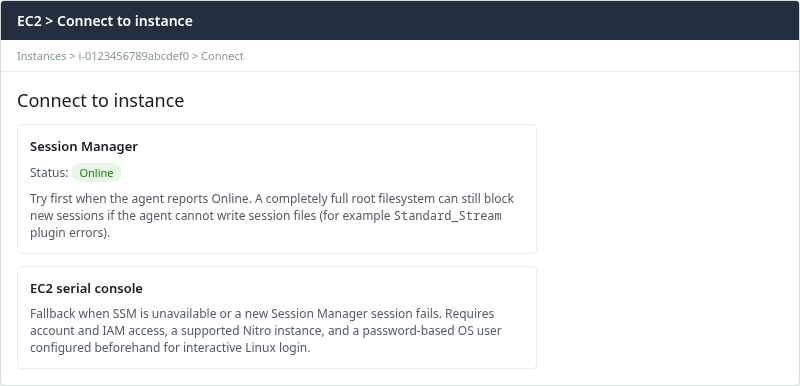
Serial console also requires AWS-side permissions and, for an interactive Linux login, a password-based OS user configured beforehand. AWS-provided Linux AMIs generally do not ship with one. If the instance does not already have a usable password-based console account, a rescue instance may be the more practical recovery path.
Run a one-off command through Run Command when an interactive session is not required:
aws ssm send-command \
--region ap-south-1 \
--instance-ids i-0123456789abcdef0 \
--document-name AWS-RunShellScript \
--parameters 'commands=["df -h /","df -i /","sudo journalctl --disk-usage"]' \
--query 'Command.CommandId' --output textPoll the invocation and read stdout when the command finishes:
aws ssm get-command-invocation \
--region ap-south-1 \
--command-id <command-id> \
--instance-id i-0123456789abcdef0 \
--query '{Status:Status,Stdout:StandardOutputContent}' --output yamlStatus: Success
Stdout: |-
Filesystem Size Used Avail Use% Mounted on
/dev/nvme0n1p3 9.8G 9.8G 33M 100% /
...
Archived and active journals take up 4.1M in the file system.Use EC2 serial console when SSM is Offline or a new Session Manager session fails because the root filesystem cannot accept writes. Attach a rescue instance and edit the root volume offline only when neither SSM nor serial console is available; the rescue instance must be in the same Availability Zone as the EBS volume. Follow the same offline pattern as recover unbootable EC2 with rescue instance.
Free the Minimum Safe Space
During the outage, recover enough free space for basic services and commands to work again; investigate the long-term cause after access is restored. The actual headroom depends on sshd, the SSM agent, journald, package managers, growpart, and application writes. Even a small amount can restore basic commands, but confirm with df rather than assuming a fixed threshold.
Through Session Manager or Run Command, inspect usage while the disk is still full:
df -h / && df -i / && sudo journalctl --disk-usageFilesystem Size Used Avail Use% Mounted on
/dev/nvme0n1p3 9.8G 9.8G 33M 100% /
Filesystem Inodes IUsed IFree IUse% Mounted on
/dev/nvme0n1p3 109376 43821 65555 41% /
Archived and active journals take up 4.1M in the file system.Identify the largest consumers on / before deleting anything on a production host:
sudo du -xsh /* 2>/dev/null | sort -hr | headThe /var/lib/lab-disk-fill.bin path below is specific to this lab. On a real instance, identify the consumer first with df, du, and lsof +L1; do not delete files solely because they are large.
Remove the known large file from the lab fill:
sudo rm -f /var/lib/lab-disk-fill.bin && syncVacuum journald archives when logs contributed to the pressure:
sudo journalctl --vacuum-size=80MVacuuming done, freed 0B of archived journals from /run/log/journal.
Vacuuming done, freed 0B of archived journals from /run/log/journal/ec284ab522a1b5a02d77ef55c75c65d0.The vacuum freed 0B here because the journal was only 4.1M and the fill file was the main consumer. After rm, df returned to roughly twenty-two percent used on the 10 GiB root volume.
Confirm /var is no longer dominated by a single huge file:
sudo du -xh --max-depth=1 /var 2>/dev/null | sort -hr | head -8145M /var
128M /var/cache
17M /var/lib
616K /var/log
4.0K /var/tmpOn production systems, also check /var/log, /var/cache/dnf, application logs under /opt, and orphaned build artifacts before resizing EBS.
Resize EBS if Capacity Is the Root Cause
If normal workload growth has simply made the volume too small, deleting files will only postpone the next outage. Increase the EBS volume from the API or console, wait until modification is optimizing or completed, then grow the partition and filesystem inside the guest.
Describe the root volume attached to the instance:
aws ec2 describe-volumes \
--region ap-south-1 \
--volume-ids vol-0abc1234567890def \
--query 'Volumes[0].{Size:Size,State:State,Attachments:Attachments}' \
--output yamlTake a recovery snapshot before changing the root volume, especially when the instance is already in a degraded state:
aws ec2 create-snapshot \
--region ap-south-1 \
--volume-id vol-0abc1234567890def \
--description "Before root volume resize"For a running root volume, AWS captures data already written to disk; cached application or OS buffers are not guaranteed on the snapshot. The snapshot can be created while the instance is running, but it is crash-consistent rather than application-consistent. If the workload allows a brief stop or application quiesce, do that before taking the snapshot for the cleanest rollback point.
Request a larger size (16 GiB in the lab, up from 10 GiB):
aws ec2 modify-volume --region ap-south-1 --volume-id vol-0abc1234567890def --size 16{
"VolumeModification": {
"VolumeId": "vol-0abc1234567890def",
"ModificationState": "modifying",
"TargetSize": 16,
"OriginalSize": 10,
...
}
}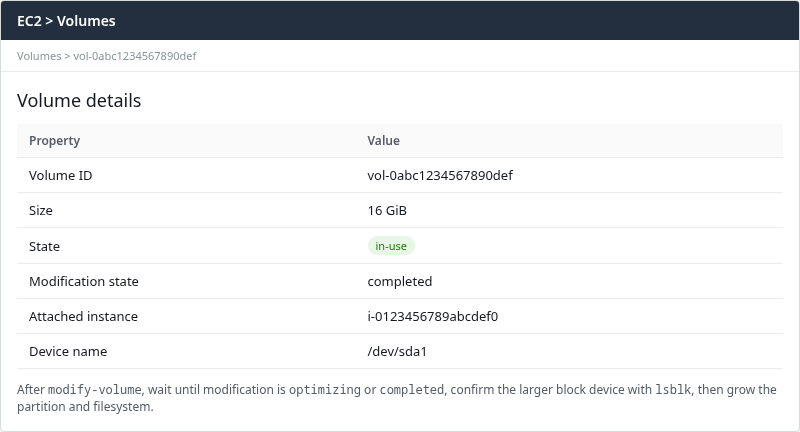
Wait until the volume modification reaches optimizing or completed, then verify the larger block-device size with lsblk. The partition and filesystem may still reflect the old size until you grow them:
lsblk -o NAME,SIZE,FSTYPE,MOUNTPOINT && df -h /NAME SIZE FSTYPE MOUNTPOINT
nvme0n1 16G
├─nvme0n1p1 1M
├─nvme0n1p2 200M vfat /boot/efi
└─nvme0n1p3 9.8G xfs /
Filesystem      Size  Used Avail Use% Mounted on
/dev/nvme0n1p3 9.8G 2.1G 7.7G 22% /Do not copy partition number 3 blindly. Use lsblk -f to identify the partition that actually backs /. If / is directly on the EBS block device with no partition, skip growpart. LVM-backed roots require the LVM extension workflow instead.
On the tested Nitro RHEL 10 layout, partition 3 on nvme0n1 backs / as XFS. Grow that partition, then expand XFS in place:
lsblk -f
sudo growpart /dev/nvme0n1 3CHANGED: partition=3 start=413696 old: size=20555776 end=20969471 new: size=33140703 end=33554398Expand the XFS filesystem on / to fill the enlarged partition:
sudo xfs_growfs -d /After both steps, df should report the larger filesystem:
df -h /Filesystem Size Used Avail Use% Mounted on
/dev/nvme0n1p3 16G 2.2G 14G 14% /If growpart fails with No space left on device even after EBS shows a larger size, the root filesystem may still have no room for temp files. See fix growpart no space left on device on EC2 for the tmpfs-on-/tmp workaround and the full partition-and-filesystem checklist.
Find What Filled the Disk
Once access is restored, find what filled the filesystem so it does not happen again. Work in order: df → du → lsof +L1 → remove only identified data.
Start with top-level directories on /:
sudo du -xh --max-depth=1 / 2>/dev/null | sort -hr | head -12Drill into the largest directory (often /var or /home):
sudo du -xh --max-depth=2 /var 2>/dev/null | sort -hr | head -15Find files larger than 100 MiB modified in the last seven days:
sudo find / -xdev -type f -size +100M -mtime -7 2>/dev/null | head -20When inode use is high but df -h still shows free blocks, count files per directory:
sudo find /var/spool -xdev -type f 2>/dev/null | wc -lPair du and find with application knowledge: container layers, CI artifacts, core dumps, and unrotated httpd or nginx logs are frequent culprits on web servers.
If df and du Do Not Match
When df reports a full filesystem but du cannot account for the missing space, a deleted file may still be held open by a running process. df counts that space; du cannot see the deleted pathname.
sudo lsof +L1Look for lines with a deleted file and a large size in the SIZE/OFF column. Restart or reload the owning service after confirming it is safe to do so. Common owners include log shippers, databases, and long-running daemons that kept a log file descriptor open after rotation.
Restore sshd and Core Services
After free space returns, bring back services that failed while / was full. sshd is the priority when SSH was the symptom.
If sshd is failed or inactive, restart it. If it is already active, test SSH first; restart it only if logs show it did not recover cleanly after disk space returned.
Check sshd state:
sudo systemctl is-active sshdactiveWhen sshd reports active, test SSH before restarting the daemon. On the lab instance it stayed active after cleanup:
ssh -i glc-lab-diskfull-key.pem -o BatchMode=yes ec2-user@203.0.113.42 hostnameip-10-0-1-50.ap-south-1.compute.internalIf sshd is failed or inactive, or SSH still fails while the daemon reports active, review recent errors before you restart:
sudo journalctl -u sshd -p err --since "1 hour ago" --no-pagerRestart sshd only when the service is not running or logs show it did not recover cleanly after disk space returned:
sudo systemctl restart sshd && sudo systemctl is-active sshdactiveIf SSH still fails after df shows ample Avail, the problem may have moved to permission denied publickey or connection refused rather than disk space.
Check services that failed while the disk was full and restart only those that still need recovery (crond, application servers, agents). Watch journalctl -p err -b for units that exited when / was full.
Prevent Immediate Recurrence
A one-time delete without monitoring often leads to the same 100% line within days.
- Install and configure the CloudWatch Agent to publish
disk_used_percentanddisk_inodes_free, then create alarms before the root filesystem approaches exhaustion. - Set
SystemMaxUse=or runjournalctl --vacuum-sizeon a schedule so/var/log/journalcannot grow without bound. - Rotate application logs with
logrotateand ship archives to S3 when retention matters. - Right-size the root EBS volume at launch. Supported EBS volumes can later be enlarged with Elastic Volumes, but proactive sizing avoids emergency resizing during an outage.
- For inode-heavy workloads, store many small files on a separate data volume so the root filesystem inode table is not exhausted.
Troubleshooting
| Symptom | Likely cause | Fix |
|---|---|---|
df -h shows 100%, df -i low |
Block exhaustion | Delete or truncate large files; vacuum journal; resize EBS if volume too small |
df -i shows 100%, Avail on / still nonzero |
Inode exhaustion | Remove directories with millions of small files; avoid find / -delete without a path |
| SSH hangs with disk full | sshd or PAM cannot write session files |
Free space via SSM, serial console, or rescue; restart sshd only if still down or SSH fails after space returns |
| SSM Online but Session Manager fails | Root filesystem too full for agent session files | Fall back to serial console or rescue instance; free space before retrying SSM |
| SSM Offline | Agent stopped or missing IAM profile | Fix agent and instance profile before disk work; fall back to serial console or rescue |
df full but du cannot find space |
Deleted file still open (lsof +L1) |
Restart or reload the owning service after confirming it is safe |
EBS larger but df unchanged |
Partition or filesystem not grown | growpart then xfs_growfs or resize2fs; see growpart article if temp space blocks growpart |
growpart fails after resize |
Root still has no writable space for temp files | Free space or mount tmpfs on /tmp; see growpart no space left on device |
Summary
A full root filesystem on EC2 is a guest OS capacity problem, not a VPC or security group issue. df -h / and df -i / separate block exhaustion from inode exhaustion before you delete the wrong data.
When SSH stops working, try Systems Manager first if the agent reports Online, but a completely full root filesystem can still block new Session Manager sessions. Serial console and rescue instances remain when SSM is unavailable or session creation fails.
If the EBS volume is simply too small, take a snapshot, call modify-volume, wait until modification is optimizing or completed, then run growpart and xfs_growfs (or resize2fs on ext4). If growpart itself errors with no space left, free a small amount of space or use the tmpfs workaround in the dedicated growpart guide.
After recovery, use df, du, and lsof +L1 to locate what filled /, restart sshd only if it is still down or SSH fails, and add CloudWatch Agent disk alarms or log rotation so you get an alert before the root filesystem fills again.
References
- Amazon EC2 instance connect methods — Session Manager, serial console, and SSH
- Amazon EC2 serial console
- AWS Systems Manager Session Manager
- Resolve Session Manager plugin errors caused by insufficient storage
- Collect metrics with the CloudWatch agent
- Modify an Amazon EBS volume
- Extend a Linux file system after resizing a volume
- journalctl disk usage and vacuum
Frequently Asked Questions
Can a full disk stop SSH?
Yes. When the root filesystem has no usable free blocks, sshd may fail to write logs or PAM session data, and new SSH sessions can hang, drop, or print No space left on device. Existing sessions can freeze when the shell writes history or temp files. EC2 status checks can still pass because they do not test disk free space.
What if df -h is not full but writes fail?
Check df -i / for inode exhaustion. A filesystem can report free blocks while every inode is allocated, and creates still fail with No space left on device. Also confirm the write target is on / and not a separate mount that is full, and inspect dmesg for filesystem errors unrelated to capacity.
Can I resize EBS without logging in?
Yes. aws ec2 modify-volume (or the EC2 console) enlarges the EBS volume without SSH. Linux still needs growpart and xfs_growfs or resize2fs inside the guest, which you can run through Session Manager or serial console when SSH is down. Wait until volume modification status is completed or optimizing before growing the partition.
